How to draw shapes and export vector graphics (SVG)
Quick answer
Press U for the Shape tool, pick a shape on the options bar and drag on the canvas; hold Shift or ⇧ for a perfect circle or square. Each shape is its own layer that stays editable: change its size, corners, fill and outline in the Properties panel at any time. To get a vector file, choose

- Time
- 6 minutes
- Level
- Beginner
- You need
- Nothing: you start from a new, empty document
- Works with
- Exports to SVG, PDF, PNG, WebP and other image formats; shapes stay fully editable in Lil Cactus projects
Free, no sign-up. Your work stays on your computer.
A shape layer stores a shape as a description, such as “a circle 600 px across at 100, 100, filled green”, instead of as pixels. You can resize it, round its corners or change its color without losing any sharpness, and an SVG export keeps it as a vector that stays crisp at any size, from a favicon to a poster.
In this tutorial you build a simple badge from two shapes, a green circle with a white ring (its outline) and a white star, and export it as SVG.
Draw shapes and export SVG in seven steps
Create a new document
Go to lilcactus.app and choose Type 800 for Width and 800 for Height, click the checkerboard swatch under Background for a transparent background, and click Create.
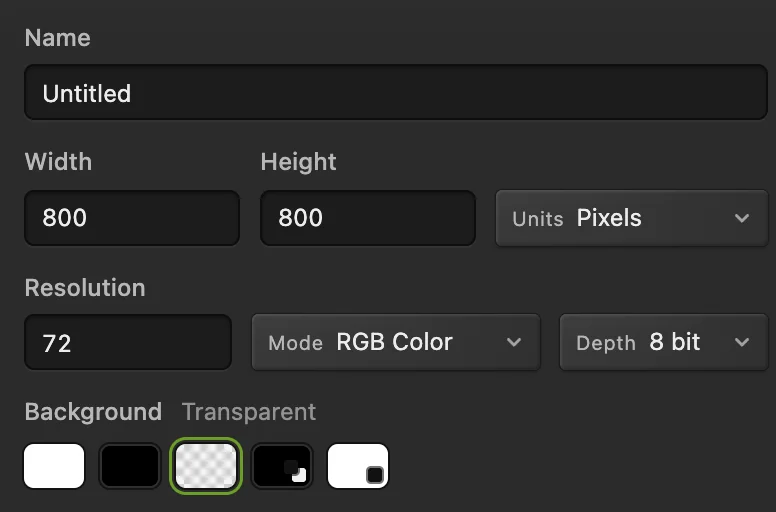
800 × 800 px with a transparent background. Draw a circle
Press U for the Shape tool. On the options bar (the strip under the menus), choose Ellipse in the Shape list; Mode should say Shape. Hold Shift or ⇧ and drag across most of the canvas: a black circle appears on a new layer called Shape. New shapes are filled with the foreground color.

Shape: Ellipse. Set its exact size, position and color
With the circle selected, the Properties panel shows its live settings. Type 100 for X (px) and Y (px), and 600 for Width (px) and Height (px), pressing Tab after each: the circle is now centered with a 100 px margin.
Further down, under Fill, click the color swatch, type 2E7D5B in the hex field and click OK. The circle turns green.
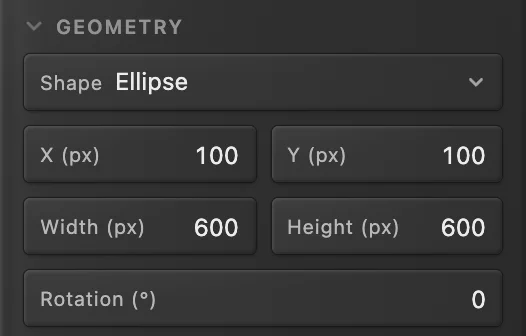
Exact position and size. 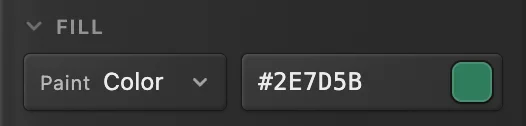
The fill color, #2E7D5B. Draw a white star with rounded points
Press D and then X, so white is the foreground color. Choose Star in the options bar’s Shape list and set Points 5, Inner radius 50 and Corner radius 24. Hold Shift or ⇧ and drag from about a quarter of the way into the circle to three quarters: a white star with soft points, on its own layer. To place it exactly, type 250 for X (px) and Y (px) and 300 for Width (px) and Height (px) in Properties.

Points 5, Inner radius 50%, Corner radius 24 px. 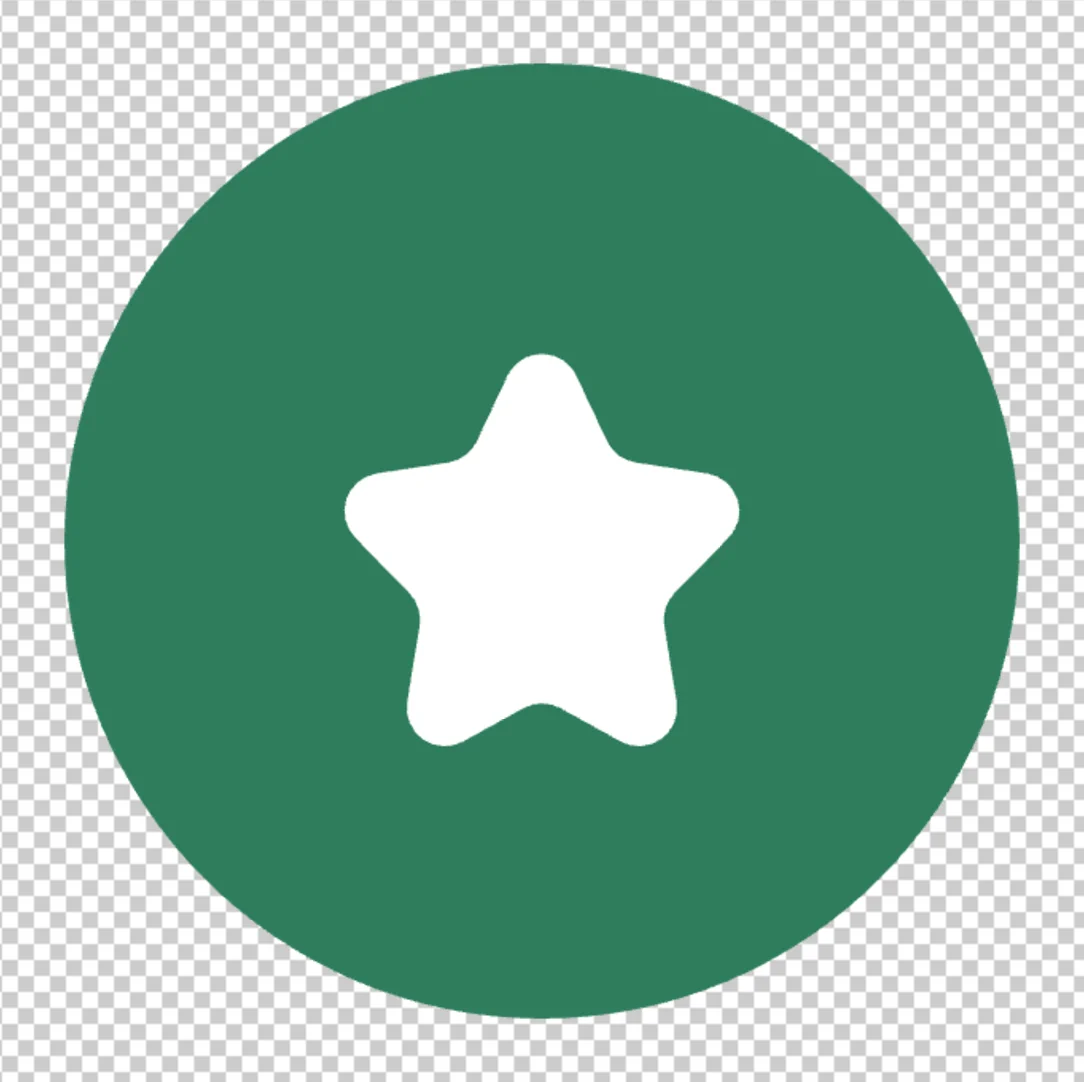
The star on the circle. Change the star later
Shapes stay live. With the star’s layer selected, type 6 for Points in the Properties panel and press Tab: the star redraws with six points, at the same size and with the same rounded corners. Width (px) and Radius (px) (the corner radius) work the same way.
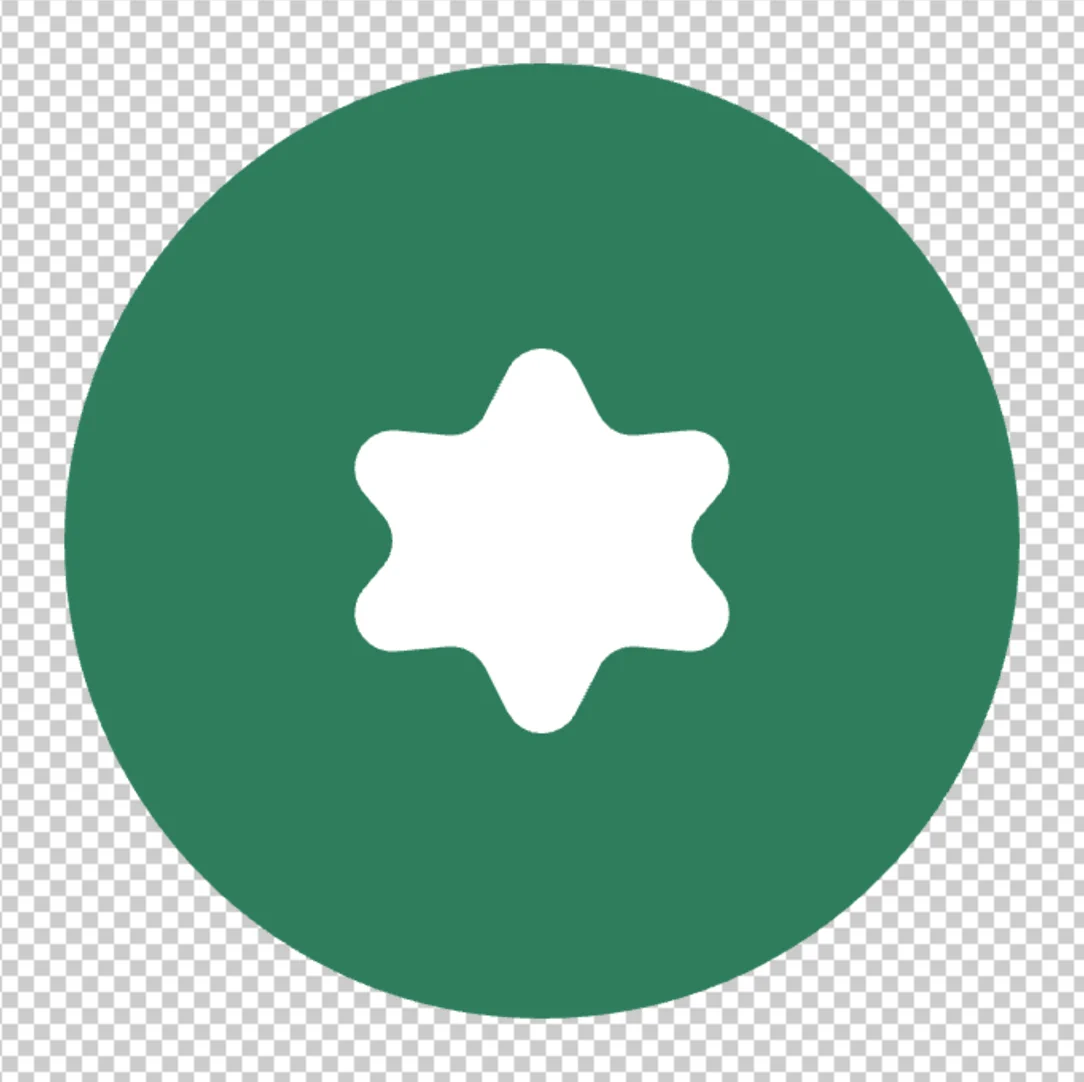
Points: 6. Add a white ring
Click the circle’s layer (Shape) in the Layers panel. In Properties, under Stroke, set Paint to Color, click the swatch and choose white (FFFFFF). Under Stroke geometry, type 16 for Width (px) and set Position to Inside, so the ring stays within the 600 px circle.
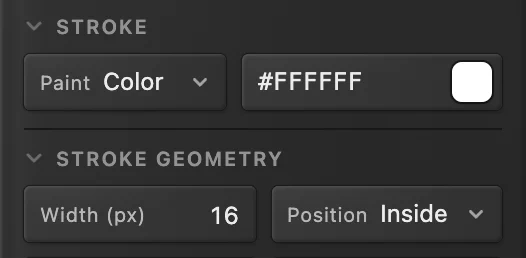
A 16 px white stroke, inside the edge. 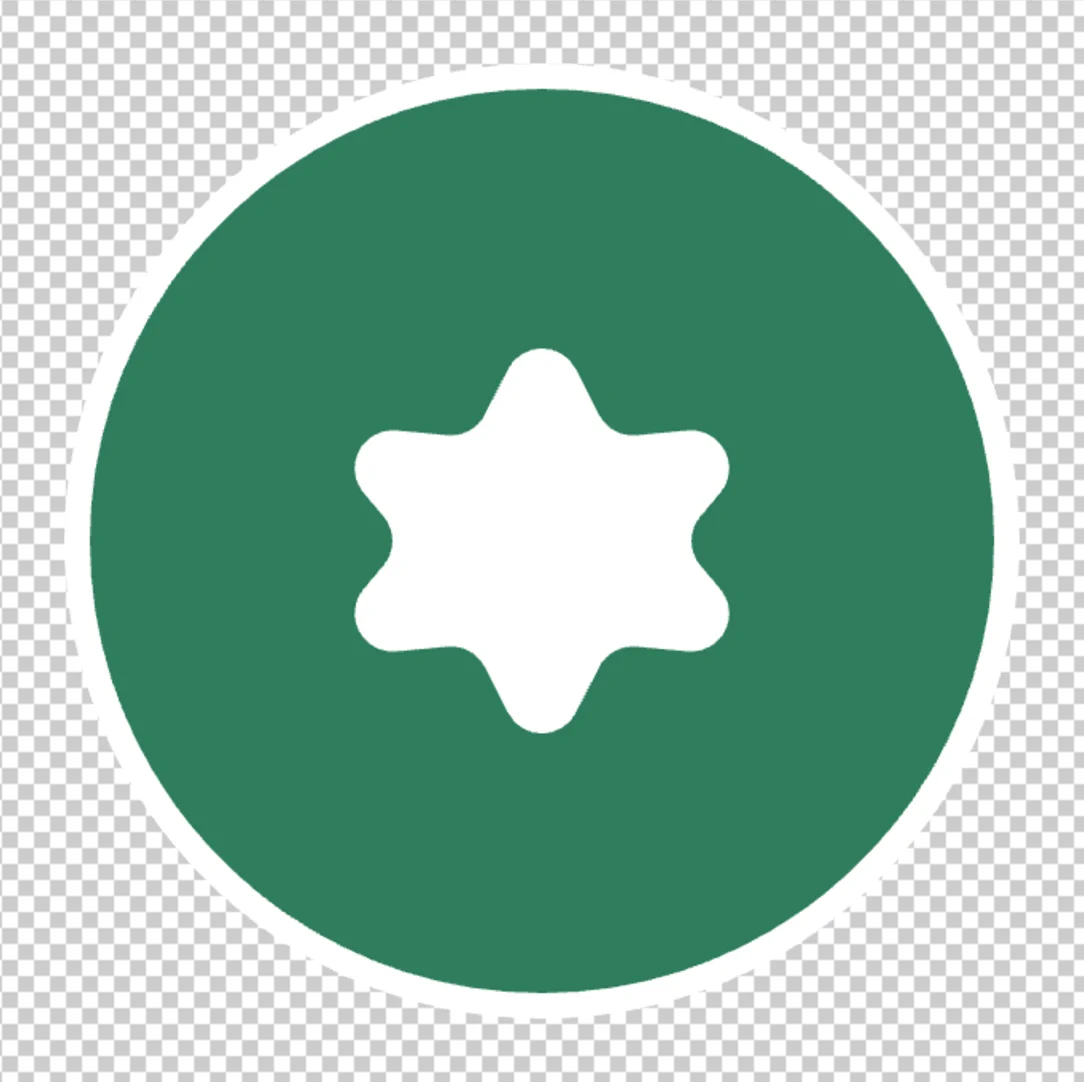
The finished badge. Export as SVG and save the project
First hide the empty Background layer with its eye icon in the Layers panel: otherwise the SVG gets a tiny transparent image for it, which other apps import as an extra object. Then choose and click Export. The SVG keeps each shape as a vector path, so it stays sharp at any size on a website or in another design app, and the background stays transparent.
To keep the shapes editable in Lil Cactus, also choose (Ctrl+Shift+S or ⇧⌘S); after that, updates that file. keeps them as vector shape layers, but when the PSD is opened again they are editable paths without their live corner and point settings.
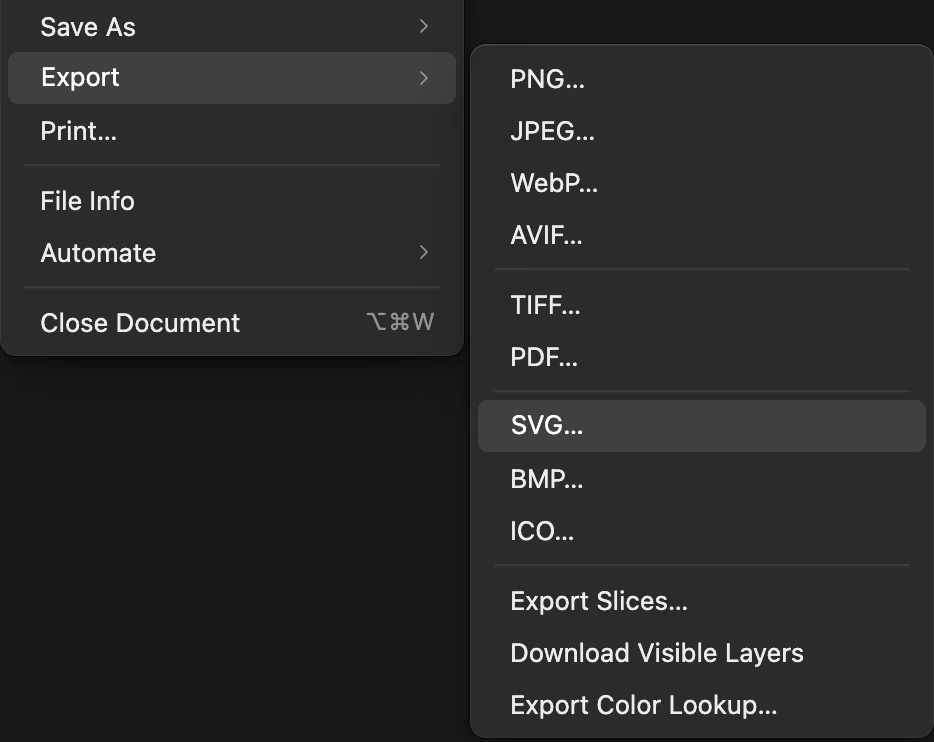
Shapes and options
- Rectangle: Corner radius on the options bar rounds its corners, for buttons and cards.
- Line: drag from end to end, then set its stroke color, width and Line ends (flat, round or square) in Properties. A new line is stroked in the foreground color; if it doesn’t show, that color matches the document: pick another stroke color there.
- Polygon and Star: Sides or Points, and for a star the Inner radius, which sets how deep the points go.
Mode on the options bar decides what a drag makes: a shape layer (Shape), a path you can turn into a selection or a stroke (Path), or paint on the current layer (Pixels), which is no longer editable as a shape.
Combine and reshape shapes
To cut one shape out of another, select the shape layer and set Operation on the options bar to Subtract before you draw: the new shape becomes a hole in the selected one, in the same layer. Unite adds to it, Intersect keeps only the overlap and Exclude keeps everything but the overlap. Set Operation back to New layer for separate shapes.
To drag individual points, right-click the pen button in the toolbar, choose Direct Selection and drag a point of the selected shape. A combined or reshaped shape becomes a free path: its Shape list in Properties says Editable path, and it no longer has live corner or point settings. See how to use the Pen tool.
What an SVG export keeps
- Shape layers, with color, linear, radial and reflected gradient fills, strokes and dashes, become vector paths. A shape with an Angle or Diamond gradient becomes an image.
- Text becomes vector letter outlines where the font allows it.
- Photos, layer styles such as drop shadows and masks become an image for that layer only.
- A visible layer with a blend mode other than Normal, a clipping mask or an adjustment layer turns the whole SVG into one image, with no vectors. So does a Lab or Grayscale document, or one with a color profile other than the default that has text, transparency or gradients. The export dialog says so before you export.
For a pure vector file, keep the design to shape layers and plain text in Normal mode, and hide empty layers.
Fix common problems
The shape came out black
The foreground color was black. Change the fill in Properties, or set the foreground color before you draw.
My new shape cut a hole in the old one
Operation on the options bar is set to Subtract. Undo with (Ctrl+Z or ⌘Z), set it to New layer and draw again.
The circle is an oval
Type the same Width (px) and Height (px) in Properties.
Coming from another editor
- Photoshop
- The shape tools (U) and the Properties panel’s live shape settings.
Shapes and vector graphics: questions and answers
What is the difference between a shape layer and a pixel layer?
A shape layer stores the shape as a description, so in Lil Cactus you can resize it, round its corners or recolor it at any time without losing sharpness. A pixel layer stores dots of color, which blur when enlarged.
How do I make a rounded rectangle?
In Lil Cactus, choose the Shape tool (U), pick Rectangle on the options bar, type a Corner radius such as 20 px and drag. You can change the radius later in the Properties panel.
How do I export a logo with a transparent background?
In Lil Cactus, start from File › New… with the transparent background swatch and hide the empty Background layer (or hide a filled one), then choose File › Export › SVG… for a vector file or PNG… for an image.
Can I open the SVG in other apps?
Yes. The SVG from Lil Cactus is a standard file that opens in web browsers, design apps and website code, with each shape as a path. An Inside or Outside stroke looks the same, but in a design app it is a stroke twice as wide inside a clipping path.
How do I center a shape on the canvas?
In Lil Cactus, set X and Y in the Properties panel to half the canvas size minus half the shape’s size; for a 600 px circle on an 800 px canvas, that is 100 and 100.
Is my work uploaded when I draw shapes in Lil Cactus?
No. Everything runs in your browser, on your own device. When statistics are on, the editor records which tools are used, never the image, as the privacy policy explains.
Keep going
 How to use the Pen tool to cut out an objectPrecise, smooth outlines for cut-outs, selections and shapes.Intermediate · 8 min
 How to add a drop shadow and outline with layer stylesShadows, outlines, glows and overlays that stay editable.Beginner · 6 min
 How to use layers in a photo editorStack, reorder, fade, hide and group the parts of a picture.Beginner · 6 min