How to use layers in a photo editor
Quick answer
Layers are see-through sheets stacked on top of your photo: each holds one part of the picture, such as a line of text, a shape or another photo, and you can change it without touching the rest. In Lil Cactus the Layers panel on the right lists them, top layer first. Drag a layer up or down to change what covers what, set its Opacity to fade it, click its eye icon to hide it, choose to keep several together, and to combine one with the layer below. keeps the layers.
- Time
- 6 minutes
- Level
- Beginner
- You need
- A photo, and a computer with a mouse or trackpad
- Works with
- Any image you can open: JPEG, PNG, WebP, HEIC, PSD and more
Think of a layer as a sheet of clear film. Your photo is the bottom sheet. Anything you add, such as a word, a shape or another picture, goes on a new sheet above it. Where a sheet is empty you see through to the sheets below; where it has something on it, it covers them. The finished picture is what you see looking down through the whole stack.
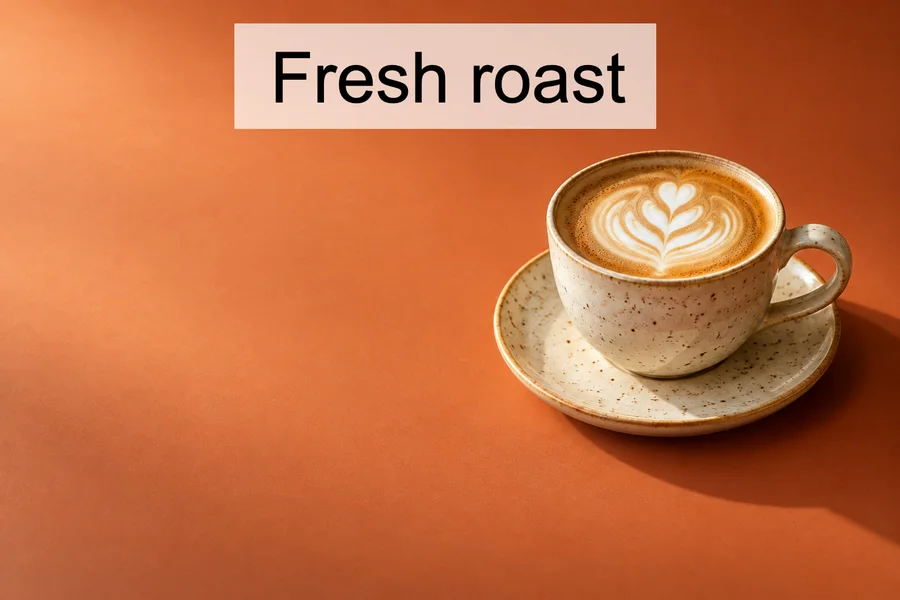
Because each part lives on its own sheet, you can move, fade, recolor or delete it later without repainting anything else. In this tutorial you build a small coffee ad with three layers: the photo, a line of text and a white band.
Learn layers in eight steps
Open the photo
Go to lilcactus.app and choose (Ctrl+O or ⌘O), or drag the photo onto the window. To follow along exactly, open the sample photo from this page.
The Layers panel on the right now shows one layer, Background: your photo. It is an ordinary layer with a name, a small picture of its contents (the thumbnail) and an eye icon.

One layer to start with: the photo. Add a text layer
Press T for the Text tool. On the options bar (the strip under the menus), type 120 into Size. Click in the empty orange space about a third of the way in from the left edge and a fifth of the way down (the click marks the bottom of the letters), and type Fresh roast.
To finish, press Ctrl+Enter or ⌘↩ or click the green tick just after Attach to Path on the options bar. Plain Enter or ↩ starts a new line; the cross beside the tick, or Esc, throws the text away.
A new layer called Text appears above Background, with a T as its thumbnail. The text sits on its own layer, so the photo underneath is unchanged.

The green tick finishes the text. 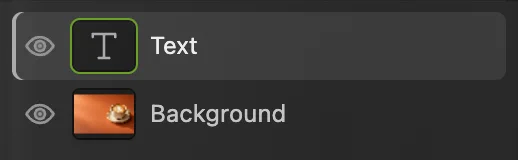
The new Text layer, above the photo. Draw a white box over the text
Press U for the Shape tool, then D and X: D resets the colors to black and white, and X swaps them, so white is in front. Drag a rectangle from just above and left of the text to just below and right of it.
The text disappears behind a white box. A new layer is added directly above the selected layer, and upper layers cover lower ones, so the Shape layer now hides the Text layer.

The new shape covers the text. 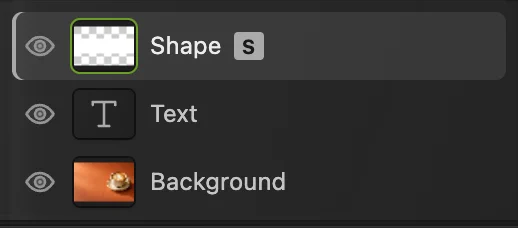
Shape is now the top layer. Move the box below the text
In the Layers panel, drag the Shape row down and let go over the lower half of the Text row. The text is back, now on top of the white box.
Tip With the layer selected, moves it down one place, and Bring Layer Forward moves it up. Their shortcuts are Ctrl+Alt+Shift+[ or ⌥⇧⌘[ and Ctrl+Alt+Shift+] or ⌥⇧⌘].
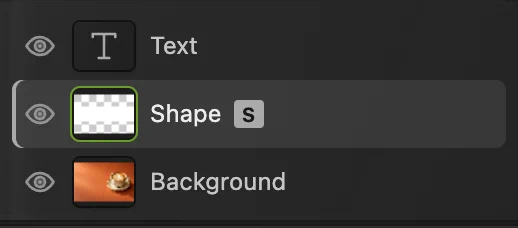
Shape is now below Text. 
The text shows again, on the white box. Make the box see-through
With Shape still selected, type 70 into Opacity at the top of the Layers panel and press Enter or ↩. The box lets 30% of the photo through and becomes a pale, see-through band. You can change it back at any time.
Now click the eye icon beside Shape: the box disappears, but the layer is still there. Click the dimmed, closed eye to show it again. Hiding a layer is the quickest way to compare a picture with and without one part.
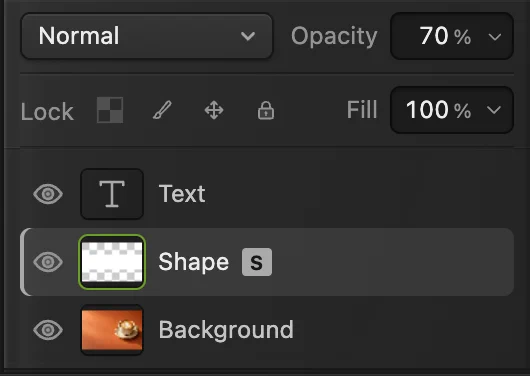
Opacity (ringed at the top) applies to the selected layer. The eye icon (ringed) hides or shows it. 
At 70% opacity the background shows through the box. 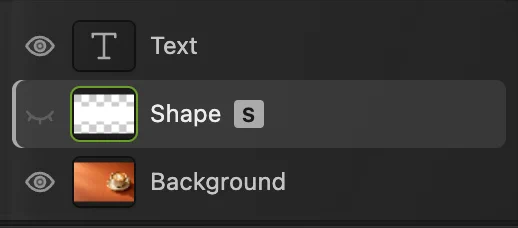
A hidden layer: its eye is closed and dimmed. 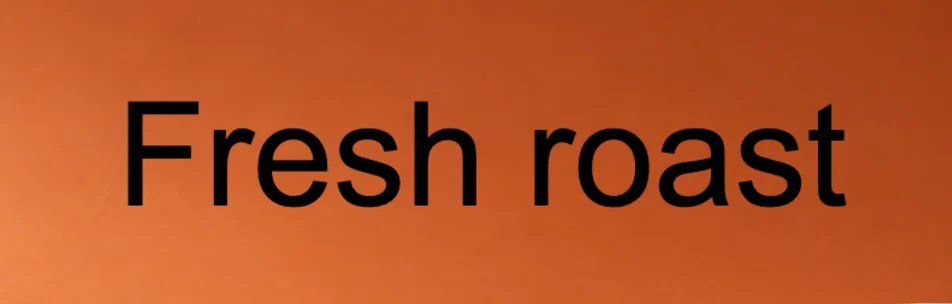
With Shape hidden, the band is gone; the layer is still there. Group the text and the box
Click the Text row, then hold Shift or ⇧ and click the Shape row, so both are selected. Choose .
The two layers now sit inside a Group, shown with a G badge and an arrow that opens or closes it. Click the group’s eye icon: the text and the band disappear together. Click it again to show them. To take the layers out of the group, select it and choose .
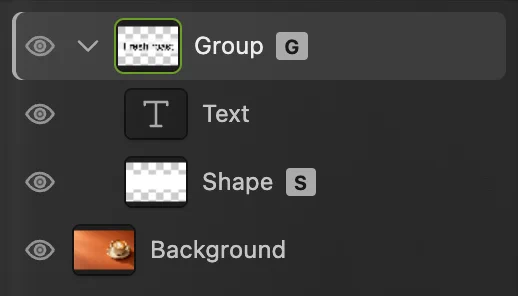
Text and Shape inside a group. 
With the group hidden, both layers disappear at once. Merge two layers, then undo
Merging combines a layer with the one below it into a single pixel layer. Click the Text row and choose . Text and Shape become one layer, still called Shape, with no T thumbnail or S badge: the words are now pixels and can’t be retyped.
That is why merging is usually the last thing you do. Press Ctrl+Z or ⌘Z to undo it, so both layers stay editable.
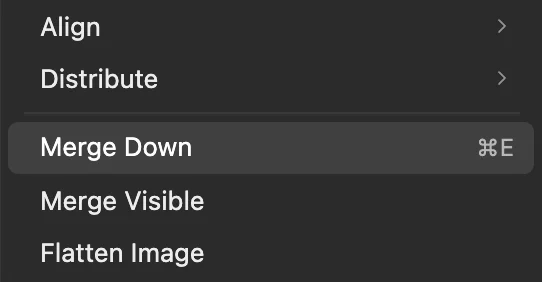
sits just above Merge Visible (all visible layers) and Flatten Image (every layer). 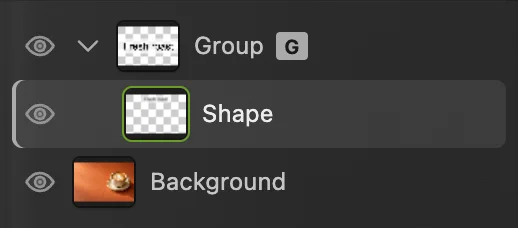
After Merge Down: one pixel layer instead of two. Save with the layers kept
To keep every layer editable, choose (Ctrl+Shift+S or ⇧⌘S), or to open the file in other editors. After that, (Ctrl+S or ⌘S) updates that project or PSD.
To share the design, choose or PNG… and click Export. The exported file combines all visible layers; your document keeps its layers. Until you save a project or PSD, writes the combined picture back into the JPEG you opened. The first Save of a JPEG, including the sample from this page, opens the Save Image dialog.
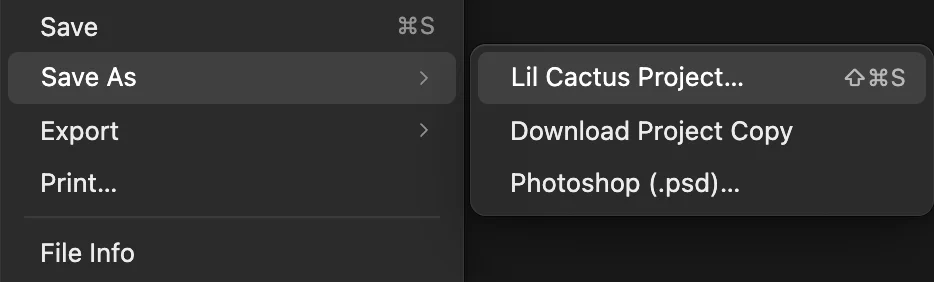
Lil Cactus Project… is the first item in the Save As submenu.
The badges: kinds of layers
- T thumbnail, a text layer: stays editable. Choose the Text tool and click the words to change them, their font or size.
- S badge, a shape layer: drawn from outlines, so it stays sharp at any size; change its color and corners in the Properties panel.
- G badge, a group: holds other layers.
- No badge, a pixel layer: a photo or painting, like Background or the merged layer in step 7. The Brush, Eraser and filters work on these. adds an empty one.
- Half-circle thumbnail, an adjustment layer: changes the colors of everything below it. See adjustment layers.
Select several layers
- Click a row to select one layer.
- Shift or ⇧-click another row to select both and every layer between them.
- Ctrl or ⌘-click rows to add or remove single layers.
With several layers selected you can group them, delete them, or align them with .
Merge and flatten
- merges the selected layer into the one below it (step 7). It merges directly unless either layer is a group, an adjustment layer or a Smart Object, or has a layer style or a non-Normal blend mode, or when the lower layer is clipped or another layer is clipped to the selected one. A layer clipped to the one below merges directly. In those cases, for example with the Group selected, it opens the Merge Layer Appearance dialog, which lists what becomes pixels; click Merge to Pixels to go ahead.
- merges every visible layer.
- turns the whole document into one layer and throws away hidden layers.
Fix common problems
My edit changed the wrong layer
Edits go to the highlighted row in the Layers panel. Undo with Ctrl+Z or ⌘Z, click the layer you meant, and try again.
I can’t paint on this layer: it isn’t made of pixels
Text, shape, adjustment and fill layers, Smart Objects and groups can’t be painted on; the editor’s message says which it is. Add a new layer with and paint there. For text, shape and fill layers you can also choose to turn the layer into pixels, after which text can’t be retyped.
I can’t paint on this layer: a lock is on
Turn off the padlock or Lock image pixels in the Lock row of the Layers panel. (Lock transparency is grayed out on layers that aren’t made of pixels.)
Merge Down is grayed out
The selected layer is the bottom one in its group, or it is Background, so there is nothing below to merge into: select the layer above instead. It is also grayed out when the padlock in the Lock row is on for either layer or for a group around them.
Something I added has disappeared
Check its eye icon, its Opacity, and whether a layer above it covers it. Drag it to the top of the list to see it again.
What to do next
- Hide part of a layer without deleting it: layer masks.
- Add a shadow or outline to the text: layer styles.
- Mix layers in other ways than covering: blend modes.
- Work on a layered file from another editor: open a PSD file.
- Cut a subject out of its background onto its own layer: remove the background from a photo.
Coming from another editor
- Photoshop
- Layer › Arrange › Send Backward, Layer › Group Layers and Layer › Merge Down.
- GIMP
- The Layers dialog; Layer › Stack › Lower Layer moves a layer down, and the New Layer Group button makes a group.
Layers: questions and answers
How do I copy a layer into another image?
In Lil Cactus, open both images, select the layer and choose Layer › Duplicate Into Other Document. With exactly two images open it goes into the other one; with more open, it goes into the first other open image, so close the ones you don’t need first.
How do I rename a layer in Lil Cactus?
In Lil Cactus, double-click the layer’s name in the Layers panel, type the new name and press Enter.
How do I stop a layer from moving by accident?
In Lil Cactus, select the layer and click Lock position in the Lock row of the Layers panel. The padlock beside it locks the layer completely.
How do I select a layer by clicking it in the picture?
In Lil Cactus, choose the Move tool and set Auto-select on the options bar to Layer. Clicking part of the picture then selects the layer it belongs to.
Does a JPEG keep layers?
No. JPEG and PNG files hold one flat picture. In Lil Cactus, save with File › Save As › Lil Cactus Project… or Photoshop (.psd)… to keep the layers.
Is my photo uploaded when I work with layers in Lil Cactus?
No. The editor runs in your browser and the photo stays on your device. When statistics are on, the editor records which tools are used, never the image, as the privacy policy explains.
Keep going
 How to use layer masksHide part of a layer without deleting it, and bring it back any time.Beginner · 5 min
 How to add a drop shadow and outline with layer stylesShadows, outlines, glows and overlays that stay editable.Beginner · 6 min
 Blend modes explained, with practical usesHow a layer mixes with the layers below it, and when to use each mode.Beginner · 6 min