How to use the Pen tool to cut out an object
Quick answer
Choose the Curvature Pen from the pen tools in the toolbar and click points around the object: each click adds a point and the line bends smoothly through them; Alt or ⌥-click makes a sharp corner. Click the first point to close the path. Then click Make Selection on the options bar, and Add layer mask in the Layers panel to hide everything outside the outline.
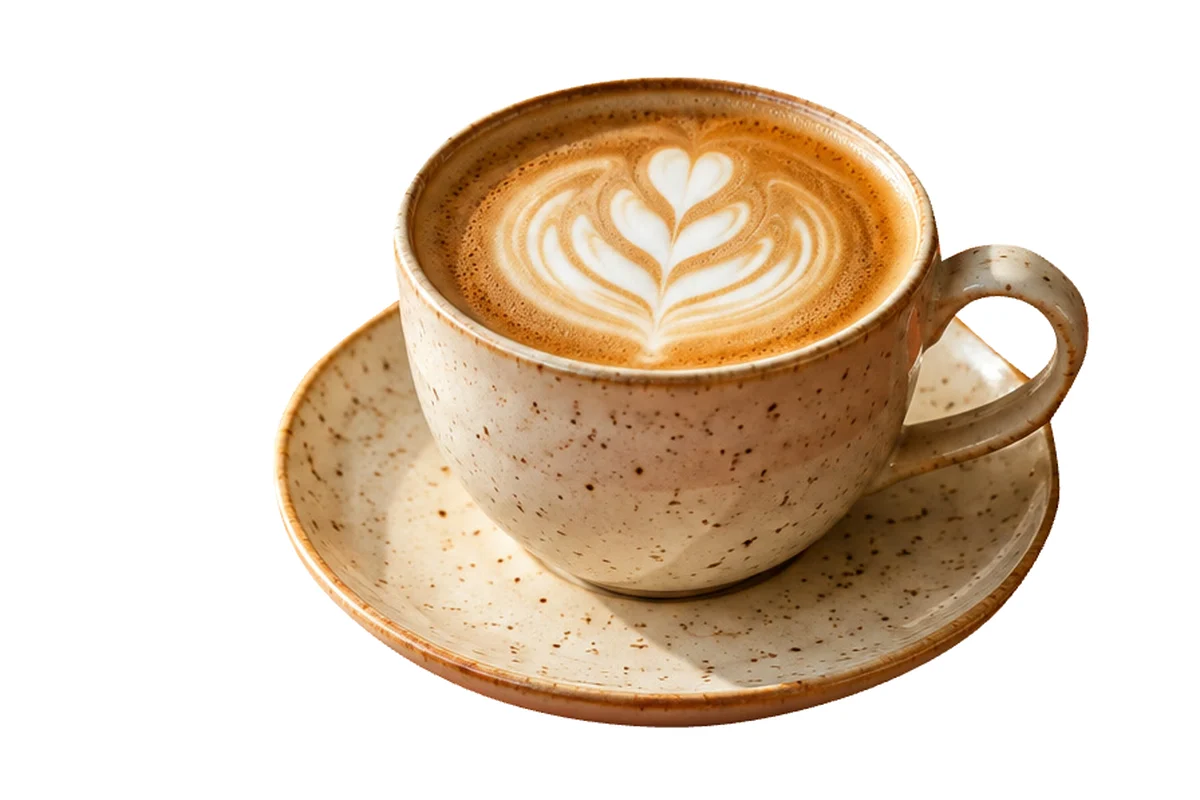
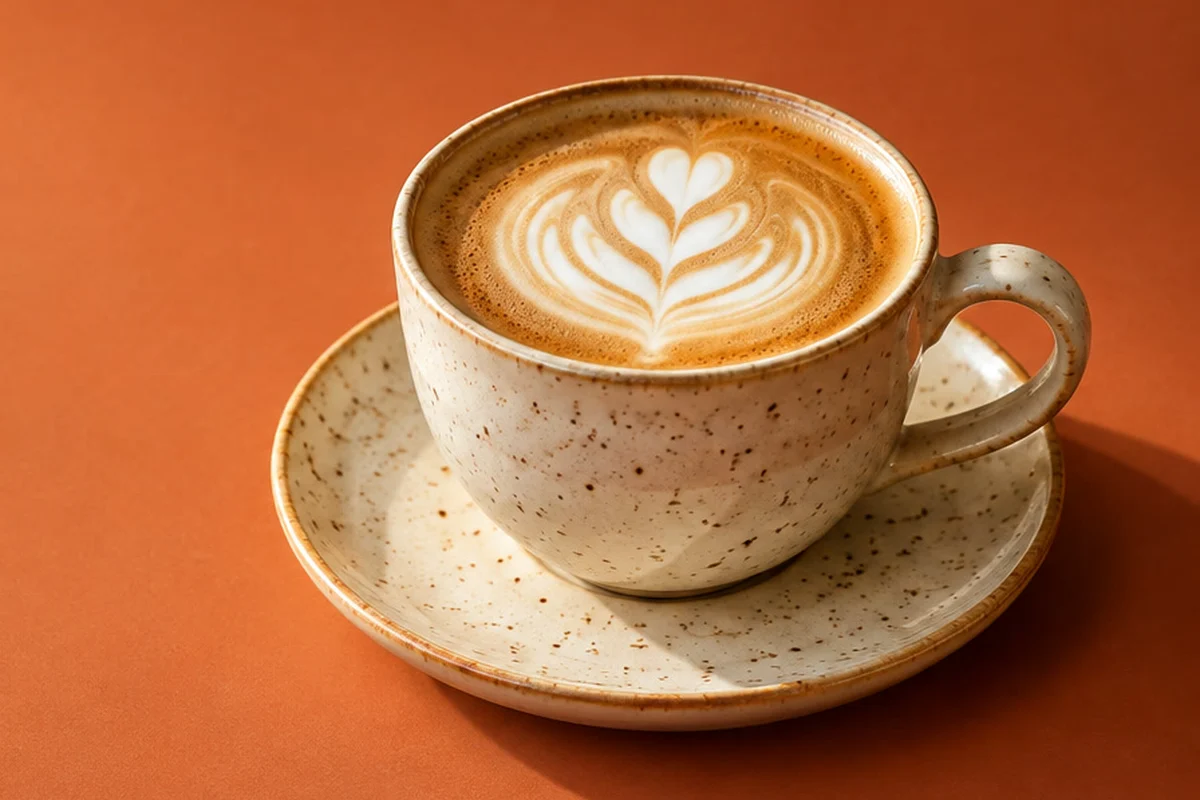
- Time
- 8 minutes
- Level
- Intermediate
- You need
- An object with clean, hard edges: products, cars, furniture, logos
- Works with
- Any 8- or 16-bit document: JPEG, PNG, WebP, HEIC, PSD, RAW and more
A path is an outline made of points joined by straight or curved lines. Unlike a selection it isn’t made of pixels: you can move a point at any time and the outline redraws. That makes the pen tools the most precise way to cut out an object with hard, smooth edges, such as a cup, a phone or a car. For hair, fur and soft edges, see how to select part of a photo.
In this tutorial you trace the cup and saucer, cut out the gap inside the handle, and turn the outline into a layer mask.
Cut out an object with the Pen tool in seven steps
Open the photo
Go to lilcactus.app and choose (Ctrl+O or ⌘O), or drag the photo onto the window. To follow along exactly, open the sample photo from this page. Zoom in with if the edges look small; placing points is easier at 100% or more.
Choose the Curvature Pen
Right-click the pen button in the toolbar, or press and hold it, and choose Curvature Pen. On the options bar (the strip under the menus), check that Mode says Path: the pen then draws an outline, not a filled shape.
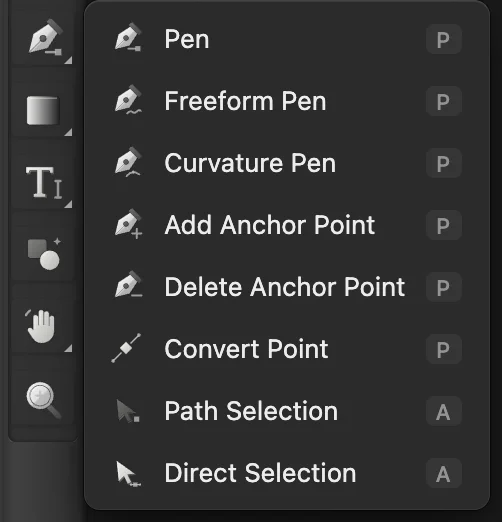
The pen tools. Curvature Pen is the easiest for curves. 
Mode: Path. Click points around the cup and saucer
Start at the left edge of the cup’s rim and click points clockwise around the outside, a pixel or two inside the edge: fewer on gentle curves, more where the edge bends. Along the front and right of the saucer, the brown band under its rim belongs to the saucer: put those points at the bottom of the band, where it meets the near-black shadow. Further left, where the shadow under the saucer turns brown, the edge is where the pale underside ends. Each click adds a smooth point, and the line curves through all of them. Where the outline turns sharply, hold Alt or ⌥ as you click to make a corner: where the top of the handle meets the cup, where the handle meets the saucer’s rim, and where the saucer’s rim meets the cup on the left.
If a point misses the edge, drag it onto the edge; zoom in to check, as in the close-up below. When you are back at the start, click the first point to close the path. About 22 points go around this cup.
Tip Placed a point by mistake? Press Delete to remove the last point you placed or dragged, or Esc to cancel the path you are drawing.
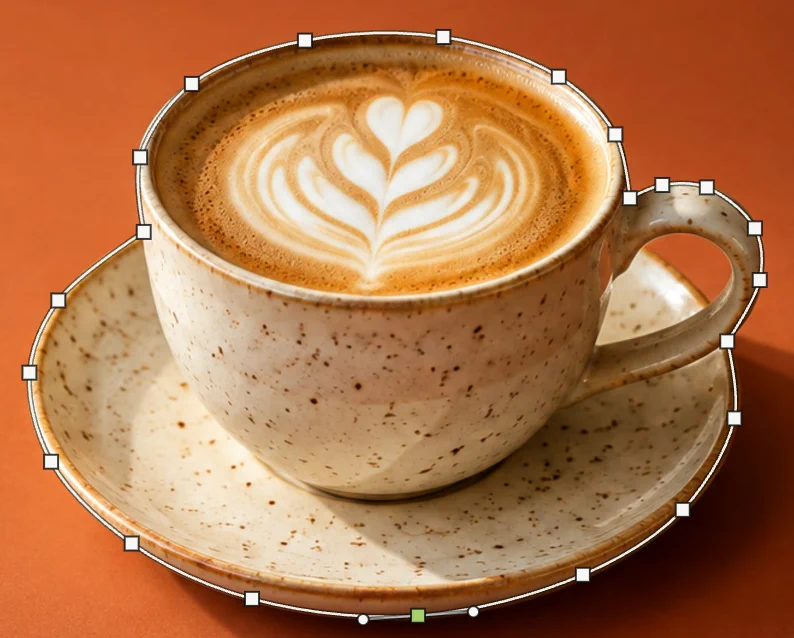
The closed path, with corners at the top of the handle, where the handle meets the saucer rim, and where the saucer rim meets the cup on the left. The circles beside the green point are its handles. 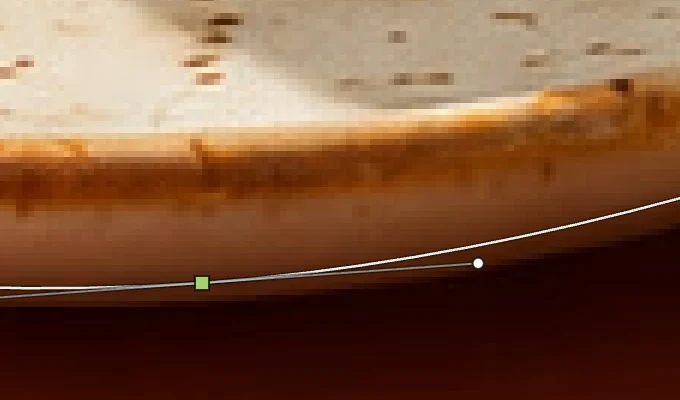
At 300%: the outline follows the bottom of the brown band. Cut out the gap inside the handle
The background shows through the handle, above the saucer. On the options bar, set Operation to Subtract. Zoom in to 200–300% with , so your clicks don’t land on the point you just placed. Then click points around that gap, a pixel or two into the handle and the saucer so the outline sits just outside the gap, with corners where the saucer meets the handle, and click the first point to close it. The new outline is cut out of the first one. Set Operation back to Unite afterward: the setting stays, and the next outline you draw would be cut out too.

Operation: Subtract. 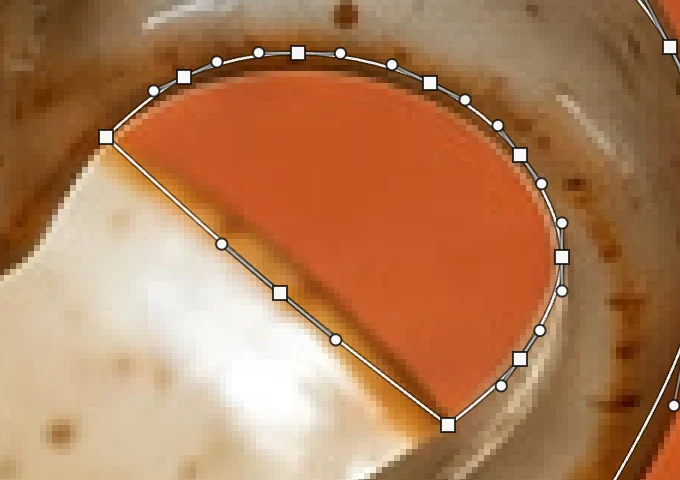
The second outline, around the gap in the handle. Turn the path into a layer mask
Click Make Selection on the options bar: a dotted selection runs along the path, around the cup and saucer and around the gap in the handle. Then click Add layer mask at the bottom of the Layers panel (the rectangle with a circle). The background disappears: the layer mask is white inside the selection and black outside. Choose to remove the dotted line. The photo itself is untouched, so you can still paint the mask to adjust the edge. See how to use layer masks.

Make Selection. 
The mask: white where the cup is. 
The cut-out. Save the path to use again
Your outline is a Work Path. Open the Paths panel (its tab is in the same group as Layers) and click the ✓ beside Work Path: it becomes Path 1, saved in the project or PSD. Double-click the name to rename it. Hover over its row and click the dotted-rectangle button to load it as a selection again at any time.

The ✓ saves the Work Path. 
Path 1, with its load-as-selection button. Save, or export the cut-out
To keep the layer, its mask and the saved path, choose (Ctrl+Shift+S or ⇧⌘S) or ; both keep saved paths. After that, updates that file.
For the cut-out on a transparent background, choose and click Export: a new file. A JPEG has no transparency, so into the JPEG you opened, or a JPEG export, puts white behind the cup. The first Save of a JPEG, including the sample, opens the Save Image dialog.
Which pen tool to use
- Curvature Pen: click points and the curves are worked out for you; Alt or ⌥-click for a corner, double-click a point to switch it between smooth and corner. The easiest way to start.
- Pen: click for a corner point, or drag as you place a point to pull out handles and set the curve yourself. More control, and the usual choice once you know it.
- Freeform Pen: drag like a pencil and Lil Cactus fits a smooth path to your stroke; Tolerance on the options bar decides how closely it follows your hand. Finish near the start to close it.
Change a path afterward
- Right-click the pen button in the toolbar and choose Direct Selection to drag single points or their handles. Path Selection, in the same menu, moves the whole path.
- Add Anchor Point adds a point where you click on the line; Delete Anchor Point removes the point you click.
- Convert Point turns a curve point into a corner when you click it, and a corner into a curve when you drag it.
- The More path commands button (…) after Make Shape on the options bar has Finish Open Path, Close Path, Remove Last Point, Edit Points, Remove Path and Clear All Paths.
Paths, shapes and selections
- Shapes directly: set Mode to Shape before you start, and each closed outline becomes a filled shape layer.
- A selection to a path: make any selection, open the Paths panel and click the pen button at its bottom. Useful for smoothing a rough selection, or for keeping it as a path.
Fix common problems
Make Selection is grayed out, or missing
Grayed out: there is no path yet. Missing from the options bar: Mode is set to Shape or Pixels; set it to Path.
The outline cuts in or bulges between two points
The points are too far apart for that curve. With the Curvature Pen, after closing the path, click the line between them to add a point, and drag it onto the edge. The Curvature Pen smooths the neighboring stretch again, so if it moves, add a point there too.
The outline is lumpy
Too many points. Smooth curves need few: delete extra points with Delete Anchor Point, and drag the rest onto the edge.
A thin line of background shows around the object
The points sit on the edge or just outside it. Drag them a pixel or two inside the edge with Direct Selection, then choose , choose the Curvature Pen again, click Make Selection and click Add layer mask again.
My new outline changed or cut into my old path
Operation was set to Unite or Subtract, so the new outline was combined with the selected path. Choose (Ctrl+Z or ⌘Z), set Operation to New path and draw again.
Coming from another editor
- Photoshop
- The Pen, Freeform Pen and Curvature Pen tools (P), Make Selection on the options bar, and the Paths panel.
- GIMP
- The Paths tool (B), then Select › From Path.
The Pen tool: questions and answers
Is the Pen tool better than Select Subject for cutting out?
Yes, for hard, smooth edges such as products: a Pen path follows the edge exactly and can be adjusted point by point. For hair, fur or a busy outline, Select Subject in Lil Cactus is faster and handles soft edges better.
Can I turn a path into a shape I can fill with color?
Yes. In Lil Cactus, with the path drawn and the Curvature Pen or Pen chosen, click Make Shape on the options bar: it becomes a shape layer filled with the foreground color, holes included, and stays editable.
Can I edit the path after making the selection?
Yes. In Lil Cactus the path stays in the Paths panel. Click it, adjust its points with the Direct Selection tool, then choose the Curvature Pen again and click Make Selection for an updated selection.
Are paths saved in PSD files?
Yes. In Lil Cactus, File › Save As › Photoshop (.psd)… keeps saved paths and the Work Path, and paths in PSD files open in the Paths panel.
How do I make the cut-out edge softer?
In Lil Cactus, after Make Selection, choose Select › Modify › Feather… and enter 1 or 2 px before adding the layer mask. A slight feather stops a cut-out looking pasted on.
Is my photo uploaded when I use the Pen tool in Lil Cactus?
No. Everything runs in your browser, on your own device. When statistics are on, the editor records which tools are used, never the image, as the privacy policy explains.
Keep going
 How to make a selection in a photo editorPick the right tool, add and subtract, feather and save a selection.Beginner · 6 min
 How to use layer masksHide part of a layer without deleting it, and bring it back any time.Beginner · 5 min
 How to remove the background from a photoSelect Subject, a layer mask and a transparent PNG.Beginner · 3 min