How to add a drop shadow and outline with layer styles
Quick answer
Select the layer and click Layer style (the fx button at the bottom of the Layers panel), or choose Click an effect in the list and set it: for white text on a pale photo, Drop Shadow at 70% Opacity, 4 px Distance and 10 px Size, plus the default 3 px black Stroke. Click OK. and Paste Layer Style put the same look on another layer.
- Time
- 6 minutes
- Level
- Beginner
- You need
- A text, shape or pixel layer that should stand out
- Works with
- Text, shapes, pixel layers and Smart Objects, in JPEG, PNG, PSD and other documents
A layer style is a set of effects drawn around or on top of a layer: drop shadows, outlines (strokes), glows, color and gradient overlays, bevels. The effects are settings, not pixels, so they follow the layer’s shape: edit the text and the outline is redrawn around the new letters.
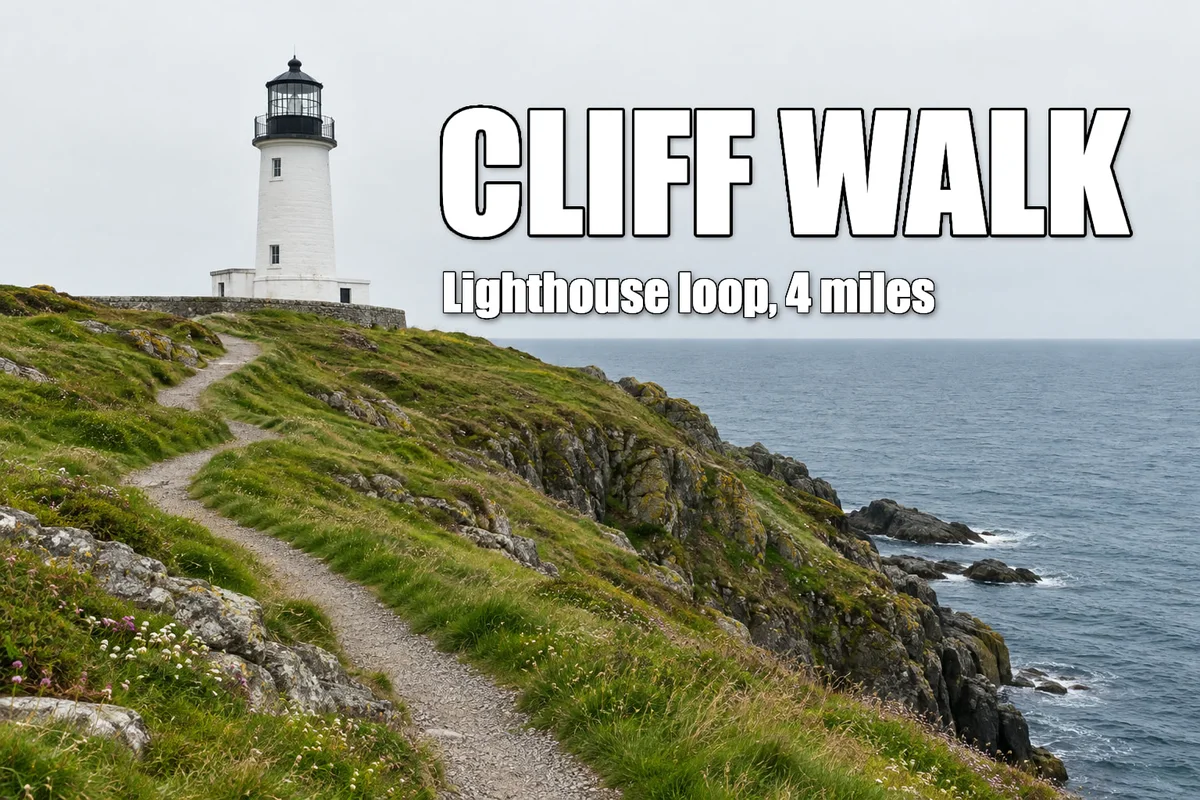
In this tutorial white text over a pale sky is hard to read. A soft shadow and a thin outline fix that; then you give a second line the same style with two menu commands.
Add a layer style in seven steps
Open the photo
Go to lilcactus.app and choose (Ctrl+O or ⌘O), or drag the photo onto the window. To follow along exactly, open the sample photo from this page.
Type a white title
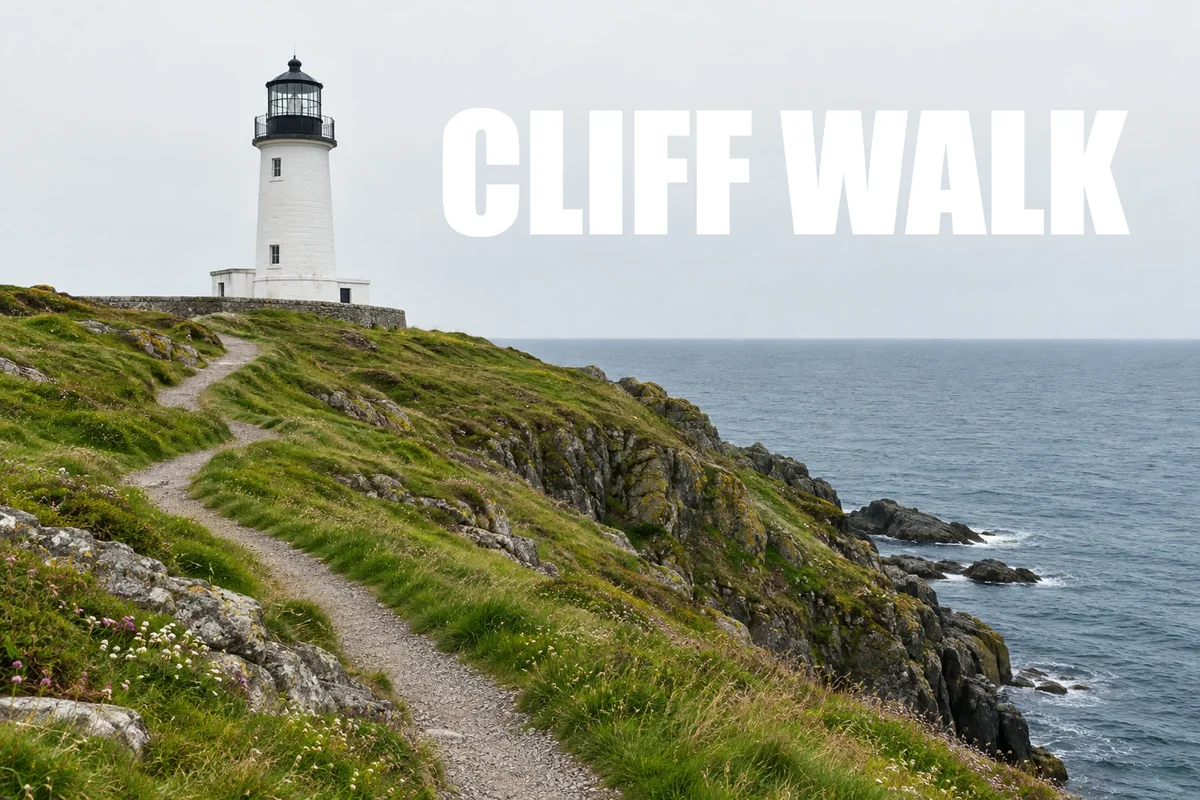
Press D and then X, so white is your foreground color (the top swatch at the bottom of the toolbar). Press T for the Text tool. On the options bar (the strip under the menus), choose Impact in the Font list and type 200 for Size. Click in the sky just right of the lighthouse, about a third of the way across and a little under a third of the way down (the click marks the bottom of the letters), type CLIFF WALK and press Ctrl+Enter or ⌘↩. If Impact isn’t in the list (it isn’t installed on every computer), choose Arial and click the B (Bold) button on the options bar.
White on a pale sky has almost no contrast: the letters barely separate from the clouds.
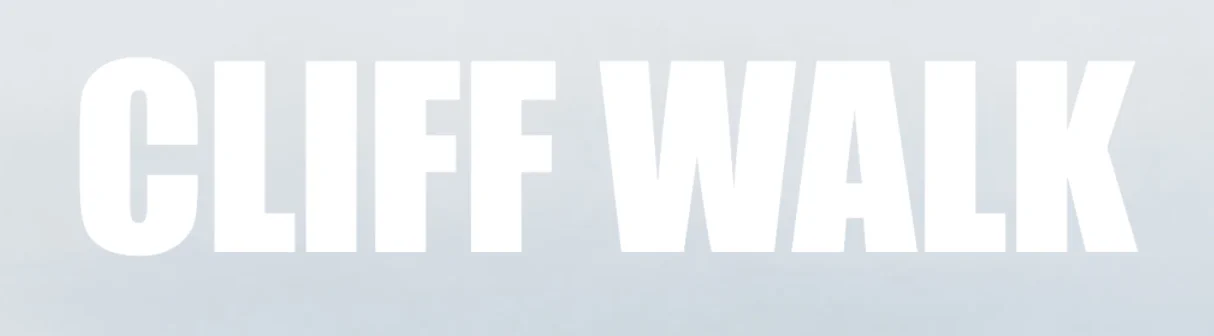
Plain white text on the pale sky. Add a drop shadow
Click Layer style, the fx button at the bottom of the Layers panel. The Layer Style dialog lists ten effects on the left. Click Drop Shadow: it is ticked and its settings appear on the right.
Type 70 for Opacity, 4 for Distance and 10 for Size. Press Tab after each value (or drag the sliders): the canvas updates while the dialog is open, and a soft dark edge now lifts the letters off the sky. Distance moves the shadow away from the letters, in the direction of Angle; Size softens it.
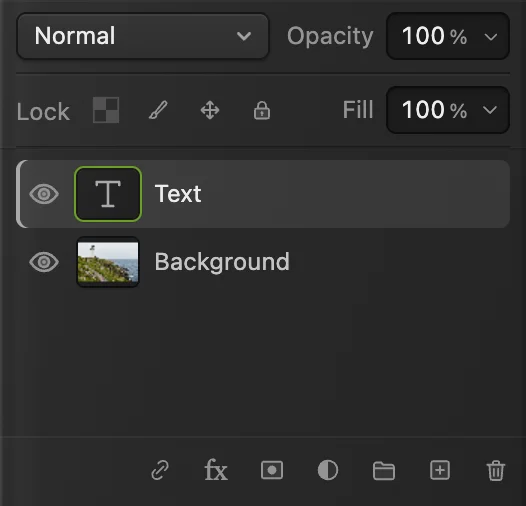
The fx button opens Layer Style. 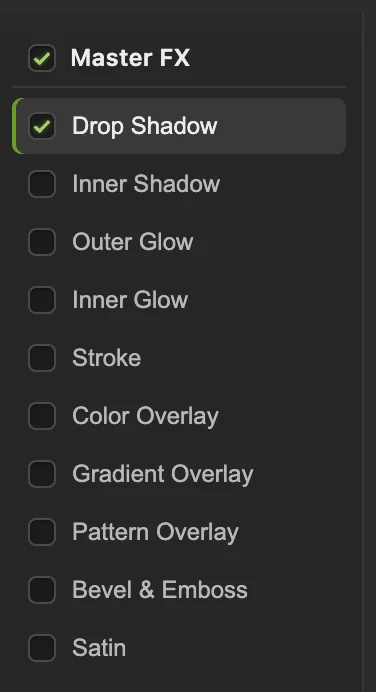
Click an effect’s name to add it. 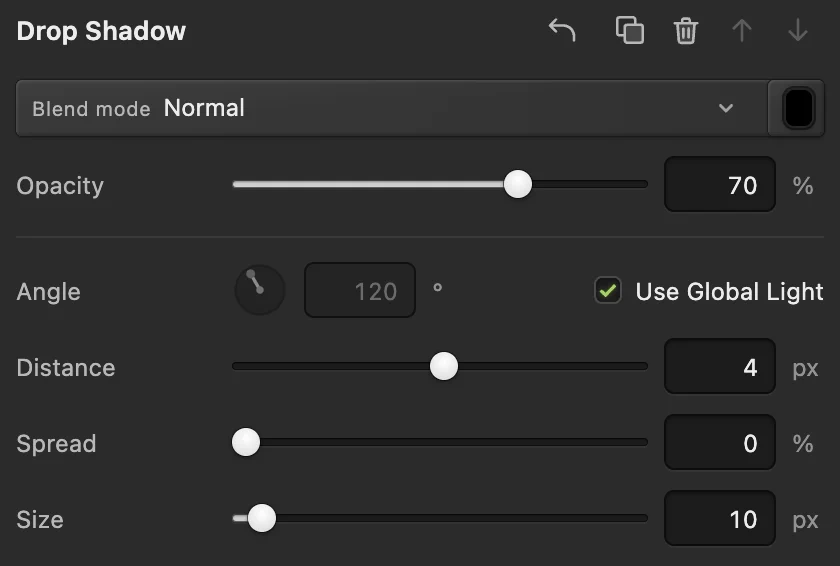
Opacity 70, Distance 4, Size 10. Add a stroke, then click OK
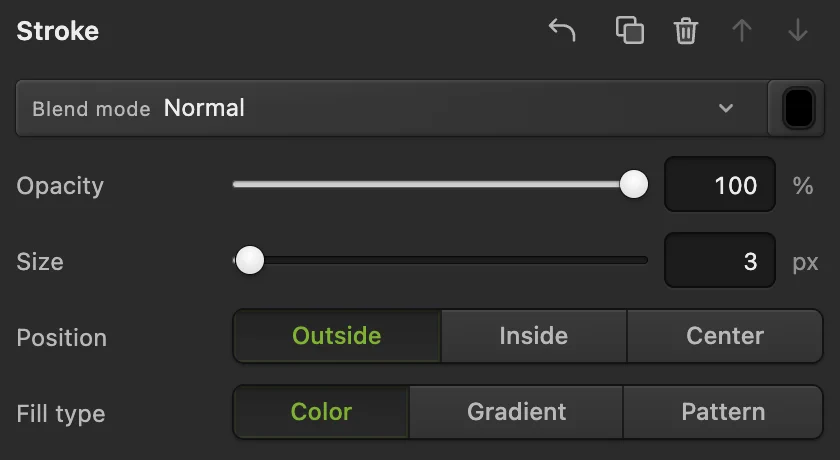
Click Stroke in the list. It starts as a 3 px black outline outside the letters, which is what this title needs, so keep it. Click OK.
The title now reads clearly on the pale sky.
The stroke as it starts: 3 px, black, outside. 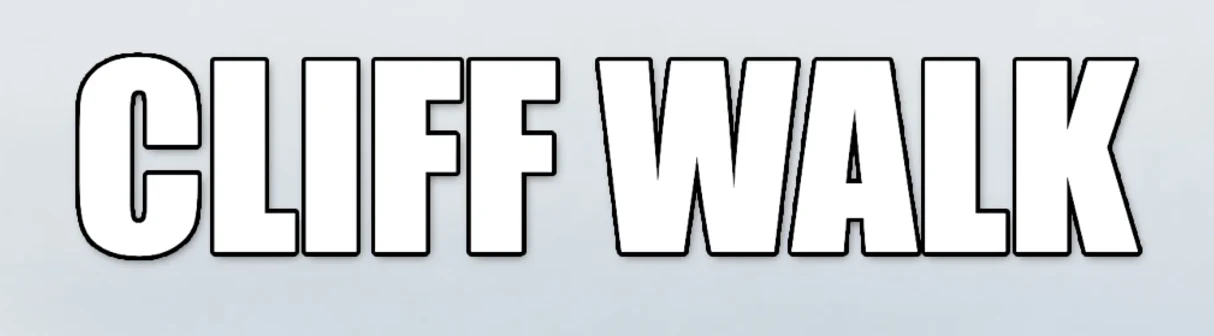
The same title with a drop shadow and a stroke. Change the style later
The text layer now has an fx badge in the Layers panel. Click the badge to open the Layer Style dialog again with the current settings. Untick an effect to switch it off without losing its settings, or untick Master FX to switch off every effect at once.
The fx badge marks a layer style and reopens it. Copy the style to a second line
Click the Background row first: while a text layer is selected, the options bar changes that layer, so typing 64 for Size would shrink the title. With the Text tool, type 64 for Size, click under the title’s left edge, about half the title’s height below its letters (again, the click marks the bottom of the letters), type Lighthouse loop, 4 miles and press Ctrl+Enter or ⌘↩.
Select the title’s layer (Text) and choose . Select the new layer (Text 2) and choose . The subtitle gets the same shadow and outline.
Sizes are copied in pixels, so the 3 px stroke fills the gaps between the small letters. Click the fx badge on Text 2, click Stroke, type 1 for Size and click OK.
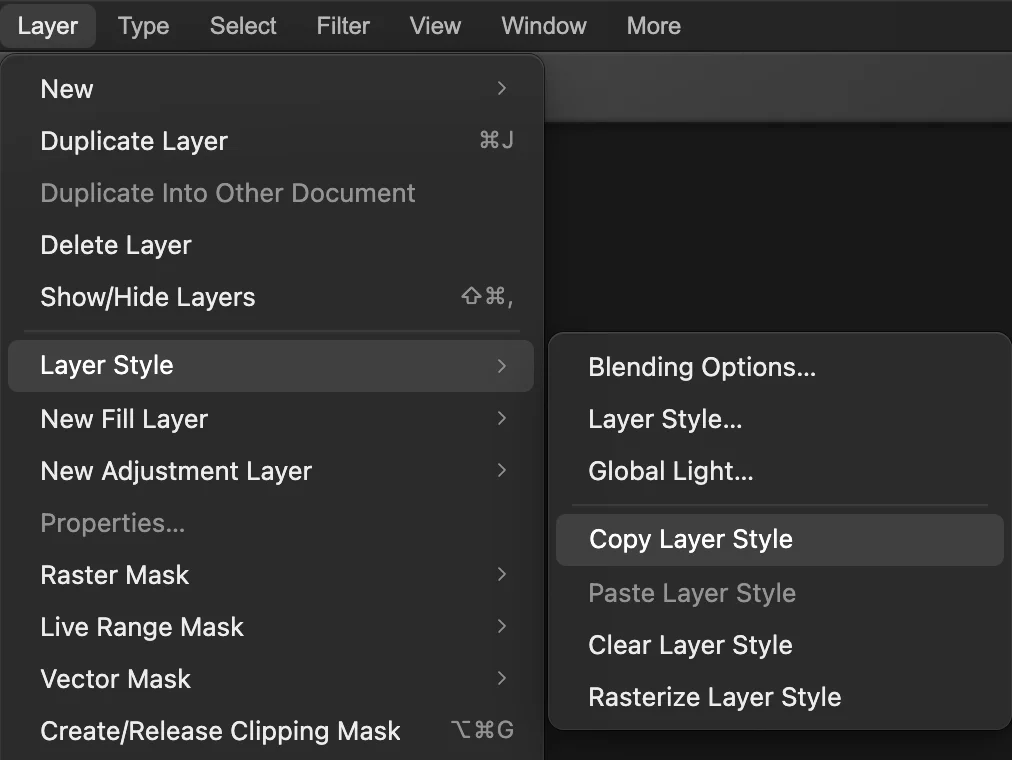
Paste Layer Style stays grayed until you copy a style. 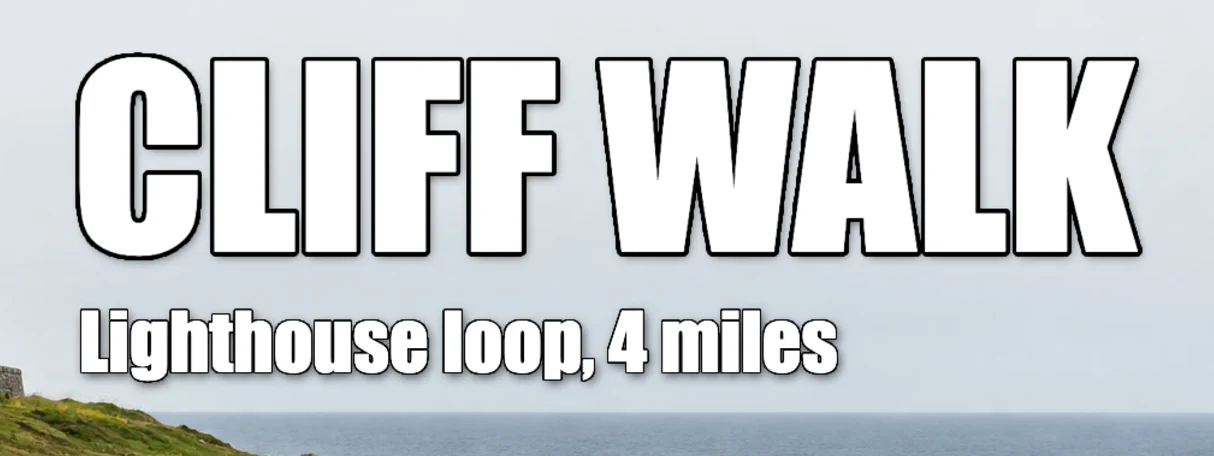
The subtitle with the pasted style and a 1 px stroke. Save, or export the picture
To keep the text and its style editable, choose (Ctrl+Shift+S or ⇧⌘S) or After that, updates that file.
To share the picture, choose and click Export: a new, flat image with the effects built in. Until you save a project or PSD, writes a flat picture back into the JPEG you opened; the first Save of a JPEG, including the sample, opens the Save Image dialog.
What each effect does
| Effect | Use it for |
|---|---|
| Drop Shadow | Lifting text or a cut-out off the background |
| Inner Shadow | Letters that look pressed into the surface |
| Outer Glow | A soft halo around the edge, for contrast without a hard line |
| Inner Glow | Light along the inside of the edge |
| Stroke | An outline in a color, gradient or pattern, outside, inside or centered on the edge |
| Color Overlay | Recoloring the layer without changing its pixels |
| Gradient Overlay | Gradient-filled text or shapes |
| Pattern Overlay | Filling the layer with a repeating pattern |
| Bevel & Emboss | Raised, three-dimensional edges |
| Satin | Soft, glossy shading inside the shape |
Drop Shadow, Inner Shadow, Stroke, Color Overlay and Gradient Overlay can be added more than once, for example two strokes in different colors: open the effect and click Add copy, the two-squares button at the top right of the effect’s settings.
Make outline (hollow) letters
Click the title’s fx badge, untick Drop Shadow and click OK: with Fill at 0% a drop shadow would show through the hollow letters as a dark gray fill. Keep the Stroke.
Then set Fill to 0% in the Layers panel. Fill hides the layer’s own pixels but keeps its effects, so only the outline stays and the photo shows through the letters. Opacity, above it, fades the effects too.
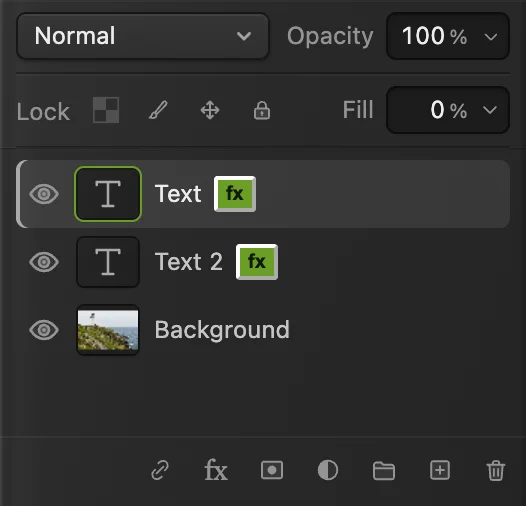
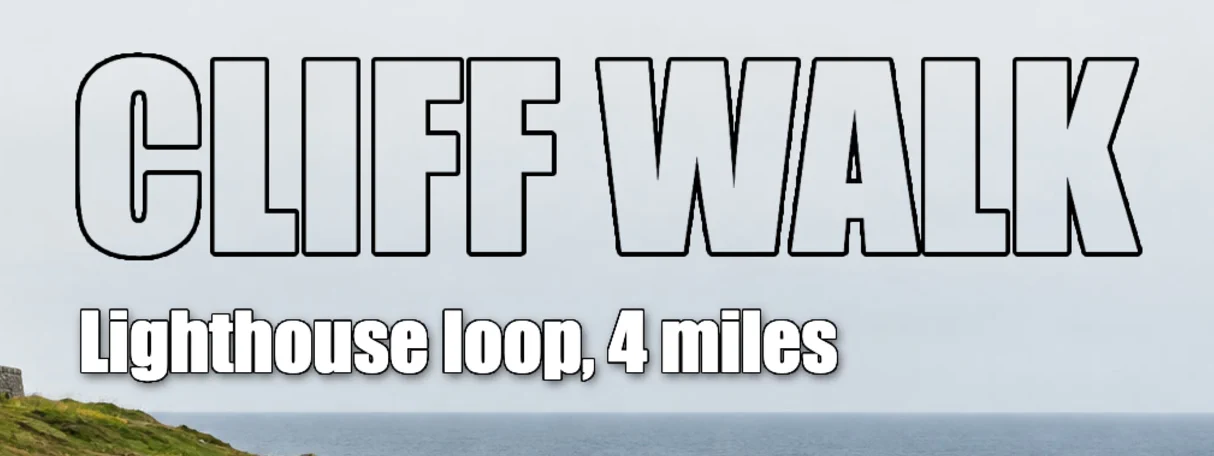
Other layer style commands
- sets one light angle for every shadow and bevel that has Use Global Light ticked, so they all fall the same way.
- removes every effect from the selected layer and sets Fill back to 100%.
- turns the layer and its effects into one pixel layer: you can’t retype the text or adjust the effects afterward.
Fix common problems
Paste Layer Style is grayed out
Nothing has been copied yet in this browser tab, or the selected layer is locked. Choose on the styled layer first, and check the padlock in the Layers panel. The copied style is kept until you reload the page, so you can paste it into another open document too.
Paste Layer Style made the letters disappear
The copied style included Fill 0%. Set Fill back to 100% in the Layers panel.
The shadow is cut off at the edge of the picture
Effects are drawn only inside the canvas. Move the layer in, or enlarge the canvas with
Coming from another editor
- Photoshop
- The fx button at the bottom of the Layers panel, and Layer › Layer Style, with Copy and Paste Layer Style.
- GIMP
- Filters › Light and Shadow › Drop Shadow.
Layer styles: questions and answers
Do layer styles change the pixels of my layer?
No. In Lil Cactus a layer style is a set of settings drawn around the layer, so you can change or remove it at any time. Layer › Layer Style › Rasterize Layer Style, Merge Down, Merge Visible and Flatten Image turn the effects into pixels; until then they stay editable.
Are layer styles kept in PSD files?
Yes. In Lil Cactus, File › Save As › Photoshop (.psd)… keeps layer styles editable. A style that uses a 16-bit pattern or bevel noise is the exception: Lil Cactus lists that layer and asks before saving, and the layer’s look is saved as pixels.
How do I add a shadow behind a cut-out object, not text?
In Lil Cactus, put the object on its own layer with a transparent background, then add a Drop Shadow from the fx button. The shadow follows the object’s outline.
How do I put the same style on several layers?
In Lil Cactus, choose Layer › Layer Style › Copy Layer Style on the styled layer, then select each other layer in turn and choose Paste Layer Style; it pastes onto one layer at a time. Pasting replaces any style the layer had.
How do I change the color of a drop shadow or stroke?
In Lil Cactus, open the layer style, click the effect, and click the color swatch at the right end of its Blend mode row. Pick a color and click OK in both dialogs.
Is my photo uploaded when I use layer styles in Lil Cactus?
No. Everything runs in your browser, on your own device. When statistics are on, the editor records which tools are used, never the image, as the privacy policy explains.
Keep going
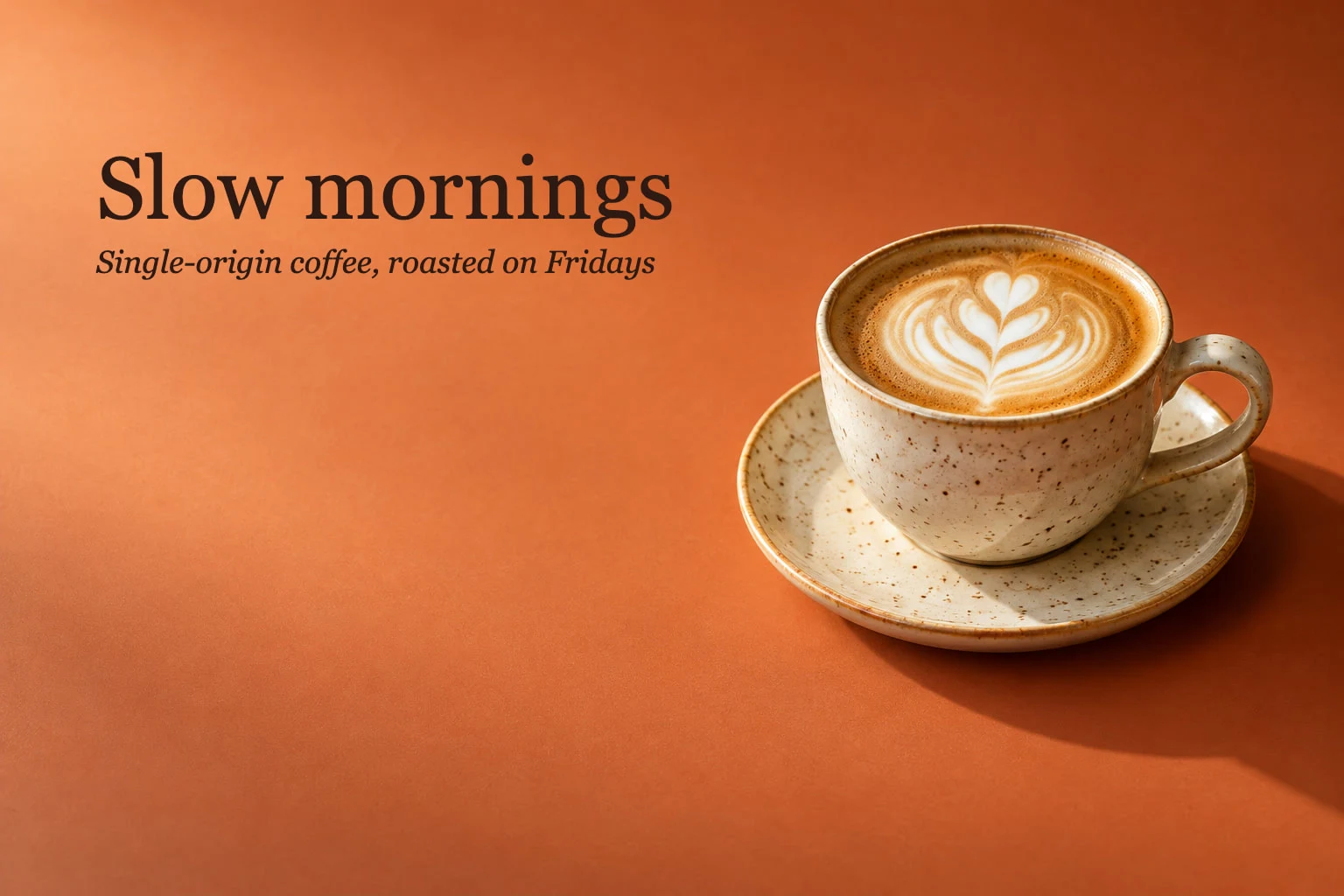 How to add text to a photoA headline and a second line on a photo, still editable later.Beginner · 5 min
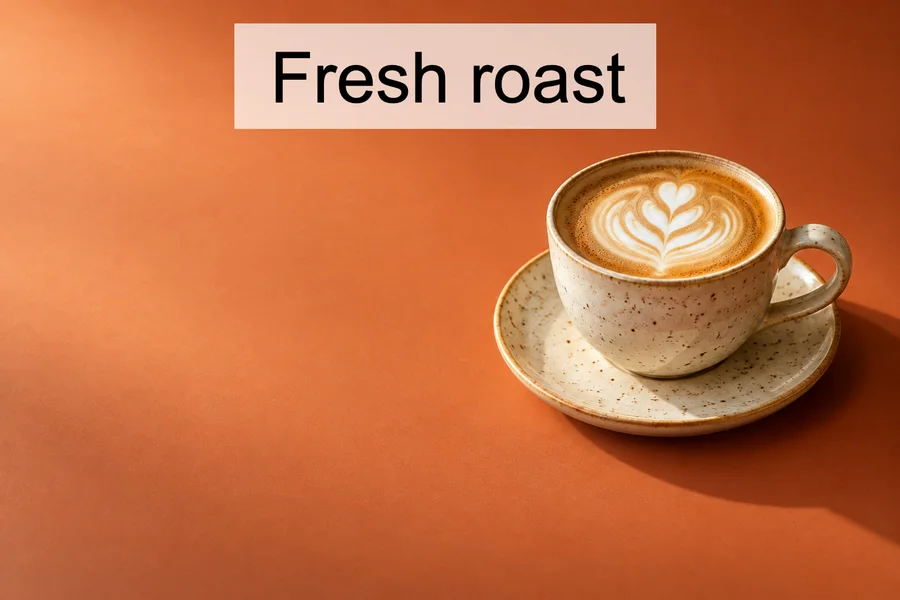 How to use layers in a photo editorStack, reorder, fade, hide and group the parts of a picture.Beginner · 6 min
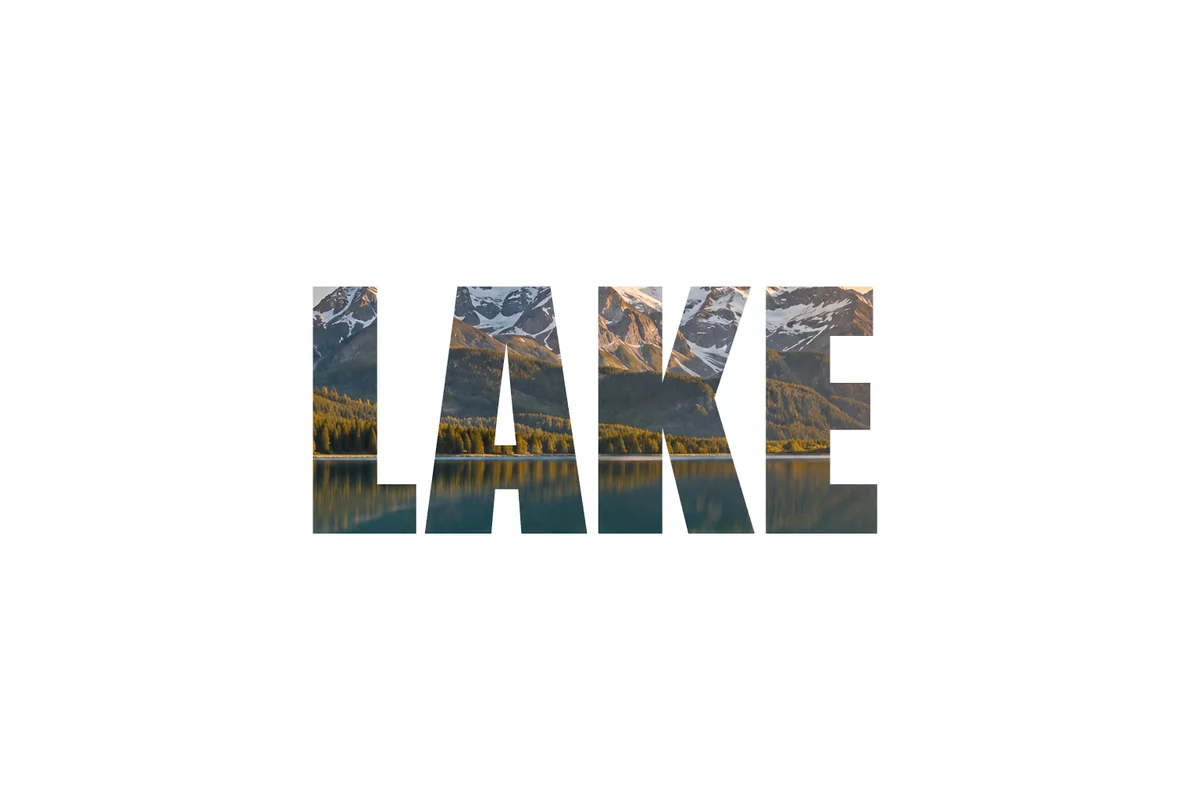 How to put a photo inside text with a clipping maskShow a photo or texture only inside text or a shape.Beginner · 5 min