How to create a favicon ICO file
Quick answer
In Lil Cactus, open your artwork and choose Replace File name with favicon.ico. Under Icon sizes, leave all six sizes checked (16 to 256 px; this is the default), then click Export. The download contains all six square versions in one ICO file.
- Time
- 4 minutes
- Level
- Beginner
- You need
- An icon or other artwork open in the editor
- Works with
- PNG, JPG, SVG, PSD and Lil Cactus projects (transparency is kept)
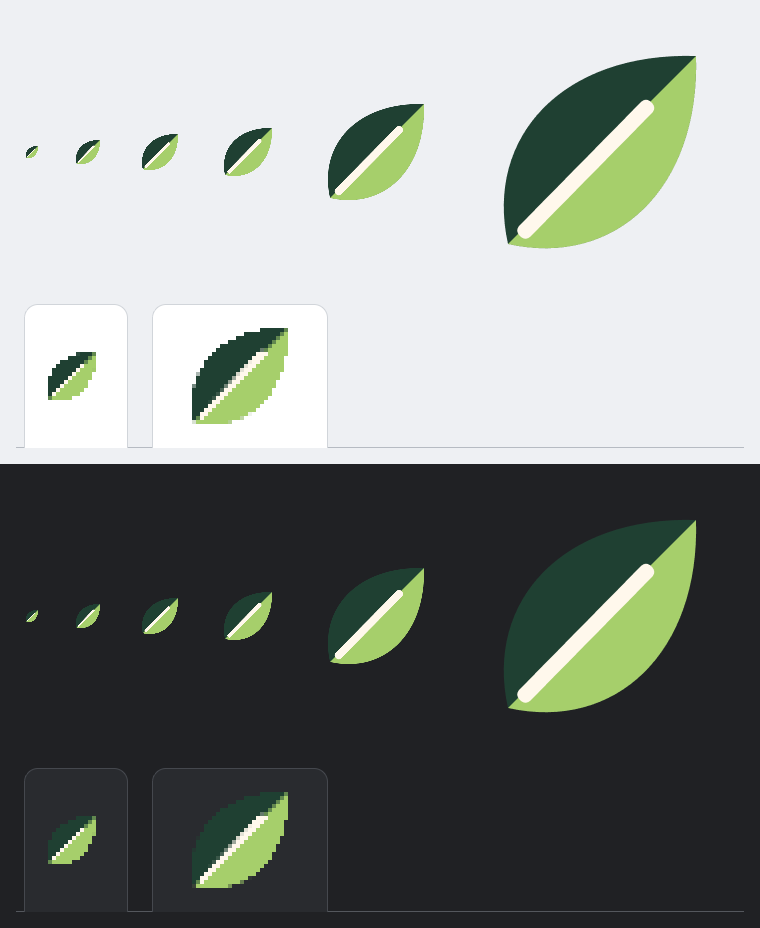
A favicon is the small icon beside a website’s tab or bookmark. Simple shapes with broad color areas are easier to read at a small size. This practice uses a two-tone leaf with a single light vein.
Export a favicon ICO in four steps
Open the artwork
Open the practice artwork from this page. For your own file, choose and select the image. The checkerboard around the leaf marks its transparent background. A short notice about smoothing SVG edges may appear; it closes on its own.
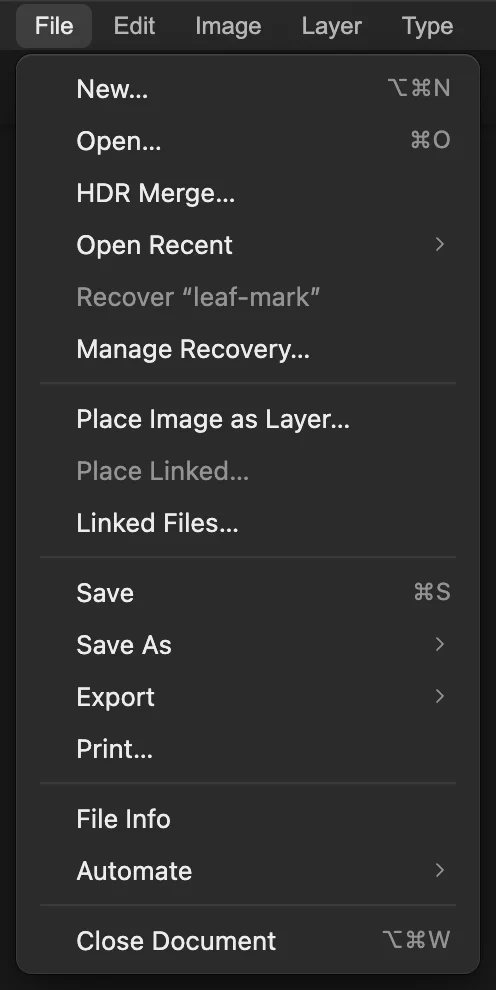
Load the artwork you want to turn into an icon. Choose File › Export › ICO…
Choose The Export as ICO dialog opens with a preview of the artwork.
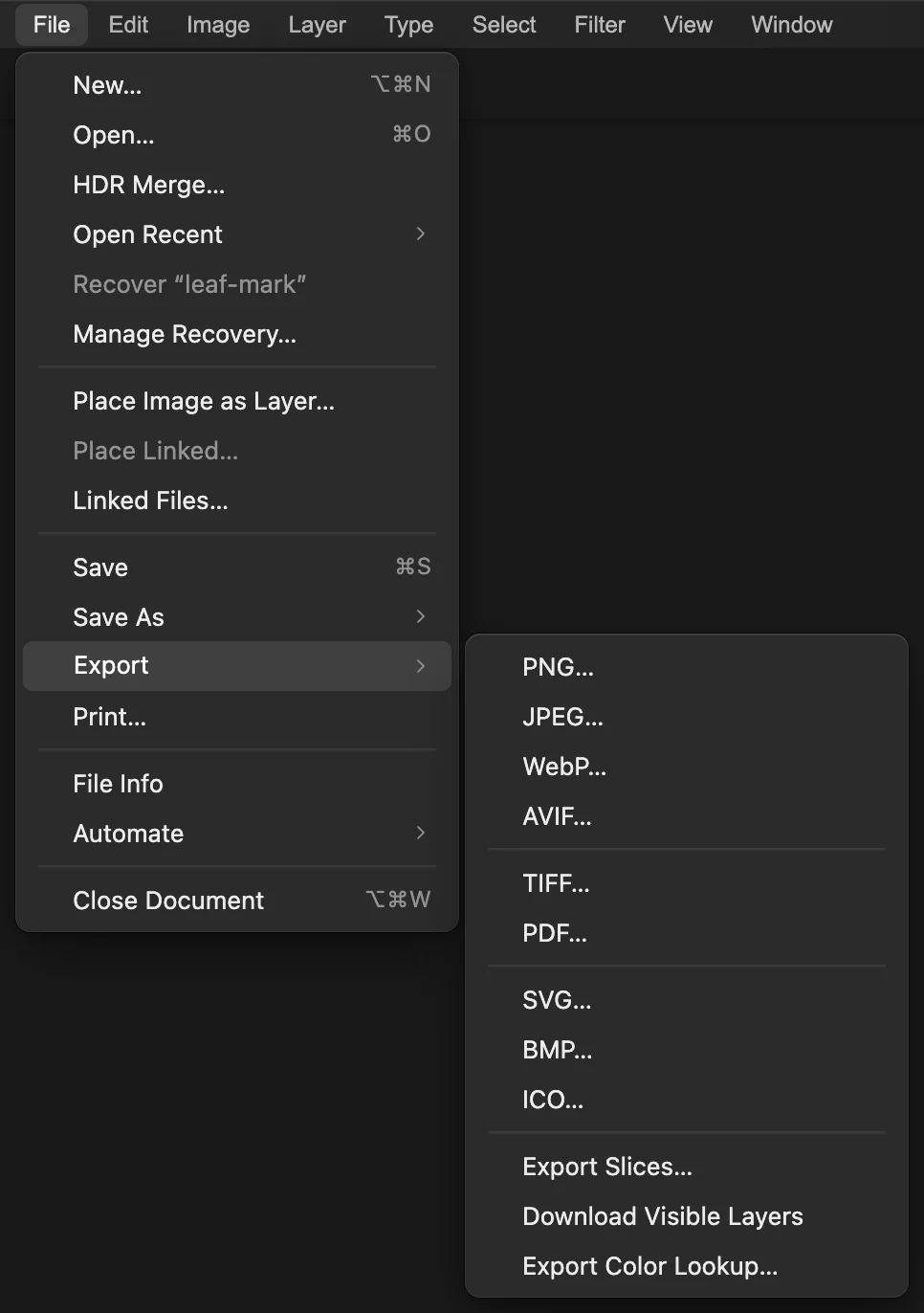
Open the ICO export dialog. Choose the file name and sizes
Replace File name with favicon.ico. In Icon sizes, keep 16, 32, 48, 64, 128 and 256 checked. These are the six available sizes.
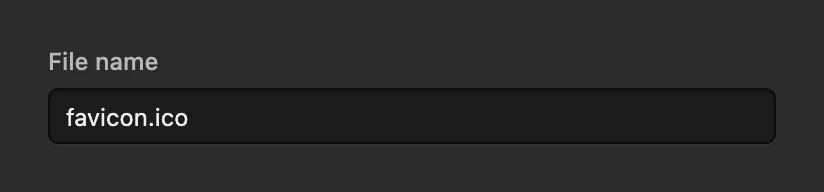
Name the downloaded icon file. 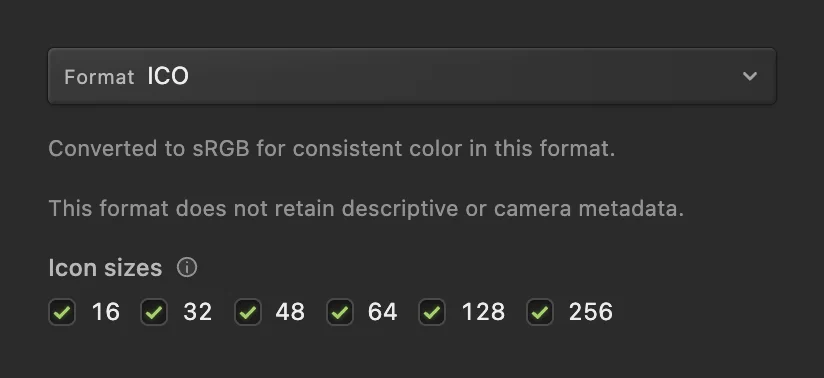
Each number gives both the width and height of a square icon, in pixels. Export the ICO
Check that the footer says 6 icon sizes, then click Export. Your browser saves favicon.ico using its download or save-location controls.

Check the selected count before exporting.
Use the icon on your website
Upload favicon.ico to the top folder of your site, so it opens at /favicon.ico. You can also point to it from the page’s <head> with <link rel="icon" href="/favicon.ico"> (see MDN’s icon reference).
Browsers cache favicons, so an updated icon can take a reload or a while to appear.
If the 16 px icon is hard to read
Simplify the artwork: fewer details, larger shapes and thicker strokes. The figure at the top of this page shows what survives at 16 px: the leaf’s two broad color areas and its one thick vein.
Check that the shape stands out on both light and dark tab bars. In the figure, the leaf’s dark-green half almost disappears on the dark background, and the light-green half carries the shape. Artwork in a single dark color would be hard to see there.
What to do next
- Prepare another output size: resize an image.
- Clear a solid backdrop: make a background transparent.
- Draw your own mark: shapes and vector graphics.
Favicon ICO files: questions and answers
Can I turn a PNG or JPG into an ICO?
Yes. In Lil Cactus, both formats can be opened and exported using the ICO controls. The visible artwork becomes the icon.
Can an ICO have a transparent background?
Yes. In Lil Cactus, ICO keeps transparency already present in your artwork. Remove a solid background first when you want the space around the icon to be clear.
What happens to a rectangular image in an ICO?
In Lil Cactus, the image is fitted inside each selected square without stretching. Transparent padding fills the extra space.
Can I export an ICO with only one size?
Yes. In Lil Cactus, leave only the size you need selected under Icon sizes. The ICO will contain that single size.
Can I make a 512 × 512 px ICO?
No. In Lil Cactus, the largest ICO size is 256 × 256 px. Use PNG when you need larger pixel dimensions.
Is my image uploaded when I make an ICO?
No. Lil Cactus creates the ICO in your browser and downloads it to your device; the image is not sent to a server. Optional usage statistics are described on the privacy page.
Keep going
 How to resize an image online to exact pixels or print sizeExact pixels, percent or print size, without stretching.Beginner · 2 min
 How to make a signature or logo background transparentLift a signature or logo off white or paper.Beginner · 3 min
 How to draw shapes and export vector graphics (SVG)Editable shapes for icons, badges and buttons, exported as SVG.Beginner · 6 min