How to make a signature or logo background transparent
Quick answer
Open the image in Lil Cactus and choose Click the ink or the logo’s color, raise Fuzziness until it shows solid white in the preview, and click Apply. Then click Add layer mask at the bottom of the Layers panel: the background disappears. Save it with , which keeps the transparency.

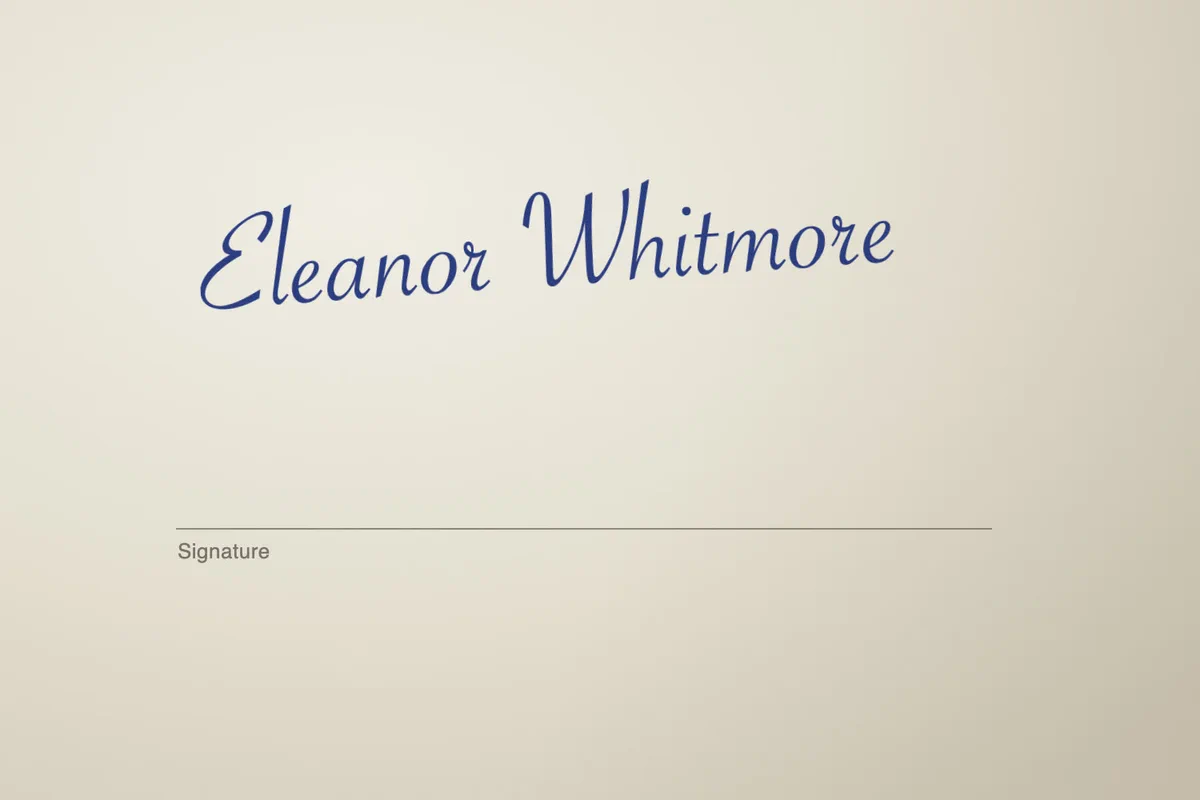
- Time
- 3 minutes
- Level
- Beginner
- You need
- A signature, logo, stamp or drawing on a plain background
- Works with
- JPEG, PNG, WebP, HEIC phone photos, scans and PDFs
A photo or scan of a signature is never really white: the paper is cream, unevenly lit and full of tiny texture. That is why “delete the white” tools leave gray blotches. The reliable way is the other way round: select the ink, by its color, and hide everything else with a mask. The ink keeps its soft edges, and the result works on any background, from a white document to a colored website.
The same method works for stamps, line drawings and logos. For a logo on a pure white background there is an even quicker route, shown further down. For photos of people, pets or products, follow how to remove the background from a photo instead.
Make the background transparent in six steps
Open the image
Go to lilcactus.app and choose (Ctrl+O or ⌘O), or drag the file onto the window. A phone photo of a signature works well if it is sharp and evenly lit. To follow along, open the sample signature from this page.
Tip Is the signature tilted? Straighten it now, before anything is cropped: (Ctrl+Alt+Shift+T or ⌥⇧⌘T), type a small Angle such as 4 or −4 on the options bar until the line looks level, then press Enter or ↩.
Choose Select › Color Range…
Open the Select menu and choose Color Range… The dialog opens beside the image, with a black preview: in this preview, white means selected and black means not selected.
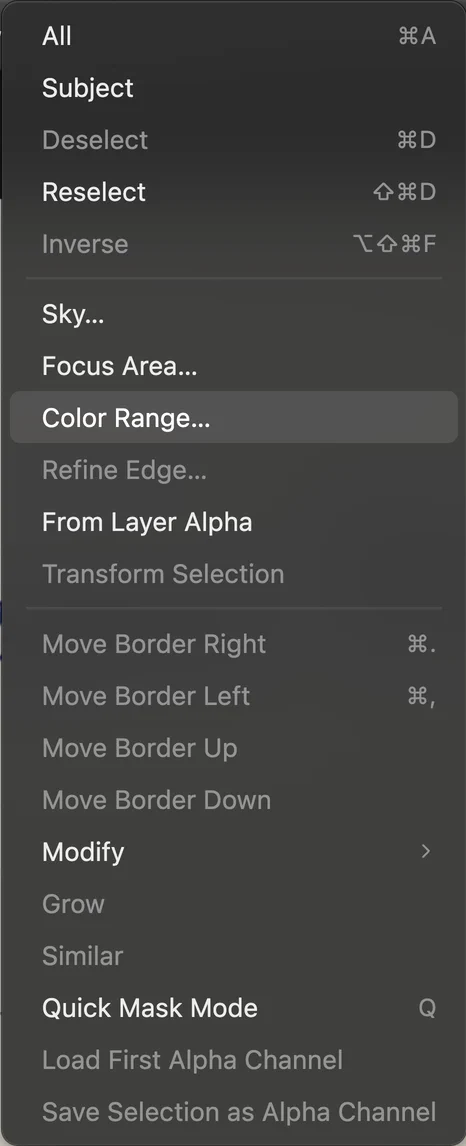
, in the middle of the Select menu. Click the ink, then raise Fuzziness
Keep Select on Sampled Colors and click a thick part of the ink in the image. The Sample color swatch shows the color you picked and the signature lights up in the preview.
Now drag Fuzziness up: about 110 works for the sample, and real photos usually land somewhere between 80 and 150. Fuzziness decides how different a color may be and still count: too low and the strokes stay gray (half selected); too high and the paper starts to turn gray too. Stop when the ink is solid white and the paper is still black.
Tip If parts of the signature use a lighter shade, click Add (+) and then click those strokes. Subtract (−) works the same way for a color you want to remove. With a keyboard, Shift-click adds and Alt-click (Option-click on a Mac) subtracts.
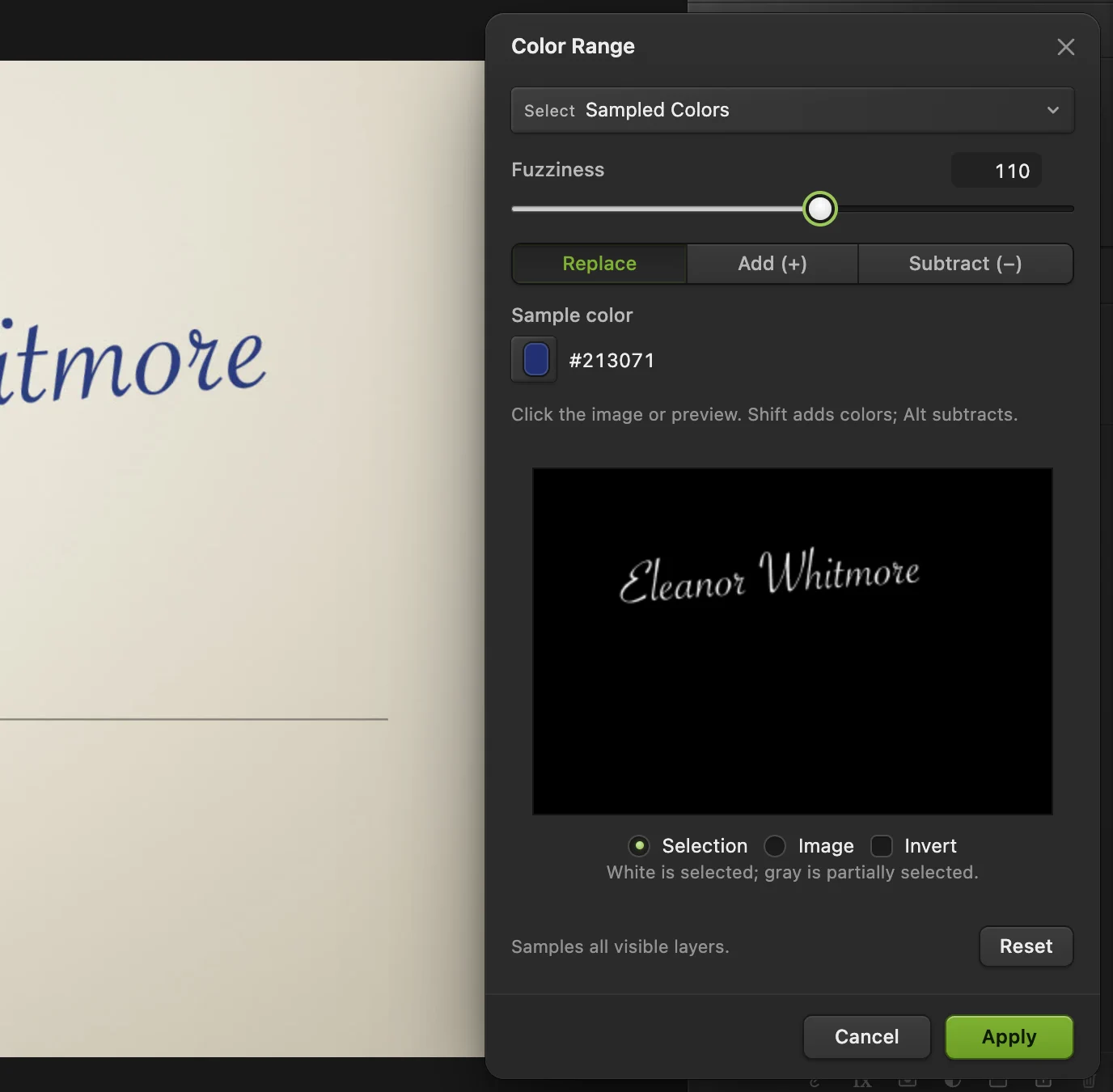
Click the ink (ringed), then set Fuzziness until the preview shows the signature in solid white. - Sample color: the ink you clicked (ringed in the image)
- Fuzziness: about 110 for the sample
- Add (+) and Subtract (−): more or fewer colors
- Preview: white is selected
- Apply
Click Apply, then crop to the signature
Click Apply. The dotted selection now runs around every stroke of the ink. Don’t worry if the dotted line looks thinner than the strokes: the soft edges are partly selected, and the dotted line only marks where pixels are at least half selected.
While the selection is active, choose . The picture is cut down to the signature itself, so the saved file has no empty margins and drops neatly into a document.
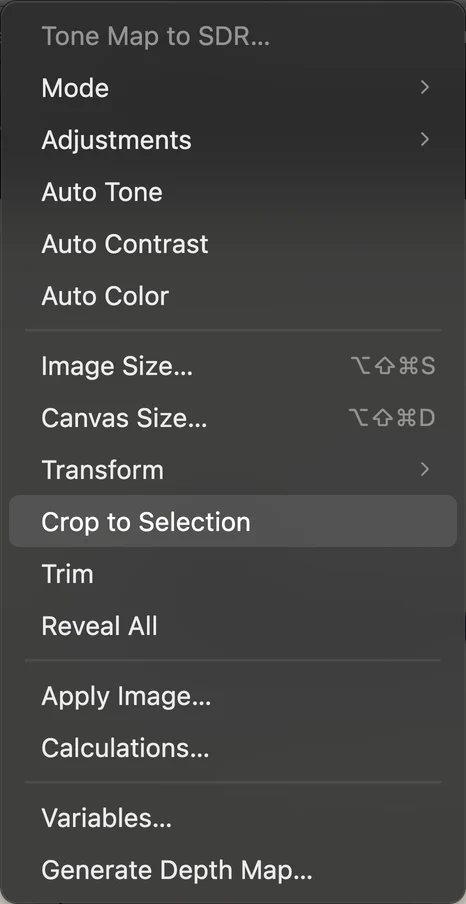
trims the picture to the selected ink. Click Add layer mask
At the bottom of the Layers panel, click Add layer mask. The paper disappears and the gray-and-white checkerboard shows through: that is transparency. The black-and-white thumbnail beside your image is the mask. The paper is only hidden, so you can bring any part back by painting white on the mask.
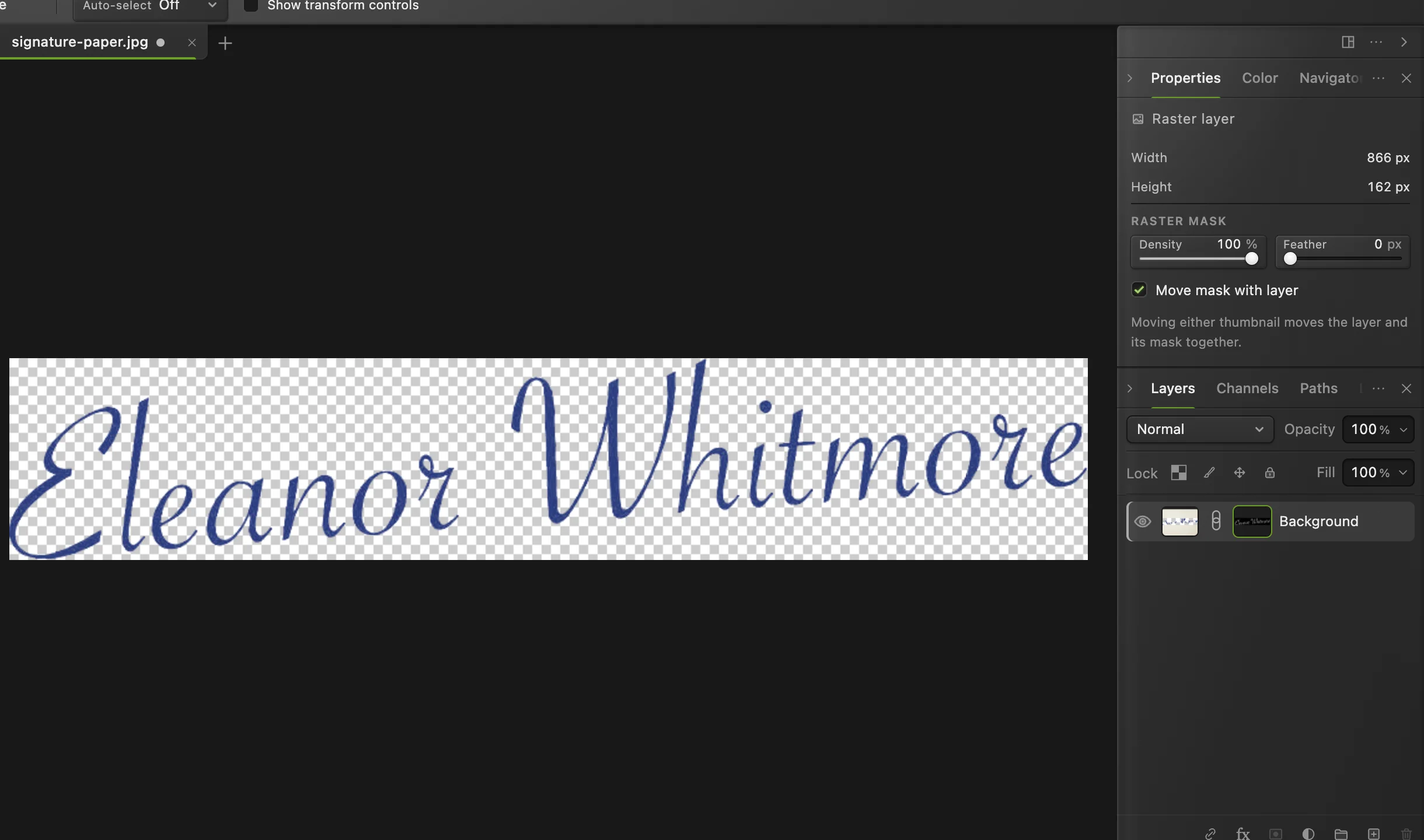
The cropped signature with the paper masked away. - The mask: white keeps the ink, black hides the paper
Export a PNG
Choose and click Export. PNG keeps the transparent background. JPEG can’t: it would fill it with white again.
To keep an editable copy with the mask, use (Ctrl+Shift+S or ⇧⌘S).
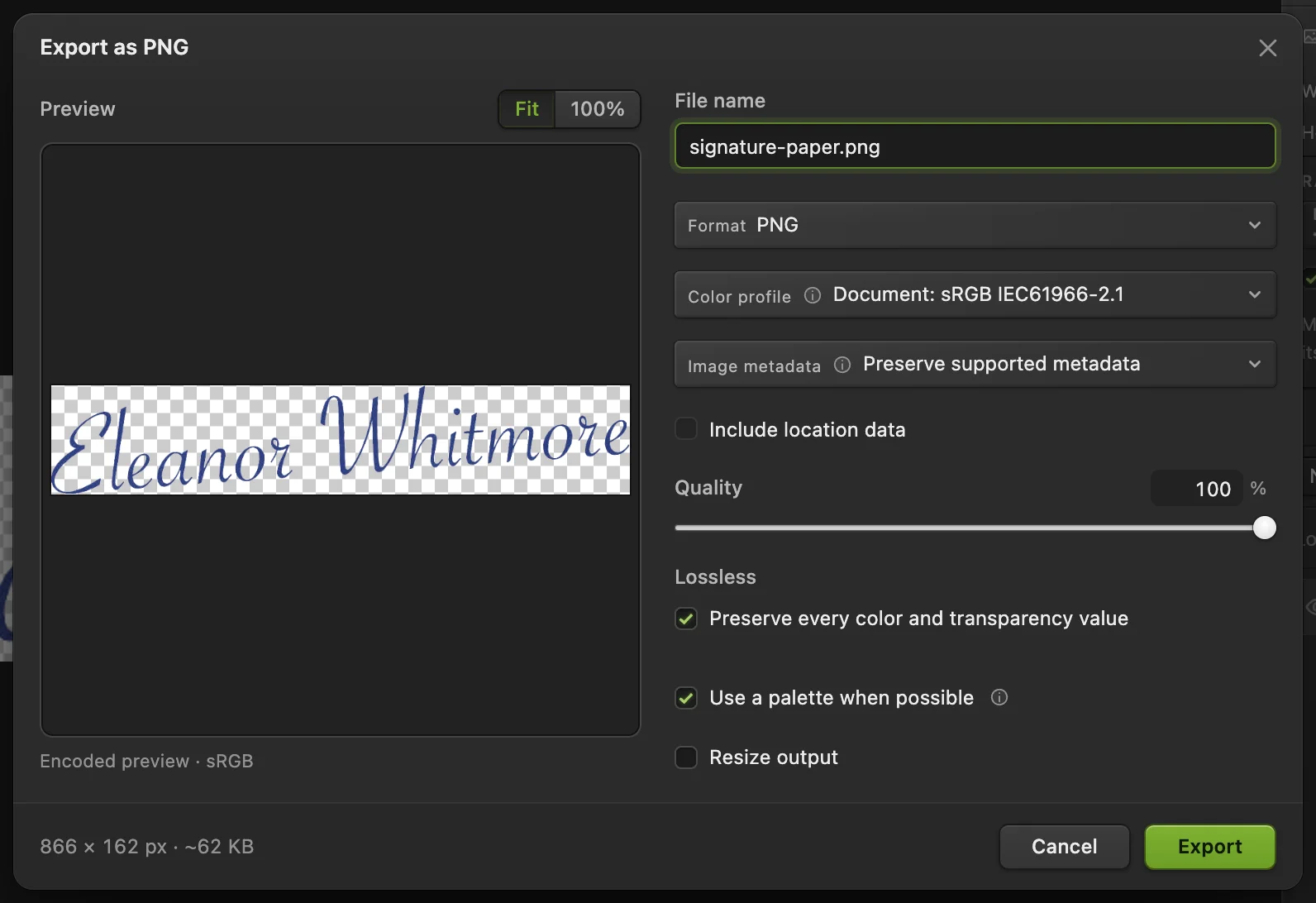
: the preview shows the checkerboard where the file is transparent. - Format: PNG
- Export
Logos on a pure white background: the Magic Wand
A logo exported straight from design software sits on perfectly flat white. There, it is quicker to select the white and invert. To try it, open the logo sample.
- Choose the Magic Wand. It shares a toolbar button with Quick Selection and Object Selection: right-click that button and pick it.
- On the options bar, untick Contiguous, so white areas inside letters and shapes are selected too. Leave Tolerance at 32.
- Click the white background.
- Choose (Ctrl+Alt+Shift+F or ⌥⇧⌘F), so the logo is selected instead of the white.
- Click Add layer mask and export a PNG.
If the logo has been saved as a JPEG, its edges blend into the white, and the Magic Wand leaves a pale rim around the shapes. It is invisible on white pages but shows on dark backgrounds. For those logos, use the Color Range method from the steps above on the logo’s own colors (click each color with Add (+)): it keeps the soft edges partly transparent instead of pale.
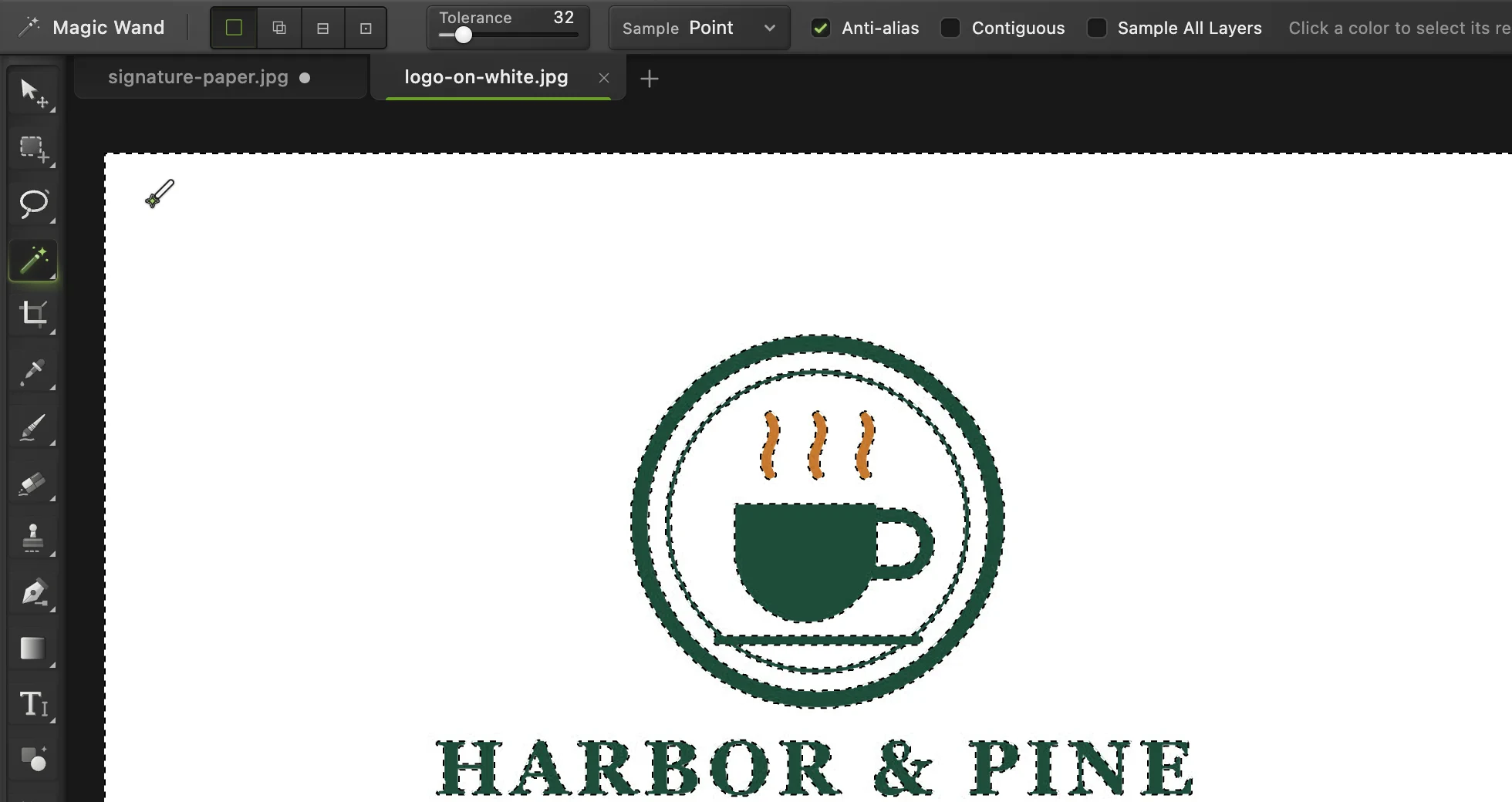
- Tolerance
- Contiguous: untick it
- Click the white background
Why not just erase the white?
Paper is not one white. A scan or photo has slightly different cream, gray and shadow in every corner, and the edge of each pen stroke blends into it. Erasing “the white” leaves either gray patches or chewed edges. Selecting the ink by its color, with Fuzziness, keeps the soft, half-transparent edge of every stroke, so the signature looks natural on any background.
Tidy up the result
- Specks of dirt or paper texture came along: click the mask thumbnail, press D so your colors are black and white, and paint over the specks with a black Brush (B).
- Make the ink one solid color, such as black for a document: choose , turn on Color Overlay and pick the color.
- Straighten a tilted signature after cropping: first give it room with , then rotate with (Ctrl+Alt+Shift+T or ⌥⇧⌘T) and crop again with the Crop tool. Straightening before step 4 is simpler.
- Make the file smaller: resize it to around 600 pixels wide; that is plenty for a signature in a document.
Fix common problems
The ink looks faded or see-through
Fuzziness was too low, so the strokes were only partly selected. Undo back to the selection, open Color Range again and raise Fuzziness until the strokes are solid white in the preview.
Gray paper is still visible
Fuzziness was too high, or the photo has dark shadows. Lower Fuzziness, or Alt or ⌥-click the gray area in Color Range to remove that color.
The signature line printed on the form came along
It was close to the ink’s color. Paint it out on the mask with black, or crop it away before Color Range with the Crop tool (C).
The background is white again in Word or Google Docs
The file was saved as JPEG. Export as PNG instead.
Coming from another editor
- Photoshop
- with Sampled Colors and Fuzziness, then a layer mask: the same route with the same names.
- GIMP
- Select › By Color, then Layer › Mask › Add Layer Mask from the selection.
Transparent backgrounds: questions and answers
How do I make a signature background transparent for free?
Open it in Lil Cactus, choose Select › Color Range…, click the ink, raise Fuzziness until the ink is solid white in the preview (about 110 for most signatures), click Apply, then Add layer mask, and export a PNG. It is free, needs no account and the image never leaves your computer.
Which file format keeps a transparent background?
PNG is the safest choice and works everywhere, including Word, Google Docs and PDF tools. WebP and AVIF also keep transparency and make smaller files for websites. JPEG cannot store transparency.
Can I do this with a photo of a signature taken on my phone?
Yes. Take it in daylight, without your shadow over the paper, and fill the frame with the signature. iPhone HEIC photos open directly in Lil Cactus.
How do I put the transparent signature into a document?
Insert the PNG as a picture in Word, Pages or Google Docs, or place it in a PDF editor. Because the background is transparent, it sits on the line without a white box.
Is my signature uploaded anywhere?
No. Lil Cactus opens and edits the image in your browser, on your own computer. The signature is never sent to a server.
Why does my logo have a white outline after removing the background?
The logo was saved as a JPEG at some point, which blends its edges into the white. Select the logo’s own colors with Select › Color Range… instead of selecting the white with the Magic Wand: the edges then stay partly transparent.
Keep going
 How to remove the background from a photoSelect Subject, a layer mask and a transparent PNG.Beginner · 3 min
 How to resize an image online to exact pixels or print sizeExact pixels, percent or print size, without stretching.Beginner · 2 min
 How to change the background of a photoPut a cut-out on a new background and match the light and color.Beginner · 8 min