How to resize an image online to exact pixels or print size
Quick answer
Open the image in Lil Cactus and choose With the chain link on, type the new Width in pixels and the height follows automatically, so nothing is stretched. Choose Bicubic Sharper, click Resize, then save a copy with
- Time
- 2 minutes
- Level
- Beginner
- You need
- An image and the size you want, in pixels, percent or centimeters
- Works with
- JPEG, PNG, WebP, AVIF, HEIC, GIF, TIFF, PSD, RAW and more
Every digital image is a grid of pixels. Resizing changes how many pixels there are: fewer pixels make a smaller file that loads faster and fits the box a website or app expects. The trick is to change the width and the height together, in proportion, so people don’t end up looking stretched or squashed. Lil Cactus does that for you as long as the chain link between the two fields is on.
Resize an image in five steps
Open the image
Go to lilcactus.app and choose (Ctrl+O or ⌘O), or drag the image onto the window. iPhone HEIC photos and camera RAW files open directly. To follow along with exactly the same numbers, open the sample photo from this page.
The current size is shown at the bottom left of the window, in the status bar.

The status bar shows the sample’s size before resizing: 1536 × 1024 pixels. Open Image › Image Size…
Open the Image menu and choose Image Size… (Ctrl+Alt+Shift+S or ⌥⇧⌘S).
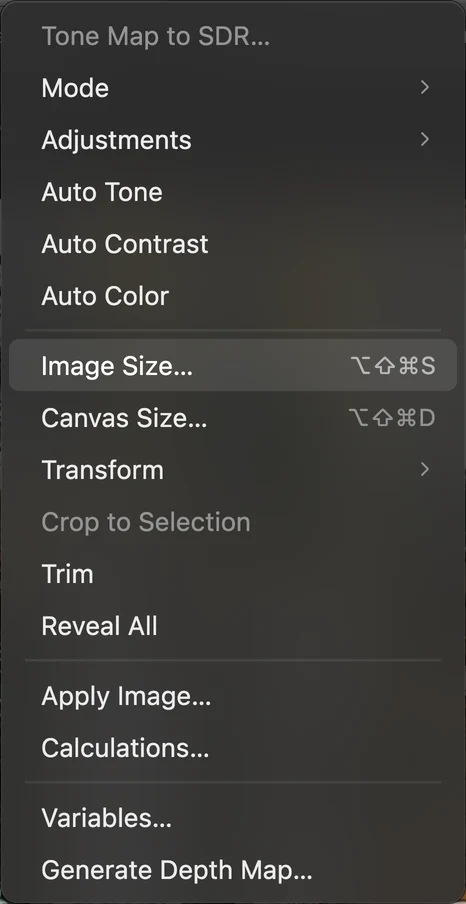
, below the Auto commands in the Image menu. Type the new width or height
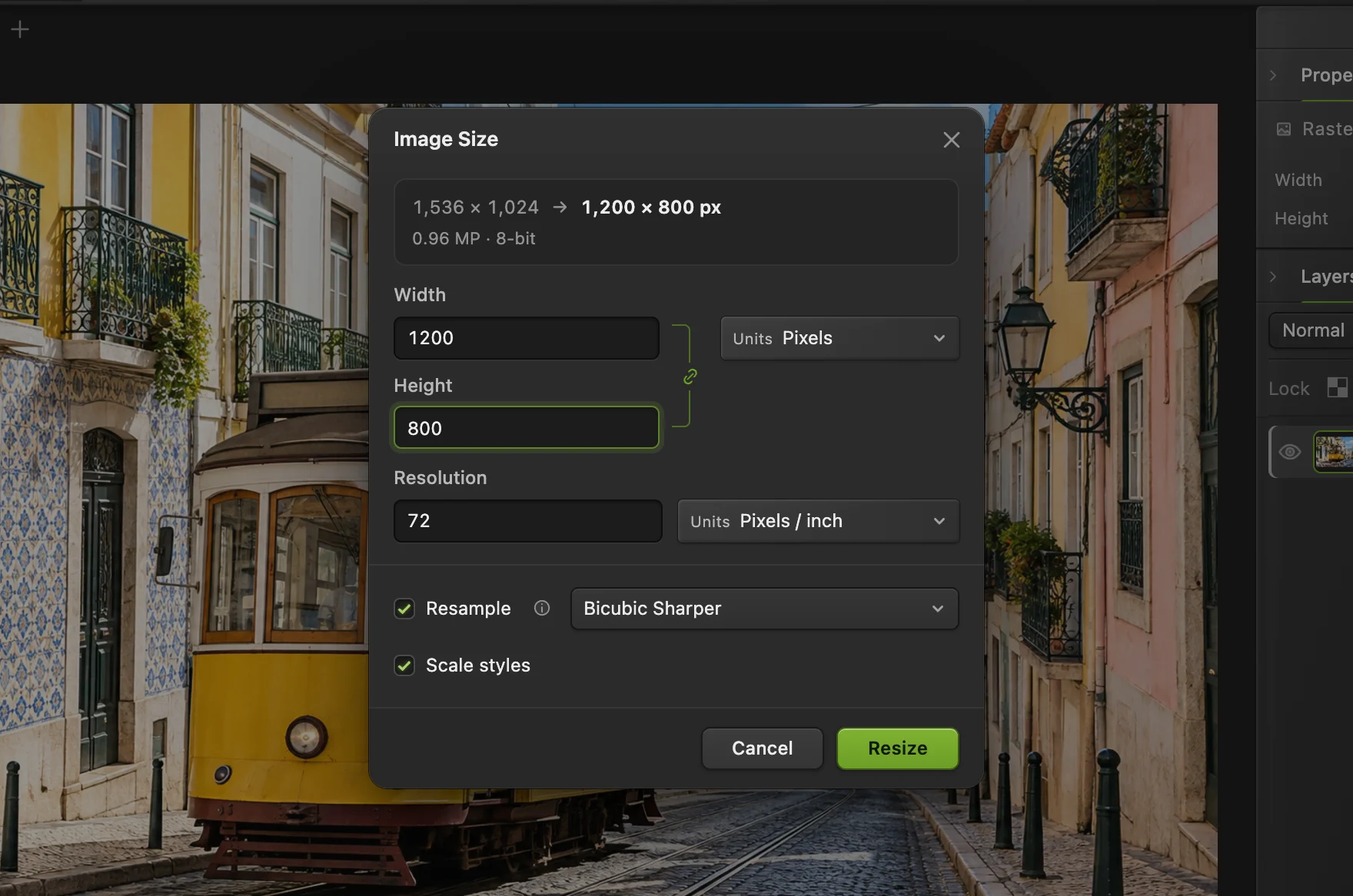
Check that Units says Pixels and that the chain link between Width and Height is lit. Then type the size you need into one of the two fields. In the sample, typing 1200 into Width sets the height to 800 on its own, because the photo keeps its 3:2 shape.
The box at the top of the dialog always shows the change: old size, arrow, new size, and how many megapixels the result has.
Next to Resample, choose how new pixels are calculated:
- Bicubic Sharper: the best choice for photos, smaller or larger. It blends pixels smoothly, and when it shrinks an image it adds a touch of sharpening so detail stays crisp.
- Bilinear: a simpler, slightly softer blend.
- Nearest Neighbor: copies pixels without blending. Use it for pixel art and screenshots of text when you enlarge by whole numbers (200%, 300%).
Tip Need a size in a different shape, such as a square from a landscape photo? Resizing can’t change the shape without stretching. Crop the image to the shape first, then resize.
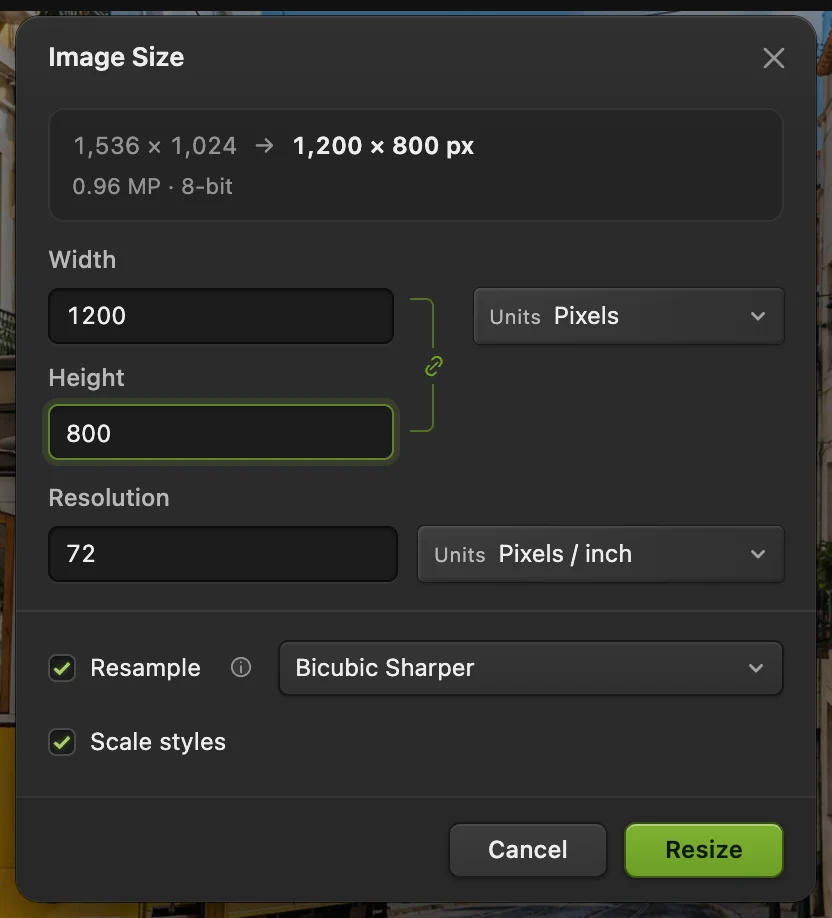
The Image Size dialog, ready to resize the sample to 1200 × 800 pixels. - Width: type the size you need
- The chain link keeps the proportions
- Units: Pixels, Percent, Inches, Centimeters or Millimeters
- Old size → new size
- Resampling method
- Resize
Click Resize and check the result
Click Resize. The image is recalculated and the status bar shows the new size. Zoom to 100% with Ctrl+1 or ⌘1 to see the pixels as they will appear on screen.
Not happy? Ctrl+Z or ⌘Z undoes the resize completely.

The status bar confirms the new size: 1200 × 800 pixels. Save the resized copy
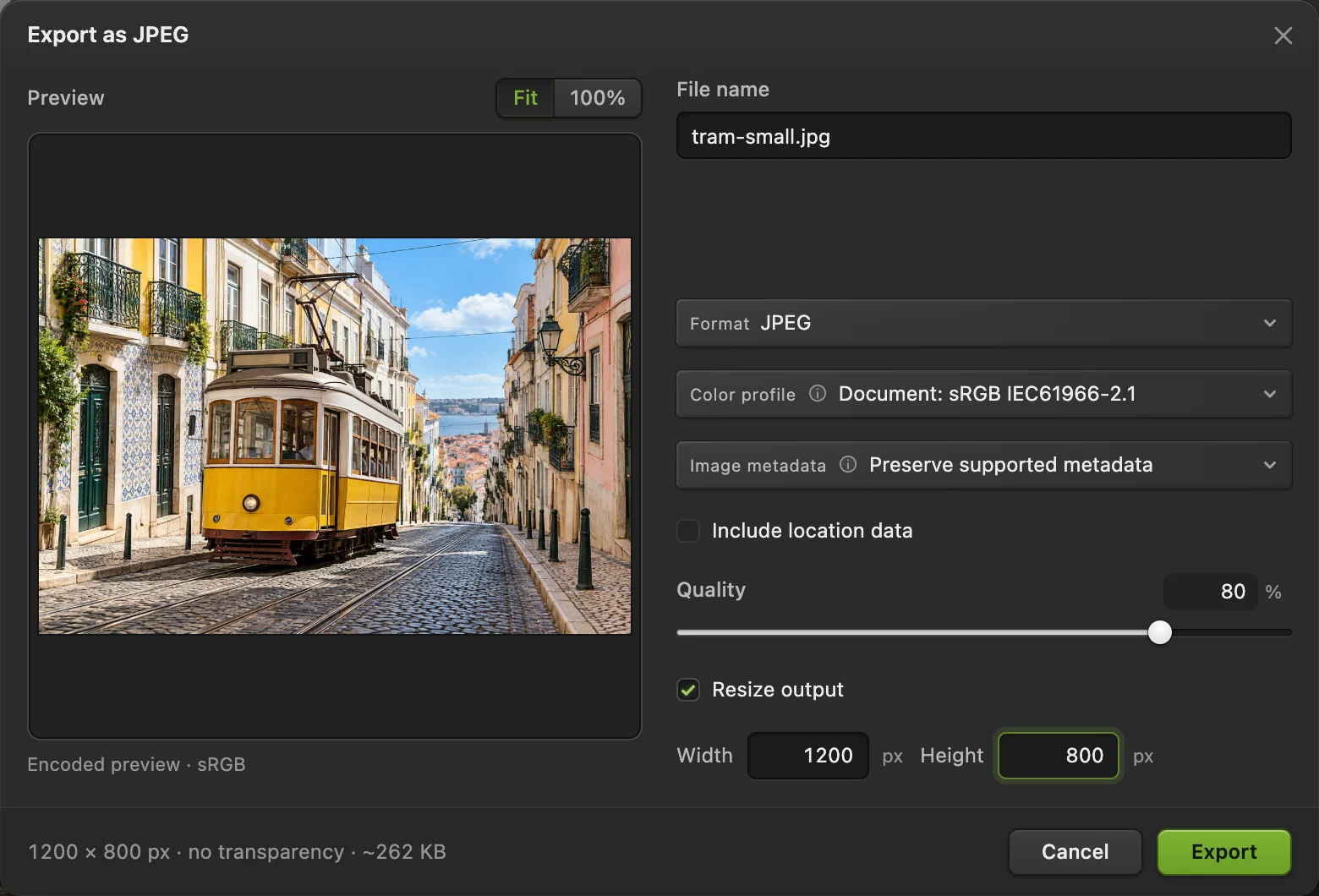
Choose for photos, or for graphics, logos and anything with transparency. The bottom of the dialog estimates the file size, so you can lower Quality until it fits a limit; 80–90% is a good range for photos. Click Export and the file goes to your downloads folder.
Export writes a new file and leaves your original as it was. In Chrome or Edge, (Ctrl+S or ⌘S) can replace the original when you opened it through the file picker and allow writing. In Firefox and Safari, or for a dragged file or tutorial sample, Save opens a save dialog or downloads a copy. Check the destination before replacing any file. Keep your own saved copy: browser recovery is not a backup.
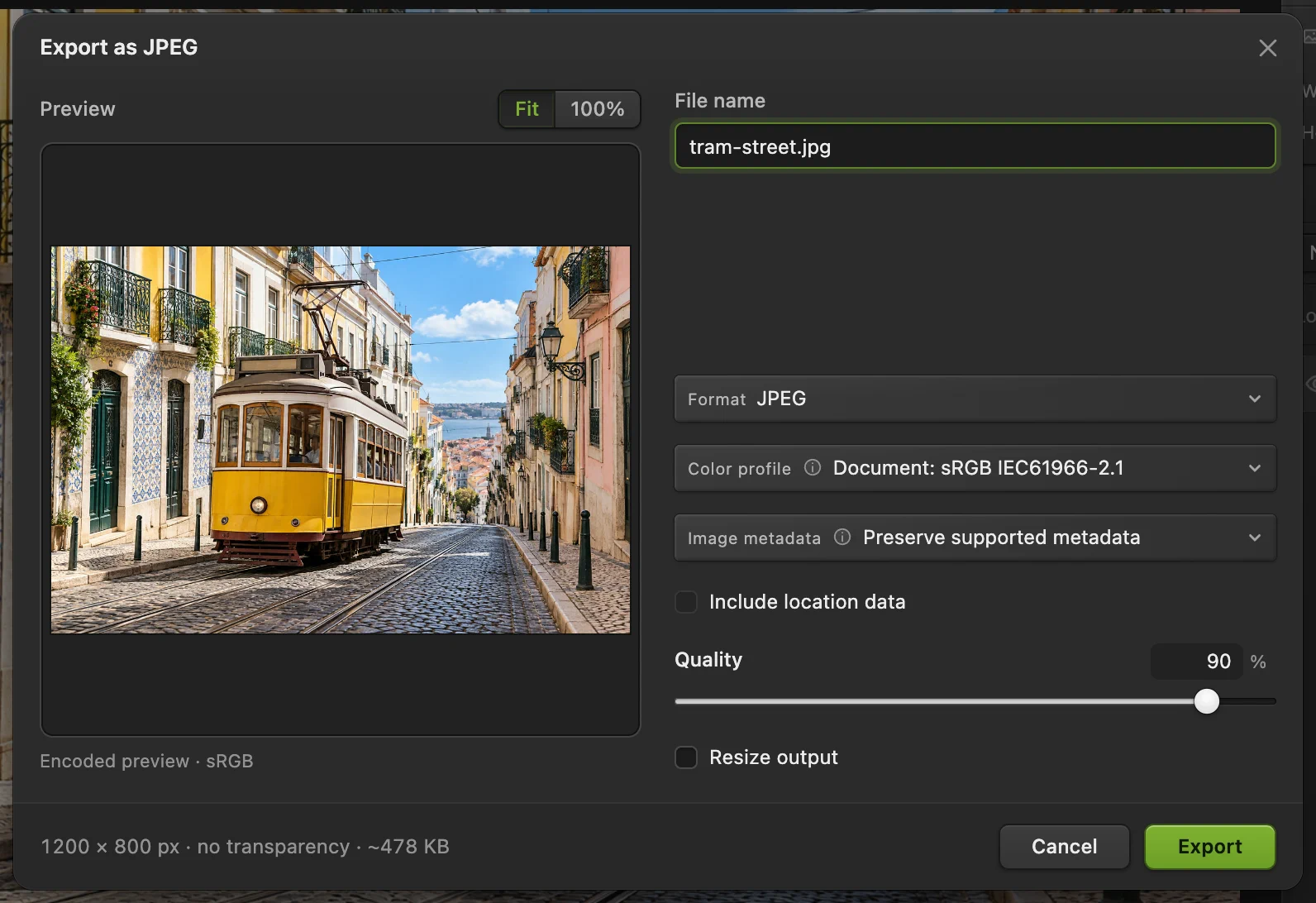
: the sample at 1200 × 800 pixels comes to about 478 KB at 90% quality. - Quality: lower it for a smaller file
- Final size and estimated file size
Resize by percentage
In Image Size, set Units to Percent and type, for example, 50 to halve both sides. Halving the width and height leaves a quarter of the pixels, so the file is usually around a quarter of the size too.
Resize for print: centimeters, inches and DPI
For print, what matters is the physical size and the resolution: how many pixels are printed per inch (ppi, often called DPI). 300 ppi is the usual target for photos viewed up close; posters seen from a distance are fine at 150 ppi.
- See how large a photo prints without touching the pixels: turn Resample off. The Units menu next to Width switches to Inches; choose Centimeters if you prefer. Width, height and resolution are now linked: set Resolution to 300 and the width and height show the largest print at full quality.
- Make a 15 × 10 cm print at 300 ppi: keep Resample on, set the Units next to Width to Centimeters, type 300 for Resolution, then type the long side (15) into the matching field and check the short side. If it doesn’t come out at 10, the photo has a different shape: crop it to 3:2 first, then resize.
The “72 ppi” you often see on screen images is only a label. Screens show pixels one for one, so it changes nothing about how an image looks online.
Resize only the exported copy
If you want to keep your full-size document and only send a smaller copy, skip Image Size. In any export dialog, tick Resize output and type the width or height for the saved file. The open document stays at full size.
Resize many images at once
Choose , add your images under Input images, set Scale % and the output format, and click Run. Lil Cactus resizes every image and downloads them together in one ZIP file. Scale % keeps every image in proportion, whatever its shape. A recorded Image Size action sets the same width and height for every image, so use it only for images that all have the same shape, or they will be stretched.
Can I make a small image bigger?
Yes, but resampling can only spread the existing detail over more pixels: it doesn’t add detail the camera never captured. Enlarging by up to about 150% usually looks fine with Bicubic Sharper. Beyond that the photo turns soft. For pixel art, use Nearest Neighbor and whole-number percentages to keep the edges hard.
Common sizes
| Use | Size in pixels |
|---|---|
| Instagram square post | 1080 × 1080 |
| Instagram portrait post | 1080 × 1350 |
| Instagram and TikTok story, YouTube Short | 1080 × 1920 |
| YouTube thumbnail | 1280 × 720 |
| Full HD screen or wallpaper | 1920 × 1080 |
| 4K screen or wallpaper | 3840 × 2160 |
| Photo in an email | 800–1200 wide |
| 10 × 15 cm (4 × 6 in) print at 300 ppi | 1181 × 1772 |
| A4 print at 300 ppi | 2480 × 3508 |
Sizes that change the shape (such as a square from a landscape photo) need a crop first.
Coming from another editor
- Photoshop
- The same command, , with a chain link and Resample options.
- GIMP
- GIMP calls it Image › Scale Image. In Lil Cactus the equivalent is
- Windows Paint
- Resize, on the Home tab. In Lil Cactus the same job is Image › Image Size…
- Mac Preview
- Tools › Adjust Size… In Lil Cactus the same job is Image › Image Size…
Image resizing: questions and answers
How do I resize an image without losing quality?
Making an image smaller always removes pixels, but with Bicubic Sharper the result stays crisp at its new size. Export at 85–100% quality, or as PNG, and keep the original file in case you need the full size again.
How do I resize without stretching?
Keep the chain link between Width and Height on. Lil Cactus then calculates the other side for you. If you need a different shape, crop first.
How do I make the file size smaller, not the dimensions?
Lower the Quality slider in the JPEG, WebP or AVIF export. WebP and AVIF are usually much smaller than JPEG at similar visible quality.
Does resizing in Lil Cactus change my original file?
File › Export writes a new file. In Chrome or Edge, File › Save can replace the original if you opened it through the file picker and allow writing. In Firefox and Safari, or for a dragged file or tutorial sample, Save opens a save dialog or downloads a copy. Check the destination before replacing a file.
Is my image uploaded when I resize it in Lil Cactus?
No. Opening, resizing and exporting all happen on your own computer, in your browser.
Why does 1200 × 800 become a different height for my photo?
Because your photo has a different shape from the sample. With the chain link on, the height always matches your photo’s proportions.
Keep going
 How to crop an imageChoose what stays in the frame, then set the shape and size.Beginner · 6 min
 How to compress an image to 100 KB or 200 KBLower the file size, check the detail, and fit an upload limit.Beginner · 3 min
 How to convert HEIC, WebP and PNG to JPG onlineConvert HEIC, WebP or PNG to JPG, or choose another image format.Beginner · 2 min