How to save design variations with layer comps
Quick answer
Choose and click New to save how the layers look now. Change the design, for example hide a layer or move the title, and click New again. Click the circle beside a comp to switch the document back to it. The export button at the bottom left of the panel (Export every comp as a PNG in one ZIP) downloads them all.
- Time
- 5 minutes
- Level
- Intermediate
- You need
- A layered design: a project, a PSD or a document you built
- Works with
- Lil Cactus projects and PSD files keep the comps; JPEG and PNG don’t
A layer comp is a saved snapshot of a layout: which layers are visible, where each layer sits, and its appearance (opacity, blend mode and layer style). It copies no pixels, so you can keep many versions of a design in one file and flip between them to compare, show a client, or export them all.
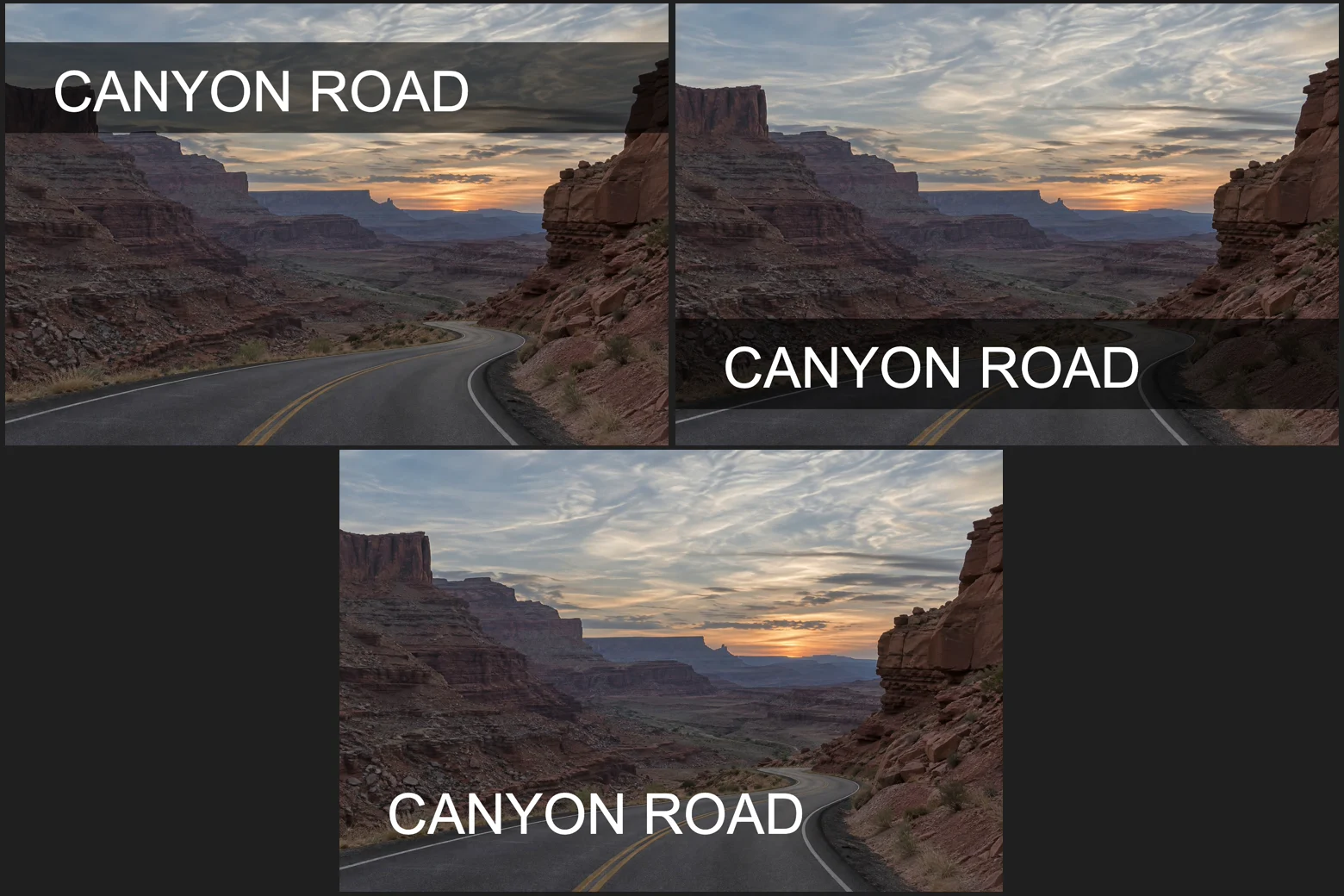
In this tutorial you save three versions of a poster: the title at the top, the title at the bottom, and the title without its dark band.
Save design variations in seven steps
Open the poster
Go to lilcactus.app and choose (Ctrl+O or ⌘O), or drag the file onto the window. To follow along exactly, open the sample poster from this page: a canyon photo, a Vibrance adjustment layer and a Title group holding a dark Band and the Text. A yellow note that the Arial font face can’t be verified can be ignored here.
Save the first comp
Choose . The panel opens as a tab in the same group as Layers; switch between the two with and , because the group may not have room to show both tabs. Click New (the plus at the bottom of the panel): a comp called Comp 1 appears, remembering the layers as they are. Click Rename (the box with a text cursor, two buttons left of New); the old name is selected, so type Title top and press Enter or ↩.
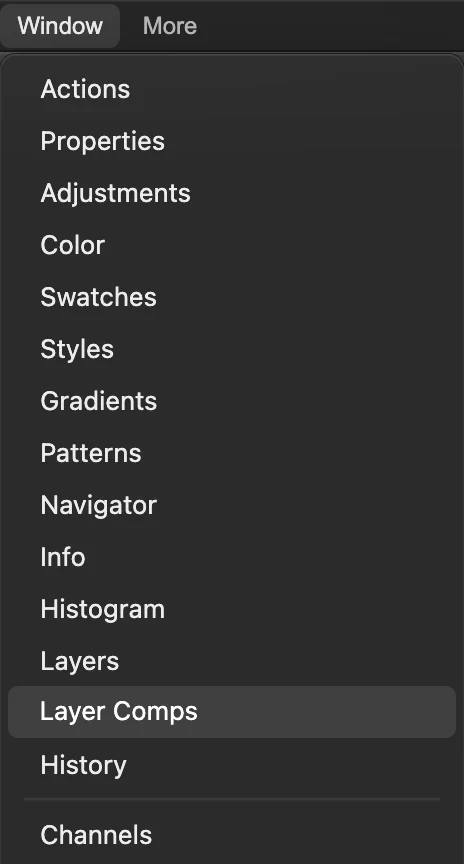
. 
Rename and New, at the bottom of the panel. Move the title and save a second comp
Choose . Click the Band row and Shift or ⇧-click the Text row to select both. Choose the Move tool from the top of the toolbar and drag the title down until the band sits just above the bottom edge, over the road.
Choose , click New and rename it Title bottom as in step 2.
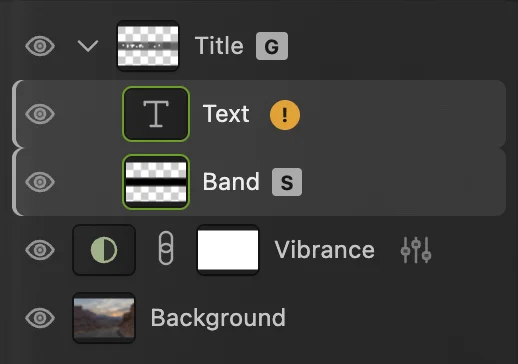
Band and Text selected together. 
The title at the bottom. Hide the band and save a third comp
Choose and click the Band row on its own, so only Band is selected, then click its eye to hide it. Choose and click New. If the buttons at the bottom of the panel drop out of sight, click the arrow at the left of the Properties tabs to fold that group away (to put it back later, choose and click the button at the left of its tabs). Rename the comp No band as in step 2. The panel now lists three comps. The tick marks the current comp; after any change to the layers, it moves to Last Document State.
Tip With Band and Text both still selected from step 3, the eye would hide both layers: select Band on its own first.
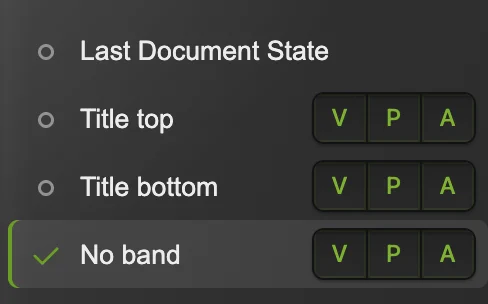
Three comps of the same poster. Switch between the comps
Click the circle beside Title top: the band and title jump back to the top and the band is shown again. Click the circle beside No band to go back.
Last Document State, at the top of the list, holds the layers as they were the last time you saved or applied a comp straight after your own edits; here, the No band layout.
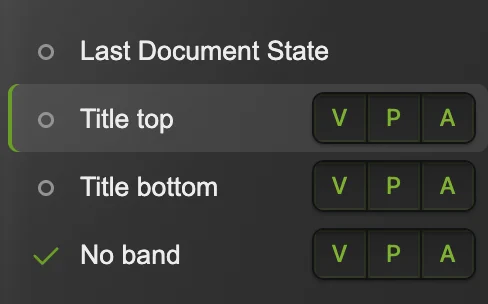
Click the circle beside a comp to apply it. Export every comp as a PNG
Click the export button at the bottom left of the panel (Export every comp as a PNG in one ZIP). Lil Cactus downloads a ZIP with one PNG per comp, named after the comps: Title top.png, Title bottom.png and No band.png, each at the full document size, as at the top of this page.

The export button saves every comp. Save the file with its comps
Choose (Ctrl+Shift+S or ⇧⌘S). The project keeps the comps and every layer editable; after that, updates it. To keep the comps in a PSD instead, see the questions at the end of this page.
(or another format) writes one flat image of the comp that is showing.
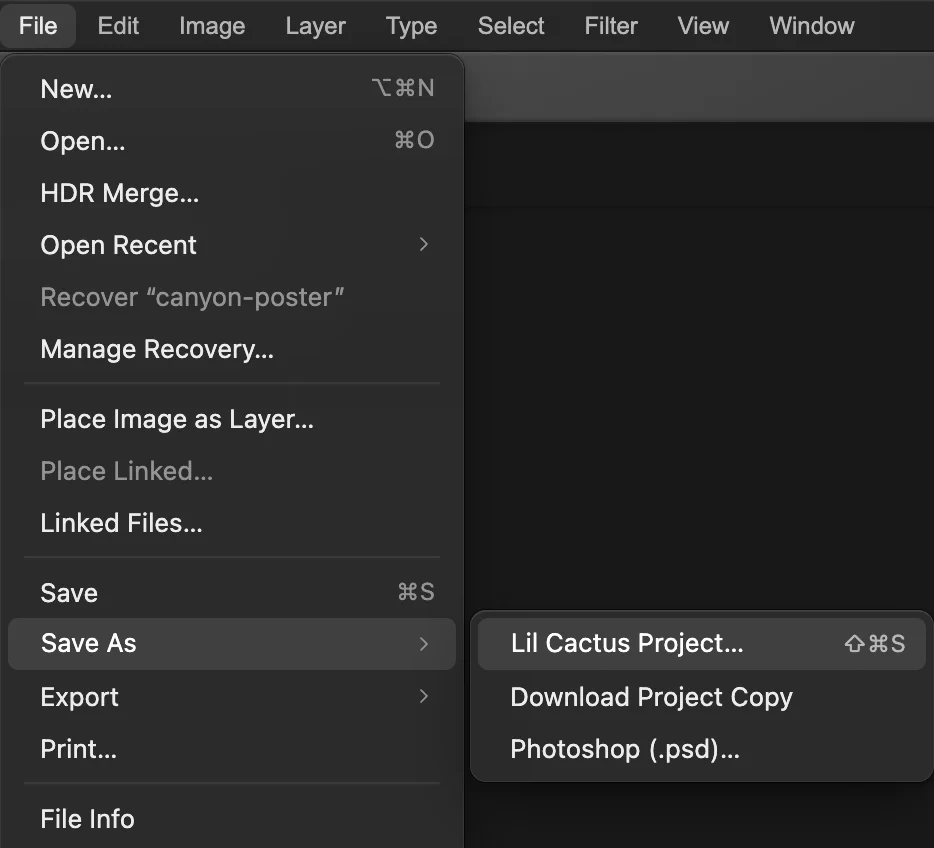
Save As › Lil Cactus Project… keeps the comps and every layer.
What a comp remembers
- V, visibility: which layers are shown or hidden.
- P, position: where each layer, its mask and its vector mask sit.
- A, appearance: opacity, fill, blend mode and layer style.
Click V, P or A on a comp’s row to turn it off; switching to that comp then leaves that property as it is. A comp doesn’t store pixels, text, colors or adjustment settings: edit those once and every comp shows the change. See how layers work.
Update, rename and delete comps
- Update (the circular arrows) overwrites the selected comp with the document as it is now.
- To rename a comp, double-click its name, or select it and click Rename; the old name is selected, so type the new name and press Enter or ↩.
- Select a comp and type a note in Comment, for example what a client asked for.
- The trash button deletes the selected comp; the layers stay as they are.
Fix common problems
A comp didn’t bring back a change
Check the comp’s V, P and A buttons: a property that is turned off isn’t restored.
Lil Cactus says some saved layers no longer exist
You deleted layers after saving the comp. The remaining layers are restored; select the comp and click Update to save it again without them.
The comps are gone after reopening the file
It was saved as a JPEG or PNG. Save a Lil Cactus project as in step 7.
The third comp shows no title
Both Band and Text were selected when you clicked the eye, so both were hidden. Choose , click the Text row on its own, then click its eye. Choose , click the name No band and click Update.
Coming from another editor
- Photoshop
- Window › Layer Comps, and File › Export › Layer Comps to Files.
Layer comps: questions and answers
What is the difference between layer comps and duplicating the file?
In Lil Cactus every layer comp shares the same layers, so a change to a layer’s pixels or text shows in all versions at once. Duplicate files have to be edited one by one.
Can I export the comps as JPEG?
Not from the panel, which exports PNG files. In Lil Cactus, to get a JPEG of one comp, click its circle to apply it, then choose File › Export › JPEG…
Are layer comps kept in PSD files?
Yes, for most documents. In Lil Cactus, File › Save writes the comps back into a PSD you opened, and File › Save As › Photoshop (.psd)… writes them into a new one; every layer and comp of the sample poster is kept and reopens in the Layer Comps panel. If part of the document can’t stay editable in a PSD, Lil Cactus lists it and asks before saving. When a PSD can’t keep the comps at all, it says so and asks you to save a Lil Cactus project instead.
How many layer comps can a document have?
Up to 256 in Lil Cactus. Each comp stores a few settings per layer, not a copy of the pixels.
Can a comp change the text of a layer?
No. In Lil Cactus a comp remembers visibility, position and appearance only. For different wording in each version, use separate text layers and show a different one in each comp.
Is my design uploaded when I use layer comps in Lil Cactus?
No. Everything runs in your browser, on your own device. When statistics are on, the editor records which tools are used, never the image, as the privacy policy explains.
Keep going
 How to use layers in a photo editorStack, reorder, fade, hide and group the parts of a picture.Beginner · 6 min
 How to open, view and edit a PSD file onlineOpen a PSD with its layers, edit the text, and save it back as a PSD.Beginner · 5 min
 How to design several sizes in one file with artboardsSeveral canvases in one document, exported as separate files.Intermediate · 6 min