How to design several sizes in one file with artboards
Quick answer
Choose , tick Artboard and click Create. With the Artboard tool, click the + beside a board to add another next to it, and set its size in the Properties panel. To get one file per board, choose (or another format) with As artboards ticked: Lil Cactus downloads a ZIP with one image per board, named after the boards.
- Time
- 6 minutes
- Level
- Intermediate
- You need
- A design you need in more than one size, such as a post and a story
- Works with
- Exports each board as PNG, JPEG, WebP, AVIF, TIFF or other images in a ZIP, or as pages of one PDF
Free, no sign-up. Your work stays on your computer.
An artboard is a canvas inside a document. One document can hold several, side by side, each with its own size, background and layers. That keeps the versions of one design together: change a color or a word in each, see them all at once, and export them in one go.
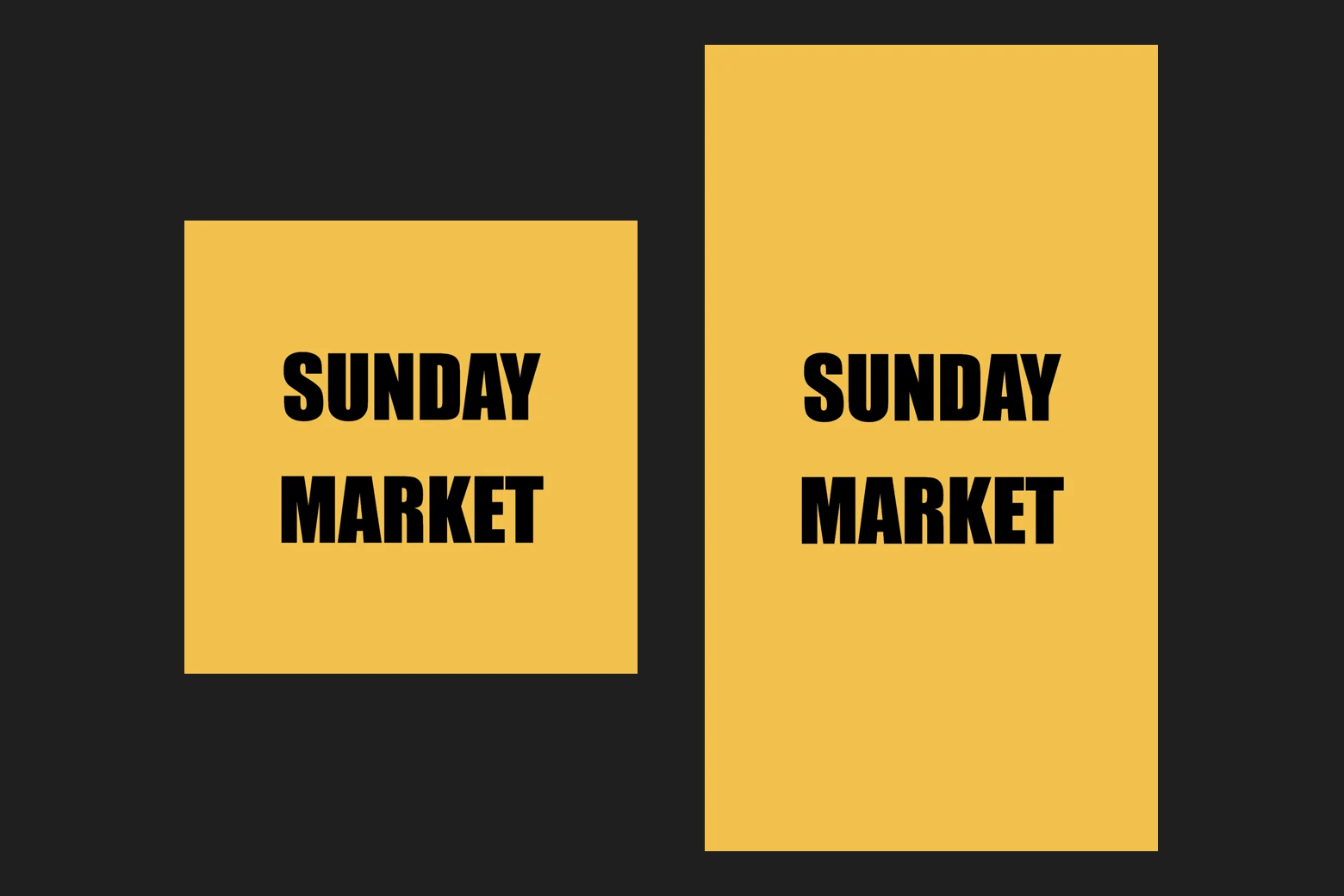
In this tutorial you make a square social post and a tall story for the same event, then export both as separate PNG files.
Design two sizes with artboards in seven steps
Create a document with an artboard
Go to lilcactus.app and choose Type 1080 for Width and 1080 for Height, tick Artboard and click Create. The canvas is now a board called Artboard 1, with its name above it.
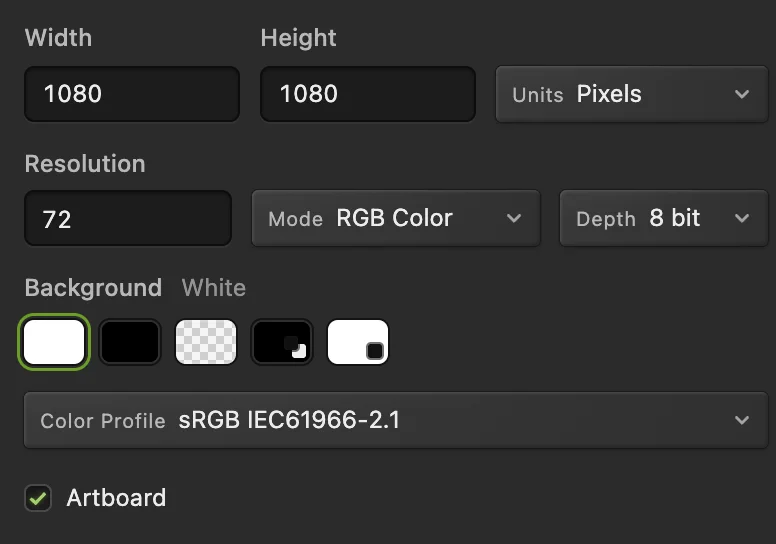
1080 × 1080 with Artboard ticked. Add a second board
Right-click the Move button at the top of the toolbar and choose Artboard. With the board selected, a small + appears beside each of its edges. Click the + on the right: a second board of the same size appears next to the first, 40 px away.
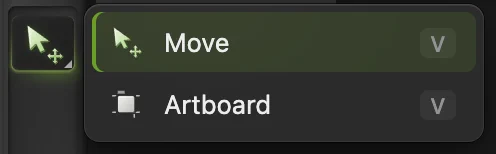
The Artboard tool shares the Move button. 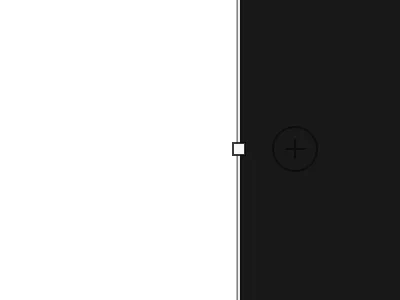
The faint + beside an edge adds a board on that side. Make it a tall story
The new board is selected. In the Properties panel, type 1920 for Height (px) and press Tab. It becomes 1080 × 1920, the size of a phone story; the document grows to fit both boards. Choose to see both.
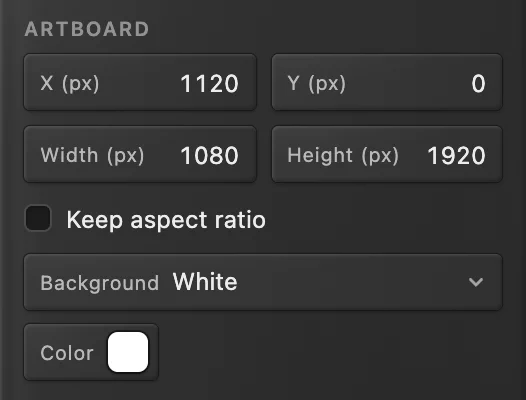
Height: 1920. Name the boards
In the Layers panel each board is a group with an AB badge, holding its own layers. Double-click the new board’s name (it is called Artboard): the old name is selected, so type Story and press Enter or ↩. Rename Artboard 1 to Post the same way. The names become the file names when you export.
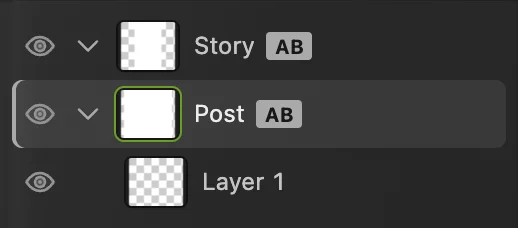
Two boards, named Story and Post. Give both boards a background color
Click the Post row. In Properties, set Background to Custom, click the Color swatch, enter F2C14E (warm yellow) in the # field and click OK. Click the Story row and do the same. A board’s background is part of the board, not a layer, so it can’t be moved or painted over by accident.
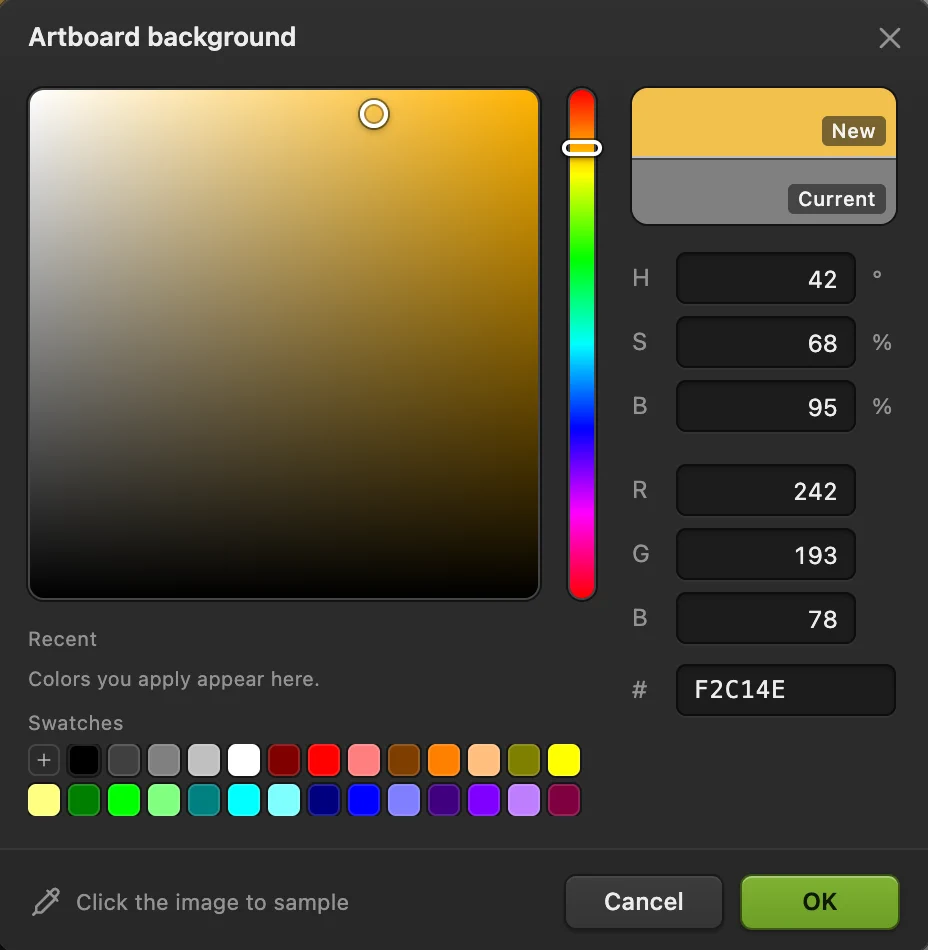
Enter F2C14E in the # field. Add text to each board
New layers go into the board that is selected in the Layers panel, not the one you click on. Click the Post row first. Press D for black, then T for the Text tool. On the options bar, choose Impact in the Font list, type 200 for Size and click the center alignment button (Align center). The click marks the bottom of the first line, so click a little above the middle of the square board, type SUNDAY, press Enter or ↩ for a new line, type MARKET and press Ctrl+Enter or ⌘↩. If the letters come out thin (Impact isn’t installed on every computer), choose Arial and click the B (Bold) button on the options bar.
Click the Story row, click a little above the middle of the tall board and type the same two lines. Each board now has its own text layer, which you can size and place for its shape.

Size 200, centered. 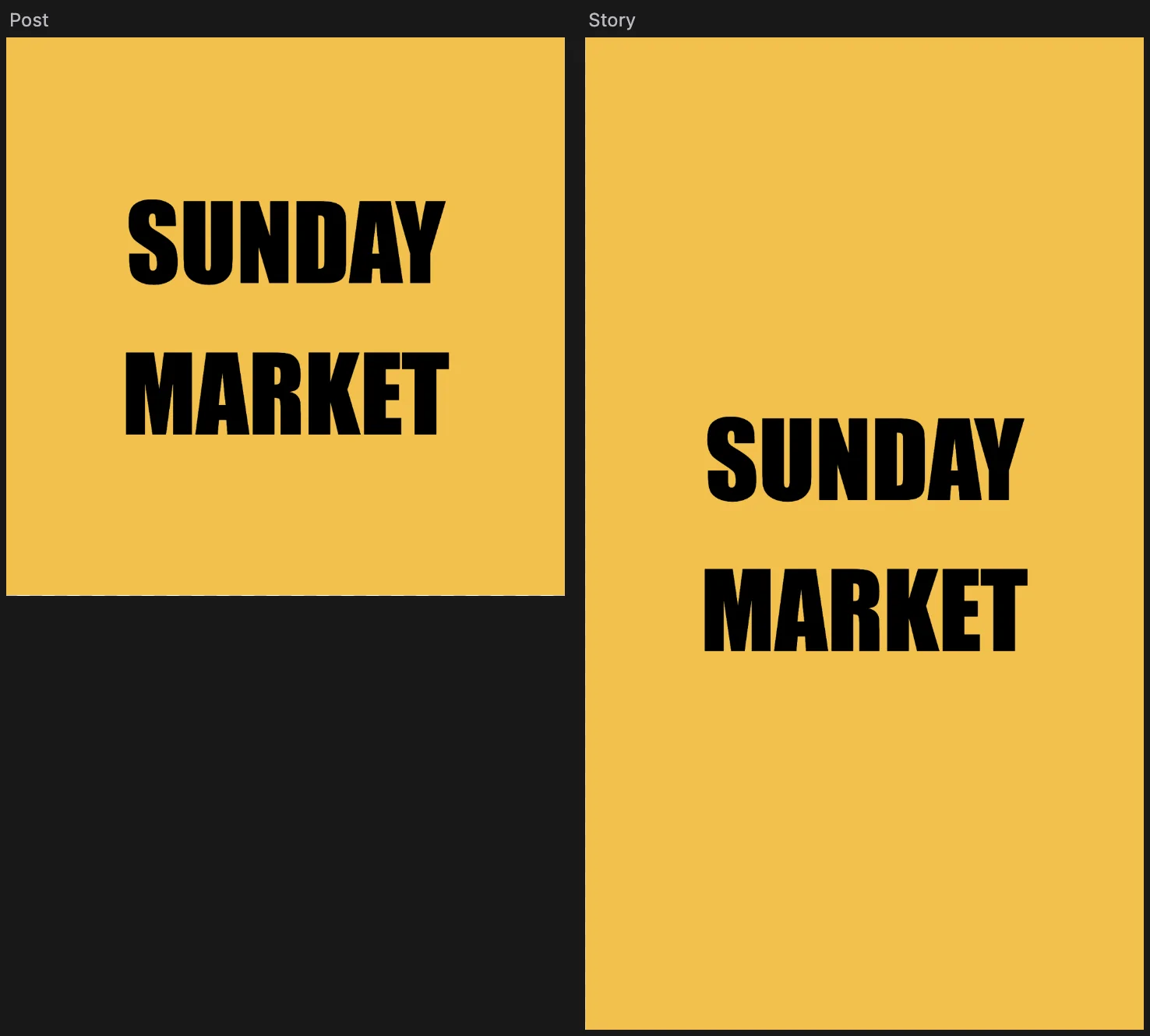
The square post and the tall story in one document. Export each board as its own file
Choose With boards in the document, As artboards is ticked and shows how many files you will get; Artboards to export lets you pick one board instead of all. Click Export: Lil Cactus downloads a ZIP with Post.png (1080 × 1080) and Story.png (1080 × 1920).
To keep the boards and layers editable, also choose (Ctrl+Shift+S or ⇧⌘S); after that, updates that file.
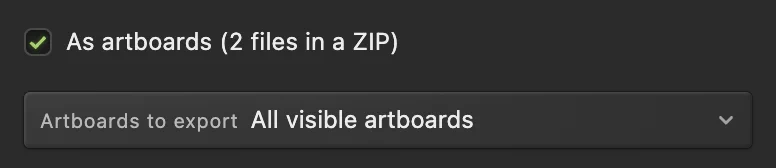
As artboards: one file per board.
Working with boards
- Draw a board of any size by dragging with the Artboard tool on the empty pasteboard; drag a selected board’s edges or corners to resize it.
- Exact size and place: X (px), Y (px), Width (px) and Height (px) in Properties; tick Keep aspect ratio to change both sides together.
- Move a board with everything on it: drag it, or its name above it, with the Artboard tool.
- Background: White, Black, Transparent or Custom. A transparent board exports with transparency in PNG, WebP, AVIF and TIFF.
- Hide a board with its eye icon in the Layers panel to leave it out of an export.
- One PDF: turns each visible board into one page of a single PDF, from the top of the Layers panel down, for a set of slides or a printed menu.
Cut one design into slices
Slices cut parts of a single canvas into separate files, for example the buttons and banner of a web page mock-up.
- Right-click the Crop button in the toolbar and choose Slice, then drag a rectangle over each part. Name and Padding on the options bar set the file name and an extra margin; before you draw any slice, From guides makes slices from the guides you have placed; after that the button reads Replace from guides and replaces your slices.
- shows or hides the slice outlines.
- writes every slice as an image in a ZIP. Choose the format and quality, add scaled copies such as 2× under Export variants, and tick Include automatic slices to export the rest of the canvas around your slices too.
To save each visible layer as a separate PNG instead, use .
Fix common problems
My text disappeared when I finished typing
It went into the board selected in the Layers panel, and a board shows only what lies inside it. Drag the new text layer’s row (named Text 2 or similar, at the top of that board’s group) onto the right board’s row.
As artboards is missing
It is only in the dialogs, not in Save Image. If it is missing there too, the document has no boards or all of them are hidden: show a board with its eye icon.
The + buttons don’t appear
They show only with the Artboard tool. Choose it, then click the board’s name above the canvas or its row in the Layers panel.
Coming from another editor
- Photoshop
- The Artboard tool under the Move tool, File › Export › Artboards to Files, and the Slice tool under the Crop tool.
Artboards and slices: questions and answers
What sizes should I use for social media?
Common sizes are 1080 × 1080 px for a square post, 1080 × 1350 px for a portrait post and 1080 × 1920 px for a story or reel cover. In Lil Cactus, make one artboard per size and export them all at once.
Can I turn an existing photo into an artboard document?
Yes. In Lil Cactus, open the photo, choose the Artboard tool and drag a board over the picture; in Properties, set X and Y to 0 and Width and Height to the photo’s size (Image › Image Size… shows it). Drag the photo’s row onto the board’s row in the Layers panel so it goes inside the board, then add more boards beside it.
Are artboards kept in PSD files?
Yes. In Lil Cactus, File › Save As › Photoshop (.psd)… writes artboards as Photoshop artboards in most documents. If the document needs a fallback that can’t keep them, Lil Cactus refuses and suggests a Lil Cactus project or exporting the boards as images.
What is the difference between artboards and slices?
Artboards are separate canvases, each with its own size and layers. Slices are rectangles drawn over one canvas to cut it into pieces when you export. In Lil Cactus, export artboards from File › Export with As artboards, and slices with File › Export › Export Slices…
Is my design uploaded when I use artboards in Lil Cactus?
No. Everything runs in your browser, on your own device. When statistics are on, the editor records which tools are used, never the image, as the privacy policy explains.
Keep going
 How to make a YouTube thumbnailA cut-out, a two-line headline and an outline at 1280 × 720.Beginner · 8 min
 How to use layers in a photo editorStack, reorder, fade, hide and group the parts of a picture.Beginner · 6 min
 How to draw shapes and export vector graphics (SVG)Editable shapes for icons, badges and buttons, exported as SVG.Beginner · 6 min