How to remove an object from a photo online
Quick answer
Outline the object with the Polygonal Lasso, a few pixels outside its edge and including its shadow. Choose , set Method to AI reconstruction, click Update preview, wait for the preview and click Apply repair. The repair lands on a new layer above the photo, so you can hide it or delete it if it doesn’t look right.

- Time
- 6 minutes
- Level
- Beginner
- You need
- A photo with an object you want gone, against a background that continues around it
- Works with
- JPEG, PNG, WebP, HEIC, PSD and other photos
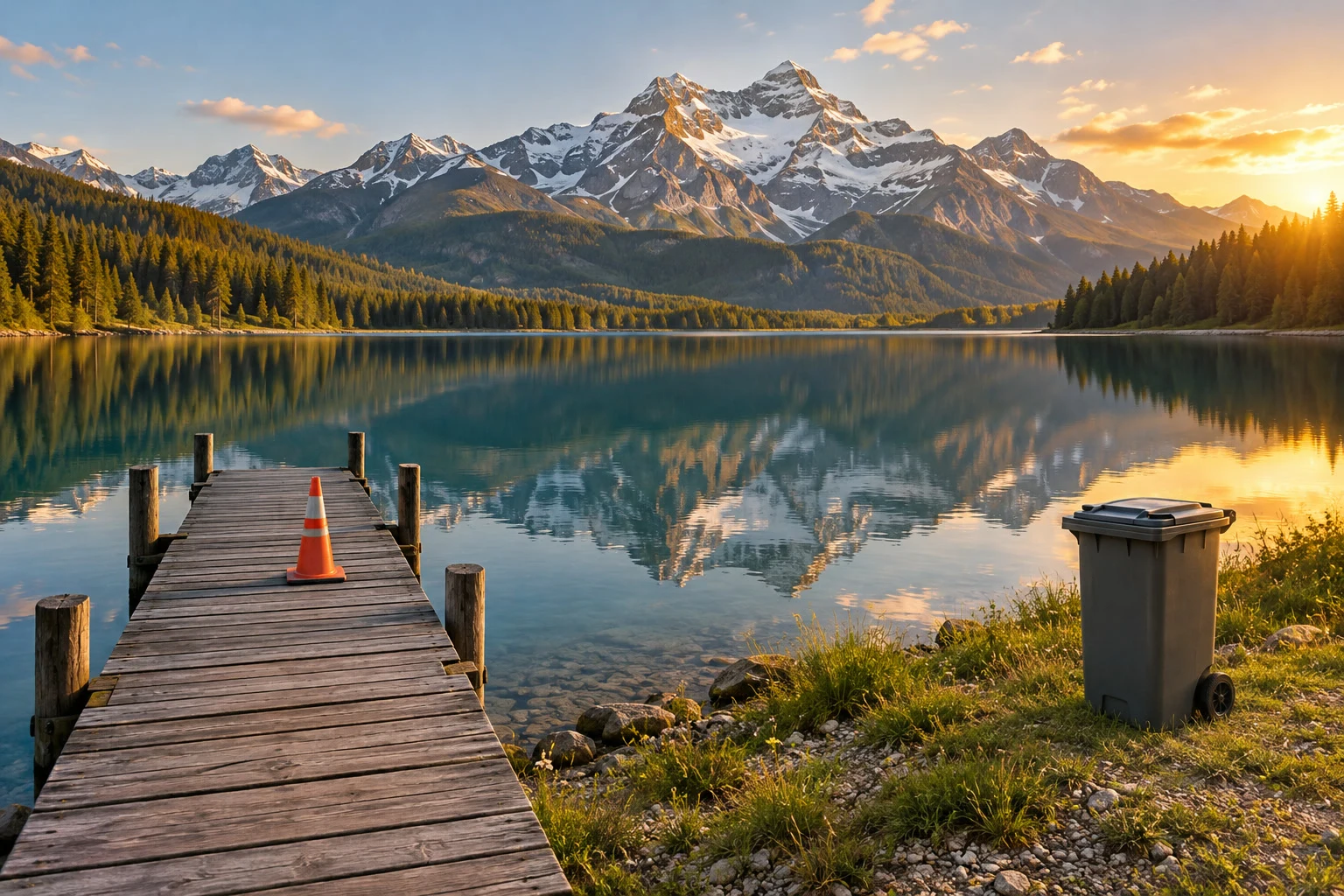
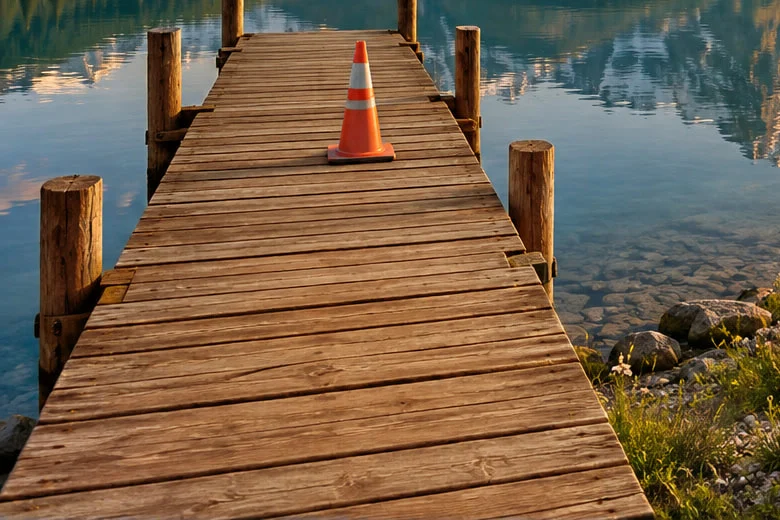
Removing an object means replacing it with what would have been behind it: planks where a cone stood, grass and water where a bin was. Content-Aware Fill does that from the rest of the photo. You show it the area to replace, and it builds new pixels that continue the surroundings.
In this tutorial you remove a traffic cone and a wheelie bin from a lake view. For other ways to outline an object, see selections explained. Objects against regular surroundings, such as planks, water or sky, come out best; textured ones such as grass need a touch-up.
Remove an object in seven steps
Open the photo
Go to lilcactus.app and choose , or drag the photo onto the window. To follow along exactly, open the sample photo from this page.
Outline the cone
Right-click the lasso button in the toolbar and choose Polygonal Lasso. Choose three or four times; it zooms on the middle of the window, so then scroll, or hold Space and drag, until the cone is in view and fills much of the window. Click a point a few pixels above the tip, then click around the cone, a few pixels outside its edge: down the left side, along the planks just below the base so its shadow is inside, and up the right side. Click the first point again to close the outline.
Tip Leave a small margin. An outline that touches the object leaves a colored rim behind; one that is much too big gives the fill more to invent.
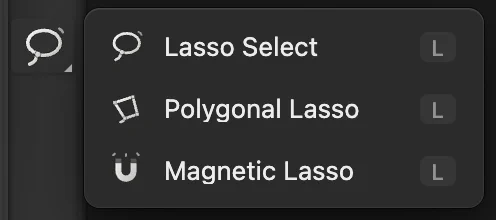
Polygonal Lasso, from the lasso button. 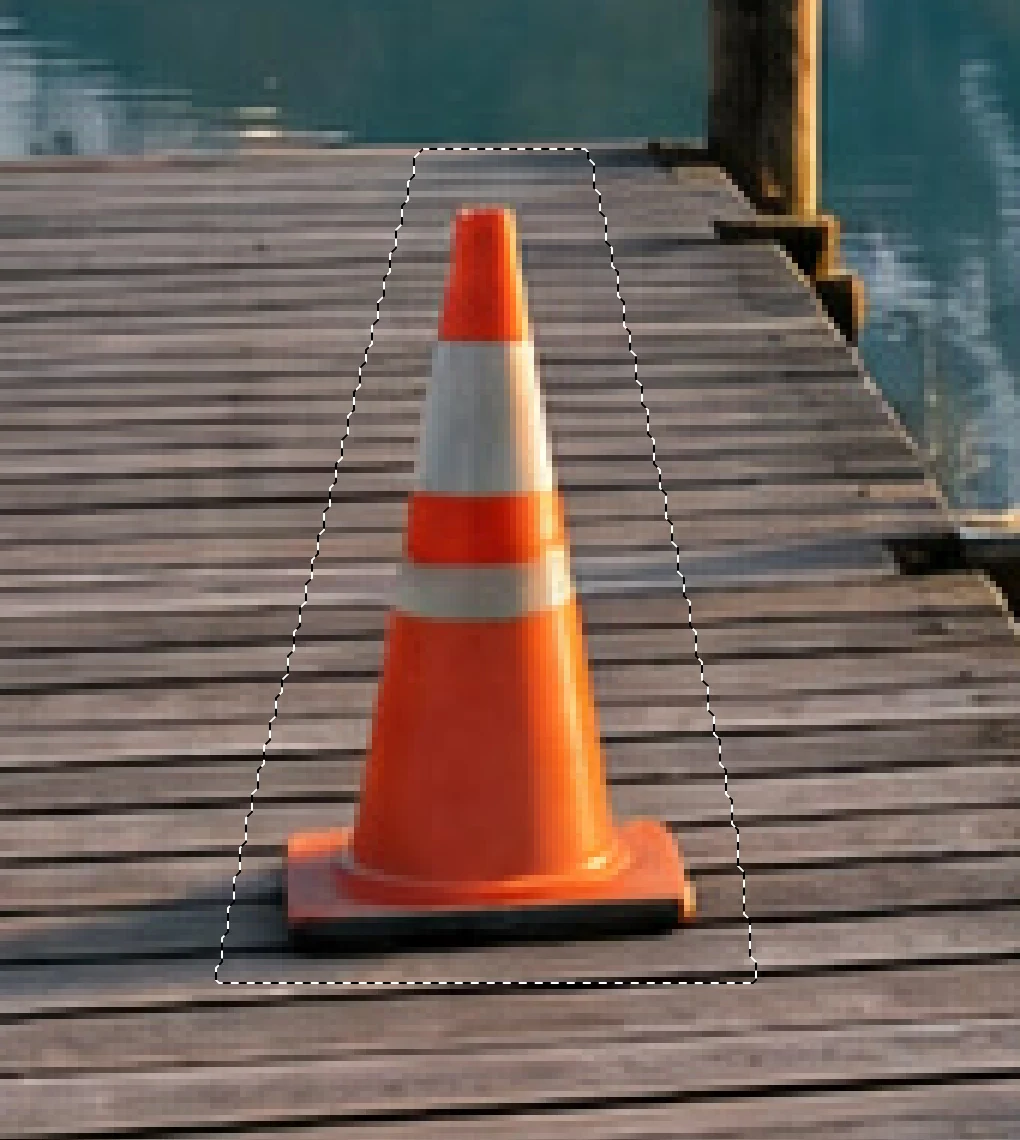
The outline: a small margin all round, shadow included. Open Content-Aware Fill
Choose . The window shows the whole photo with the area to repair in red, and a preview of the repair on the right.
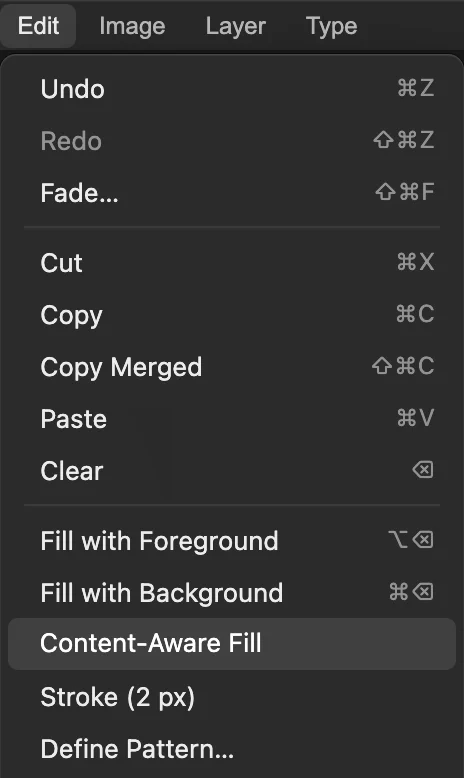
. Choose AI reconstruction and apply
Set Method to AI reconstruction and click Update preview. It rebuilds structure such as the lines of the planks, and it runs in your browser: the first time it downloads a model of about 77 MB, and each preview takes about 20 seconds, sometimes longer. When the preview shows the planks continuing where the cone was, tick Before and untick it to compare, then click Apply repair.

Method: AI reconstruction. 
Update preview after changing the method. 
Then Apply repair. Check the repair
Choose . The repair is on a new layer called Content-Aware Fill, above the photo, which stays untouched; click its eye to compare. Look at the repair with : the plank lines should run straight through.
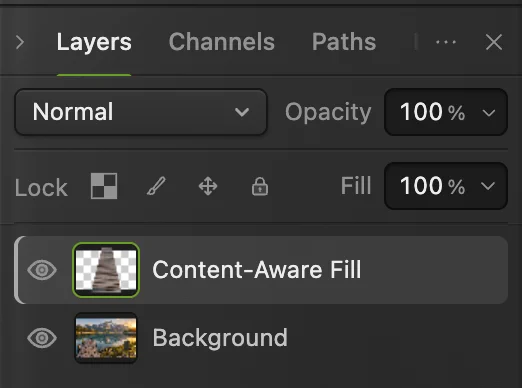
The repair on its own layer. 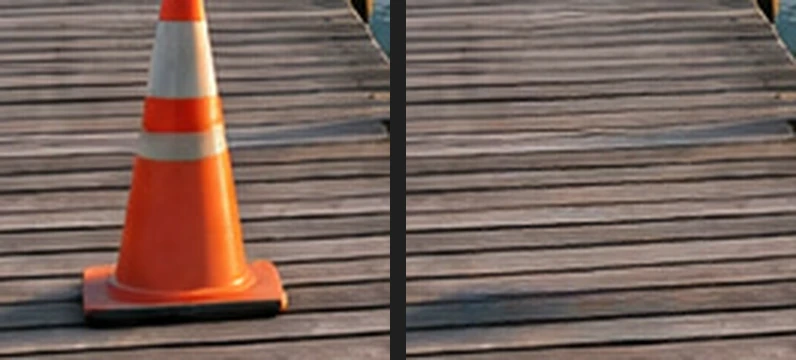
The cone before and after. Remove the bin
Choose , then zoom and scroll to the bin. Outline it with the Polygonal Lasso, a few pixels outside: start at the top left of the lid, go along its top, around the handle sticking out at the top right, down the right side, out around the wheel, along the grass just below the bin, and up the left side. Then run , set Method to AI reconstruction whichever method it opens with, click Update preview and then Apply repair.
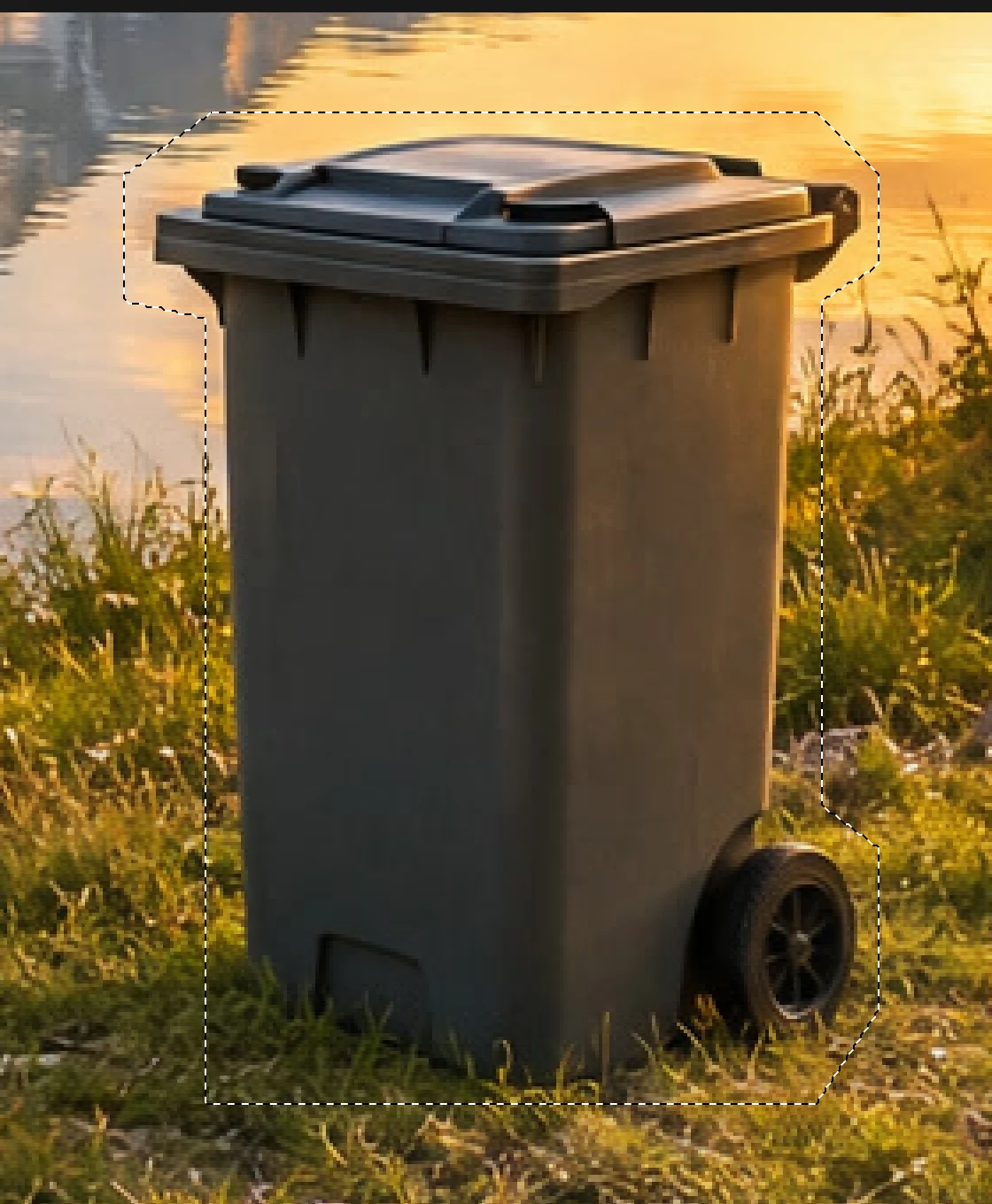
The bin outline, wheel and handle included. Touch up the grass with the Clone Stamp
Over varied texture such as grass, the repair comes out soft and a little dark: a smudge where the bin stood. Paint real grass over it. Choose , right-click the Clone Stamp button in the toolbar and choose Clone Stamp. On the options bar set Source to All Visible Layers, tick Aligned, and set Size to 50 px.
Zoom out until the grass on the left and the bin area are both in view. The repair layer, Content-Aware Fill 2, is selected, so the stamp paints onto it. Hold Alt or ⌥ and click the grass about 180 px to the left of where the bin stood, level with its lower half, to pick the source. Then drag four horizontal strokes across the soft area, about a brush width apart: the first just below the tops of the tall grass, the last along the bottom of where the bin stood.
Choose and click Export to download the cleaned-up copy. To keep the repairs as separate layers, choose

Source All Visible Layers, Aligned, Size 50. 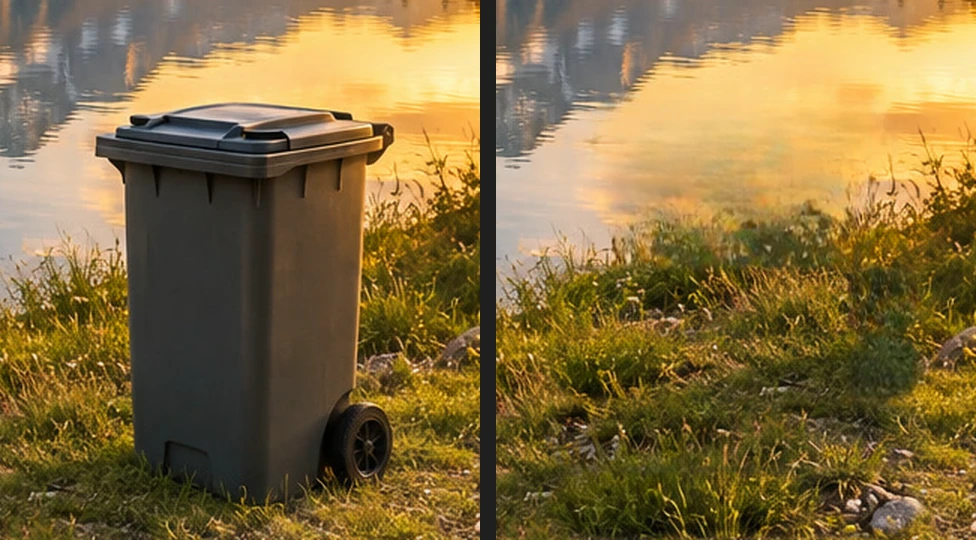
The bin before, and after the repair and touch-up.
Other methods and tools
- Match texture and Blend a patch, the other two methods, copy texture from elsewhere in the photo. On the planks both left a visible patch: Blend a patch pasted planks at the wrong angle, Match texture a smeared, streaky area. The Exclude brush paints over areas they shouldn’t copy; AI reconstruction ignores it.
- The Patch tool copies texture you choose: with the outline still selected, right-click the Clone Stamp button in the toolbar, choose Patch, and drag from inside the outline onto clean texture nearby, far enough that the outline no longer touches the object. It changes the layer itself, so duplicate the layer first with . On the cone it left a visible patch: the plank lines break along its edges.
- Unique detail behind the object, such as a face or lettering, can’t be recovered: the fill invents plausible surroundings, not what was really there.
Fix common problems
A colored outline is left where the object was
The outline touched the object. Delete the Content-Aware Fill layer, draw the outline a few pixels wider and run it again.
Apply repair is grayed out after changing the method
The preview hasn’t been made yet. Click Update preview and wait for it.
Content-Aware Fill is grayed out
Nothing is selected, or the active layer isn’t an unlocked image layer (a text, shape or adjustment layer, a Smart Object, a layer with its pixels locked, or a 32-bit document). Draw the outline, and click the photo’s row in the Layers panel.
Coming from another editor
- Photoshop
- Select the object, then Edit › Content-Aware Fill…
Removing objects from photos: questions and answers
Can I remove a person from a photo?
Often, if the background behind them is simple. In Lil Cactus, outline the person and their shadow and run Content-Aware Fill; there is no fixed size limit, but the larger the area, the more the fill has to invent, so check the result at 100%.
Does removing an object change my original photo?
Only if you save over it. In Lil Cactus a Content-Aware Fill repair goes on a new layer, and File › Export writes a new file. File › Save writes the flattened result back into the file you opened; for a JPEG, the first save opens the Save Image settings.
Why does the repaired area look blurry?
AI reconstruction invents detail from the surroundings, and over varied texture such as grass it comes out smoother than the photo. In Lil Cactus, keep the outline close to the object, and include the whole object in one outline: a part left beside the area being filled can be copied into it.
Is my photo uploaded when I remove an object in Lil Cactus?
No. Content-Aware Fill, including AI reconstruction, runs in your browser, on your own device. When statistics are on, the editor records which tools are used, never the image, as the privacy policy explains.
Can I undo a repair?
Yes. In Lil Cactus, choose Edit › Undo, or delete the Content-Aware Fill layer in the Layers panel at any time.
Keep going
 How to make a selection in a photo editorPick the right tool, add and subtract, feather and save a selection.Beginner · 6 min
 How to blur the background of a photoA camera-like background blur with no glow around the subject.Intermediate · 6 min
 How to change the background of a photoPut a cut-out on a new background and match the light and color.Beginner · 8 min