How to blur the background of a photo
Quick answer
Choose , then and to delete the person from the copy. Choose , then , set Source to From transparency, set Radius to 30 px (about 2% of the photo’s width) and click Apply. The copy’s street blurs, and the sharp person shows through from the photo underneath, with no glow around them.
- Time
- 6 minutes
- Level
- Intermediate
- You need
- A photo with a clear subject in front of the background
- Works with
- JPEG, PNG, WebP, HEIC, PSD and other images
A phone camera usually keeps everything sharp, from the person to the shop signs behind them, so a busy background competes for attention. A camera with a wide-open lens keeps only the subject sharp. You can add that look afterward with Lens Blur, which blurs the way a lens does.
Blurring the background straight on the photo has a catch: the blur also mixes in the person’s colors, and leaves a glow around them. So in this tutorial you blur a copy of the photo with the person deleted from it, and let the sharp person show through from the original underneath.
Blur the background in seven steps
Open the photo
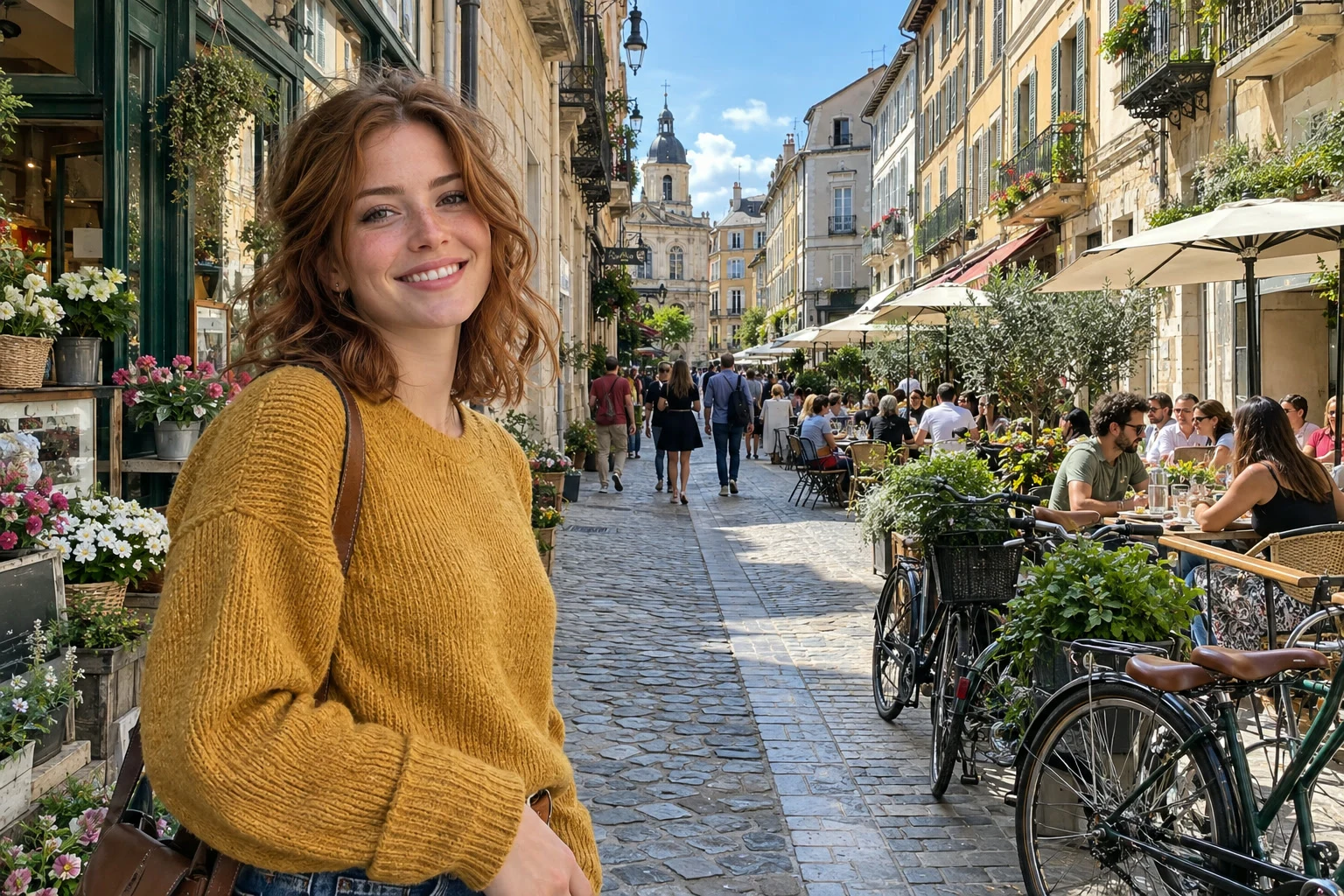
Go to lilcactus.app and choose , or drag the photo onto the window. To follow along exactly, open the sample photo from this page.
Select the person and check the outline
Choose . Lil Cactus finds the person and outlines them with a moving dashed line; the first time it can take a few seconds. Look along the outline for background caught inside it.
In the sample, a small triangle of pink flowers between the bag strap and her arm, at the bottom left, is inside. Take it out: right-click the lasso button in the toolbar and choose Polygonal Lasso, then choose a few times and scroll to the triangle. Hold Alt or ⌥ and click one corner of it, let go of Alt or ⌥, click the other corners, and click the first corner again. Holding Alt or ⌥ at the first click takes the shape away from the selection.
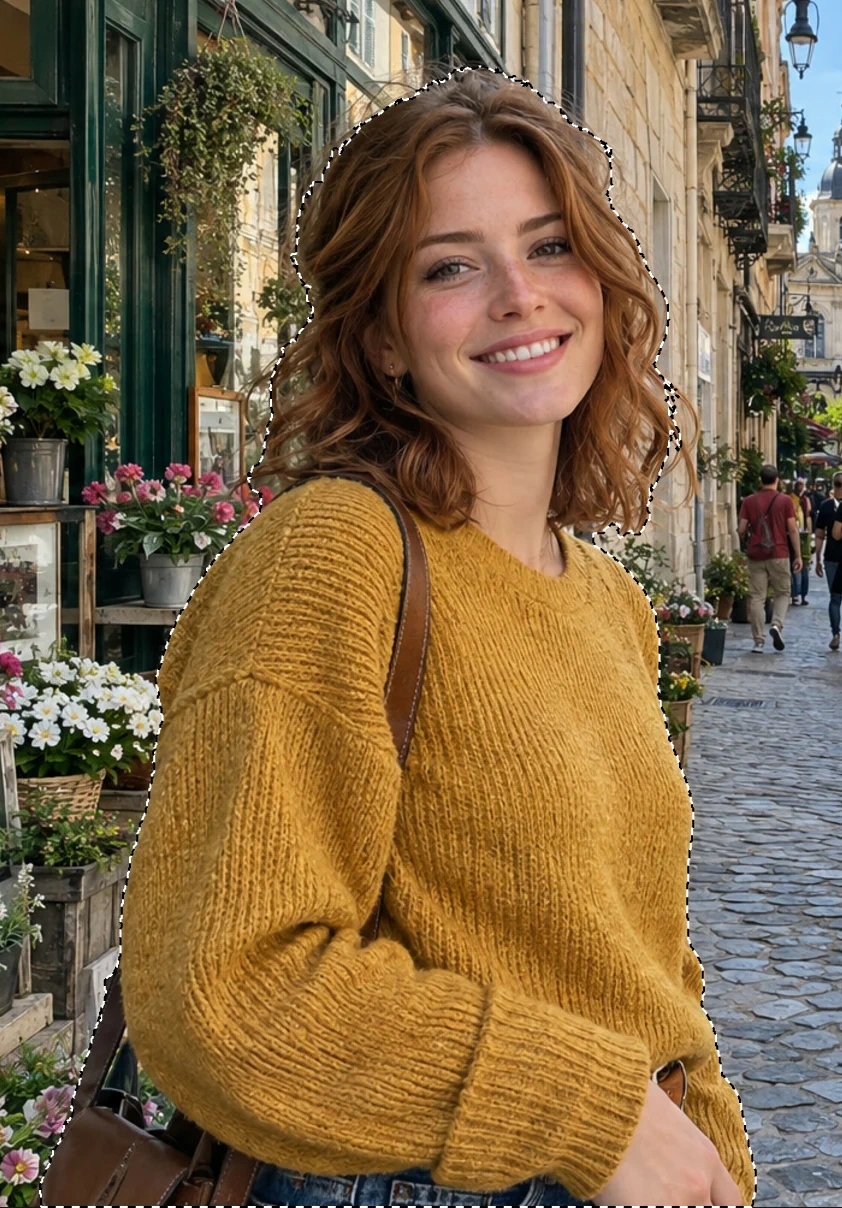
Select › Subject outlines the person. 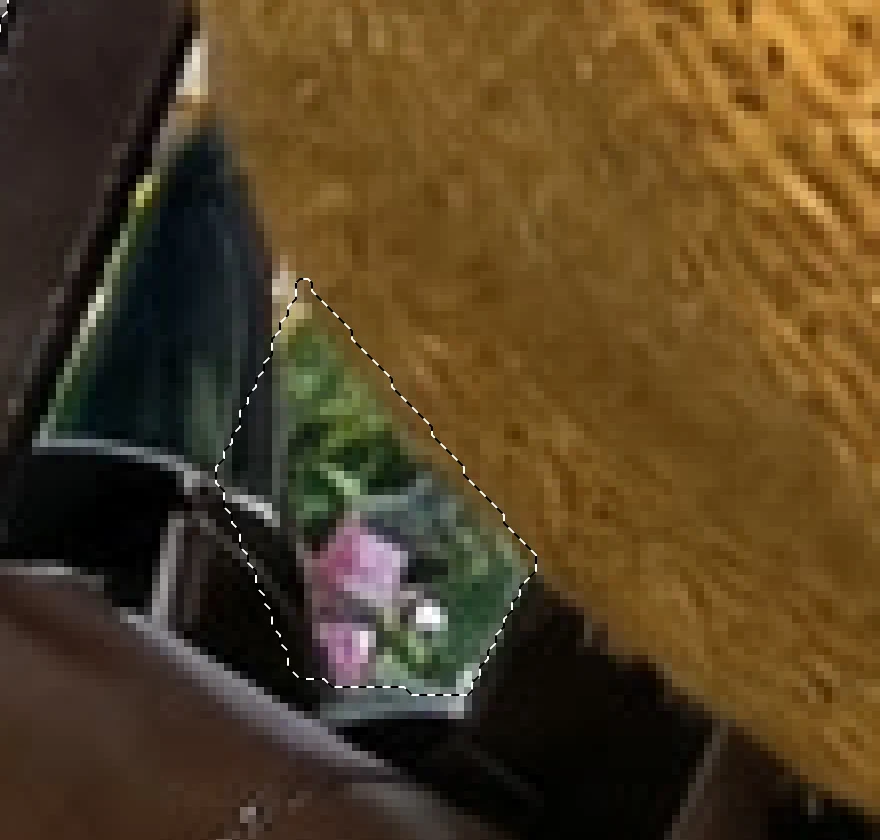
The flowers in the strap gap (bottom left of the photo, under her arm), taken out of the selection. Copy the photo
Choose . A layer called Background copy appears above the photo in the Layers panel and is selected; the outline stays.
Delete the person from the copy
Choose , or press Backspace or ⌫. The copy now has a person-shaped hole. Nothing seems to change, because you see her through the hole, on the photo underneath.
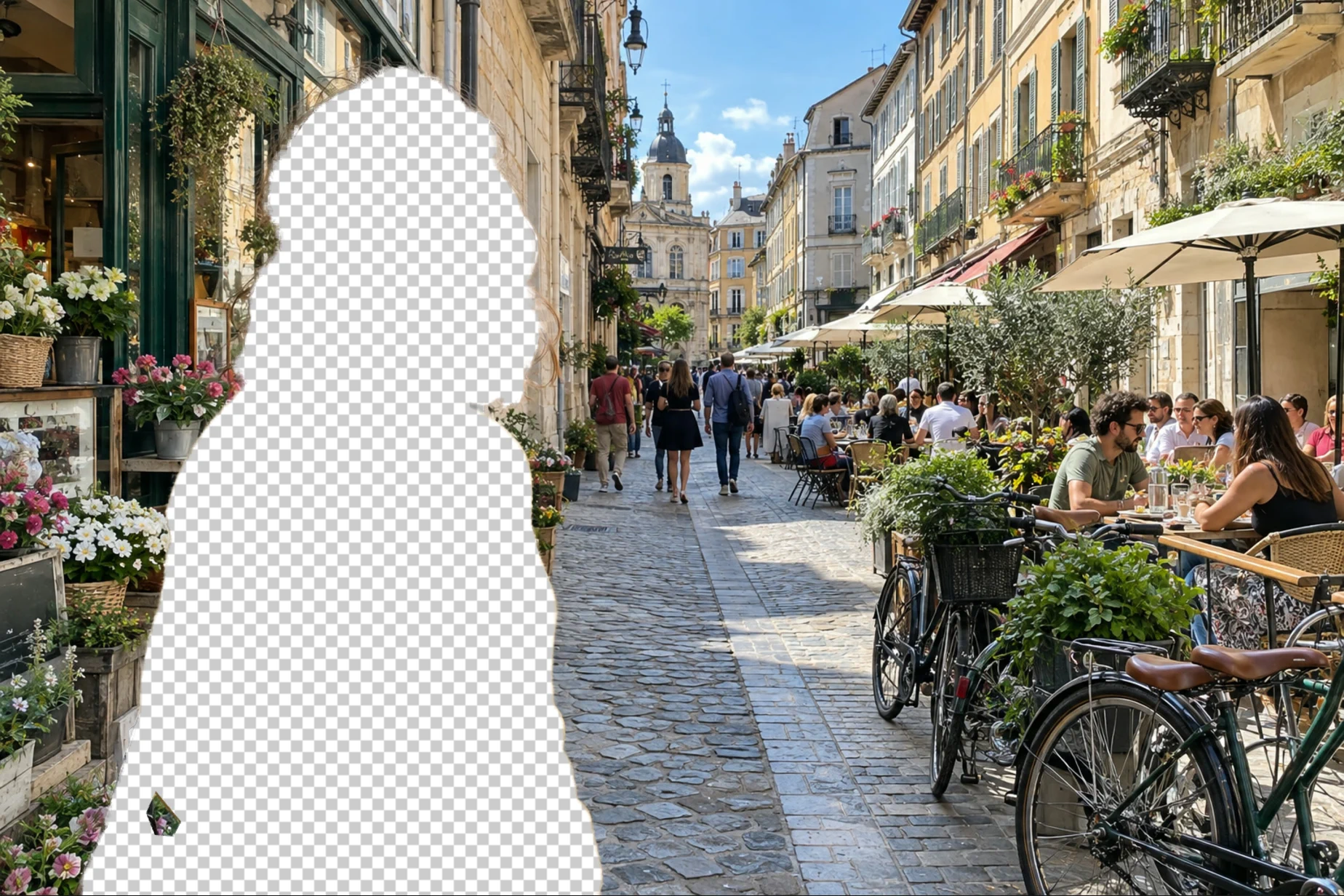
The copy on its own (the photo underneath hidden for this picture). Deselect
Choose , so the blur covers the whole copy. Use the menu: its shortcut Ctrl+D or ⌘D adds a bookmark in many browsers.
Blur the copy with Lens Blur
Choose On the Depth map tab, set Source to From transparency: Lens Blur then keeps the hole out of the blur, so none of her colors spread into the street. On the Aperture tab, check that Radius is 30 px, a strong blur for this 1536 px photo. Click Apply.
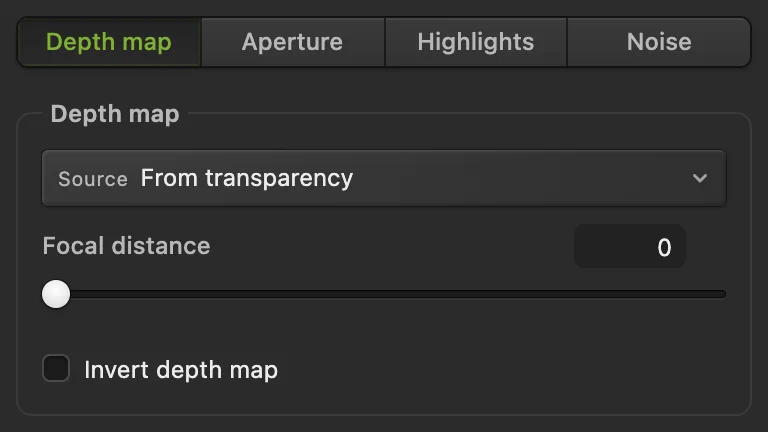
Source: From transparency. Check the result, then save
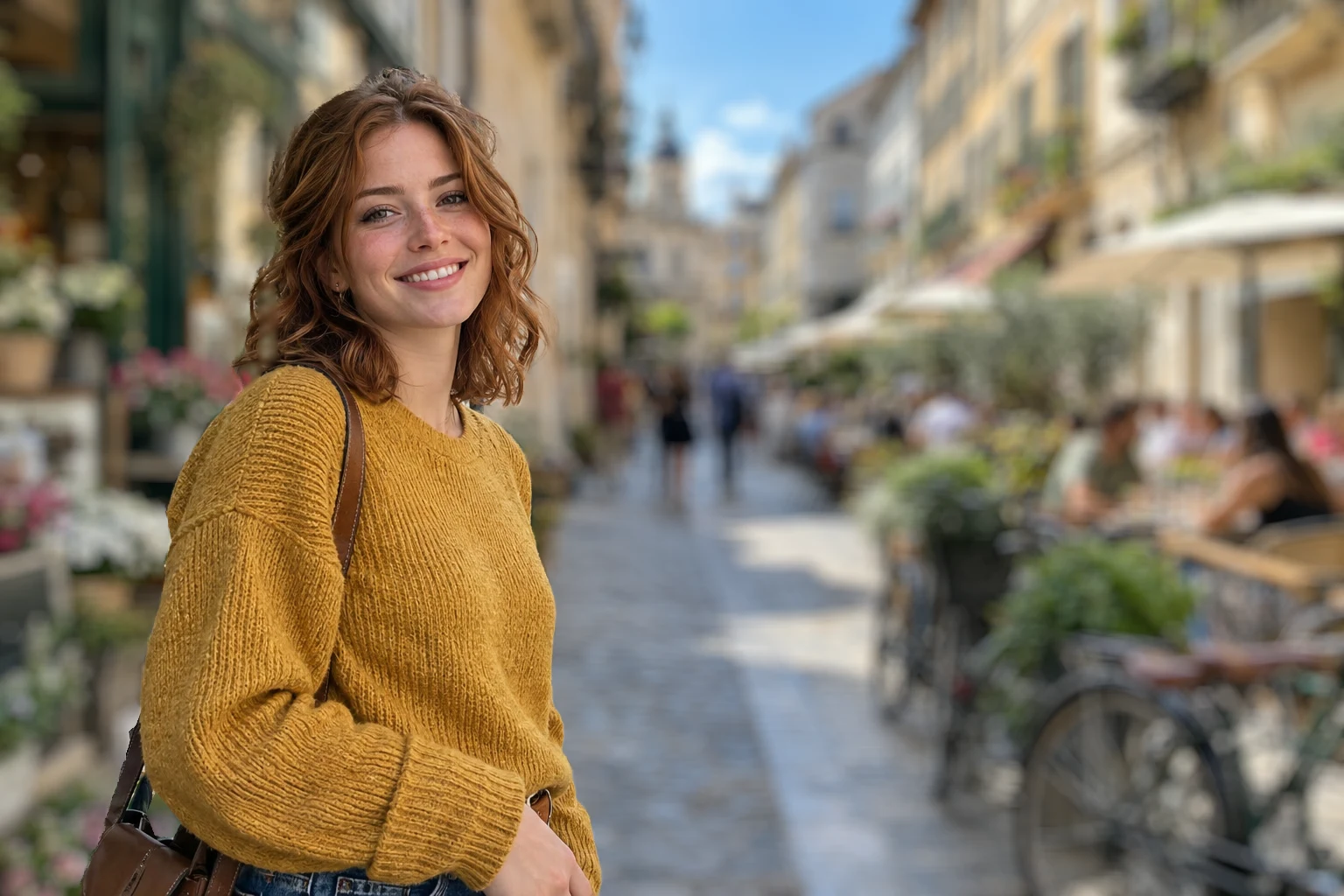
The café, the bicycles and the people behind her are soft, and she stays sharp. Lens Blur mixes light the way a lens does, so the blurred street also comes out a little brighter (about 10 levels out of 255 on average here, more in the shade).
Choose (or another format) and click Export for a flat copy; the file you opened doesn’t change. writes the flattened result back into the file you opened; for a JPEG the first save opens the Save Image settings. To keep the two layers, choose If sharp bits of background show between loose hair, see Hair and other fine edges below before you save.
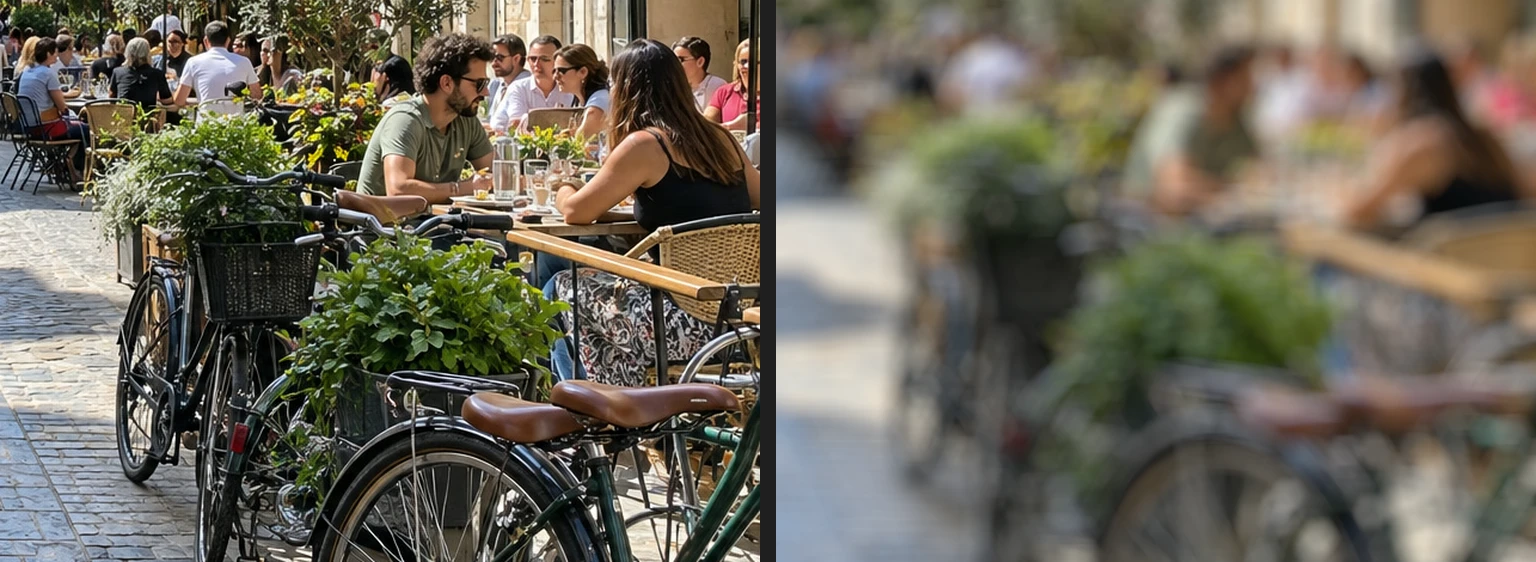
The café behind her, before and after.
Why not blur the photo directly?
With the person selected and then swapped with , Lens Blur changes only the background, but it still reads the pixels next to it, including hers. Her colors spread into the street around her: in the sample, a yellow band about 10 px wide forms beside the sweater. Deleting her from the copy and choosing From transparency keeps her colors out of the blur.

Hair and other fine edges
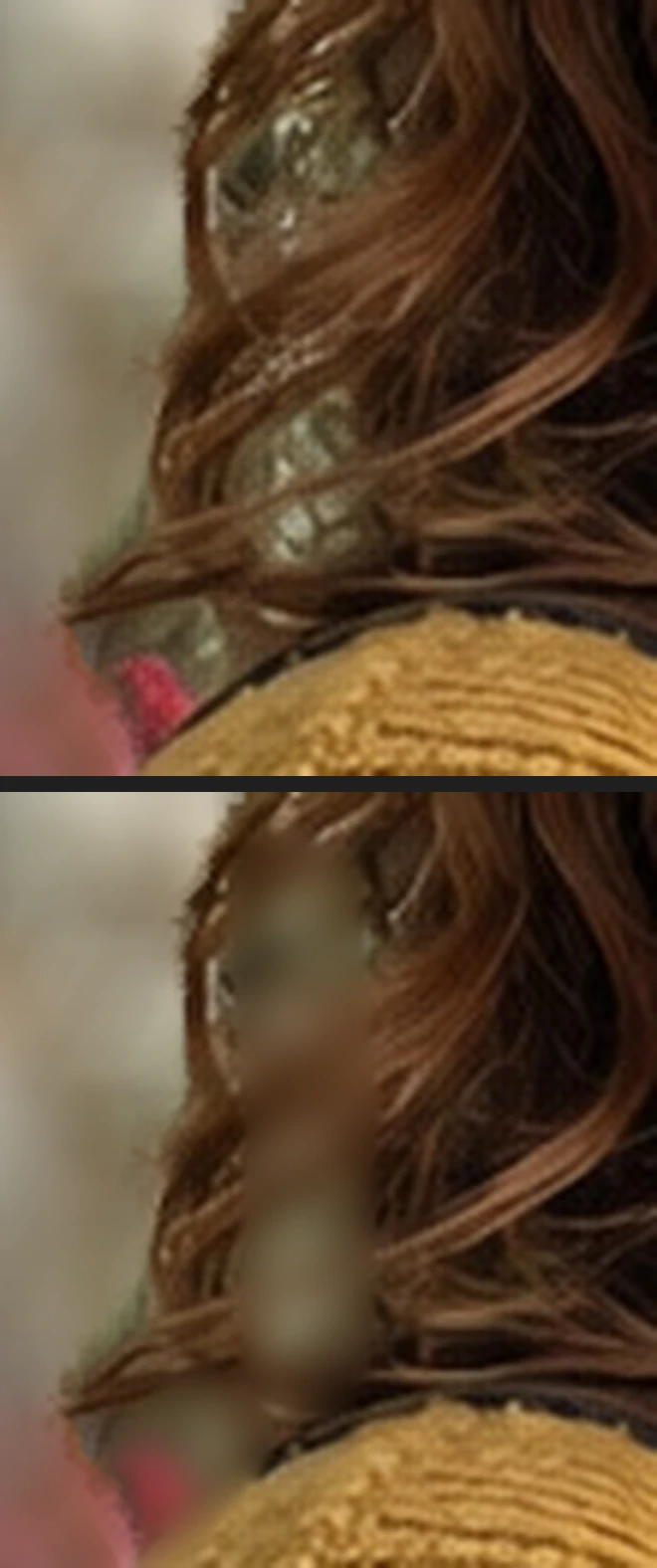
Gaps between loose strands of hair are part of the person’s outline, so the background showing through them stays sharp. In the sample this is clearest on the left of her hair, above the shoulder, with a sharp pink flower at the shoulder, and it shows at 100%.
To soften those spots, click the Background row in the Layers panel (the sharp spots are on the photo underneath). Right-click the retouch button in the toolbar (the one with the stamp) and choose Blur. Set Size to about 24 px and Strength to 40%, then brush two or three times over the gaps between the strands and the flower, staying off the sweater. Strands under the brush soften as well, to roughly half their crispness: at 100% this reads as hair falling out of focus, but zoomed in you can see where you brushed, so keep the strokes on the gaps.
Before step 3, with Output set to Selection can keep a few more strands; check the result for small sharp specks of background. Removing a background explains Refine Edge in detail.

How much blur to use
- Radius is in pixels, so a bigger photo needs a bigger number for the same look: 30 px on a 1536 px photo is about 2% of its width; on a 4000 px photo, try 60 to 80. For a subtler look, use about half.
- Shape sets the outline that bright spots spread into, a hexagon by default.
Fix common problems
Her outline looks hazy, as if the street spreads over it
Source was left on None, uniform blur. Choose (Ctrl+Z or ⌘Z) and apply Lens Blur again with From transparency.
Part of the person is blurred
The selection missed it, so it stayed on the copy. Undo until the person is back on the copy, then before add the missing part: hold Shift or ⇧ and click round it with the Polygonal Lasso.
Edit › Clear is grayed out
The copy is locked or a Smart Object. Unlock a locked layer with its lock in the Layers panel. For a Smart Object, choose and click Convert to Pixels. Then continue. More in Smart Objects.
Coming from another editor
- Photoshop
- Select › Subject, then Filter › Blur › Lens Blur…, whose depth map can use a layer’s transparency.
Background blur: questions and answers
Do I have to select the person?
For this method, yes: in Lil Cactus, Select › Subject finds the person in one step, so you can take them off the copy before blurring. Without a selection, Lens Blur with no depth map blurs the whole photo evenly.
Why is the blurred background brighter?
Lens Blur mixes light as a lens does, so bright spots spread and lift the darker areas around them. In Lil Cactus, click the Background copy row and choose Image › Adjustments › Levels… if you want it darker.
Does this work for group photos?
Yes, if Select › Subject picks everyone. In Lil Cactus, check the outline after step 2 and add anyone it missed with the Polygonal Lasso while holding Shift.
Does background blur work on photos of pets or objects?
Yes. In Lil Cactus, Select › Subject picks the main subject, such as a pet, a product or a car; check the outline before you blur.
Can I change the blur later?
Yes, while the document is open or after saving a Lil Cactus project: the sharp photo is still the bottom layer. In Lil Cactus, delete the blurred copy and repeat steps 2 to 6 with a different Radius.
Is my photo uploaded when I blur the background in Lil Cactus?
No. Selecting the subject and blurring both run in your browser, on your own device. When statistics are on, the editor records which tools are used, never the image, as the privacy policy explains.
Keep going
 How to remove the background from a photoSelect Subject, a layer mask and a transparent PNG.Beginner · 3 min
 How to make a selection in a photo editorPick the right tool, add and subtract, feather and save a selection.Beginner · 6 min
 How to change the background of a photoPut a cut-out on a new background and match the light and color.Beginner · 8 min