How to change the background of a photo
Quick answer
Open your photo in Lil Cactus, choose , then and apply New layer with editable mask to hide the old background. Choose to add the replacement photo, then drag its layer below the cut-out in Layers. Use or to match the subject to the setting, and to restrict each adjustment to the subject. Export the finished picture with
- Time
- 8 minutes
- Level
- Beginner
- You need
- A subject photo, a replacement background and a computer with a mouse or trackpad
- Works with
- JPEG, PNG, WebP, AVIF, HEIC, TIFF and PSD images
A replacement background needs two layers: the subject above and the new setting below. A mask hides the old background while keeping the subject’s edge editable. The new photo shows through the hidden areas.
Choose the setting before cutting anything out. Compare the direction of the light, the camera height and the size of objects behind the subject. Small color changes can bring two photos closer together; they cannot turn hard sunlight into soft shade or move a shadow to the other side of a face.
Change a photo background in seven steps
Open the subject photo
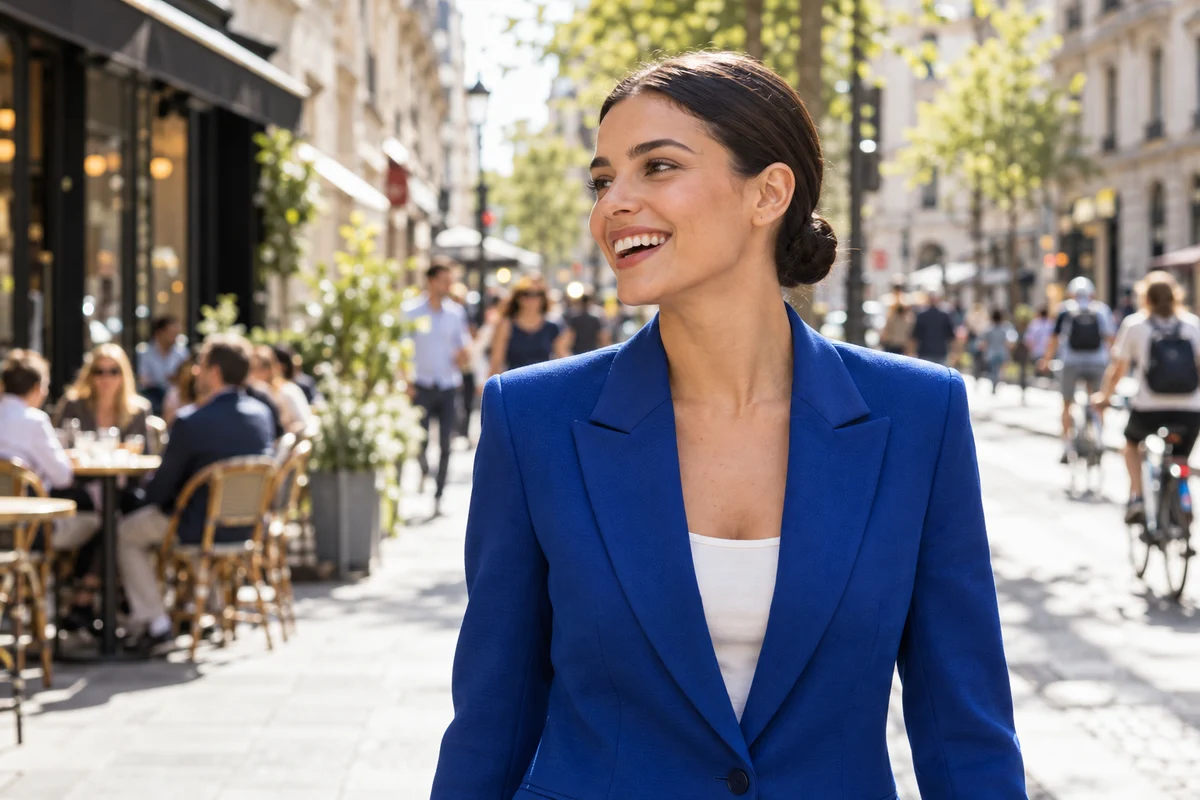
At lilcactus.app, choose (Ctrl+O or ⌘O) or open the portrait sample from this page. It becomes the Background layer.
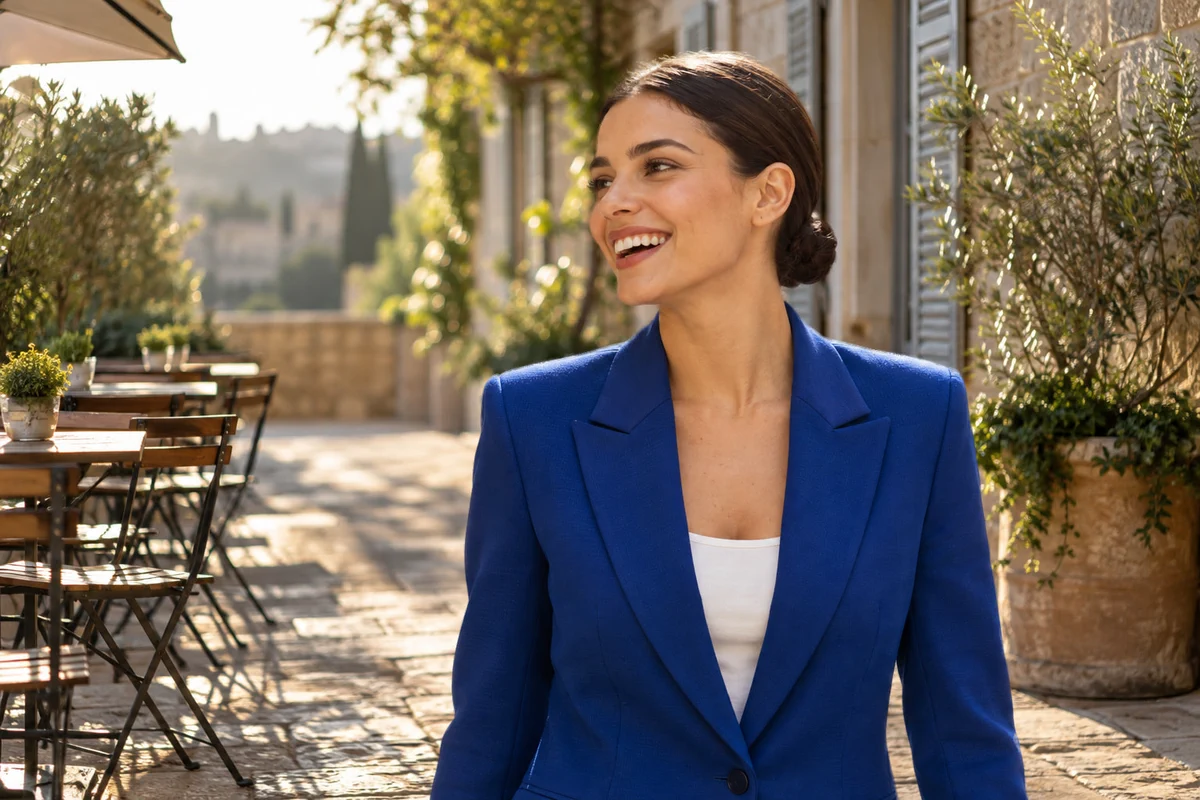
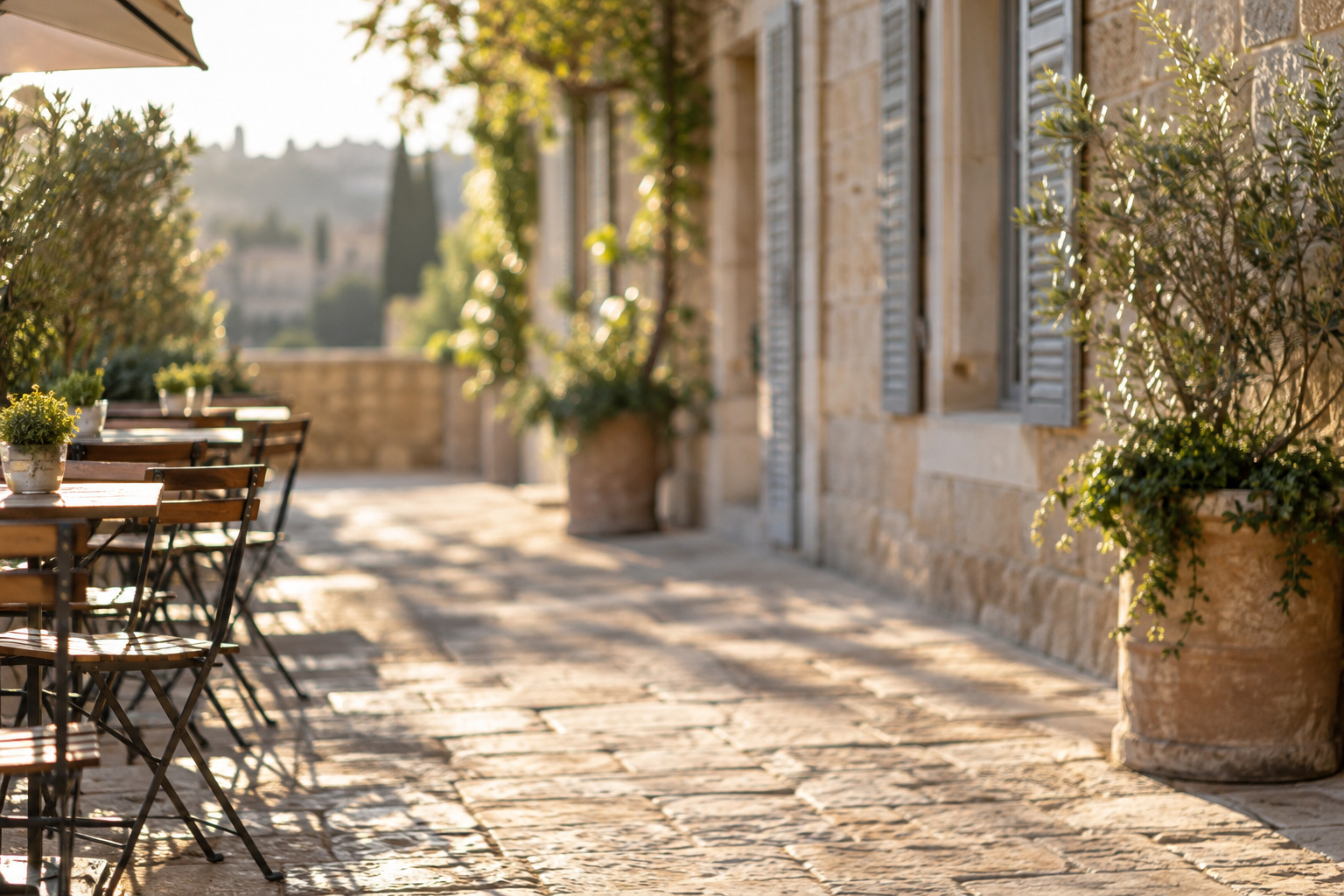
To follow along, download the café terrace background too. Both samples are 1536 × 1024 pixels, so the replacement fills the same canvas without resizing.
Select the person
Choose . Wait for the dotted selection outline around the woman. The first use downloads the AI model; the selection itself is processed on your device.
Check the hair, shoulders and sleeves. If part of the subject is missing, right-click the selection-tool group and choose Quick Selection. Paint over the missing area to add it; hold Alt or ⌥ while painting to subtract unwanted background.
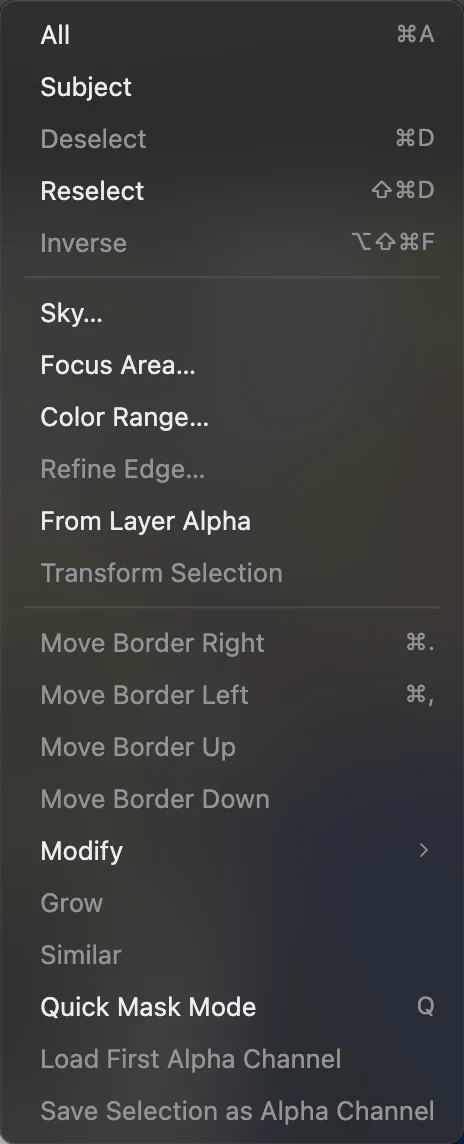
Select Subject finds the main person in the photo. 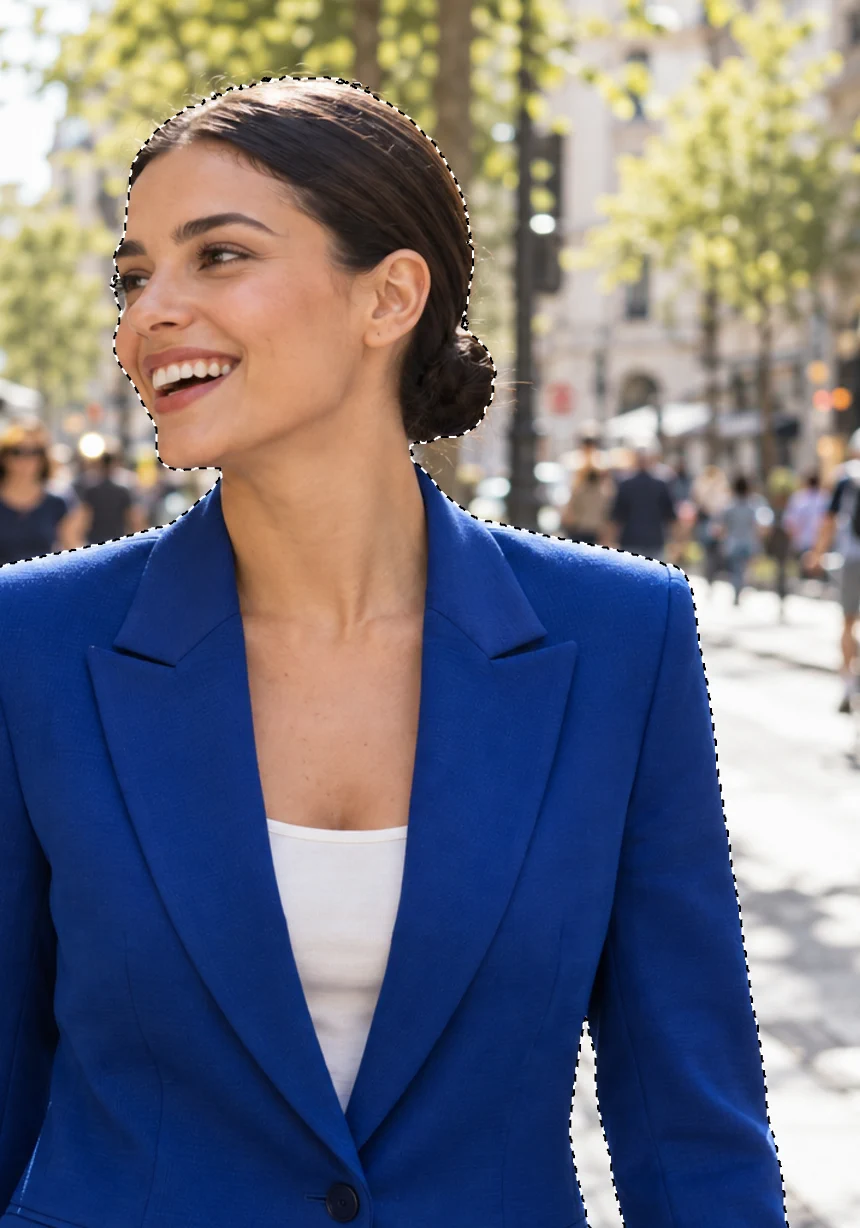
Check the outline before turning it into a mask. Refine the edge and keep an editable mask
Choose Keep Adapt to edge checked, Maximum edge recovery at 8 px and Remove background color at 100% for the sample. Edge recovery searches a band around the outline for fine detail; removing background color reduces the old street color in partially transparent hair.
Set Zoom to 100% and compare Preview on White and Black. Look for a bright fringe, stray street pixels or missing hair. Leave Output on New layer with editable mask and click Apply.
The new Background cut-out layer has a black-and-white mask beside its image thumbnail. White shows the subject; black hides the street. The original Background layer is switched off underneath. Double-click the new layer’s name, type Portrait and press Enter or ↩.
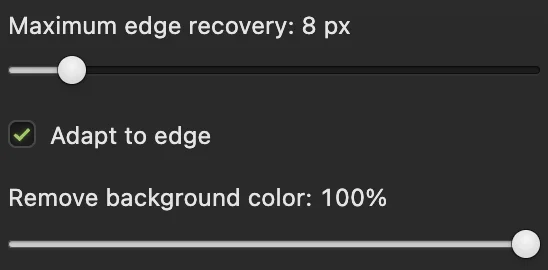
Adaptive recovery searches a narrow band on hard edges and a wider band on hair. 
Choose a new masked layer to keep the hidden original underneath. 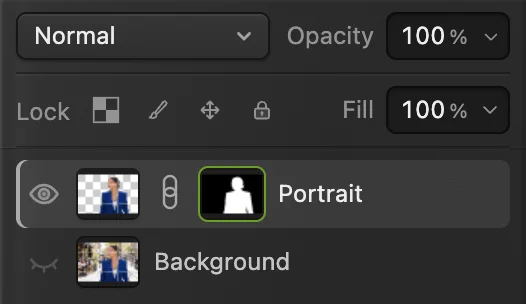
Portrait is the cut-out. Background is the hidden original. Place the new background in this document
Choose and select sunlit-terrace.jpg. A layer called sunlit-terrace appears above Portrait. It covers the woman for now because it is higher in the stack.
Use Place rather than Open for this step: Open makes a separate document, while Place adds the photo to the document you are editing.
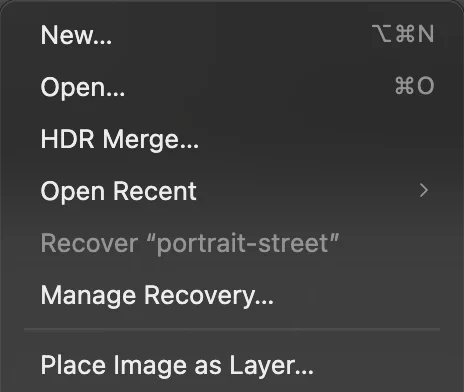
Place adds the second photo as a layer in the portrait document. Put the new background below the portrait
In Layers, drag the sunlit-terrace row to just below Portrait, above the hidden original Background. Release over the lower half of the Portrait row. The woman reappears over the terrace.
For the samples, leave both photos in their original positions. The tables stay to the left and the woman fills the open space at right center. Check that the replacement covers the whole canvas.
Tip If your background is smaller or a different shape, use the sizing instructions below before continuing.
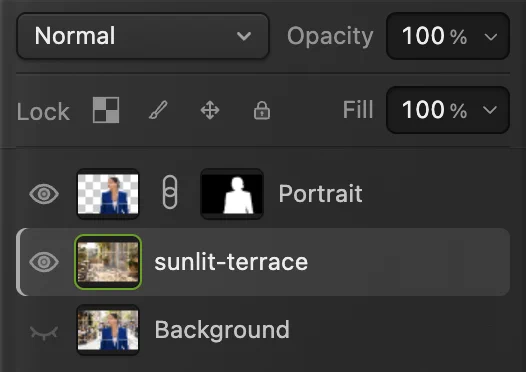
The cut-out goes above the replacement setting. 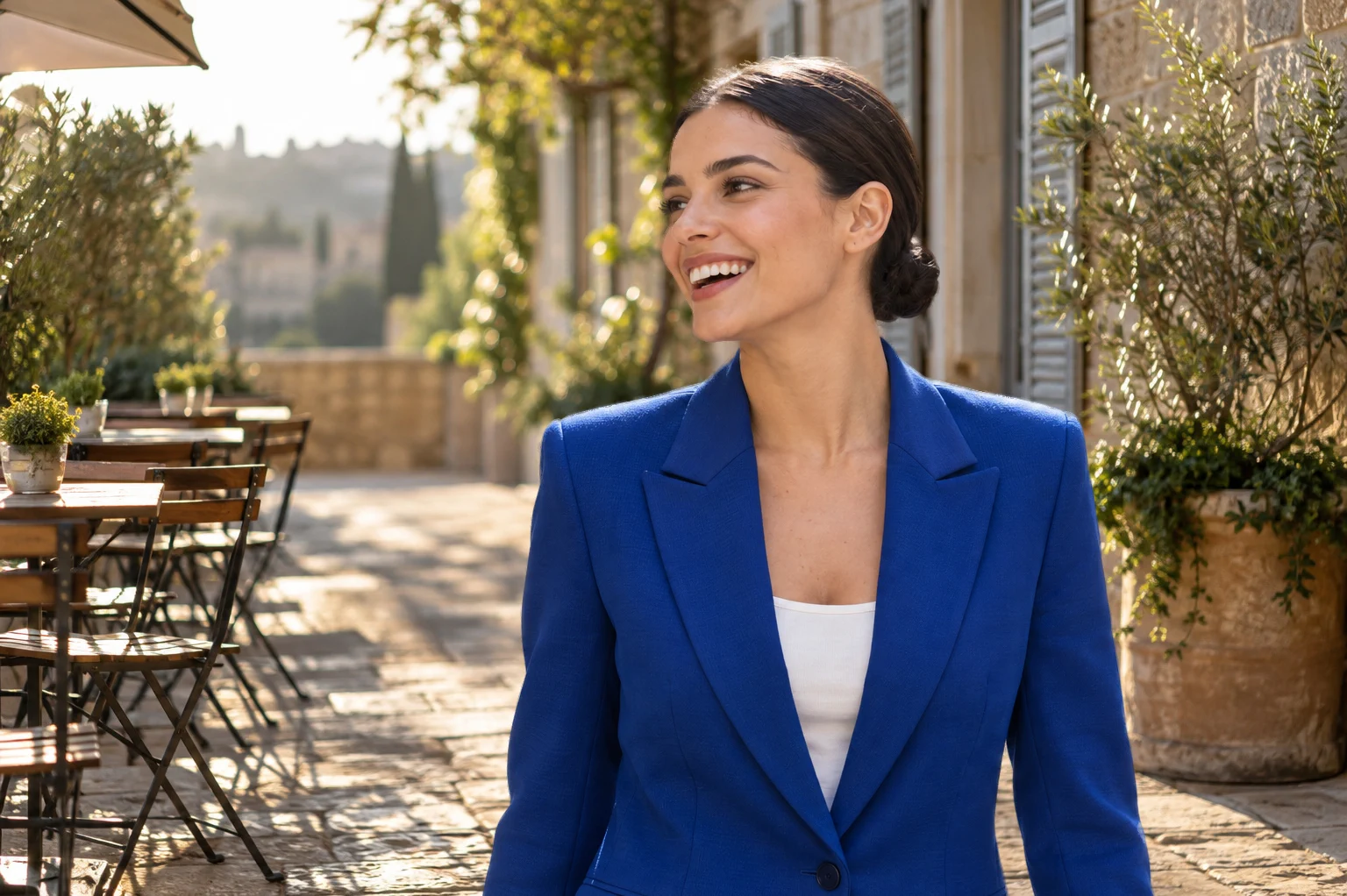
The setting is in place. Now compare the portrait’s light with the terrace. Match the light and color
Click the image thumbnail for Portrait, not its mask, and choose For these samples, start with Brightness −10 and Contrast +8, leaving Use Legacy off. These changes darken the portrait slightly and deepen its shadows for the warm sunlit setting. Click Apply.
With the new adjustment selected, choose . A bent arrow appears beside its thumbnail. This restricts the adjustment to Portrait, so the café returns to its original light.
To warm the portrait’s midtones, add above that adjustment. In Midtones, set Cyan – Red to +12 and Yellow – Blue to −16. Leave Magenta – Green at 0 and enable Preserve Luminosity. Click Apply and use Create/Release Clipping Mask for this layer too.
For your own photos, start at 0 and move one control at a time. Compare skin, white clothing and shadows with the setting. Click an adjustment’s eye to compare before and after; stop before the skin looks gray or the highlights lose their shape.
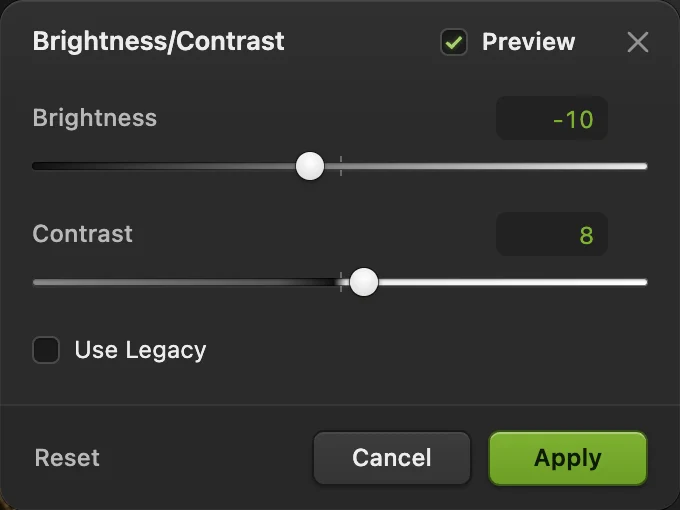
These values are a starting point for the two sample photos. 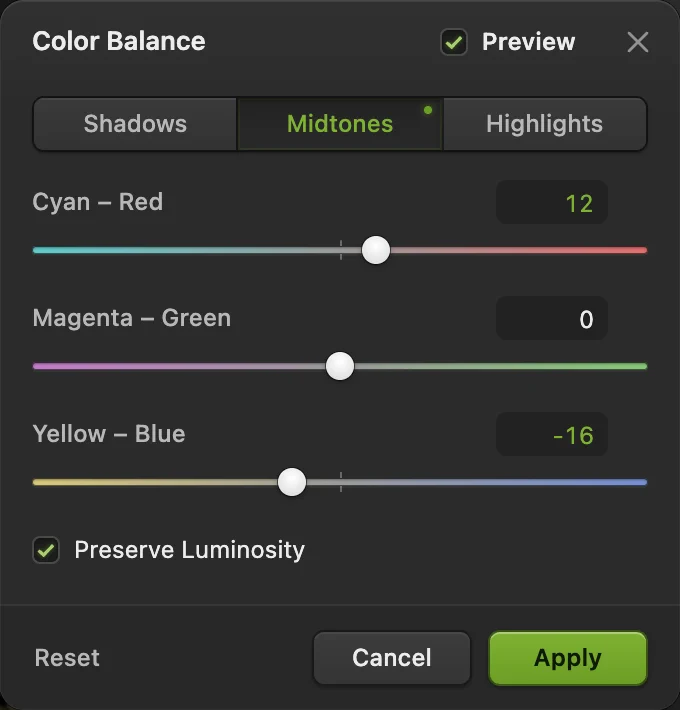
Red and yellow warm the skin and reflected light in the blazer. 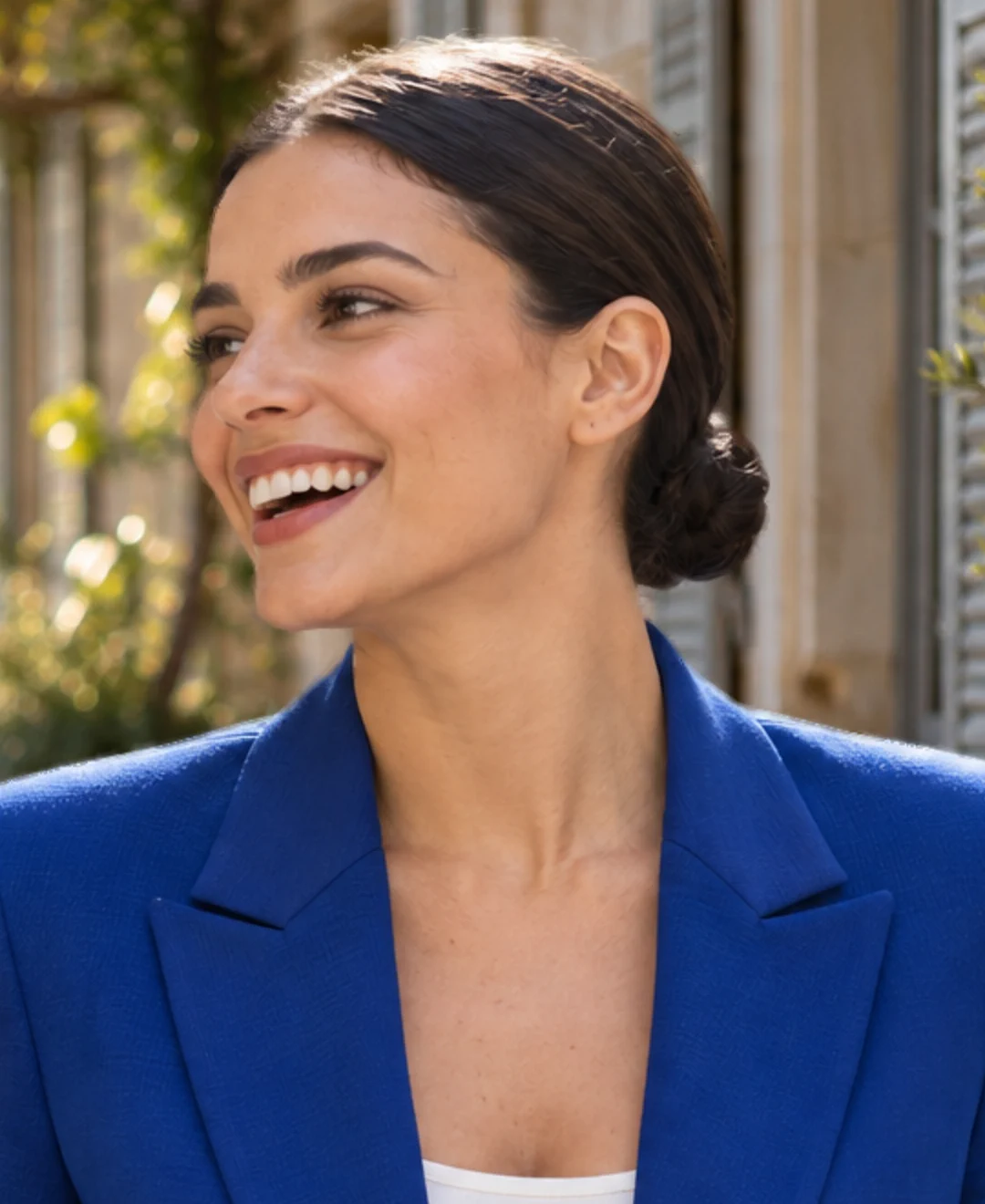
Before matching: compare the skin and shoulder highlights with the warm terrace. 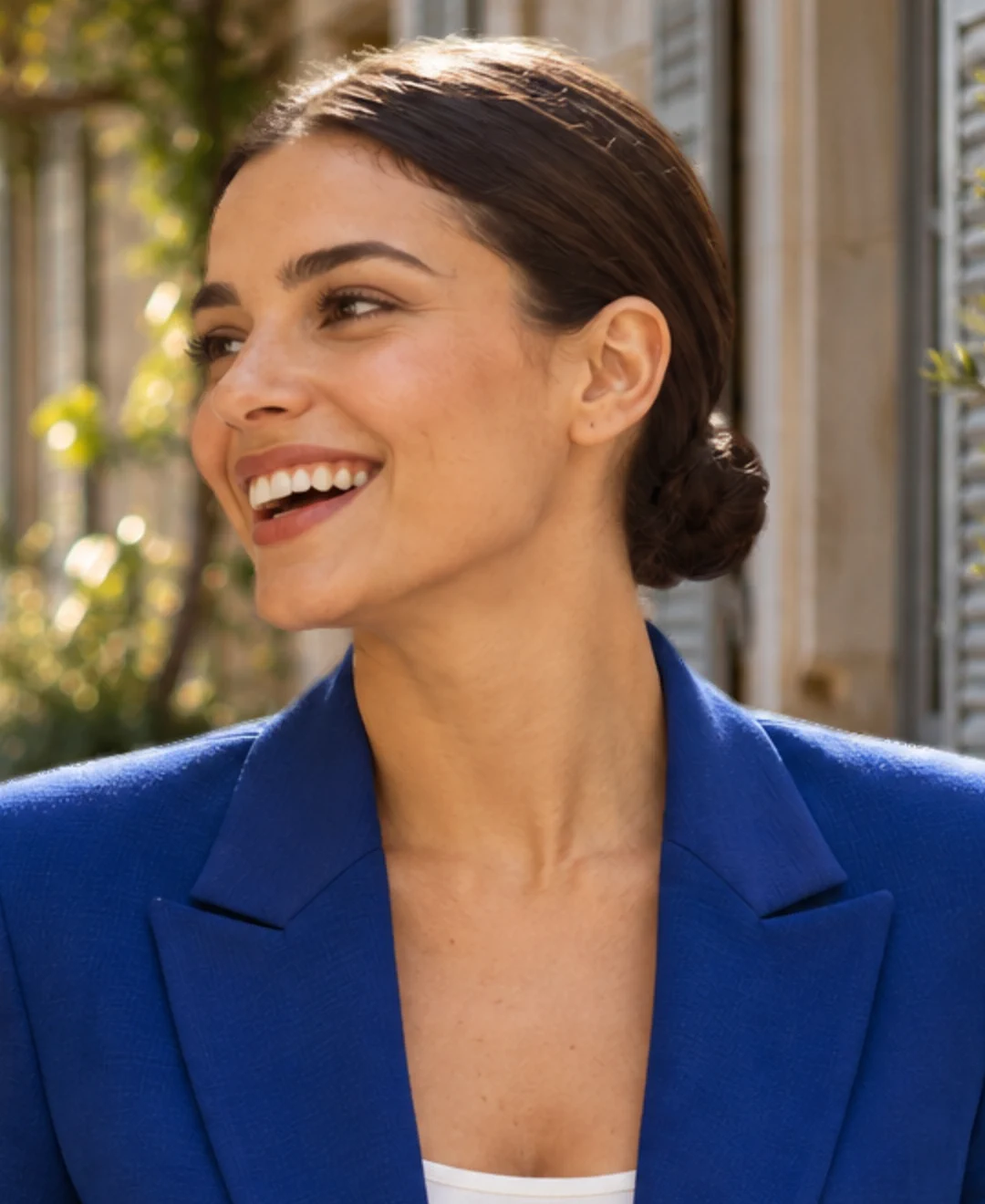
After matching: the portrait is warmer, with deeper shadows. The terrace is unchanged. 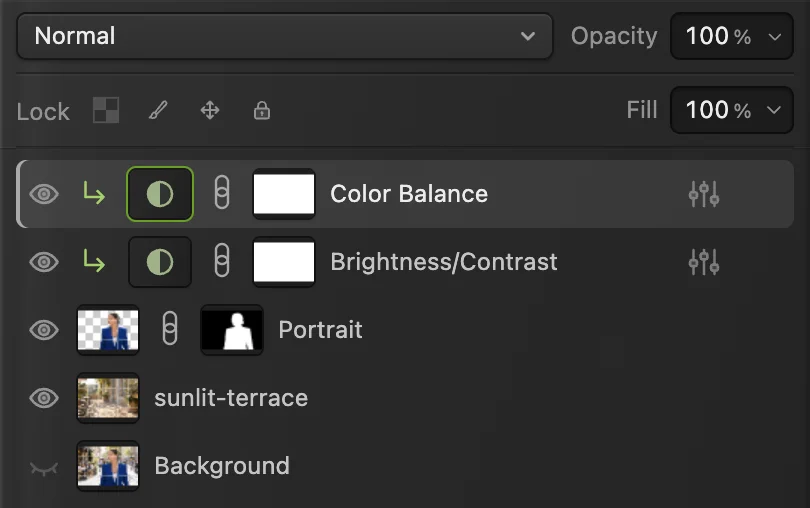
Both adjustments point down to the portrait. The café stays outside their effect. Export the picture and save the layers
Choose , name the copy portrait-cafe.jpg and click Export. The copy combines the visible layers. JPEG suits a photo with a filled background; use PNG if you need transparent areas.
Choose to keep the background, mask and adjustments editable. After saving as a project, saves that project. For an opened image, Save writes back in its own format: JPEG and PNG stay flat, while PSD keeps its supported layers. For an image opened from this page, or any JPEG, the first Save opens the Save Image dialog. Export always writes a new file.

Give the finished picture its own file name. 
Export makes the finished picture. A project copy keeps the separate layers.
Fit a background that is a different size
Select the replacement photo’s image thumbnail in Layers, then choose . Keep the chain link after H on so scaling preserves proportions. Drag a corner to enlarge the background until it covers every canvas edge. Drag inside the frame to position it, then click Commit transform on the options bar or press Enter or ↩.
Fill the canvas by letting the background extend beyond its edges. Stretching width and height separately makes doors, people or furniture look distorted. Enlarging a small photo cannot recover missing detail; choose a larger background when the result looks soft.

Make the two photos look like one scene
- Light direction: compare the bright side of the face with bright edges in the setting. Choose a background lit from the same side.
- Camera height: a portrait taken at eye level fits a setting photographed at a similar height. An overhead view of a room will make a standing person look out of place.
- Scale: compare the person with nearby doors, tables or chairs. Keep a waist-up portrait reaching the canvas edge; moving it upward exposes its abruptly cut lower edge.
- Sharpness: a close portrait can sit against a softer distant background. Avoid pairing a blurry subject with a sharply detailed setting.
- Contact: a full-length person or product needs a convincing point of contact with the ground. Keep an existing compatible shadow where possible, or choose a composition that does not show the feet. The sample ends at the waist, so no ground shadow is needed.
Use a plain color instead of another photo
Choose , pick the color and apply it. Drag the fill layer below Portrait. To use white, choose white in the fill layer; this keeps the background color editable in the project.
If you only need a transparent cut-out, leave the replacement and fill layers hidden and export PNG. Follow how to remove a photo background for the shorter workflow.
Repair the edge against the new background
Inspect the hair, shoulders and clothing at 100%. Click Portrait’s mask thumbnail, choose the Brush (B) and press D for black and white. Paint black to hide remaining street pixels and white to reveal missing parts of the cut-out; X swaps the colors. Use small strokes and undo a stroke if it removes too much.
For a colored fringe in fine hair, see the Refine Edge instructions.
For larger repairs, follow how to paint and edit a layer mask.
Fix common problems
The new background covers the person
It is above Portrait in Layers. Drag it below the cut-out. Check that Portrait’s eye is on.
The old street is still visible
Keep the original Background layer switched off. If the street appears only along an edge, repair the cut-out’s mask rather than hiding the replacement.
My color adjustment changes the café too
Select the adjustment and use Layer › Create/Release Clipping Mask. Check for the bent arrow and keep the adjustment directly above Portrait or its other clipped adjustments.
There is a white strip in the JPEG
The background does not cover that part of the canvas. Select it and use Free Transform to fill the frame; JPEG fills remaining transparency with white.
I cannot change the background in my exported JPG
The exported copy is one flat picture. Open the Lil Cactus Project to change the separate background layer.
Finish the new portrait
- Set the output dimensions: resize the image.
- Meet an upload limit: compress the photo.
- Soften a busy setting: blur the background.
- Add a headline: make a YouTube thumbnail.
Coming from another editor
- Photoshop
- Select › Subject and a layer mask in Layers; File › Place Embedded adds the replacement photo. Layer › Create Clipping Mask restricts an adjustment to the cut-out below it.
- GIMP
- Tools › Selection Tools › Foreground Select for the subject, Layer › Mask › Add Layer Masks…, then File › Open as Layers… for the replacement background.
Changing photo backgrounds: questions and answers
Can I move or resize the person after replacing the photo background?
Yes. In Lil Cactus, select the subject’s image thumbnail and choose Edit › Free Transform. Keep the chain link after H on, drag a corner to resize or drag inside to move, then press Enter to apply.
How do I change a photo background to white?
In Lil Cactus, choose Layer › New Fill Layer › Solid Color…, select white and move the fill layer below the masked subject.
How do I make a replaced photo background look realistic?
In Lil Cactus, choose a background with similar light direction, camera height and scale. Use small brightness and color adjustments restricted to the subject, then inspect its hair and clothing edges at 100%. A color adjustment cannot correct incompatible shadows or camera angles.
Can I change the photo background again after saving?
Yes. In Lil Cactus, save and reopen a Lil Cactus Project with the separate background, subject mask and adjustment layers. An exported JPEG or PNG combines the visible layers, so open the project when you need to replace the setting again.
Can I change a photo background without losing hair?
Often, but not always. In Lil Cactus, Select › Refine Edge… searches around the selection for fine hair and reduces the old background color. Check the result at 100% on white and black. Hair that is blurred into a busy background may need manual repair or a clearer source photo.
Is my photo uploaded when I change its background?
No. In Lil Cactus, opening, selecting, masking and exporting happen on your device; the AI selection model runs in the browser. Optional statistics do not include your image. See the privacy policy.
Keep going
 How to remove the background from a photoSelect Subject, a layer mask and a transparent PNG.Beginner · 3 min
 How to use layer masksHide part of a layer without deleting it, and bring it back any time.Beginner · 5 min
 How to blur the background of a photoA camera-like background blur with no glow around the subject.Intermediate · 6 min