How to make a selection in a photo editor
Quick answer
Choose the Object Selection tool and drag a box around the object: Lil Cactus selects it for you. Paint over anything it missed with the Quick Selection tool to add it, and hold Alt or ⌥ while you use a tool to take an area away. Soften the edge with (1–3 px) and keep the selection for later with . Any edit you make now, such as an adjustment layer, changes only the selected area.

- Time
- 6 minutes
- Level
- Beginner
- You need
- A photo with something you want to change on its own
- Works with
- Any image you can open: JPEG, PNG, WebP, HEIC, PSD, RAW and more
A selection marks the part of a picture your next edit will change. Its edge is shown as a moving dotted line, often called “marching ants”. Everything inside can be painted, adjusted, copied or deleted; everything outside is protected.
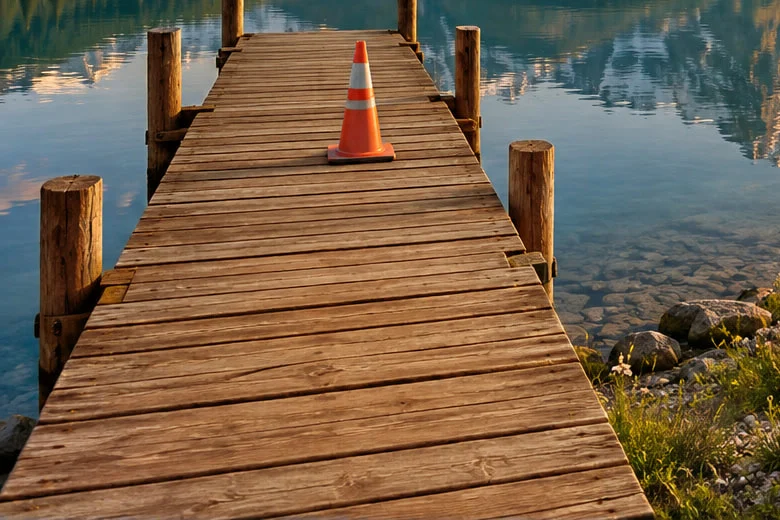
No single tool gets every selection right. The fast way is to let a smart tool make a first try, then add the parts it missed and take away the parts it shouldn’t have. In this tutorial you select the jetty, posts included and the orange cone left out, and warm its weathered wood to match the sunset.
Make, fix and use a selection in seven steps
Open the photo
Go to lilcactus.app and choose (Ctrl+O or ⌘O), or drag the photo onto the window. To follow along exactly, open the sample photo from this page.
Drag a box around the jetty with Object Selection
Right-click the selection tools’ button in the toolbar (or press and hold it) and choose Object Selection. Start at the left edge of the photo, just above the jetty’s far end, and drag to the bottom of the photo, just past the jetty’s right edge.
AI running in your browser finds the object inside the box and selects it. On the sample it selects the deck and leaves out the posts.
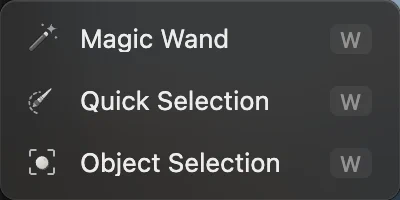
Object Selection shares a toolbar button with Magic Wand and Quick Selection. 
Object Selection’s first try: the deck without the posts. Add the posts with Quick Selection
Choose Quick Selection from the same toolbar button. Its Mode on the options bar (the strip under the menus) is Add, so whatever you paint over joins the selection. Press [ four times to make the brush 20 px, then paint one short stroke down each of the six posts. Quick Selection spreads to the edges it finds, so the strokes don’t have to be exact.
Tip If a stroke spreads onto the water, hold Alt or ⌥ and paint over the extra part to take it away.

Quick Selection paints in Add mode. 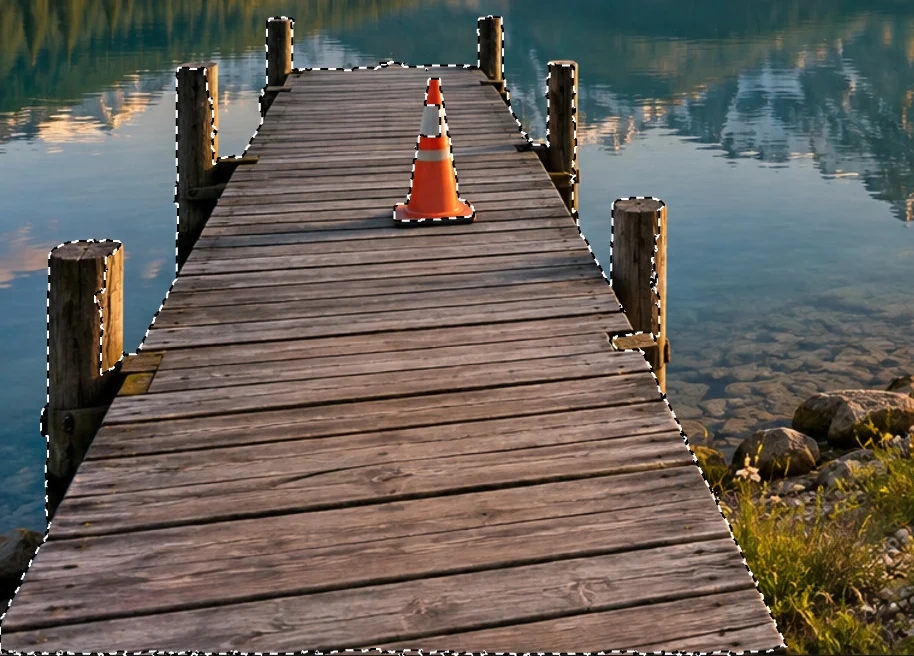
Six short strokes added the posts. Check up close, and take the cone out
Zoom in on the cone: press Ctrl+= or ⌘= a few times, then hold Space and drag until the cone is in view. On the sample, the cone’s upper gray-white stripe has joined the selection: it is gray like the wood. It would turn brown in step 7.
To take the whole cone out, choose Object Selection again, hold Alt or ⌥, and drag a small box around the cone. Lil Cactus finds the cone and subtracts it, without touching the boards. Press Ctrl+0 or ⌘0 to fit the photo back in the window.
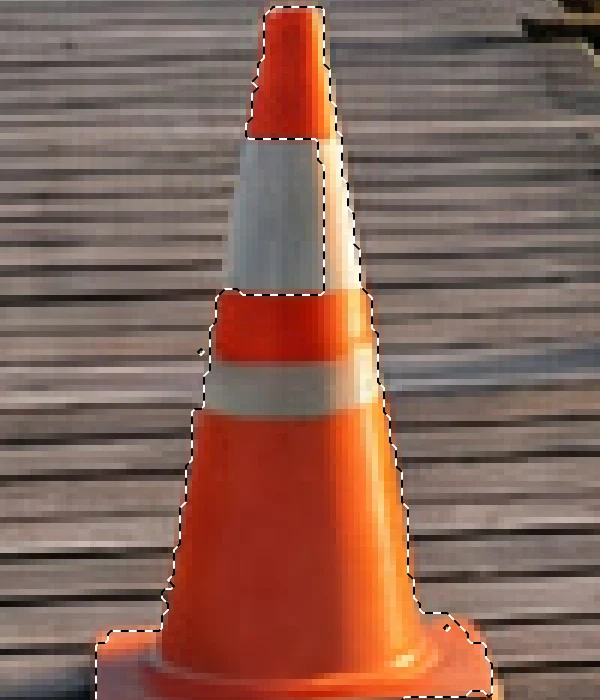
Before: the upper stripe has joined the selection. 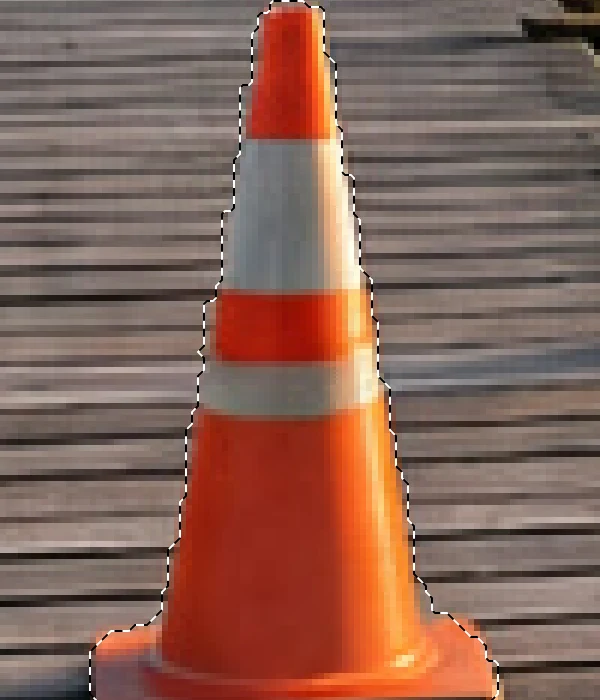
After an Alt-drag with Object Selection: the whole cone is out. Soften the edge with Feather
Choose , type 2 for Radius and click Feather. Feathering blurs the selection’s edge, so the edit fades out over a couple of pixels instead of stopping in a hard line. Use 1–3 px for objects with crisp edges like this jetty, and much more for soft blends such as a vignette.
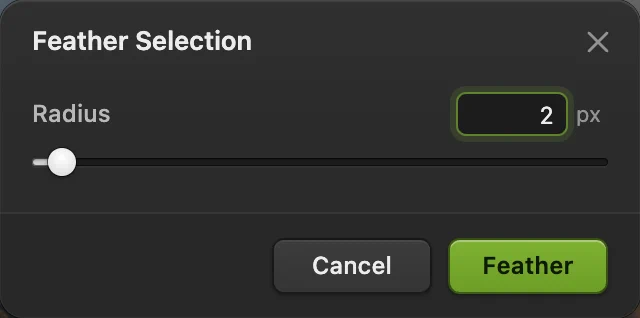
Feather Selection, Radius 2 px. Save the selection
Choose . The selection is stored as a black-and-white channel called Alpha 1 in the Channels panel (beside Layers): white is selected, black isn’t.
To get it back later, choose .
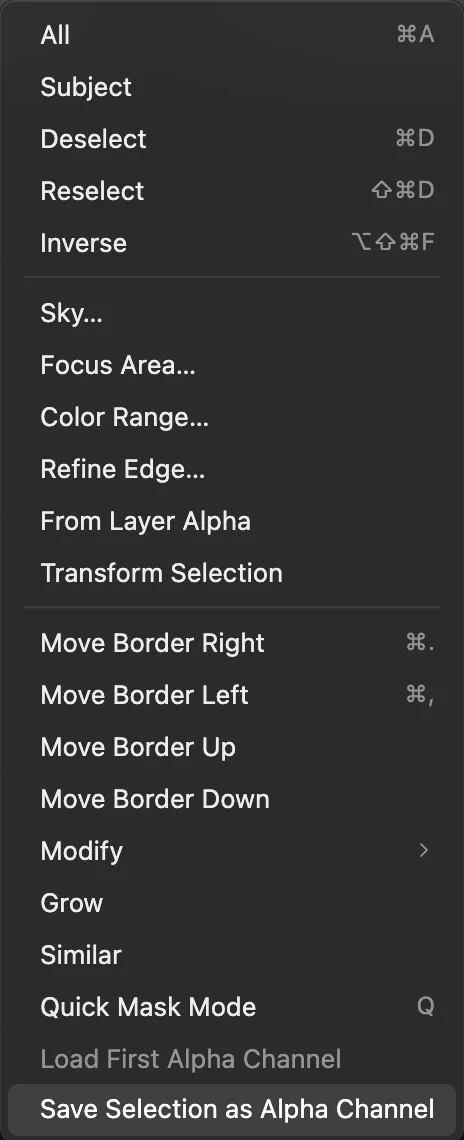
, at the bottom of the Select menu. 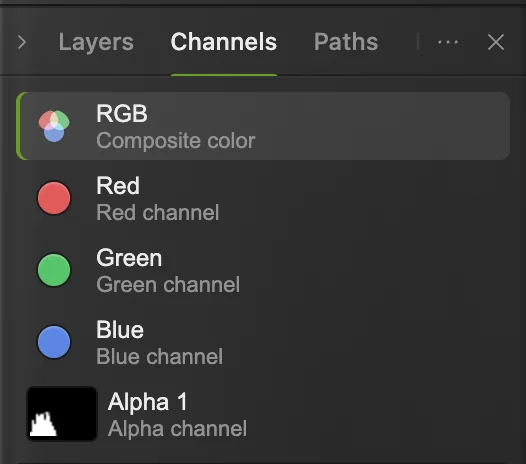
The saved selection, Alpha 1, in the Channels panel. Use it: warm the wood, and save
With the selection still active, choose ; the dialog says “Applies within the selection”. Check that Midtones is selected, type 50 for Cyan – Red and −50 for Yellow – Blue, and click Apply. Only the jetty turns a warm brown; press Ctrl+D or ⌘D to deselect and see it without the dotted line.
The adjustment layer gets a mask made from your selection, so the colors and the mask stay editable. To keep them and the saved selection, choose or Photoshop (.psd)… in the same submenu; after that, saves to that new file. on the JPEG would write a flat picture; the first Save of a JPEG, including the sample, opens the Save Image dialog.
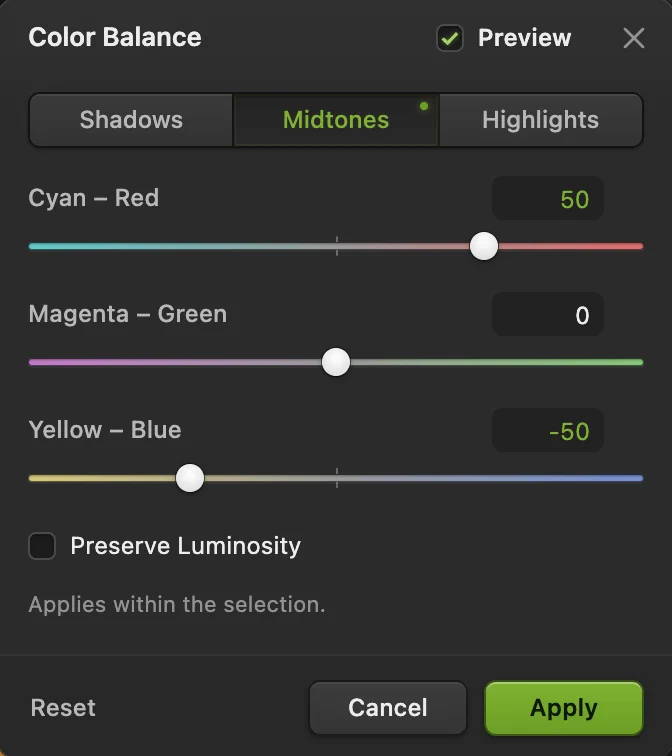
Color Balance, Midtones: more red and yellow. 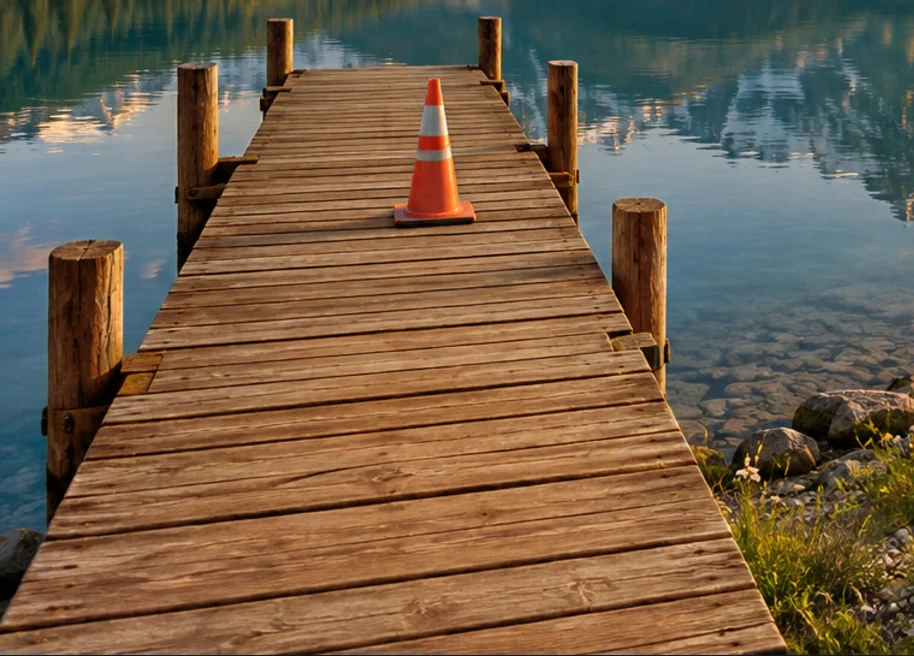
Only the selected wood changed.
Which selection tool to use
| To select | Use |
|---|---|
| One clear object: a person, a car, a jetty | Object Selection (drag a box) or (no box) |
| Fixing a selection by painting | Quick Selection |
| An area of one flat color, such as a white background | Magic Wand (click it) |
| Every pixel of a color, wherever it is | |
| The sky | |
| A rectangle or an ellipse | Marquee Select (M); set Shape on the options bar |
| A shape you draw by hand | Lasso Select, Polygonal Lasso for straight sides, Magnetic Lasso to snap to edges (L) |
| Exact curves, as on a product | The Pen tool, then Make Selection on its options bar |
Tools that share a toolbar button are picked from it by right-clicking (or pressing and holding) the button.
Add, subtract and intersect
Object Selection, Marquee Select, the lassos and Magic Wand can change the current selection instead of replacing it:
- Hold Shift or ⇧ while you use the tool to add to the selection.
- Hold Alt or ⌥ to subtract from it.
- Hold Shift or ⇧ and Alt or ⌥ together to keep only the overlap of the old and new selections.
The same four choices are buttons on the options bars of Object Selection, Marquee Select, Lasso Select, Polygonal Lasso, Magnetic Lasso and Magic Wand. Quick Selection has no mode buttons: its Mode menu is Add or Subtract, and holding Alt or ⌥ subtracts while you paint.

Fix common problems
My edit changed the whole picture
Nothing was selected, or the selection was lost. Undo the edit with Ctrl+Z or ⌘Z, select the area again, and repeat the edit.
The edit stops in a hard line
The selection has no feather. Undo the edit, feather the selection 1–3 px, and edit again; or paint the adjustment layer’s mask with a soft brush.
Quick Selection keeps grabbing the background
Make the brush smaller and paint well inside the object. To remove a whole object it grabbed, Alt-drag a box around that object with Object Selection, as in step 4.
Object Selection selected the wrong thing
Press Ctrl+D or ⌘D and drag a tighter box around just the object you want.
Load First Alpha Channel is grayed out
The document has no saved selection yet. Save one with first.
What to do next
- Hide the unselected part instead of editing it: layer masks.
- Change colors in one area only: adjustment layers.
- Remove the cone and the bin instead: remove an object from a photo.
- Cut out a person or product: remove the background from a photo.
Coming from another editor
- Photoshop
- Select › Save Selection… and Select › Modify › Feather…, with the Object Selection and Quick Selection tools.
- GIMP
- The Foreground Select and Paint Select tools, Select › Feather… and Select › Save to Channel.
Selections: questions and answers
Why did my selection disappear?
A click with the Marquee or a lasso outside the selection clears it, and so does Select › Deselect. In Lil Cactus, choose Select › Reselect (Ctrl+Shift+D, or ⇧⌘D on a Mac) to bring it back. If a new selection replaced it, use Edit › Undo.
What is the difference between a selection and a layer mask?
A selection is temporary: it marks where the next edit goes and is lost when you deselect, unless you save it. A layer mask belongs to a layer and keeps hiding or showing parts of it. In Lil Cactus, a selection becomes a mask when you add a layer mask or an adjustment layer while it is active.
Why is Save Selection as Alpha Channel grayed out?
Nothing is selected. In Lil Cactus, make a selection first, then choose Select › Save Selection as Alpha Channel.
Can I keep a selection after closing the file?
Yes. In Lil Cactus, choose Select › Save Selection as Alpha Channel, then save with File › Save As › Lil Cactus Project… or Photoshop (.psd)… and reopen that file later: Select › Load First Alpha Channel brings the selection back.
Is my photo uploaded when I make a selection in Lil Cactus?
No. Object Selection and the other AI tools run in your browser, on your own device. When statistics are on, the editor records which tools are used, never the image, as the privacy policy explains.
Keep going
 How to use layer masksHide part of a layer without deleting it, and bring it back any time.Beginner · 5 min
 How to remove the background from a photoSelect Subject, a layer mask and a transparent PNG.Beginner · 3 min
 How to use adjustment layersColor and tone changes you can retune, hide or limit to one area.Beginner · 5 min