How to make a YouTube thumbnail
Quick answer
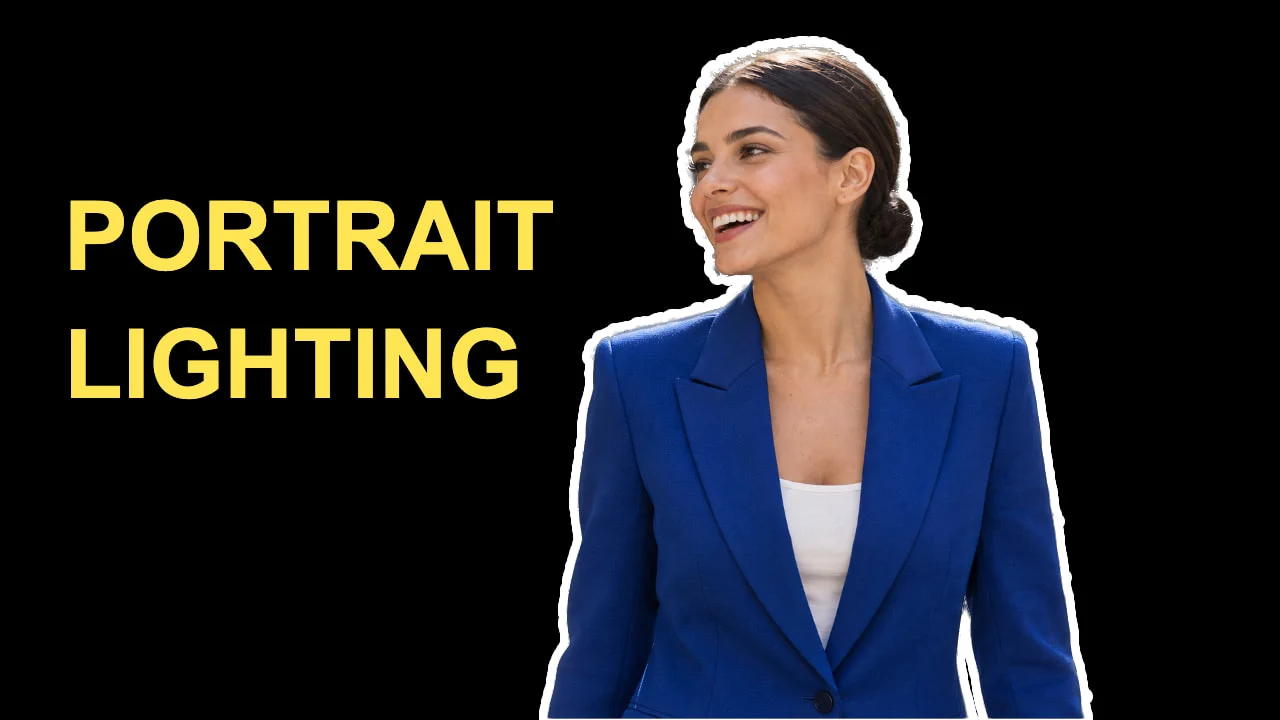
In Lil Cactus, choose and create a 1280 × 720 pixel image, then add your photo with Use and to make a cut-out, add a short headline with the Text tool, and give the subject an outline through Check that the words read at 25% zoom, then choose at Quality 90.
- Time
- 8 minutes
- Level
- Beginner
- You need
- A photo, a short headline and the topic of your video
- Works with
- JPEG, PNG, WebP, HEIC and other images Lil Cactus can open
A thumbnail needs to communicate at a small size. Give the viewer one subject and one message: a face or object they can recognize, and a few words that describe what the video delivers. Put the subject and headline in separate areas so neither covers the other.
This example makes a 1280 × 720, 16:9 design. YouTube currently recommends 3840 × 2160 for video thumbnails; use that size from the start if your source photo has enough detail. The same layout works at either size. The settings below are measured for the 1280 × 720 sample.
Make a YouTube thumbnail in seven steps
Create a 1280 × 720 canvas
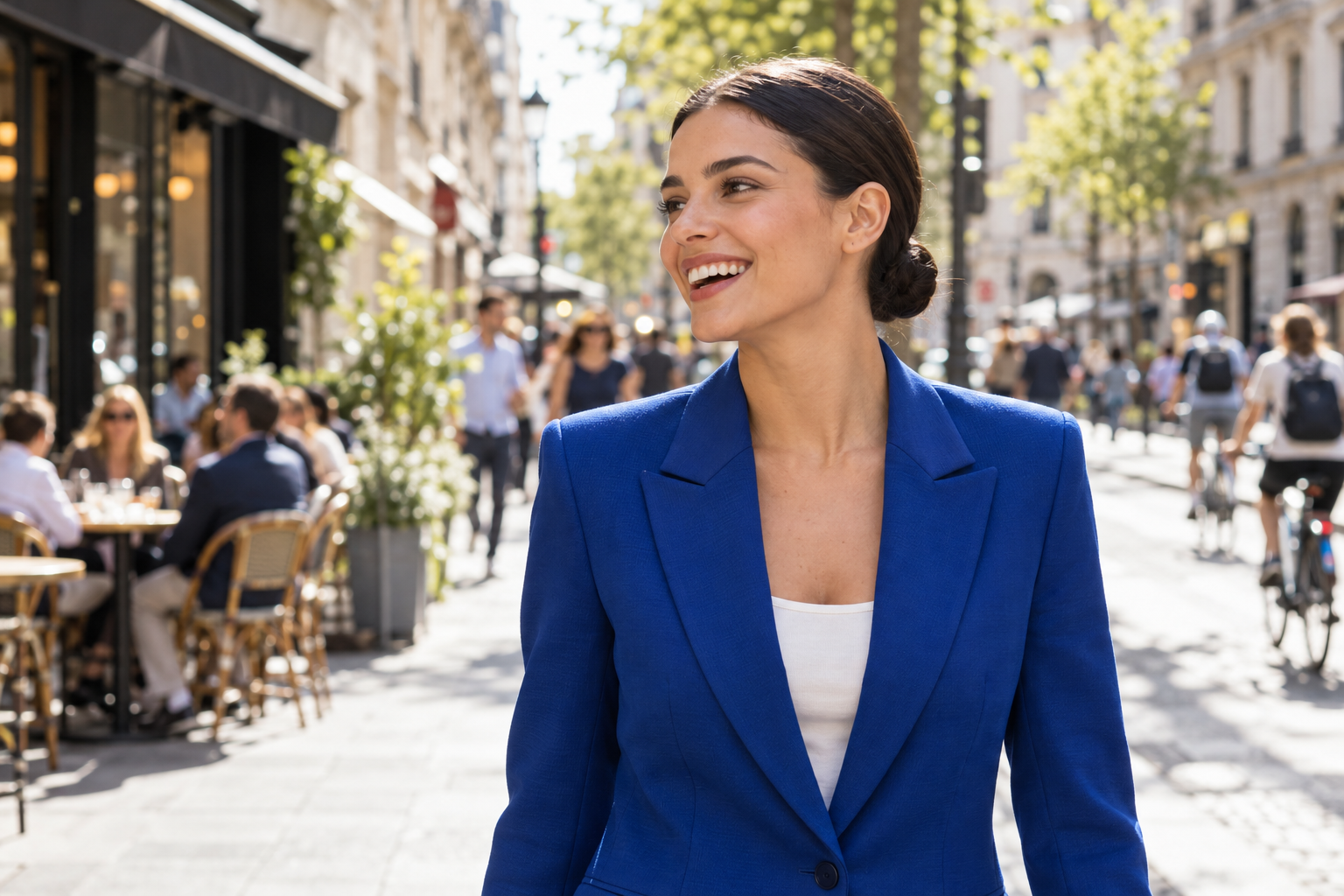
Download the sample portrait. In the editor, choose Set Name to Portrait lighting, Units to Pixels, Width to 1280 and Height to 720. Choose Black under Background and click Create.
Leave the other settings at their defaults. Resolution is for print; the pixel dimensions determine the size of this thumbnail.
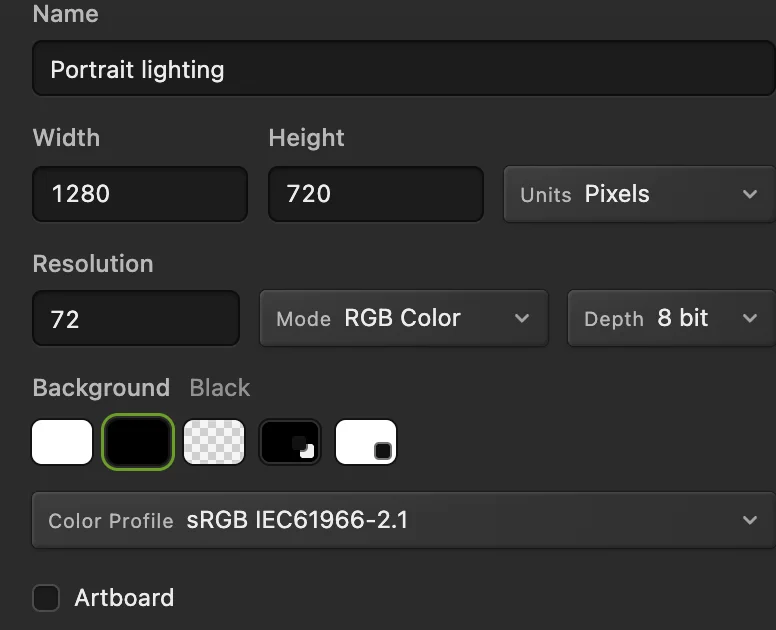
1280 × 720 is a 16:9 canvas. The black background leaves a clear area for yellow text. Place and fit the portrait
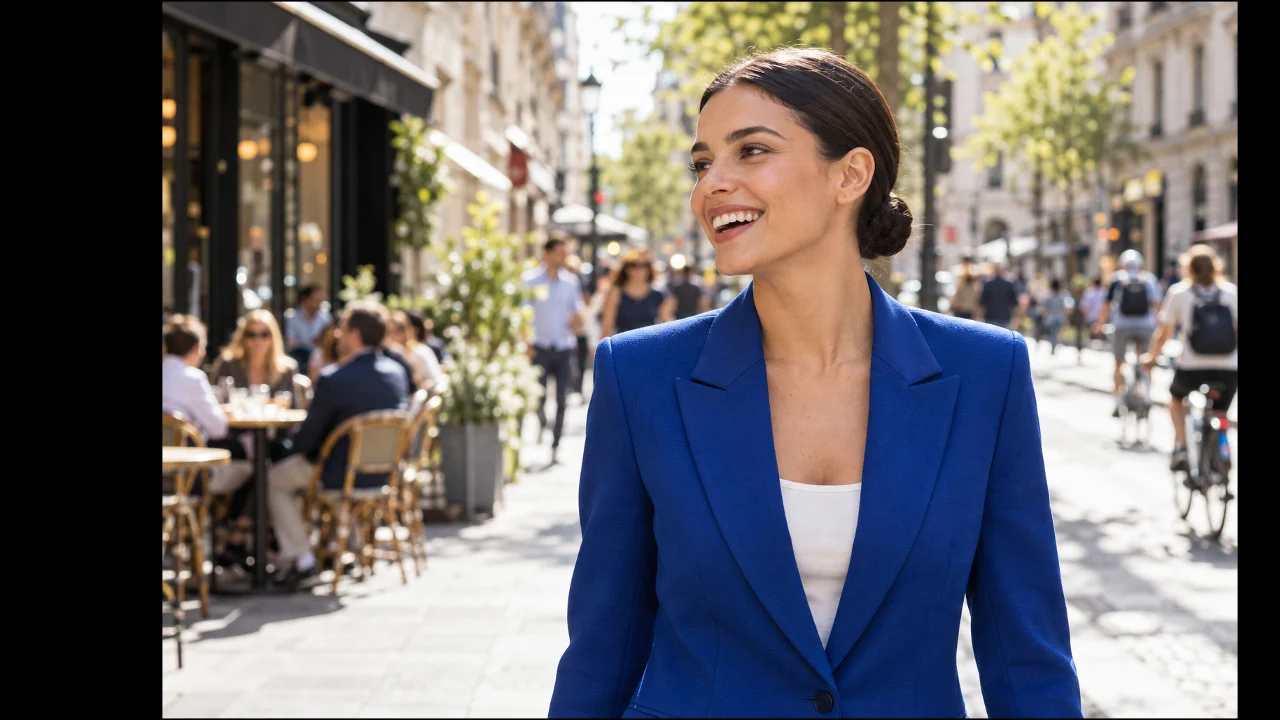
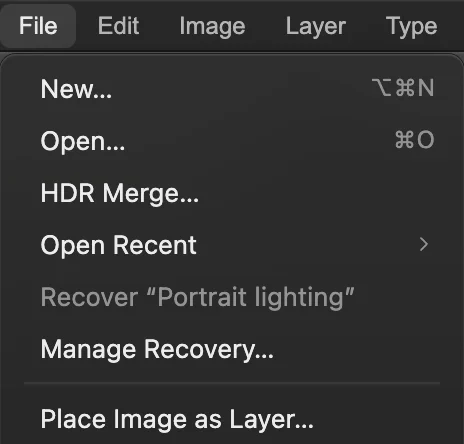
Choose and select portrait-street.png. This puts the photo in the new canvas; would open a separate document.
Choose . In the options bar, select the center dot in the nine-dot reference grid and turn on the chain link after H. Type 70 into W; H also becomes 70. Set X to 700 and Y to 360, then press Enter. These numbers shrink and position this sample without stretching it.
Tip With your own photo, drag a corner with the link on and drag inside the frame to position it. Keep the face on the right and leave the left half for the headline.
adds the photo to the thumbnail. 
The reference point makes X and Y the center of the placed photo. Make an editable cut-out
Choose and wait for the selection border. Then choose Set Preview to black and Zoom to 100% to inspect the hair.
For this sample, keep Maximum edge recovery at 8 px with Adapt to edge on and Remove background color at 100%. Set Output to New layer with editable mask and click Apply. A mask hides the street while keeping the photo's pixels. The original photo layer becomes hidden.
Double-click the new layer's name in Layers, type Portrait and press Enter.
Tip If the selection misses part of your subject, follow the background-removal lesson to correct the selection and refine the edge.
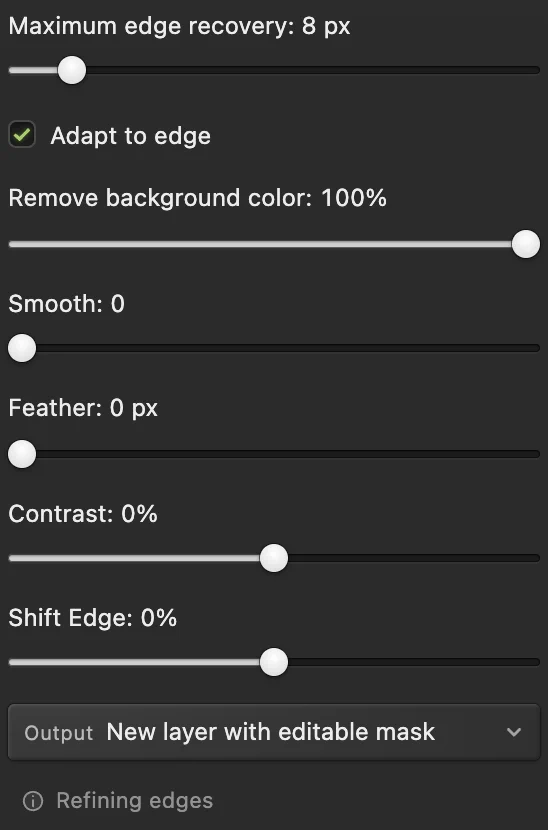
The editable-mask output keeps the cut-out revisable. 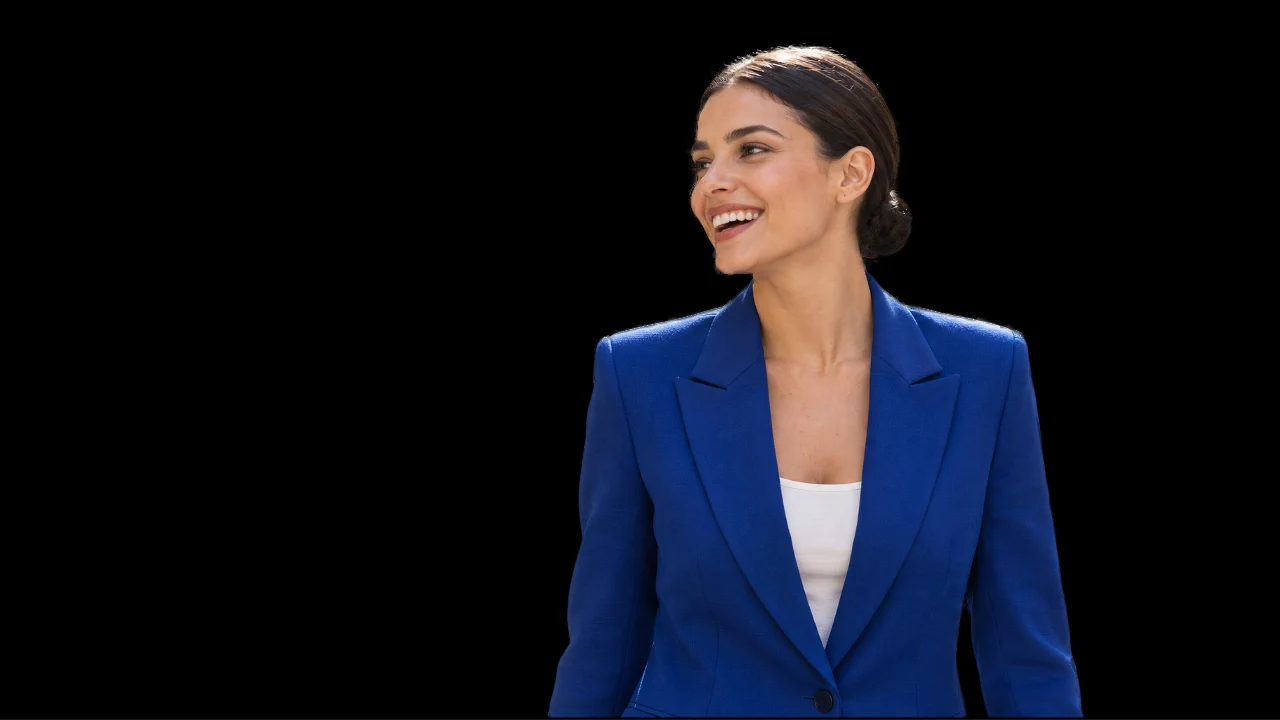
The black Background layer shows through the masked street. Outline the subject
Select the Portrait layer's image thumbnail, then choose Enable Stroke in the list at left: an outline around the visible pixels. Set Size to 8 px and Position to Outside. Click its Color swatch, type ffffff in the # field and click OK. Click OK in Layer Style to apply it.
A white outline separates the dark blazer from the black background. Keep it narrow enough that the hair and face remain the focal point.
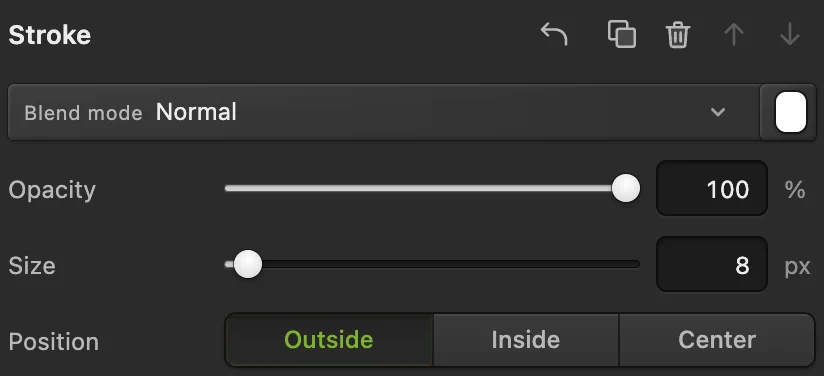
Stroke controls after enabling the effect. Outside puts the outline around the cut-out. 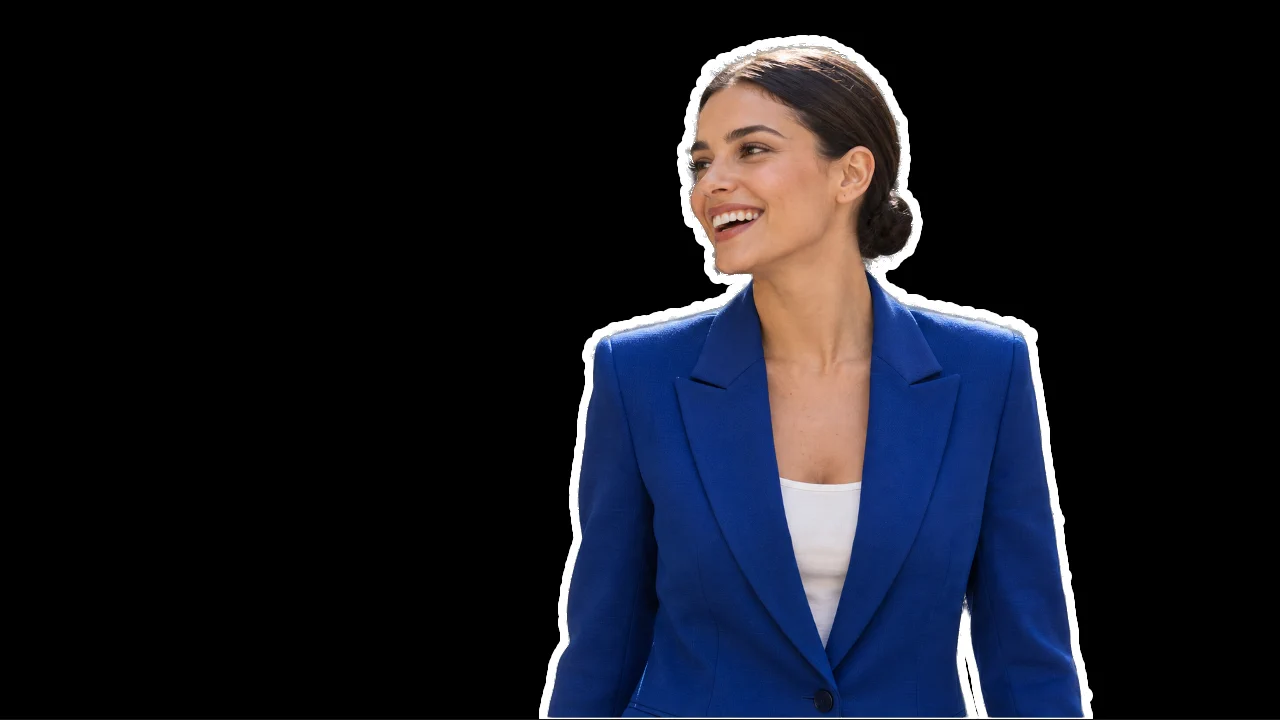
The 8-pixel outline stays attached to the Portrait layer. Add a two-line headline
Choose Text in the left toolbar. In the options bar, use Arial, set Size to 96 px and turn on Bold. Click Color, enter ffe454 in the # field and click OK for the sample's yellow.
Click once in the empty left area, roughly 64 pixels from the left edge and 270 pixels from the top. Type PORTRAIT, press Enter for a new line, then type LIGHTING. Finish with the checkmark in the options bar (Commit text). The words remain an editable text layer.
Tip Press V, or choose the toolbar's Move button, to reposition the committed headline.

A short headline can use large type without crowding the portrait. 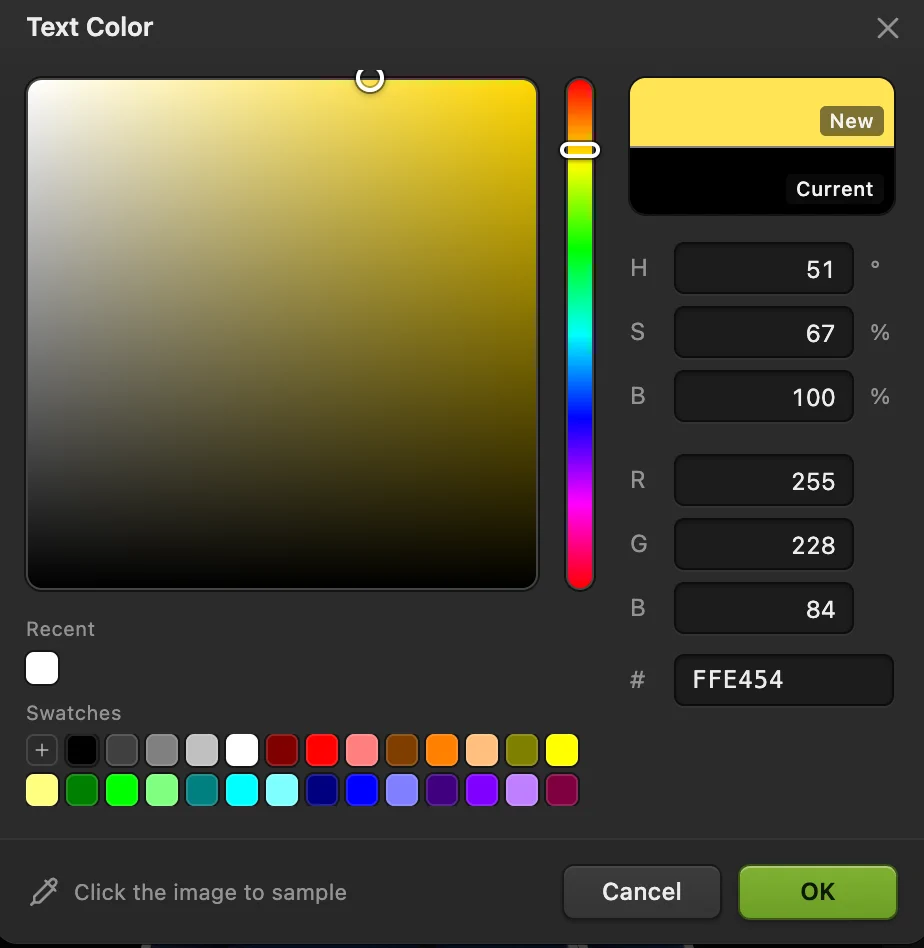
ffe454 gives the sample a bright yellow headline. 
Click the checkmark to finish. Enter inserts a new line while typing. Read the design at thumbnail size
Choose the Move button to hide the text cursor, then set the status-bar zoom to 25%. A 1280 × 720 canvas now appears at 320 × 180 pixels. Read both words without enlarging the view.
If the headline is hard to read, remove words or increase its size. Leave space around the edges and keep the lower-right corner free of essential text, where a video-duration label may cover it.
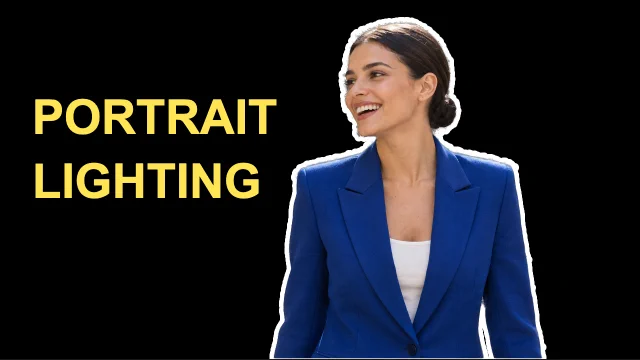
At 25% zoom, the face, outline and two words still read. Export the thumbnail and save its layers
Choose Set File name to portrait-lighting.jpg and Quality to 90, then click Export. The sample is 1280 × 720 and well below 2 MB. Export writes a new file.
Choose to keep the text, mask and outline editable. After that, updates the project. Save writes an opened image back in its own format; for an image opened from this page, or any JPEG, the first Save opens Save Image.

Give the exported thumbnail its own file name. 
Quality 90 produces a 99690-byte JPEG for this sample, below the mobile limit of 2 MB. 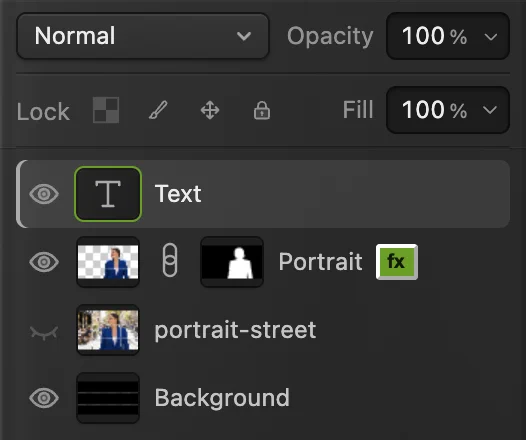
The project preserves the text layer, mask and layer style.
Use the original photo as the background
A cut-out is optional. If your photo already has an empty area for text, place and fit it, then skip the selection, mask and portrait outline. Choose a text color that stands apart from that area. If the photo is busy everywhere, shorten the headline or use a different frame from the video.
Change the words, outline or background later
Open the saved .cactus project. Choose Text and click the headline to edit the words; finish with the checkmark. Select Portrait and reopen to change or remove the outline.
For another background color, select Background and choose Pick the color and confirm. The fill is added above Background, beneath the photo and text. Save the project and export a new JPEG.
Fix common thumbnail problems
The text sits behind the portrait
In Layers, drag the text row above Portrait, releasing over the upper half of its row. Text still needs its own space: move it away from the face instead of covering it.
The outline surrounds the entire photo
The style is on the unmasked source layer. Select the Portrait layer with a mask thumbnail and apply Stroke there. Keep the original portrait-street layer hidden.
The upload file is too large
Reopen and lower Quality from 90 to 80. Check the estimate and actual downloaded size. Use the compression lesson if you still need a smaller file.
The photo looks soft
Use a larger original or show the subject smaller. Enlarging a small cut-out cannot recreate missing detail; exporting at a higher Quality only reduces JPEG damage.
Upload the thumbnail to YouTube
In YouTube Studio on a computer, choose Content, open the video's details, then under Thumbnail choose Upload file. Select the exported JPEG and click SAVE. Your account must be verified to use a custom thumbnail.
| Setting | Use |
|---|---|
| Upload format | JPG or PNG |
| Video-thumbnail file limit | Under 2 MB on mobile; under 50 MB on desktop |
These requirements were checked on October 11, 2026. See YouTube's current thumbnail guidance for changes. Continue with text formatting and alignment.
Coming from another editor
- Photoshop
- Place the photo through File › Place Embedded… Add the headline with the Horizontal Type tool and the outline through Layer › Layer Style › Stroke.
YouTube thumbnails: questions and answers
Can I use a video screenshot for a YouTube thumbnail?
Yes. Save a frame in which the subject is sharp and large enough for the layout, then place it in Lil Cactus with File › Place Image as Layer… A blurry frame remains blurry after enlarging.
Does a YouTube thumbnail need a transparent background?
No. The uploaded thumbnail should show your complete design. In Lil Cactus, a mask can make the area around the subject transparent within the layered document while a Background or fill layer supplies the finished background.
Can I reuse a YouTube thumbnail as a template?
Yes. In Lil Cactus, open the .cactus project and use File › Save As › Lil Cactus Project… to make a separately named version before changing the words or photo. The project keeps the text and effects editable.
Do I need to flatten layers before exporting a YouTube thumbnail?
No. Lil Cactus combines the visible layers when you choose File › Export › JPEG… The open project keeps its separate layers.
Is my photo uploaded while I make a thumbnail in Lil Cactus?
No. Editing and the subject-selection AI run on your device. Uploading the finished thumbnail to YouTube is a separate action.
Can I use this YouTube thumbnail layout for Shorts?
No. Use a vertical 9:16 layout in Lil Cactus instead of this landscape example. YouTube currently recommends 9:16 for uploaded Shorts thumbnails; check its thumbnail guidance for the available upload options.
Keep going
 How to add text to a photoA headline and a second line on a photo, still editable later.Beginner · 5 min
 How to remove the background from a photoSelect Subject, a layer mask and a transparent PNG.Beginner · 3 min
 How to change the background of a photoPut a cut-out on a new background and match the light and color.Beginner · 8 min