How to make a photo black and white
Quick answer
Choose The photo turns gray at once; the sliders set how light each original color becomes. Lower Yellows (from 60 to about 10) to darken yellow things; lower Cyans to about 20 and Blues to about −20 to darken a blue sky. Click Apply. The color photo stays underneath, so you can change the mix or hide the layer at any time.
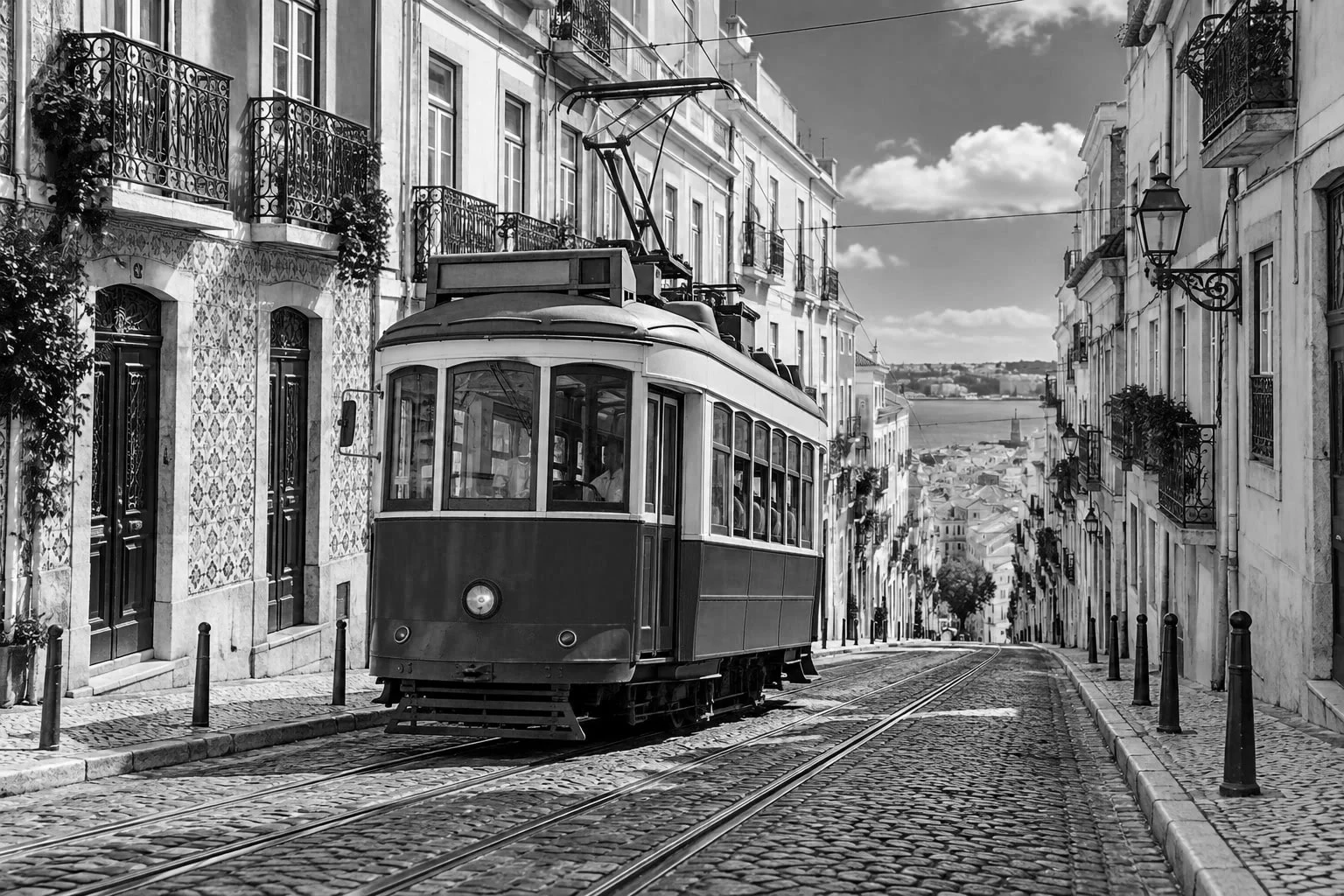
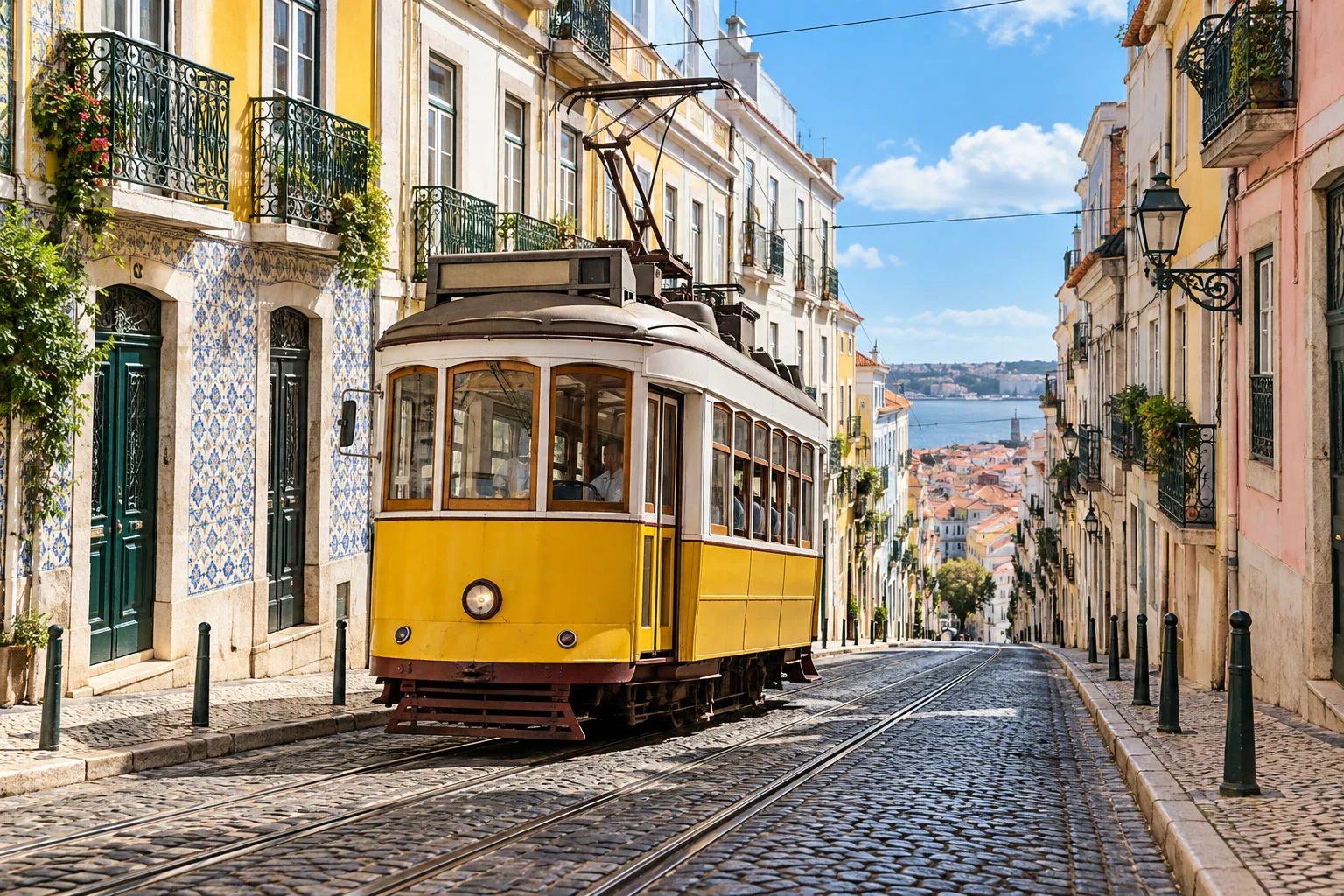
- Time
- 5 minutes
- Level
- Beginner
- You need
- A color photo
- Works with
- JPEG, PNG, WebP, HEIC, PSD and other images
A black and white photo is made of light and dark only, so two colors that are equally bright, such as red and green, can come out as the same gray and the picture goes flat. A Black & White adjustment layer lets you choose how light each original color becomes: a slider for reds, yellows, greens, cyans, blues and magentas.
It sits above the photo as its own layer, so the colors are never thrown away. In this tutorial you turn a sunny street black and white, make the yellow tram stand out against the white houses, and darken the sky so the clouds show.
Make a photo black and white in six steps
Open the photo
Go to lilcactus.app and choose , or drag the photo onto the window. To follow along exactly, open the sample photo from this page.
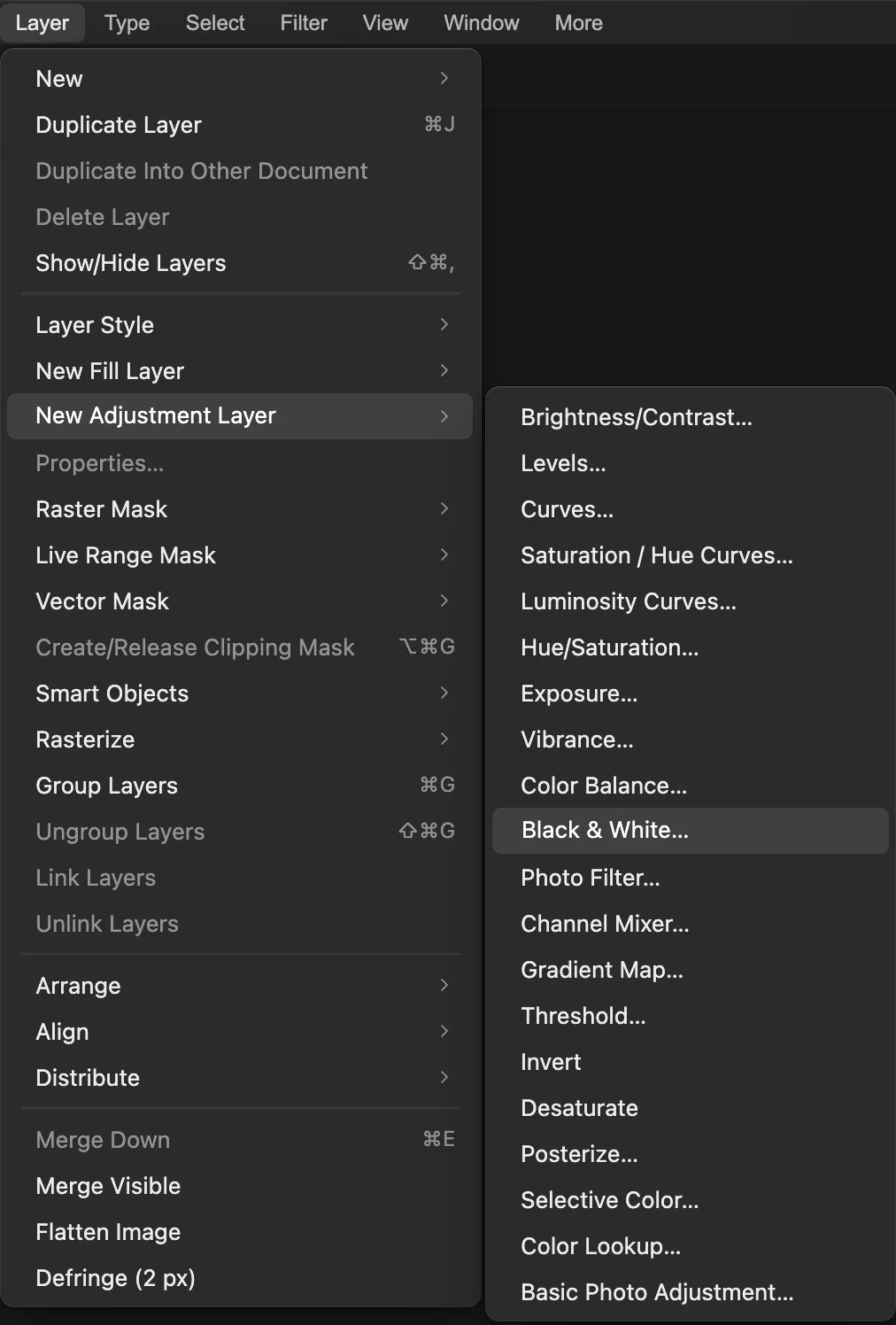
Add a Black & White adjustment layer
Choose The photo turns gray straight away, and the Black & White settings open with a starting mix: each original color has a slider from −200 to 200, and a higher number makes that color lighter.
Darken the tram with Yellows
With the starting mix the yellow tram is a middle gray. Type 10 in the Yellows box and press Tab: everything that was yellow turns much darker, so the tram now stands out as a dark shape against the white houses.
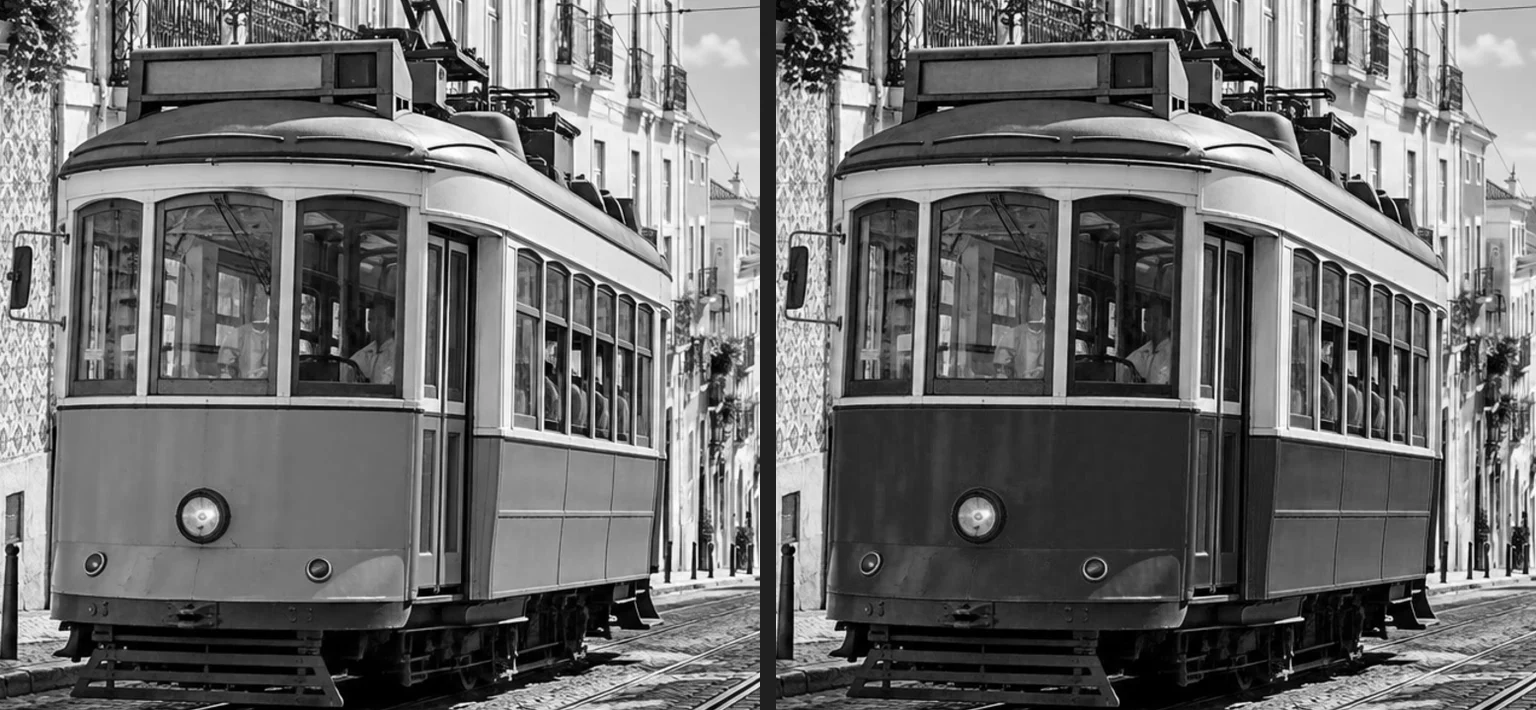
Yellows at 60 (the starting mix) and at 10. Darken the sky with Blues and Cyans
A blue sky is made of blue and cyan. Type 20 in Cyans and −20 in Blues: the sky turns a deeper gray, and the white clouds stand out against it. The white walls barely change, because the sliders move colors and leave white, gray and black as they are. Click Apply.
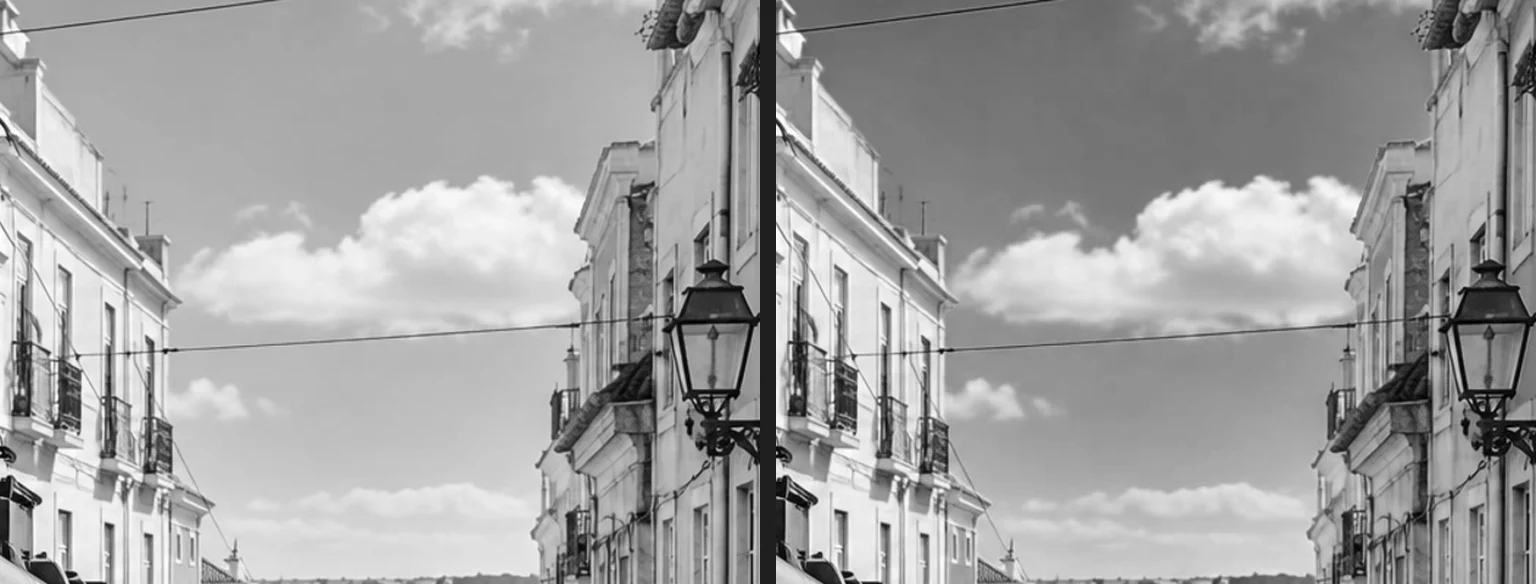
The sky before and after Cyans 20 and Blues −20. 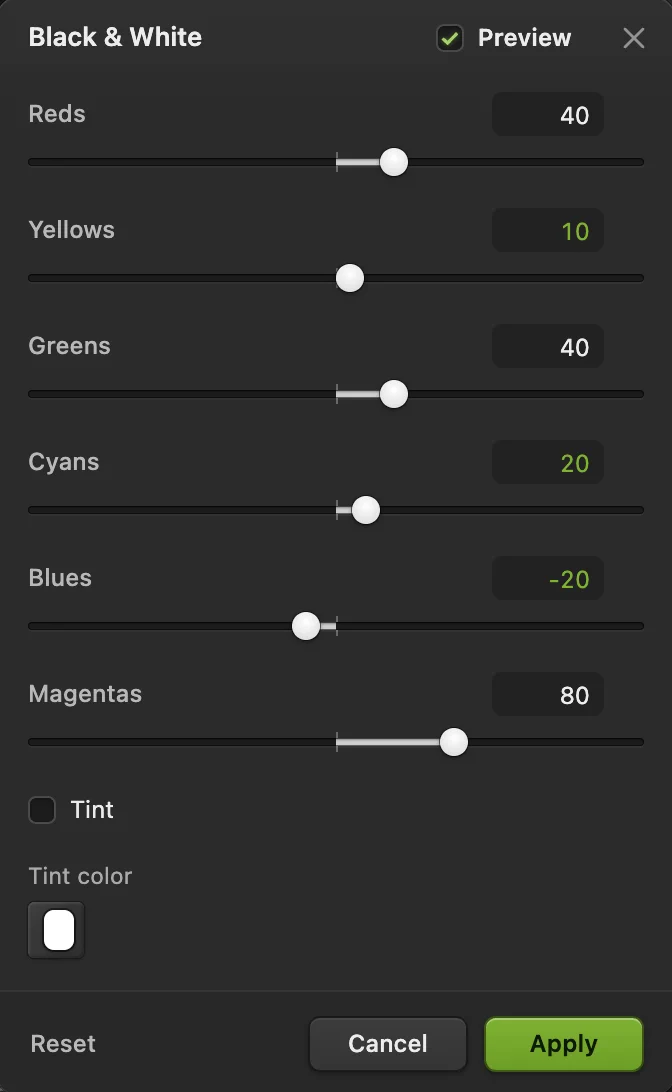
Yellows 10, Cyans 20 and Blues −20. Compare with the color photo
The Layers panel now has a Black & White layer above the photo. Click its eye to see the color photo again, and click once more to bring back black and white. To change the mix later, select the layer and use the same sliders in the Properties panel. More in how adjustment layers work.
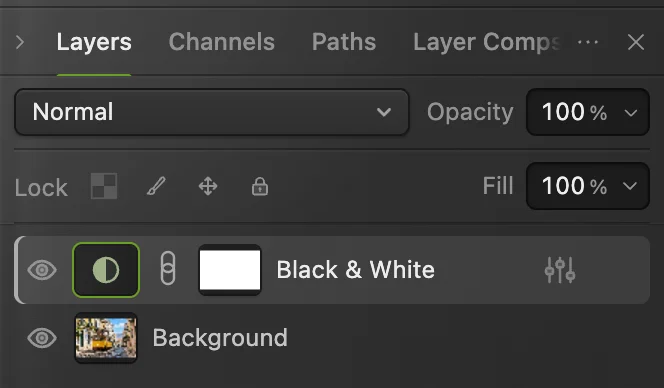
The eye shows or hides the black and white layer. Save or export
Choose (or another format) and click Export to download a black and white copy; the file you opened stays in color. writes the black and white version back into the file you opened, in its own format; for a JPEG the first save opens the Save Image settings. To keep the adjustment layer and the colors for later, choose ; after that, updates the project.
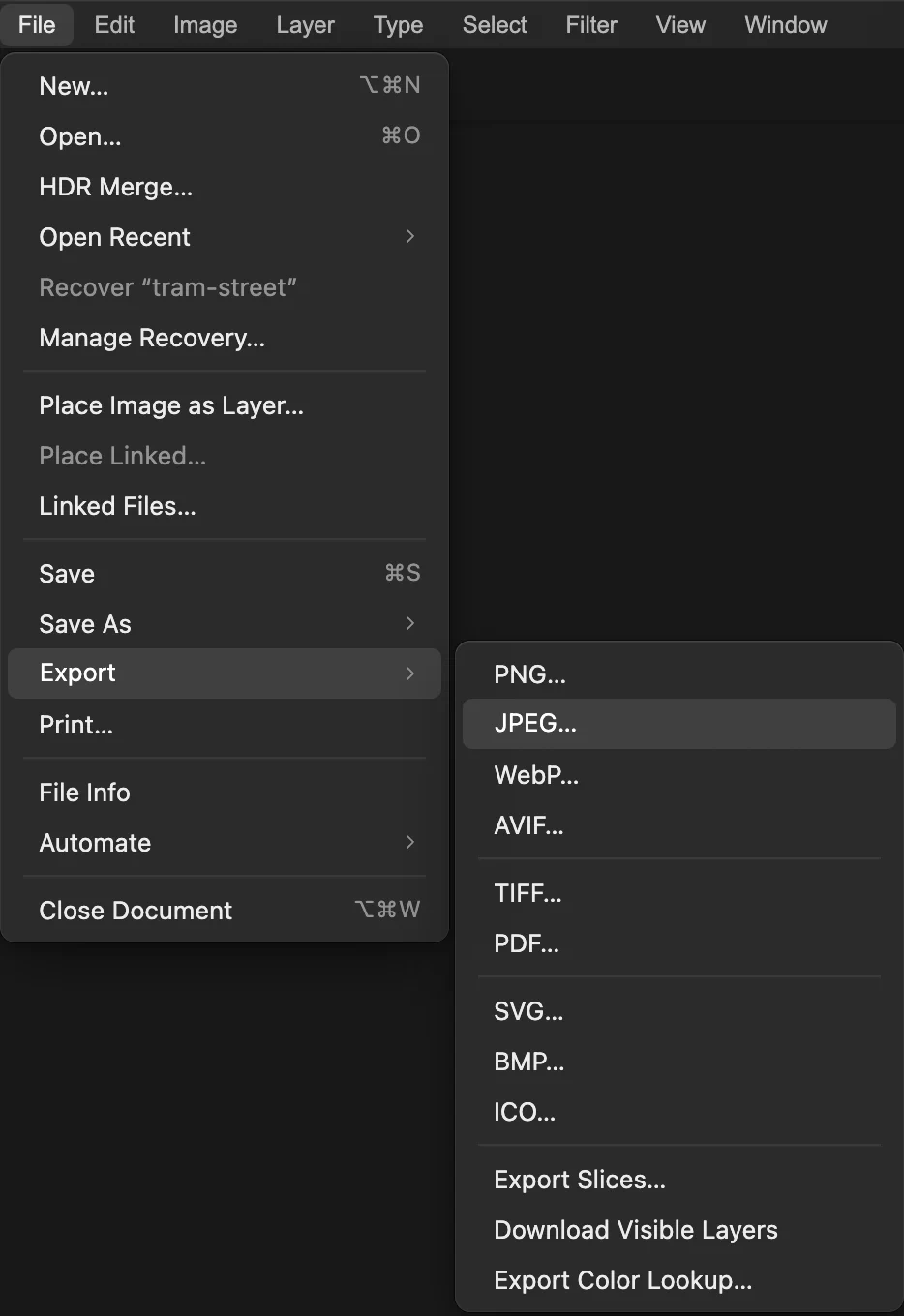
Keep one color
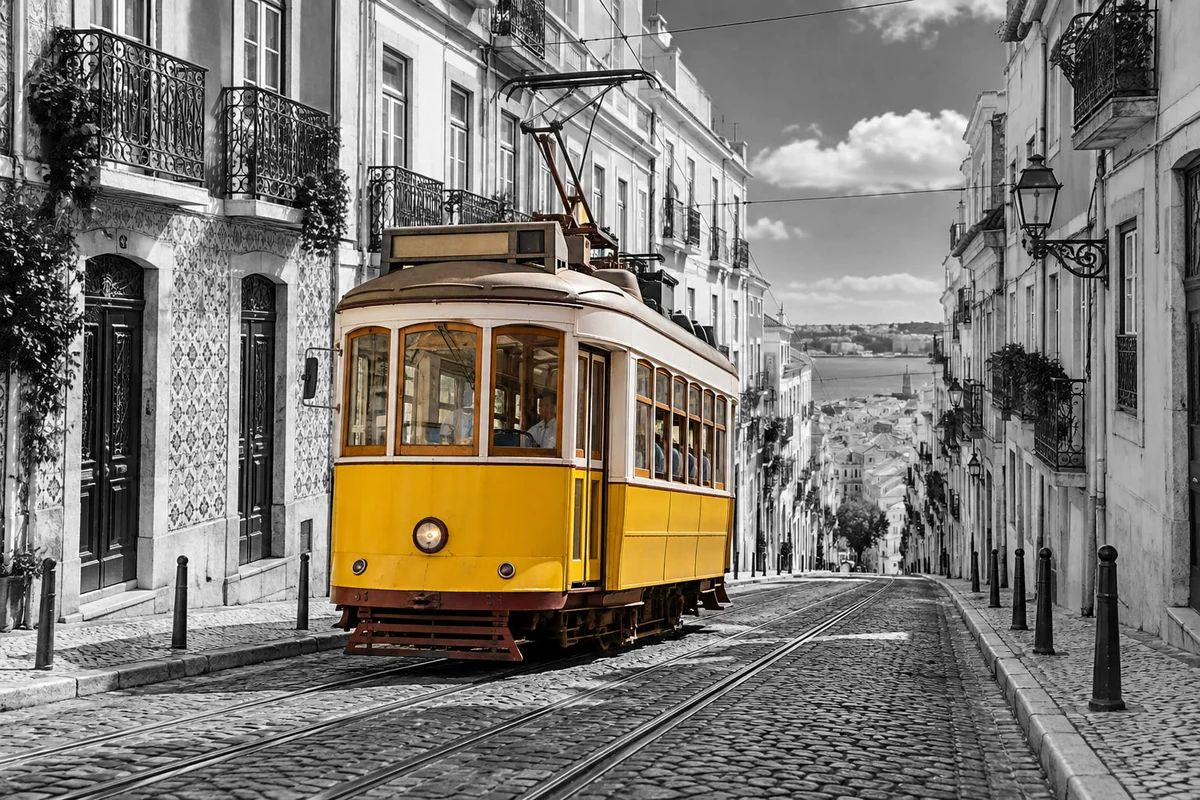
To leave one thing in color, select it before you add the adjustment layer, then swap the selection so everything else is selected. If you followed the steps above, first select the Black & White layer and choose , or it keeps the whole photo gray.
- Choose . In the sample, the tram is selected.
- Choose , so the selection is everything except the tram.
- Choose , set the sliders and click Apply. The layer only changes what was selected, so the tram stays yellow.
The selection becomes the layer’s mask, and you can correct it afterward. In the sample, keeps only the lower half of the thin trolley pole on the roof in color, and a small patch of yellow wall between the pole’s legs stays yellow. Click the mask thumbnail on the layer’s row and paint with the Brush: black brings the color back, white turns the spot gray. See how to paint on a mask.
Add a sepia or blue tone
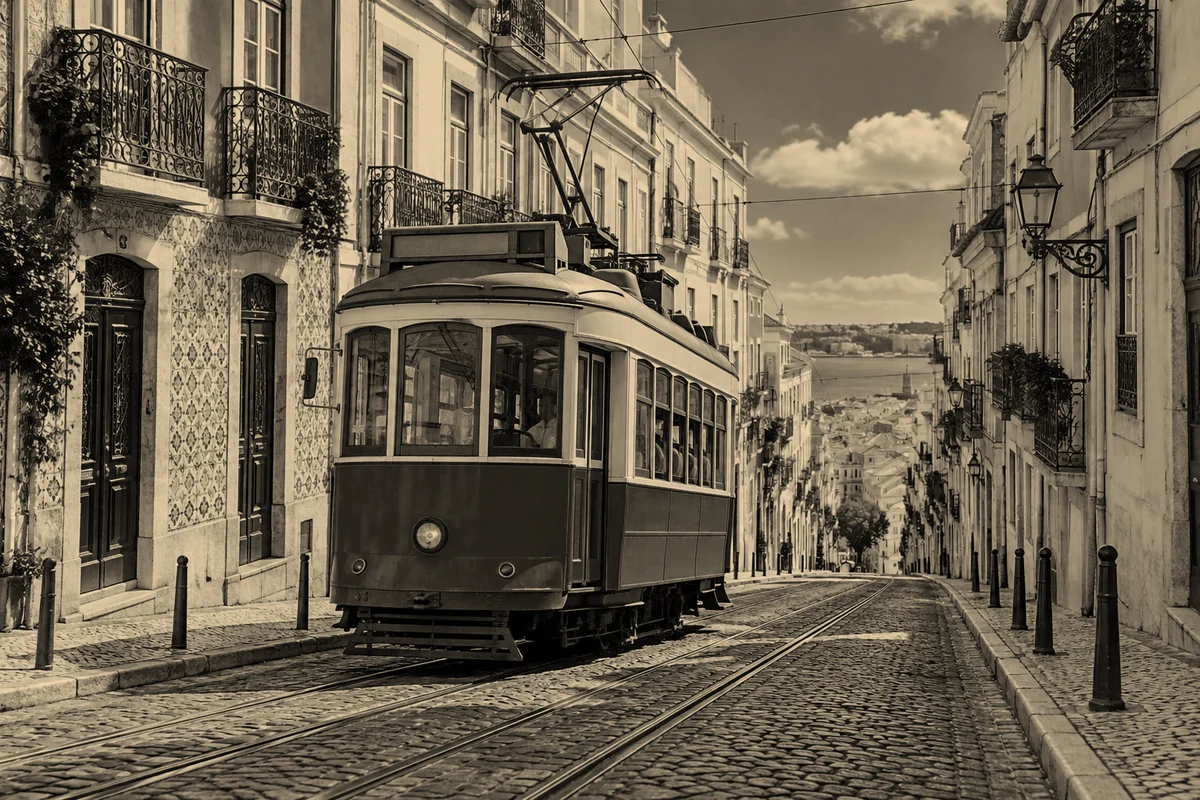
In the Black & White settings (or in Properties later), tick Tint, click the Tint color swatch and choose a color: the grays take on that color, with white becoming the color itself and black staying black. For a warm sepia, enter F0D7AF in the # field and click OK; a pale blue such as C8D8F0 gives a cool tone.
Other ways to remove color
- has the same sliders but changes the layer’s own pixels, so you can’t adjust the mix afterward.
- removes the color with no settings: quick, but you can’t choose how light each color becomes.
- turns the whole document into one gray channel. Lil Cactus warns that switching back to RGB won’t restore the colors; use it when a print shop asks for a grayscale file.
Fix common problems
Only part of the photo turned black and white
A selection was active when you added the layer, so it became the layer’s mask. Delete the layer, choose and add it again.
Skin looks gray and dull in a portrait
Skin is mostly red and yellow. Raise Reds and Yellows to lighten it.
Coming from another editor
- Photoshop
- Layer › New Adjustment Layer › Black & White…
- GIMP
- Colors › Desaturate › Mono Mixer…
Black and white photos: questions and answers
What is the difference between grayscale and black and white?
In Lil Cactus, Image › Mode › Grayscale turns the whole document into one gray channel, and switching back to RGB doesn’t bring the colors back. A Black & White adjustment layer keeps the color photo underneath and lets you choose how light each color becomes.
Can I turn a black and white photo back to color?
Yes, while the Black & White layer is still there: in Lil Cactus, hide it with its eye or delete it. A copy made with File › Export, or a JPEG, PNG or WebP saved over with File › Save, keeps only the grays. A PSD or a Lil Cactus project keeps the Black & White layer; in a PSD, if Tint is on, that layer is merged with the layers below it.
Why does my black and white photo look flat?
Colors that are equally bright turn into the same gray. In Lil Cactus, find the original color of each area and move its Black & White slider, down to darken it or up to lighten it, until the areas separate: blue sky is Blues and Cyans, leaves Greens and Yellows, red brick Reds.
Can I make many photos black and white at once?
Yes. In Lil Cactus, open Window › Actions, click Record, apply Image › Adjustments › Black & White… and click Stop. Then choose File › Automate › Batch…, pick that action, click Choose images…, set Format to JPEG if you want JPEGs, and click Run. The results download together as one ZIP.
Is my photo uploaded when I make it black and white in Lil Cactus?
No. Everything runs in your browser, on your own device. When statistics are on, the editor records which tools are used, never the image, as the privacy policy explains.
Keep going
 How to use adjustment layersColor and tone changes you can retune, hide or limit to one area.Beginner · 5 min
 How to use layer masksHide part of a layer without deleting it, and bring it back any time.Beginner · 5 min
 How to color grade a photoShape contrast, then add cool shadows and warm light.Intermediate · 7 min