How to use adjustment layers
Quick answer
Click New adjustment layer (the half-filled circle) at the bottom of the Layers panel, or choose , and pick an adjustment such as Brightness/Contrast. Set it and click Apply: it becomes its own layer that changes everything below it, while the photo stays untouched. Select the layer to change its settings in the Properties panel at any time. If a selection is active, the new adjustment changes only the selected area.
- Time
- 5 minutes
- Level
- Beginner
- You need
- A photo you want to correct or restyle
- Works with
- Any 8- or 16-bit image: JPEG, PNG, WebP, HEIC, PSD, RAW and more
Commands in change a layer’s pixels directly. An adjustment layer does the same job from a separate layer: it changes the look of everything below it, keeps its settings so you can change them later, and has its own mask that decides where it applies. Delete it or hide it, and the photo is exactly as it was.
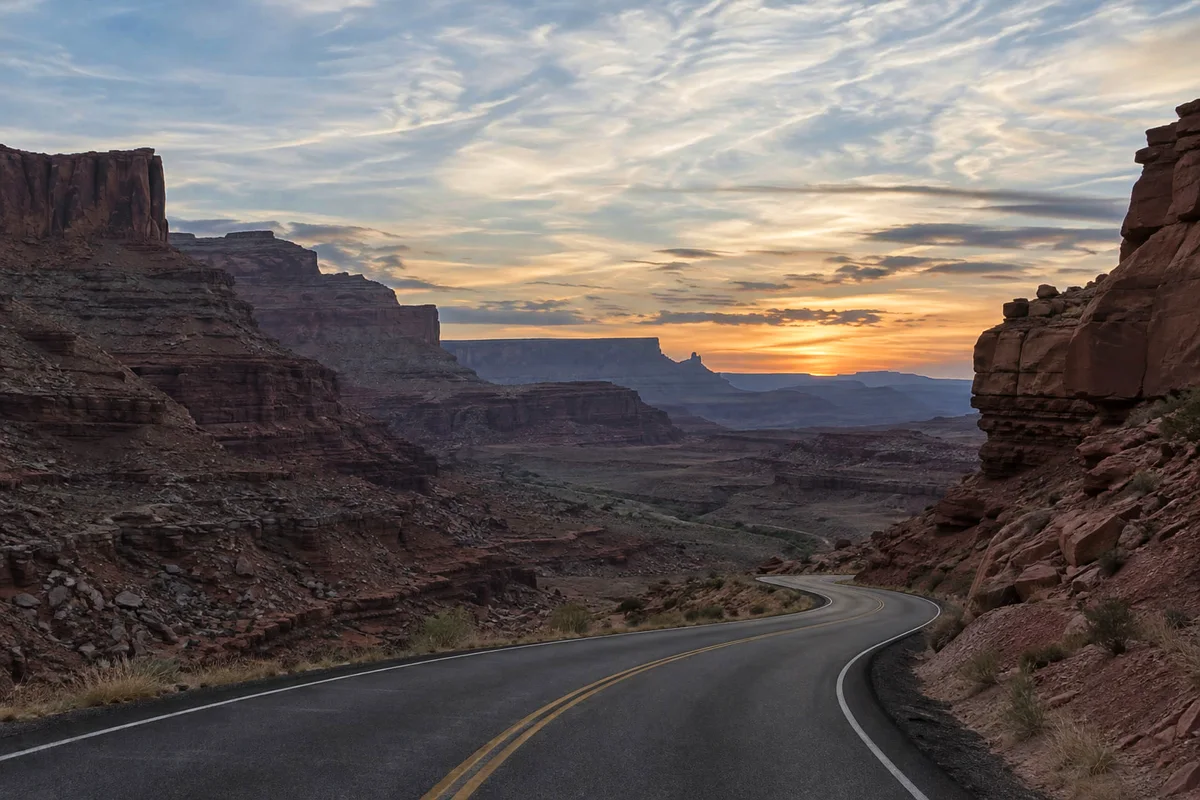
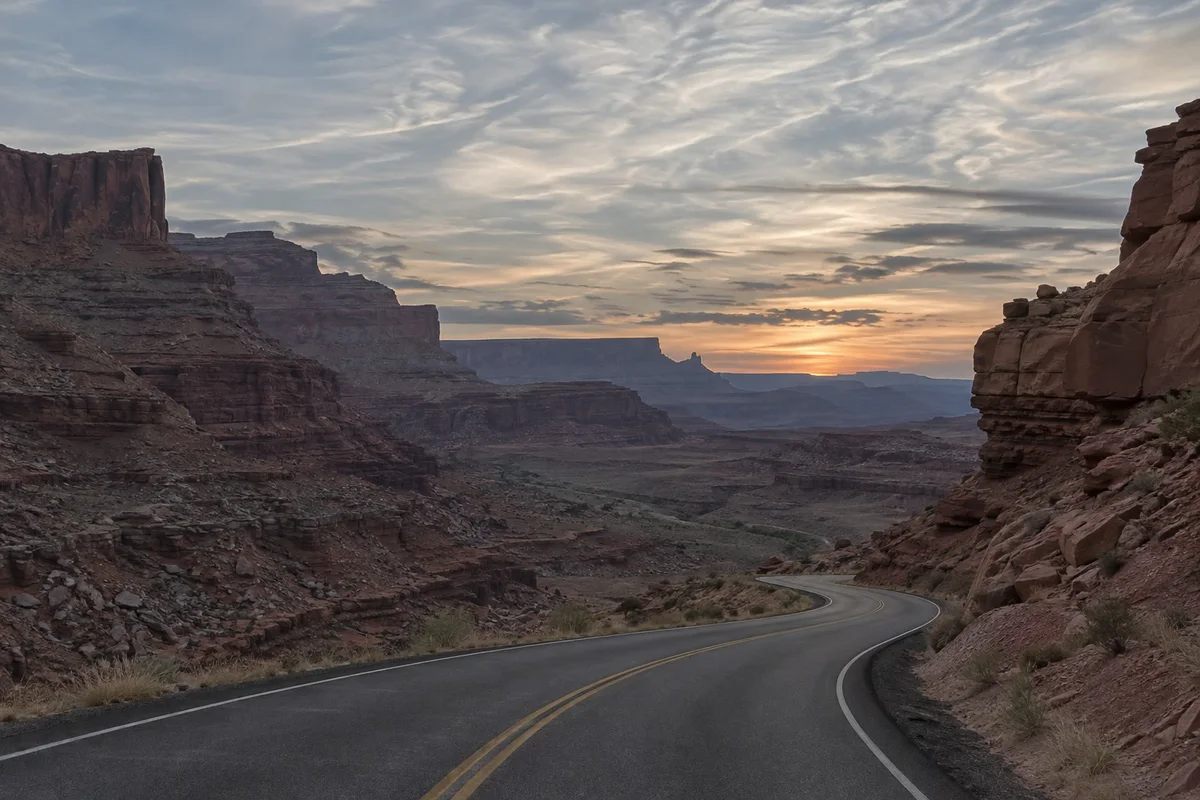
In this tutorial you give the flat canyon photo more contrast, then make only the sky more colorful.
Use adjustment layers in seven steps
Open the photo
Go to lilcactus.app and choose (Ctrl+O or ⌘O), or drag the photo onto the window. To follow along exactly, open the sample photo from this page.
Add a Brightness/Contrast adjustment layer
Click New adjustment layer, the half-filled circle at the bottom of the Layers panel. A list of adjustments opens, grouped into tone and color, and creative and utility. Choose Brightness/Contrast.
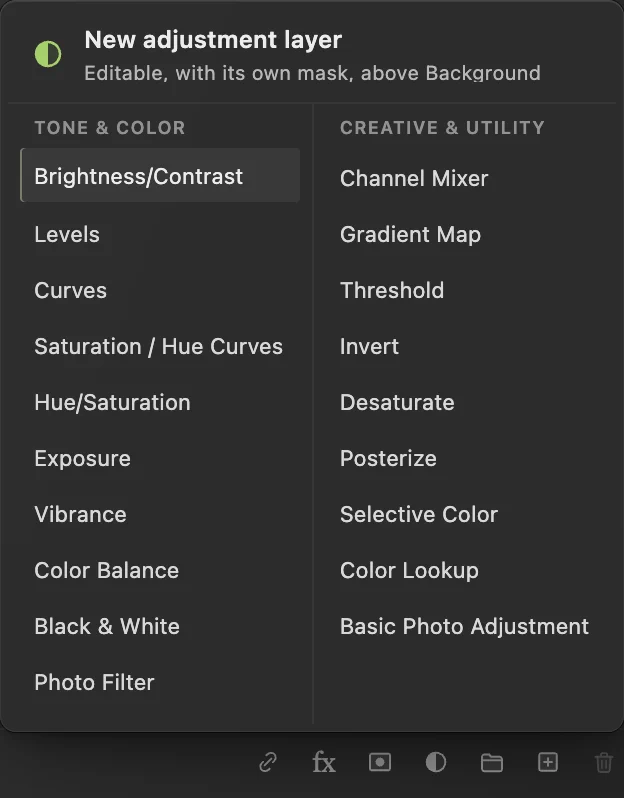
The half-circle button opens the list of adjustment layers. Set it and click Apply
Type 15 for Brightness and 40 for Contrast, and click Apply. The photo gets deeper shadows and brighter highlights.
A new layer, Brightness/Contrast, appears above Background. Its first thumbnail is the half-circle that marks an adjustment layer; the white one beside it is its mask, white because the adjustment applies everywhere. The panel shortens long names, so it reads “Brightn…”.
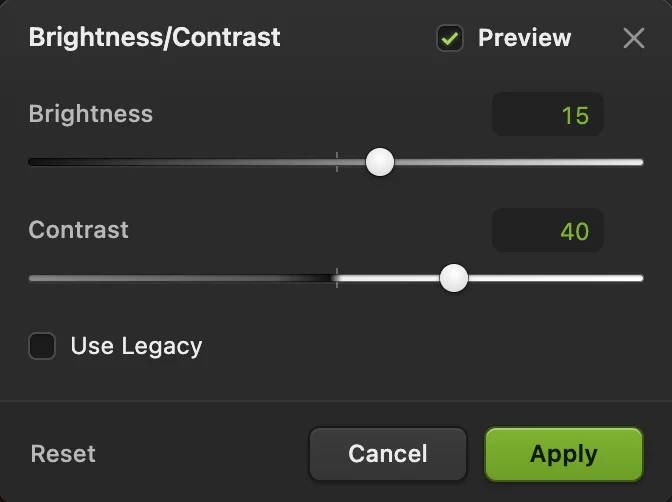
Brightness 15, Contrast 40. 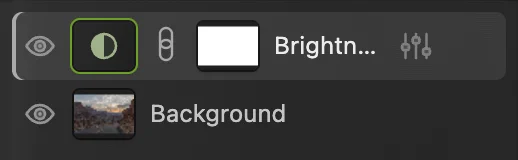
The adjustment sits on its own layer above the photo. Compare, and change it later
Click the eye icon beside the adjustment layer to switch it off and on: that is your before and after. The photo layer underneath has not changed at all.
To change the settings, click the adjustment layer. Its values appear in the Properties panel, where you can type new ones; the sliders icon at the right of the layer’s row opens the dialog again. Try Contrast 30, then put it back to 40.
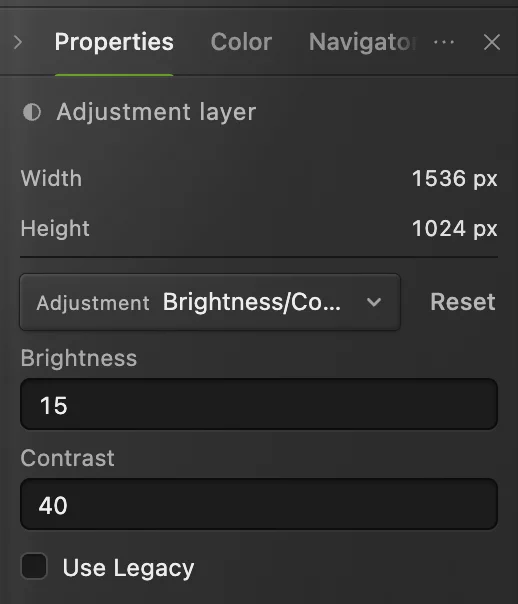
The adjustment’s settings stay editable in the Properties panel. Select the sky
Choose AI running in your browser finds the sky; the first time, the browser downloads the model, so it takes a little longer. The preview shows the sky on its own. Click Apply, and a dotted selection runs along the skyline.
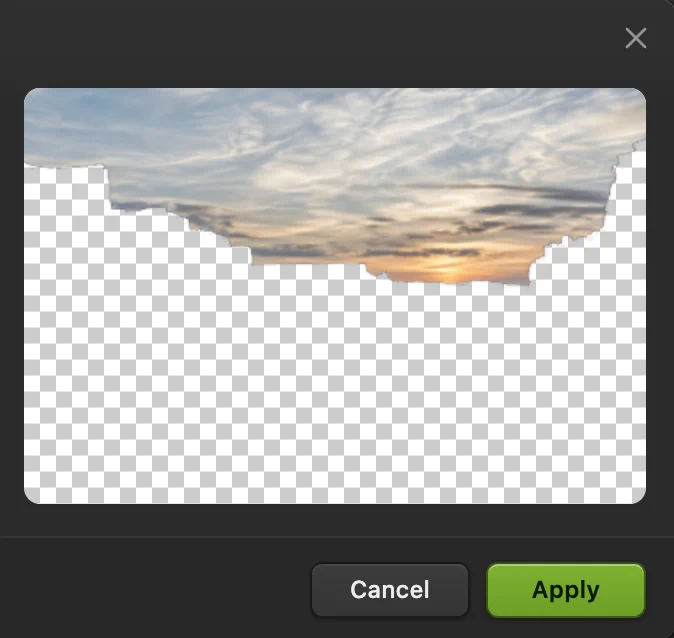
Select Sky: the preview shows the sky it found. Click Apply. 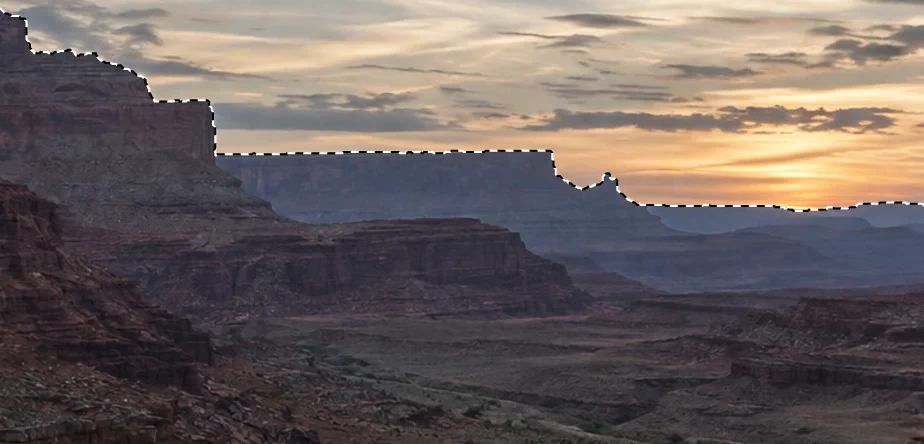
The sky is selected. Add a Vibrance adjustment layer for the sky
With the sky still selected, choose The dialog says “Applies within the selection”. Type 80 for Vibrance and 20 for Saturation, and click Apply. Only the sky turns a richer blue and orange. To remove the dotted line, choose or press Ctrl+D or ⌘D.
The new layer’s mask is black with a white sky: the selection became the mask. To change where it applies, click the mask thumbnail and paint on it with black or white, as in how to use layer masks.
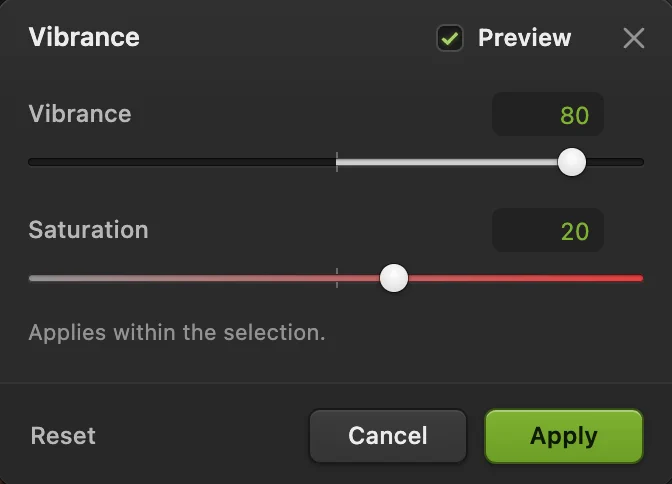
Vibrance 80, Saturation 20, within the selection. 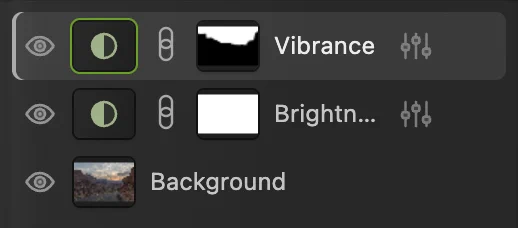
The Vibrance mask: white where it applies, the sky. Save with the adjustments kept
Choose (Ctrl+Shift+S or ⇧⌘S), or to open the file in other editors: both keep the adjustment layers and their settings. After that, updates that file.
To share the photo, choose and click Export: a new file with the adjustments built in. Until you save a project or PSD, writes that flat result back into the JPEG you opened; the first Save of a JPEG, including the sample, opens the Save Image dialog.
How adjustment layers stack
- An adjustment layer changes every visible layer below it, not the layers above. Drag it higher or lower in the Layers panel to change what it affects.
- Adjustments add up from the bottom: here Brightness/Contrast changes the photo, and Vibrance works on that result.
- To make an adjustment change only the pixel layer directly below it, select the adjustment layer and choose . See clipping masks.
- Opacity on an adjustment layer weakens the whole effect: at 50% you get about half the change.
Which adjustment to use
| To | Use |
|---|---|
| Add punch to a flat photo | Brightness/Contrast, Levels or Curves |
| Brighten or darken by camera stops | Exposure |
| Make dull colors richer, gently | Vibrance |
| Change one color, or all colors | Hue/Saturation, Selective Color |
| Warm up or cool down | Color Balance, Photo Filter |
| Black and white | Black & White |
| A film look or color grade | Gradient Map, or Color Lookup with a .cube look file you load |
For contrast in depth, see Curves.
Fix common problems
The adjustment changed the whole photo, not just the sky
Nothing was selected when you added it, so its mask is all white. Delete the adjustment layer, select the area first and add it again, or paint its mask as in step 6.
The adjustment doesn’t change a layer
That layer is above the adjustment layer. Drag the adjustment layer above it in the Layers panel.
I can’t paint on the adjustment layer
Click its mask thumbnail first: you paint on the mask, not on the adjustment itself.
The settings are gone after reopening the file
It was saved as a JPEG or PNG. A Lil Cactus project, as in step 7, keeps every adjustment layer. A PSD keeps most of them. Saturation / Hue Curves, Basic Photo Adjustment and a Gradient Map whose Type is Noise or whose Method is Stripes are flattened into pixels, together with the layers below them; Lil Cactus lists them and asks before it saves.
Coming from another editor
- Photoshop
- The Create new fill or adjustment layer button at the bottom of the Layers panel, and Layer › New Adjustment Layer.
Adjustment layers: questions and answers
How do I make an adjustment layer permanent?
In Lil Cactus, select the adjustment layer and choose Layer › Merge Down. The Merge Layer Appearance dialog shows the result; click Merge to Pixels, and the adjustment is built into the layer below. Undo brings the adjustment layer back. If the layer below is another adjustment layer, Merge Down is refused: merge the lowest adjustment layer first and work upward.
Can I change an adjustment layer into a different kind?
Yes. In Lil Cactus, select the adjustment layer and pick another kind in the Adjustment menu of the Properties panel; its settings start from that adjustment’s defaults, and the mask is kept.
What happens to adjustment layers when I export a JPEG?
In Lil Cactus, the exported JPEG has every visible adjustment built into its pixels. Your document keeps the adjustment layers, so you can change them and export again.
Why are the adjustment layer choices grayed out?
In Lil Cactus, adjustment layers work on 8- and 16-bit documents, so on a 32-bit HDR image every choice under Layer › New Adjustment Layer is grayed out. Use Image › Tone Map to SDR… first, or use Image › Adjustments › Exposure… or Vibrance…, which work on the 32-bit pixels directly.
Do adjustment layers make the file bigger?
No, barely. In Lil Cactus an adjustment layer stores its settings and its mask, not a second copy of the photo.
Is my photo uploaded when I use adjustment layers in Lil Cactus?
No. Adjustments and Select Sky run in your browser, on your own device. When statistics are on, the editor records which tools are used, never the image, as the privacy policy explains.
Keep going
 How to use layer masksHide part of a layer without deleting it, and bring it back any time.Beginner · 5 min
 How to make a selection in a photo editorPick the right tool, add and subtract, feather and save a selection.Beginner · 6 min
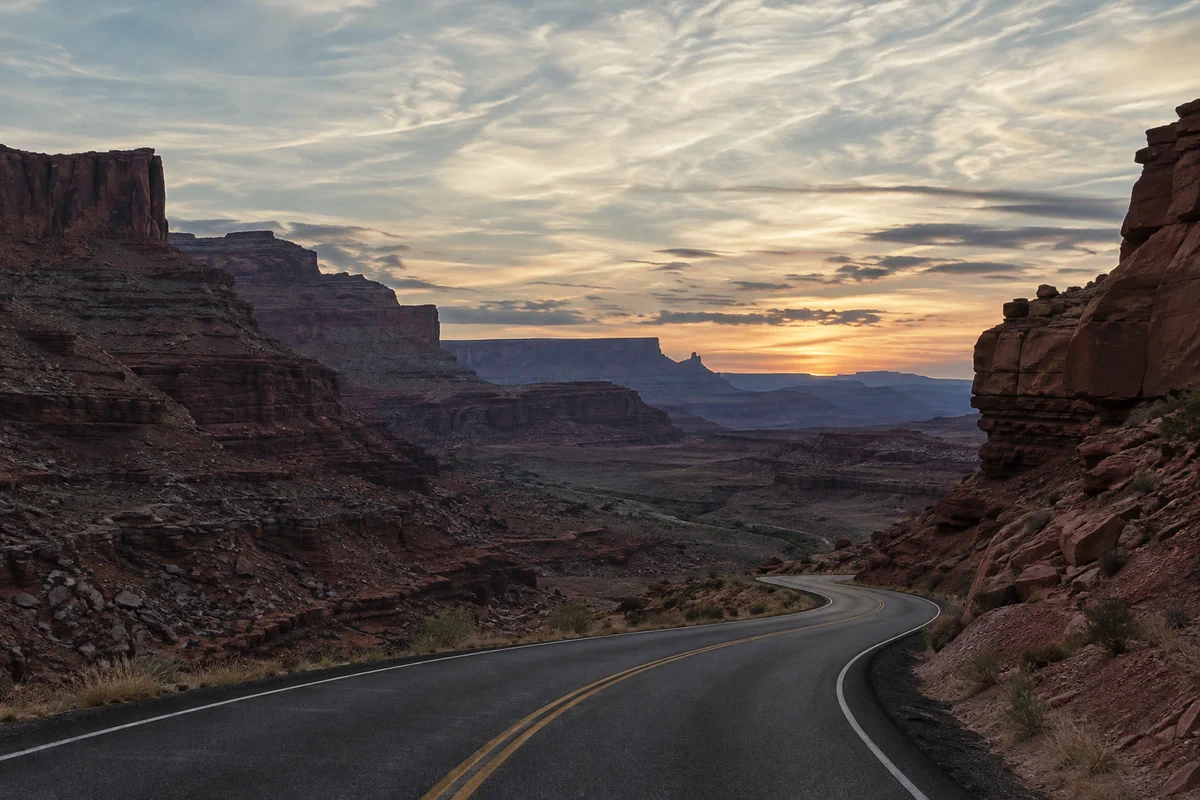 How to use Curves to fix contrast and colorRead the graph, build an S-curve and shift color by channel.Intermediate · 8 min