How to color grade a photo
Quick answer
In Lil Cactus, choose and make a gentle S-curve: for the sample, set points to Input 64 / Output 55 and 192 / 208, then click Apply. Add : set Shadows to Cyan – Red −30 and Yellow – Blue +30, then Highlights to +10 and −12 respectively. Leave Magenta – Green and Midtones at 0, turn on Preserve Luminosity, click Apply and set the Color Balance layer’s Opacity to 80%. Choose to keep the adjustments editable.
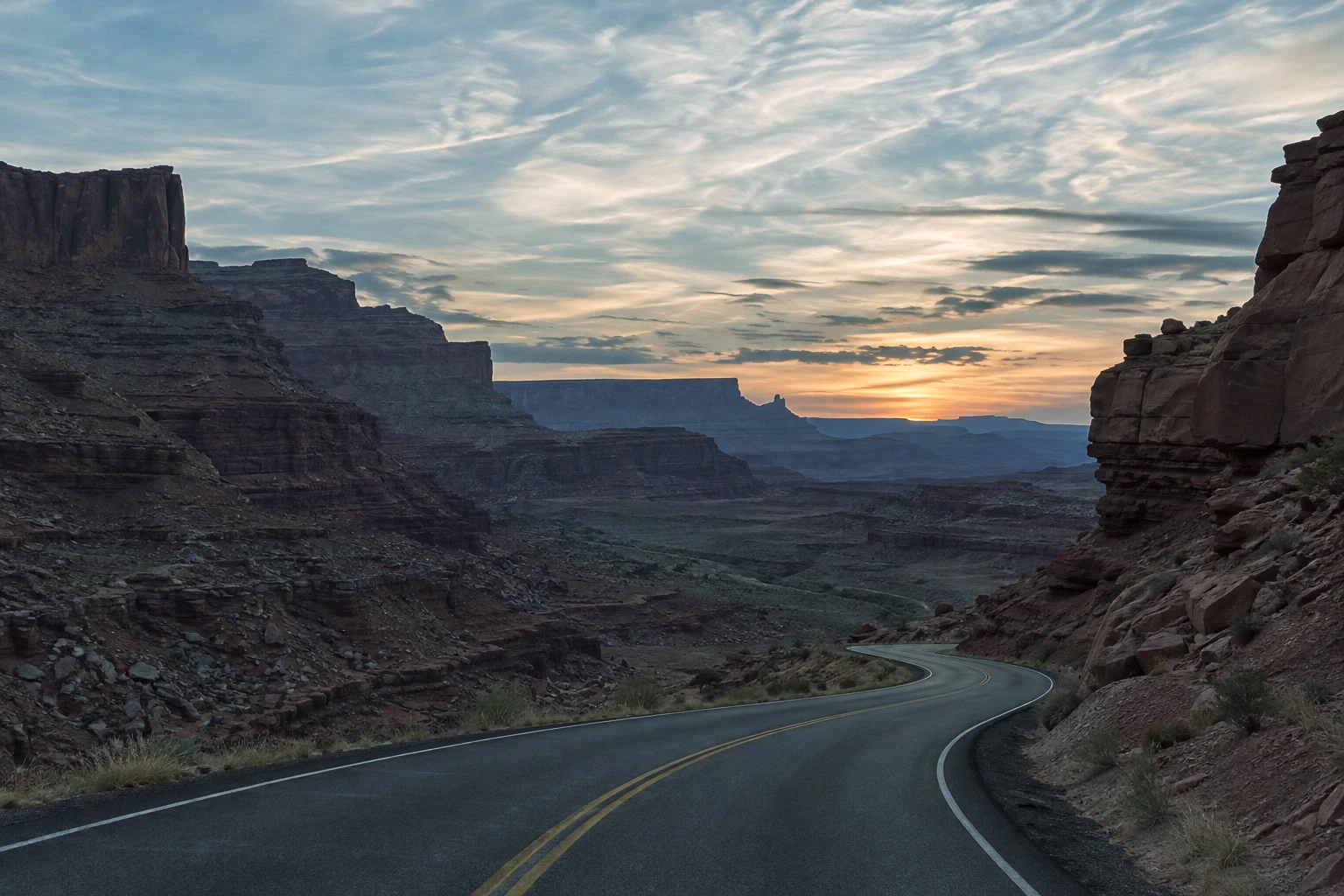
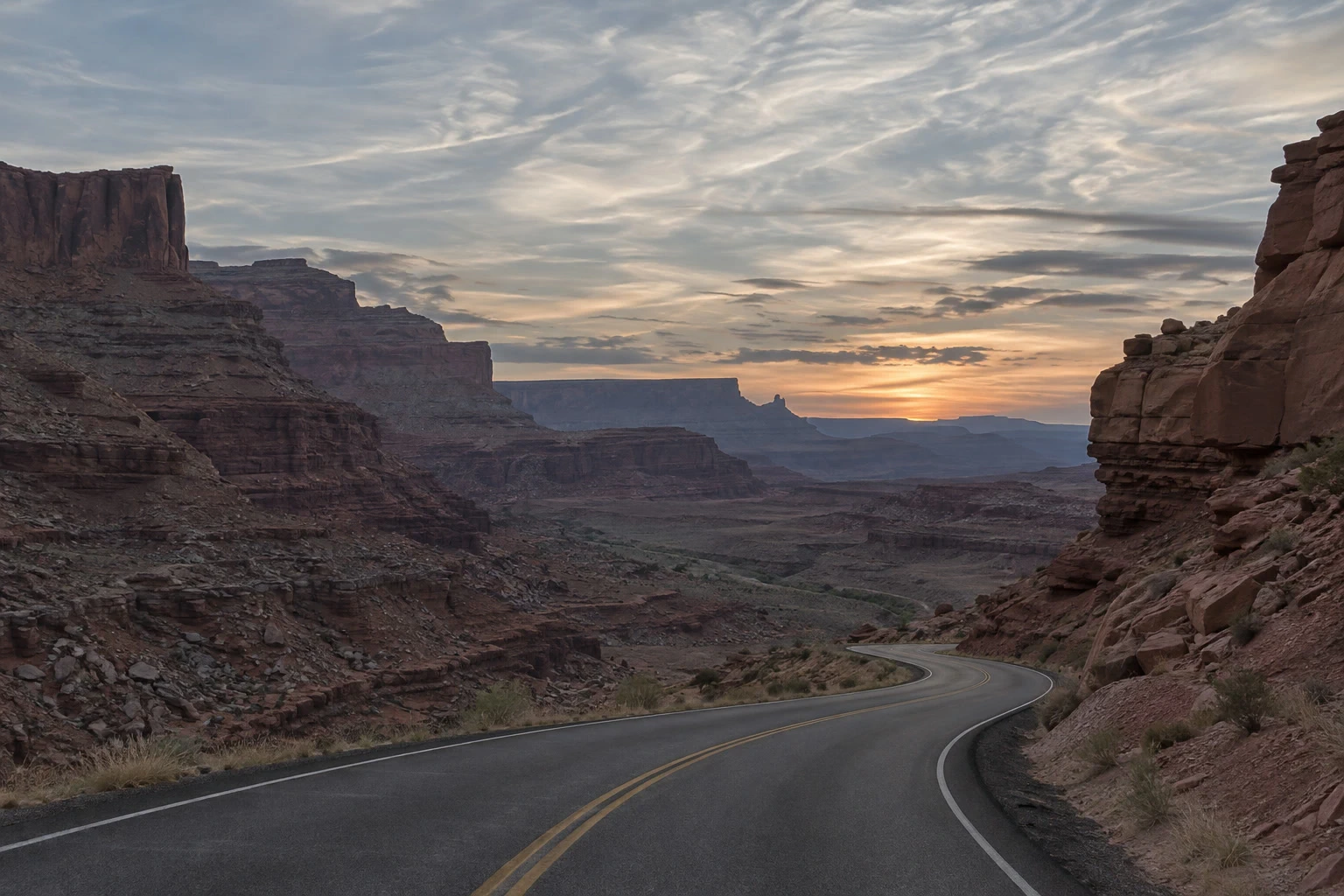
- Time
- 7 minutes
- Level
- Intermediate
- You need
- A photo with usable detail in the shadows and highlights
- Works with
- RGB photos, including JPEG and PNG
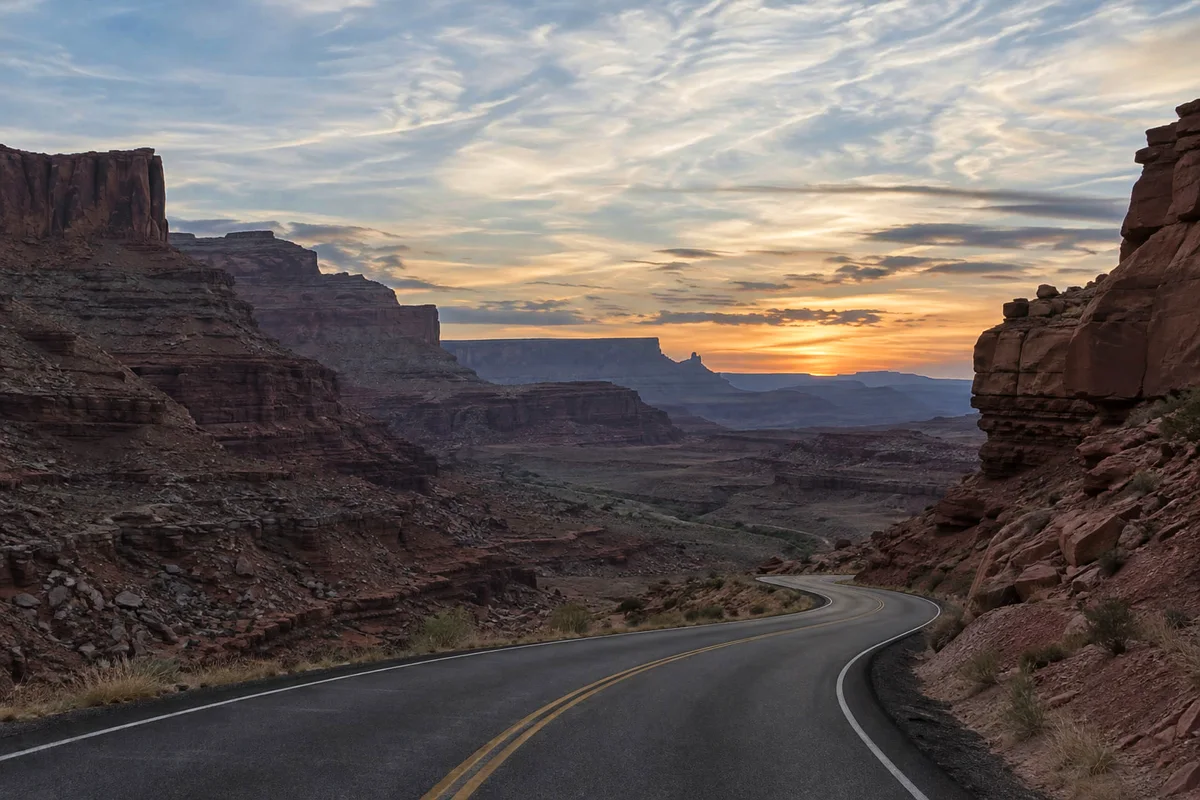
Color grading gives a photo a chosen mood. First shape the contrast, then decide which tones should feel warm or cool. Here the sunset stays warm while the shadowed canyon becomes cooler. The values are a starting point for this sample; a portrait or a daylight scene will need a different balance.
Use adjustment layers, separate layers that change the appearance of the picture below them. They let you compare the grade with the original and revise the color later.
Build a color grade in six steps
Open the photo and add Curves
Choose and open a photo, or open the sample from this page. Choose
The graph maps existing tones to new ones: dark tones are on the left, bright tones on the right. Raising the line brightens a tone; lowering it darkens that tone.
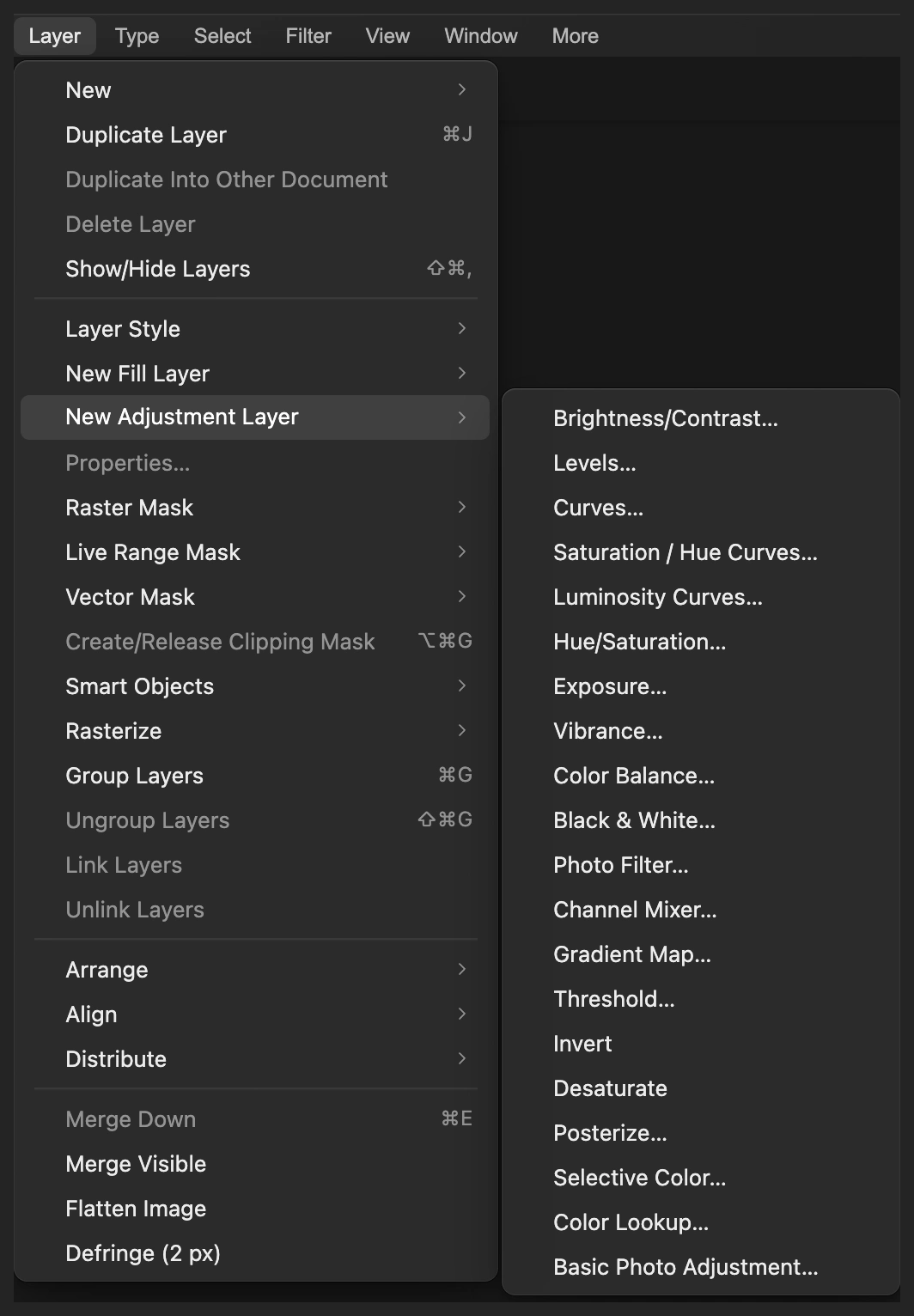
Start with a Curves adjustment above the photo. Give the sample a gentle S-curve
Keep the channel menu at the top right on RGB. Click the diagonal line about one-quarter of the way across, then set Input to 64 and Output to 55. Click about three-quarters of the way across and set that point to Input 192, Output 208.
The low point darkens the shadows; the high point brightens the sky. The two end points stay at 0 / 0 and 255 / 255. Click Apply.
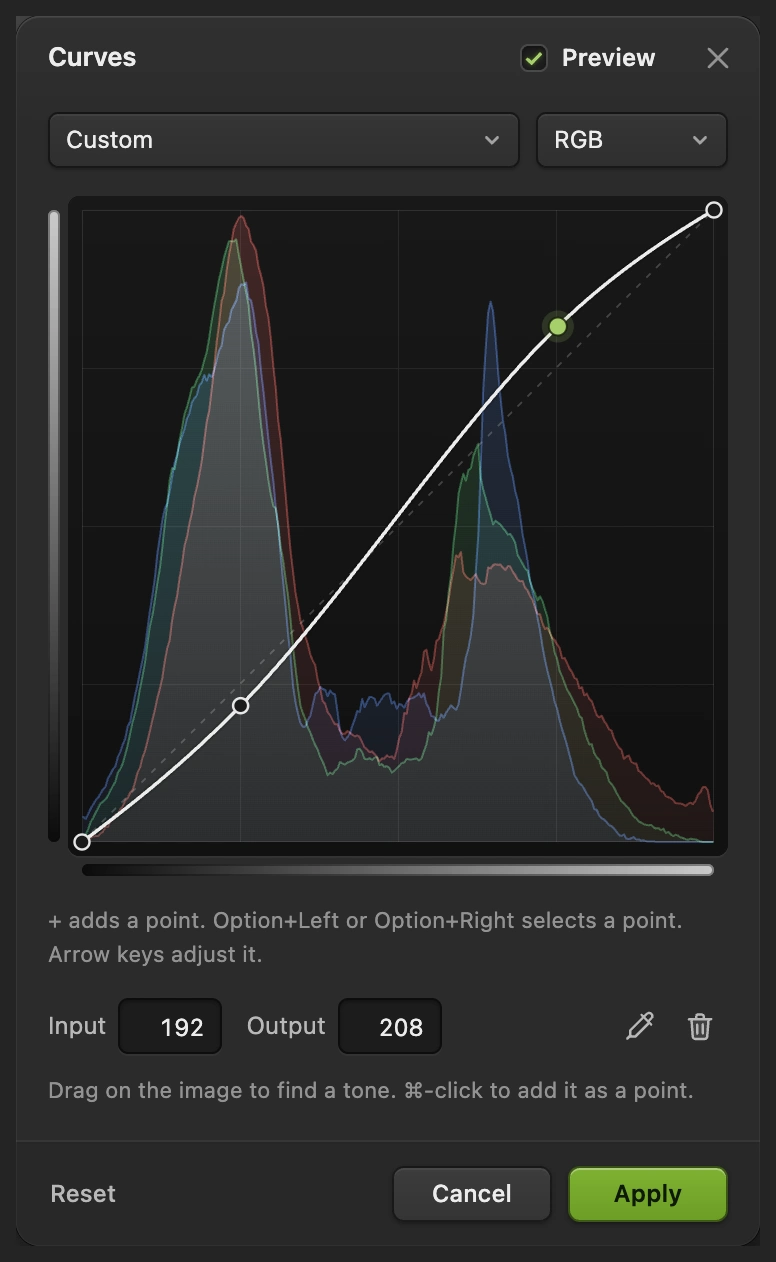
The selected highlight point reads Input 192, Output 208. - Shadows: 64 to 55
- Highlights: 192 to 208
Cool the shadows with Color Balance
Choose This adds the color adjustment above Curves. Choose Shadows, set Cyan – Red to −30 and Yellow – Blue to +30, and leave Magenta – Green at 0. Turn on Preserve Luminosity.
A negative Cyan – Red value moves toward cyan; a positive Yellow – Blue value moves toward blue. These moves give the dark canyon a cooler feel.
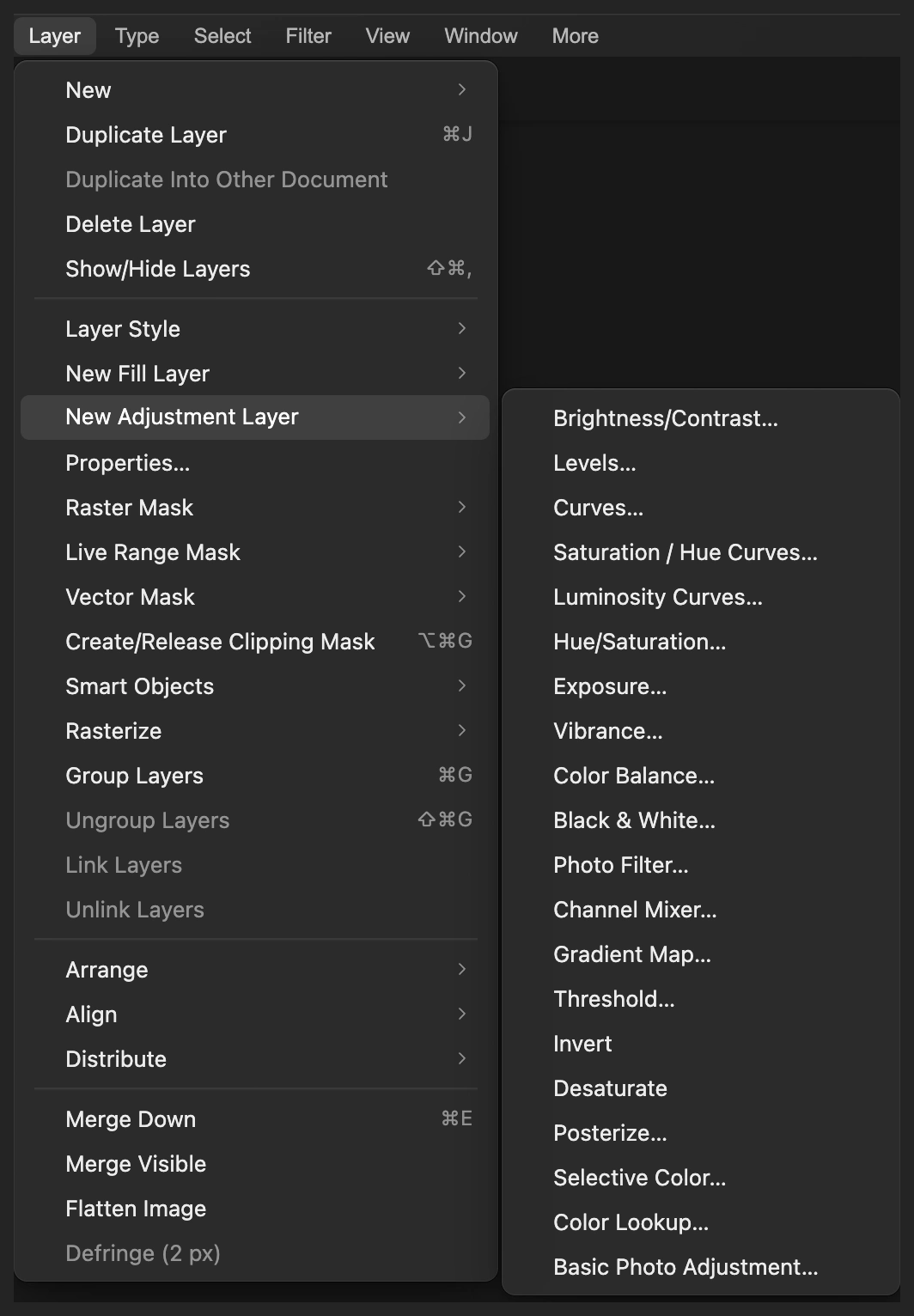
Keep color on a separate adjustment layer. 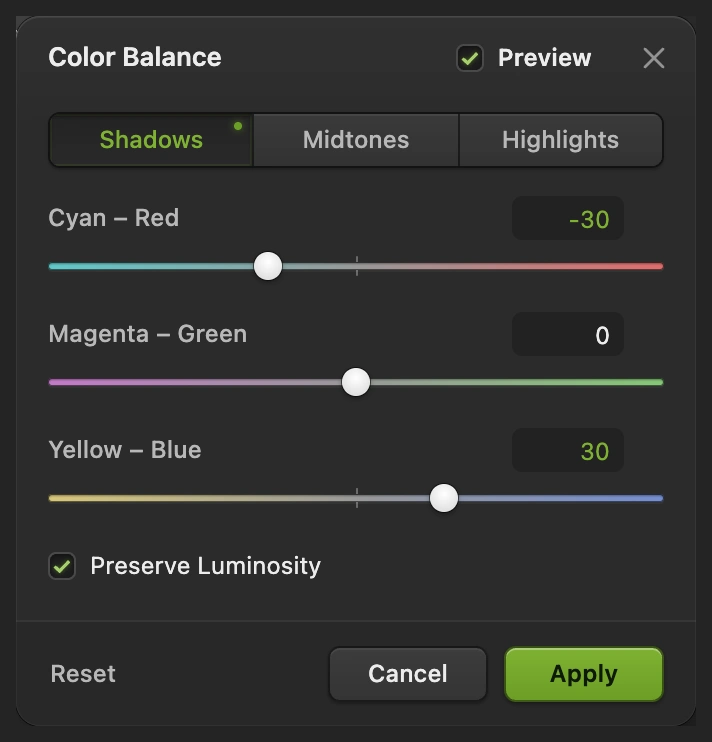
Cool the shadows with these two values; leave the green–magenta balance alone. Balance the bright tones
In the same dialog, choose Highlights. Set Cyan – Red to +10 and Yellow – Blue to −12, leaving Magenta – Green at 0. Leave all three Midtones values at 0, then click Apply.
More red and less blue pull the highlight balance toward warmer colors. Shadows, Midtones and Highlights overlap smoothly, so these controls do not isolate exact objects.
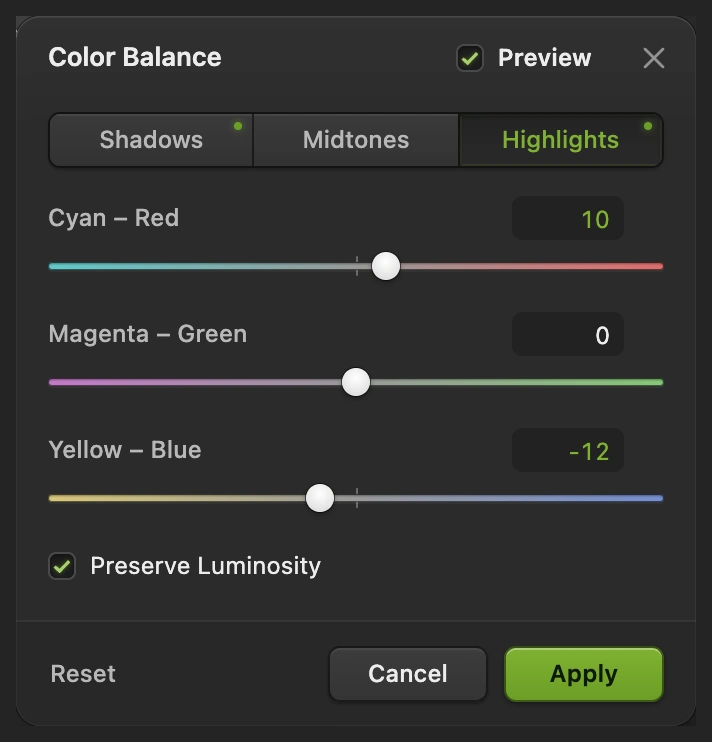
Warm the highlights while keeping the shadow settings from the previous step. Compare the grade and set its strength
With Color Balance selected in the Layers panel, set its Opacity to 80%. This blends some of the Curves-only version back in.
Click the eye beside Color Balance to compare its color change. Hide Curves too to see the original, then turn both layers back on. Judge the whole photo as well as the dark rock and bright clouds: their texture should remain visible.
To retune the color, click the half-shaded circle thumbnail beside Color Balance, then choose Change the settings and click Apply. The underlying photo stays available unchanged.
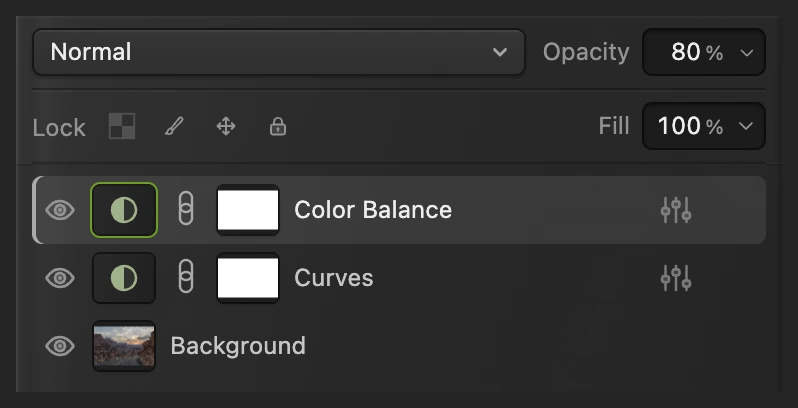
Turn both adjustments off for the original; turn both on for the finished grade. 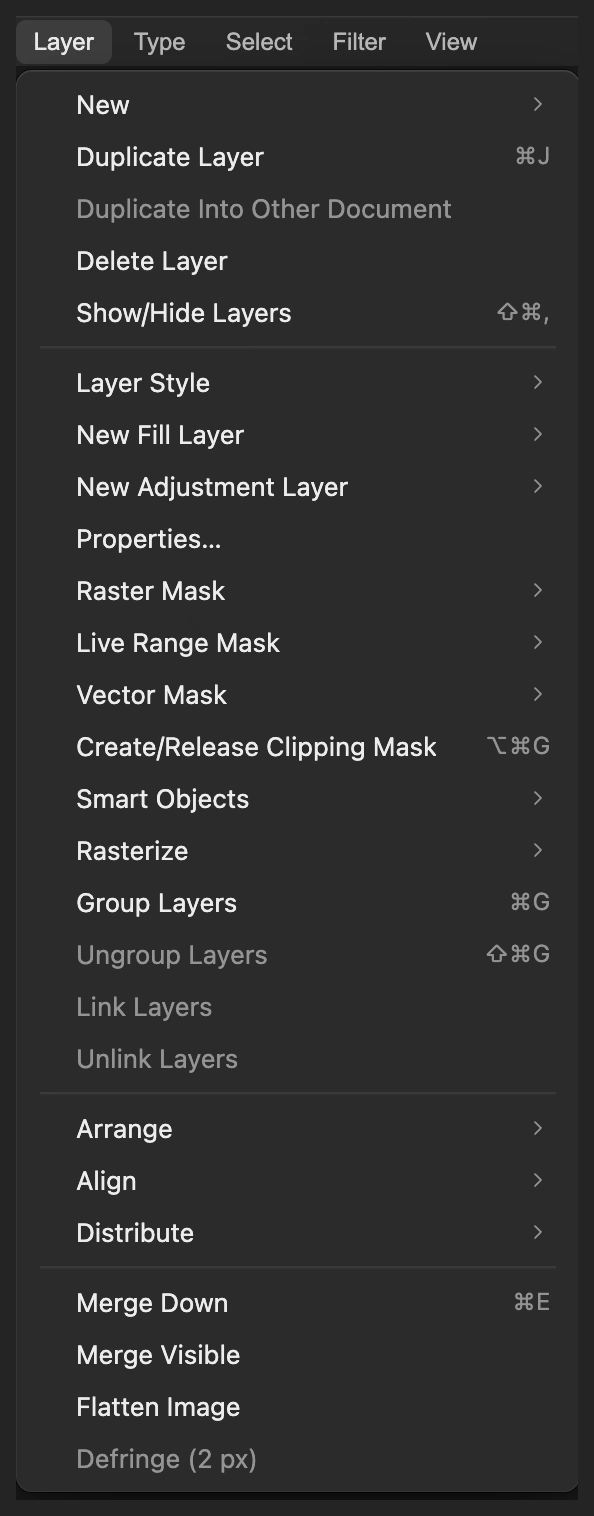
Properties reopens the selected adjustment’s dialog. Save the grade and export the picture
Choose to keep the photo, Curves and Color Balance editable. After that, saves the project. Choose and click Export for a new finished photo.
If you stay with the opened JPEG, writes a flat picture in that format; its first Save opens Save Image.
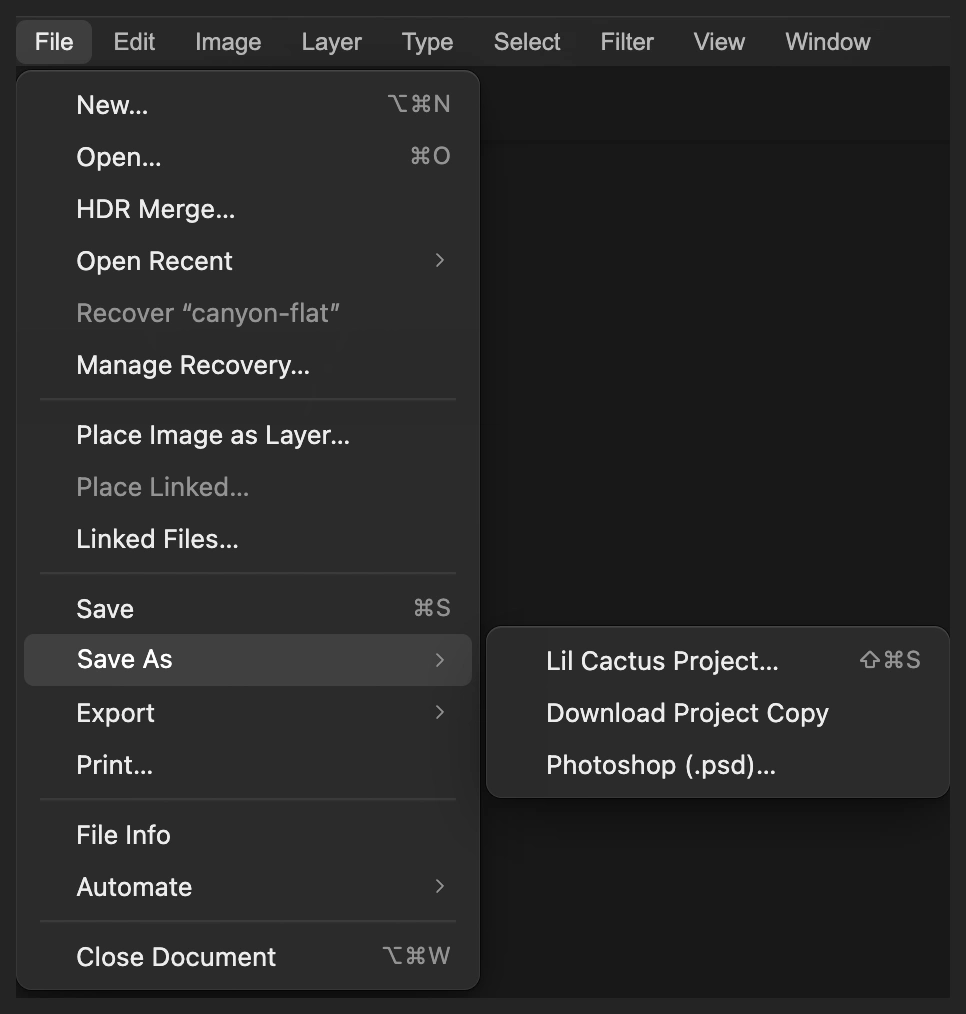
A project keeps both adjustments separate from the photo. 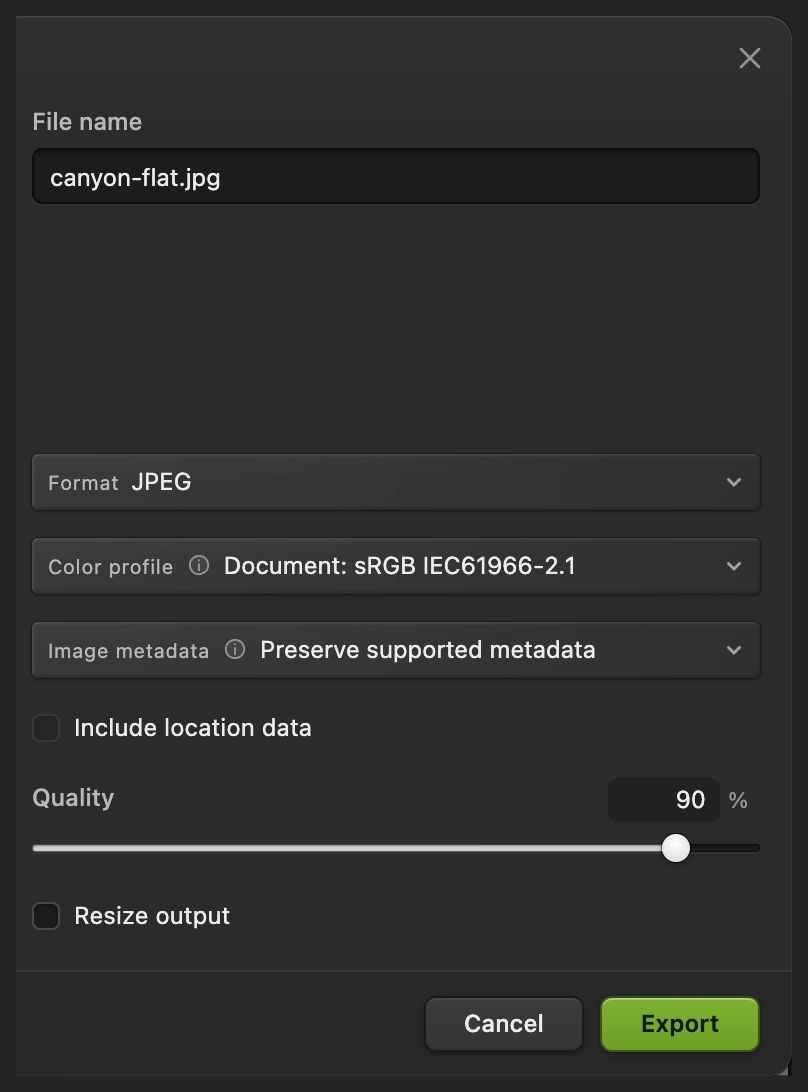
Export a finished copy for sharing.
Reuse the look with Color Lookup
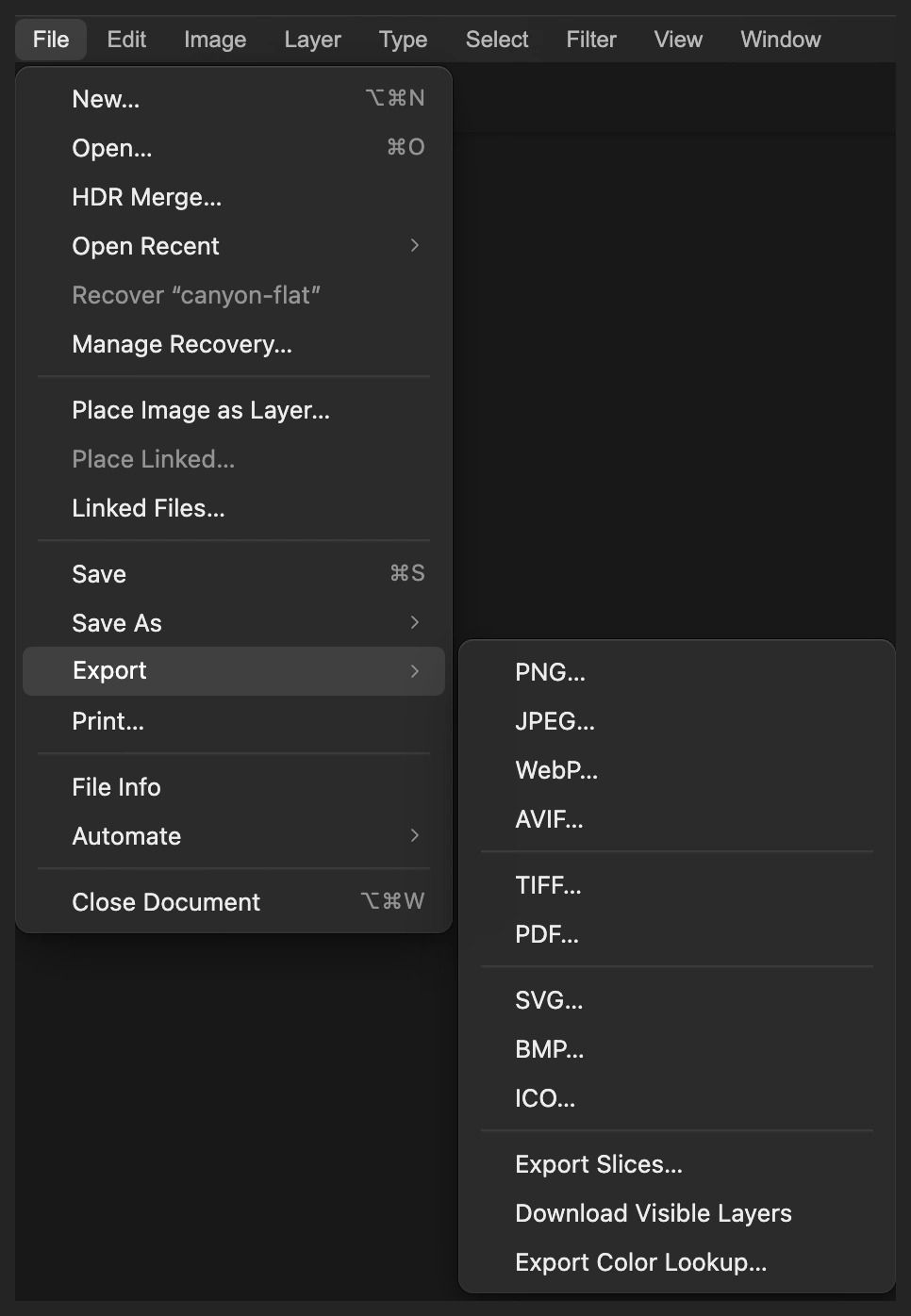
A color lookup, often called a LUT, is a table that maps input colors to output colors. You can export this grade as a .cube file, then load that file into a Color Lookup adjustment on another photo.
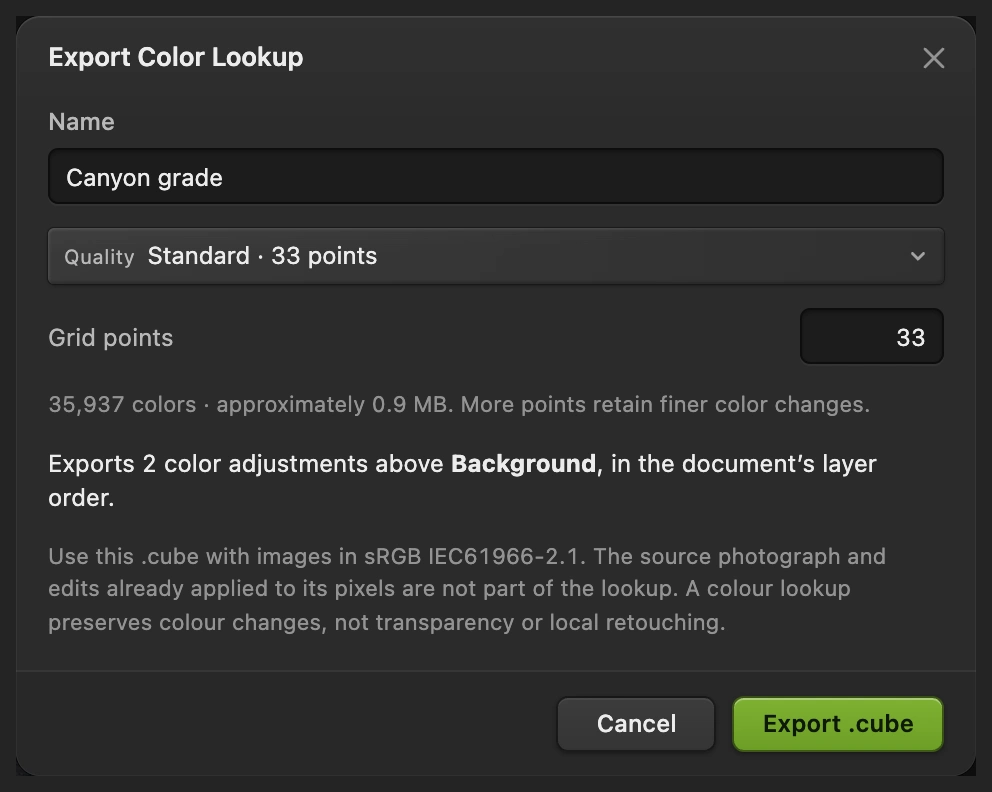
- With both adjustments visible, choose Name it Canyon grade, keep Quality on Standard · 33 points, and click Export .cube.
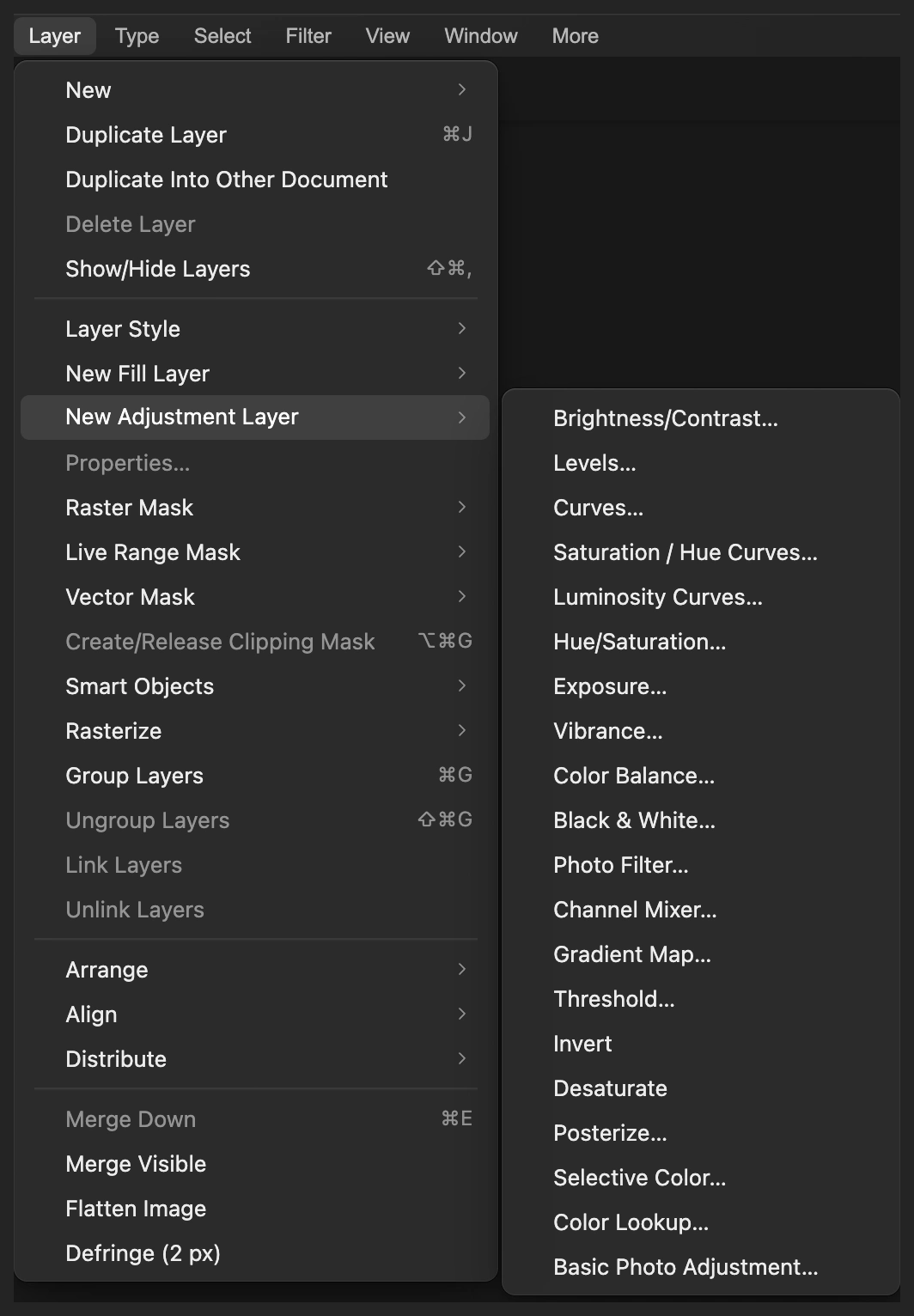
- Open the original photo again with (for the sample, use the button on this page again). Choose
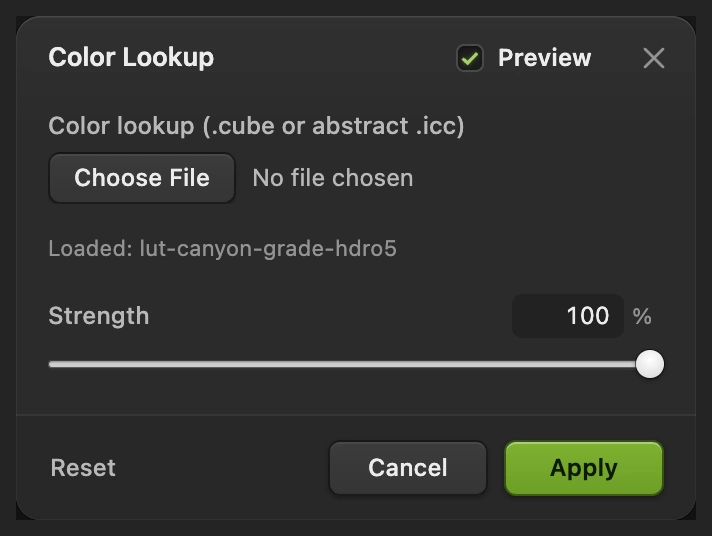
- Click the file button under Color lookup (.cube or abstract .icc) to choose Canyon grade.cube. The field then reads “No file chosen” again; the Loaded: line below it confirms the table. Keep Strength at 100% for the full look, or lower it for a gentler version, then click Apply.
Apply the lookup to RGB images in the same color profile shown in the export dialog, sRGB for this sample. Start from the original image, otherwise you apply the grade twice. A lookup carries the global color changes, not the photograph or local repairs. It also cannot make differently lit photos match automatically.
Fix common problems
The shadows look blue or muddy
In Color Balance’s Shadows, bring Cyan – Red and Yellow – Blue closer to 0. If the rock has lost detail, make the shadow point in Curves less dark too. A color grade still needs readable texture.
The sky looks harsh or loses cloud detail
Lower the bright Curves point toward the diagonal. Then reduce the Highlights color shift if the warm light is too orange. Changing color cannot recover cloud detail that was already missing from the source.
Only a small area changes
A selection may have become the adjustment’s mask. White parts of a mask allow the adjustment; black parts hide it. See how to inspect and edit a layer mask.
The Color Lookup dialog does not show a list of looks
Color Lookup loads a file. Export a .cube from your grade as above, or choose a compatible .cube file you already have.
What to do next
Color grading: questions and answers
What is color grading in a photo?
Color grading is the choice of color and contrast that gives a photo its mood. In Lil Cactus, Curves can shape the tones while Color Balance warms or cools shadows, midtones and highlights.
Is color grading the same as correcting a color cast?
No. Color correction aims to make colors look believable; grading adds a chosen look. In Lil Cactus, correct an unwanted cast before deciding how warm or cool the final photo should feel.
Can I change a color grade after saving?
Yes. A Lil Cactus Project keeps Curves, Color Balance and Color Lookup adjustment layers editable. A JPEG export contains their combined appearance rather than separate adjustment settings.
Does Lil Cactus include built-in Color Lookup looks?
No. Lil Cactus’s Color Lookup adjustment loads a .cube table or an abstract ICC profile, and File › Export › Export Color Lookup… makes a .cube from global adjustment layers.
Can a color lookup make every photo look the same?
No. A lookup maps the colors already present, so exposure, lighting and the starting colors affect the result. In Lil Cactus, adjust the photo first and use Color Lookup’s Strength to suit it.
Is my photo uploaded when I color grade it?
No. Lil Cactus runs Curves, Color Balance and Color Lookup in your browser on your own device.
Keep going
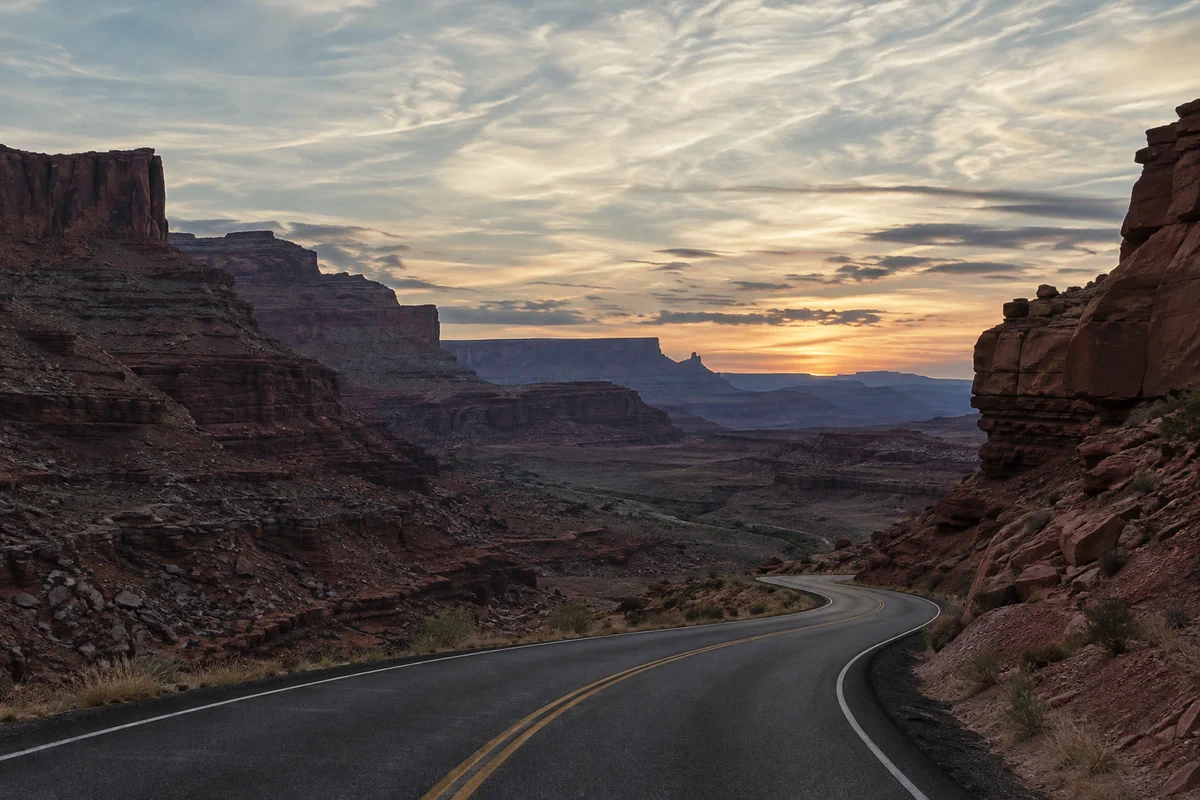 How to use Curves to fix contrast and colorRead the graph, build an S-curve and shift color by channel.Intermediate · 8 min
 How to use adjustment layersColor and tone changes you can retune, hide or limit to one area.Beginner · 5 min
 How to use layer masksHide part of a layer without deleting it, and bring it back any time.Beginner · 5 min