How to use layer masks
Quick answer
Select the layer and click Add layer mask at the bottom of the Layers panel, or choose . A white mask thumbnail appears beside the layer. Paint on it with black to hide parts of the layer, with white to bring them back, and with gray to hide them partly. If a selection is active when you add the mask, the selected area stays visible and the rest is hidden.


- Time
- 5 minutes
- Level
- Beginner
- You need
- A photo, and a computer with a mouse or trackpad
- Works with
- Any layer: photos, adjustment layers and groups
A layer mask is a black-and-white picture attached to a layer that decides which parts of the layer you see. Where the mask is white, the layer shows. Where it is black, the layer is hidden and whatever is underneath shows through. Gray hides the layer partly: the darker the gray, the more it hides.
In this tutorial you put a black-and-white copy of a photo on top of the color original and use a mask to let the color through in a few places only: the tram and some flowers.
Use a layer mask in seven steps
Open the photo
Go to lilcactus.app and choose (Ctrl+O or ⌘O), or drag the photo onto the window. To follow along exactly, open the sample photo from this page. It becomes a layer called Background in the Layers panel.
Duplicate the layer and make the copy black and white
Choose (Ctrl+J or ⌘J). A second layer, Background copy, appears above the original and is selected.
Now choose (Ctrl+Shift+U or ⇧⌘U). It has no settings, so the copy turns black and white at once. It covers the color original completely, so the whole picture looks gray.
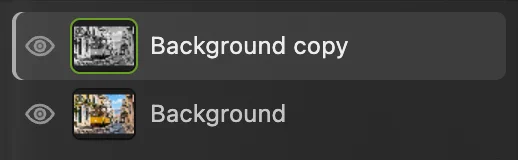
The gray copy sits on top of the color original. Select the tram, then invert the selection
Choose . AI running in your browser finds the main subject, here the tram, and draws a dotted selection around it. The first time, the browser downloads the AI model, so it takes a little longer.
Then choose (Ctrl+Alt+Shift+F or ⌥⇧⌘F). Now everything except the tram is selected. You need it this way around because a new mask keeps the selected area visible: you want the gray copy to stay visible on the street and disappear over the tram.
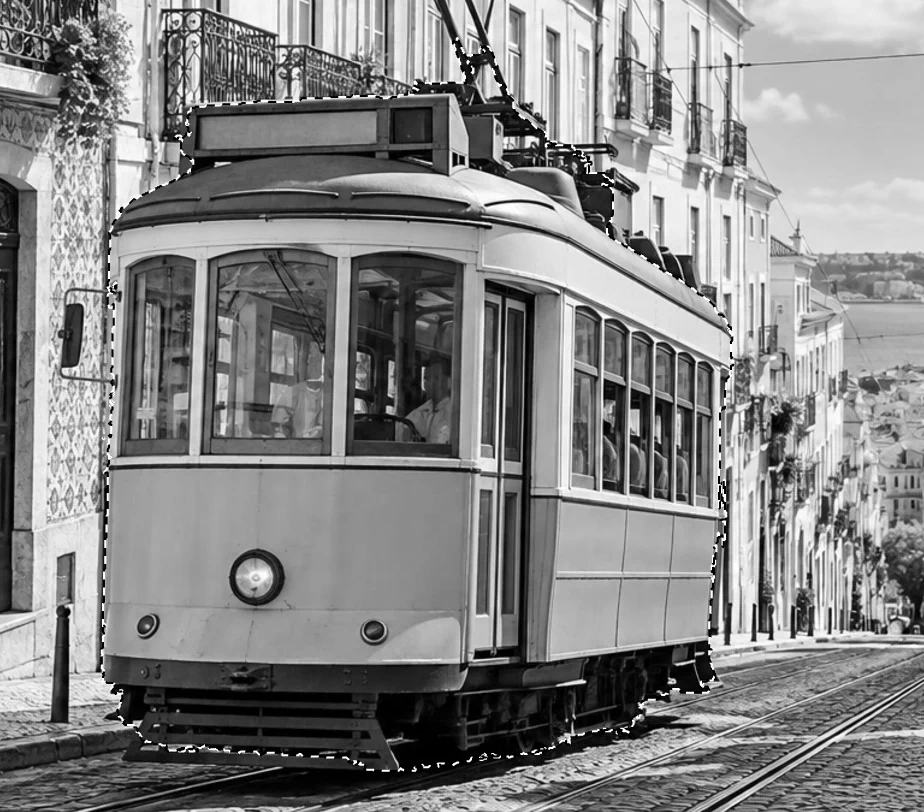
Select Subject has traced the tram. 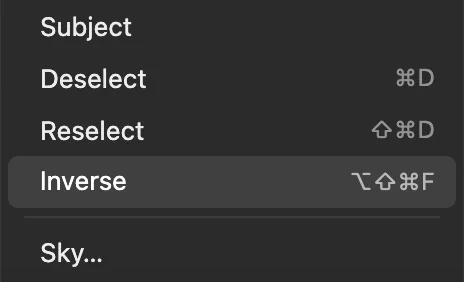
swaps what is selected. Click Add layer mask
At the bottom of the Layers panel, click Add layer mask: the rectangle with a circle in it. The tram turns yellow again at once. It isn’t the copy changing color: the copy is now hidden over the tram, so you see the color original underneath.
Look at the Layers panel. Beside the copy’s thumbnail there is now a second thumbnail, the mask: white over the street, black in the shape of the tram. A green frame around the mask thumbnail means that painting and filters now change the mask, not the photo. Click the photo thumbnail to work on the pixels again, and the mask thumbnail to go back to the mask.
Tip The same command is in the menus as .

Add layer mask, the third button at the bottom of the Layers panel. 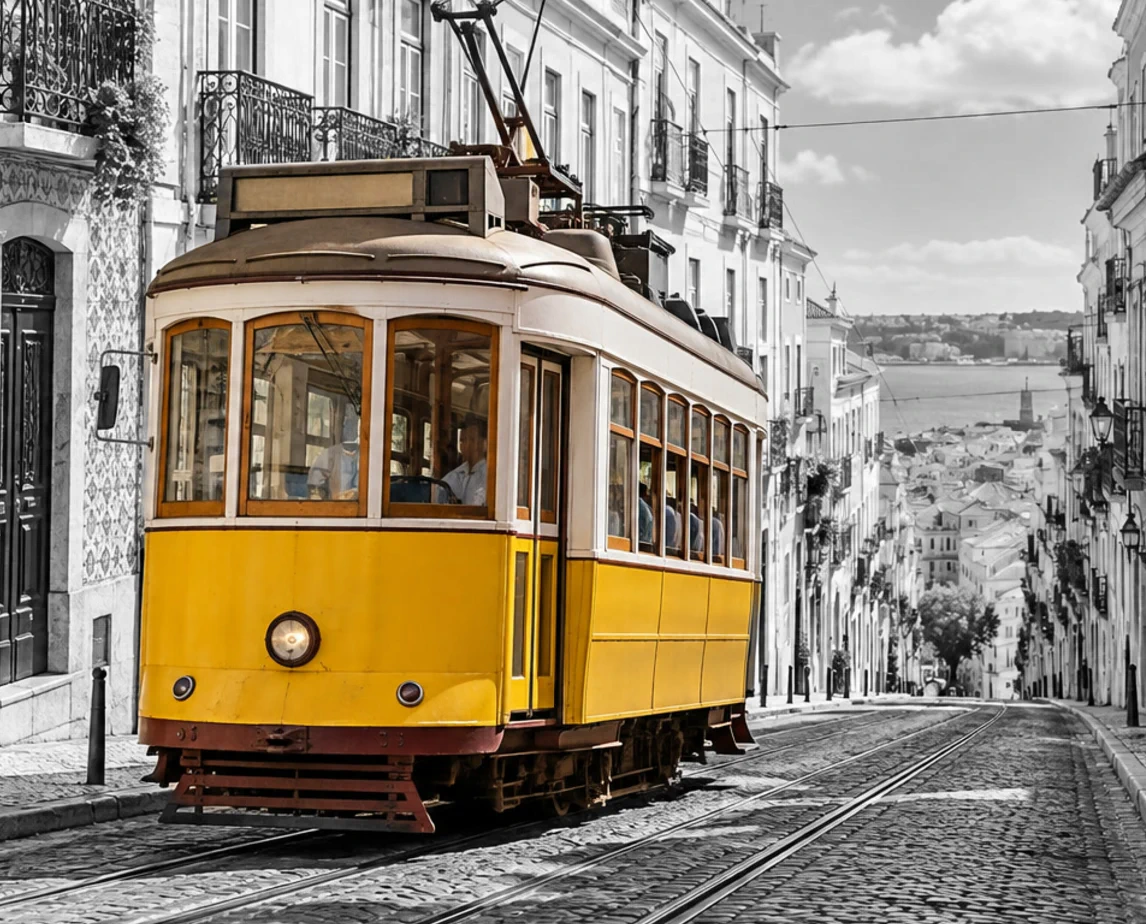
The mask hides the gray copy over the tram, so the color original shows through. 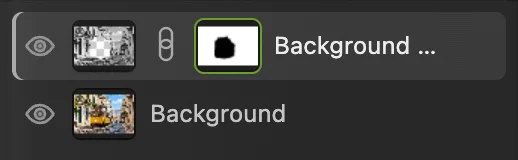
The mask thumbnail (ringed): white shows the copy, black hides it. Paint on the mask to show or hide more
With the mask thumbnail still selected:
- Press B for the Brush, then D. D sets the colors to black (front) and white (back), the two colors a mask needs.
- Press ] a few times to make the brush bigger, or [ to make it smaller. About 50 px suits the sample.
- Paint over the red flowers on the balcony at the top left. Black on the mask hides the gray copy there, so the flowers come back in color.
Went too far? Press X to swap the colors and paint with white: the gray copy comes back over that spot. Switch back with X again. You can go back and forth as often as you like, because nothing is deleted.
Tip For a soft transition, lower Hardness on the options bar. For partial color, lower the brush Opacity: each stroke then paints gray, which hides the copy only partly.

The Brush options bar after pressing ] six times: Size 54 px. 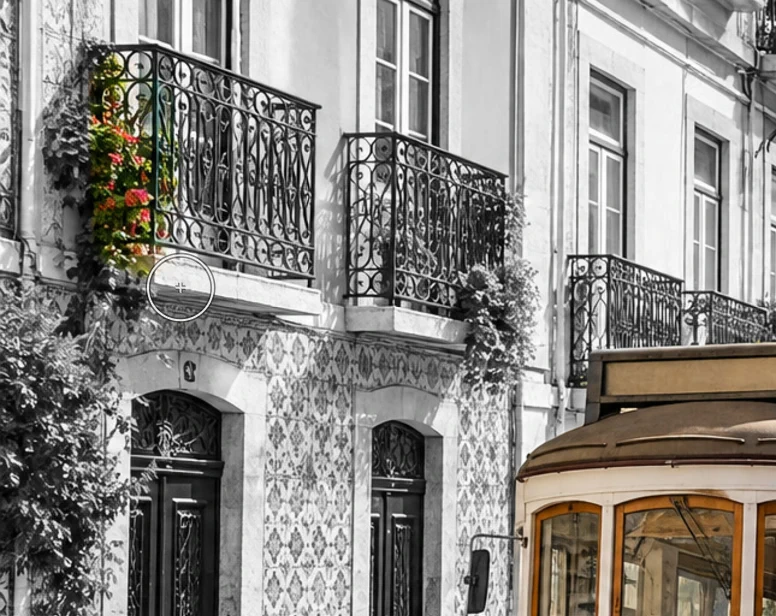
Two strokes of black on the mask brought the flowers back in color. Try Feather, and leave it at 0 for the tram
Double-click the mask thumbnail. The mask’s settings open in the Properties panel. Feather blurs the mask’s edge by the number of pixels you set, without repainting.
Type 20 into Feather and press Enter or ↩, then choose until the front left edge of the tram fills the window. The edge goes soft both ways: gray creeps into the yellow, and color leaks onto the tiled wall beside the tram. That is too soft for a hard-edged object, so type 0 and press Enter or ↩ again to get the crisp edge back. Feather suits soft subjects, such as a sky fading into a landscape.
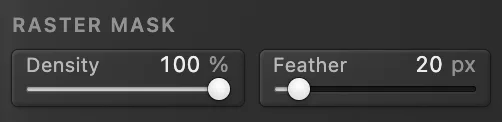
Feather in the Properties panel, at 20 px. 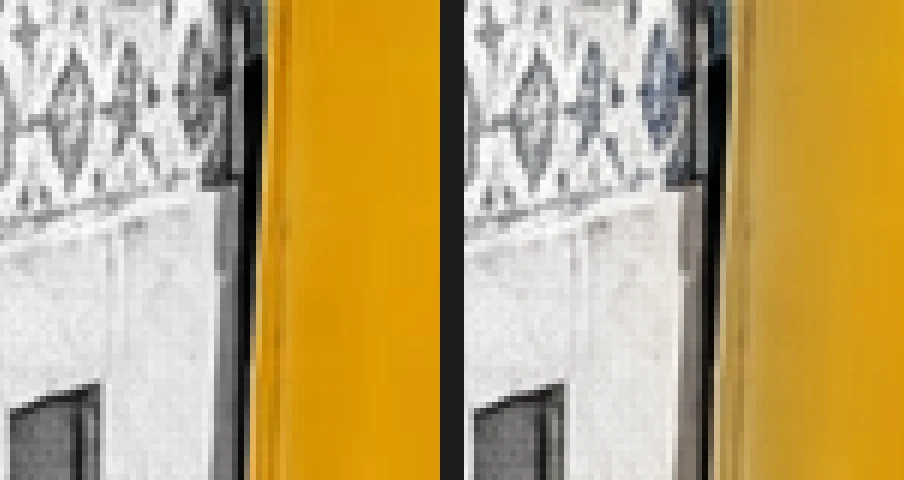
Left: Feather 0 px. Right: Feather 20 px: gray creeps into the yellow and the wall tiles pick up color. Save the photo, or keep the mask editable
To keep the two layers and the mask so you can still change them, choose (Ctrl+Shift+S or ⇧⌘S), or to open the file in other editors. After saving a project, (Ctrl+S or ⌘S) updates the project.
To share the finished picture, choose and click Export: a new, flat JPEG with the mask’s result built in. Until you save a project, writes the flat result back into the JPEG you opened. The first Save of a JPEG, including the sample from this page, opens the Save Image dialog, where you choose the file.
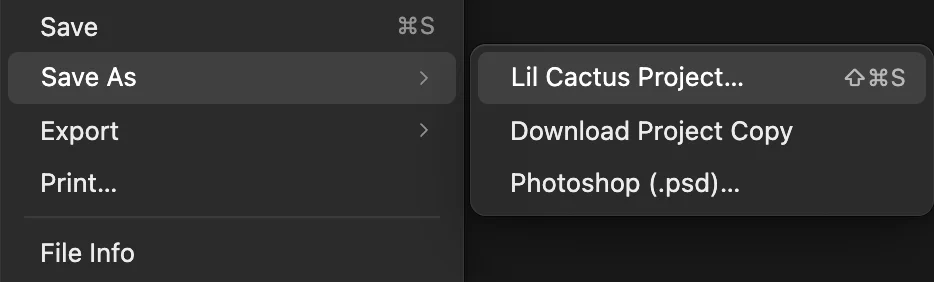
Lil Cactus Project… (ringed) saves the layers and the mask.
Masks from selections: Reveal All and Hide All
The menu has two ways to add a mask, and each one uses a selection if there is one:
- Add Layer Mask (Reveal All), the same as the Add layer mask button. With a selection, the selected area stays visible and the rest is hidden. Without one, the mask is all white and everything stays visible.
- Add Layer Mask (Hide All). With a selection, the selected area is hidden and the rest stays visible. Without one, the mask is all black and the whole layer is hidden until you paint white.
So in step 3 you could skip : select the tram and choose . A soft selection, for example one made with , gives a mask with gray, soft edges.
Apply or delete a mask
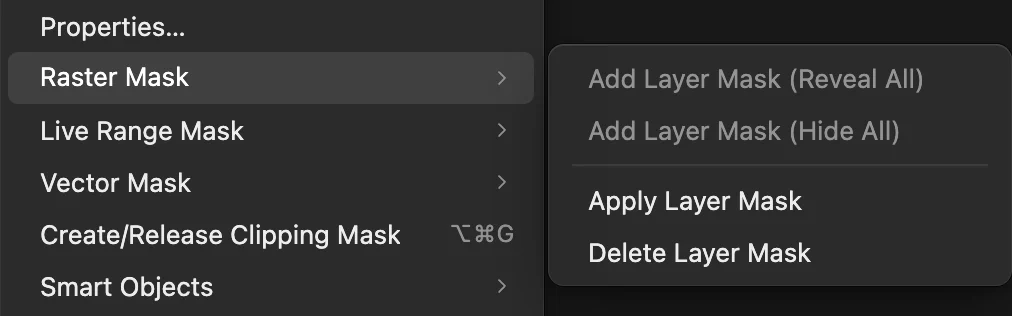
Both commands are in :
- Apply Layer Mask makes the mask permanent: the hidden pixels are deleted from the layer and the mask disappears. Partly hidden pixels become partly transparent. Do it only when you are sure, for example before handing a layer to someone who doesn’t need the mask.
- Delete Layer Mask throws the mask away and leaves the layer whole, as it was before you added the mask.
Either one can be undone with Ctrl+Z or ⌘Z while the document is open.
The same picture with an adjustment layer
An adjustment layer changes the colors of everything below it and comes with its own mask, so it can replace the gray copy. Its settings stay editable, so you can retune the grays later.
- Delete the gray copy: select Background copy and click Delete layer at the bottom of the Layers panel.
- Choose , then , so the street is selected.
- Choose and click Apply. The new layer’s mask is made from the selection: the street turns gray and the tram stays yellow.
- To paint on this mask, click its mask thumbnail first, then paint as in step 5.
Read more in how adjustment layers work.

Why a mask instead of the Eraser
The Eraser deletes pixels: once you close the document, an erased edge can’t be repaired. A mask only hides them. If you notice later that part of the tram’s roof is still gray, open the project and paint black on the mask there; if color spilled onto the wall, paint white. Either way the pixels come back exactly as they were.
Fix common problems
The brush paints black onto the photo
You are painting on the layer’s pixels, not on the mask. Undo with Ctrl+Z or ⌘Z, click the mask thumbnail, and paint again.
Black paint only hides part of the layer
The brush Opacity or Flow on the options bar is below 100%, or the color isn’t pure black, or the mask’s Density in the Properties panel is below 100%. Set them to 100% and press D. A mask uses only brightness, so any other color counts as a shade of gray.
The Add layer mask button is grayed out
If the layer already has a mask, paint on that one, or delete it with . If something is locked, point at the button: its tooltip names the locked layer or group. Select that layer or group in the Layers panel and click the padlock in the Lock row to unlock it.
Hair or fur looks cut with scissors
Refine the selection with before adding the mask, as in how to remove the background from a photo.
The mask stayed behind when I moved the layer
The layer and mask are unlinked. Click the small dot between the two thumbnails to show the chain again, or tick Move mask with layer in the Properties panel.
What to do next
- Use a mask to cut out a person or product: remove the background from a photo.
- Put the cut-out on a new background: change the background of a photo.
- Change color and tone in one area only: adjustment layers.
- Show a photo inside text or a shape: clipping masks.
Coming from another editor
- Photoshop
- A mask button at the bottom of the Layers panel, and Layer › Layer Mask › Reveal All or Hide All. In Lil Cactus that menu is Layer › Raster Mask; Density and Feather are in the Properties panel in both.
- GIMP
- Layer › Mask › Add Layer Mask…, where you choose White, Black or Selection. In Lil Cactus, Layer › Raster Mask › Add Layer Mask (Reveal All) or (Hide All) gives a white or black mask, and both use the selection if there is one.
Layer masks: questions and answers
What is a layer mask used for?
For any edit that should affect only part of a picture without deleting anything: cutting out a person, keeping one object in color, blending two photos, or limiting an adjustment to the sky.
Can I put a layer mask on a group in Lil Cactus?
Yes. In Lil Cactus, select the group in the Layers panel and click Add layer mask. The group’s mask hides everything inside the group at once, and each layer in it can still have its own mask.
What is the difference between a layer mask and a clipping mask?
A layer mask belongs to one layer and is painted in black and white. A clipping mask uses the shape of the layer below, such as text or a shape, so the clipped layer only shows inside it. In Lil Cactus, Layer › Create/Release Clipping Mask makes one.
Is a layer mask kept when I save the image?
Yes, if you save a Lil Cactus project or a PSD file: in Lil Cactus, File › Save As › Lil Cactus Project… or Photoshop (.psd)… keeps layers and masks editable. JPEG, PNG and WebP files store just the finished picture, with the mask’s result built in.
Can I open a PSD with layer masks in Lil Cactus?
Yes. In Lil Cactus, layer masks in a PSD open as editable masks on their layers, and File › Save As › Photoshop (.psd)… writes them back. A mask that was switched off in the PSD opens switched off: Shift-click its thumbnail in the Layers panel, or tick Enable mask in the Properties panel, to switch it on.
Is my photo uploaded when I use layer masks in Lil Cactus?
No. Masks, Select Subject and every other step run in your browser, on your own device. When statistics are on, the editor records which tools are used, never the image, as the privacy policy explains.
Keep going
 How to use adjustment layersColor and tone changes you can retune, hide or limit to one area.Beginner · 5 min
 How to put a photo inside text with a clipping maskShow a photo or texture only inside text or a shape.Beginner · 5 min
 How to remove the background from a photoSelect Subject, a layer mask and a transparent PNG.Beginner · 3 min