How to use Clone Stamp and Healing Brush
Quick answer
In Lil Cactus, choose to keep an original. Right-click the stamp tool group and choose Clone Stamp or Healing Brush, then set Size to 30 px and Hardness to 50%. Hold Alt (Option on a Mac) and click clean skin, release the key, then click the blemish: Clone Stamp copies the source, while Healing Brush blends it into the destination. Use Spot Healing Brush for the sample’s isolated raised marks, with tips from 22 to 40 px, clicking each mark without setting a source.
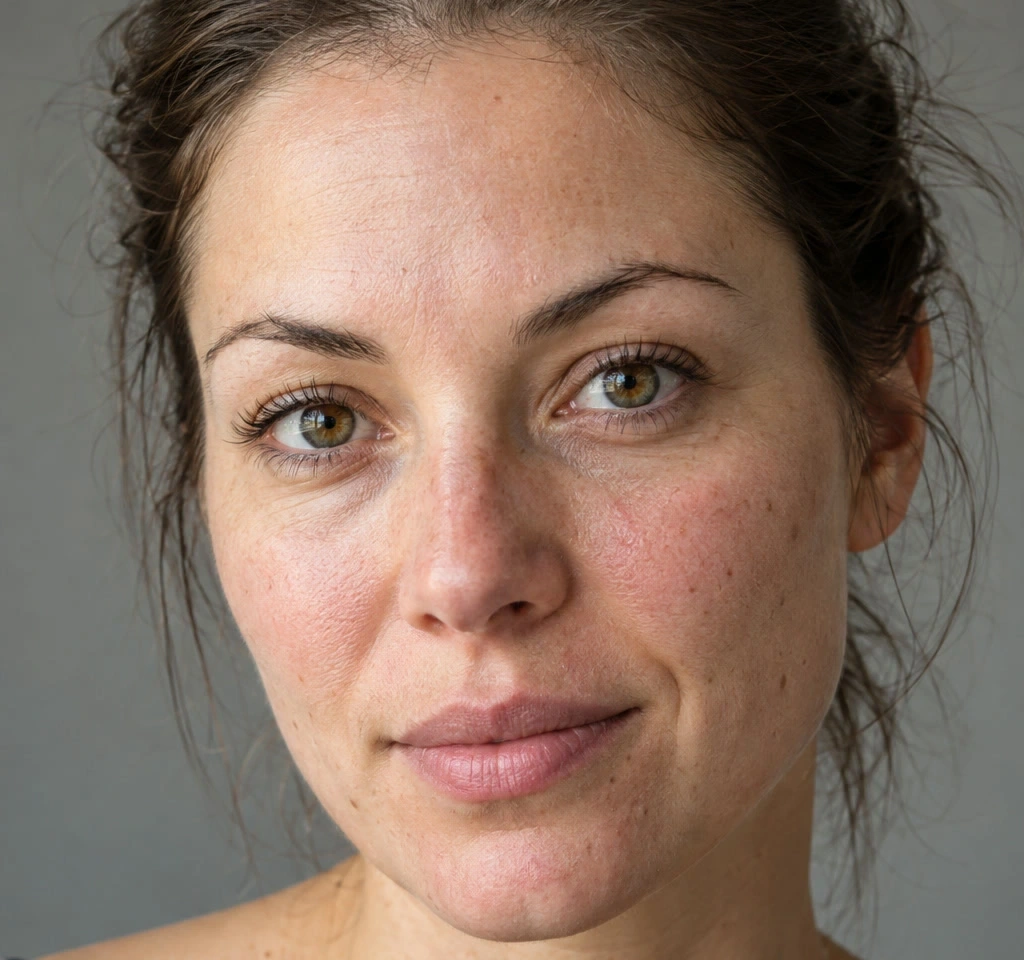
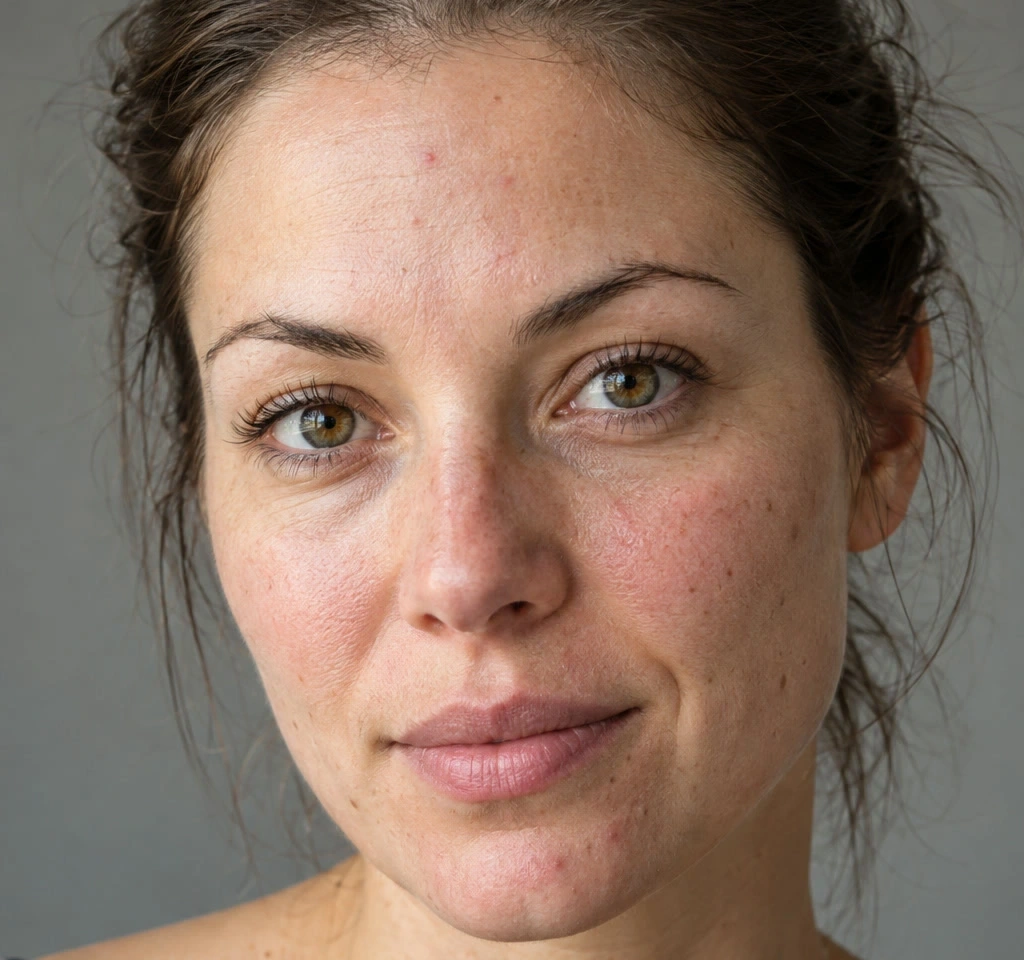
- Time
- 10 minutes
- Level
- Beginner
- You need
- A photo with small raised marks and clean texture nearby
- Works with
- Photo layers from JPEG, PNG, WebP and other image files
Clone Stamp copies color and texture from a point you choose, called the source. Healing Brush takes texture from your source but blends it with the destination’s shading. Spot Healing Brush chooses nearby texture for you.
First compare the three tools on a forehead mark, undoing the two source-based trials. Then retouch the raised pink marks across the forehead, cheek and chin. Keep the flat brown freckles, pores and broader skin color.
Retouch the portrait in seven steps
Open the portrait and make a copy
Open the sample from this page, or choose Choose . Keep Background copy selected above the original Background layer.
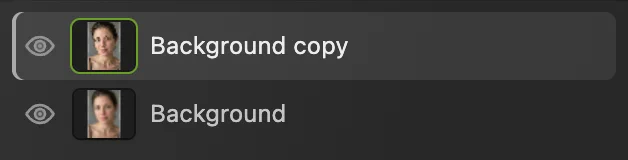
The copy holds the repair. Its eye button lets you compare it with the original below. Choose Clone Stamp and a small tip
Right-click the stamp button in the left toolbar, or press and hold it, and choose Clone Stamp. The same group also holds both healing tools.
On the options bar, set Size to 30 px. Hardness stays at 50%, with Opacity and Flow at 100%. Source stays on Current Layer and Aligned stays off.
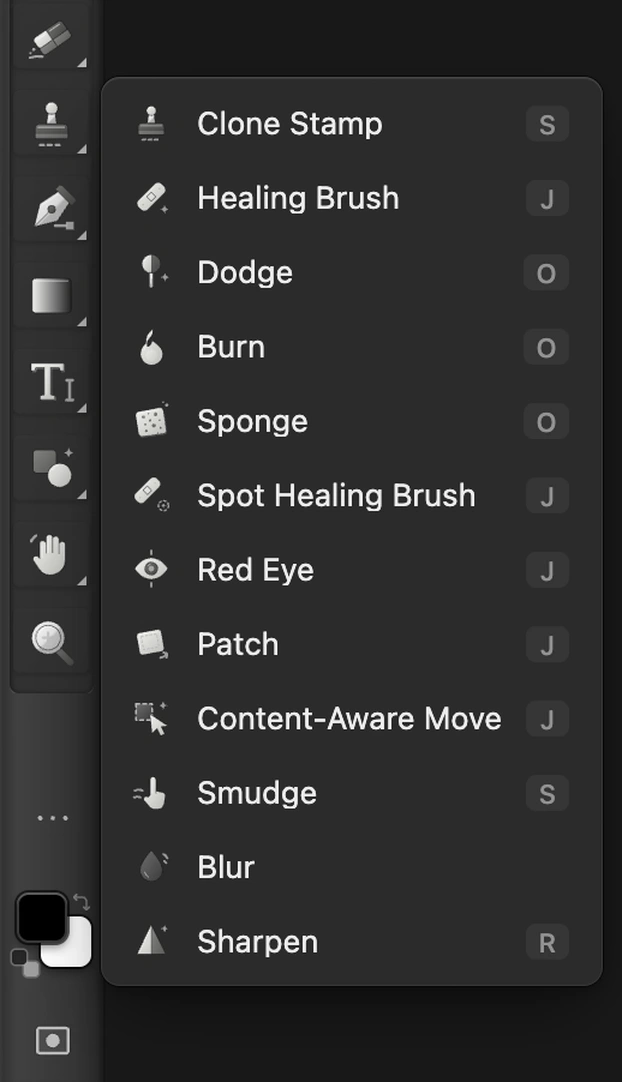
The stamp button between its neighboring tools, enlarged, with the three retouching choices ringed. 
Use a tip slightly wider than the blemish. 
Current Layer samples the selected photo copy. Try the darker donor
Choose , then if you need a closer view. Hold Space and drag the image until you can see the forehead.
Find the small raised pink spot near the middle of the forehead, slightly left of the nose. For this comparison, hold Alt (Option on a Mac) and click the clean skin ringed above and to its right. Release the key and click the center of the spot once.
The spot is covered, but a tan disc replaces it: this donor is darker than the skin around the blemish. Clone Stamp copies the donor’s tone too. For a finished Clone repair, the source needs matching light as well as texture.
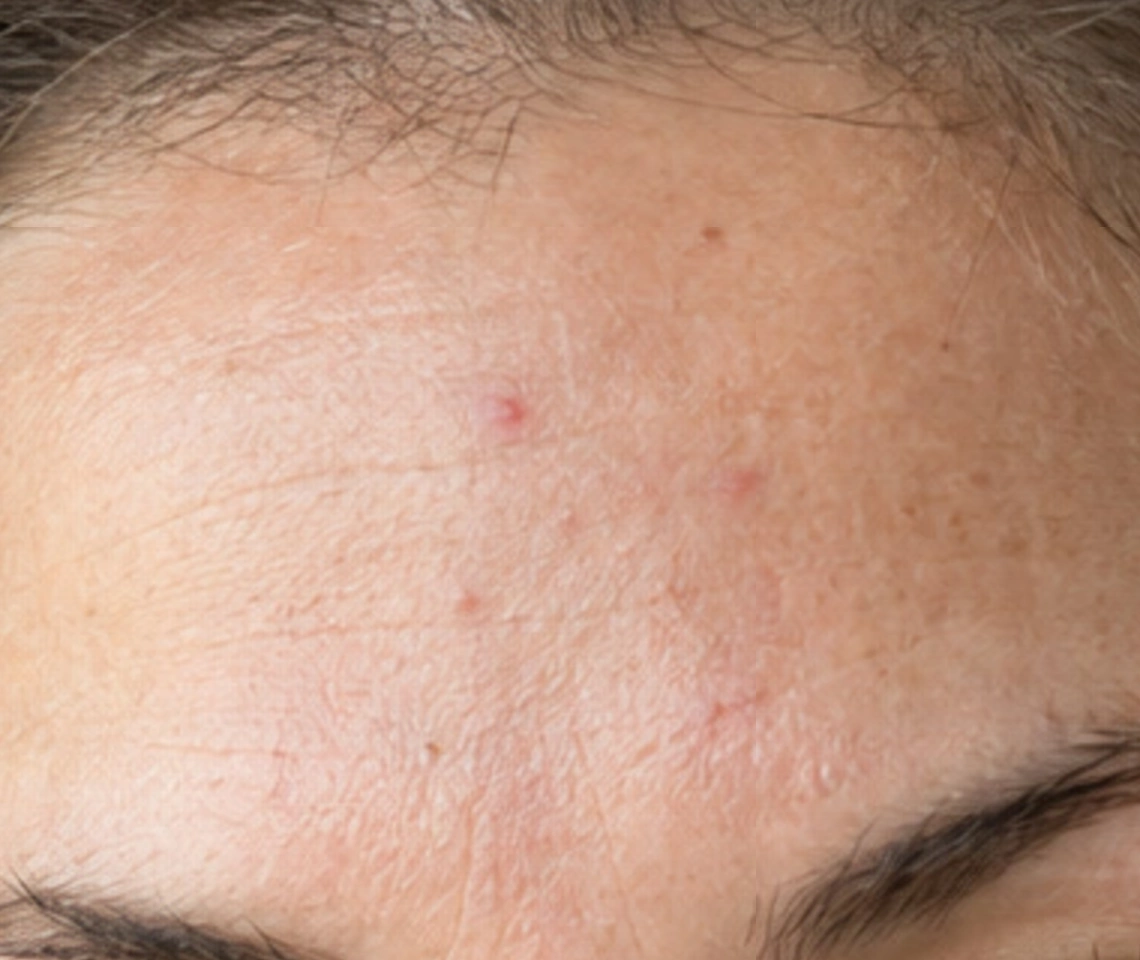
For the comparison, sample the darker clean skin in the upper-right ring, then click the pink mark in the lower-left ring. 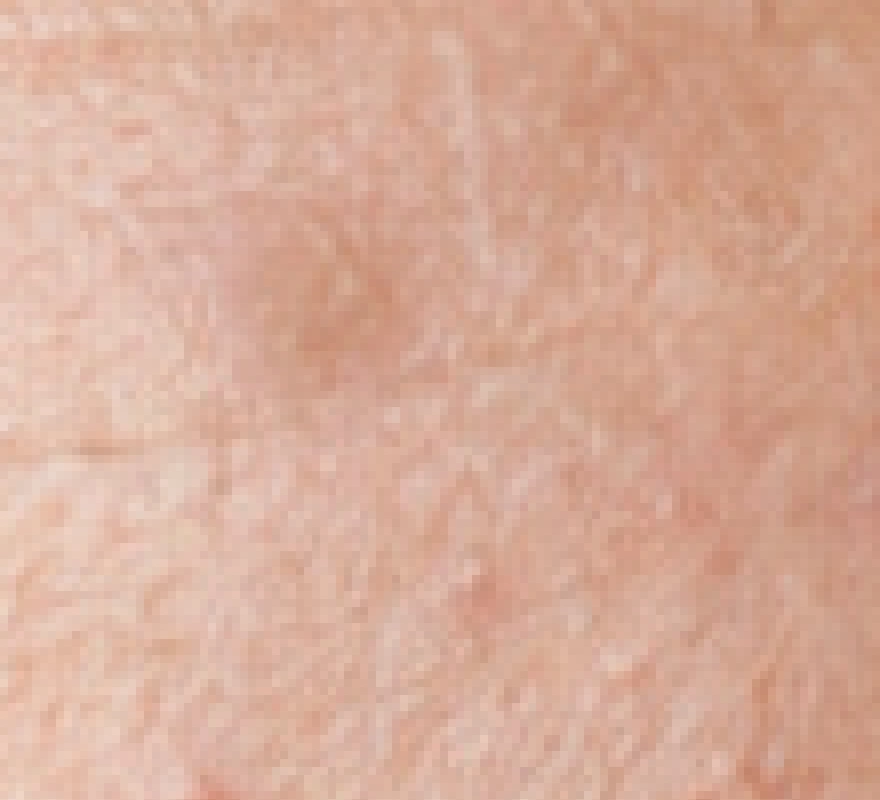
Clone Stamp copies the darker donor’s tone, leaving a tan disc. Enlarged 4×. Undo and compare Healing Brush
Choose so the original spot returns. Choose Healing Brush from the same stamp group. Set Size to 30 px and Hardness to 50%.
Alt-click the same clean skin above and to the right, or Option-click on a Mac. Release the key and click the blemish once. Wait for the repair to finish.

Use the same tip size and hardness for the comparison. 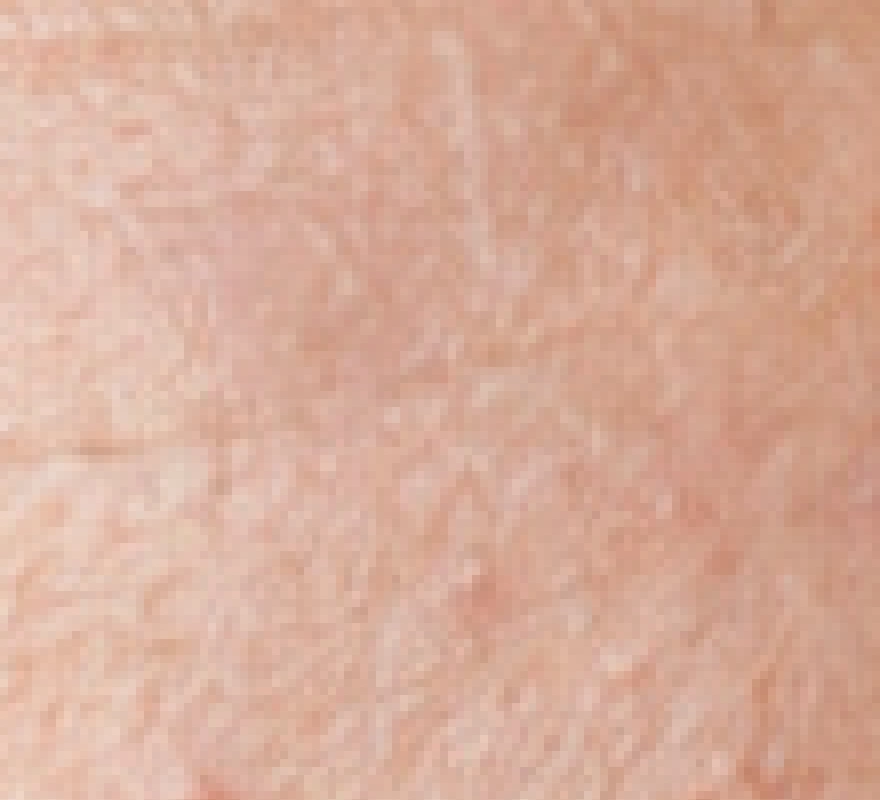
Healing reduces the tone difference, but this donor still leaves a faint trace. Enlarged 4×. Use Spot Healing to finish the portrait
Choose again. Right-click the same toolbar button, which now shows the Healing Brush icon, and choose Spot Healing Brush. Set Size to 30 px. Hardness stays at 100%.
Click each raised mark without Alt or Option, waiting for each repair to finish. On the forehead, use 30 px for the upper two spots, 22 px for the small middle one and 26 px for the lower-left one. For the lower-right pink patch, use 28 px and make a short stroke down and right across it.
Use 28 px on the light-tipped cheek spot, keeping the brush above the small brown freckle. On the chin, repair the right-hand spot first with 32 px: aim slightly above and right of its center to miss the brown freckle below-left. Next use 22 px on the small lower spot, then 40 px on the larger pink mark above and to its left.
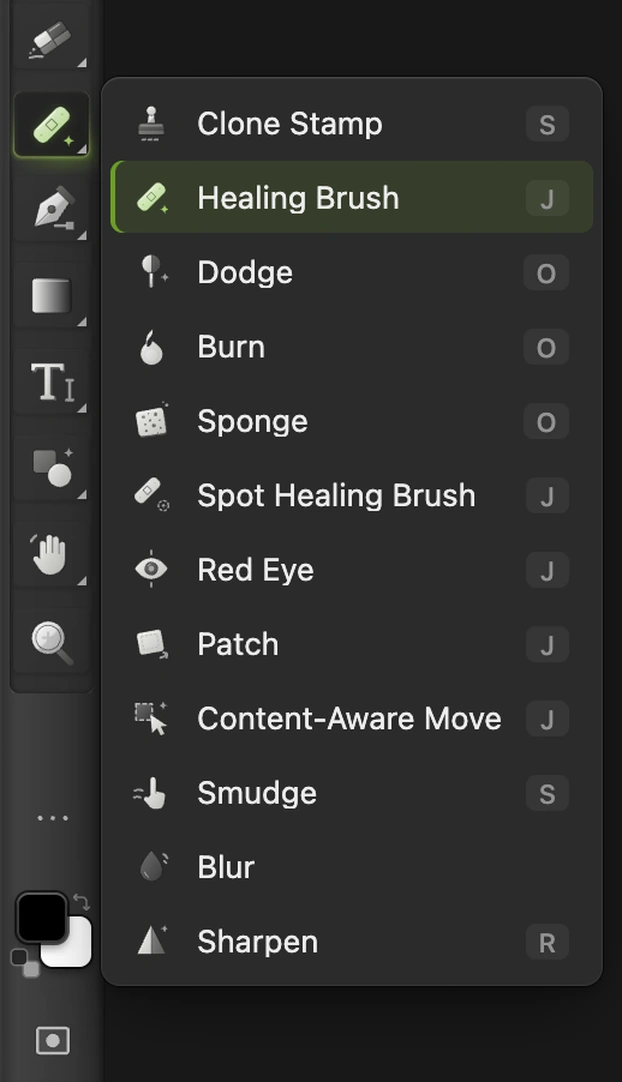
The button now shows Healing Brush. Right-click it and choose Spot Healing Brush; enlarged view. 
Start at 30 px, then size the tip to each mark. 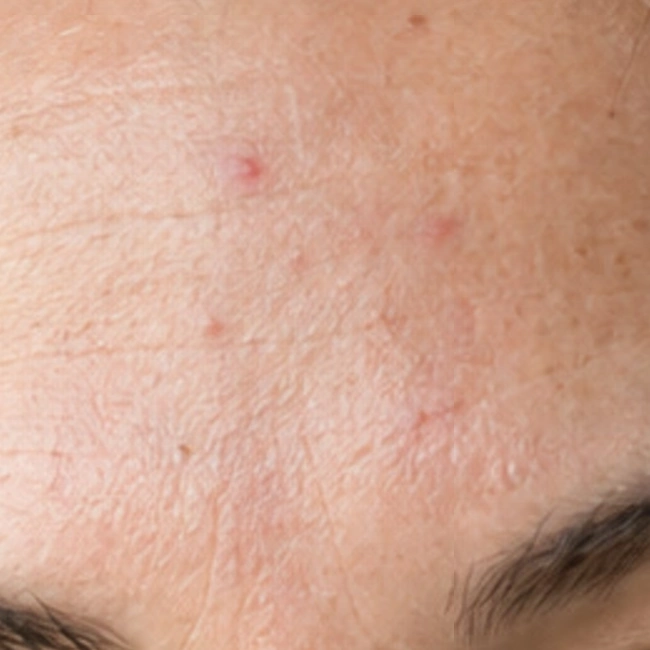
The five forehead areas. Use a short diagonal stroke on the lower-right patch. 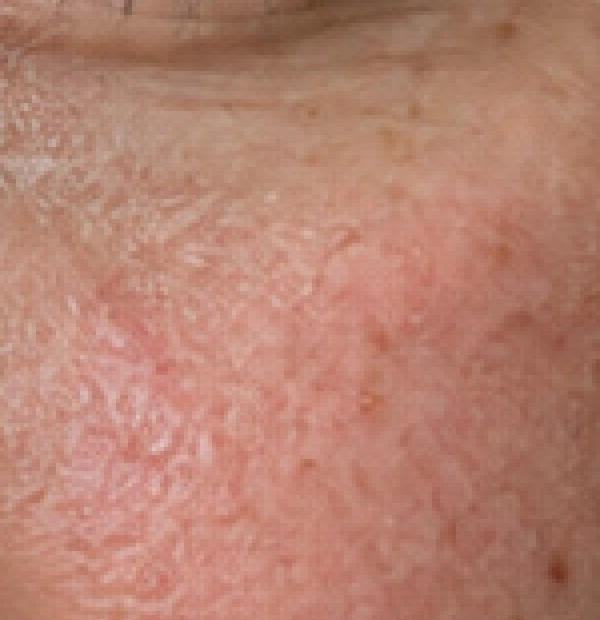
Aim above the brown freckle, so it stays outside the 28 px tip. 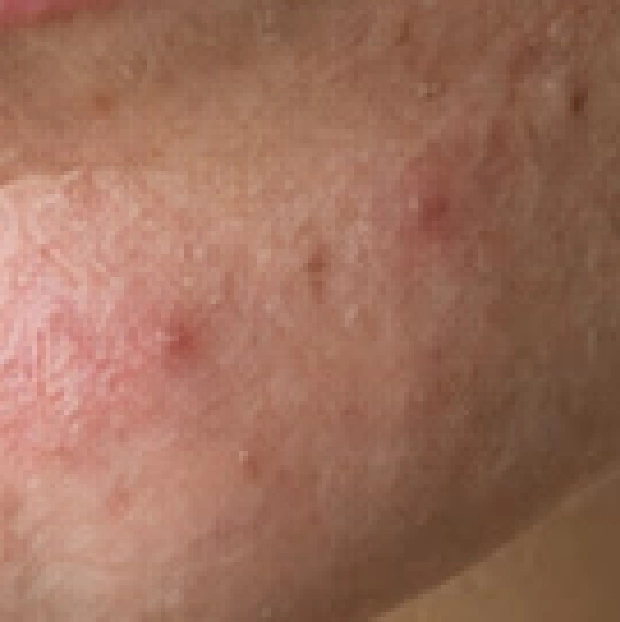
Chin order: right-hand mark, small lower mark, then the larger pink mark to the left. Compare the repair at 100%
Choose . Use the eye beside Background copy shown in step 1 to hide the repairs, then click it again to show them. Look for a repeated texture, a darker or paler patch, or a soft circle.
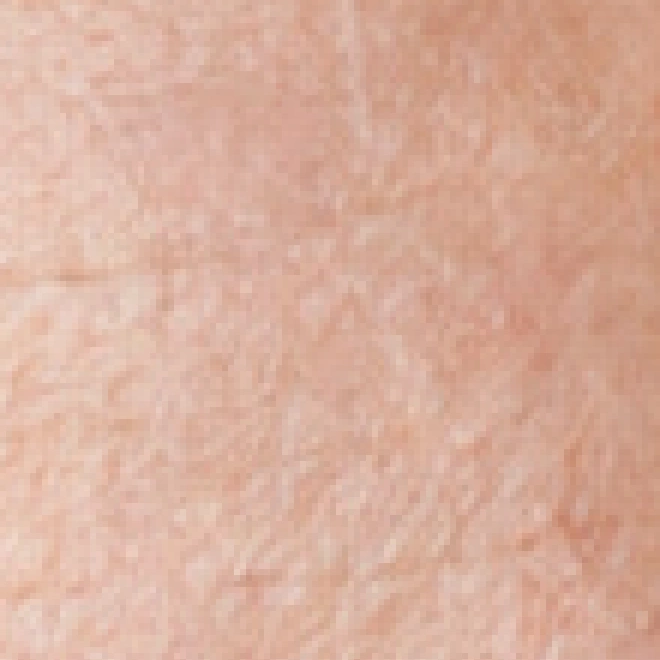
Left forehead detail at 3×. 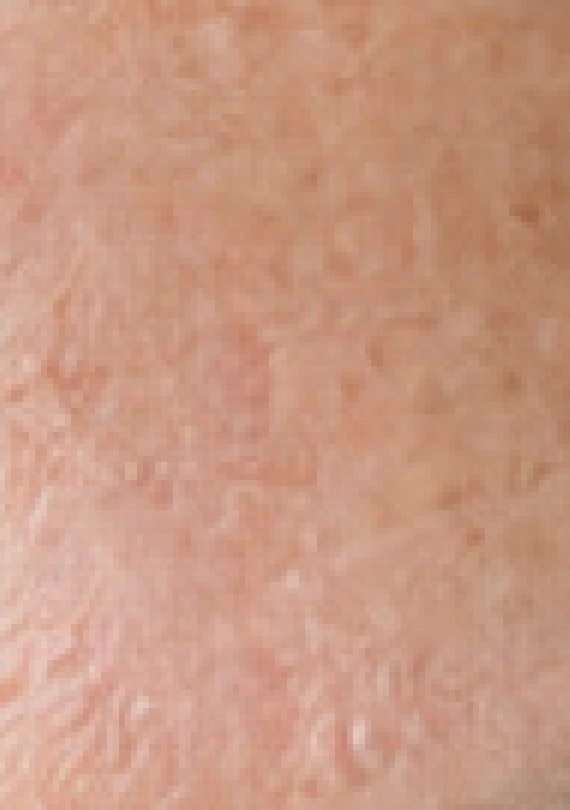
Right forehead detail at 3×. 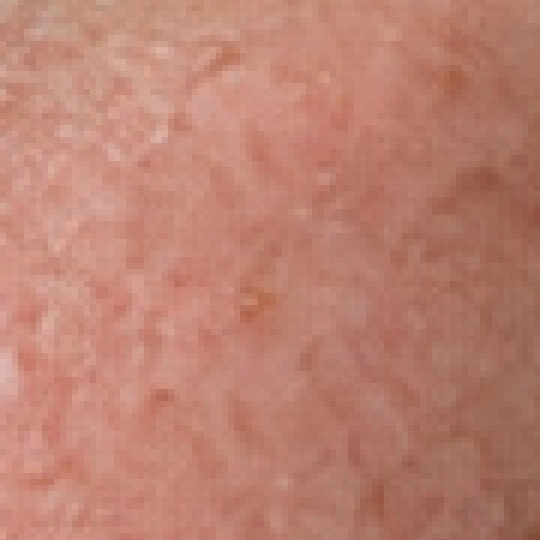
Cheek detail at 3×; the flat brown freckle remains. 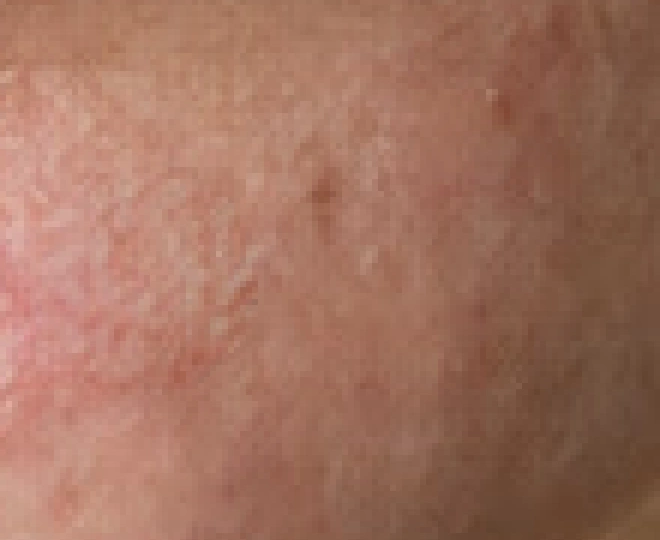
Chin detail at 3×. Export the retouched photo
Choose or , then click Export. Export writes a separate finished image.
Choose to keep the original and repaired copy as separate layers. After that, updates the project. If you choose before saving a project, it keeps the opened image’s format: the JPEG sample becomes a flat JPEG, with Save Image settings on the first save.
Which retouching tool should you use?
| Tool | Source | Useful when |
|---|---|---|
| Clone Stamp | You choose it | A line or pattern must continue. Match its direction and brightness before you paint. |
| Healing Brush | You choose it | You need matching texture without copying a different brightness directly. |
| Spot Healing Brush | Nearby pixels, chosen automatically | A small isolated mark has clean texture all around it. |
For a large object that covers several textures, outline it and use Content-Aware Fill rather than covering it with many tiny repair strokes.
Source and Aligned
The Source menu controls which layers supply pixels. Current Layer reads the layer you sample; Current & Below also includes the layers beneath it; All Visible Layers uses the combined appearance of visible layers. For a new empty repair layer, Current & Below lets the photo underneath supply texture.
With Aligned off, each new Clone Stamp or Healing Brush stroke starts from the source point you picked. With it on, the source keeps the same offset from your brush across strokes. That helps when you want neighboring strokes to continue one area of texture.
Fix common problems
Clone Stamp or Healing Brush does nothing
Set a source with Alt-click, or Option-click on a Mac, before painting. Check the hint on the options bar, click the photo’s image thumbnail and check that its pixels are unlocked. An old selection can also keep a stroke out: choose .
A repeated feature gives the repair away
Sample plain texture without a distinctive freckle, hair or scratch. Use short strokes and change the source as the surrounding texture changes.
Spot Healing copies an unwanted edge
Its nearby texture includes that edge. Undo, reduce the tip size or switch to Healing Brush so you can choose a clean source yourself.
What to do next
- Repair a larger area: remove an object from a photo.
- Separate skin texture from broad color: use frequency separation.
- Choose the layers you edit: layers explained.
Cloning and healing: questions and answers
What is the difference between Clone Stamp and Healing Brush?
In Lil Cactus, Clone Stamp copies the source’s color and texture through the brush. Healing Brush transfers source texture while blending the destination’s shading.
Does Spot Healing Brush need an Alt-click source?
No. In Lil Cactus, Spot Healing Brush uses nearby texture automatically. Clone Stamp and Healing Brush need an Alt-click source, or Option-click on a Mac.
How do I change the Clone Stamp source?
In Lil Cactus, hold Alt, or Option on a Mac, and click a new clean area in the image. Release the key before painting.
Can I undo a healing stroke?
Yes. In Lil Cactus, choose Edit › Undo after the repair finishes. Each completed click or drag is one stroke.
Can Clone Stamp and healing work on a separate empty layer?
Yes. In Lil Cactus, the Source menu can include Current & Below or All Visible Layers, so the photo supplies pixels while the selected empty layer receives the repair.
Will a saved project keep the original portrait?
Yes, if you keep it on its own layer. In Lil Cactus, File › Save As › Lil Cactus Project… keeps the separate layers, including the untouched original from this lesson.
Keep going
 How to remove an object from a photo onlineOutline the object and let the editor fill in what was behind it.Beginner · 6 min
 How to retouch skin with frequency separationEven out skin tone and remove blemishes while keeping texture.Advanced · 12 min
 How to use layers in a photo editorStack, reorder, fade, hide and group the parts of a picture.Beginner · 6 min