How to retouch skin with frequency separation
Quick answer
Open the portrait in Lil Cactus, choose , keep Radius at about 8 px for a face about 800–1500 px tall, and click Create Layers. Select the High Frequency layer, take the Healing Brush, Alt-click (Option-click on a Mac) clean skin just above a blemish and brush over it; repeat on the Low Frequency layer to remove its color. To even out redness, lasso the area on Low Frequency and feather it by about 40 px with , choose , apply at about 100 px to the copy, and set the copy’s blend mode to Color: the color evens out while the shading and the pores stay.
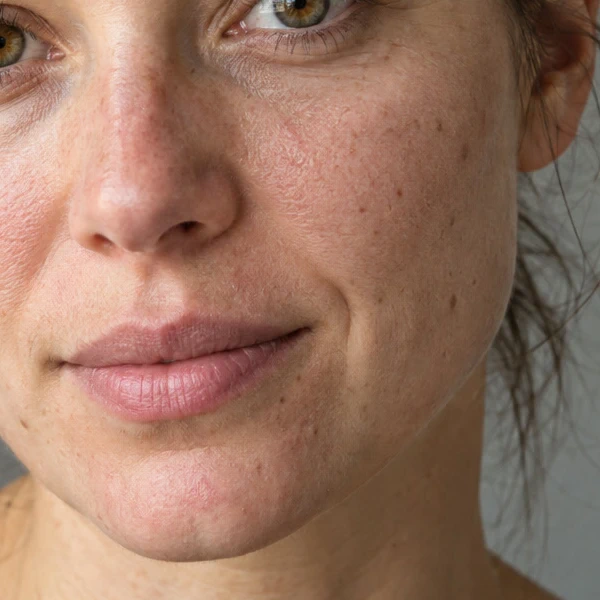
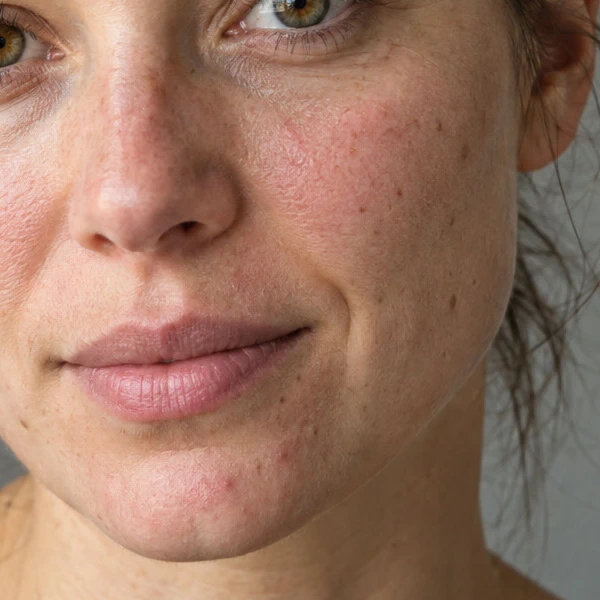
- Time
- 12 minutes
- Level
- Advanced
- You need
- A portrait with visible skin texture, with the face ideally at least 800 px tall
- Works with
- JPEG, PNG, HEIC, WebP, TIFF, PSD and RAW files, 8-bit or 16-bit
Skin in a photo carries two kinds of information at once. Color and tone change slowly across the face: redness on a cheek, a shadow, a blotch. Texture changes fast, pixel to pixel: pores, fine lines, hairs. Ordinary smoothing treats both the same, so evening out the redness also wipes away the pores, and the skin looks like plastic.
Frequency separation splits the photo into two layers along exactly that line. The Low Frequency layer holds the color and tone (a blurred copy); the High Frequency layer holds only the fine texture, on neutral gray. Together they rebuild the original exactly. Then you can fix one without touching the other.
Retouch skin in seven steps
Open the portrait and choose Filter › Frequency Separation…
Open the photo with (Ctrl+O or ⌘O); to follow along, open the sample from this page. If the photo has several layers, select the one with the face. Then choose
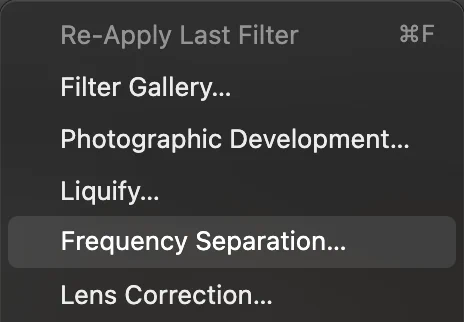
, near the top of the Filter menu. Set the Radius
Radius (0–64 px, default 8) is the dividing line: details smaller than it go to the texture layer, everything larger to the color layer. Use the Preview menu to check both halves at 100%:
- Color (Low Frequency) should show smooth tone, with no pores.
- Detail (High Frequency) should show pores and fine lines on gray, but no blotches of color.
8 px suits the sample, whose face is about 800 px tall. Use less for smaller faces, more for very high-resolution close-ups. The Detail position sliders move the preview around the photo.

Radius (default 8 px, ringed). 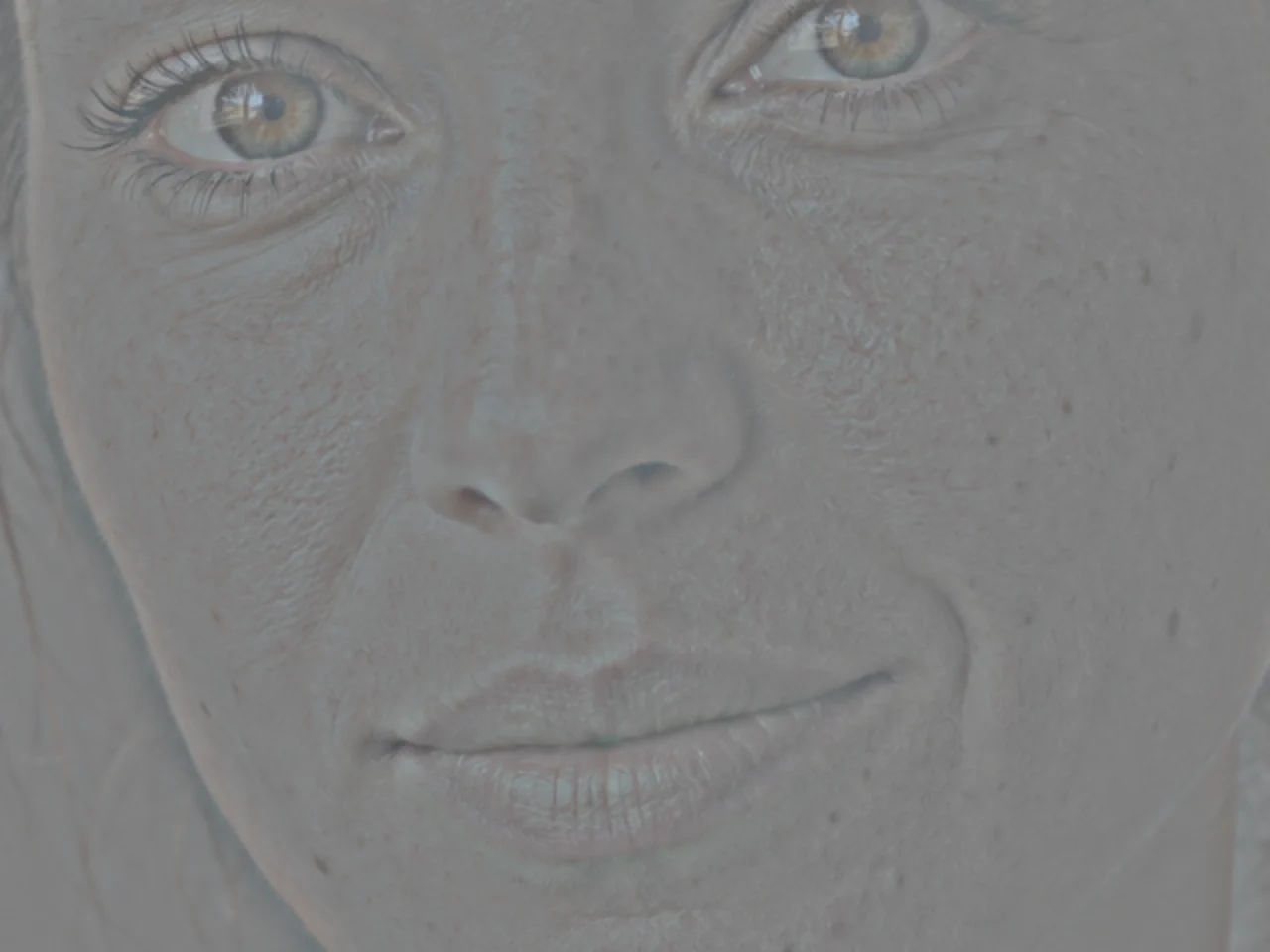
Detail (High Frequency): only the texture. 
Color (Low Frequency): only the tone and color. Click Create Layers
Click Create Layers. The Layers panel now has a group called Frequency Separation with your original, hidden, and a group Color and Detail holding two layers:
- High Frequency, in the Linear Light blend mode, which adds the texture on top.
- Low Frequency, the color and tone.
The photo looks exactly as before: the two layers recombine into the original.
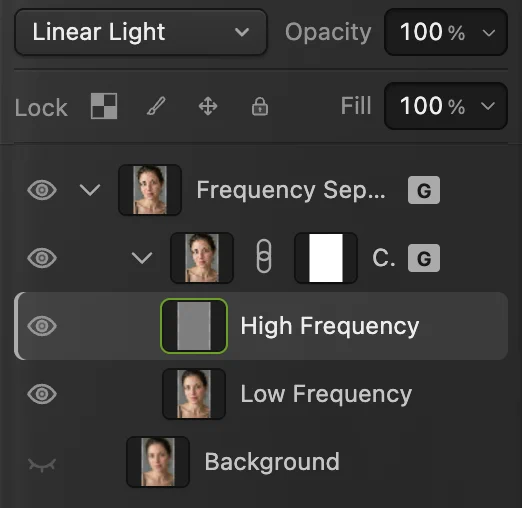
The layers Frequency Separation creates. The panel shortens the two group names, Frequency Separation and Color and Detail. - High Frequency: texture, in Linear Light
- Low Frequency: color and tone
- The original, kept hidden
Heal blemishes on the High Frequency layer
Select High Frequency in the Layers panel. Right-click (or press and hold) the retouching tools in the toolbar, the button that shows the Clone Stamp, and choose Healing Brush. Leave Source on Current Layer so it only reads the texture layer.
The sample has two small red spots on the chin, below the right half of the lips as you look at the photo. For each blemish, hold Alt or ⌥ and click clean skin just above it to set the source, then brush over the blemish with a brush a little larger than it (26 px on the sample). The bump in the texture is replaced by clean pores from the source.
Tip Pick the source close to the blemish, on skin with the same brightness and the same direction of pores and lines. On the sample, sources to the left of the spots leave the first one faintly red and turn the second into a lighter blob; sources just above them blend in.

Source: Current Layer keeps the brush on the layer you selected. Remove their color on the Low Frequency layer
A red spot is not only a bump: some of its red sits in the color layer. Select Low Frequency and heal the same spots again with a slightly larger brush (34 px on the sample), Alt or ⌥-clicking a new source just above each spot on this layer too. Because this layer has no texture, you only replace color here, and you can’t smear any pores.
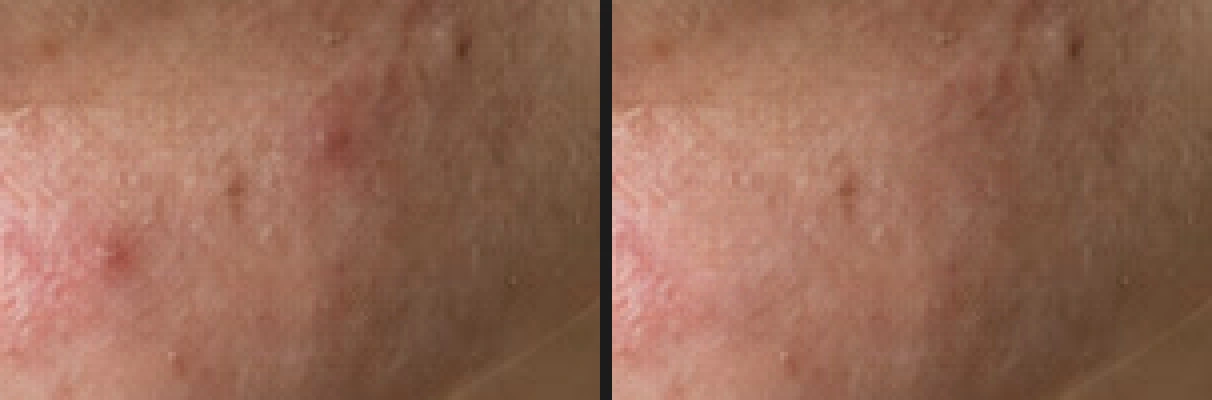
The chin, enlarged: before (left), after healing both layers (right). The pores stay. Even out redness with a blurred Color copy
Still on Low Frequency, take Lasso Select from the lasso group in the toolbar (L selects it) and draw loosely around the blotchy area: on the sample, the cheek on the right of the photo, from just below the eye down to the level of the mouth corner, and from beside the nose to the edge of the face. Choose and set a large radius (40 px) so the change fades out softly.
With the selection still active, choose , then with a Radius large enough to melt the blotches together (100 px on the sample), and click Apply. Choose (Ctrl+D or ⌘D), then in the Layers panel set the copy’s blend mode to Color. Deselect first: once the blend-mode menu has the keyboard, Ctrl+D or ⌘D no longer reaches the editor, and many browsers open their bookmark dialog instead.
A blur on its own would also flatten the light and shade that give the cheek its shape. In Color mode the blurred copy changes only the color, so on the sample the spread of redness across the cheek falls by about a third (10.7 → 6.8) while the spread of brightness, the cheek’s shading, stays the same (23.0). The pores stay too, because the texture lives on the High Frequency layer.
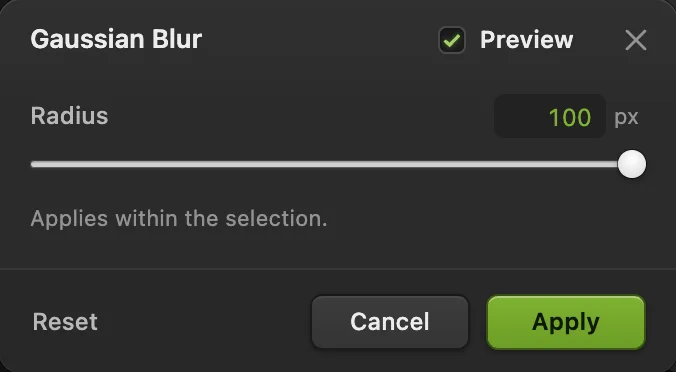
Gaussian Blur on the copy of the Low Frequency layer. - Radius: large enough to merge the blotches
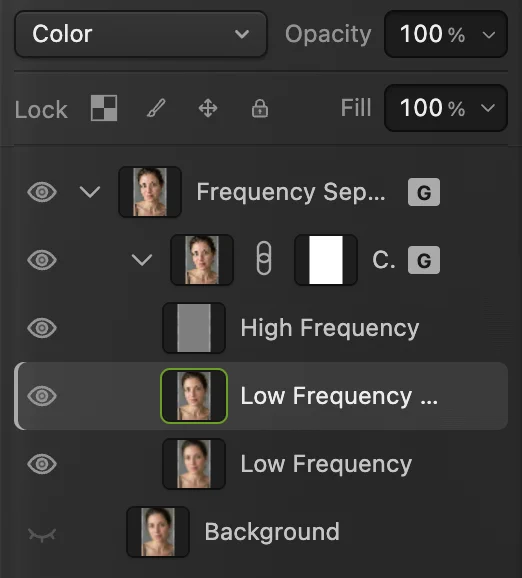
The blurred copy sits between the two halves, in Color mode. 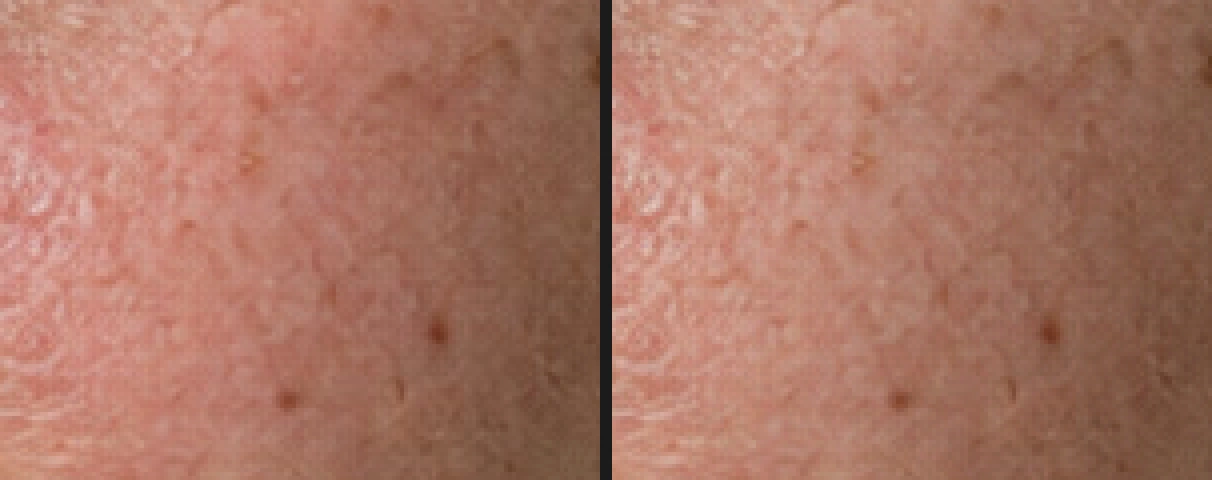
The cheek, enlarged: before (left) and after (right). Color evens out; shading and texture stay. Save the retouch
(Ctrl+Shift+S or ⇧⌘S) keeps the two layers and the hidden original editable; after that, saves the project. writes a finished copy. on the opened JPEG writes the flattened result back into it; the first time, the Save Image dialog asks for its quality.
Keep it believable
- Leave character. Freckles, moles and fine lines are part of a face. Remove what is temporary, such as spots and redness, and leave the rest.
- Fade the result. Show the hidden original (click its eye icon in the Layers panel), then lower the opacity of the Color and Detail group to 70–80% to let a little of the original show through.
- Check at 100% and at viewing size. A retouch that looks fine zoomed in can look flat in the whole photo.
- Change your mind. With the Frequency Separation group selected, offers Rebuild Layers, which separates the hidden original again with a new Radius. It replaces the edits inside the Color and Detail group, so do it before retouching.
Why the two layers rebuild the original
The Low Frequency layer is the photo blurred at the chosen radius. The High Frequency layer is the difference between the original and that blur, shifted so that “no difference” is mid-gray. The Linear Light blend mode adds that difference back: mid-gray changes nothing, lighter gray brightens, darker gray darkens. Blurred copy plus difference equals the original, so the separation itself loses nothing. Every change you then make stays in its own layer: a blur on Low Frequency can’t touch the texture, and healing on High Frequency can’t move the color.
Fix common problems
Pores show in the Low Frequency preview, or color blotches in the High Frequency one
The Radius is wrong for this photo: raise it if pores remain in the color layer, lower it if color shows in the texture layer.
The healed area looks smeared or repeated
The source was too far away or on skin with different texture. Alt-click a closer, matching source and heal again.
A gray or halo edge appears around the blurred area
The selection reached a strong edge, such as the nose or hairline, and the blur pulled its color in. Keep the lasso inside even skin, and feather generously.
Nothing changes when I brush
Check that the right layer is selected in the Layers panel and that Source is set: the options bar tells you if no source is set yet.
What to do next
- Shape light and shadow on the face: dodge and burn.
- Brighten teeth naturally: whiten teeth.
- Use a layer mask to limit the retouch to the skin.
- More about groups and blend modes: layers explained.
Frequency separation: questions and answers
What radius should I use for frequency separation?
In Lil Cactus the default is 8 px, which suits a face about 800–1500 px tall. Raise it for larger faces, lower it for smaller ones, and check that the Low Frequency preview shows no pores.
Does frequency separation make skin look fake?
Only when it is overdone. Because texture stays on its own layer, you can even out color without losing pores; heavy blurs or removing every line still look artificial.
Which layer do I heal blemishes on?
Both. In Lil Cactus, heal the texture of a spot on the High Frequency layer and its color on the Low Frequency layer, with the Healing Brush set to Current Layer.
Can I undo frequency separation?
Yes. In Lil Cactus, the original is kept, hidden, inside the Frequency Separation group. Delete the Color and Detail group and show the original again, or use Edit › Undo.
Is my portrait uploaded when I retouch it in Lil Cactus?
No. Frequency separation and all retouching run in your browser on your own device, and the photo is never sent to a server. Optional statistics never include the image; see the privacy policy.
Keep going
 How to dodge and burn a photo without damaging itPaint light and shadow onto a separate Soft Light layer.Intermediate · 6 min
 How to use layer masksHide part of a layer without deleting it, and bring it back any time.Beginner · 5 min
 How to use layers in a photo editorStack, reorder, fade, hide and group the parts of a picture.Beginner · 6 min