How to change a photo’s aspect ratio without stretching people
Quick answer
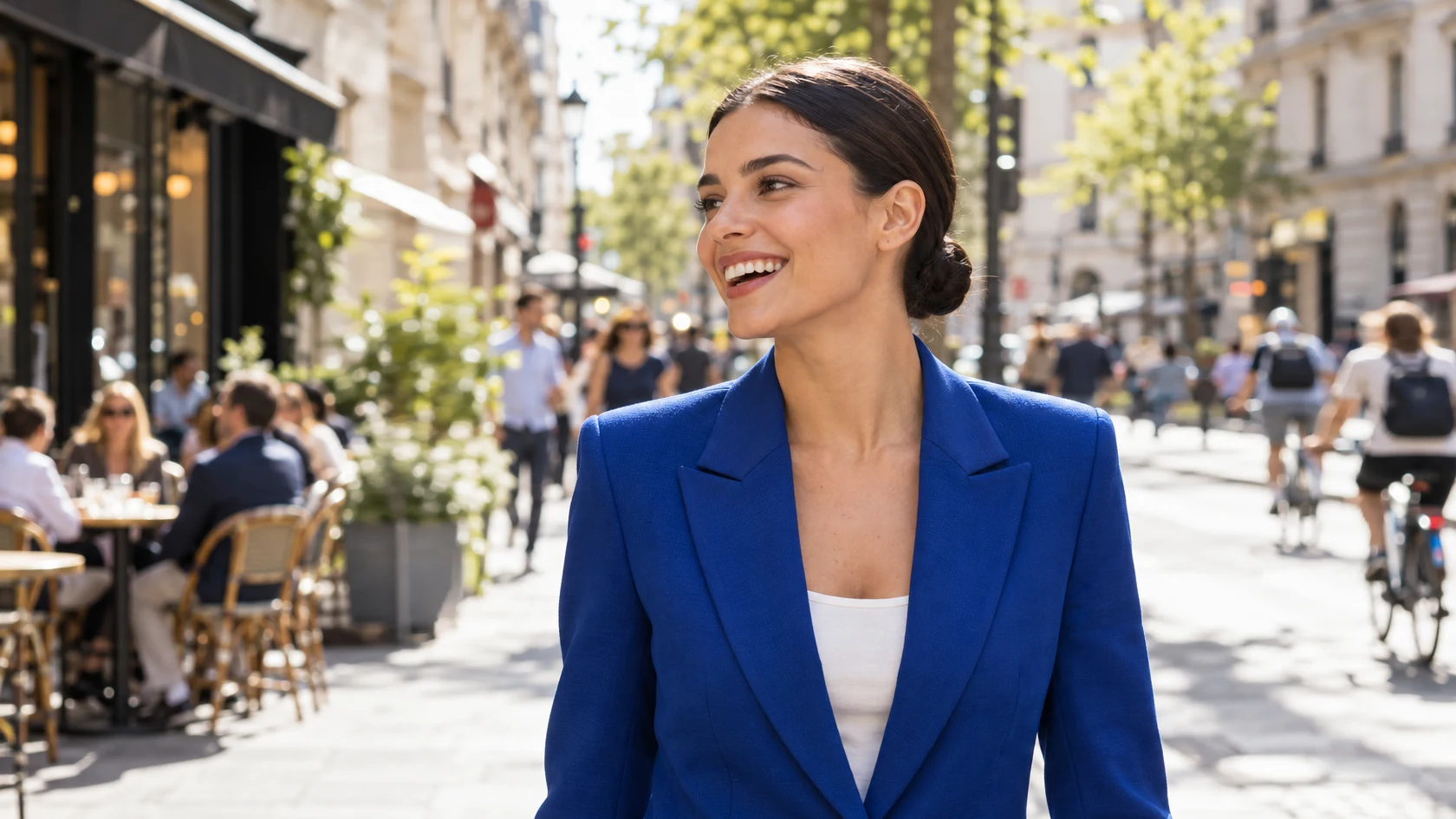
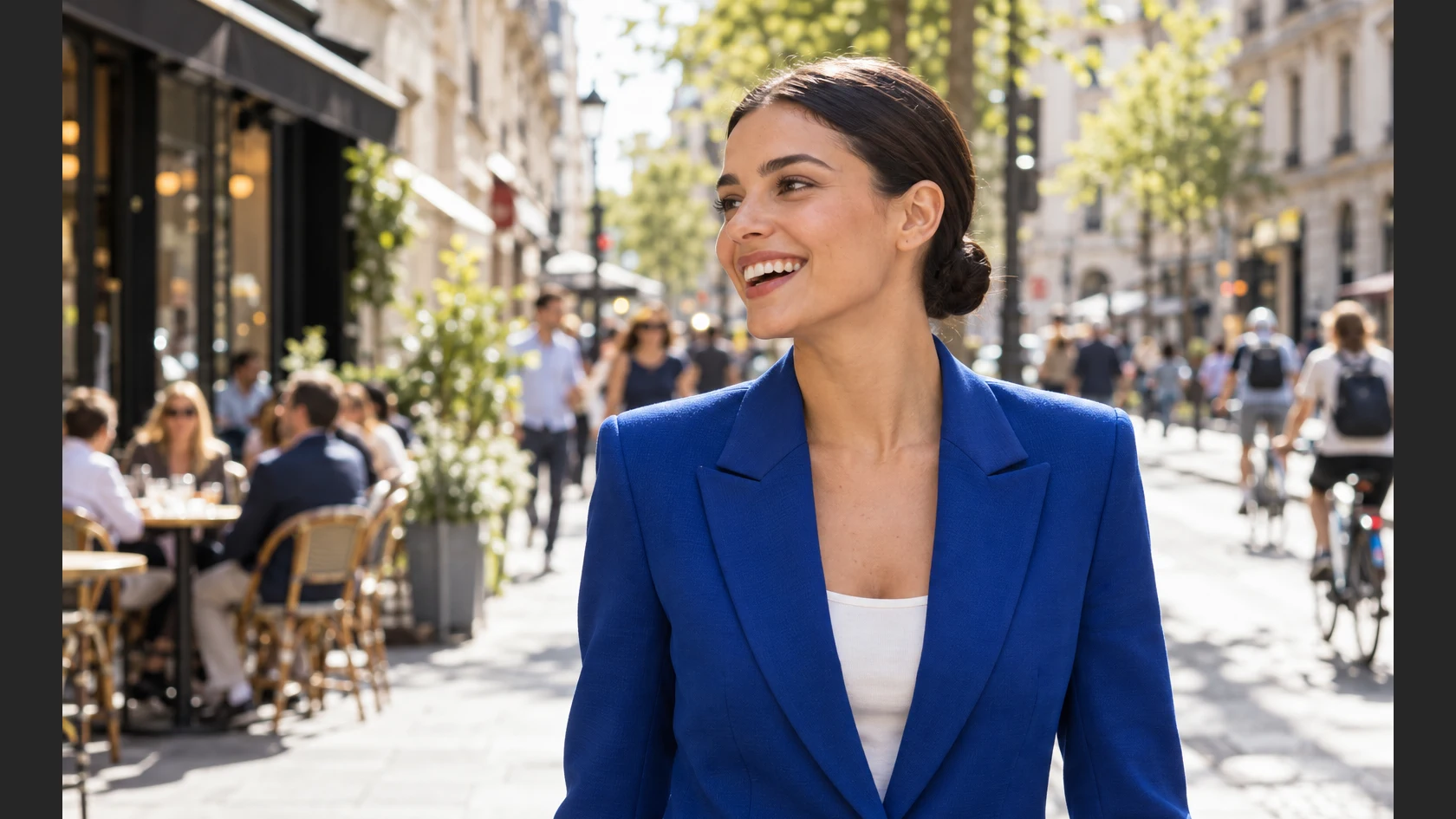
Select the person with , add any other people near them with the lasso while holding Shift or ⇧, save the selection with , then choose . Widen the canvas with (1680 px for the sample). Choose , pick the saved channel under Protect, switch the units to Pixels, set W to 1680 and press Enter or ↩, then click the ✓ on the options bar when the preview is ready. Trim the height with (945 px, anchored at the top) for 16:9. The background widens and the protected people keep their exact size.
- Time
- 6 minutes
- Level
- Intermediate
- You need
- A photo with a clear subject and some open background around it: sky, a street, grass, water
- Works with
- JPEG, PNG, HEIC, WebP, TIFF and PSD photos, and RAW files once developed
Changing a photo’s shape, from 3:2 to a 16:9 banner, say, usually means cropping something off or stretching everything, people included. Content-Aware Scale resizes differently. It scores every pixel by how much it differs from its neighbors, so edges and texture score high and smooth areas low, then finds top-to-bottom paths through the lowest scores, in even areas such as sky, pavement or blurred background. To widen the photo it repeats those paths; to narrow it, it removes them.
A large smooth area inside the subject, such as a plain jacket or a cheek, can score as low as the sky, so people get stretched too. You prevent that by saving the person as a selection and choosing it under Protect: crossing it then costs so much that the paths go around it. On the sample, the person comes through pixel for pixel.
Widen a photo without stretching people in five steps
Open the photo and save the person as a selection
Open the photo with (Ctrl+O or ⌘O); to follow along, open the sample from this page. Choose and wait until marching ants surround the person.
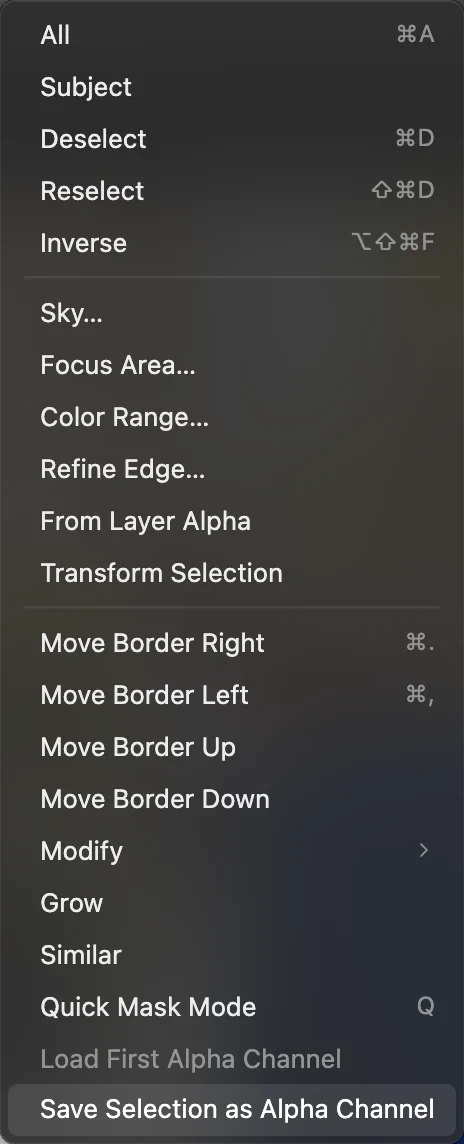
The extra width has to land somewhere, and people near the subject are among the likeliest places, so protect them too. Take Lasso Select from the lasso group in the toolbar (L), hold Shift or ⇧ so each shape adds to the selection, and draw a loose shape around each group: on the sample, one around the man in light blue and the woman in navy just left of her face, and one around the people seated at the café on the left. Then choose : the selection is stored as a channel named Alpha 1. Remove the selection with .
Tip Deselect before you go on. With a selection active, Content-Aware Scale resizes only the selected area, here the person.
and , ringed. 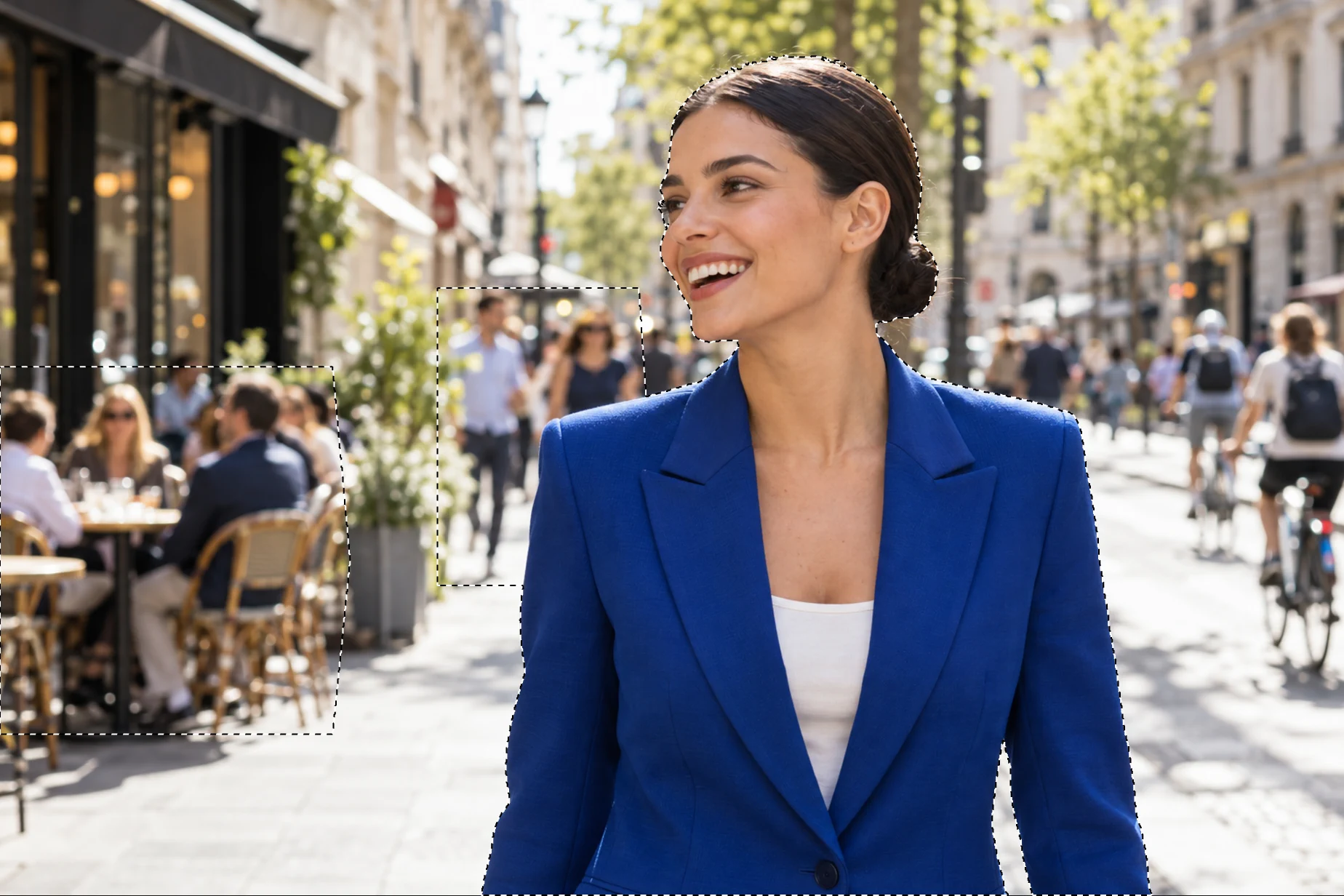
The selection to save: the subject plus the people nearest her and the café group. Make the canvas wider
Choose and type the new Width (px): 1680 for the sample. That is less than the 1820 px that 16:9 needs at the full 1024 px height; the last step trims the height instead, because widening all the way stretches the people who aren’t protected, here the cyclists on the right by about 70%. Leave the Anchor in the middle and click Resize. Transparent strips appear at both sides; the photo itself is unchanged.
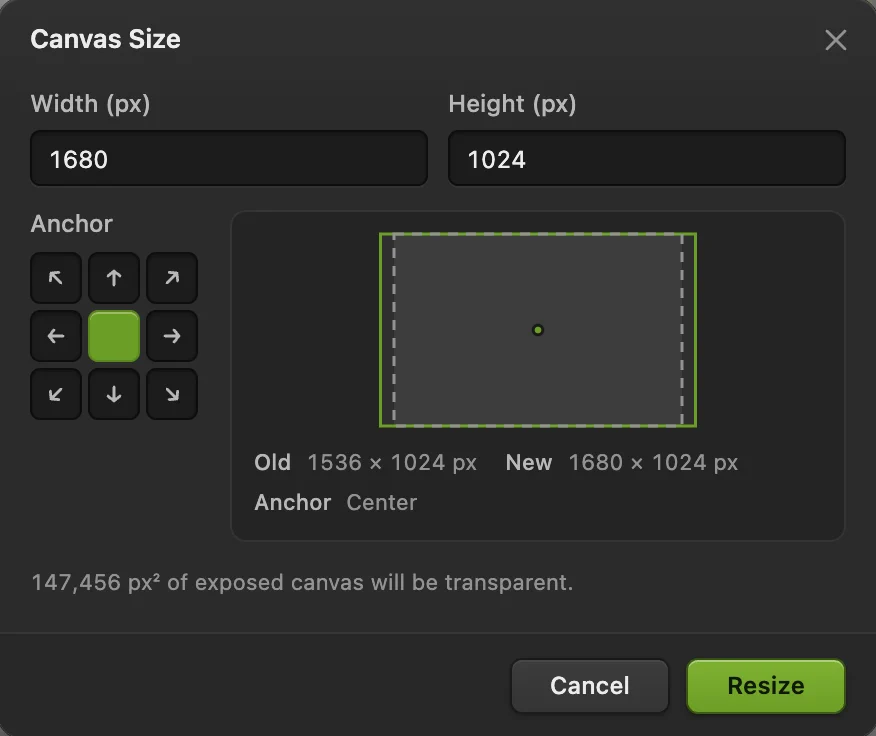
Canvas Size: Width 1680 px and the Anchor in the middle, both ringed. Choose Edit › Content-Aware Scale and protect the person
Choose . A frame with handles appears around the photo, and the options bar shows its size. Choose Alpha 1 under Protect first; changing it later reruns the preview. Then switch the units menu from Percent to Pixels, type 1680 in W and press Enter or ↩; Tab or clicking outside the field also applies it.
- Amount (default 100%): how much of the size change comes from content-aware resizing; the rest is ordinary scaling of the whole result, protected people included. At 50% the sample’s woman ends up about 4.5% wider.
- Protect: a saved alpha channel. Its white areas are very costly to cross, so the paths go around them; gray areas, such as a feathered edge, are partly protected.
- Protect skin tones: protects skin-colored areas without a saved channel. On the sample it marks over 40% of the photo: her face and chest, but also most of the beige building fronts and café chairs, and not the blazer, so a saved selection of the whole person works better.

W and the units menu, ringed. Wait for the preview and apply
The size readout after Protect shows Processing and a percentage, then the new size, 1680 × 1024 px, when the preview is ready. Check the edges of the person and any straight lines, then click the ✓ at the end of the options bar; the ✕ cancels. Enter or ↩ and Esc do the same only when the cursor isn’t in a field. The curved-arrow button between the readout and the ✓ resets the frame’s size and position.

Protect and the ✓, ringed. Check the result, trim to 16:9 and save
Compare the protected people with the original. On the sample, her blazer measures the same width before and after on every row, about 670 px at chest height, and the man, the woman beside him and the café group keep their exact widths too. An ordinary stretch to the same width makes her blazer about 730 px, 9.4% wider. Without Protect, Content-Aware Scale stretches her about as much, because a smooth blue blazer looks like unimportant background to it.
The 144 extra pixels of width land on what is left: the planter, the buildings, the pavement and the cyclists; together these end up about a sixth wider on average. The paths gather in the smoothest areas, so it isn’t even: the planter beside the café ends up about half again as wide, and holds up at normal size because it is blurred, while the cyclists widen by about 20–30%. Look for anything that now looks stretched; if something does, undo and add it to the protected selection.
Then trim the height to 16:9: choose , type 945 in Height (px), click the top-middle Anchor square and click Resize. That removes 79 px from the bottom of the photo, here the lower edge of her blazer.
Export with To keep the layer and the saved channel, save with (Ctrl+Shift+S or ⇧⌘S); after that, saves the project. on the PNG you opened writes the result back into it, flattened.
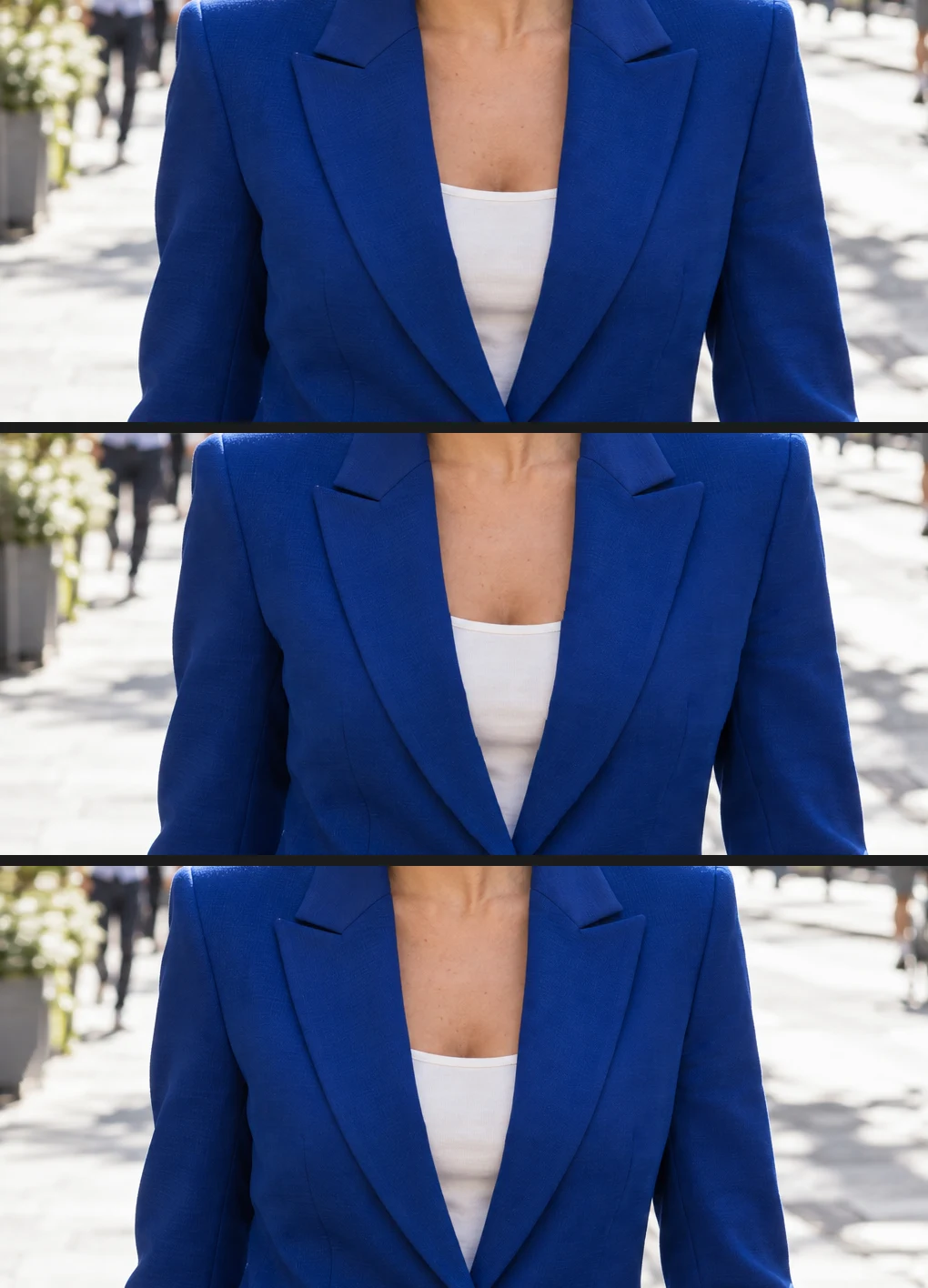
Top to bottom: an ordinary stretch, Content-Aware Scale without protection, and with the person protected. 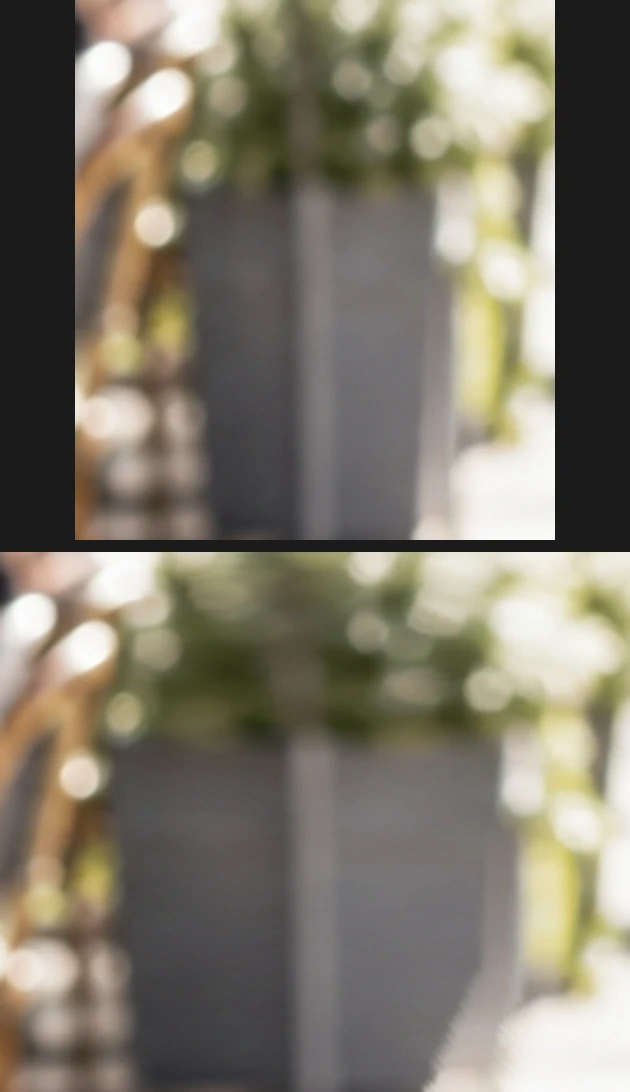
The planter between the protected café group and the protected man, enlarged: before (top) and after (bottom).
Fix common problems
Content-Aware Scale is grayed out
The active layer must be an unlocked pixel layer with its pixels unlocked, in a group that isn’t locked, and no transform or Puppet Warp may be open: finish or cancel it first. Turn a text, shape or Smart Object layer into pixels with , or duplicate the layer and rasterize the copy.
Straight lines bend or buildings warp
Paths that cross a straight line shift it. Add the line to the protected selection, or widen the canvas less and crop the rest.
The background repeats in an obvious pattern
The photo didn’t have enough open background for the change. Lower Amount so part of the change is ordinary scaling, or widen less.
Protect is grayed out
The document has no saved alpha channel. Save a selection first with .
What to do next
- Crop to an exact shape instead: how to crop an image.
- Refine the subject selection: selections explained.
- Resize the result for the web.
Coming from another editor
- Photoshop
- Edit › Content-Aware Scale; Protect and a skin-tone button are on the options bar.
Content-Aware Scale: questions and answers
Can Content-Aware Scale make a photo narrower?
Yes. In Lil Cactus, choose Edit › Content-Aware Scale and set a smaller W: the least important paths are removed instead of repeated. Then crop the canvas to the new width with Image › Canvas Size…
How much can I widen a photo with Content-Aware Scale?
It depends on how much open background the photo has. In Lil Cactus, check the background beside the person and any straight lines after each try; the sample widened by 9.4% and then lost 79 px of height to reach 16:9, with the protected people untouched; widening it all the way to 16:9 stretched the unprotected cyclists by about 70%.
Can I protect more than one person with Content-Aware Scale?
Yes. In Lil Cactus, add everyone to the selection before you save it as an alpha channel, for example with Select › Subject and then the lasso with Shift held to add the others. Protect keeps everyone in the channel. Leave enough open background for the extra width; if the subject’s own edge starts to change, protect less.
Can I undo Content-Aware Scale?
Yes. In Lil Cactus, applying it is one step, so Edit › Undo (Ctrl+Z, or Command+Z on a Mac) brings the photo back to its original width; the wider canvas stays until you undo Canvas Size too. Before you apply it, the ✕ on the options bar cancels it.
Is my photo uploaded when I use Content-Aware Scale in Lil Cactus?
No. Content-Aware Scale runs in your browser on your own device, and the photo is never sent to a server. Optional statistics never include the image; see the privacy policy.
Keep going
 How to crop an imageChoose what stays in the frame, then set the shape and size.Beginner · 6 min
 How to resize an image online to exact pixels or print sizeExact pixels, percent or print size, without stretching.Beginner · 2 min
 How to make a selection in a photo editorPick the right tool, add and subtract, feather and save a selection.Beginner · 6 min