How to crop an image
Quick answer
Open the photo in Lil Cactus and choose Crop from the toolbar. Set Ratio to Free for any shape, or choose a ratio such as 1 : 1 for a square, then drag a frame around what you want to keep. Adjust the frame and click Apply crop on the options bar. Choose to save a copy; for an 800 × 800 square, enable Resize output and set Width to 800.
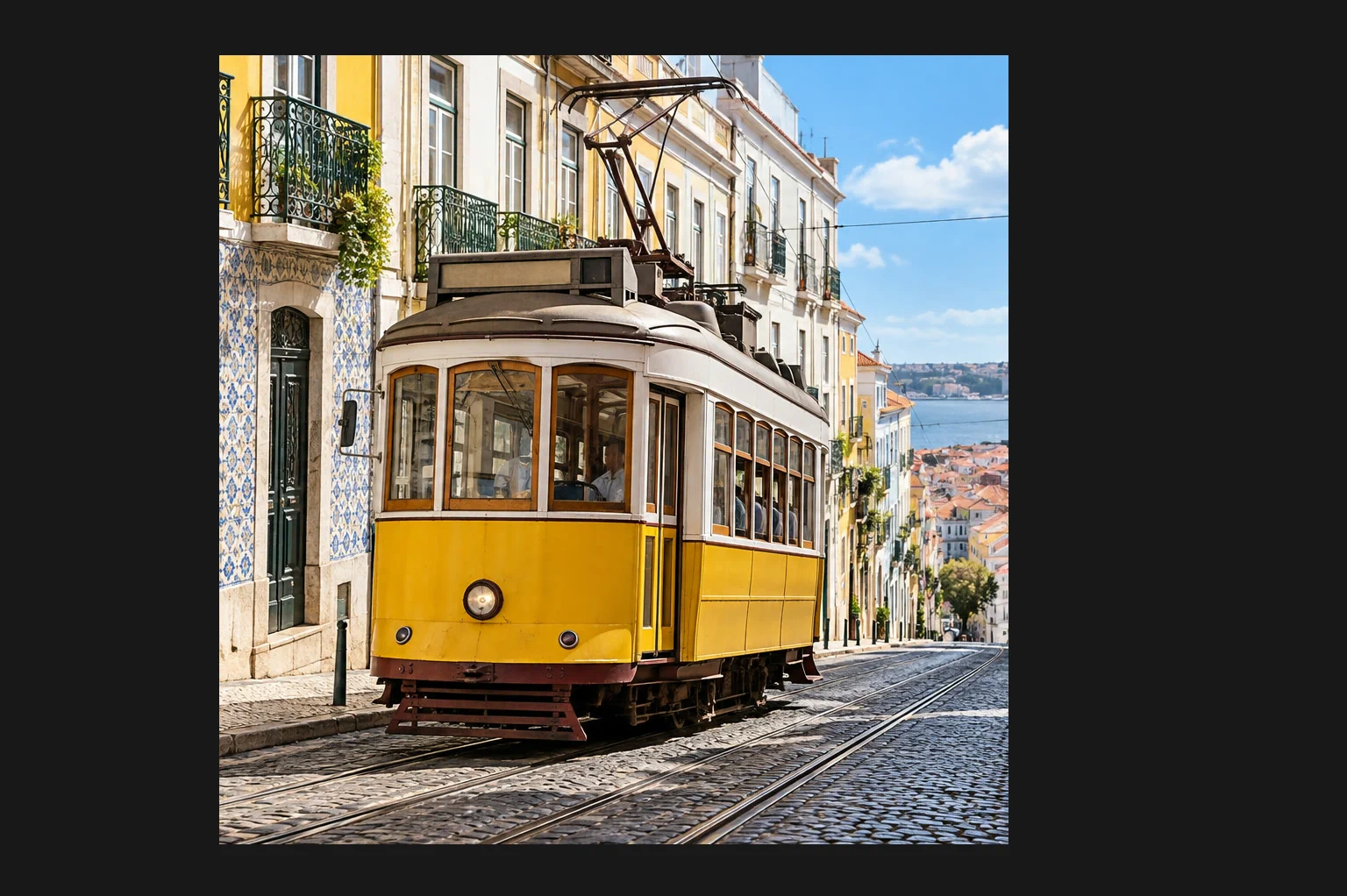
- Time
- 6 minutes
- Level
- Beginner
- You need
- A photo and the shape or dimensions you need
- Works with
- JPEG, PNG, WebP, AVIF, HEIC, TIFF and PSD images
Cropping decides what stays in the picture. Resizing decides how many pixels the picture has. To turn a wide photo into a square without stretching the tram, crop to a square first. Then resize the copy if you need an exact width and height.
Leave enough space around the subject for the picture’s job. A profile picture needs a clear face; a product listing needs the whole product. Use the sample to practice a square composition around the tram.
Crop an image in six steps
Open the photo
Choose (Ctrl+O or ⌘O) at lilcactus.app, or drag the photo onto the window. Open the sample from this page to follow along.
Choose the Crop tool
Right-click the crop-group button on the left toolbar, or press and hold it, and choose Crop. The group also contains Perspective Crop and the slice tools, so choosing the named tool avoids landing on a different one.
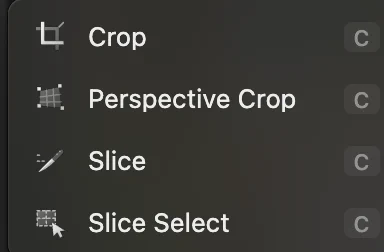
Choose Crop from its toolbar group. Choose the shape of the crop
On the options bar, set Ratio to 1 : 1 for the sample’s square crop. A ratio describes width compared with height, not a number of pixels. A 600 × 600 image and a 1200 × 1200 image both have a 1:1 ratio.
Keep Delete cropped pixels unticked. Pixels outside the new frame will be hidden, so you can recover them later in the open document or an editable project.

Choose 1 : 1 for a square. Keep Delete cropped pixels off farther along this bar. Drag and adjust the frame
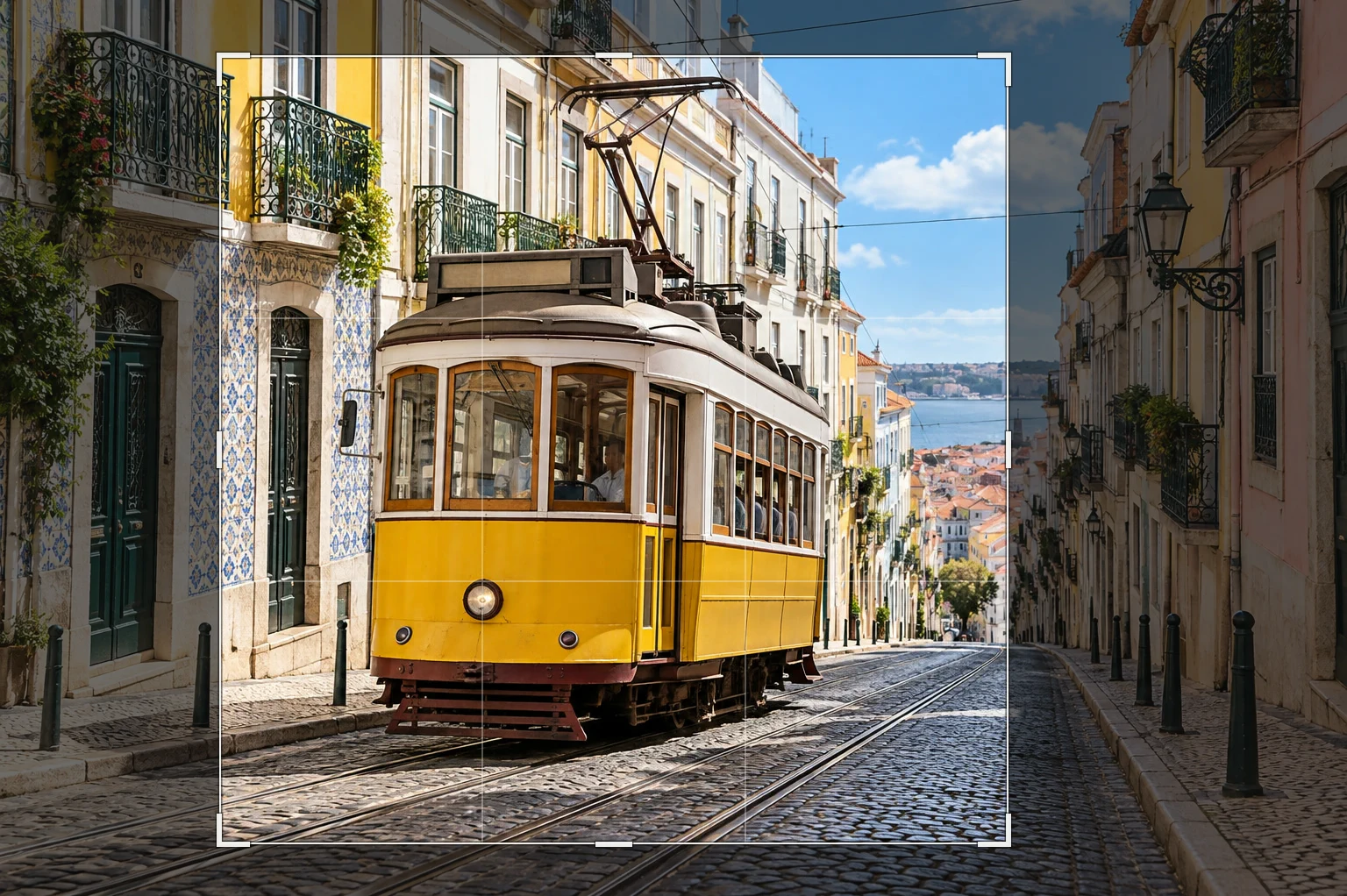
Drag diagonally across the photo to draw a square around the tram. The shaded area is what the crop will leave out. Drag a corner or an edge to change the frame’s size, or drag inside it to move the whole frame.
Keep the tram’s front, roof and wheels inside. Avoid half-cut objects at the edges. The live width × height readout on the options bar shows how many pixels the frame will keep.
Tip Need to start over? Press Escape to cancel the pending crop and draw another frame.
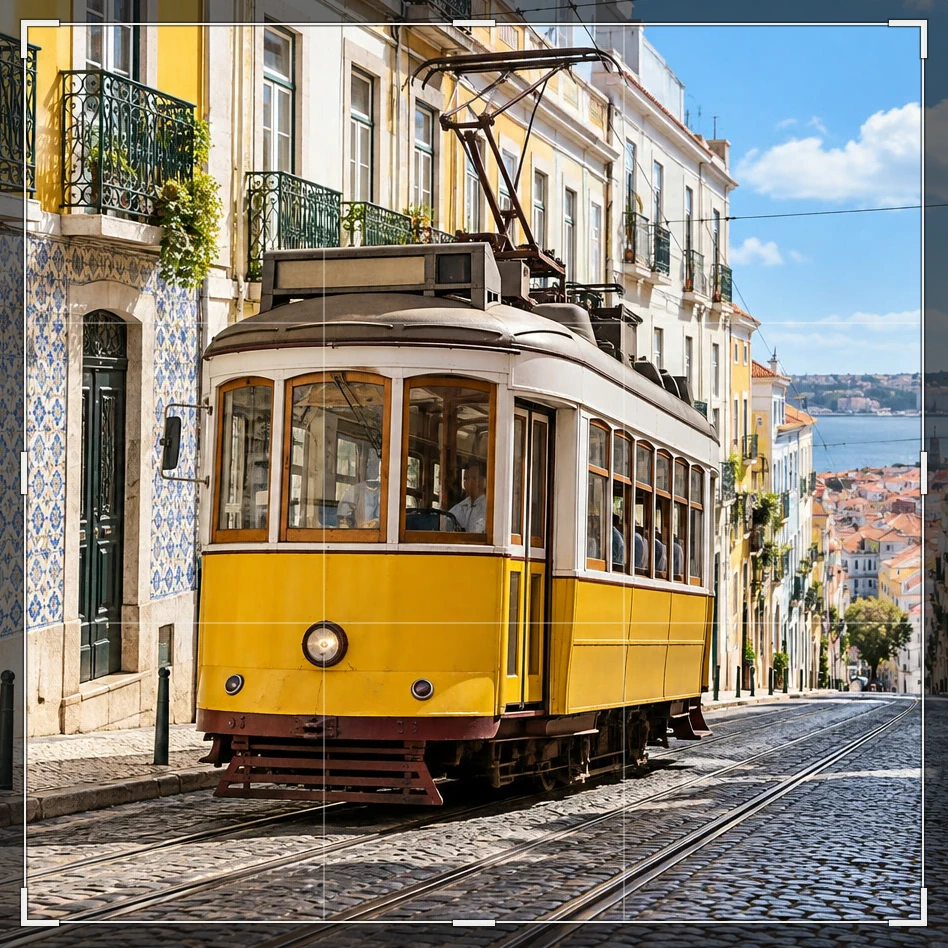
Everything inside the bright square stays. The shaded edges are left out. Apply the crop
Click the checkmark Apply crop on the options bar, or press Enter or ↩. The frame becomes the new canvas and the status bar shows its pixel dimensions. Your numbers may differ from the sample because your drag covered a different area.
If you want a different composition, Ctrl+Z or ⌘Z undoes the crop so you can draw a new frame.

Keep the hidden pixels, then apply the 900 × 900 frame with the checkmark. 
The applied sample crop is 900 × 900 pixels. Export the cropped copy
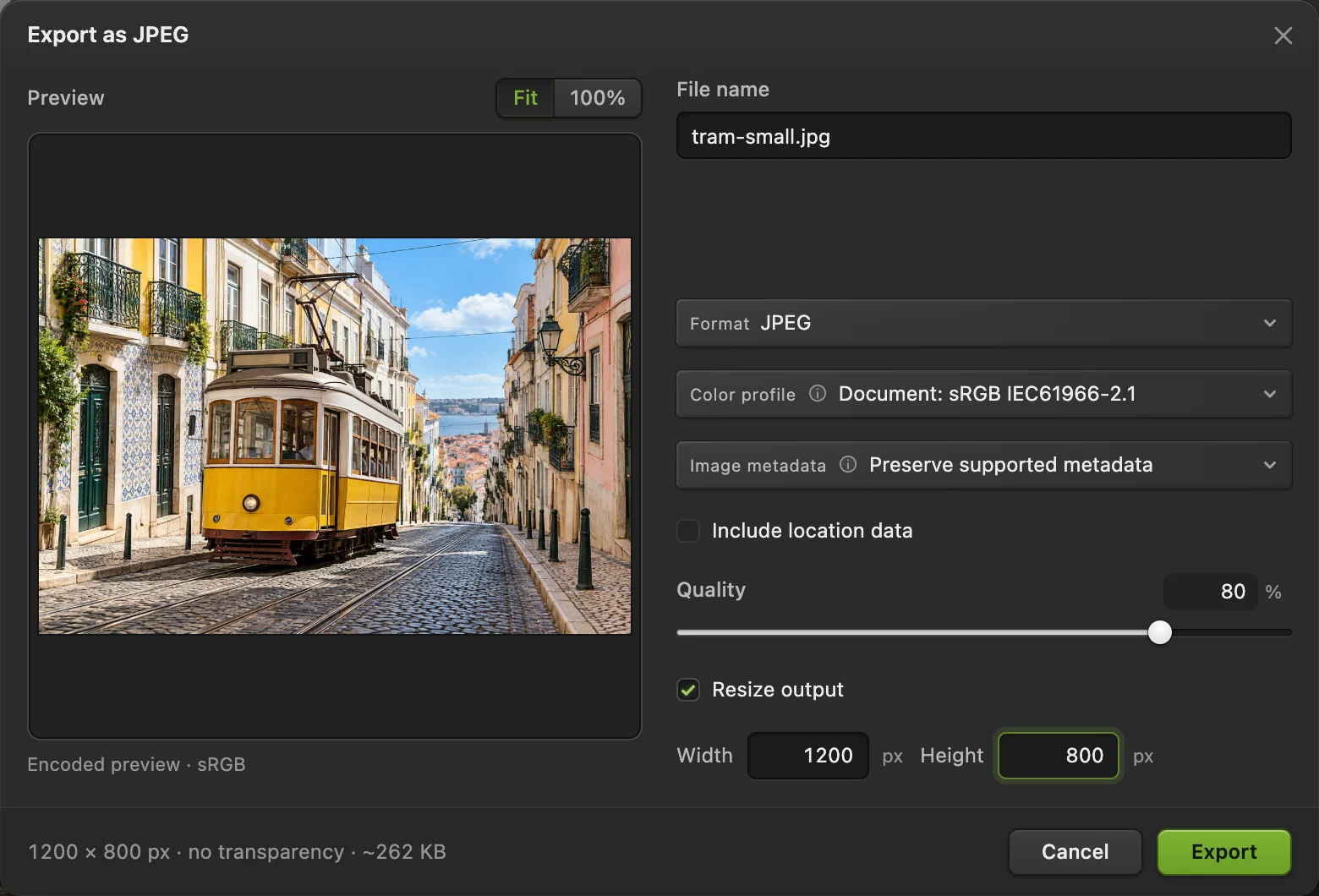
Choose for a photo, or PNG… for a graphic or a transparent image. For an exact 800 × 800 copy, tick Resize output and type 800 in Width. Because you already cropped to a square, Height becomes 800 too. Check the final dimensions at the bottom, then click Export.
always writes a new file. writes back into the opened file in its own format: JPEG and PNG stay flat; PSD keeps its supported layers. For an image opened from this page, or any JPEG, the first Save opens the Save Image dialog. keeps layers and hidden areas editable; after that, Save saves the project.
Tip If the crop contains fewer than 800 pixels on a side, an 800-pixel export enlarges it. Choose a larger crop or a smaller output when you need to preserve detail.
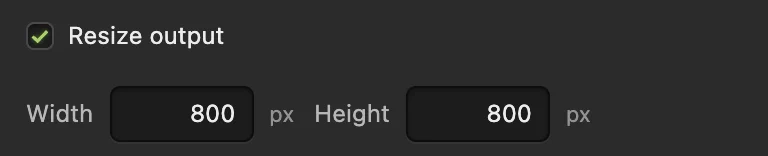
Set Width to 800; the linked Height becomes 800. 
Both dimensions are 800 pixels in the exported copy.
Crop to a different ratio or an exact size
Choose a preset in Ratio: 1 : 1, 4 : 5, 3 : 2 or 16 : 9. Original keeps the photo’s existing proportions, while Free lets you drag any shape. The swap button beside Ratio switches between portrait and landscape.
For a shape that is not listed, choose Custom and enter its width and height proportions in W and H. For a 1200 × 600 banner, enter 2 and 1, draw and apply the crop, then set the exported width to 1200.
Keep a Free crop inside the photo: dragging outside it can add transparent strips, which JPEG fills with white.
For an exact size in the open document rather than just the copy, crop first and use with the chain link on. Follow how to resize an image.
Straighten a tilted photo before cropping
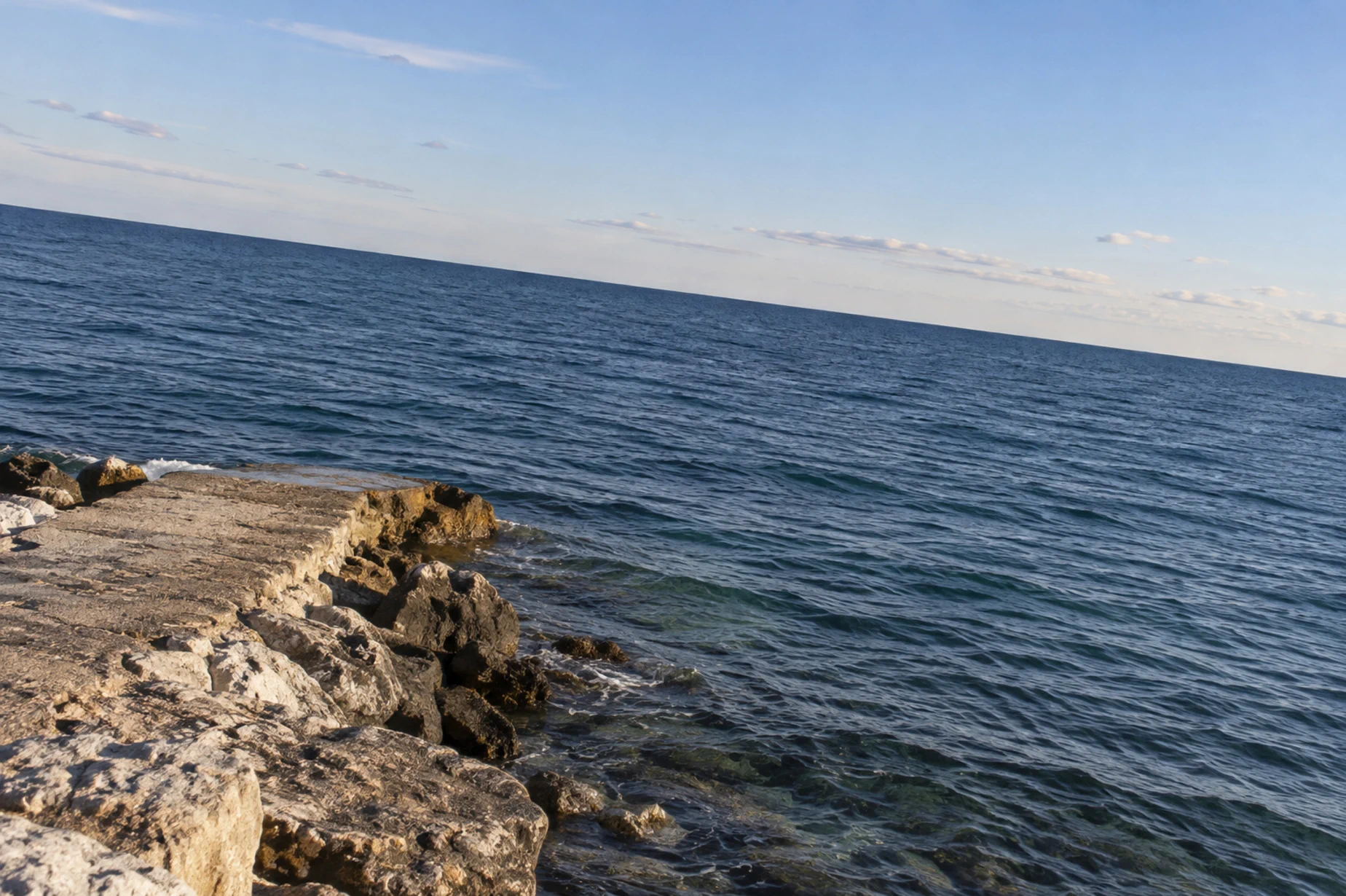
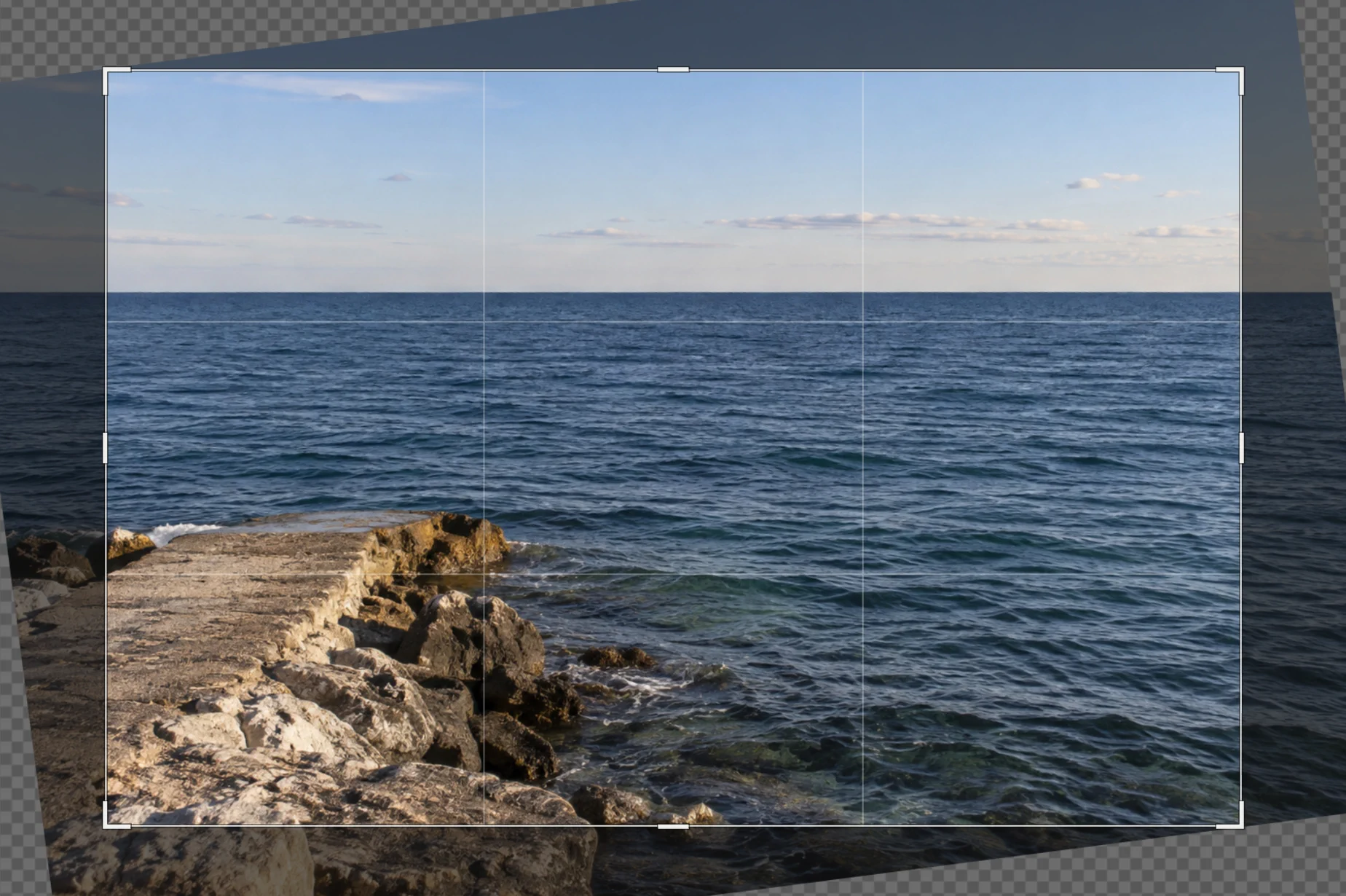
Download the tilted coast sample and open it with Select Crop, set Ratio to Free and click Straighten on the options bar. Drag a long line along the sloping sea horizon, from left to right. You can also draw along an edge that should be vertical.
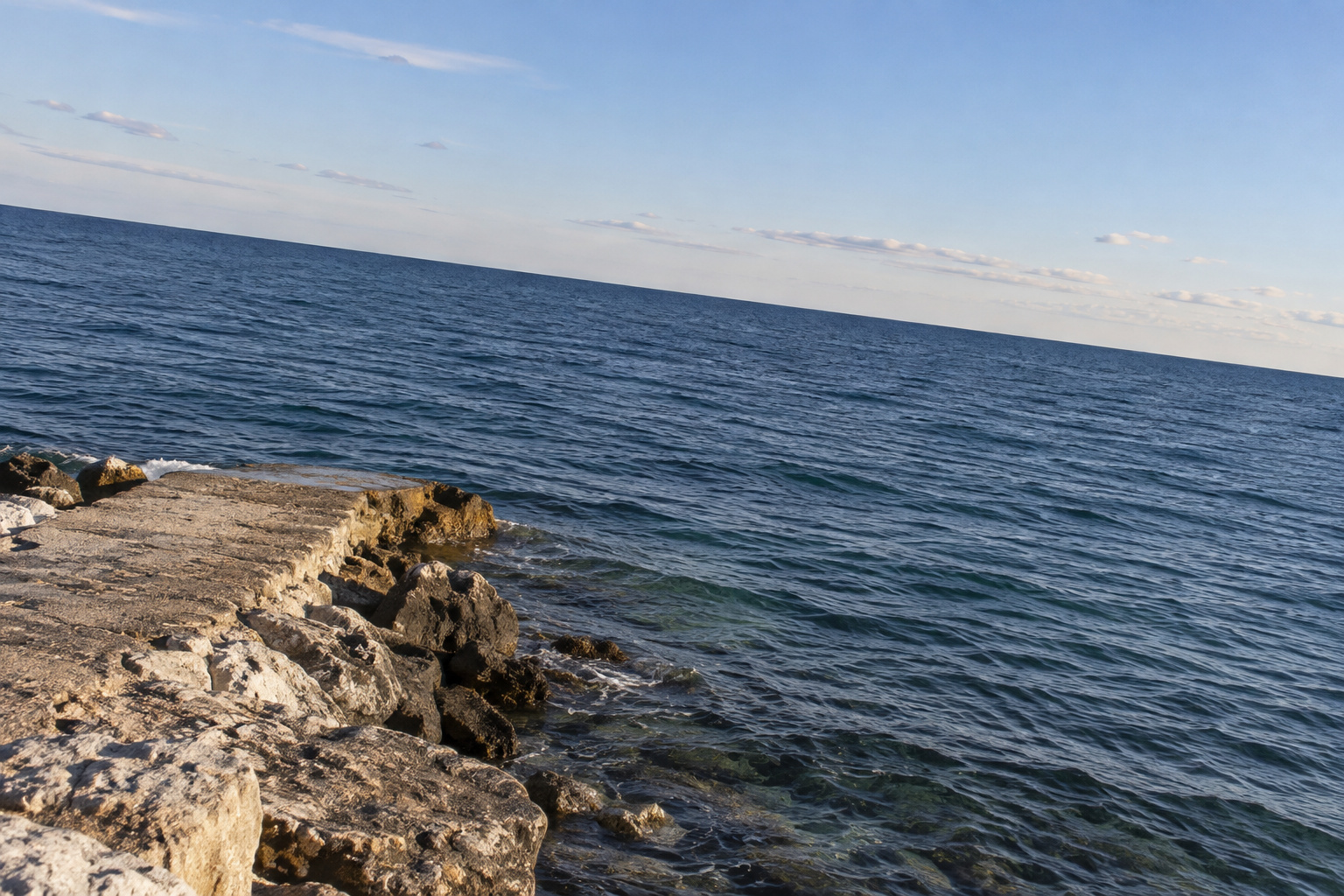
When you release the pointer, the image rotates and a crop frame is suggested to remove empty corners. Adjust the frame and apply it. Straightening costs space at the edges, so leave room around your subject when taking the photo.
Escape cancels the suggested frame but leaves the rotation in place. Use Ctrl+Z or ⌘Z to undo the rotation; if you already applied the crop, undo that first, then undo again.

Crop a rectangle photographed at an angle
A poster, page or mosaic photographed from one side looks narrower at the far edge. Perspective Crop stretches that four-sided area into a rectangle. Use it for one flat surface, with all four corners visible.
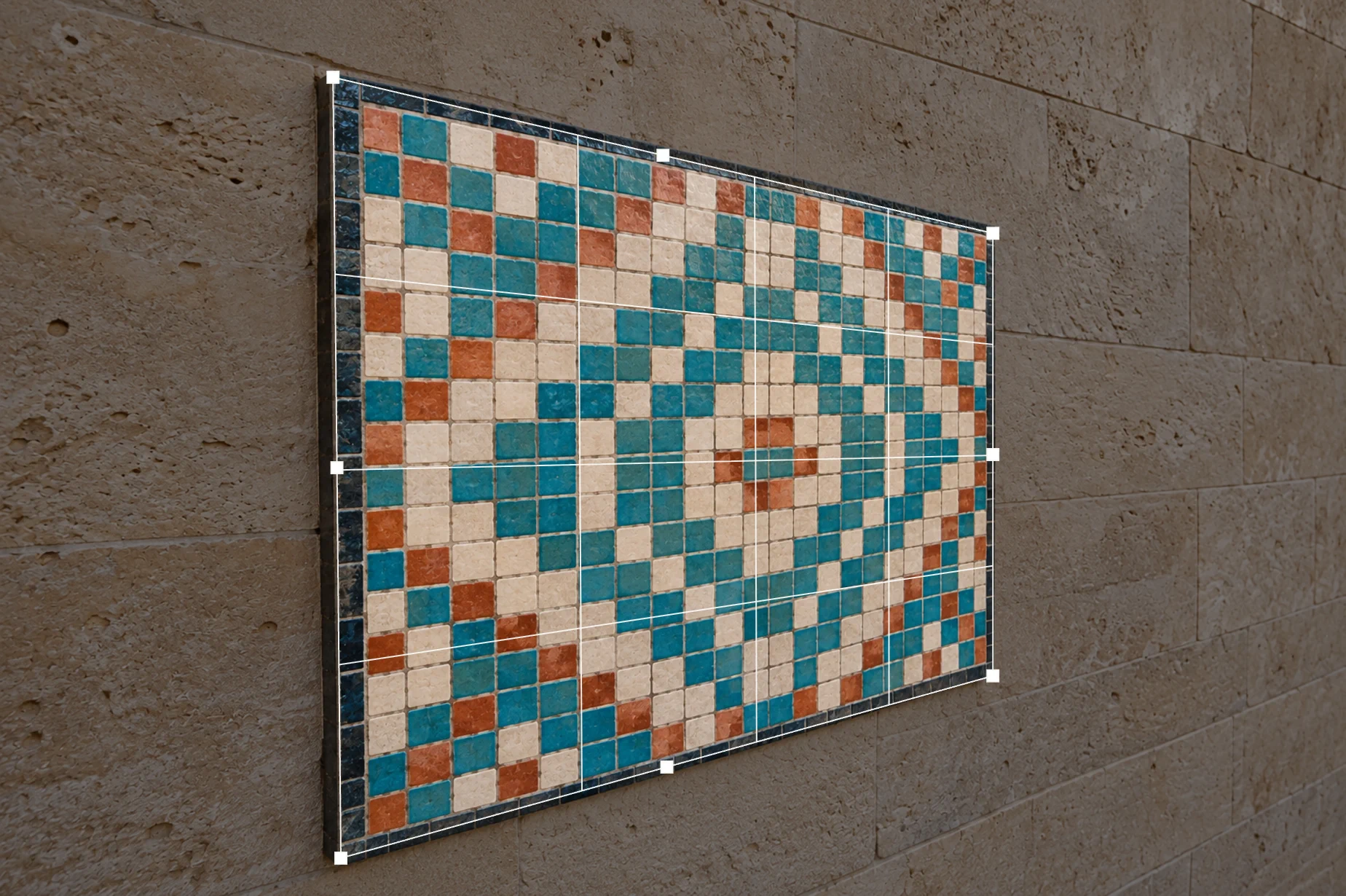
- Download the angled mosaic sample and open it with Right-click the crop-group button and choose Perspective Crop. Its handles start at the photo’s four corners.
- Drag each handle to the matching corner of the mosaic’s outer border. Keep the corners in order around the surface so the edges do not cross.
- The real panel is square. Set Width and Height to 800 each, so the corrected tiles keep square proportions. For other surfaces, use their real proportions; 0 lets the editor calculate that dimension from the frame.
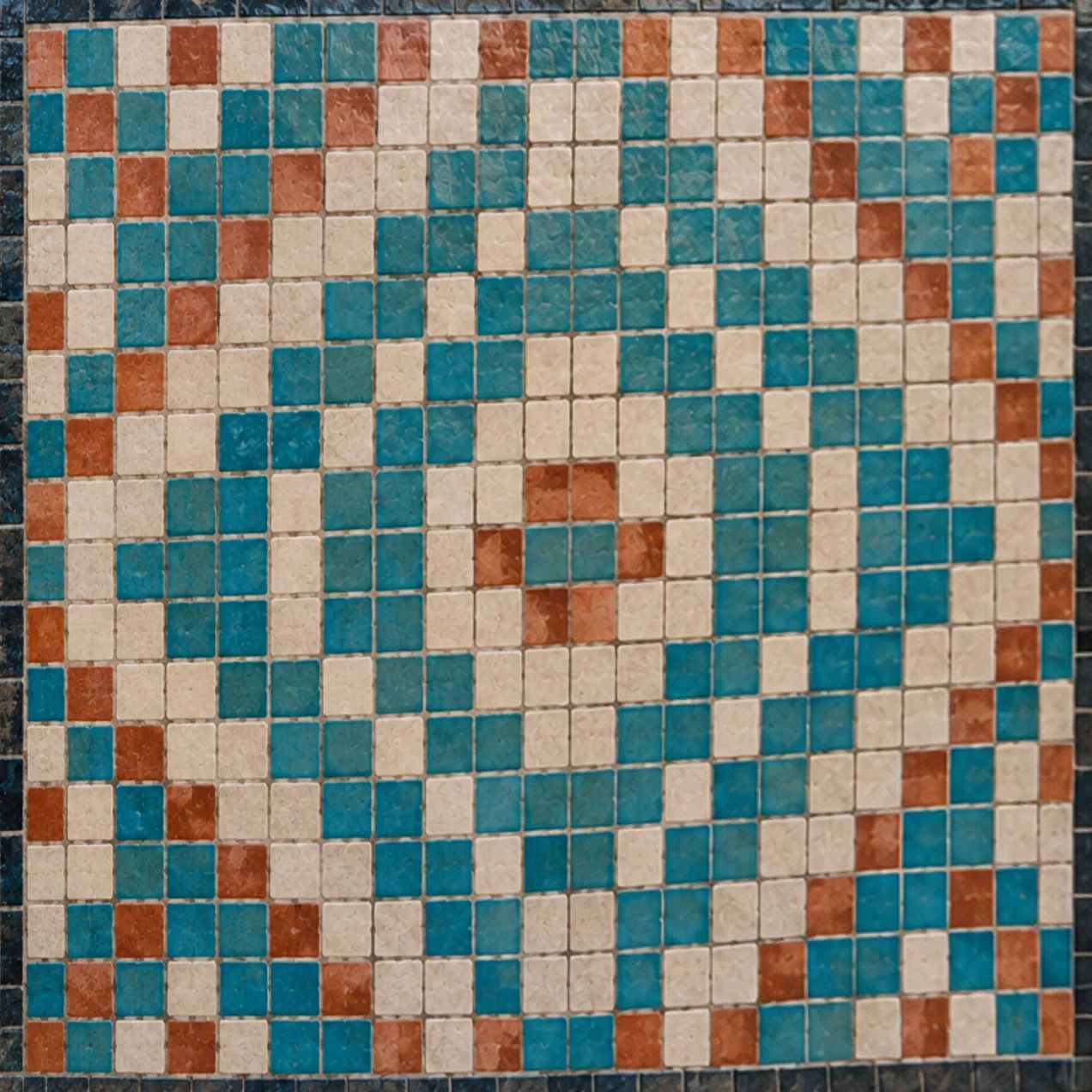
- Click Apply perspective crop or press Enter or ↩. If the grid still looks skewed, undo and place the corners more carefully.
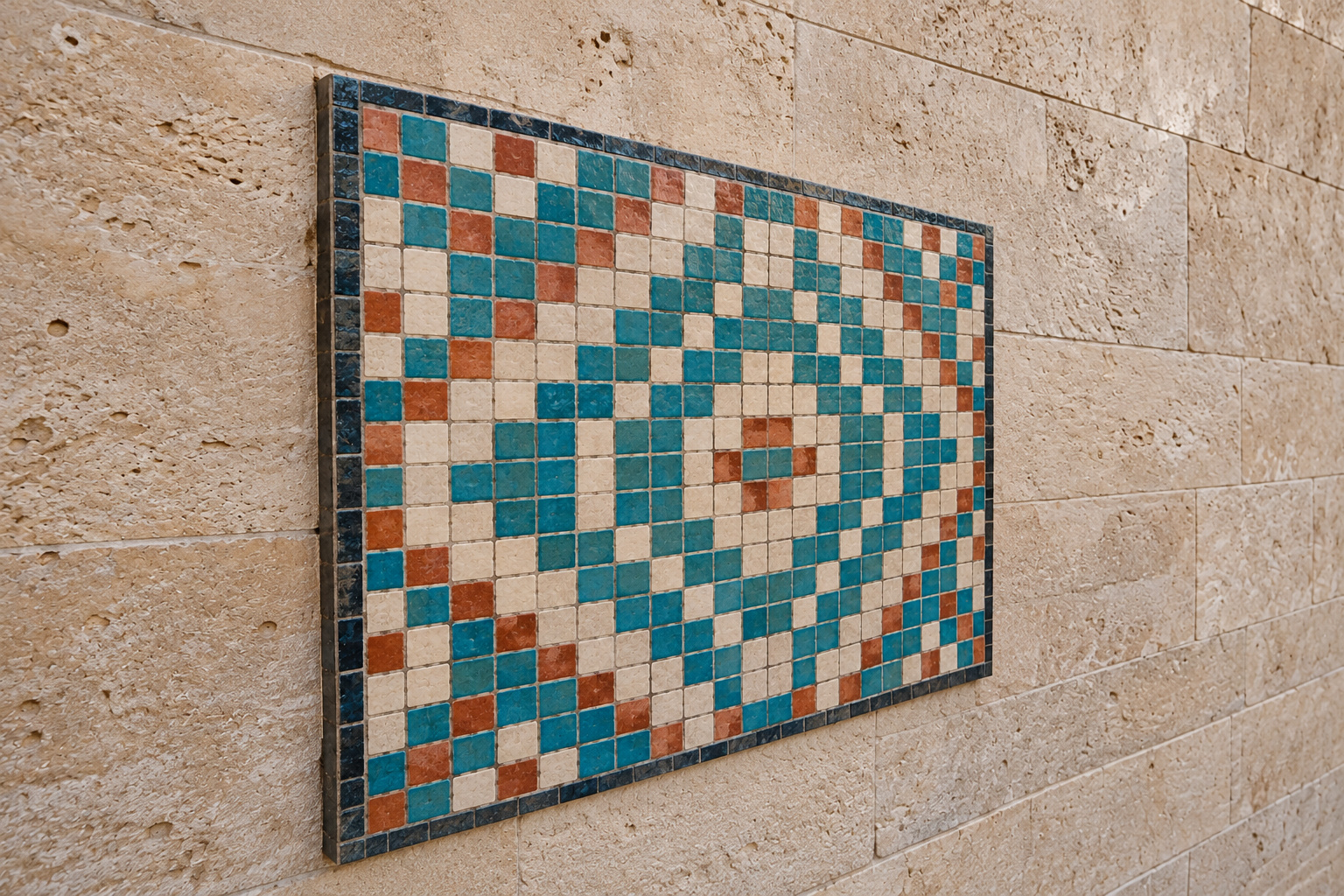
Check the tile lines and small detail inside the result. Perspective correction recalculates pixels and can soften detail; it cannot recover anything out of focus or hidden behind another object.

Fix common problems
The crop is stuck as a square
Ratio is set to 1 : 1. Choose Free to draw any shape, or select the ratio you need.
The tram or person looks stretched
Crop to the target ratio before resizing. In Image Size, keep the chain link on. For Perspective Crop, check both the corner positions and the output proportions.
The crop button is disabled
With the ordinary Crop tool, draw a frame first. In Perspective Crop, make sure the four corners are distinct and the sides do not cross.
Finish the cropped image
- Set precise dimensions: resize the image.
- Meet a file-size limit: compress the image.
- Make a round avatar: crop a circular profile picture.
- Keep transparent corners or edges: make the background transparent.
Coming from another editor
- Photoshop
- Crop tool in the toolbar, with Ratio and Straighten on the options bar. Perspective Crop is in the same toolbar group.
- GIMP
- Tools › Transform Tools › Crop, with Fixed › Aspect ratio in Tool Options.
Image cropping: questions and answers
How do I crop an image to a square?
In Lil Cactus, choose Crop, set Ratio to 1 : 1, drag a frame around what you want to keep and apply it. To save at an exact size such as 800 × 800, enable Resize output in Export and set the width to 800.
Does cropping an image reduce quality?
No, an ordinary crop in Lil Cactus does not scale the pixels it keeps. Straightening, Perspective Crop or resizing recalculates pixels and can soften detail. Enlarging a small crop does not restore detail.
How do I crop an image to an exact pixel size?
In Lil Cactus, crop to the required width-to-height ratio, then choose File › Export and enable Resize output. For an 800 × 800 square, set Width to 800 after a 1:1 crop; Height becomes 800 too.
Can I undo an image crop after saving?
Yes, in the same Lil Cactus session: Undo still works after saving. After reopening a Lil Cactus Project with Delete cropped pixels off, Image › Reveal All can restore hidden edges. A reopened flat JPEG or PNG has no hidden edges to restore.
How do I crop and straighten a photo?
In Lil Cactus, choose Crop and click Straighten, then draw along a horizon or an edge that should be upright. Release to rotate the photo, adjust the suggested crop and click Apply crop.
Is my photo uploaded when I crop it?
No. Lil Cactus crops and exports on your device in the browser. Optional statistics do not include your image; see the privacy policy.
Keep going
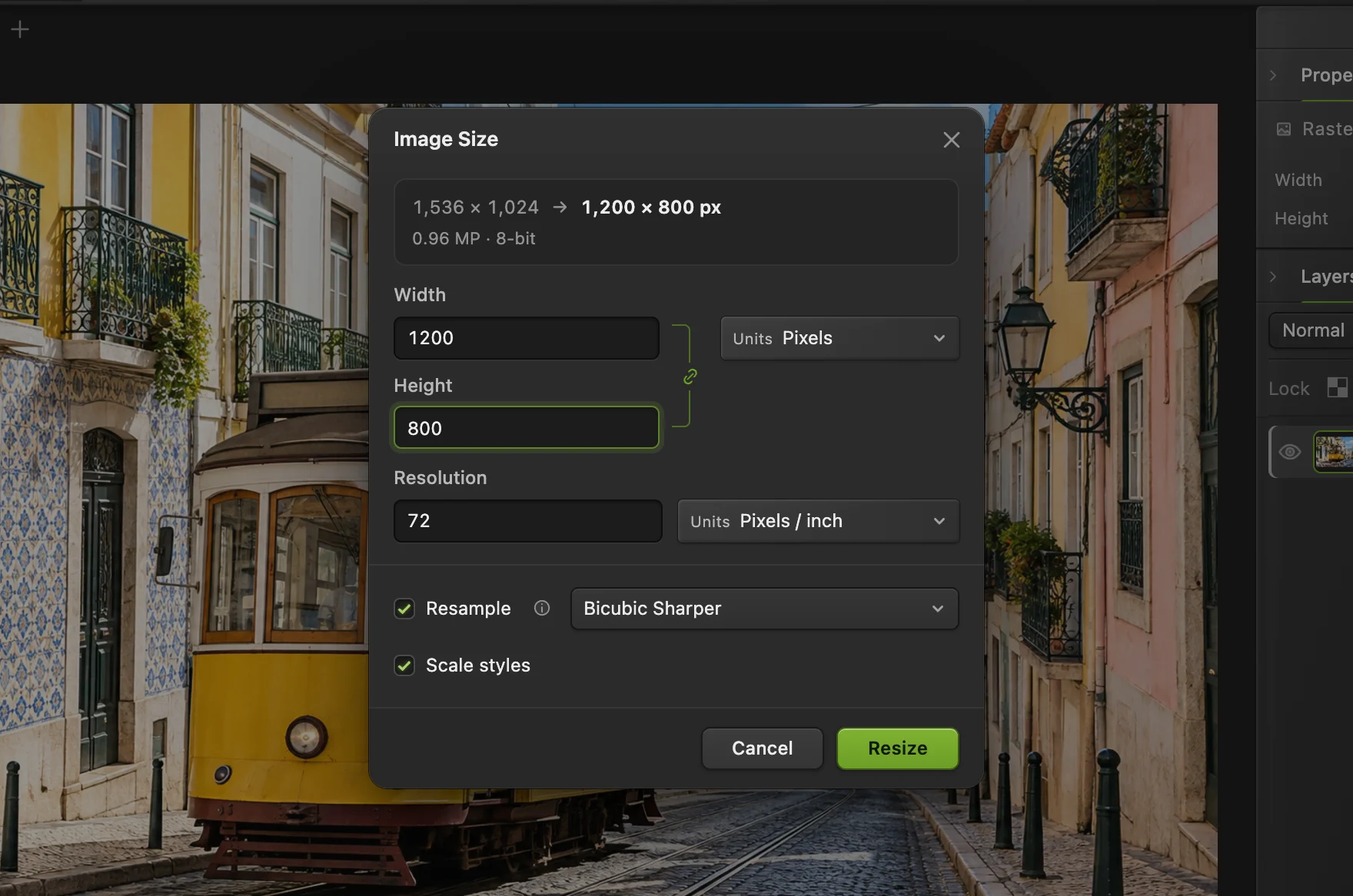 How to resize an image online to exact pixels or print sizeExact pixels, percent or print size, without stretching.Beginner · 2 min
 How to compress an image to 100 KB or 200 KBLower the file size, check the detail, and fit an upload limit.Beginner · 3 min
 How to crop a photo into a circleA round picture with transparent corners, ready to upload.Beginner · 4 min