How to convert HEIC, WebP and PNG to JPG online
Quick answer
Open the image in Lil Cactus, choose and pick the format you need: JPEG…, PNG…, WebP… or AVIF… Check the file name and quality, then click Export. Lil Cactus opens HEIC, WebP, AVIF, PNG, JPEG, PSD, TIFF and camera RAW files, and the conversion happens in your browser, so nothing is uploaded.
- Time
- 2 minutes
- Level
- Beginner
- You need
- The image to convert, and a computer with a mouse or trackpad
- Works with
- Opens HEIC, WebP, AVIF, PNG, JPEG, GIF, TIFF, PSD, PDF, RAW. Saves JPEG, PNG, WebP, AVIF, TIFF, PDF and more
Converting an image means saving the same picture in a different file format. The format decides three things: whether other apps and websites can open it, how large the file is, and whether it can keep a transparent background. Converting never makes a picture better, but the wrong format can make it worse (JPEG loses a little detail every time it is saved) or much bigger than it needs to be.
If you only need the answer: JPEG for photos that must open everywhere, PNG for graphics, screenshots and transparency, WebP or AVIF for small files on websites.
Convert an image in four steps
Open the image
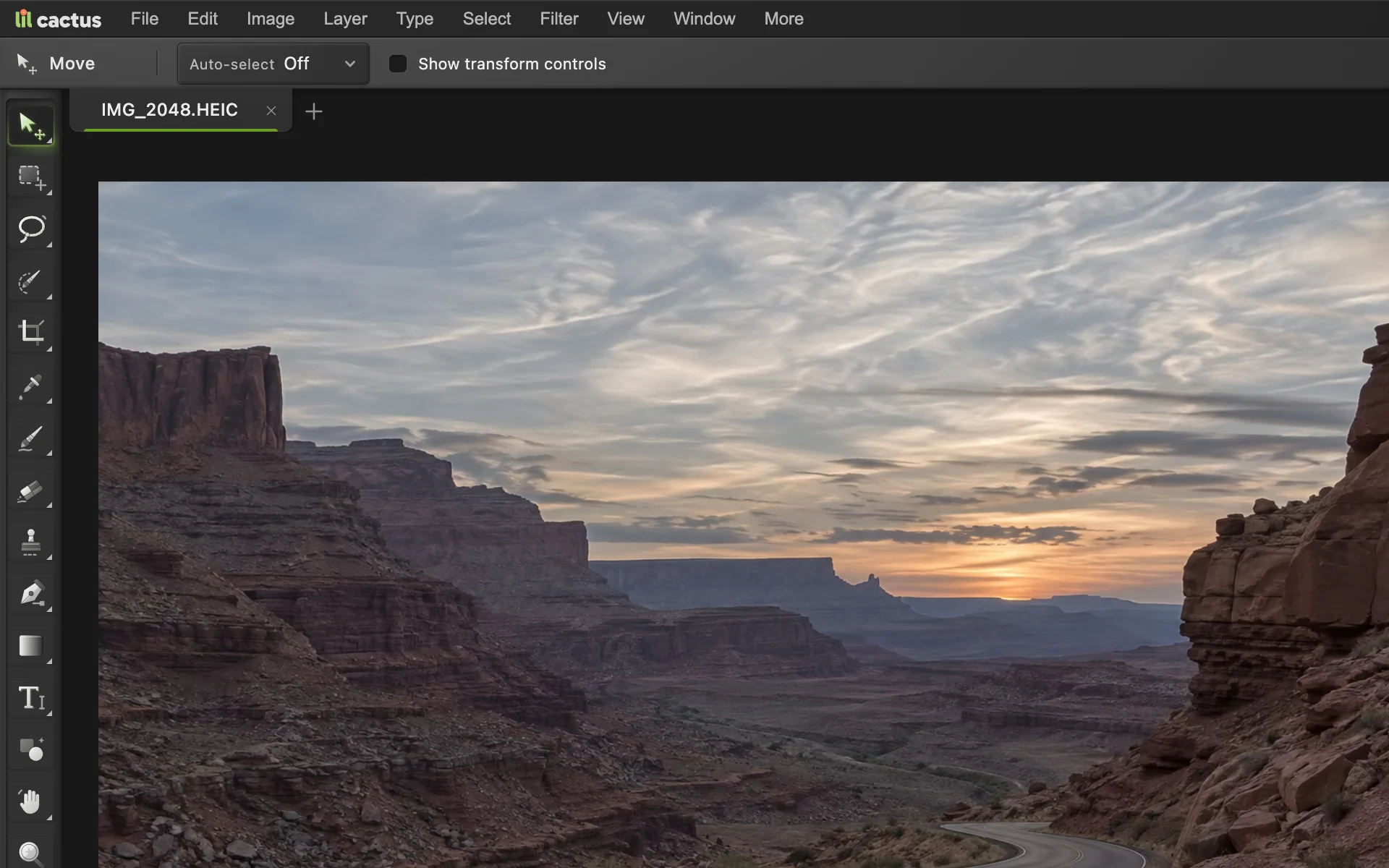
Go to lilcactus.app and choose (Ctrl+O or ⌘O), or drag the file onto the window. iPhone HEIC photos, WebP images saved from websites and AVIF files open directly, with no plug-in. To follow along, open the sample HEIC photo from this page.
Choose File › Export and the new format
Open and pick the format you want to convert to. Choose JPEG… to turn HEIC, WebP or PNG into a JPG that opens everywhere.
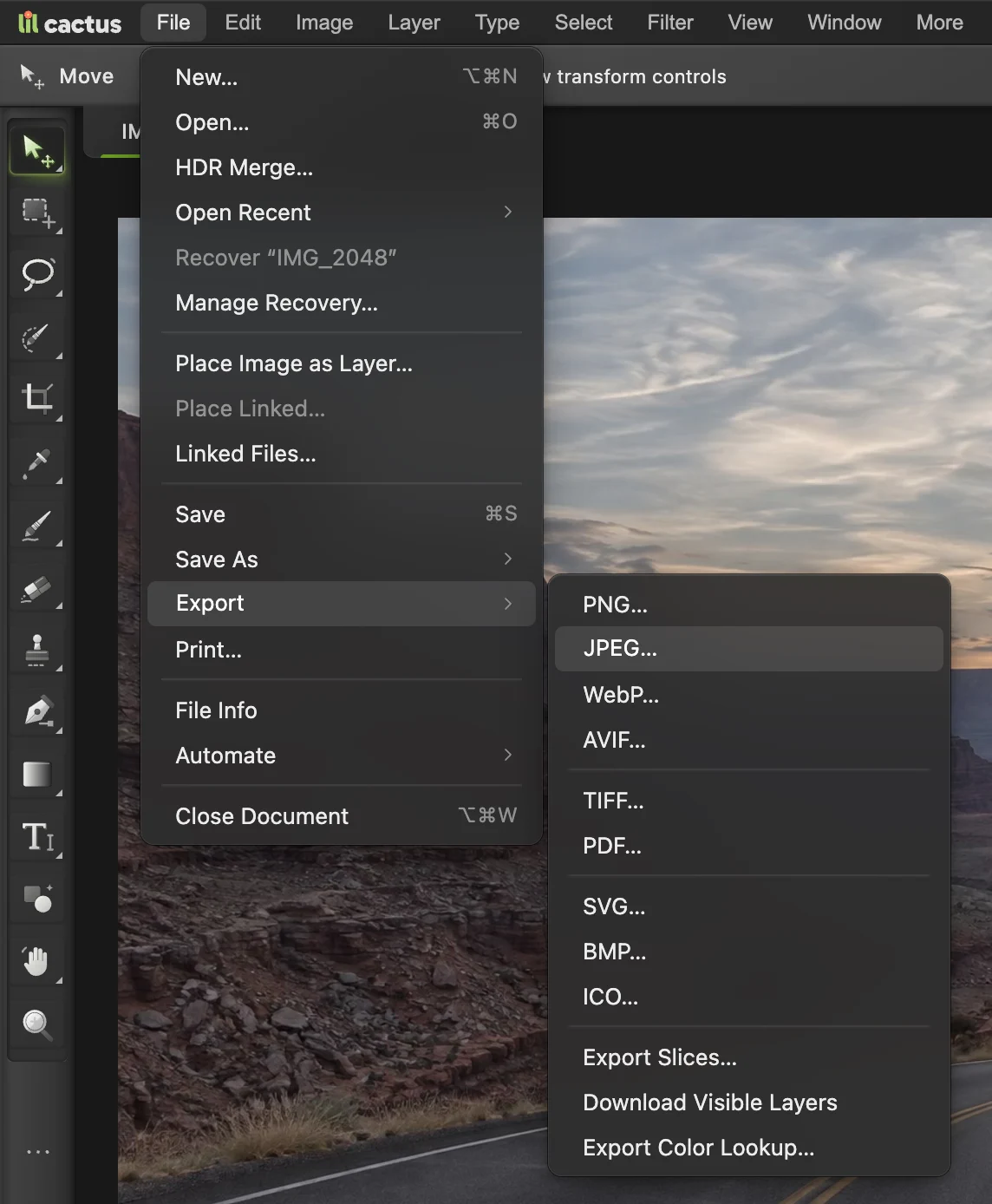
lists every format Lil Cactus can save. Check the name, metadata and quality
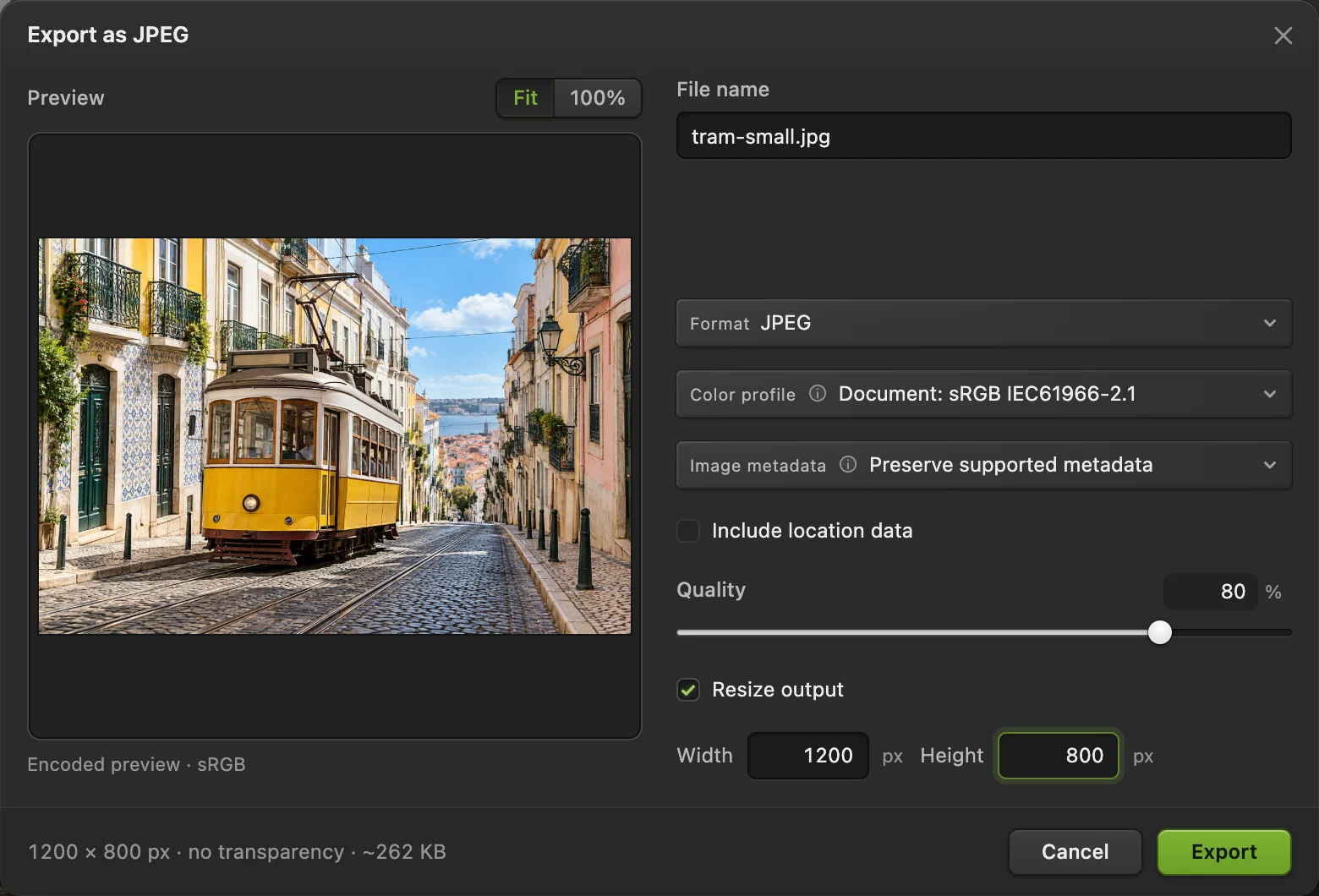
The export dialog previews the compressed result (for AVIF, the document itself).
- File name: the extension changes for you, so IMG_2048.HEIC becomes IMG_2048.jpg.
- Format: you can still switch format here.
- Color profile: choose Convert to sRGB for web pages, online forms and email. iPhone photos use a wider color range (Display P3), and apps that ignore profiles show those colors flat. Keep the Document profile for print or further editing.
- Image metadata: camera details, date taken and copyright are kept by default, including from iPhone HEIC photos. Location is left out unless you tick Include location data, each time you export.
- Quality (JPEG, WebP, AVIF): at 85–90% a photo is hard to tell apart from the original, at a fraction of the size.
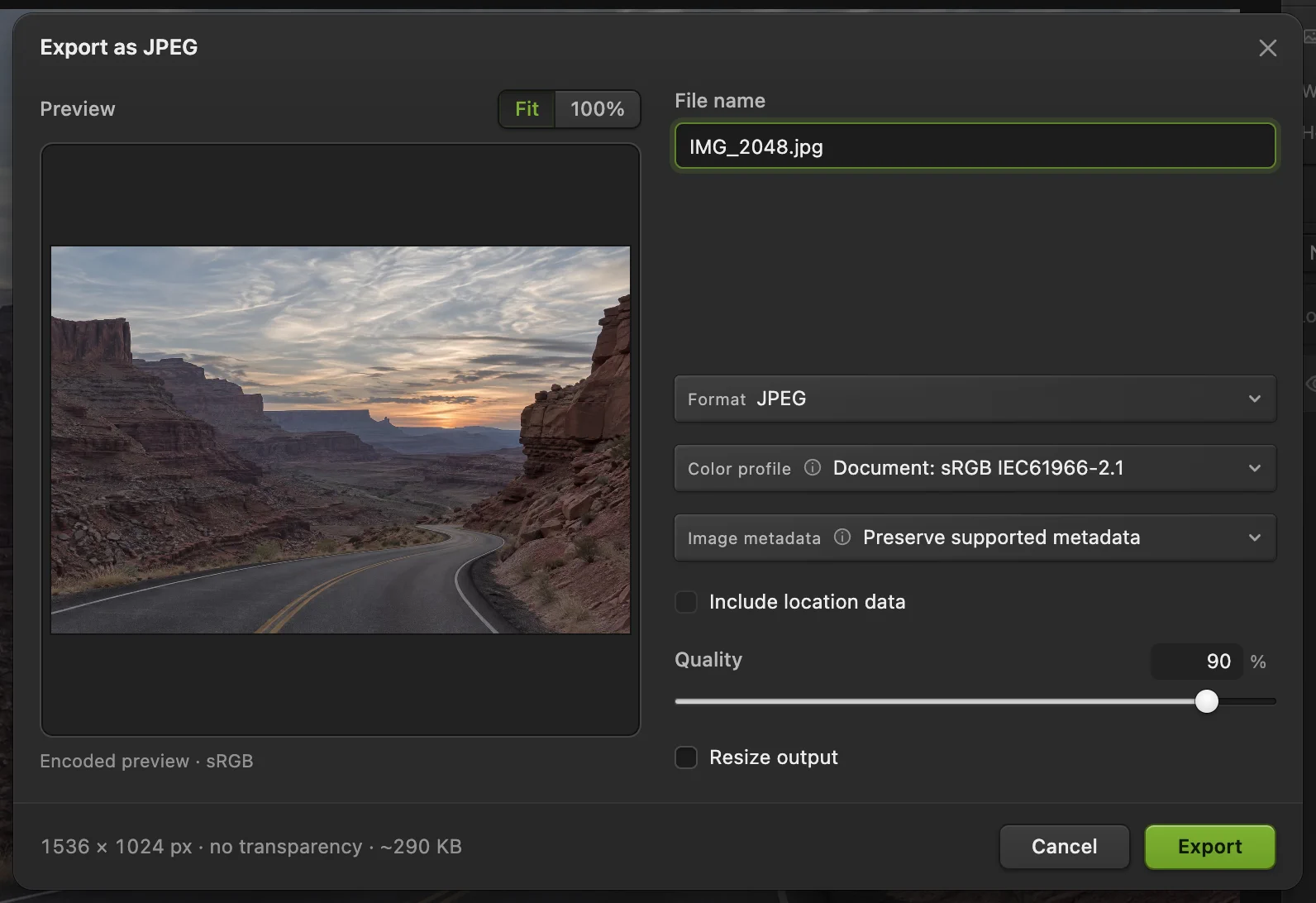
Converting the HEIC sample to JPEG. - File name, with the new extension
- Format
- Color profile: Convert to sRGB for the web
- Image metadata
- Quality
- Export
Click Export
The converted file goes to your downloads folder. Your original file is not changed.
Converting more than one? See convert many images at once below.
Which format should I choose?
| Format | Best for | Transparency | File size |
|---|---|---|---|
| JPEG (.jpg) | Photos that must open anywhere: email, forms, printing shops | No | Small |
| PNG | Logos, screenshots, text, graphics, anything transparent | Yes | Large for photos |
| WebP | Photos and graphics on websites | Yes | Smaller than JPEG |
| AVIF | The smallest files for websites | Yes | Smallest |
| TIFF | Archiving and print work, 16-bit photos | Yes | Very large |
| Sending an image as a document | – | Varies | |
| HEIC | iPhone camera photos | (open only) | Small |
Lil Cactus also saves BMP, ICO (website icons in six sizes) and SVG. SVG keeps shape and text layers as vectors, but photos are stored inside it as pixels: exporting a photo as SVG does not trace it into shapes.
HEIC to JPG: the iPhone photo problem
iPhones save photos as HEIC, which many Windows apps, websites and online forms refuse. Open the HEIC in Lil Cactus and export it as JPEG, as in the steps above, with Convert to sRGB if the JPEG is going online.
The date taken, the camera and lens details, and any creator and copyright notes carry over into the JPEG, so photo apps still sort it by date. The location is left out unless you tick Include location data, which is safer when you share a photo. Tick it if you want the JPEG to remember where the photo was taken.
Lil Cactus can open HEIC files but not save them: there is little reason to, because every device that reads HEIC also reads JPEG.
WebP to JPG or PNG: images saved from websites
Images downloaded from websites are often WebP, which some older apps can’t open. Export them as JPEG for photos, or PNG if the image has a transparent background (JPEG would fill it with white).
PNG to JPG and JPG to PNG
- PNG to JPG makes a photo several times smaller. Transparent areas become white.
- JPG to PNG does not restore any quality the JPEG already lost, and makes the file bigger. Do it when an app insists on PNG, or before you make the background transparent.
Convert many images at once
Choose , click Choose images… under Input images and select all the files. Pick the Format (PNG, JPEG or WebP), leave Scale % at 100 to keep their size, and click Run. The converted images download together in one ZIP file. HEIC, WebP and AVIF files can all be inputs.
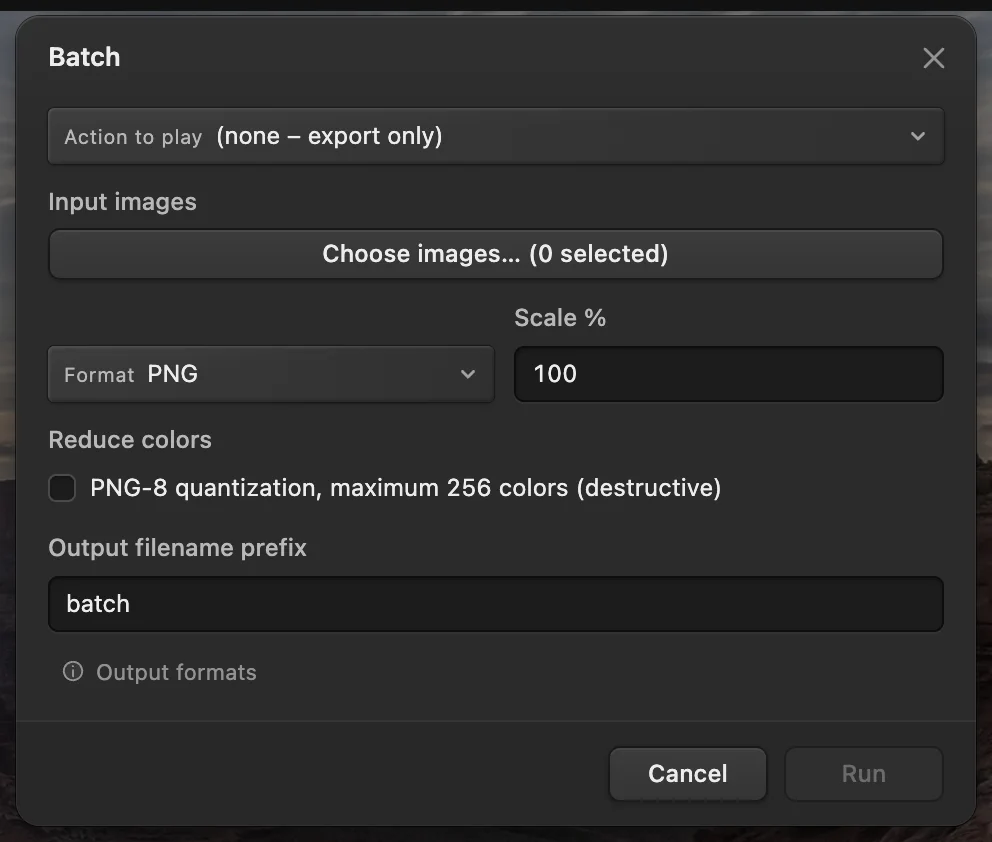
- Input images: choose the files
- Format: PNG, JPEG or WebP
- Run
Coming from another editor
- Photoshop
- File › Export › Export As… or Save a Copy. In Lil Cactus each format has its own item under File › Export.
- GIMP
- File › Export As…, with the format chosen by the file name’s extension. In Lil Cactus you choose the format from File › Export.
- Mac Preview
- File › Export…, then Format. In Lil Cactus the same job is File › Export.
Image format conversion: questions and answers
How do I convert WebP to JPG without uploading it?
Open the WebP in Lil Cactus, choose File › Export › JPEG…, set the quality and export a separate JPG. The conversion happens on your computer. JPEG cannot keep a transparent background; export PNG instead if you need transparency. See the WebP conversion steps.
How do I convert HEIC to JPG for free?
Open the HEIC photo in Lil Cactus, choose File › Export › JPEG…, pick Convert to sRGB if it is going online, and click Export. It is free, needs no account, and the photo is converted in your browser without being uploaded. The date taken and camera details are kept; the location is left out unless you tick Include location data.
Does converting to JPG reduce quality?
Slightly, because JPEG compresses the image. At 85–90% quality a photo is hard to tell apart from the original. Avoid converting the same picture to JPEG again and again, as each save loses a little more.
Can I convert a WebP image to PNG and keep the transparent background?
Yes. Export it as PNG: transparent areas stay transparent. Exporting as JPEG would fill them with white.
Are my photos uploaded when I convert them?
No. Lil Cactus opens and converts images in your browser, on your own computer. Location data is left out of the new file unless you choose to include it.
Can Lil Cactus convert an image to SVG?
It can save SVG files, and shape and text layers stay as vectors. A photo is stored inside the SVG as pixels: it isn’t traced into vector shapes.
Which format makes the smallest file?
AVIF usually makes the smallest file, then WebP, then JPEG, at similar visible quality. PNG is the largest for photos.
Keep going
 How to resize an image online to exact pixels or print sizeExact pixels, percent or print size, without stretching.Beginner · 2 min
 How to compress an image to 100 KB or 200 KBLower the file size, check the detail, and fit an upload limit.Beginner · 3 min
 How to make a signature or logo background transparentLift a signature or logo off white or paper.Beginner · 3 min