How to compress an image to 100 KB or 200 KB
Quick answer
Open the image in Lil Cactus and choose Lower Quality from 90 to about 80, check the preview at 100% and watch the estimated file size at the bottom. If it is still too large, tick Resize output and reduce the width; the height follows in proportion. Click Export to save a smaller copy, then check the downloaded file against your size limit.
- Time
- 3 minutes
- Level
- Beginner
- You need
- A photo, the accepted file formats and any upload size limit
- Works with
- JPEG, PNG, WebP, AVIF, HEIC, TIFF and PSD images
An upload limit is measured in KB or MB: how much space the file takes. Image dimensions are measured in pixels: how wide and tall the picture is. You can reduce the first without changing the second by lowering JPEG quality. If that loses too much detail, reduce the dimensions as well.
Start from the original each time. A photo already compressed heavily may not get smaller without visible damage. For an online form, check the allowed format and minimum dimensions before you change anything.
Compress a photo in five steps
Open the original photo
Go to lilcactus.app and choose (Ctrl+O or ⌘O), or drag the photo onto the window. Open the sample from this page to try the same settings.
Find the original file’s size in your computer’s file information. Compare it with the exported copy.
Choose File › Export › JPEG…
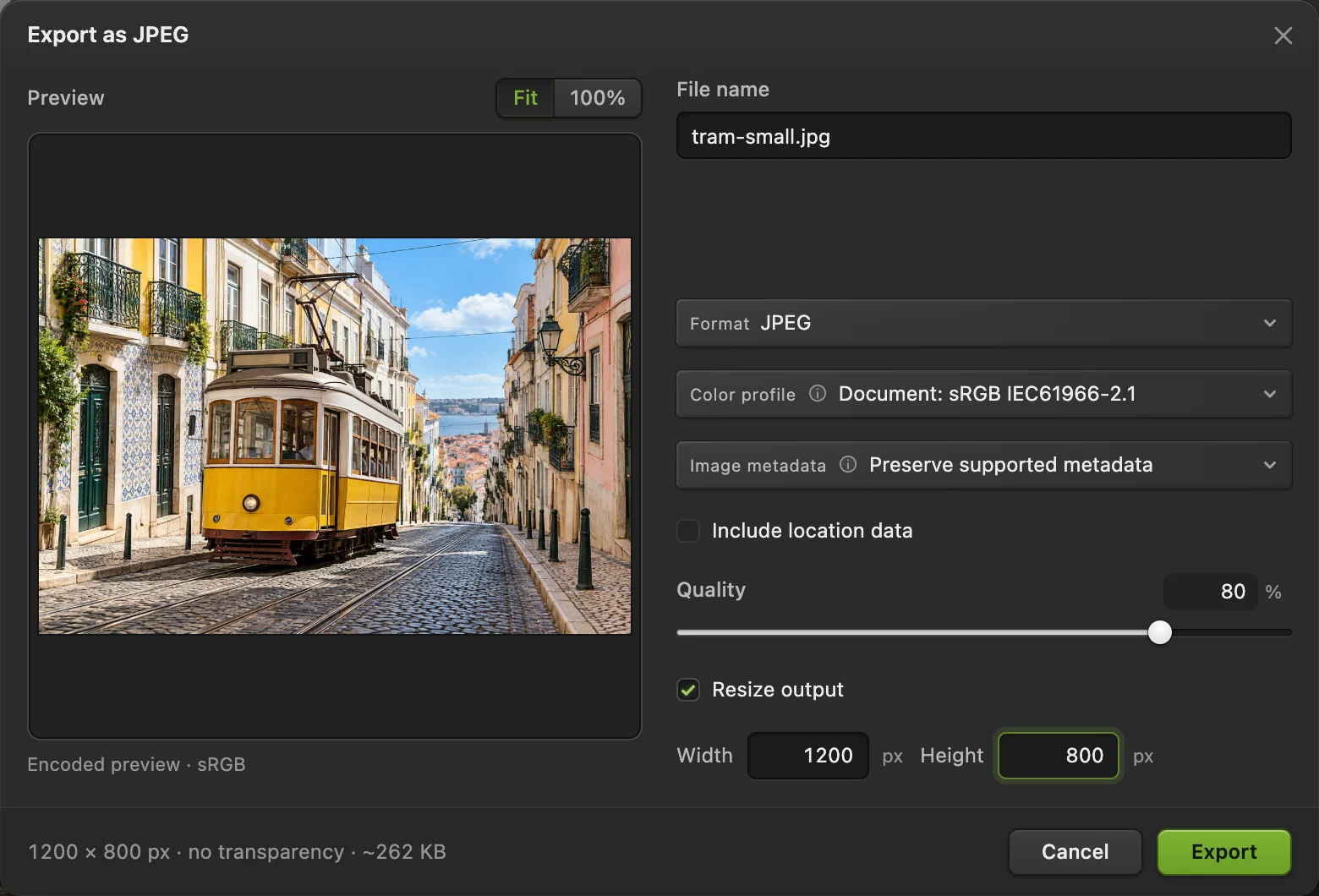
Choose for a photo going into a form, email or an app that asks for JPG. The dialog shows a preview on the left and export settings on the right. Give File name a name you can recognize, such as tram-small.jpg.
Tip Does the picture need a transparent background? Choose WebP… if the destination accepts it, or PNG… JPEG fills transparent areas with white.

makes a new JPG copy. Lower Quality and inspect the detail
Type 80 in Quality as a starting point. Wait for the preview and estimated size to update. Click 100% above the preview to see the saved pixels rather than a fitted thumbnail. Scroll inside the preview to inspect faces, text and sharp edges.
If edges turn fuzzy, small text breaks up or square patches appear, raise Quality. If the picture still looks good and the file is too large, try 70. Stop at the lowest setting that preserves the detail you need.
Tip 80% quality does not mean 80% of the original file size. The result depends on the picture and the format. Use the size at the bottom as a guide.
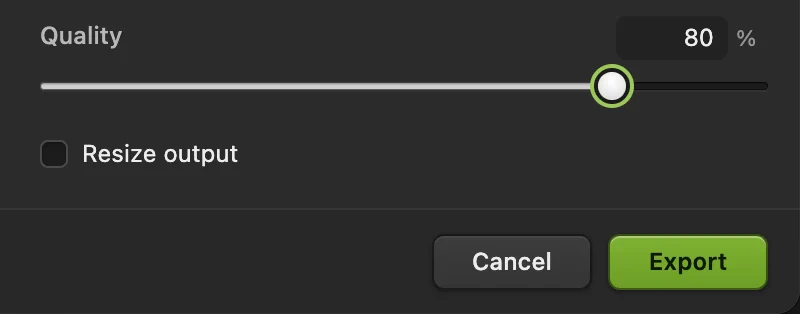
Start at Quality 80, then adjust for the detail you need. 
At the original dimensions, Quality 80 gives an estimate of about 411 KB. 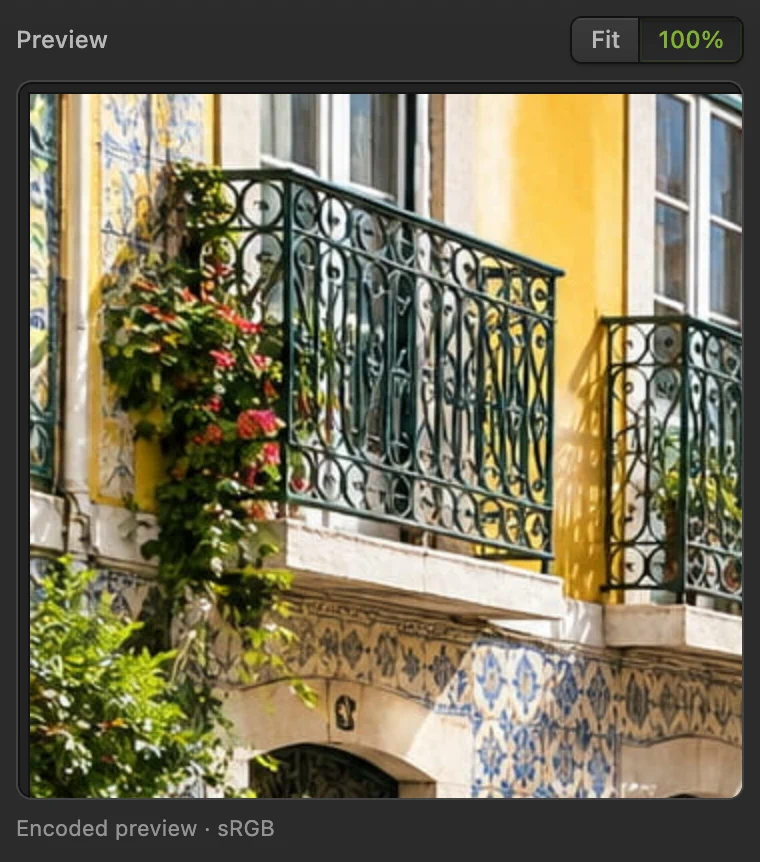
At 100%, the preview shows fine edges without fitting the whole photo. Reduce the output dimensions if needed
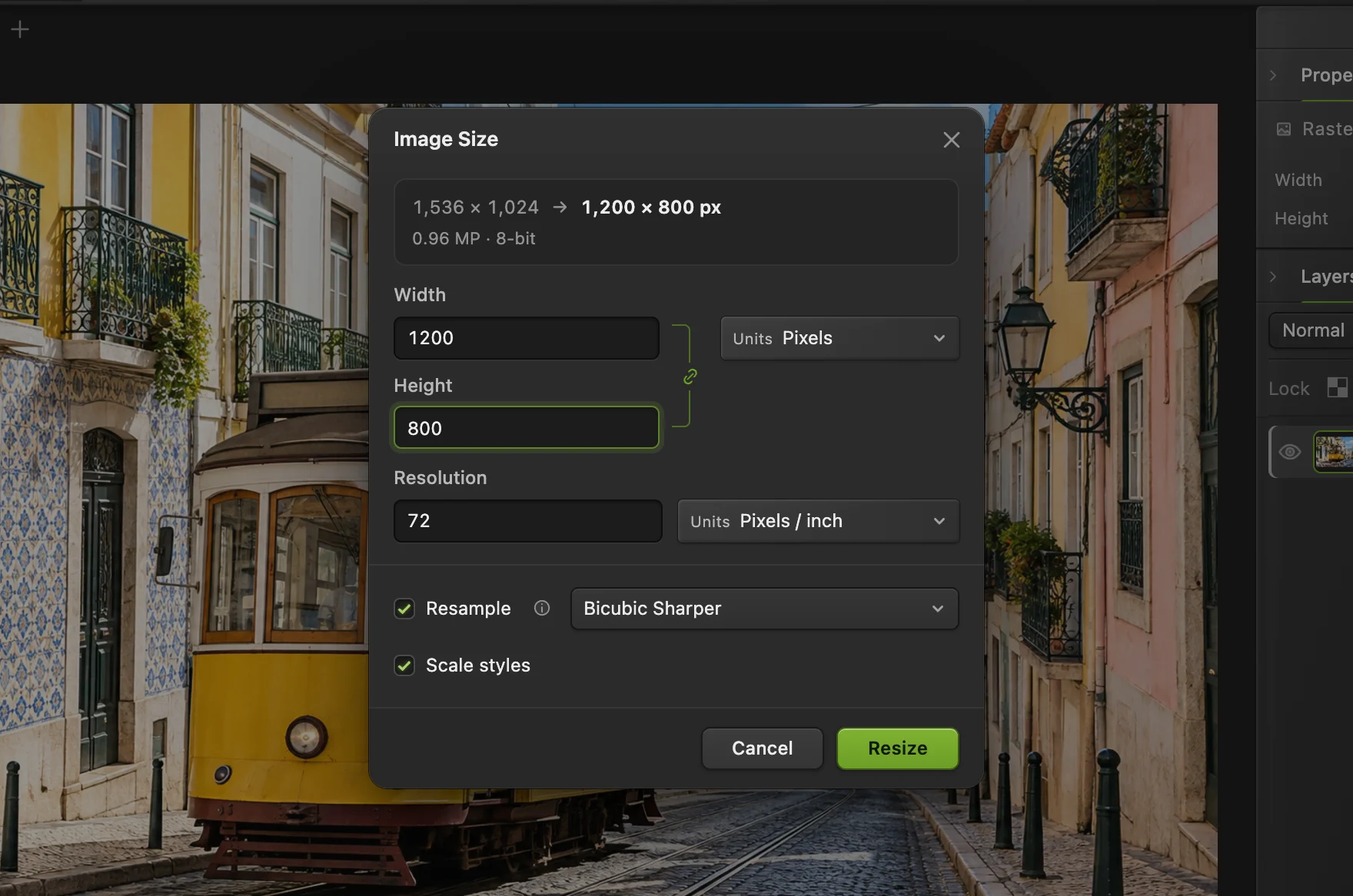
If quality alone cannot meet the limit, tick Resize output. Type a smaller Width, such as 1200 for the sample. Its height becomes 800 automatically: the copy keeps the same proportions.
Wait for the new estimate, then inspect the preview again. Use dimensions large enough for the destination; a form with a minimum width of 1000 pixels will not accept a 600-pixel image even if its file size is small.
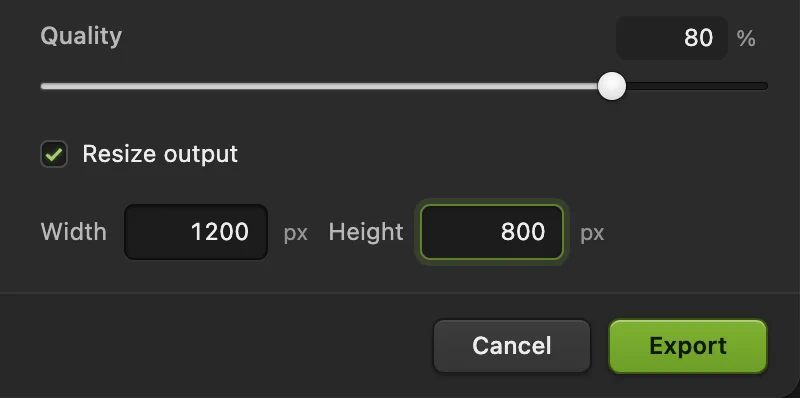
Enable Resize output. Width and Height stay in proportion. 
The smaller copy is about 262 KB in the estimate; the open document stays at 1536 × 1024. Export and check the downloaded file
Click Export. Open the downloaded image, check that its detail is acceptable and read its file size in your computer’s file information. If a form still refuses it, confirm the format, dimensions and size limit, then adjust your export settings.
Aim below the stated limit: the estimate does not include image metadata, and a form may count KB differently. Export writes a new file; writes back into the file you opened, in its own format.

The confirmation names the copy and its export format.
Compress an image to 100 KB or 200 KB
There is no target-KB box. Keep the format and minimum dimensions the destination requires, then adjust Quality and Width.
- Below 200 KB: for this sample, JPEG at Quality 80 and 950 × 633 pixels downloads as 183 KB.
- Below 100 KB: for this sample, JPEG at Quality 70 and 800 × 533 pixels downloads as 95 KB.
Your photo may need different settings. If it becomes visibly damaged before reaching the limit, raise Quality and reduce Width instead. Never go below the destination’s minimum dimensions.
At the same Quality, file size roughly follows pixel count. The sample’s 1200 × 800 copy has 61% of the original pixels and 64% of its Quality-80 JPEG size. Halving both sides leaves one quarter of the pixels, so reducing dimensions often helps more than a small quality change.
Try WebP when the destination accepts it
Choose and leave Lossless WebP unticked to adjust Quality. WebP keeps transparency, so it is an option for cut-outs as well as photos. Export both JPEG and WebP if you need to compare their size at an acceptable level of detail.
A Quality value of 80 is not a matching visual standard across formats. Compare the pictures, not just the numbers.
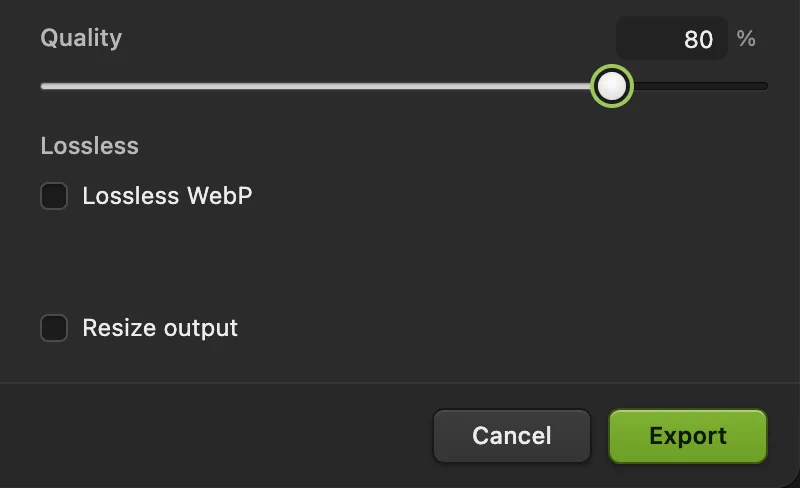
AVIF is another option, with a different quality scale
uses a different Quality scale from JPEG and WebP. For this sample, AVIF at 80 was larger than JPEG at 80; at Quality 50 it was 240 KB. On this image, 50 is a more useful starting point; small balcony and tile detail softens, so raise Quality if those details matter. Judge the visible detail rather than copying a number between formats.
AVIF shows a Document preview, which shows the open image rather than the compressed result, and has no size estimate. Reopen its exported copy to inspect it. Smaller file (slower) spends more time encoding.
What if I need compression without losing quality?
Lossless means keeping every pixel value. In PNG export, keep Preserve every color and transparency value ticked. Use a palette when possible can store an image with few colors more compactly without changing its pixels. In WebP export, tick Lossless WebP.
For a detailed photo, lossless PNG or WebP is usually much larger than a lossy JPEG, so it is unlikely to shrink an existing JPG. Lowering PNG Quality reduces colors, including transparent edges; inspect those edges before using it for a logo or signature. Resizing also removes pixels, so it is not a lossless way to shrink a file.
Image metadata › None omits camera and descriptive data; it saves a little space at most and doesn’t change pixels.
Why quality and dimensions both matter
Lossy compression, used by JPEG, stores less detail to save space. A higher Quality value keeps more detail, but even JPEG at 100% is lossy. Resizing reduces the number of pixels before compression. The exact saving depends on the photo’s detail and the encoder.
Do your edits on the original or an editable project, then export the final small copy once. Reopening a compressed JPEG and saving it repeatedly can add further damage; turning it into PNG afterward does not restore lost detail.
Fix common problems
The compressed file is bigger than the original
The original may already use a lower quality or a more compact format. Lower Quality, reduce dimensions if you can, or keep the original if it already meets the limit. Changing JPG to PNG usually does not help a photo.
The file is small enough but the form still rejects it
Check the accepted format and minimum or maximum pixel dimensions. Export a real JPEG when JPG is required; renaming a .webp file to .jpg does not convert it.
The photo looks sharp in the preview but blurry after export
For JPEG and WebP, inspect the preview at 100%, not Fit. For AVIF, inspect the downloaded file: its dialog shows the document preview.
The Quality slider will not move
Lossless WebP or Lossless AVIF is enabled. Untick it to use lossy Quality. A 16-bit PNG preserves full color precision and does not allow quality reduction.
A transparent background became white
JPEG cannot keep transparency. Export PNG or WebP instead, if your destination accepts it.
Prepare the image for its destination
- Need exact dimensions? Resize the image.
- Need a different format? Convert the image format.
- Remove unused edges before exporting: crop the image.
- Keep transparent edges: make the background transparent.
File sizes from the sample photo
The sample starts at about 782 KB. These are actual downloads from the same open original. Sizes here use 1024 bytes per KB, rounded; an upload form may count differently.
| Export | Dimensions | Downloaded size |
|---|---|---|
| JPEG, Quality 90 | 1536 × 1024 | 694 KB |
| JPEG, Quality 80 | 1536 × 1024 | 411 KB |
| JPEG, Quality 70 | 1536 × 1024 | 289 KB |
| JPEG, Quality 80 | 1200 × 800 | 263 KB |
| JPEG, Quality 80 | 950 × 633 | 183 KB |
| JPEG, Quality 70 | 800 × 533 | 95 KB |
| WebP, Quality 80 | 1536 × 1024 | 369 KB |
| AVIF, Quality 50 | 1536 × 1024 | 240 KB |
These settings are examples for this photo, not promised sizes or matching quality across formats.
Coming from another editor
- Photoshop
- File › Export › Export As…, then choose JPG and adjust Quality and Image Size.
- GIMP
- File › Export As…, use a .jpg file name, then adjust Quality in the JPEG export dialog.
- Mac Preview
- File › Export…, choose JPEG in Format, then adjust Quality.
Image compression: questions and answers
How do I compress an image without changing its dimensions?
In Lil Cactus, choose File › Export › JPEG… and lower Quality while leaving Resize output unticked. The width and height stay the same. Check the detail at 100% and the downloaded file size.
How do I compress an image to 200 KB?
In Lil Cactus, choose File › Export › JPEG…, set Quality to 80 and reduce Width with Resize output. The sample fits below 200 KB at 950 × 633 pixels; your photo may need different settings. There is no automatic target-size box.
Can I compress a JPEG without losing quality?
Not by re-exporting it. In Lil Cactus, even JPEG at 100% is lossy. Lossless PNG or WebP can preserve decoded pixels, but is usually much larger for a photo and is unlikely to shrink the original JPEG.
Which image format should I use for a smaller file?
In Lil Cactus, use JPEG when a form or app requires JPG. If the destination accepts WebP or AVIF, export a copy and compare its size and visible detail. Keep PNG lossless for graphics where exact colors and sharp edges matter.
Does compressing an image change the original file?
No. In Lil Cactus, File › Export writes a separate compressed copy. Resize output affects only the exported copy.
Is my photo uploaded when I compress it?
No. In Lil Cactus, opening and exporting happen on your device in the browser. Optional usage statistics do not include your image; see the privacy policy.
Keep going
 How to resize an image online to exact pixels or print sizeExact pixels, percent or print size, without stretching.Beginner · 2 min
 How to convert HEIC, WebP and PNG to JPG onlineConvert HEIC, WebP or PNG to JPG, or choose another image format.Beginner · 2 min
 How to crop an imageChoose what stays in the frame, then set the shape and size.Beginner · 6 min