How to convert a JPG or PNG image to PDF
Quick answer
In Lil Cactus, open your image and choose Replace File name, set Print resolution and click Export. For the 1536 × 1024 px practice photo, 300 ppi produces a landscape PDF page about 130.0 × 86.7 mm, with the original pixel dimensions.
- Time
- 3 minutes
- Level
- Beginner
- You need
- An image open in the editor
- Works with
- 8- and 16-bit images, including JPG, PNG and layered projects
PDF gives the image a page size. Print resolution is measured in ppi, or pixels per inch: at a fixed pixel count, a higher value makes a smaller page.
Lil Cactus exports the visible design as a flattened image inside the PDF. Use this route for a photo or a design that is ready to share.
Export a photo as PDF in four steps
Open the image
Open the practice photo from this page. For your own image, choose and select a JPG, PNG or another supported image.
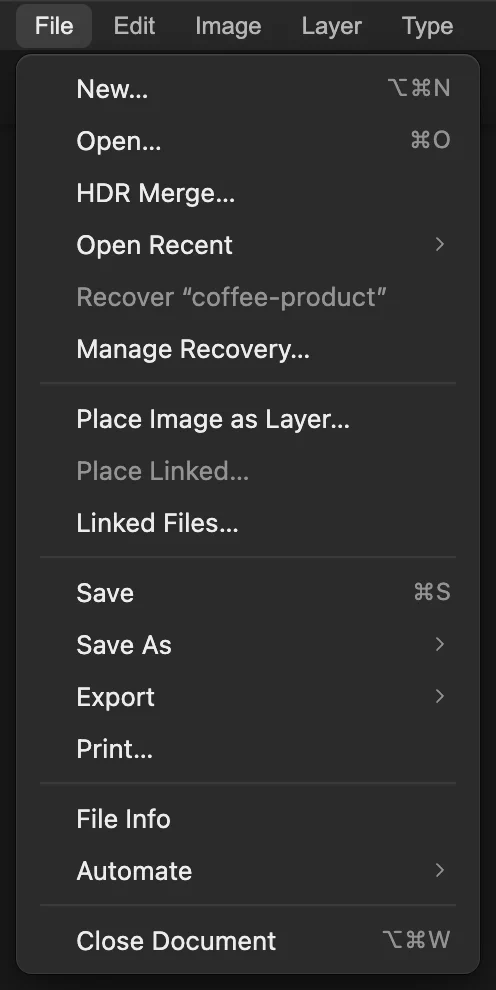
Open brings your image into the editor. Choose File › Export › PDF…
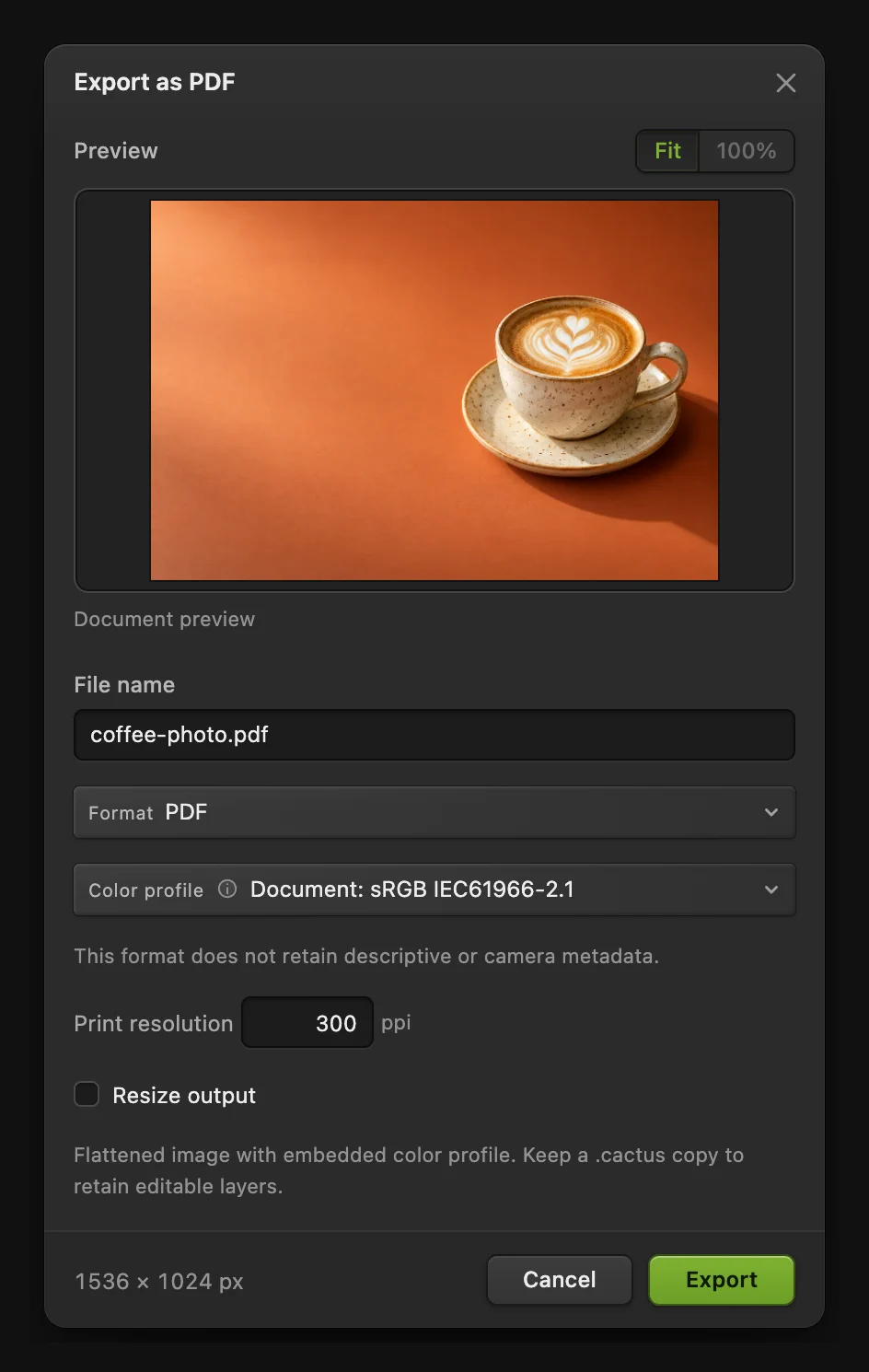
Choose The Export as PDF dialog opens with a preview and the output controls.
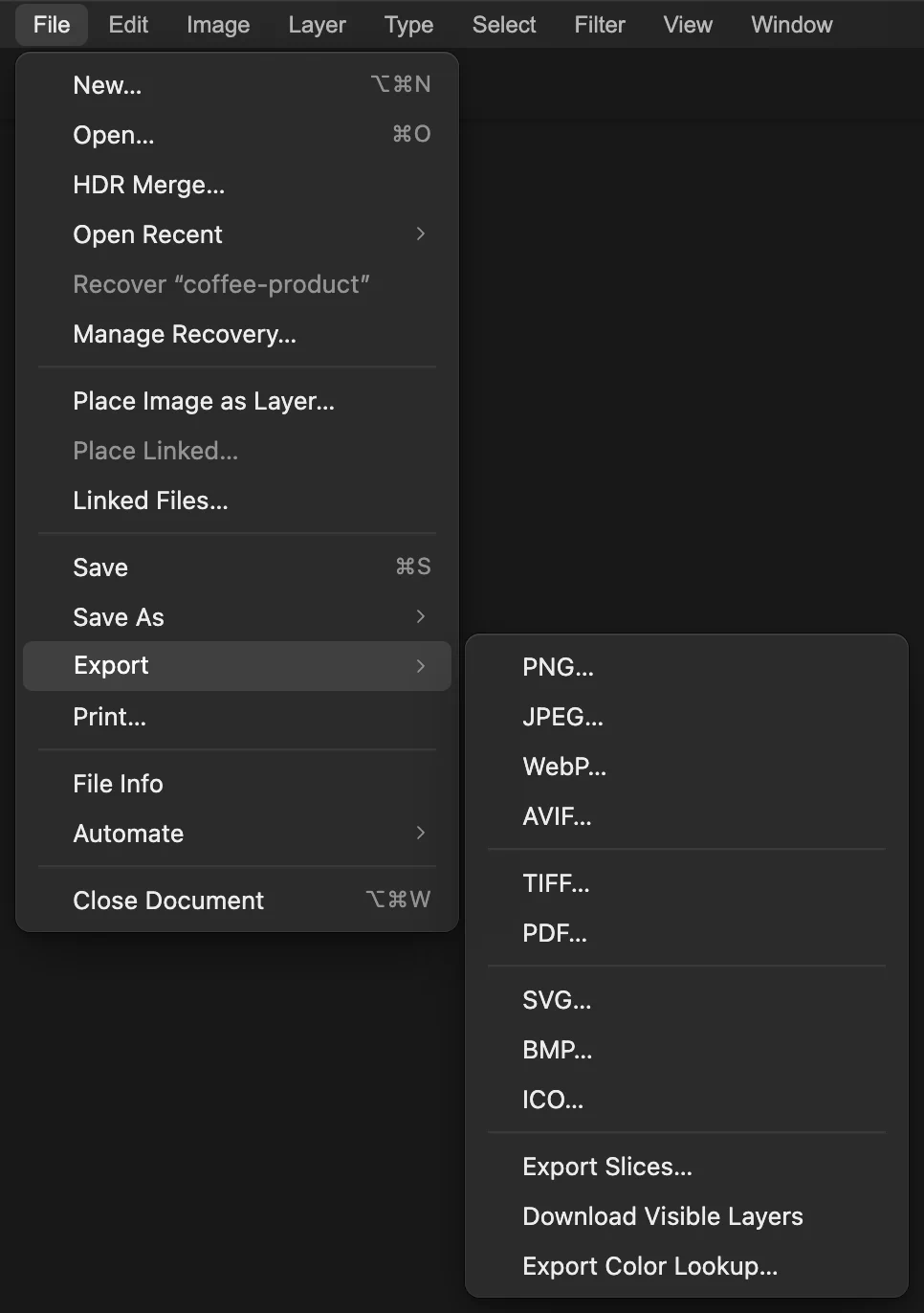
PDF is under File › Export. Name the PDF and set its page size
Replace File name with coffee-photo.pdf. Print resolution starts at the image’s own resolution, 72 ppi for this photo, which would make a page about 54 cm wide. Replace Print resolution with 300 ppi and press Enter to commit it.
For this sample, the PDF page will be about 130.0 × 86.7 mm. Hover over the size at the bottom left of the dialog to see the page size in millimeters. The embedded image stays at 1536 × 1024 pixels.
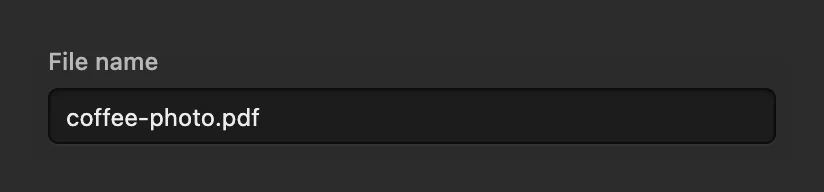
Replace the existing file name. 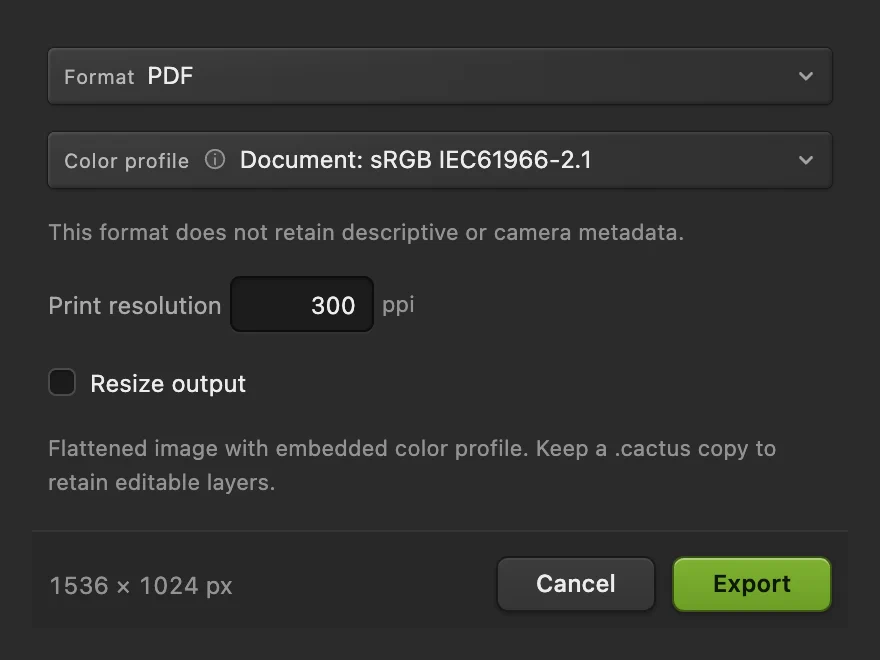
Set the page’s physical size, then hover over the footer summary to read its size in millimeters. Export and check the PDF
Click Export. Open the downloaded PDF in a PDF viewer and check that it has one landscape page, with the whole cup and all four edges of the photo visible.

The footer confirms the output pixels; Export downloads the PDF.
Make a smaller PDF file
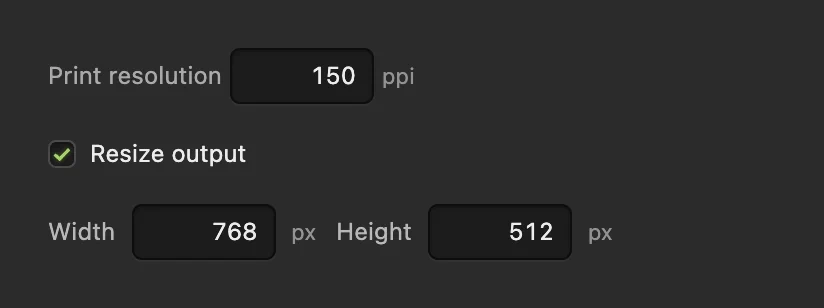
Choose again and replace File name with coffee-photo-small.pdf. Turn on Resize output and set Width to 768 px; Height changes to 512 px to match. Set Print resolution to 150 ppi. Halving both pixel dimensions and the ppi keeps the page size the same while storing fewer pixels.
For the practice photo, the PDF fell from about 1.50 MB to 0.51 MB. Fine detail is reduced, so inspect the smaller copy before using it.
What to do next
- Choose another image format: convert an image format.
- Keep an editable version: save and export your work.
- Change the source pixel dimensions: resize an image.
Image-to-PDF conversion: questions and answers
Can I convert a JPG or PNG to PDF?
Yes. In Lil Cactus, open the JPG or PNG, then choose File › Export › PDF… Set the output name and print resolution, then click Export.
Does the PDF keep editable layers and text?
No. Lil Cactus flattens the visible design into an image inside the PDF, including text layers. Use File › Save As › Lil Cactus Project… when you want to keep editable layers and text.
Why is my PDF page so large?
In Lil Cactus, the PDF page size is the image’s pixel width and height divided by Print resolution, which starts at the image’s own resolution, often 72 ppi. Set it to 300 ppi for a print-sized page: a 1536 px-wide image becomes about 13.0 cm wide instead of 54.2 cm.
Does setting 300 ppi add detail to my image?
No. In Lil Cactus, changing Print resolution alone changes the PDF’s physical page size. It does not add pixels or recover missing detail.
Why is the PDF bigger than my JPG?
Lil Cactus uses lossless compression for the flattened image in a PDF. That file can be larger than the original JPEG. Use Resize output in the PDF export dialog when fewer pixels are acceptable.
Is my image uploaded when I convert it to PDF?
No. Lil Cactus makes the PDF in your browser and downloads it to your device; the image is not sent to a server. Optional usage statistics are described on the privacy page.
Keep going
 How to convert HEIC, WebP and PNG to JPG onlineConvert HEIC, WebP or PNG to JPG, or choose another image format.Beginner · 2 min
 How to save and export an image in Lil CactusKeep an editable master and make a separate image to share.Beginner · 5 min
 How to resize an image online to exact pixels or print sizeExact pixels, percent or print size, without stretching.Beginner · 2 min