How to save and export an image in Lil Cactus
Quick answer
In Lil Cactus, choose to keep photos, text and layers editable. or makes a separate sharing copy. updates the current file in its own format, including JPEG, PNG, WebP, TIFF, AVIF, PSD and .cactus; after saving as a project, Save saves that project.
- Time
- 5 minutes
- Level
- Beginner
- You need
- An open image or design, or the sample below
- Works with
- Saves .cactus, PSD and the opened image’s own writable format; exports JPEG, PNG, WebP, AVIF, TIFF, BMP, ICO, SVG and PDF
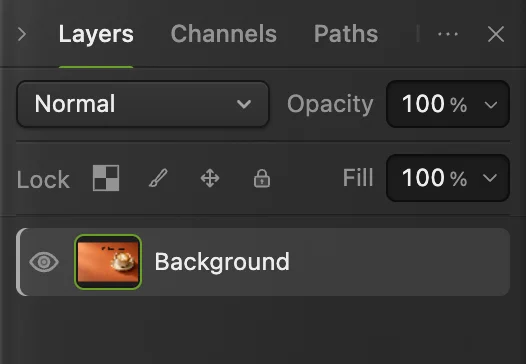
Drag the comparison above to see the reopened project on the left and JPEG on the right. The project keeps Text and Background separate. The JPEG combines their visible result into one flat image: you can edit its pixels, but cannot select the original words independently.
Keep a .cactus master for later edits. Export JPEG for a photo, or PNG when you need transparency. Use PSD for a layered handoff to another editor, and read any notes about features it cannot keep editable.
Save editable text and a sharing copy
Add text to the practice photo
Click Open the sample. Right-click the toolbar’s Text button and choose Text from its group. Set Size on the options bar to 100. Click the empty space above the cup, type Coffee break, then click the checkmark on the options bar to finish.
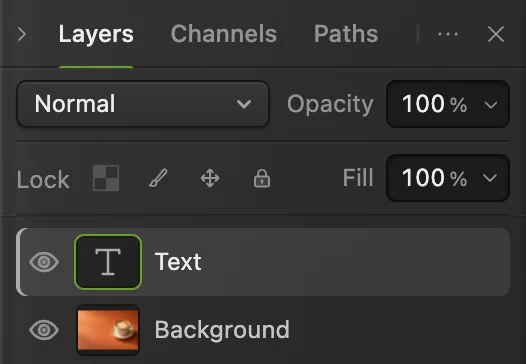
The Layers panel now shows a Text layer above Background. The T thumbnail tells you the words are still text. If your own design already has separate layers, use it without adding practice text.
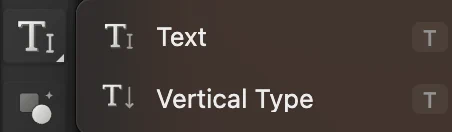
Choose Text from the toolbar group. 
Size 100 makes the practice words visible on this photo. 
The words sit on their own layer. 
The checkmark finishes text editing. Save the editable master as a project
Choose Save coffee-product.cactus in a folder you can find again. Your browser either asks where to save or downloads the file. If it downloads, confirm that the .cactus file arrived before closing.
The tab now identifies the project. From this point, saves the .cactus master rather than the original JPEG.
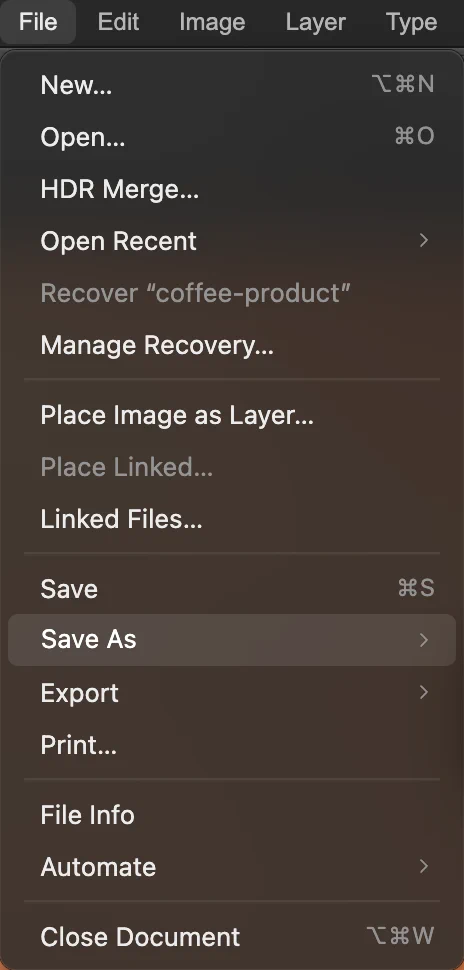
Open Save As in the File menu. 
Choose Lil Cactus Project… for the master. Reopen the project and check the text
Choose and select coffee-product.cactus. In the new tab, Layers still shows Text and Background. With the Text tool selected, click the words: you can place a cursor in them. Click the checkmark without changing them.
Choose to close this verification tab. You return to the master from step 2.
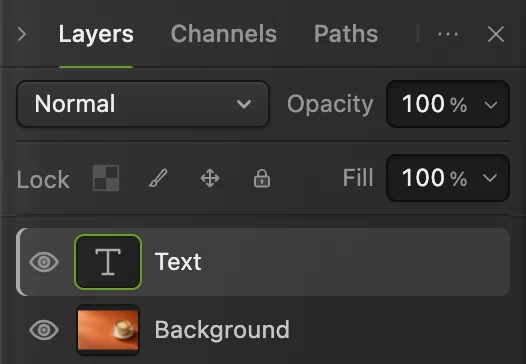
The reopened project keeps the words editable. Make a PSD when you need a layered handoff
From the master tab, choose and save coffee-product.psd. Open it with : this sample retains its text layer. A yellow ! beside Text means Lil Cactus has not verified the exact font in the PSD. Editing those words may change their appearance; use the .cactus master for wording changes. Close the verification tab with .
Save As has made the original tab represent the PSD. Choose and open coffee-product.cactus to continue the master. For complex designs, read any PSD export notes and check the file in the receiving editor; some features may become rendered pixels instead of editable controls.

Photoshop (.psd)… creates the layered handoff. 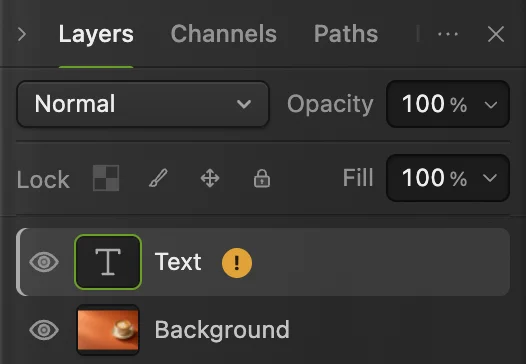
This sample’s text remains a separate text layer in the PSD. Export the JPEG for sharing
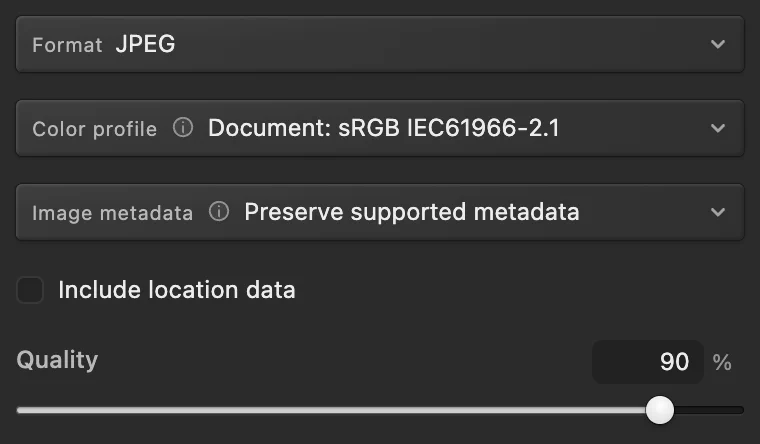
In the .cactus master, choose Set File name to coffee-share.jpg and leave Quality at 90. Click Export. The download message identifies the new file.
For a logo or cutout with transparency, use instead. JPEG fills transparent areas with white; PNG can keep them. Both combine the visible layers into one image.
Follow making a background transparent if you still need to remove it.
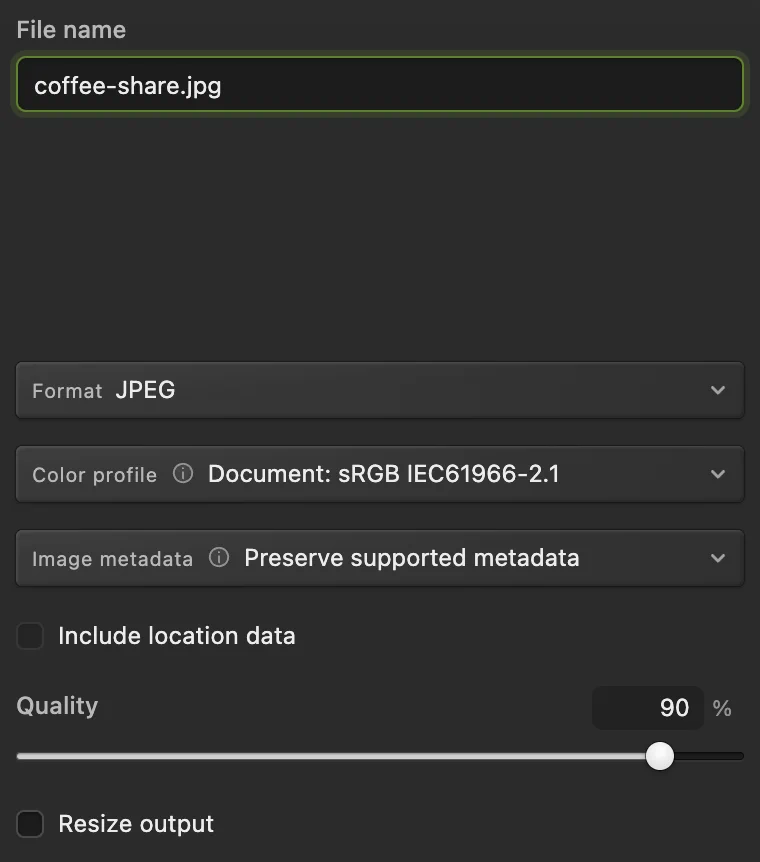
Give the sharing copy its own name. 
The message shows the sharing copy’s name, format and size. Reopen the JPEG and check the sharing copy
Open coffee-share.jpg with The words are visible, but Layers contains only Background: the text is now part of the picture. Close this check tab with .
To change the wording later, select the Text layer in the .cactus master, edit it, save the project and export a fresh sharing copy.
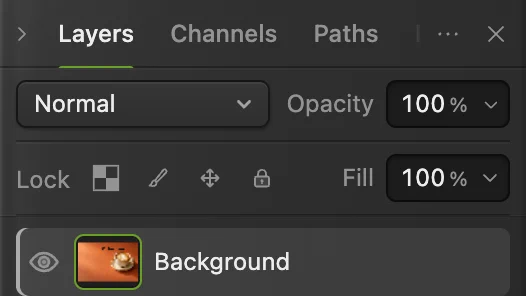
The JPEG contains the words as pixels, without a separate Text layer.
Use Save to update the file you opened
(Ctrl+S or ⌘S) keeps an opened JPEG, PNG, WebP, TIFF, AVIF, PSD or .cactus file in its current format. With local file access, it writes to that file; otherwise your browser can ask for a location or download a copy. Inputs without a writable image format, such as HEIC, GIF and camera RAW, save as .cactus projects. A new blank document also saves as a project.
The first Save of a JPEG opens Save Image. Keep JPEG selected and click Save, or Cancel to leave it open without saving. The JPEG output combines the visible layers, while the open editing document keeps them separate.
For an extra project snapshot without switching the current file, choose . It downloads a .cactus copy and leaves the current file and unsaved state unchanged.
Fix common saving problems
The unsaved dot is still there
Export leaves the document’s saved or unsaved state unchanged. A project download can also keep the dot because the browser cannot confirm a completed file write. A confirmed JPEG save can keep it when the document contains editable layers the output cannot preserve.
Recovery up to date means a recovery copy is current in this browser, not that you saved a project file.
I cannot find the exported image
Open your browser’s downloads list and look for the name in the editor’s message. If the browser reports a blocked or incomplete download, resolve that message and export again.
The JPEG has lost my text layer
Reopen the .cactus master to edit the words. A flat JPEG alone cannot restore the original text layer.
The PSD looks right but a setting is no longer editable
Read the PSD export notes for that layer. Reopen the .cactus master to adjust features the PSD did not keep editable, then make a new PSD.
Save reports a permission or file-change error
Leave the document open and read the message. Choose to keep a separate project. If the original changed outside the editor, check that other version before replacing it.
Prepare the copy for its destination
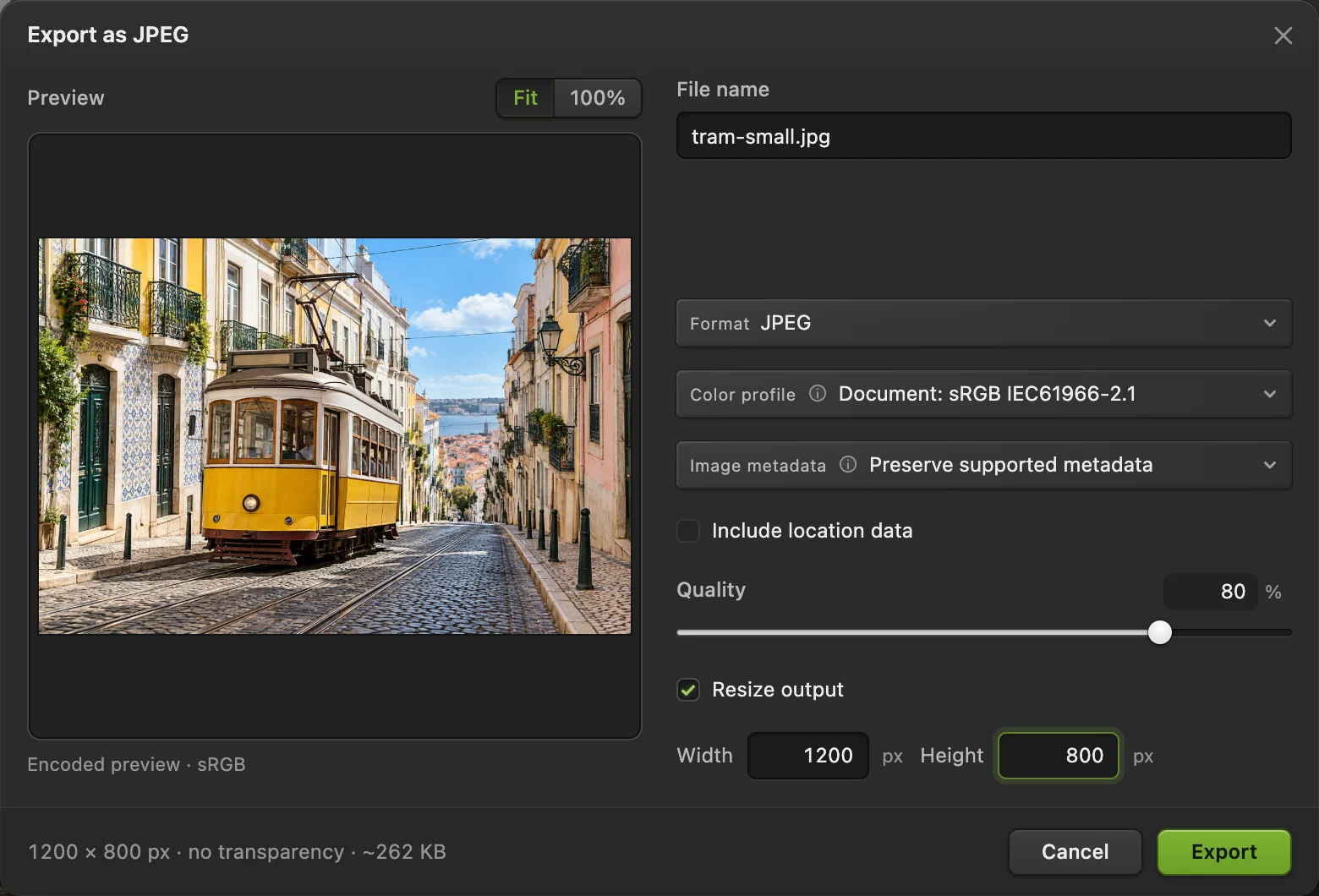
- Resize an image to the required pixel dimensions.
- Choose an image format for the receiving app or website.
- Reduce the file size to fit an upload limit.
- Recover work after an interrupted session.
Saving and exporting images: questions and answers
What is the difference between Save and Export in Lil Cactus?
In Lil Cactus, Save updates the current file in its writable format, while Export creates a separate image without saving the editing document’s pending changes. Save As › Lil Cactus Project… switches to an editable .cactus master.
How do I save editable layers in Lil Cactus?
In Lil Cactus, choose File › Save As › Lil Cactus Project… and keep the .cactus file. It retains separate text and photo layers for later editing.
Can Lil Cactus save a layered PSD?
Yes. In Lil Cactus, choose File › Save As › Photoshop (.psd)… and read any PSD export notes. Keep a .cactus master for features the PSD cannot preserve as editable data.
Why does Lil Cactus show an unsaved dot after downloading a project?
Lil Cactus can request a browser download but cannot confirm that it reached its final location. A downloaded project can therefore keep the unsaved dot even when the file has arrived.
Should I export JPEG or PNG from Lil Cactus?
In Lil Cactus, choose JPEG for a photo without transparency. Choose PNG when you need transparent areas; JPEG fills them with white.
Can Lil Cactus save a project copy without changing the current file?
Yes. In Lil Cactus, choose File › Save As › Download Project Copy. It downloads a .cactus snapshot while keeping the current file and its unsaved state unchanged.
Keep going
 How to use Lil Cactus: your first photo editYour first edit, from opening a photo to saving the result.Beginner · 5 min
 How to convert HEIC, WebP and PNG to JPG onlineConvert HEIC, WebP or PNG to JPG, or choose another image format.Beginner · 2 min
 How to compress an image to 100 KB or 200 KBLower the file size, check the detail, and fit an upload limit.Beginner · 3 min