How to add text to a photo
Quick answer
Choose the Text tool (the T in the toolbar). On the options bar pick a Font, a Size and a color, click on the photo and type, then press Ctrl+Enter or ⌘↩ to finish. Each piece of text becomes its own layer, so you can move it with the Move tool, line it up with and retype it later. Before you set up a second piece of text, click the photo’s row in the Layers panel, or the new settings change the text that is selected.


- Time
- 5 minutes
- Level
- Beginner
- You need
- A photo with some calm space for the words
- Works with
- JPEG, PNG, WebP, HEIC, PSD and other images
Text in Lil Cactus lives on its own text layer, above the photo. The letters stay letters: you can change the words, the font or the color at any time, and the photo underneath is never touched.
In this tutorial you add a headline and a smaller line to the empty space beside a cup of coffee, in a dark espresso brown that reads clearly on the terracotta, and line the two up.
Add text to a photo in seven steps
Open the photo
Go to lilcactus.app and choose , or drag the photo onto the window. To follow along exactly, open the sample photo from this page.
Choose the Text tool, a font and a size
Click the T button in the toolbar, or press T once. On the options bar, click Font and choose Georgia, then type 100 for Size and press Enter or ↩. Sizes are in pixels of the photo, so 100 px on this 1536 px photo is a large headline. Georgia comes with most computers; if it isn’t in the list, choose another serif font, such as Times New Roman.

Font Georgia, Size 100 px. Pick the text color
New text uses the foreground color, black at first. Click the Color swatch on the options bar, after the alignment and text-direction buttons, enter 2E1A12 (a dark espresso brown) in the # field and click OK. The window is titled Text Color; it changes only the text color, not the foreground color. Text needs strong contrast with what is behind it: on this mid-bright terracotta, dark brown has about twice the contrast of white.

The Color swatch, after the alignment and text-direction buttons. 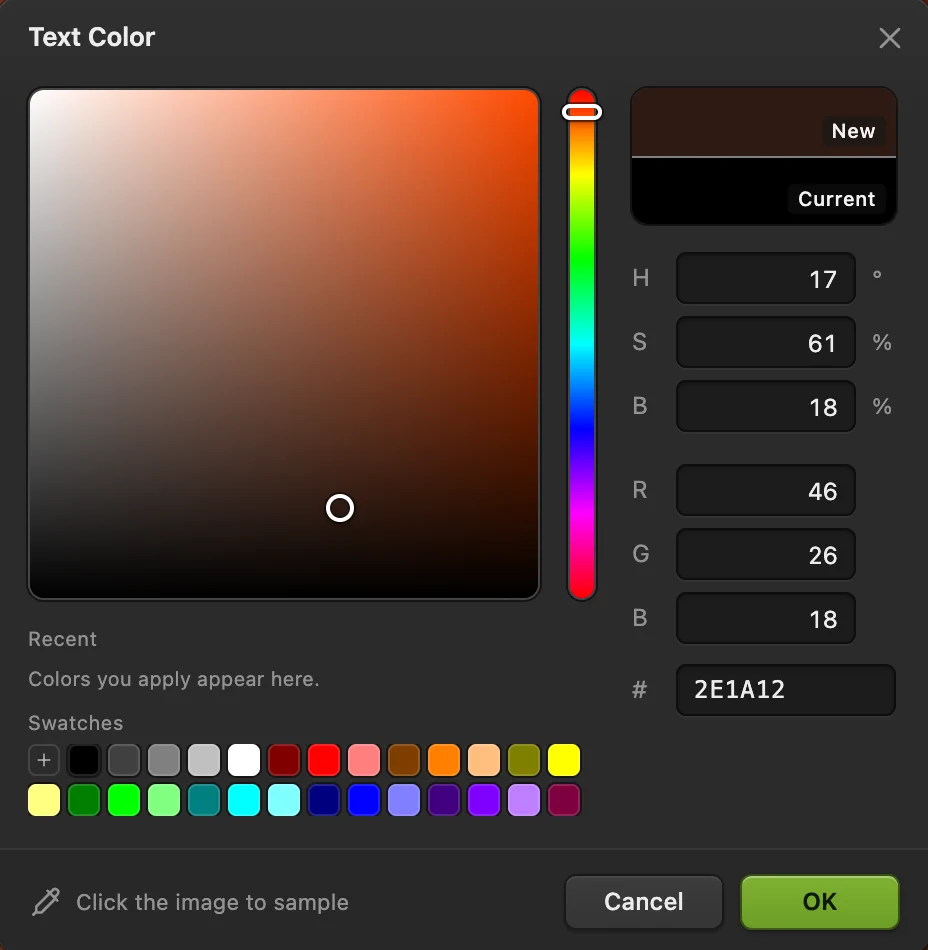
Enter 2E1A12 in the # field. Click and type the headline
Click on the empty terracotta on the left, level with a point a little above the top of the cup: the click marks the bottom of the letters, so leave room above it. Type Slow mornings and press Ctrl+Enter or ⌘↩, or click Commit text (the tick) on the options bar. Enter or ↩ on its own starts a new line instead.
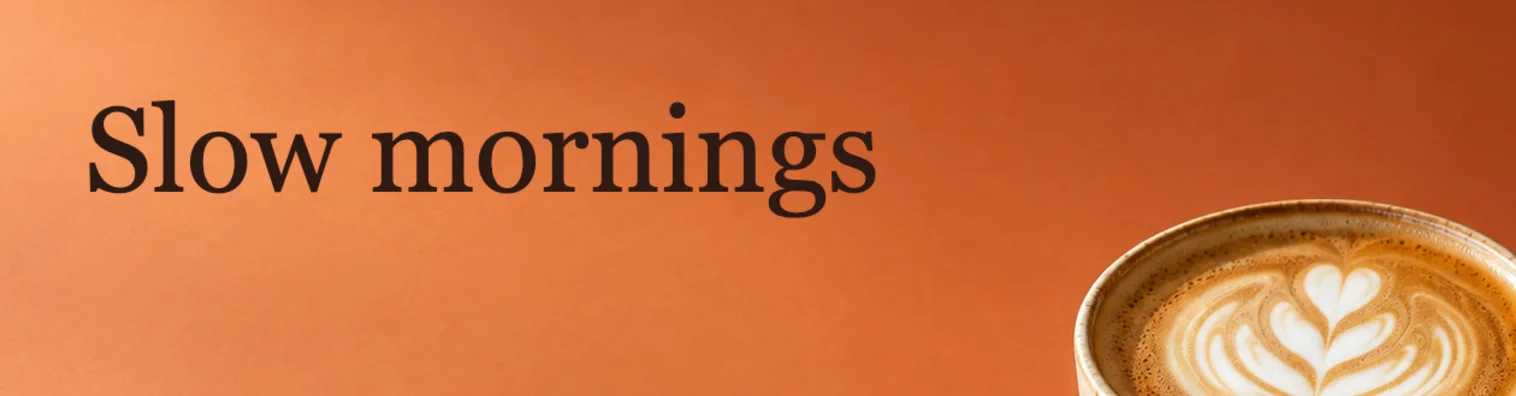
The headline, finished with ⌘↩ or Ctrl+Enter. Add a smaller second line
In the Layers panel, click the Background row first. While a text layer is selected, the font, size and style you choose change that layer, so this keeps the headline as it is. Then type 36 for Size, press Enter or ↩ and click Italic (the slanted I). Italic stays on for text you add later; click it again to turn it off. Click just below the headline, a little to the right of where it starts, type Single-origin coffee, roasted on Fridays and press Ctrl+Enter or ⌘↩.

Two text layers, not yet lined up. Line the two up
The new layers are called Text (the headline) and Text 2. Click the Text row, Shift or ⇧-click the Text 2 row to select both, and choose . The second line moves so both start at the same place. To move the pair, choose the Move tool and drag them.
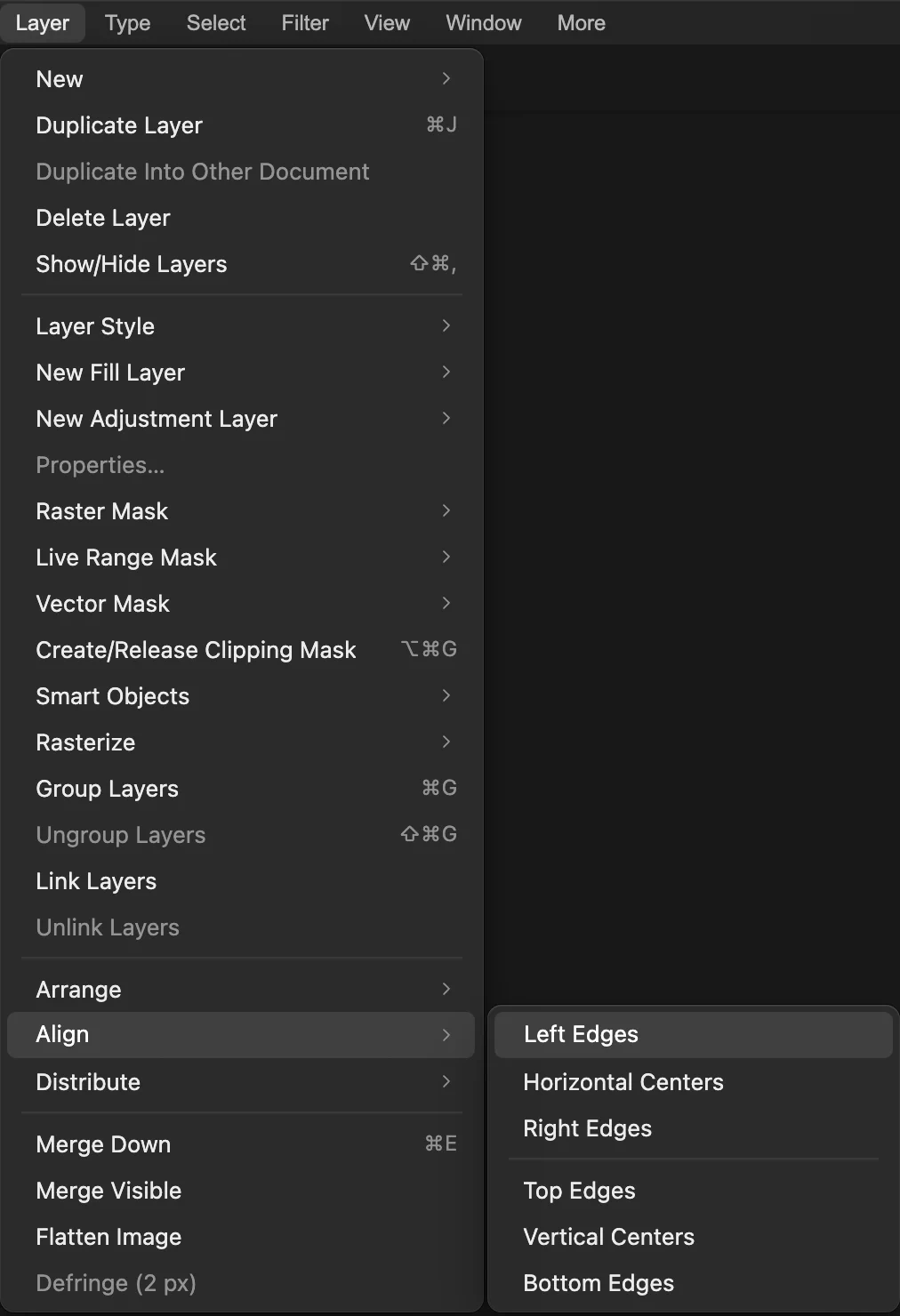
. 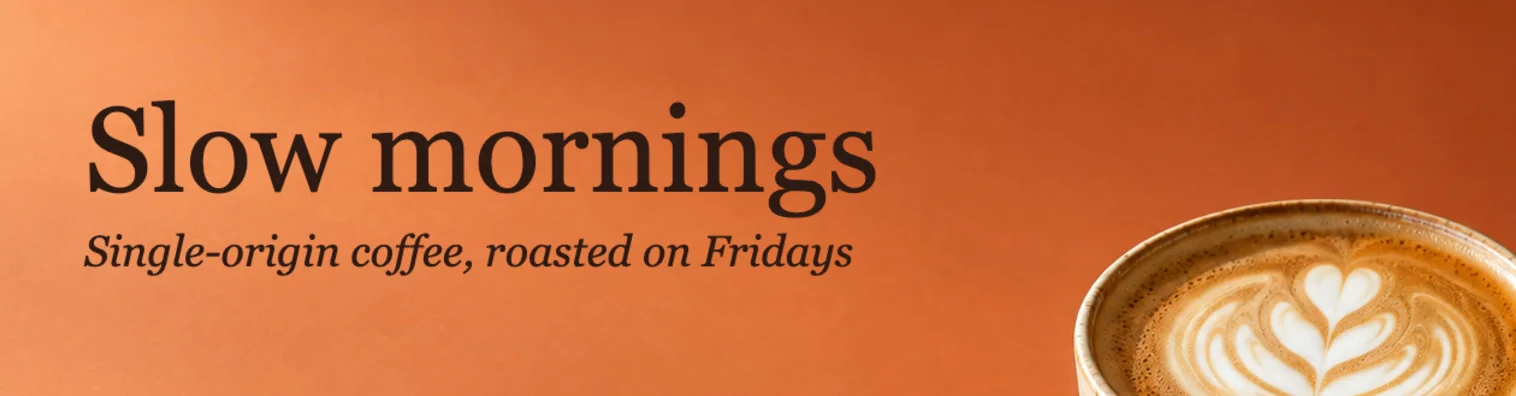
Both lines start at the same left edge. Change the words later, then save
Select a text layer, and its words, font and size show in the Properties panel: edit them there, or choose the Text tool and click into the text on the photo. To keep the text editable, choose (Ctrl+Shift+S or ⇧⌘S); after that, updates the project. Before that, writes the picture back into the JPEG you opened, with the text flattened into it; the first time, it opens the Save Image settings. (or PNG) makes a flat copy for sharing and leaves the file you opened as it was.
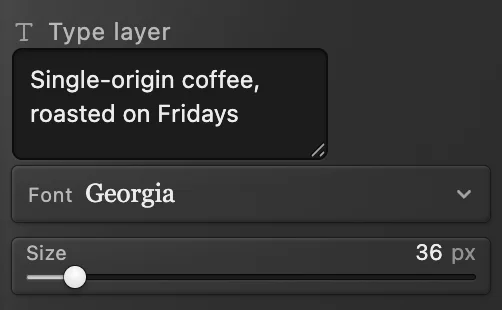
Edit the words in Properties.
Make text easier to read
- Choose a color with strong contrast against the part of the photo behind the words; Bold helps small text.
- Over a busy area, a soft shadow separates the letters from the picture. See how to add a drop shadow.
Use the fonts on your computer
The Font list shows the common fonts it finds on your computer, such as Arial, Georgia and Impact, plus Liberation Sans, which comes with Lil Cactus. To use the others installed on your computer, open the list and click Add installed fonts; the browser asks for permission. They stay in the list until you close or reload the page. Some browsers can’t share installed fonts, and Lil Cactus then says so. A font you added from your computer shows in Liberation Sans on a computer that doesn’t have it, and even the common fonts can look different on another device, so send a flat copy made with .
Fix common problems
The letters run down instead of across
The Vertical Type tool is on: pressing T again switches between the two. Click Horizontal text on the options bar, or right-click the T button in the toolbar and choose Text.
My headline changed when I set up the next line
It was still selected. Choose from the menu, not its shortcut (while the Size field has focus, the shortcut changes the field instead), until the headline is back to its size (each digit you typed is one step), or select it, type 100 again and click Italic to turn it off. Then click the Background row and set the size for the new line.
Coming from another editor
- Photoshop
- The Horizontal Type tool (T), with Layer › Align for lining up layers.
- Mac Preview
- Tools › Annotate › Text.
Adding text to photos: questions and answers
Can I add text to a photo without changing the original?
Yes. In Lil Cactus the text sits on its own layer, and File › Export writes a new file, so the photo you opened stays as it was.
How do I center text on a photo?
In Lil Cactus, select only the text layer and choose Layer › Align › Horizontal Centers; Vertical Centers centers it from top to bottom.
Which file keeps text editable?
A Lil Cactus project (File › Save As › Lil Cactus Project…) keeps every text layer editable. JPEG and PNG copies are flat, so the words become part of the picture.
Can I curve text or put it along a path?
Yes. In Lil Cactus, draw a path and type on it with the Text tool. Curved text shows how.
Is my photo uploaded when I add text in Lil Cactus?
No. Everything runs in your browser, on your own device. When statistics are on, the editor records which tools are used, never the image, as the privacy policy explains.
Keep going
 How to make curved, gradient text with a shadowHeadline text on a curve, with a gradient fill and a shadow that stay editable.Intermediate · 7 min
 How to add a drop shadow and outline with layer stylesShadows, outlines, glows and overlays that stay editable.Beginner · 6 min
 How to make a YouTube thumbnailA cut-out, a two-line headline and an outline at 1280 × 720.Beginner · 8 min