How to put a photo inside text with a clipping mask
Quick answer
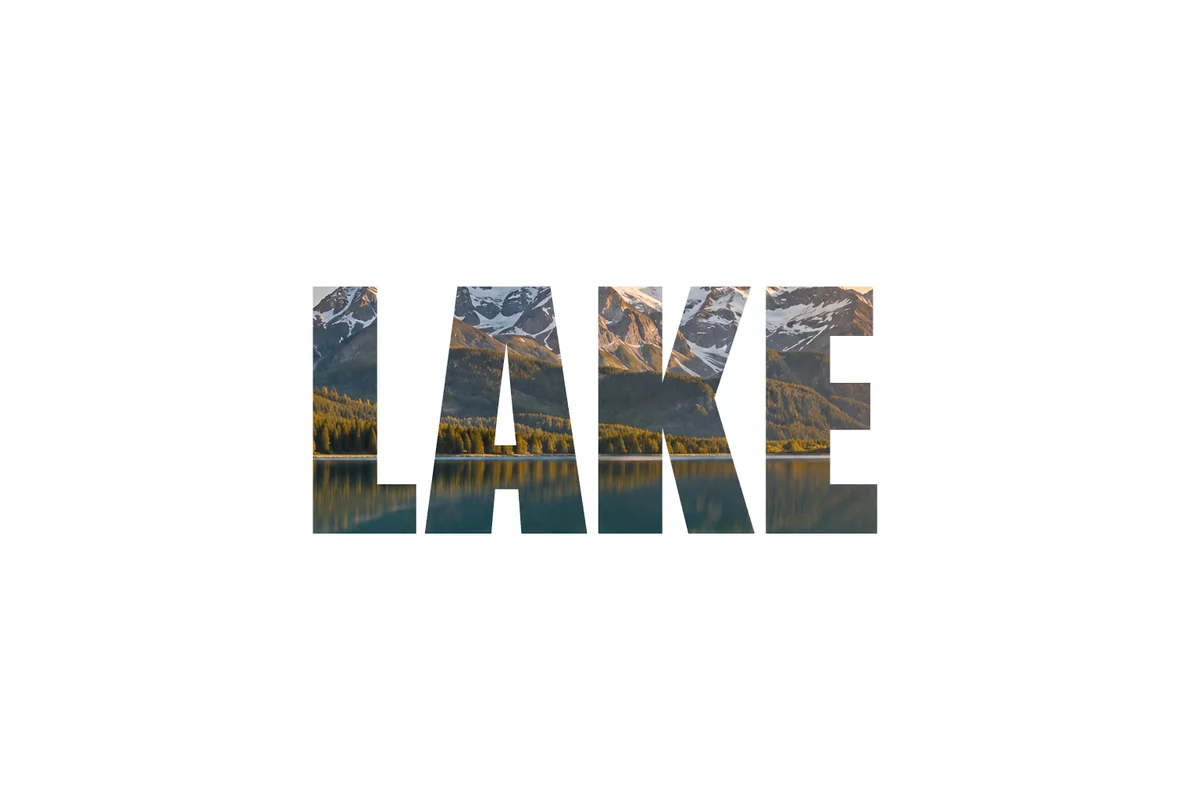
Put the photo layer directly above the text or shape layer in the Layers panel, select the photo and choose . The photo now shows only where the layer below it has pixels, so it fills the letters. Move the photo with the Move tool to choose which part shows; both layers stay editable.
- Time
- 5 minutes
- Level
- Beginner
- You need
- A photo or texture, and text or a shape to fill with it
- Works with
- Any layer: photos, textures, gradients and adjustment layers, clipped to text, shapes or pixel layers
A clipping mask uses the shape of one layer to show another. The bottom layer of the pair, here the text, is the shape; the layer clipped to it, here the photo, shows only where that shape has pixels. Everywhere else the clipped layer is hidden.
Nothing is cut or merged: the text stays editable text and the photo stays a whole photo, so you can retype the word or slide the photo around later. In this tutorial you fill the word LAKE with the lake photo.
Put a photo inside text in seven steps
Open the photo
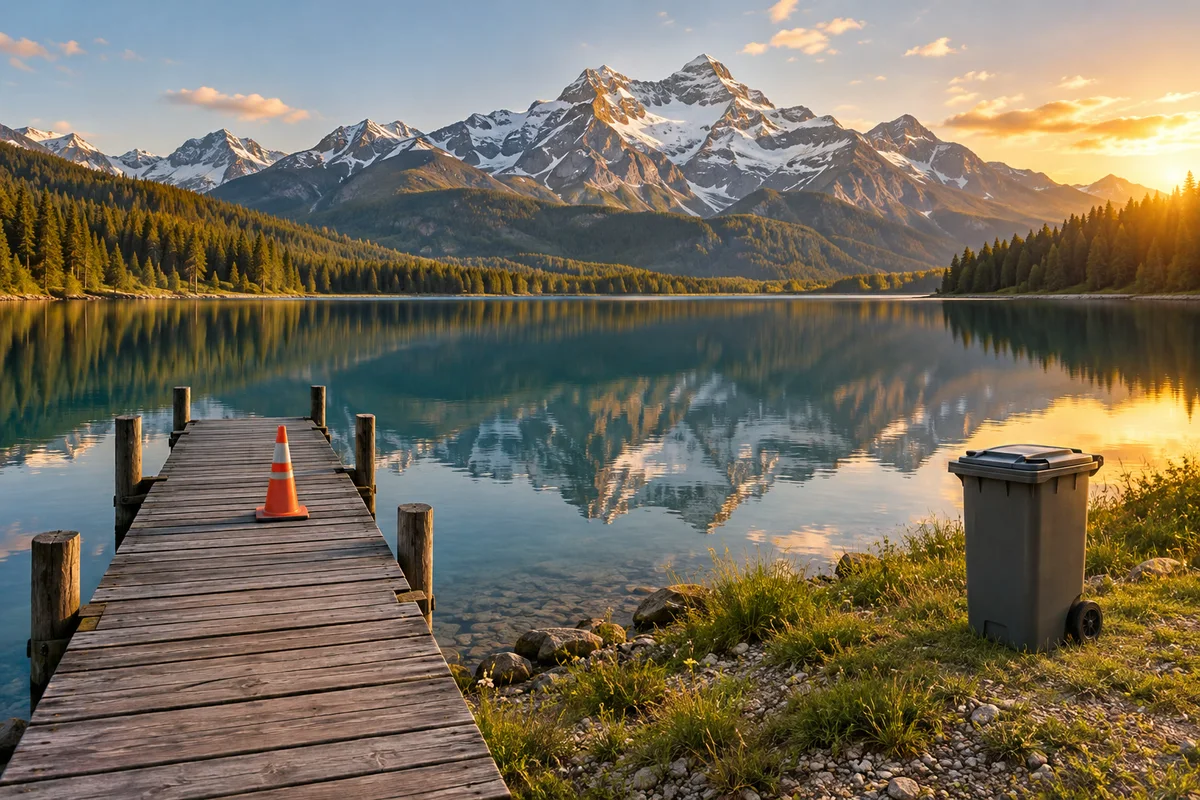
Go to lilcactus.app and choose (Ctrl+O or ⌘O), or drag the photo onto the window. To follow along exactly, open the sample photo from this page. It becomes a layer called Background.
Add a white background layer
Press D and then X, so white is your foreground color (the top swatch at the bottom of the toolbar). Choose : the color starts as the foreground color, white. Click Apply. A Color Fill layer covers the photo with white; it will be the background around the letters.
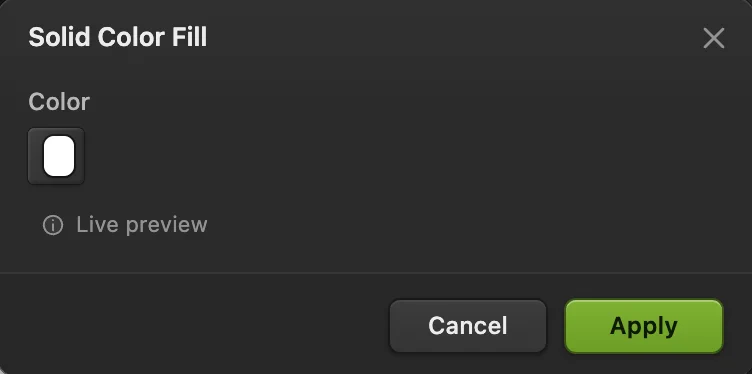
Solid Color Fill, starting from the foreground color: white. 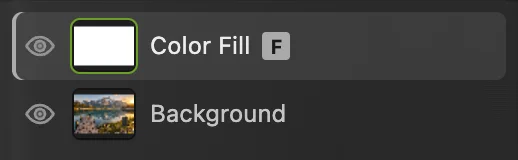
The white fill layer sits above the photo. Type the word
Press D again for black, then T for the Text tool. On the options bar (the strip under the menus), choose Impact in the Font list and type 400 for Size. Click about a quarter of the way in from the left edge and two-thirds of the way down (the click marks the bottom of the letters), type LAKE, and press Ctrl+Enter or ⌘↩ or click the green tick.
Thick letters work best: the photo shows only inside them. If the letters come out thin (Impact isn’t installed on every computer), choose Arial and click the B (Bold) button on the options bar.

Impact at 400 px. The B button turns on bold. 
The word, on its own text layer. Drag the photo to the top
In the Layers panel, drag the Background row up and let go over the top half of the top row. The photo now covers everything again. A clipping mask needs the photo directly above the text.
Dragging a row doesn’t select it, so click the Background row now to select it.
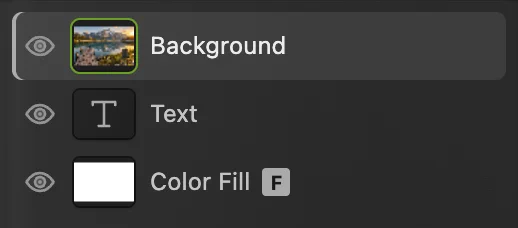
The photo is directly above the text, and selected. Choose Layer › Create/Release Clipping Mask
With Background selected, choose . The photo now shows only inside the letters, and white shows around them.
In the Layers panel a small bent arrow appears before the photo’s thumbnail: it marks a layer clipped to the one below.
Tip Quicker: hold Alt or ⌥ and click the photo’s row in the Layers panel. To release the clip later, Alt or ⌥-click the row again, click the bent arrow, or choose the same menu command; the photo goes back to covering everything.
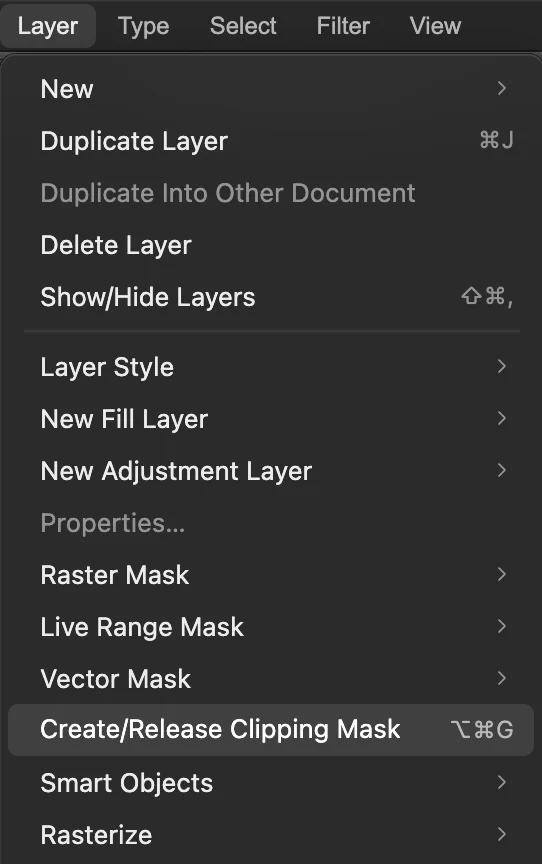
. 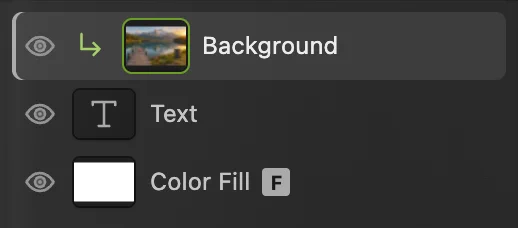
The bent arrow marks a clipped layer. 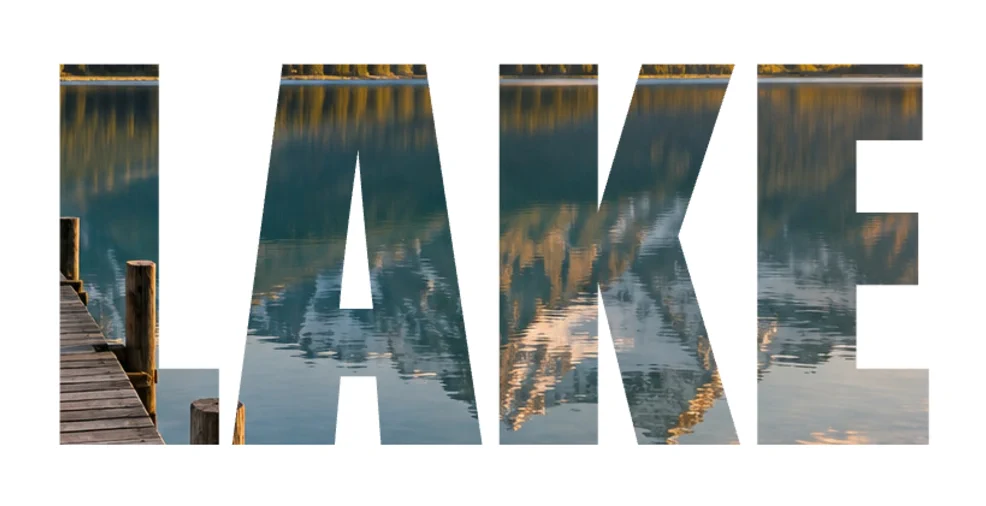
The photo now shows only inside the letters. Move the photo inside the letters
Choose the Move tool from the top of the toolbar. With the photo still selected, drag down in the picture: the letters stay where they are and a different part of the photo shows through them. Drag about a fifth of the photo’s height down, until the snowy peaks fill the tops of the letters.
To move the letters instead, select the Text layer and drag. To retype the word, choose the Text tool and click it; the photo follows the new letters.
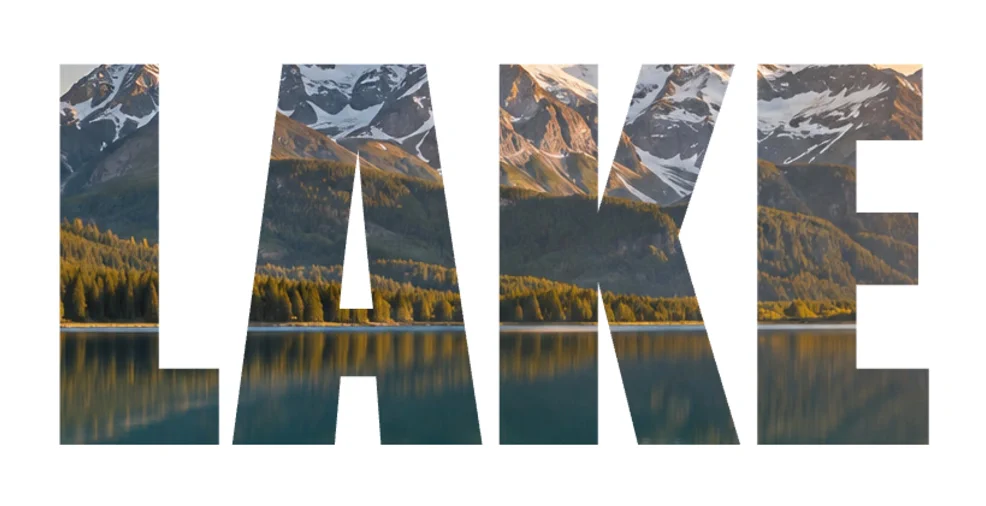
Moved down, the photo puts the peaks in the letters. Save, or export the picture
To keep the text and the photo editable, choose (Ctrl+Shift+S or ⇧⌘S) or After that, updates that file.
To share the picture, choose or JPEG… and click Export: a new, flat image. For letters on a transparent background, hide the white Color Fill layer with its eye icon and export a PNG. Until you save a project or PSD, writes a flat picture back into the JPEG you opened; the first Save of a JPEG, including the sample, opens the Save Image dialog.
How clipping decides what shows
- The base is the unclipped layer at the bottom of the clipped stack; every clipped layer above it shows only where the base has pixels.
- Several layers can clip to the same base: clip a photo, then add a layer above it and clip that too. They all share the letters’ shape.
- A clipped layer’s own mask still works, so you can hide part of the photo inside the letters as well. See layer masks.
Other things to clip
- A texture into a shape: draw a shape with the Shape tool (U), put a texture photo above it and clip it.
- An adjustment to one layer: clip an adjustment layer to a pixel layer and it changes only that layer, not everything below. See adjustment layers.
- A gradient over text: add above a text layer, choose its colors in the dialog and click Apply, then clip it: colored letters that stay editable.
Fix common problems
Create/Release Clipping Mask is grayed out
The selected layer is the bottom layer, so there is nothing below it to clip to. Drag the photo’s row above the Text row, select it, and choose the command again. The command is also grayed out while the layer is locked: unlock the layer, or the group that holds it, with the padlock in the Layers panel.
The photo fills the whole picture, not the letters
The photo is clipped to the wrong layer, or not clipped at all. The layer directly below it is the shape it uses: drag the photo so it sits directly above the text, then clip it again. If the bent arrow is on the Text row, the text was selected when you clipped: select Text, choose the command again to release it, then select the photo and clip it.
Part of the letters turns black
That is the text’s own color: the photo no longer covers those letters after you moved it. Drag the photo back with the Move tool until it fills them.
Coming from another editor
- Photoshop
- Layer › Create Clipping Mask, or Alt-click (Option-click on a Mac) between two layers in the Layers panel.
- GIMP
- Right-click the text layer › Alpha to Selection, then add a layer mask from the selection to the photo layer. The mask doesn’t follow later text edits.
Clipping masks: questions and answers
What is the difference between a clipping mask and a layer mask?
In Lil Cactus, as elsewhere, a layer mask is a black-and-white image attached to one layer that you paint to hide parts of it. A clipping mask uses the shape of the layer below, such as text, so the clipped layer shows only inside that shape.
Why did the photo disappear when I hid the text layer of a clipping mask?
In Lil Cactus, hiding the base layer of a clipping mask also hides every layer clipped to it, because they show only where the base has pixels. Show the text layer again with its eye icon.
How do I fade letters filled with a photo by a clipping mask?
In Lil Cactus, lower the Opacity of the text layer, the base: it fades the letters and the clipped photo together. Lowering the photo’s own opacity instead lets the text color show through the photo.
Can I clip a photo to several words or shapes at once?
Yes. In Lil Cactus, put the words or shapes in one group with Layer › Group Layers, put the photo directly above the group and clip it. The photo shows inside all of them.
Are clipping masks kept in PSD files?
Yes. In Lil Cactus, File › Save As › Photoshop (.psd)… keeps clipped layers clipped, and PSDs with clipping masks open with them intact.
Is my photo uploaded when I use clipping masks in Lil Cactus?
No. Everything runs in your browser, on your own device. When statistics are on, the editor records which tools are used, never the image, as the privacy policy explains.
Keep going
 How to use layer masksHide part of a layer without deleting it, and bring it back any time.Beginner · 5 min
 How to use layers in a photo editorStack, reorder, fade, hide and group the parts of a picture.Beginner · 6 min
 How to add text to a photoA headline and a second line on a photo, still editable later.Beginner · 5 min