How to stitch photos into a panorama online
Quick answer
Open your overlapping photos in Lil Cactus and copy them into one document as layers with . Select all the layers, choose to line them up, then , pick Panorama and click Blend. Finally, draw a rectangle inside the transparent edges with Marquee Select and choose .
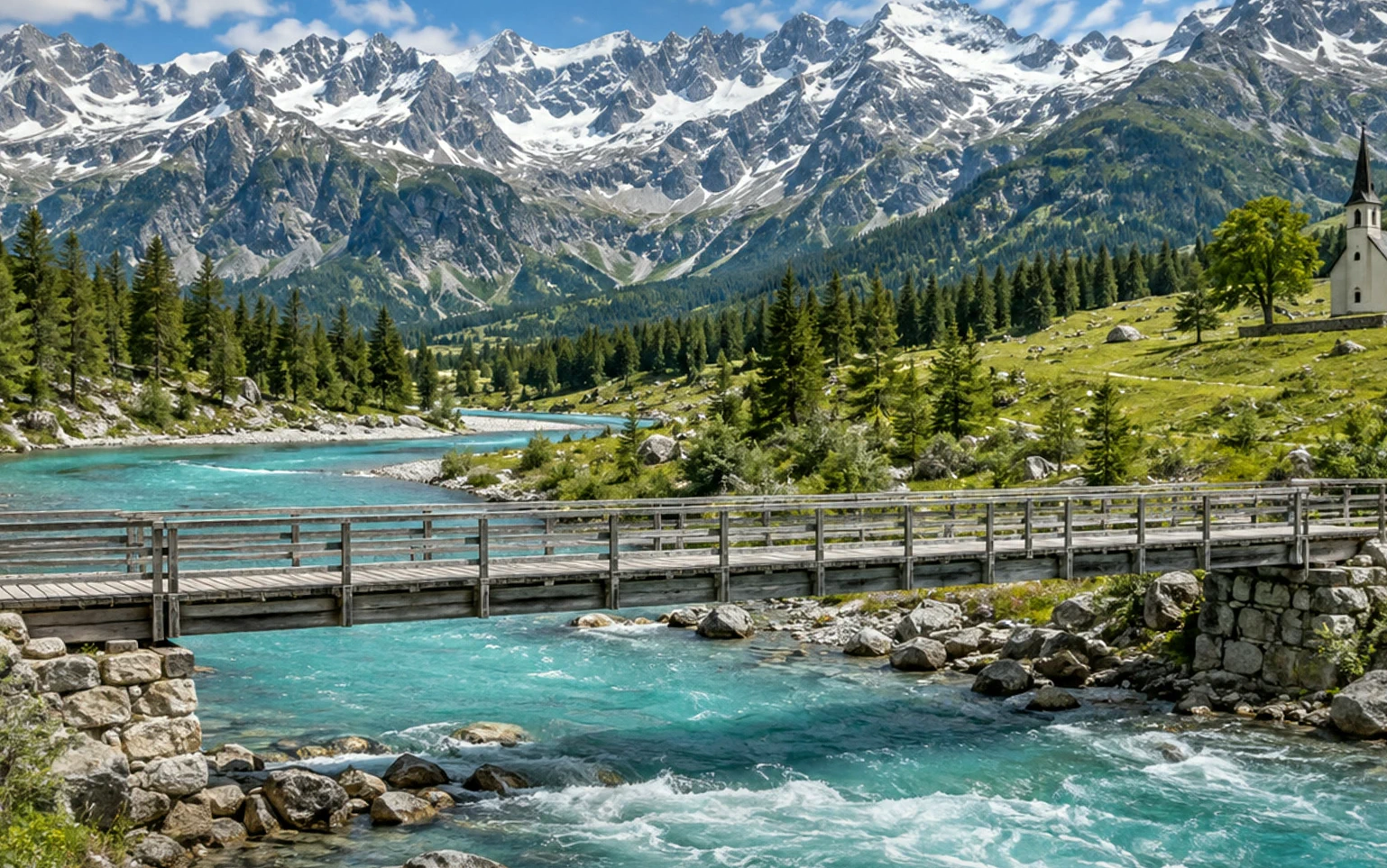
- Time
- 7 minutes
- Level
- Advanced
- You need
- Two or more photos of a scene, taken from one spot, each overlapping the next by about a third
- Works with
- JPEG, PNG, HEIC, WebP, TIFF and PSD photos, and RAW files once developed
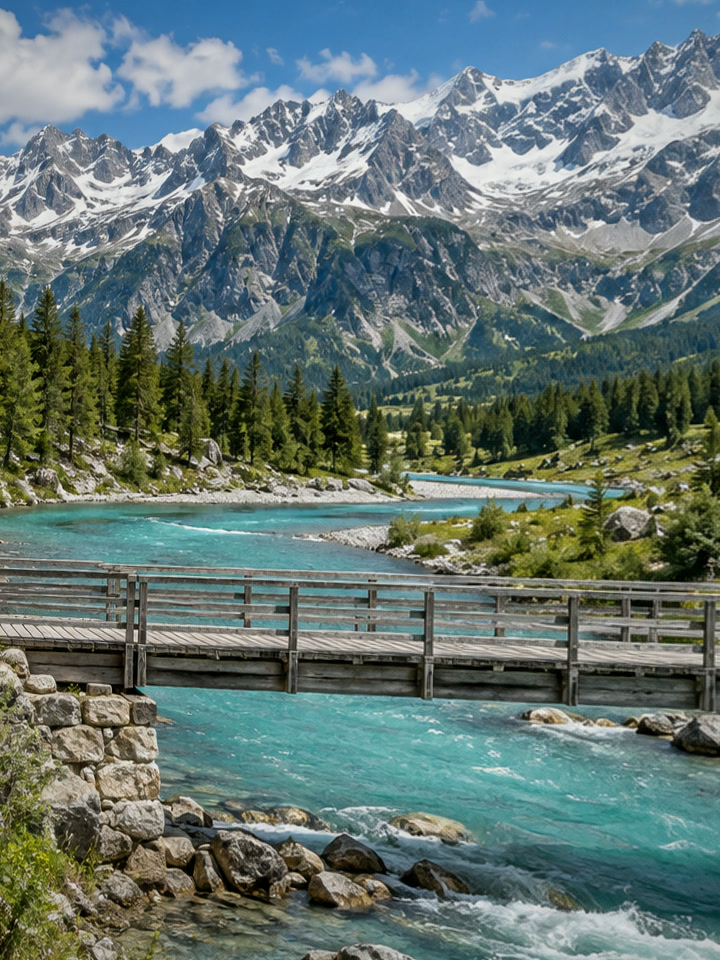
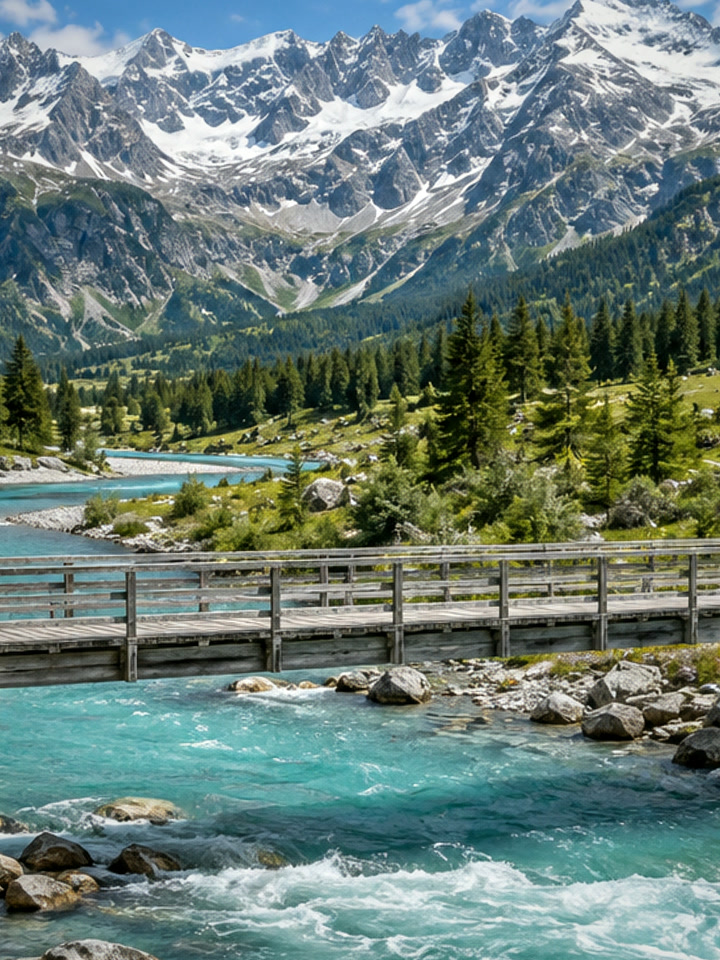
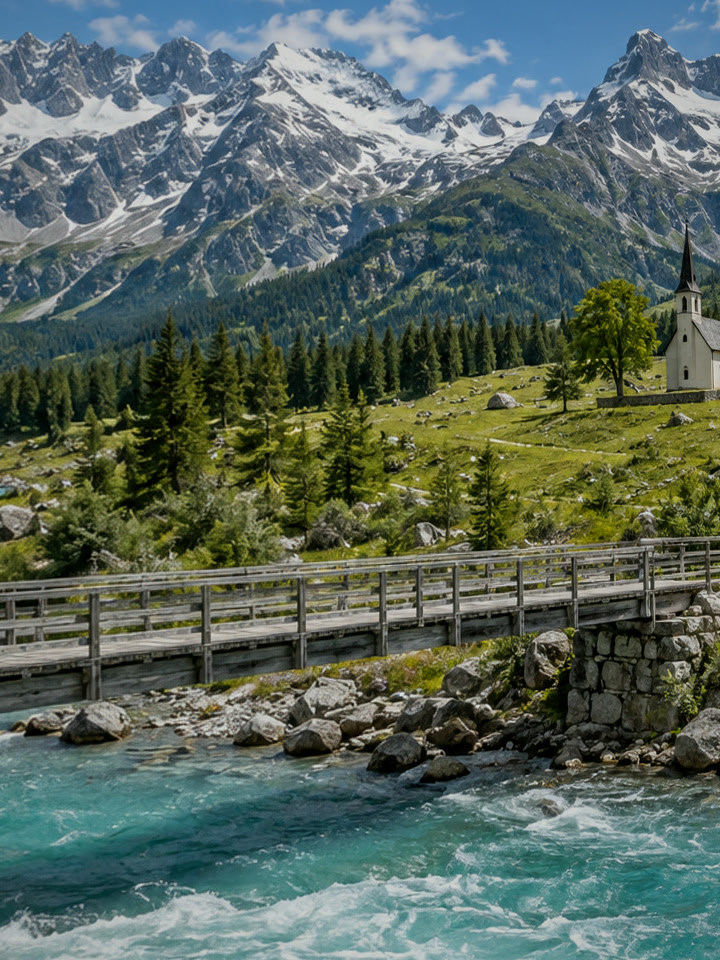
Sample files:Left frameMiddle frameRight frame
Free, no sign-up. Your photos stay on your computer.
A panorama is several photos of one scene, taken side by side, joined into a single wide picture. It shows more than your lens can fit in one shot, and because each frame keeps its full resolution, the result has far more pixels than any single photo.
Stitching takes three jobs. The photos are lined up so the same mountain lands on the same pixels (alignment), the overlaps are hidden with soft masks and their brightness evened out (blending), and the ragged edges are cropped away. Lil Cactus does the first two automatically and keeps each frame as its own layer, so you can still fix a join by hand.
Stitch a panorama in six steps
Shoot or collect overlapping frames
Stand in one place and turn, rather than walking along the view. Overlap each frame with the next by a third or more, keep the camera level, and lock the exposure and white balance if your camera allows it, so the frames match. Portrait orientation gives a taller panorama.
To follow along, download the three sample frames from the top of this page. They were made to match frames taken turning about 20° between shots, with the camera tipped and tilted by about a degree each time, as handheld frames are. Their corners are slightly darker than the middle, as with most lenses, and their brightness differs by up to about half a stop (the middle frame is the brightest), as when the camera sets the exposure for each shot. Each overlaps the middle frame by about half its width.
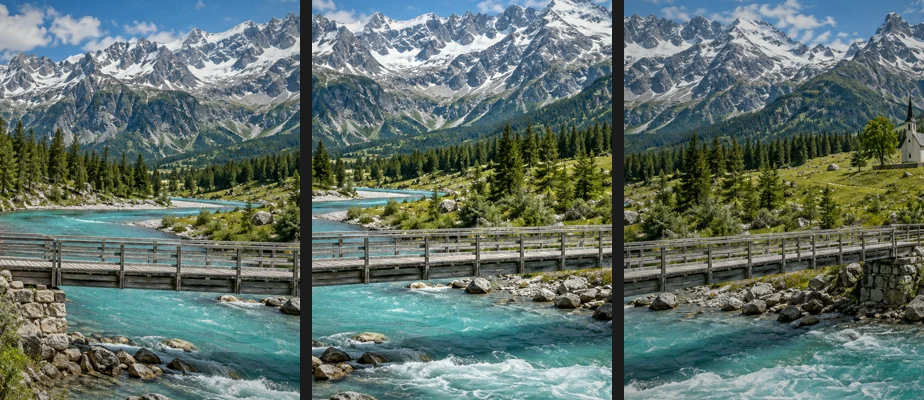
The sample frames, left to right. Each repeats part of its neighbor; the rail of the footbridge runs at a different angle in each. Put all the frames in one document
Open the frames with (Ctrl+O or ⌘O). Auto-Align lines them up whatever the order, but open the middle frame, valley-pano-2.jpg for the sample, first and on its own (files picked together open in the picker’s order): each frame opens in its own tab, the tab furthest left becomes the panorama, and its layer stays at the bottom of the stack. Seamless tones and colors in step 5 evens out the other frames’ brightness against this bottom layer.
Click the second tab (the left frame) and choose . Then do the same from the third tab (the right frame). The layer is copied into the first of the other open documents, the tab furthest left, so both copies end up in the middle frame’s document. Click that tab to continue there; you can close the other two.
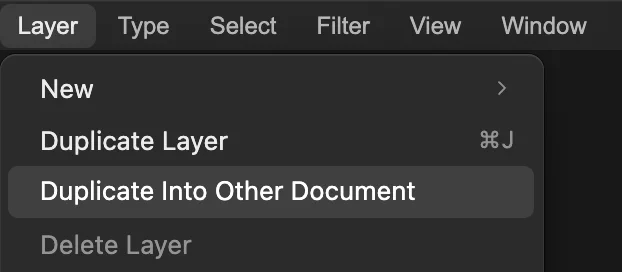
. Select all the layers
The Layers panel of the first document now holds three layers: Background and two copies, all stacked over each other. Click the top layer, then hold Shift or ⇧ and click the bottom one, so all three are highlighted. Auto-Align and Auto-Blend work on the selected layers only.
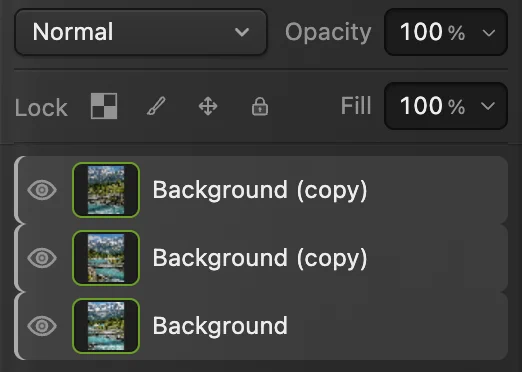
All three frames selected in the Layers panel. Line them up with Edit › Auto-Align
Choose . Lil Cactus finds the features the frames share, works out how each frame has to move, tilt or skew to match its neighbors, and transforms the layers into place. The canvas grows to fit them all: on the sample it goes from 720 × 960 to about 1630 × 1217 px, and the side frames are tilted into a bow-tie shape.
One frame stays where it is and the others are fitted to it. To choose that reference yourself, usually the middle frame, select it alone and click Lock position (the four-arrow button) in the Layers panel first; only one selected layer may be locked. Auto-Align fits frames with a perspective transform, so it can also tilt or skew a frame (keystone) when the camera turned between shots.
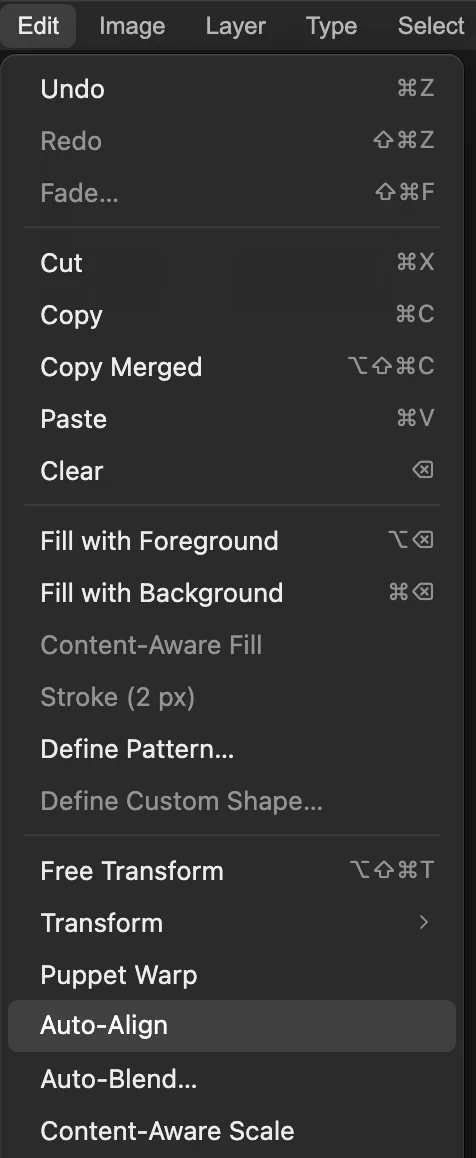
and , ringed. Hide the joins with Edit › Auto-Blend…
With the three layers still selected, choose Pick Panorama, leave Seamless tones and colors ticked so the frames’ brightness is evened out, and click Blend. With more frames, each one is matched through the frames it overlaps.
Each layer gets a mask that shows it only where it is the best source, with the joins placed along the overlaps. The layers stay separate, so you can paint on a mask to move a join, for example away from a person who moved between frames.
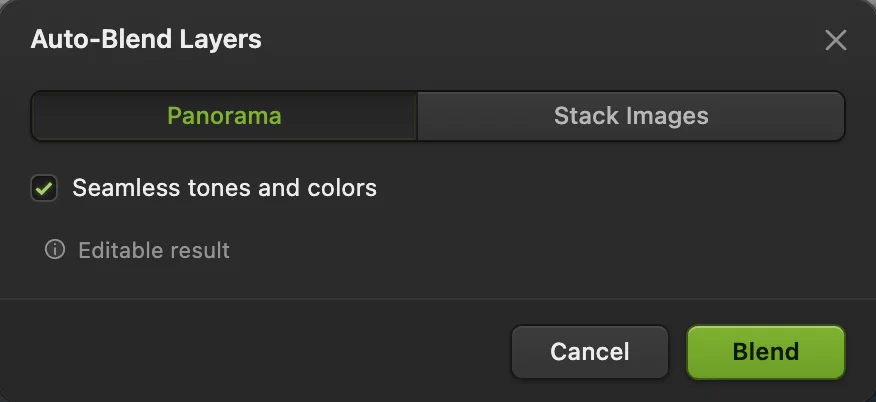
Auto-Blend set for the sample panorama: Panorama and Seamless tones and colors, ringed. - Blend
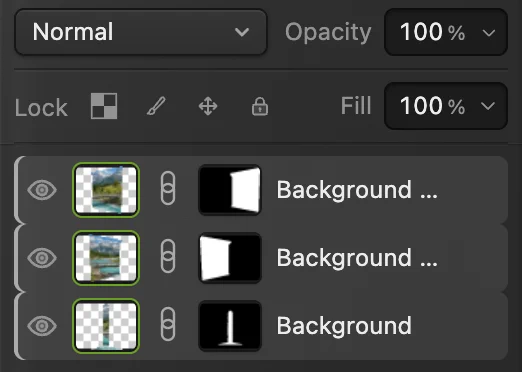
Each frame now has a mask: white where it shows, black where a neighbor takes over. Crop the edges and save
Choose Marquee Select (M) in the toolbar and drag a rectangle that stays inside the photo everywhere, clear of the transparent wedges. Then choose . The largest rectangle that fits is about 1540 × 965 px.
Check the joins at full size with (Ctrl+1 or ⌘1; some browsers use that shortcut to switch tabs): on the sample they can’t be found. Export with , or keep the layers and masks with (Ctrl+Shift+S or ⇧⌘S). on this document writes the flattened panorama back into the middle frame’s JPEG, valley-pano-2.jpg for the sample; the first time, the Save Image dialog asks for its quality.
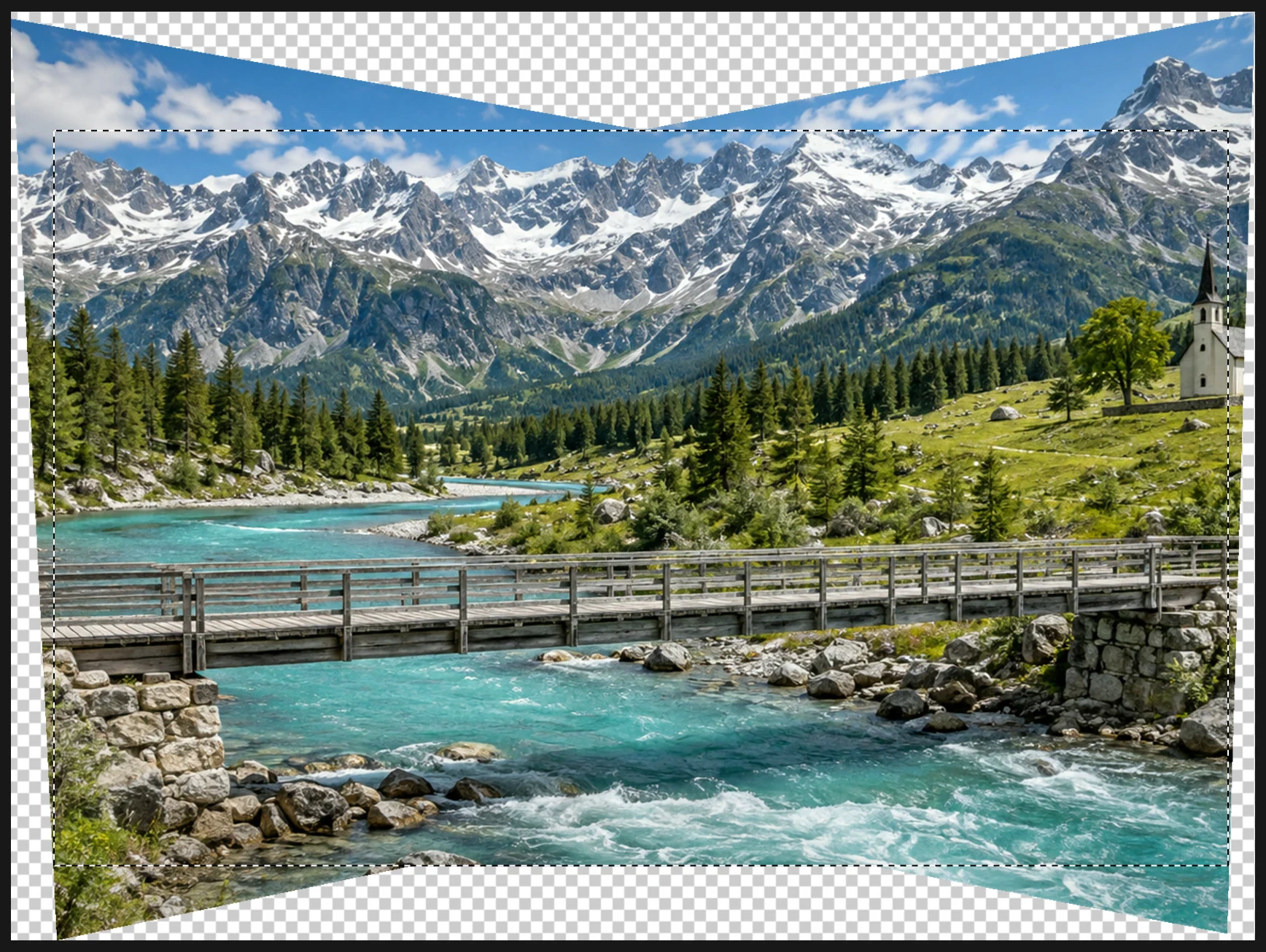
The blended panorama, with no joins in the sky, forest or water. The selection stays inside the photo, clear of the transparent wedges where the turned frames don’t reach. 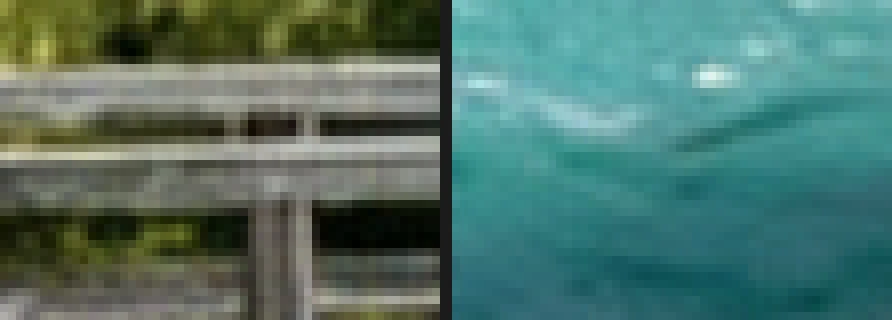
Both joins in the finished panorama, enlarged, each join down the middle of its panel: the footbridge rail at the left join, water at the right.
Fix common problems
Duplicate Into Other Document put a frame in the wrong document
It always copies into the tab furthest left among the other documents. Click the tab that received the copy and undo there, then close the other tabs to the left of the panorama’s tab, choosing Don’t Save (reopen any frame you still need to copy), and copy again.
Auto-Align or Auto-Blend is grayed out
Select at least two visible layers; text, shape and Smart Object layers must be rasterized first. Auto-Blend also refuses a layer locked with the padlock button (Lock layer) in the Layers panel; Lock position is fine.
A visible line or a doubled object along a join
Something moved between frames, or the overlap was too small. Select the layer’s mask and paint white or black with a soft brush to move the join to a quieter place.
What to do next
- Crop to a final shape: how to crop an image.
- Merge several exposures instead of several directions: how to merge HDR brackets.
- Move a join by hand: layer masks.
- Resize the panorama for the web.
Coming from another editor
- Photoshop
- File › Automate › Photomerge…, or Edit › Auto-Align Layers… followed by Edit › Auto-Blend Layers… In Lil Cactus the same job is Edit › Auto-Align and Edit › Auto-Blend…
Panorama stitching: questions and answers
How much should panorama photos overlap?
About a third of each frame, for Lil Cactus as for most stitching software. More overlap gives Auto-Align more shared features to match; with little overlap it may fail to align a frame.
Can I stitch a panorama from handheld photos in Lil Cactus?
Yes. Lil Cactus’s Auto-Align fits each frame with a perspective transform, so it corrects the turn, tip and tilt between handheld frames, as with the samples. Turn on the spot, keep the camera level, and crop a little more afterward.
How many photos can I stitch at once?
In Lil Cactus, Auto-Align needs at least two layers and works on all the layers you select. Very wide panoramas need more memory, because the canvas grows to hold every frame.
Can I make a vertical panorama?
Yes. Shoot the frames one above the other with the same overlap, and Lil Cactus aligns and blends them the same way; the canvas then grows in height.
Are my photos uploaded when I stitch a panorama in Lil Cactus?
No. Aligning and blending run in your browser on your own device, and the photos are never sent to a server. Optional statistics never include images; see the privacy policy.
Keep going
 How to merge bracketed exposures into an HDR photoThree exposures in, one photo with open shadows and recovered highlights out.Advanced · 8 min
 How to crop an imageChoose what stays in the frame, then set the shape and size.Beginner · 6 min
 How to use layer masksHide part of a layer without deleting it, and bring it back any time.Beginner · 5 min