How to fix perspective and straighten buildings in a photo
Quick answer
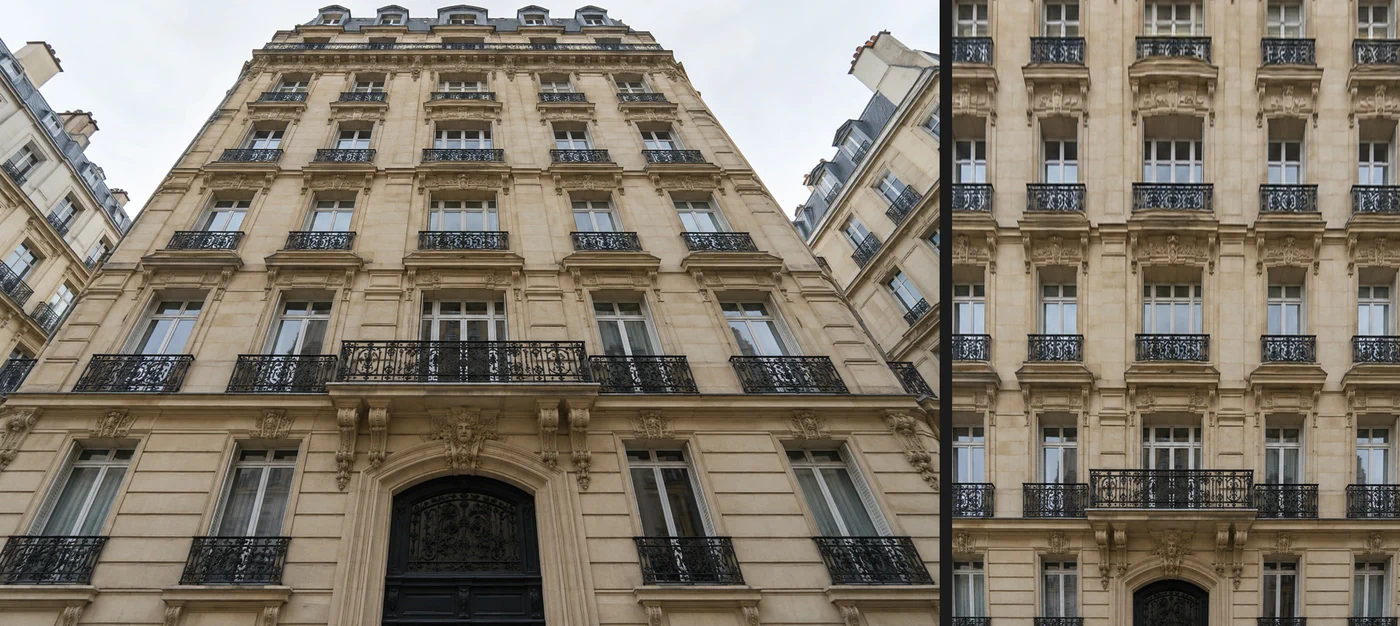
Open the photo in Lil Cactus, right-click the Crop tool and choose Perspective Crop. Drag its four corners onto lines that are truly vertical, such as the outer edges of a building’s window columns, or onto the corners of a document. Type a Height on the options bar so the result isn’t squashed (1450 px for the sample), then click the ✓ on the options bar: the area inside is stretched into a straight-on rectangle. For a gentle lean, where you want to keep the whole frame, use and raise Vertical perspective on its Perspective tab until the verticals stand straight.
- Time
- 5 minutes
- Level
- Intermediate
- You need
- A photo of a building, room, sign or document taken at an angle
- Works with
- JPEG, PNG, HEIC, WebP, TIFF, PSD and RAW files
When you tilt a camera up at a tall building, its vertical lines lean in toward the top, as if the building were falling backward. The same happens sideways when you photograph a wall, a painting or a sign from an angle. Your eye ignores it when you stand there, but in a photo it looks wrong.
Correcting it means stretching the photo so that lines which are parallel in reality become parallel again. Lil Cactus has three ways: the Perspective Crop tool, where you mark the corners of a rectangle and get it back square-on; Lens Correction, where sliders tilt the whole photo; and Edit › Transform › Perspective, where you drag the corners by hand.
Straighten a building in five steps
Open the photo
Open the photo with (Ctrl+O or ⌘O); to follow along, open the sample from this page. Look for lines that are truly vertical, such as window columns, and lines that should be level, such as floors.
Choose the Perspective Crop tool
Right-click (or press and hold) the Crop tool in the toolbar and choose Perspective Crop. A frame with corner and edge handles appears around the whole photo.
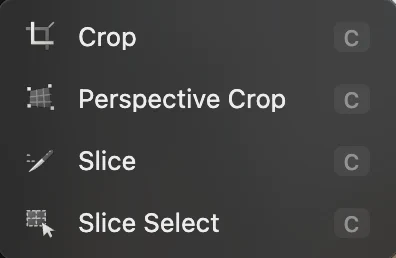
Perspective Crop shares a button with Crop. Drag the corners onto the building
Drag each corner handle so the sides of the frame follow lines that are truly vertical in the building. On the sample, put them on the outer edges of the leftmost and rightmost window columns: the top corners at the highest row with separate small balconies, just below the long balcony, and the bottom corners at the balconies of the lowest row of windows. The grid inside the frame shows how the area will be straightened; its lines should run along the window columns and floors.
Don’t use the building’s outline or the edge of the photo: on the sample, the outer edges belong to corner walls that turn away from you, so they lean more than the facade does. The edge handles move a whole side at once, and a drag that doesn’t start exactly on a handle moves the whole frame.
Tip Lost track of the corners? Click Reset on the options bar to start the frame again. Esc removes the frame; the tool stays selected.
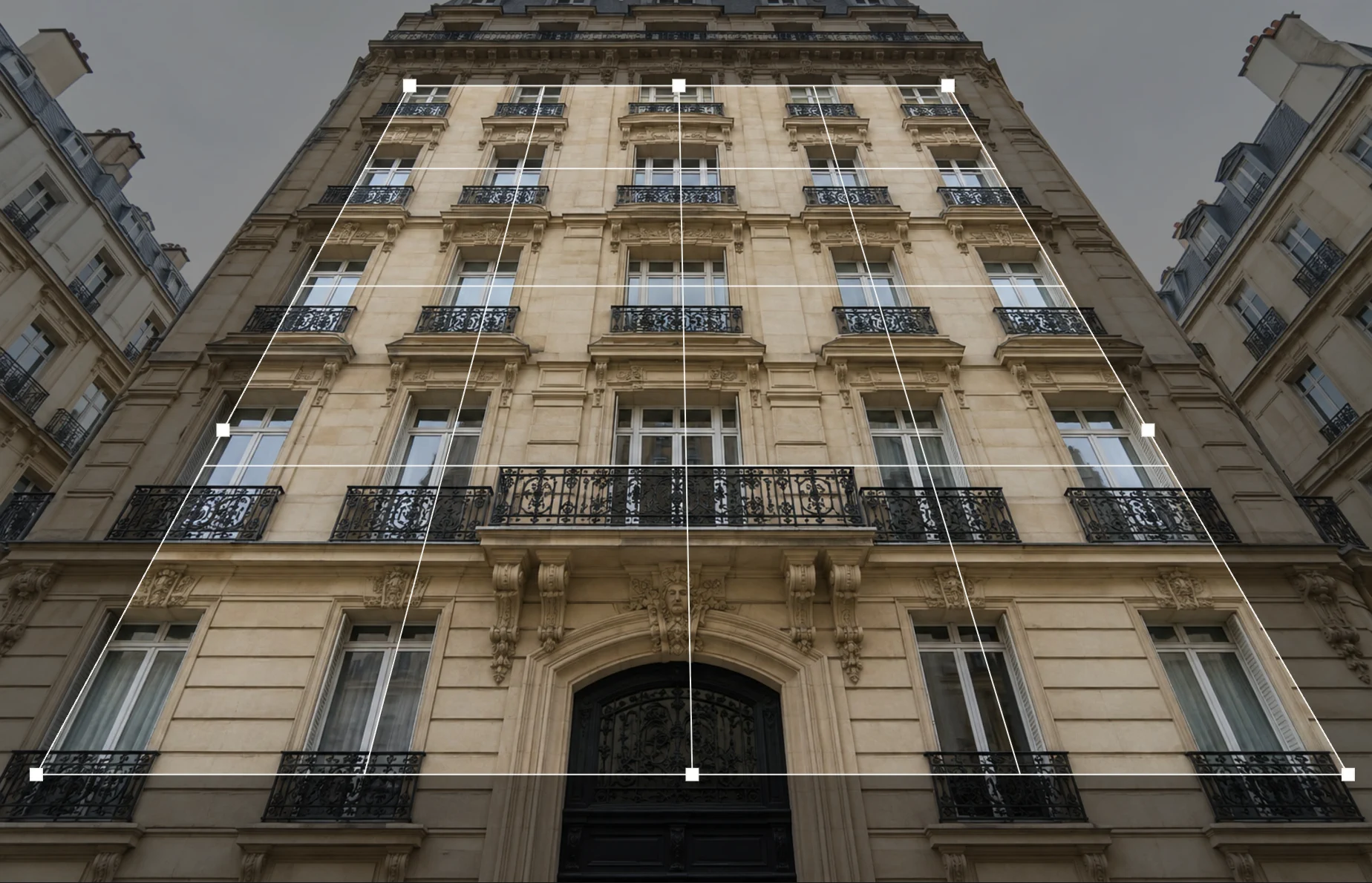
The frame’s sides follow the outer window columns, which are truly vertical. - Top-left corner at the highest row with separate small balconies, just below the long balcony
- Bottom-left corner at the balconies of the lowest row of windows
Check the output size
The options bar shows the size of the result. Width and Height at 0 mean automatic: Lil Cactus averages the frame’s sides, which gives about 1036 × 885 px on the sample. That can’t know the building’s real proportions, and a steep upward shot comes out squashed, with windows too wide. There is no live preview of the output, so type a Height and apply: 1450 px works for the sample. If the windows still look too wide or too tall, undo with Ctrl+Z or ⌘Z. Undo leaves no frame, so click Reset on the options bar, place the corners on the window columns again, type another Height and apply. For a document, type its real proportions, such as 2100 × 2970 for A4.

Height typed as 1450 px; Width stays automatic. 
The readout shows the final size; the ✓ (ringed) applies the crop. Apply the crop and save
Click the ✓ at the right end of the options bar. Enter or ↩ applies too, but not while the cursor is still in the Height field, so clicking the ✓ is the simplest. The photo is cropped to the frame and straightened: the window columns are now vertical and parallel, as if you had photographed the facade square-on from halfway up.
Export a new file with , or use (Ctrl+S or ⌘S) to write the result back into the JPEG you opened; the first time, the Save Image dialog asks for its quality.
Keep the whole frame: Lens Correction
Perspective Crop throws away what lies outside the frame. To keep the street and the neighboring buildings, choose and click the Perspective tab:
- Vertical perspective (−100 to 100, default 0): positive values widen the top of the photo and narrow the bottom, which straightens verticals that lean in toward the top. Negative values do the opposite.
- Horizontal perspective: the same for a wall photographed from the side.
- Angle: rotates the photo to level a tilted horizon.
- Scale (default 100%): zooms the result; raise it to fill the transparent edges.
The sample leans so strongly that even the maximum, 100, still leaves the outer columns leaning in by about 10°, which is why Perspective Crop is the main method here. Lens Correction suits a gentle lean. Tick Show alignment grid to compare lines against true verticals. Correcting perspective pulls the bottom corners inward, leaving transparent wedges at the edges: raise Scale until they disappear (135% at a Vertical perspective of 100) or crop them away afterward with the Crop tool. The Lens tab’s Distortion slider straightens lines that bow outward from a wide-angle lens.
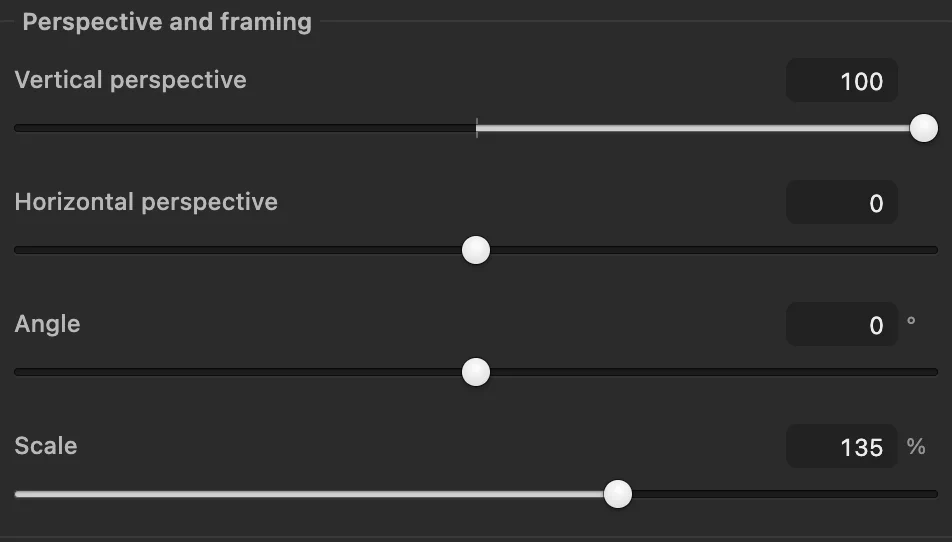
- Vertical perspective: positive straightens a building that leans back
- Scale: fills the transparent edges
Free-hand: Edit › Transform › Perspective
For fine control, choose : dragging a top corner outward moves the other top corner outward by the same amount, which is exactly what converging verticals need. moves each corner on its own. Zoom out first with so there is room to drag past the edges of the photo. Press Enter or ↩ to apply. Turn on first if you want lines to check against.
Why buildings lean in photos
A camera records straight lines as straight, but parallel lines only stay parallel in the photo if they are parallel to the sensor. Tilt the camera up, and the building’s verticals point away from the sensor: like railway tracks running into the distance, they meet at a vanishing point above the photo. Perspective correction moves that vanishing point back to infinity by stretching the top of the image more than the bottom. Leave space around a building when you shoot it: some of the frame is always lost.
Fix common problems
The building looks too tall and thin, or squat
Perspective correction can’t know the building’s real proportions. In Perspective Crop, set Height by hand; with Lens Correction, use afterward with the chain link off to adjust height alone.
Verticals still lean in toward the top
The correction is too weak: the top corners sit outside the lines that are truly vertical. Move them closer together, onto the column edges, or raise Vertical perspective.
Verticals now lean outward
The correction is too strong: move the top corners apart or the bottom corners closer together, or lower Vertical perspective.
Lines still bend
That is lens distortion, not perspective. Correct it first with Distortion on Lens Correction’s Lens tab, then fix the perspective.
What to do next
- Crop to a final shape: how to crop an image.
- Widen the photo without stretching: content-aware scale.
- Resize the result for the web.
Coming from another editor
- Photoshop
- The Perspective Crop tool shares a button with the Crop tool, and Filter › Lens Correction… has Vertical and Horizontal Perspective.
- GIMP
- The Perspective tool (Tools › Transform Tools › Perspective). In Lil Cactus the closest equivalents are the Perspective Crop tool and Edit › Transform › Perspective.
Perspective correction: questions and answers
How do I straighten a leaning building in a photo?
In Lil Cactus, choose the Perspective Crop tool from the Crop tool group, drag its corners onto window columns or other lines that are truly vertical, type a Height on the options bar so the result isn’t squashed, and click the ✓. For a gentle lean, Filter › Lens Correction… with Vertical perspective raised until the verticals stand straight keeps the whole frame.
How do I get a straight, square-on photo of a document or painting?
In Lil Cactus, use the Perspective Crop tool: put its four corners on the document’s corners, type a Width and Height on the options bar for exact proportions, such as A4, then click the ✓ on the options bar.
Does perspective correction reduce quality?
A little. The stretched areas, usually the top of a building, are enlarged and look slightly softer, and part of the frame is cropped away.
Can I fix perspective without cropping in Lil Cactus?
Mostly, for a gentle lean. In Lil Cactus, Filter › Lens Correction… keeps the whole frame, but straightening pulls the corners in; raising its Scale fills the gaps by enlarging the photo, and at the sample’s Scale of 135% about 74% of the width and height stays in view.
Is my photo uploaded when I correct perspective in Lil Cactus?
No. The correction runs in your browser on your own device, and the photo is never sent to a server. Optional statistics never include the image; see the privacy policy.
Keep going
 How to crop an imageChoose what stays in the frame, then set the shape and size.Beginner · 6 min
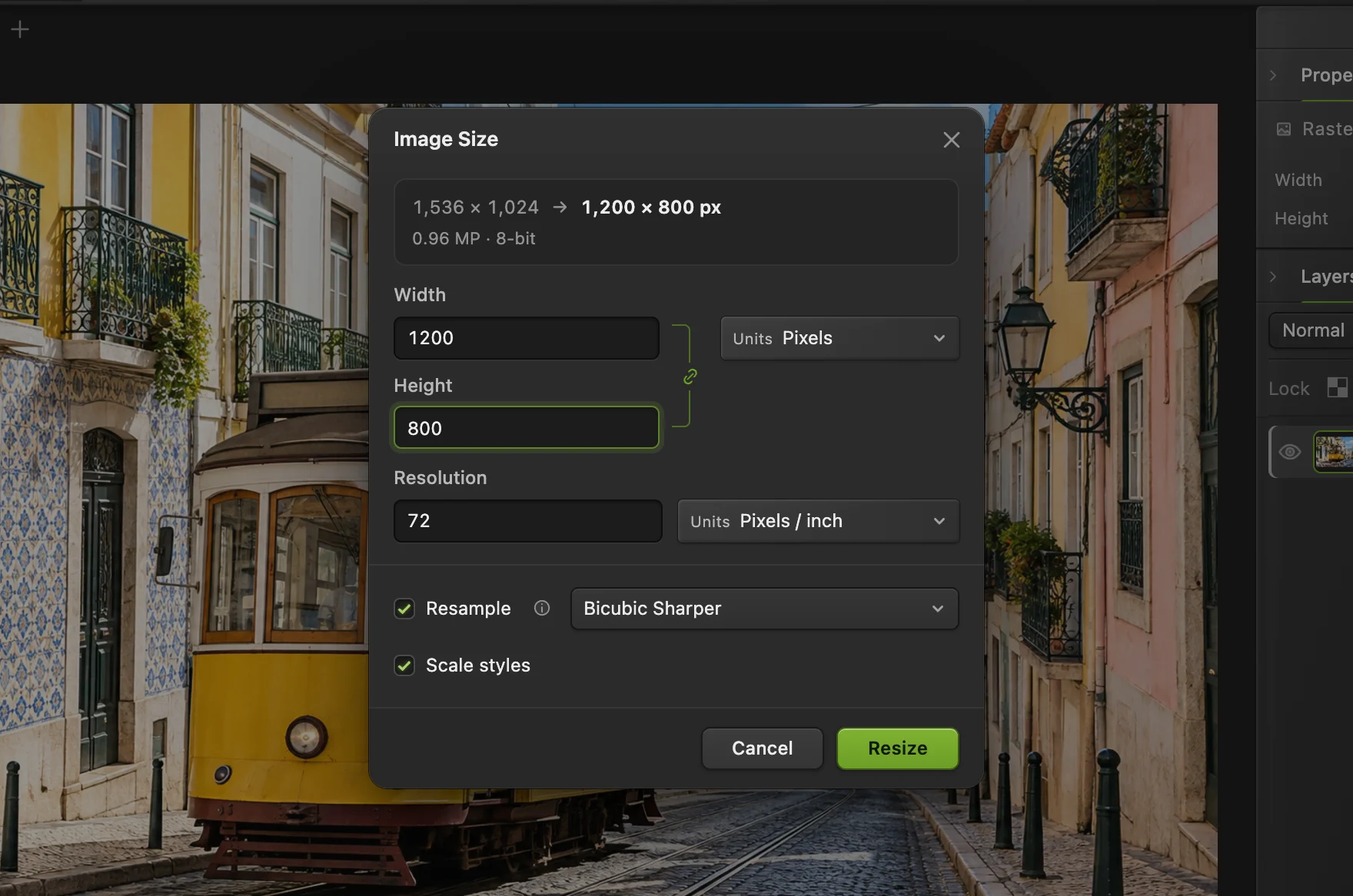 How to resize an image online to exact pixels or print sizeExact pixels, percent or print size, without stretching.Beginner · 2 min
 How to change a photo’s aspect ratio without stretching peopleWiden the background, keep the person exactly as they were.Intermediate · 6 min