How to make pixel art
Quick answer
In Lil Cactus, start with a 16 × 16 px canvas and choose Pencil from the Brush toolbar group. Set Size to 1 px and Opacity to 100%, then draw at high zoom. For a one-pixel grid, choose , open Guides & Grid, set spacing to 2 px and subdivisions to 2, then enable . Enlarge through with Nearest Neighbor, using a whole-number multiple such as 16 → 512 px.

- Time
- 10 minutes
- Level
- Beginner
- You need
- A small canvas and a mouse for placing pixels
- Works with
- New RGB images and PNG sprites
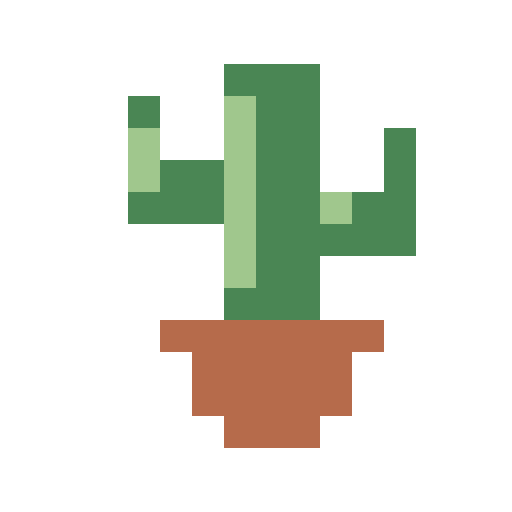
Pixel art is drawn a cell at a time on a small image. The cactus here uses three paint colors and a white background. Pencil makes hard-edged marks; enlarging with Nearest Neighbor copies those pixels without adding blended colors between them.
Draw and enlarge a pixel cactus in seven steps
Open a 16 × 16 canvas and add a drawing layer
Open the blank sample from this page. To start your own canvas instead, choose , set Width and Height to 16, and keep Units on Pixels. Background stays on White. Click Create.
Choose . In Layers, double-click its name, type Cactus and press Enter. Leave Cactus selected above Background.
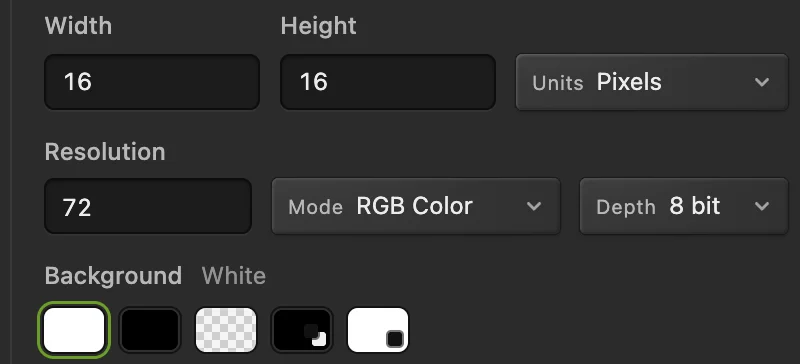
Use a tiny canvas: these dimensions are image pixels, not the enlarged view. 
Create the canvas after setting its dimensions. 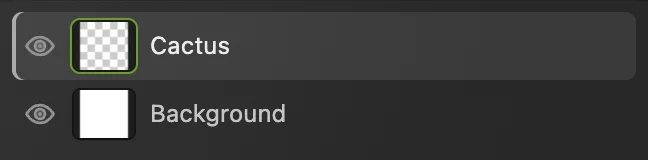
Draw on Cactus; Background supplies the white paper. Choose a green, then Pencil at 1 px
Choose . In its # field, on the row marked Foreground, replace the value with 4A8654.
Right-click the toolbar button below Eyedropper, or press and hold it, then choose Pencil. Set Size to 1 px. Mode, how a stroke mixes with existing pixels, stays on Normal. Opacity controls how solid the mark is; keep it at 100%.
Smooth steadies a stroke; keep it at 0 for placing these cells. Leave both pressure boxes off for uniform size and opacity. Keep Auto erase off so painting over a pixel keeps using the foreground color.
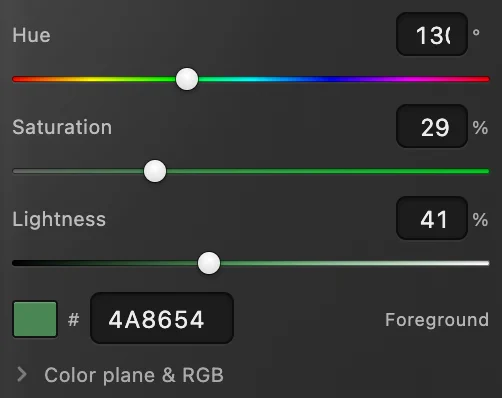
Enter the green in the # field. 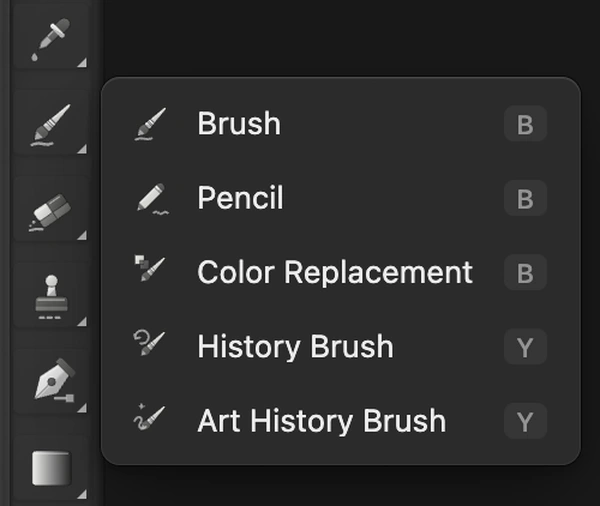
Pencil shares the toolbar button with Brush; enlarged view. 
One-pixel Pencil marks fill individual source cells. 
Keep Normal, 100% Opacity and 0% Smooth. 
Keep these three boxes off for this drawing. Show a one-pixel grid
Choose , then Guides & Grid. Grid spacing (document px) sets the distance between major lines; set it to 2. Subdivisions per major cell divides that distance; set it to 2. Click Close.
Choose , then . The faint lines now divide individual pixels, with heavier lines every two pixels. The top-left white cell is column 1, row 1. Count columns from the left and rows from the top.
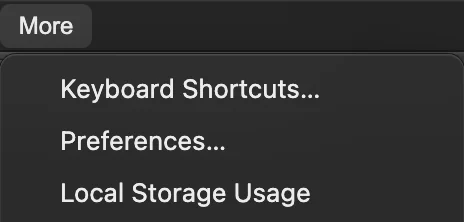
Open Preferences from More. 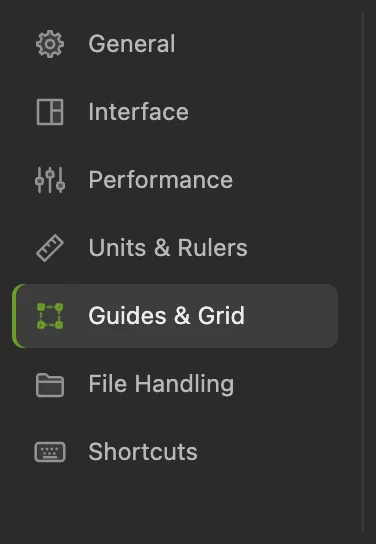
Choose Guides & Grid in Preferences. 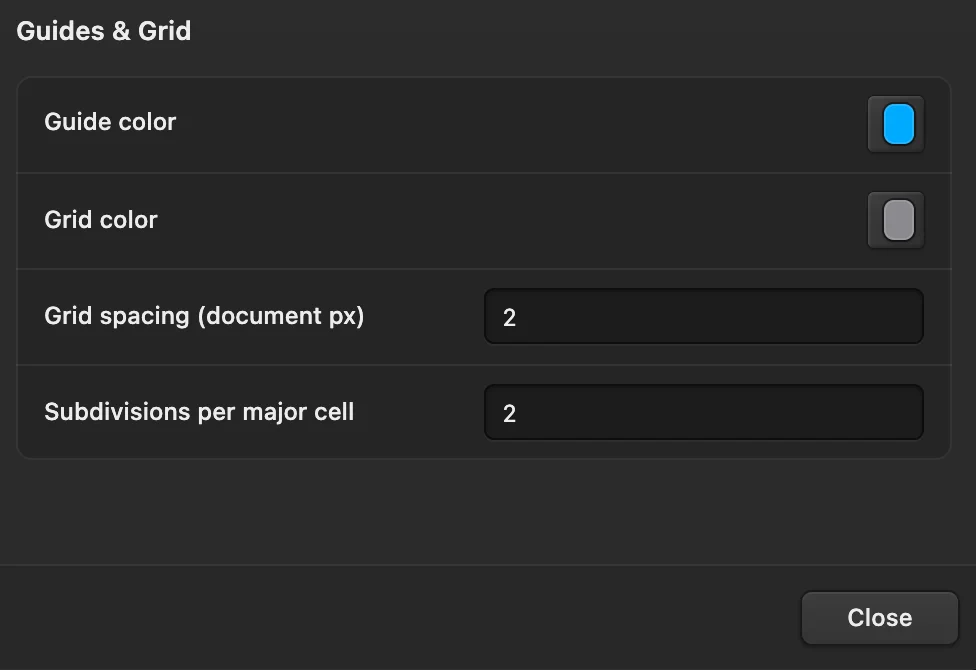
2 px spacing divided into 2 makes a one-pixel grid. 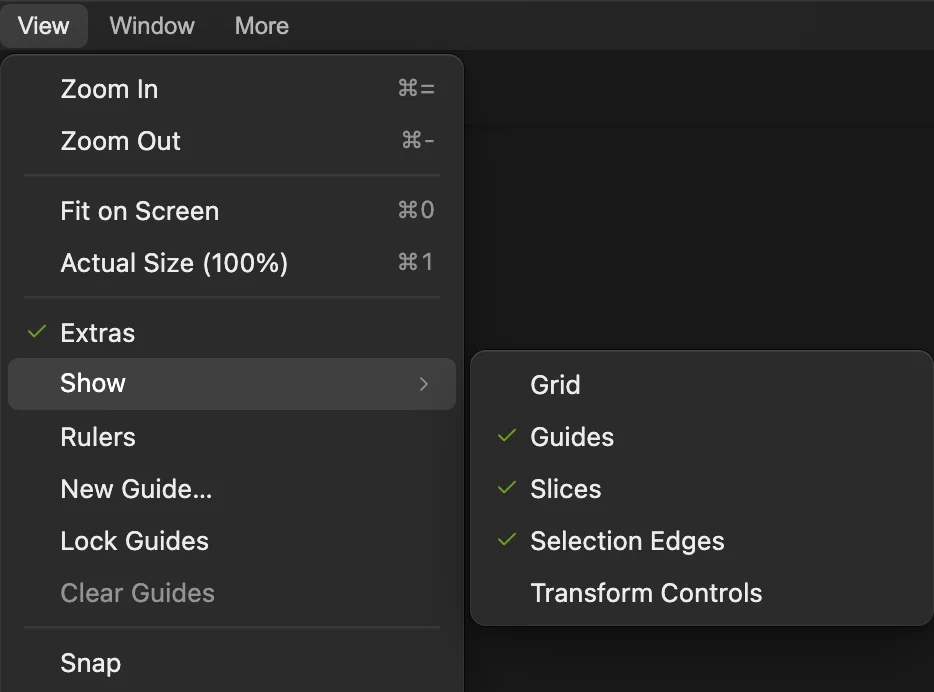
Turn on View › Show › Grid. 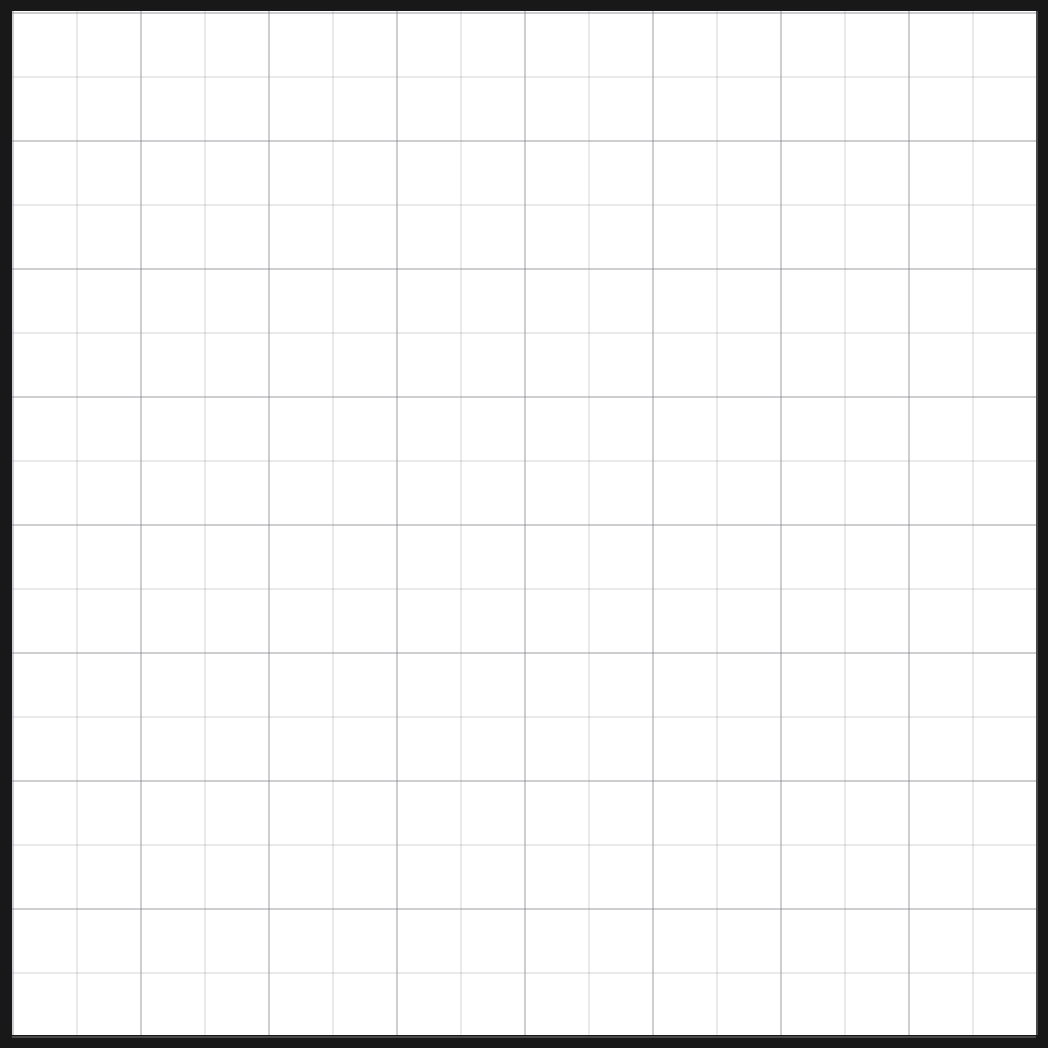
The sample at 3200% zoom. Each small cell is one image pixel. Draw the trunk and arms
Keep Cactus selected and the foreground green. Drag through the centers of the cells. Make a separate stroke for each line below:
- Trunk: three vertical strokes in columns 8, 9 and 10, each from row 3 through row 10.
- Left arm: horizontal strokes across columns 5–7 in rows 6 and 7. Add its upright tip in column 5, rows 4–5.
- Right arm: horizontal strokes across columns 11–13 in rows 7 and 8. Add its upright tip in column 13, rows 5–6.
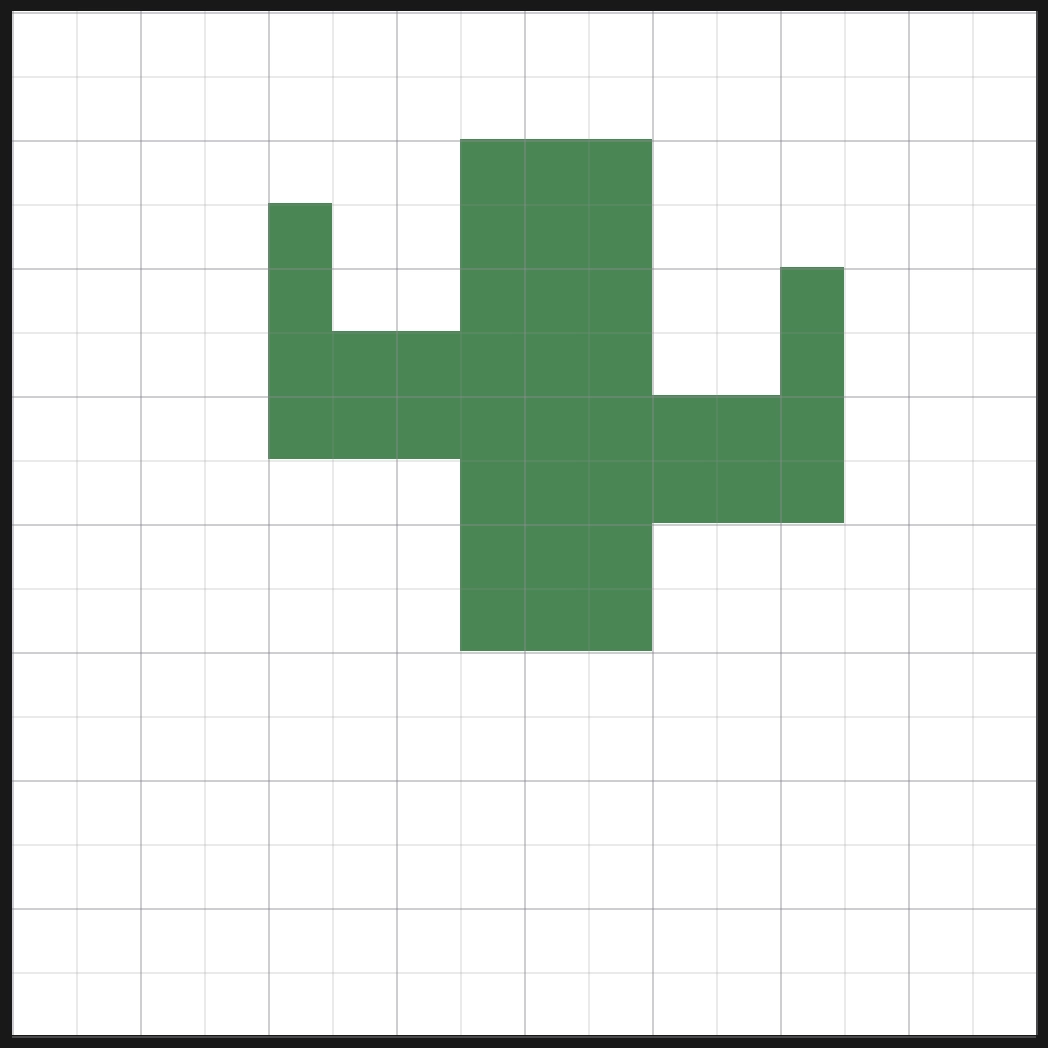
The green silhouette, with each painted cell still visible in the grid. Add the pot and lighter pixels
In the Color panel’s # field, enter B66B4B for the pot. Paint row 11 across columns 6–12, rows 12 and 13 across columns 7–11, then row 14 across columns 8–10.
Change the # value to A0C78D. Add a light strip in column 8, rows 4–9. Add two lighter cells in column 5, rows 5–6, and one in column 11, row 7. Use the whole grid in step 3 to count their positions.
Hide Cactus with its eye button to compare with the blank Background, then show it again.
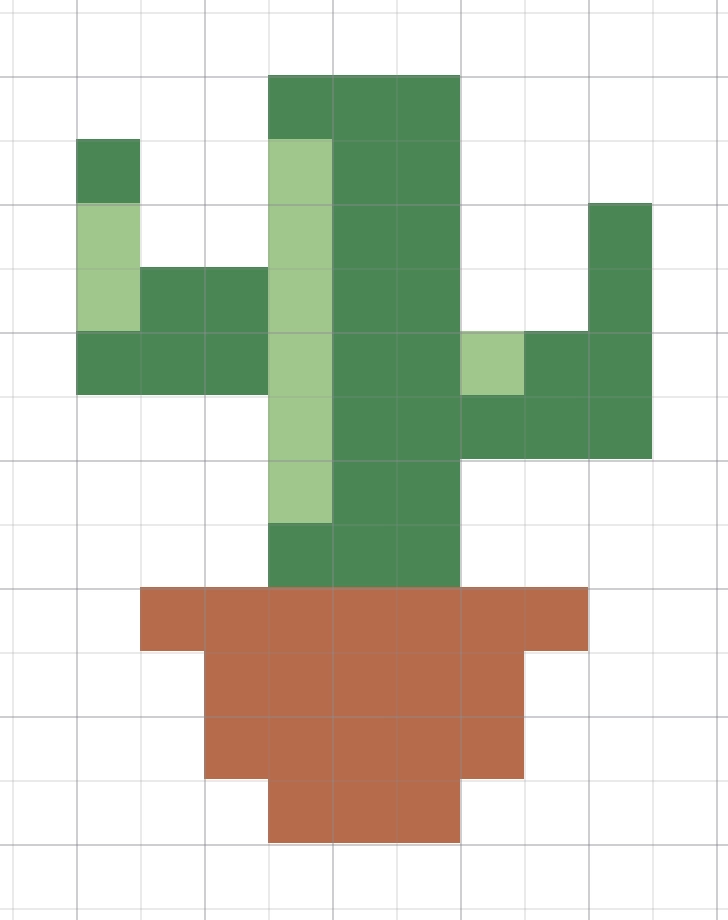
The finished plant, cropped closer so you can read its individual cells. 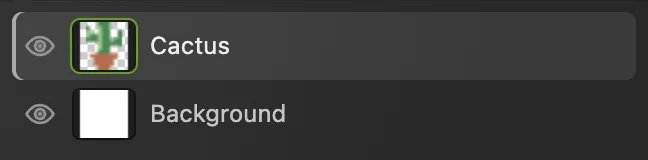
Cactus holds the drawing. Background controls the white behind it. Save the small master, then enlarge
Choose while the canvas is still 16 × 16. This keeps the two editable layers at the drawing’s original size.
Choose Keep Units on Pixels, the chain button linked and Resample on. Resample changes the number of pixels. Set Width to 512; Height follows to 512. Choose Nearest Neighbor in the resampling menu and click Resize.
This is a 32× enlargement: each original pixel becomes a 32 × 32 block.
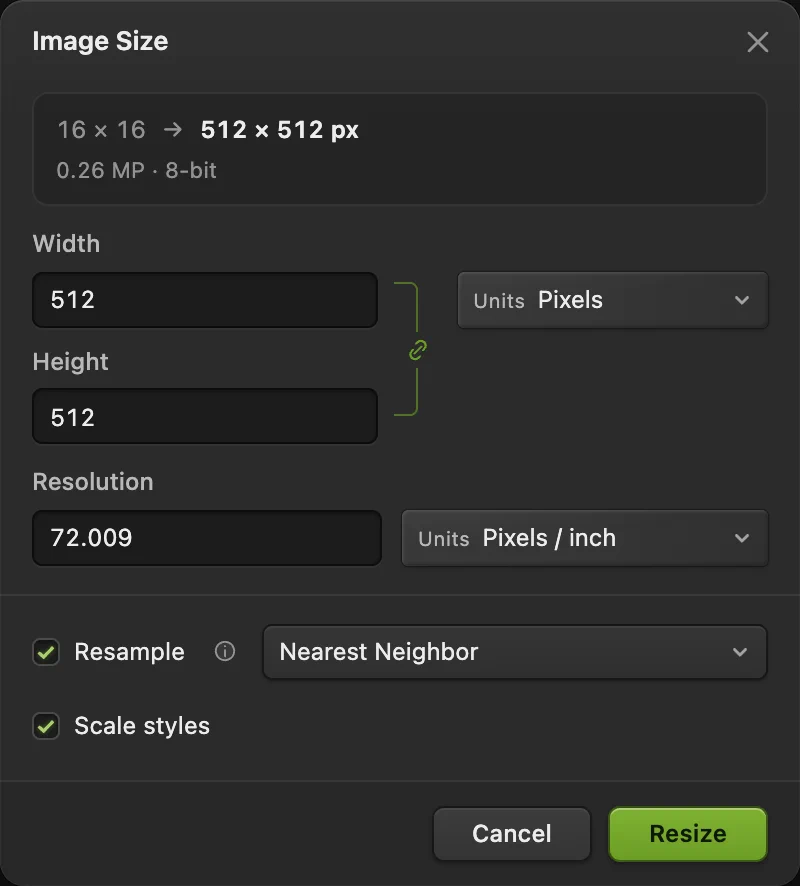
Choose Nearest Neighbor before clicking Resize. Export the PNG, then return to drawing size
Choose , then click Export. The new file is 512 × 512 px. Choose to return to the 16 × 16 drawing for your next edit.
now updates the project.
Why Nearest Neighbor keeps the palette
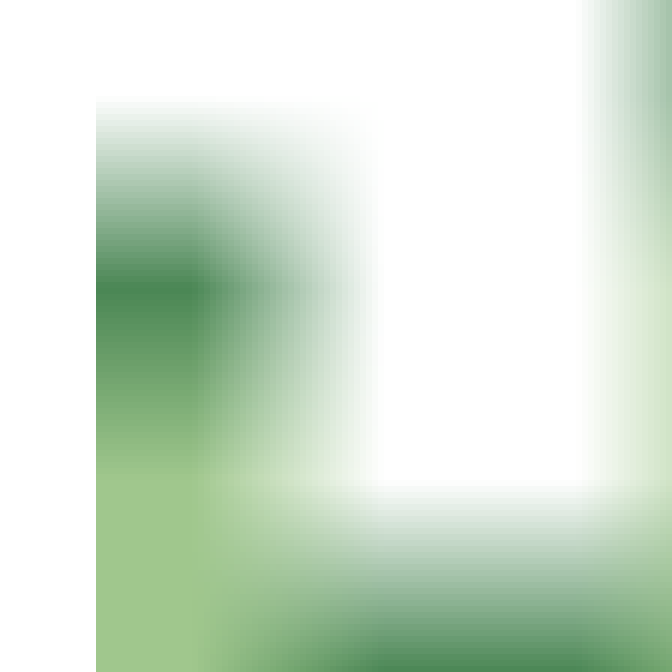
Image Size opens with Bilinear selected. At this enlargement it mixes colors along the edges. Nearest Neighbor preserves the drawing’s three paint colors and white background.

What to make next
- Keep a reusable palette: save color swatches.
- Build a larger graphic around the sprite: work with layers.
- Change the image size for another use: resize an image.
Pixel art: questions and answers
Is drawing pixel art the same as pixelating a photo?
No. In Lil Cactus, this method places individual colored cells to draw a sprite. Filter › Pixelate › Pixelate… instead groups the pixels of an existing image into larger blocks.
Can pixel art have a transparent background?
Yes. In Lil Cactus, hide Background with its eye button, shown in step 5, then choose File › Export › PNG… The Cactus layer remains visible without the white paper.
Should I save pixel art as PNG or JPEG?
Use PNG in Lil Cactus to preserve the palette and support transparency. JPEG can introduce extra colors around sharp edges and cannot keep transparency.
Why can’t I see the one-pixel grid?
In Lil Cactus, the minor grid lines in this recipe appear at 800% zoom or higher. View › Extras must be on as well as View › Show › Grid. Grid spacing follows this browser’s preferences, so another browser may show a different grid. The grid is an editor overlay and does not appear in an exported PNG.
Can I undo one Pencil stroke?
Yes. In Lil Cactus, Edit › Undo removes the last Pencil drag or click as one history step. Edit › Redo restores it.
Can I enlarge pixel art by a fractional scale?
Yes, but whole-number multiples give uniform blocks in Lil Cactus. A fractional enlargement can make some original pixels wider than others, even with Nearest Neighbor.
Keep going
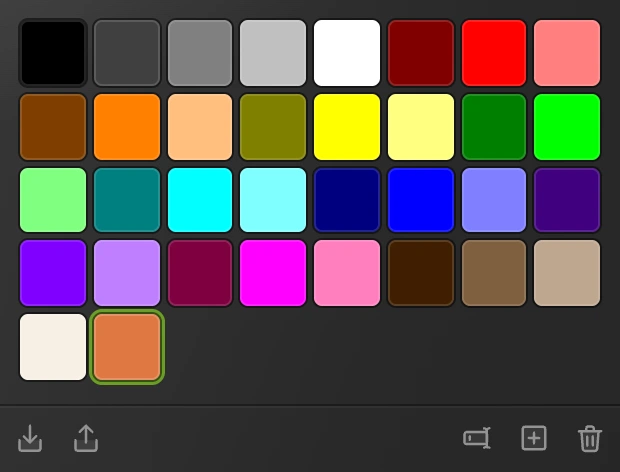 How to pick and save colorsChoose exact colors, sample a photo and keep named swatches.Beginner · 5 min
 How to paint with the Brush toolPaint on a layer, control the tip and save a brush preset.Beginner · 6 min
 How to use layers in a photo editorStack, reorder, fade, hide and group the parts of a picture.Beginner · 6 min