How to paint with the Brush tool
Quick answer
In Lil Cactus, choose , then pick Brush from the brush tool group. Choose the paint color with the front color square, set Size and Hardness on the options bar, and drag over the image to paint. Opacity limits the strength of each stroke; Flow controls how quickly paint builds up while you drag. Keep the paint editable with


- Time
- 6 minutes
- Level
- Beginner
- You need
- A photo or blank document, and a mouse, trackpad or pressure-sensitive pen
- Works with
- Raster layers and layer masks in images such as JPEG, PNG and PSD
The Brush adds the current foreground color, the front of the two overlapping color squares at the bottom of the toolbar. Paint on a separate layer and you can hide, move or erase your marks without changing the photograph underneath.
Use the sample to paint three bird silhouettes in the clear blue opening between the clouds. The same controls also apply when you paint on a layer mask, which hides or reveals parts of a layer.
Paint on a photo in six steps
Open the photo and add a layer
Open the sample from this page, or use for your own photo. Choose . A transparent layer called Layer appears above Background in the Layers panel. Keep that new layer selected.
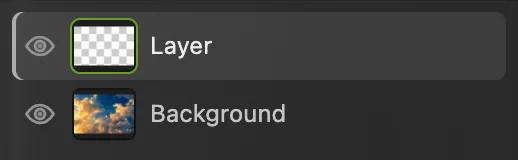
The empty layer holds the paint; Background holds the photo. Choose Brush and a round preset
Right-click the brush group in the left toolbar, or press and hold it, and choose Brush. Click the small brush-tip preview on the options bar under the menus, then choose Hard Round 9. Press Escape to close the picker.
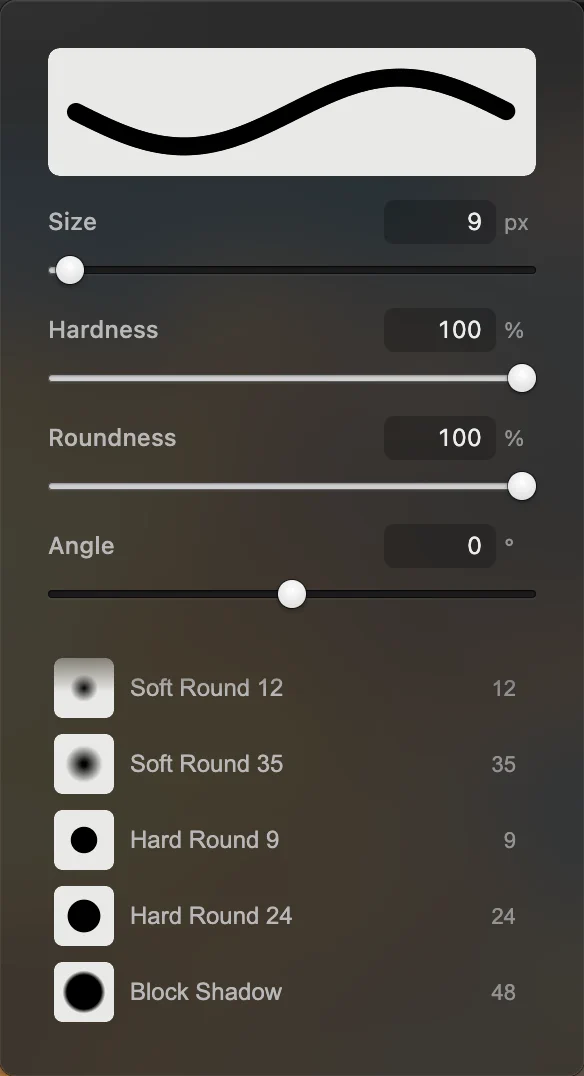
Hard Round 9 gives a small, solid tip. A preset can change opacity and flow as well as size and hardness. Set the size and paint strength
On the options bar, set Size to 12 px. Hardness stays at 100% for a crisp edge. Keep Mode on Normal, with Opacity and Flow both at 100%. Size is the brush diameter in document pixels, so its circle looks smaller when the photo is zoomed out.

A 12 px brush with a hard edge. 
Normal mode and full strength give solid silhouettes. Choose a dark foreground color
Click the front color square near the bottom of the toolbar. In Foreground Color, type 0d111b into the # field and click OK. This is a dark blue-black.
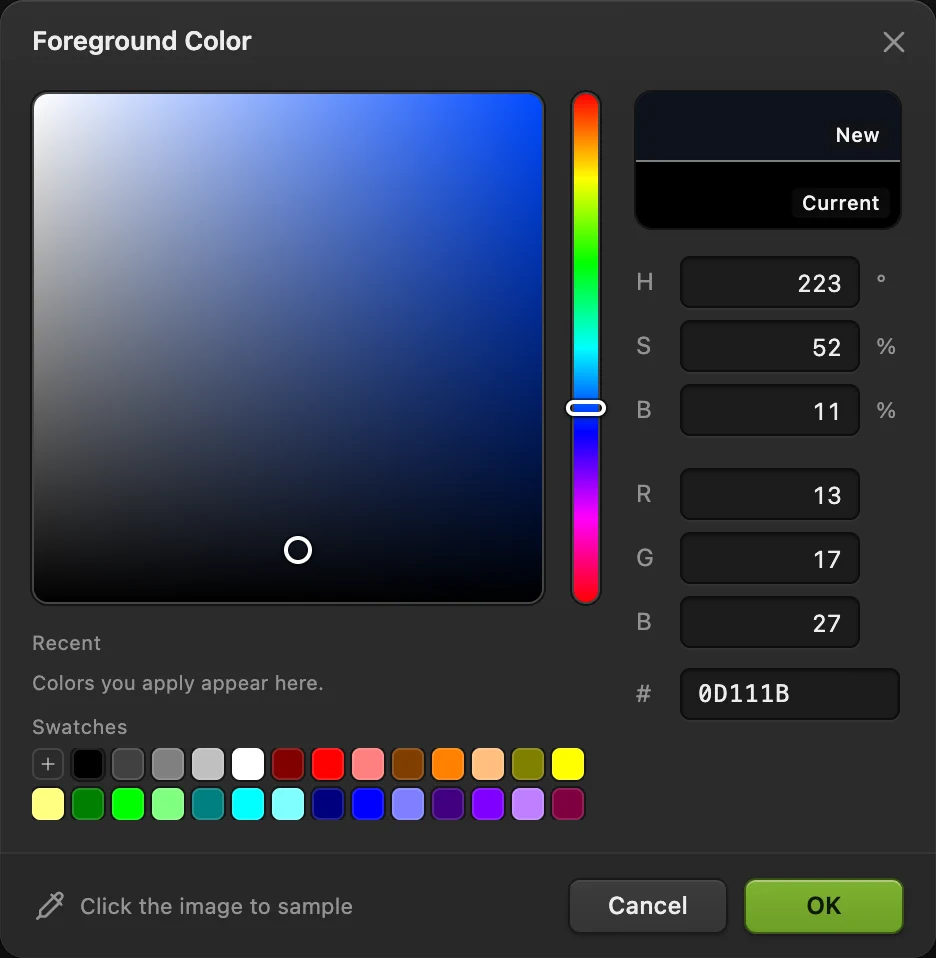
The # field takes a six-digit color code. Paint the birds in the blue opening
Near the top center of the clear sky, draw two short curved strokes that meet at a low center, like a wide, shallow letter m. Put the wing tips roughly level with the top of the bright cloud on the right. Keep the bird inside the blue gap, with a wingspan about one-sixth of the photo’s width.
Set Size to 8 px and draw a smaller bird above and to the right. Set it to 6 px for a third bird below and to the left. Each bird needs two strokes. Use if a wing goes astray.
Tip Lift the mouse or pen between wings.

Use these wing shapes and their positions in the blue sky as a guide; your strokes need not match exactly. Save the layers or export a picture
Choose to keep the painted layer and photograph separately editable. After that, updates the project.
For a finished picture, choose or JPEG… and click Export. Export writes a new file. If you choose before saving a project, it writes a flat picture in the JPEG format you opened; the first JPEG Save opens Save Image.
Size, hardness, opacity and flow
| Control | What it changes |
|---|---|
| Size | The diameter. Use a small tip for lines and a large one for broad shading. |
| Hardness | 100% gives a solid edge. At 0%, paint fades out from the center of the tip. |
| Opacity | The maximum strength of one stroke. At 25%, moving over the same place without releasing stays within that stroke’s 25% limit. Release and paint again to build another layer of color. |
| Flow | The strength of each overlapping dab within a stroke. Low flow builds color gradually as you move back over an area, up to the opacity limit. |
For soft shading, start with a soft round preset, a larger Size and low Flow. For a crisp line, use high Hardness and full Flow. The stroke preview in the tip picker shows the edge before you paint.
Save a preset and use pen pressure
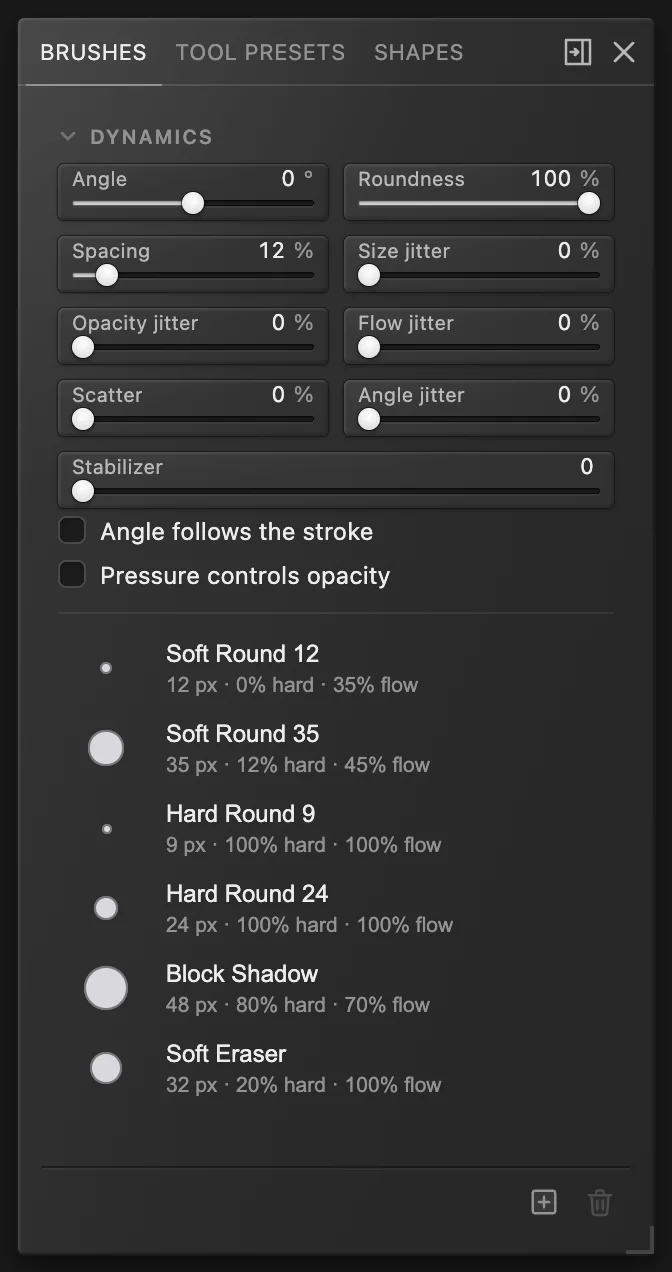
Choose . The Dynamics controls adjust the tip’s shape, spacing and variation. Stabilizer smooths the pointer movement; higher values make the stroke follow your hand more slowly.
The Brush uses pen pressure to change size by default, as do the round presets: lighter pressure produces a narrower stroke. Tick Pressure controls opacity to vary paint strength too. A mouse uses the set size and has no pressure variation. Your pen and browser must supply pressure readings.
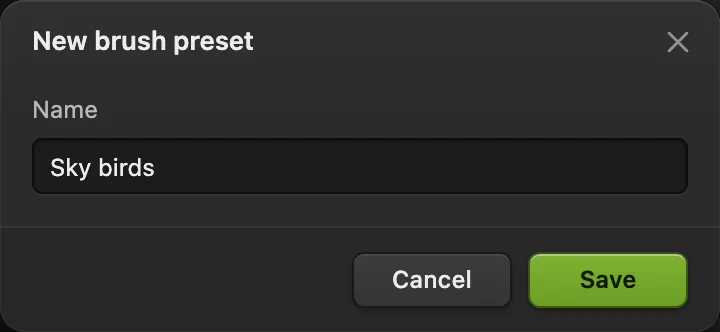
To reuse your settings, click Save the current brush as a preset at the bottom of the Brushes panel, type a name such as Sky birds, then click Save. It appears in the preset list. Saved brush presets belong to this browser, so keep the same browser profile when you want to reuse them.
Fix common problems
The brush changes the photo instead of the empty layer
Undo the stroke and select the transparent layer’s thumbnail in the Layers panel. A selected mask thumbnail paints on the mask instead: black hides and white reveals.
Paint only appears in part of the image
An active selection limits painting. Choose if you want to paint anywhere.
The brush erases or blends strangely
Set the brush Mode back to Normal. Clear mode erases. The paint layer’s blend mode and opacity also change how its strokes look.
A preset made the brush faint
Check Opacity and Flow after choosing a preset. Soft Round 12, for example, sets Flow to 35%.
What to do next
- Paint to hide rather than add color: use a layer mask.
- Remove paint from the layer: Eraser and Background Eraser.
- Choose and reuse your palette: colors and swatches.
- Draw hard-edged pixels: Pencil and pixel art.
The Brush tool: questions and answers
What is the difference between brush opacity and flow?
In Lil Cactus, Opacity limits one complete stroke, while Flow controls how quickly overlapping dabs build paint inside that stroke. Release the mouse or pen and start another stroke to build beyond the previous stroke’s limit.
How do I make a brush edge softer?
In Lil Cactus, lower Hardness on the Brush options bar, or choose a soft round preset from the tip picker. Increasing Size spreads the soft transition over a wider area.
Can I paint without changing the original photo?
Yes. In Lil Cactus, add a layer with Layer › New › New Layer before painting, and save as a Lil Cactus project to keep that layer editable.
Can the Brush use pen pressure?
Yes. By default, Lil Cactus uses pen pressure for size with the Brush and the round presets, and Window › Brushes has Pressure controls opacity. The pen and browser must report pressure; a mouse does not.
How do I undo a brush stroke?
In Lil Cactus, choose Edit › Undo. Each completed drag is one stroke, so drawing two wings with separate drags takes two Undo steps to remove.
Keep going
 How to use layer masksHide part of a layer without deleting it, and bring it back any time.Beginner · 5 min
 How to use Eraser and Background EraserErase by hand or target a background color, while keeping a copy.Beginner · 6 min
 How to pick and save colorsChoose exact colors, sample a photo and keep named swatches.Beginner · 5 min