How to pick and save colors
Quick answer
In Lil Cactus, click the front color square near the bottom of the toolbar, replace the value in the # field with F7F1E5, then click OK. To take a color from a photo, choose Eyedropper, set Sample to 5 × 5 average and click the image. Choose , click the + button at the bottom of the panel (Add the foreground color as a swatch), enter a name and click Add.
- Time
- 5 minutes
- Level
- Beginner
- You need
- A color code, or a photo to sample
- Works with
- Foreground and background colors; JPEG, PNG, WebP and other open images
The front square is the foreground color, used by Brush and by . The rear square is the background color, used by . A swatch keeps a color so you can choose it again without typing its code.
Choose and save two colors in five steps
Choose an exact cream color
Open the sample from this page, or choose Click the front color square near the bottom of the left toolbar. In Foreground Color, replace the value in the # field with F7F1E5. The New preview becomes cream. Click OK.
You can also enter red, green and blue values in the R, G and B fields.

Click the front square for Foreground Color; enlarged view. 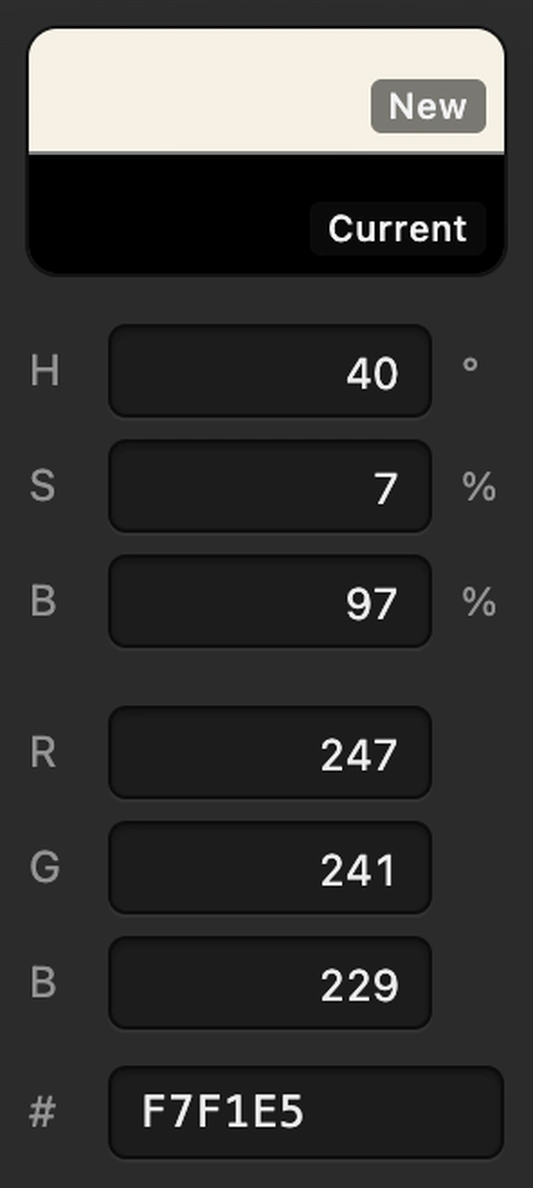
The right column of Foreground Color, enlarged. F7F1E5 is the cream used here. 
The buttons at the bottom of the color picker. Save it as Paper cream
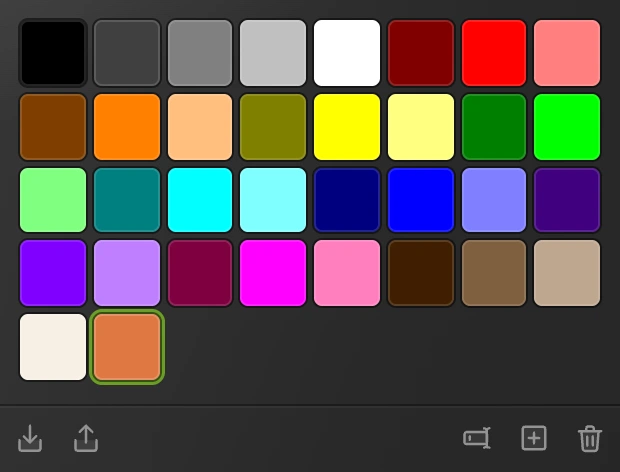
Choose . At the bottom of the panel, click the ringed + button (Add the foreground color as a swatch). Name it Paper cream and click Add.
The new chip appears after the built-in colors in the Swatches panel. Hover over a chip to see its name and hex value.
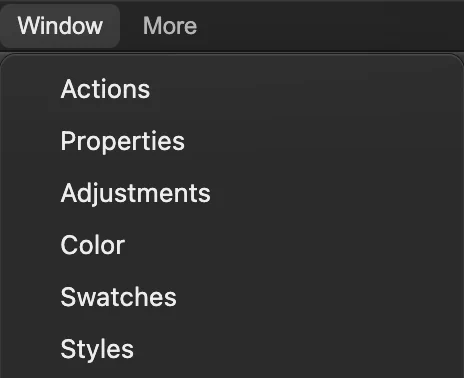
Open the Swatches panel from Window. 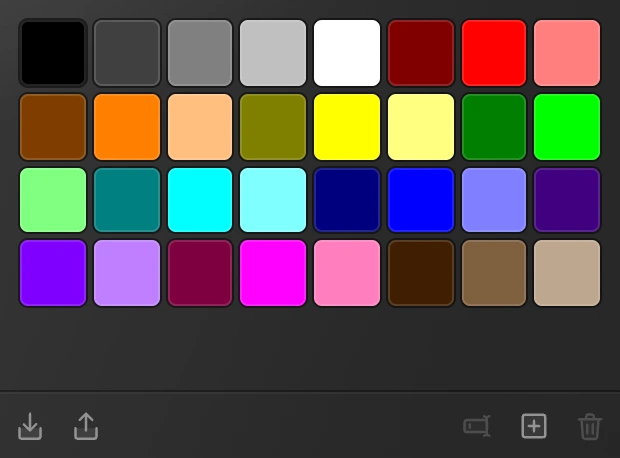
The ringed footer button saves the current foreground color. 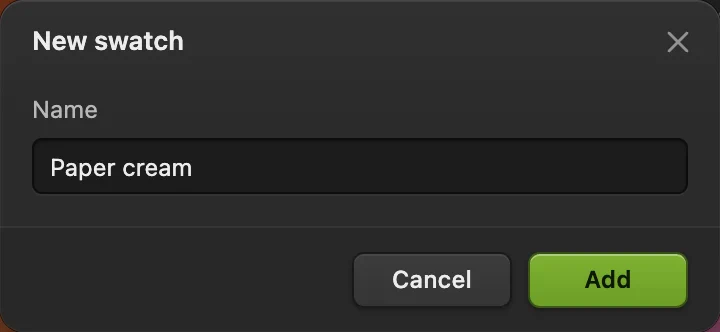
Give the color a name you can recognize later. Choose Eyedropper and its sample size
Right-click the toolbar button below Crop and above Brush, or press and hold it, then choose Eyedropper. In the options bar, change Sample from Point to 5 × 5 average.
Point reads one pixel. An average mixes a small square of pixels around the click, so a speck of texture has less influence.
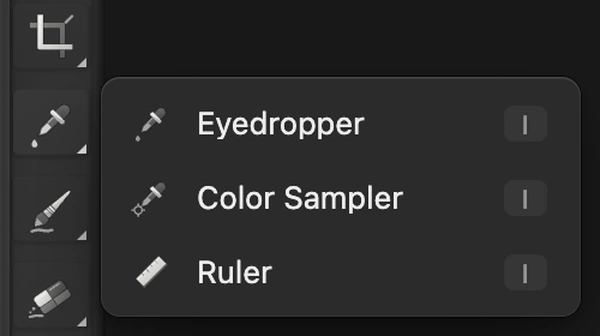
Eyedropper shares this button with Color Sampler and Ruler; enlarged view. 
Use a 5 × 5 average for the textured tabletop. Sample the orange table and save it
Click the empty orange tabletop to the left of the saucer, about a third of the way across the photo and level with the middle of the cup. Point 1 marks the area. The foreground square becomes orange.
Use the same footer button from step 2 to save this color as Table orange. Your exact orange can vary with the spot you click.
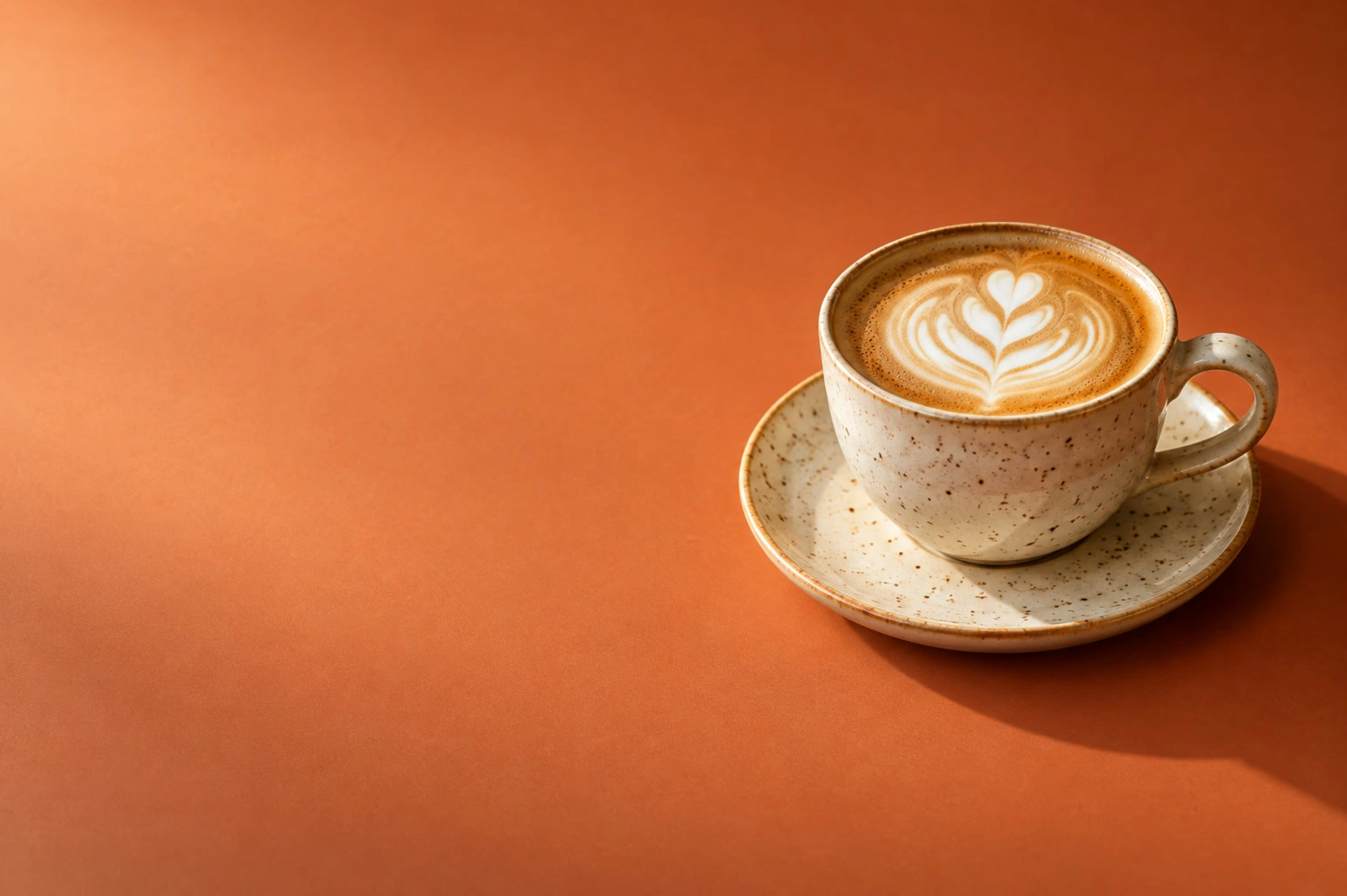
Sample the tabletop at 1, away from the cup and its shadow. - Sample the orange tabletop
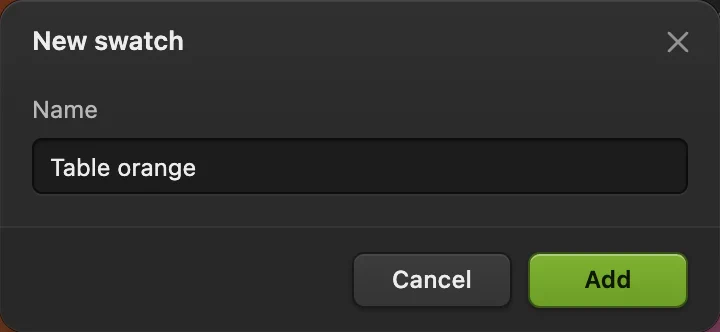
Save the sampled color as Table orange. Recall the foreground and background colors
In Swatches, click Paper cream to make it the foreground color. Hold Alt on Windows or Option on a Mac and click Table orange to make it the background color.
The front square is now cream and the rear square orange. The two named chips remain available when you choose other colors.
Tip Click outside any text field first. X swaps the foreground and background colors; D resets them to black and white.

The rear square now holds the sampled orange; enlarged view.
Choose colors without opening the dialog
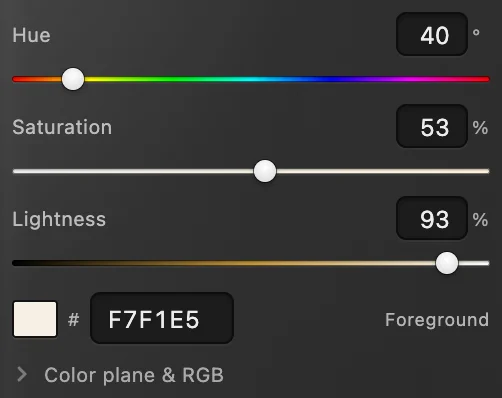
Choose to keep the color controls visible. Its # field, on the row marked Foreground, changes the foreground color directly. The Hue, Saturation and Lightness controls change the color, its intensity and how light or dark it is.
Use the colors in a design
- Paint with your foreground color: use the Brush tool.
- Cover a selected area: use Paint Bucket or Fill.
- Blend between colors: make a gradient.
Color picking and swatches: questions and answers
What is a hex color code?
A six-digit hex color code describes red, green and blue in pairs: RRGGBB. F7F1E5, for example, is RGB 247, 241, 229. The # sign marks it as a hex code.
Does choosing a color recolor my photo?
No. In Lil Cactus, choosing a foreground or background color leaves the image pixels unchanged. Paint with Brush or choose Edit › Fill with Foreground to put that color into the image.
Where does Lil Cactus keep saved swatches?
Lil Cactus saves custom swatches in this browser on this device, including their names. They survive a page reload, but clearing the site’s stored data removes them. They do not automatically appear in another browser.
Can I import and export color swatches?
Yes, in different formats. In Lil Cactus, the Export swatches button (arrow up, second from the left at the bottom of the Swatches panel) downloads sadcactus-swatches.json with color names and hex values. The Import swatches button to its left (arrow down) accepts .ase files containing RGB or Gray swatches; it cannot import that exported JSON file.
How do I rename or delete a saved swatch?
In Lil Cactus, right-click your saved chip in Swatches and choose Rename… or Delete swatch. These commands apply to your saved colors; built-in swatches cannot be renamed or deleted.
Can I cancel a color change in the picker?
Yes. In Lil Cactus, Cancel restores the color that was current when you opened the color picker. OK keeps the new color.
Keep going
 How to paint with the Brush toolPaint on a layer, control the tip and save a brush preset.Beginner · 6 min
 How to use Paint Bucket, Fill and StrokeRecolor flat areas, fill selections and draw a thin outline.Beginner · 8 min
 How to use the Gradient toolBlend colors or transparency with a drawn gradient or a fill layer.Beginner · 8 min