How to use Smart Objects
Quick answer
Select the layer and choose . The layer now keeps its original pixels inside it: you can shrink it, filter it and enlarge it again without losing detail, and filters you apply become editable Smart Filters. swaps the picture inside while keeping its position, transform and filters.
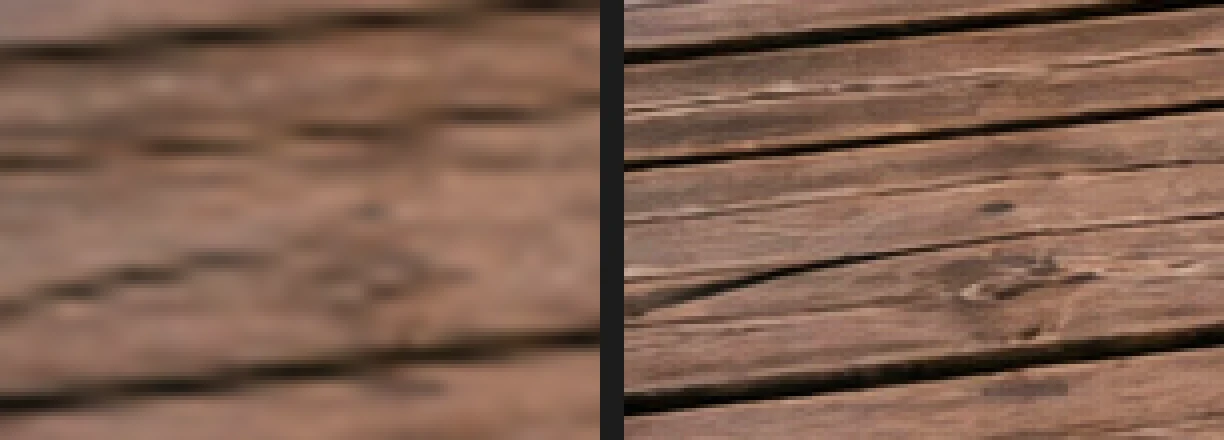
- Time
- 6 minutes
- Level
- Intermediate
- You need
- A photo or layer you may resize or filter more than once
- Works with
- Any layer, group or run of adjacent layers (not adjustment layers alone) in 8- or 16-bit JPEG, PNG, PSD and other documents
A Smart Object is a layer with the original picture stored inside it. What you see on the canvas is drawn from that original every time, at the size and with the filters you have set. So shrinking it to a thumbnail and later enlarging it again brings back every detail, and a filter stays a setting you can change rather than a change baked into the pixels.
A plain layer in Lil Cactus also remembers its original through a transform, but only until you edit it: once you change its pixels while it is small, the detail is gone. In this tutorial you see both, then swap the picture inside the Smart Object.
Use a Smart Object in seven steps
Open the photo
Go to lilcactus.app and choose (Ctrl+O or ⌘O), or drag the photo onto the window. To follow along exactly, open the sample photo from this page.
Convert it to a Smart Object
With the Background layer selected, choose . The picture doesn’t change, but the Properties panel now says Smart object.
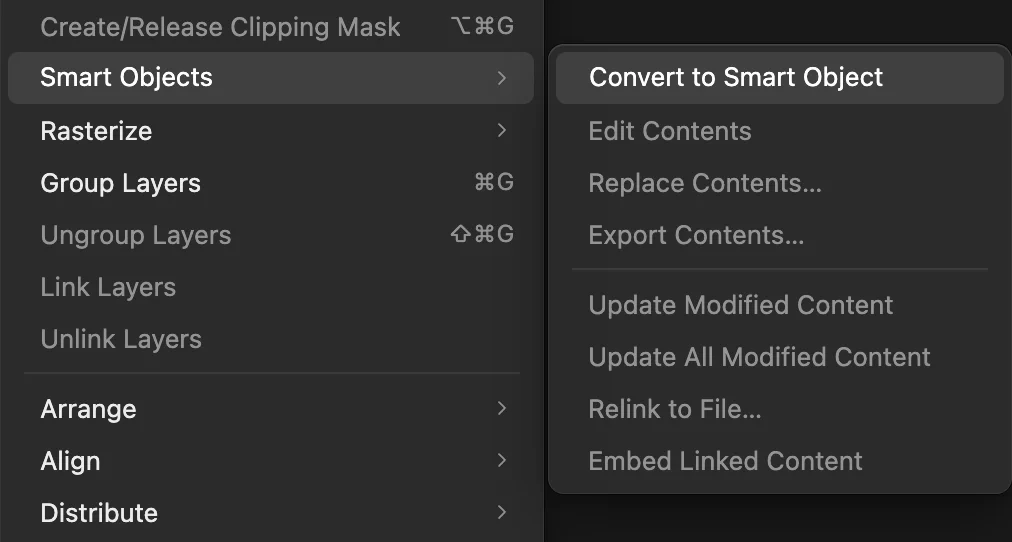
. 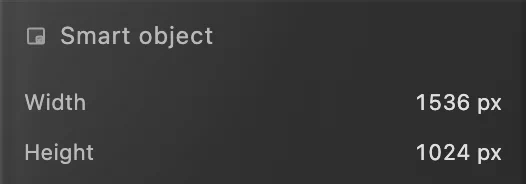
The Properties panel names the layer kind. Shrink it to 25%
Choose (Ctrl+Alt+Shift+T or ⌥⇧⌘T). On the options bar (the strip under the menus), type 25 into W and press Tab: H changes to 25 too, because the link button beside them keeps the two in proportion. Then click the ✓ (Commit transform) at the right end of the options bar. The photo becomes a small picture in the middle of the canvas.

W 25, then Tab: H follows. 
Click ✓ to apply the transform. 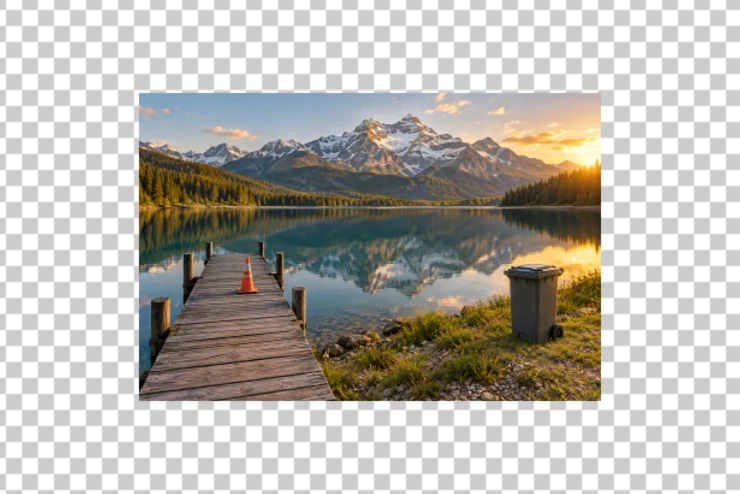
The photo at 25%. Give it more color: a Smart Filter
Choose , type 50 for Vibrance and click Apply. On a Smart Object the adjustment doesn’t change the stored picture: it becomes a Smart Filter, listed by the Smart Filters (1)… button at the bottom of the Layers panel.
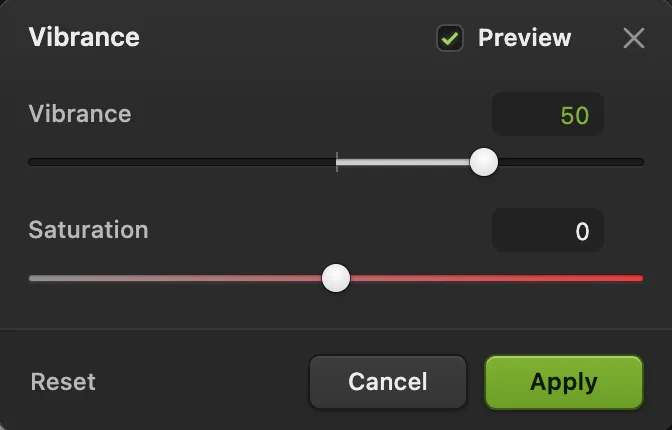
Vibrance 50. 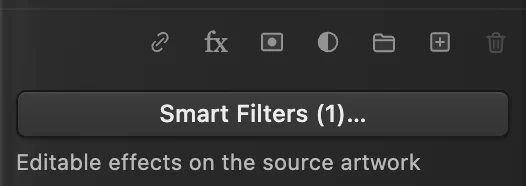
The adjustment is now a Smart Filter. Enlarge it back to full size
Choose again, type 400 into W (four times the current size), press Tab and click ✓. Choose a few times and look at the jetty: the boards are as sharp as before you shrank them, because the Smart Object redraws from its stored original. The comparison at the top of this page shows a plain layer after the same three steps.
Change or remove the filter later
Click Smart Filters (1)… The dialog lists the layer’s Smart Filters. Untick Vibrance: the dialog’s Stack result preview shows the photo without it. Tick it again and click Apply stack; Cancel or closing the dialog discards any changes.
In the same dialog you can change a filter’s values or Opacity below the list, remove it with ×, or pick another filter, such as Gaussian Blur, in the menu and click Add.
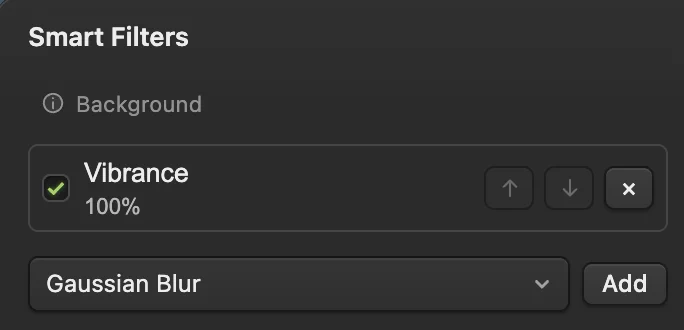
Untick a filter to switch it off. 
Apply stack keeps the changes. Swap the picture with Replace Contents
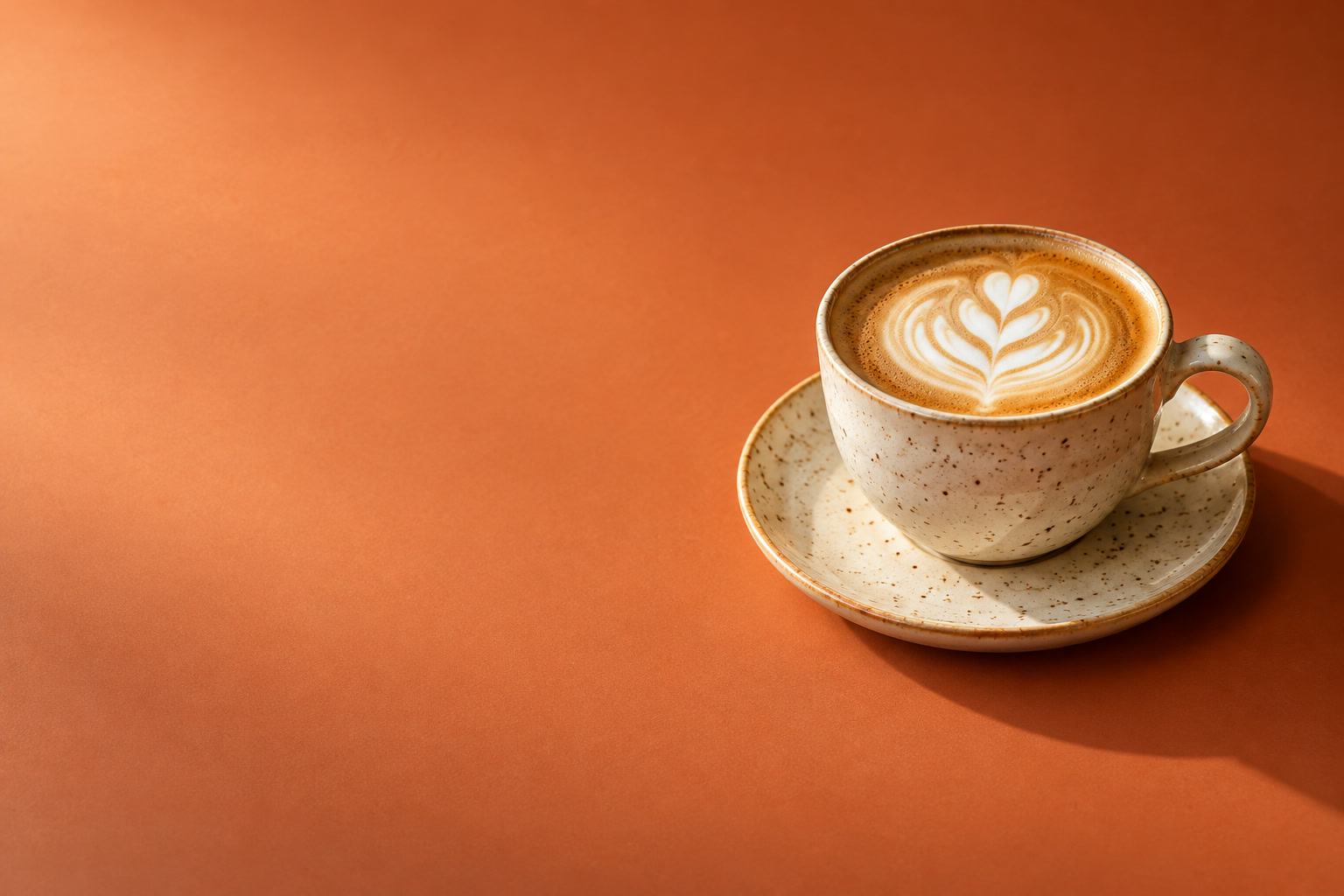
Choose and pick another image; to follow along, download the coffee photo (1536 × 1024 px, the same size as the lake photo). The new picture takes the old one’s place with the same transform and the Vibrance filter still on it. A replacement with the same pixel size lands at exactly the same size. This is how mockups work: place the Smart Object where the design should go once, then replace its contents for each version.

After Replace Contents: the coffee photo. 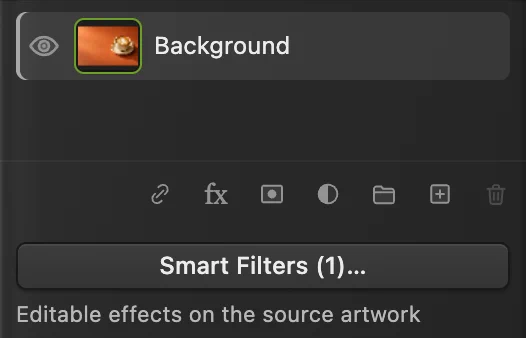
The same layer, still with its Smart Filter.
Edit what’s inside
opens the stored picture in its own tab, named after the layer with “· Contents”. Edit it like any document: paint, add layers, crop. Then choose or press Ctrl+S or ⌘S: while that tab is open, the File menu’s Save item has this name. The Smart Object in the first document updates. downloads the stored picture as a PSD, or as a Lil Cactus project if it holds things a PSD can’t.
When to use a Smart Object, and when not
- Use one for a picture you will resize more than once, place in a layout, filter and want to retune, or replace later.
- Don’t for a layer you will paint or retouch directly: the Brush, Eraser and healing tools can’t work on a Smart Object. Edit its contents, or turn it back into pixels with : the Rasterize Layer Appearance dialog lists what will be lost, the stored original and the Smart Filters, and Convert to Pixels keeps how the layer looks.
Fix common problems
The Smart Object looks soft after enlarging
It can’t be sharper than the picture stored inside. Enlarging past 100% of the original stretches its pixels, as with any photo.
The replaced picture came in larger or smaller
Replace Contents keeps the transform, so a picture with a different pixel size is scaled by the same amount as the old one. Choose and type a new W to fit it.
Save with the Smart Object kept
Until you save a project or PSD, writes a flat picture back into the JPEG you opened, without the Smart Object; the first Save of a JPEG, including the sample, opens the Save Image dialog.
(Ctrl+Shift+S or ⇧⌘S) keeps the Smart Object, its stored picture and its Smart Filters. keeps Smart Objects too, but Lil Cactus can keep only Gaussian Blur and Invert Smart Filters editable in a PSD, and only without a filter mask: a Smart Object with any other Smart Filter, such as this Vibrance, is saved as plain pixels. Lil Cactus lists those layers and asks before it saves, and it asks again at every later save of that PSD. After either Save As, updates that file; for this page’s document, a Lil Cactus project is the format that keeps everything. (or another format) always writes a new, flat image. See how to open and save PSD files.
Coming from another editor
- Photoshop
- Layer › Smart Objects › Convert to Smart Object, Edit Contents and Replace Contents…
- GIMP
- Most filters in GIMP 3 stay editable as layer effects unless you tick Merge Filter in the filter’s dialog.
Smart Objects: questions and answers
Can I turn several layers into one Smart Object?
Yes. In Lil Cactus, select adjacent layers in the same group (click one, then Shift-click another) and choose Layer › Smart Objects › Convert to Smart Object. They become one layer with all of them inside; Edit Contents shows them as separate layers again.
Why is Convert to Smart Object grayed out?
In Lil Cactus it is unavailable when the layer is already a Smart Object, when only adjustment layers are selected, when the padlock in the Lock row is on for a selected layer or a group around it, when the selected layers are not next to each other in one group, when the bottom selected layer is clipped to the layer below, or when the document is 32-bit HDR.
Can a Smart Object stay linked to a file on my computer?
Yes, in Chrome or Edge, which let a web page reopen a file you chose. In Lil Cactus, choose File › Place Linked… and pick the file. After you change that file in another app, choose Layer › Smart Objects › Update Modified Content.
Do Smart Objects in Photoshop files open as Smart Objects?
Yes. Lil Cactus opens Smart Objects in PSD files as Smart Objects, with their contents. One with a perspective (distort) or warp transform, or a Smart Filter it can’t keep editable, opens as plain pixels that look the same, and Lil Cactus lists it in the PSD import notes.
Do Smart Objects make the file bigger?
Barely, for a single converted photo: a Lil Cactus project stores the original picture once, plus the transform and filter settings.
Is my photo uploaded when I use Smart Objects in Lil Cactus?
No. Everything runs in your browser, on your own device. When statistics are on, the editor records which tools are used, never the image, as the privacy policy explains.
Keep going
 How to use layers in a photo editorStack, reorder, fade, hide and group the parts of a picture.Beginner · 6 min
 How to use adjustment layersColor and tone changes you can retune, hide or limit to one area.Beginner · 5 min
 How to open, view and edit a PSD file onlineOpen a PSD with its layers, edit the text, and save it back as a PSD.Beginner · 5 min