How to upscale an image without it turning blocky
Quick answer
Choose , set the units to Percent (or keep Pixels), type the new width, keep Resample on, choose Bicubic Sharper and click Resize. Then choose and click Apply to firm up the edges. Enlarging spreads the existing detail over more pixels; it can’t add detail that was never captured.
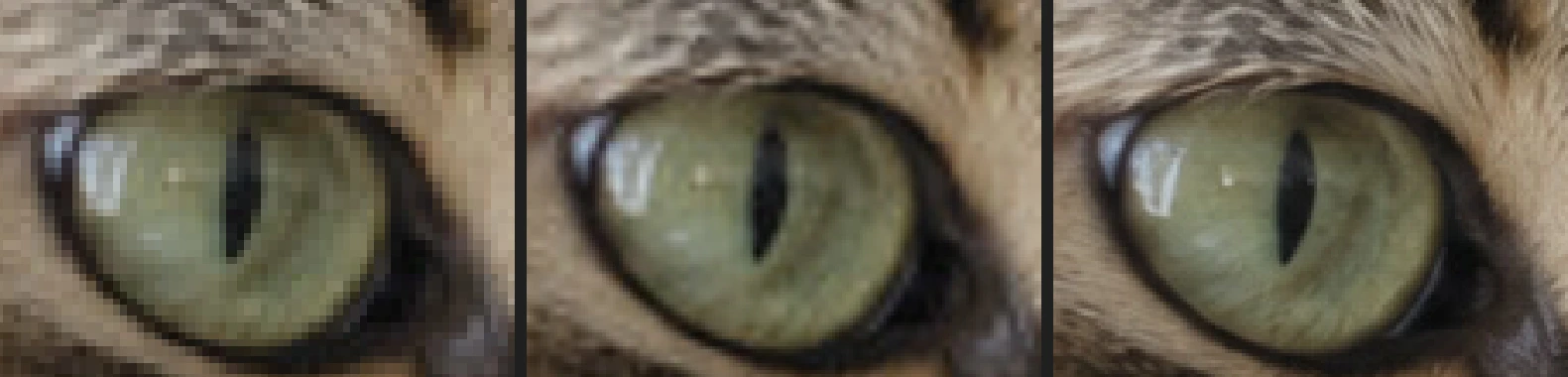
- Time
- 4 minutes
- Level
- Beginner
- You need
- A small image you need at a larger size
- Works with
- JPEG, PNG, WebP, HEIC, PSD and other images
A digital image is a grid of pixels. To make it bigger, the editor has to invent the new pixels in between, a step called resampling. Good resampling blends neighboring pixels smoothly, so the picture gets bigger without turning into visible squares, but the extra pixels carry no new information: fine detail such as fur or text that was too small to record stays soft.
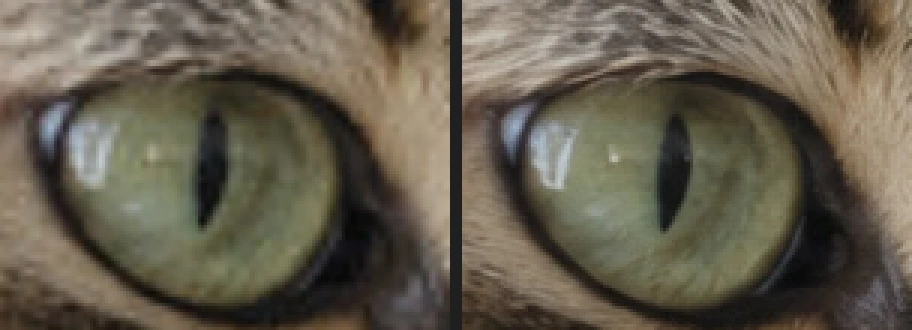
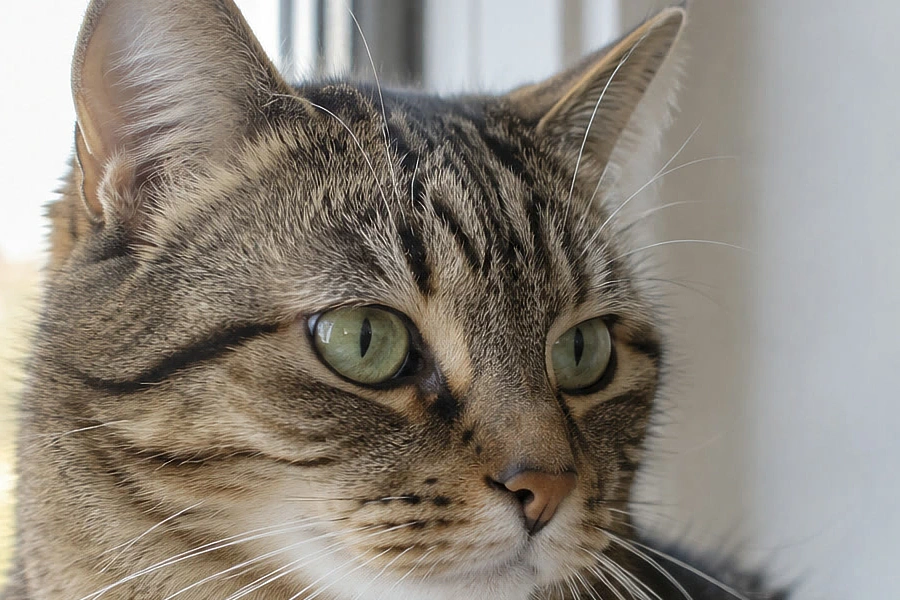
In this tutorial you enlarge a 640 px photo of a cat to 1536 px, sharpen it, and compare it with the same photo taken at full size, so you can see what to expect.
Upscale an image in five steps
Open the image
Go to lilcactus.app and choose , or drag the image onto the window. To follow along exactly, open the sample photo from this page.
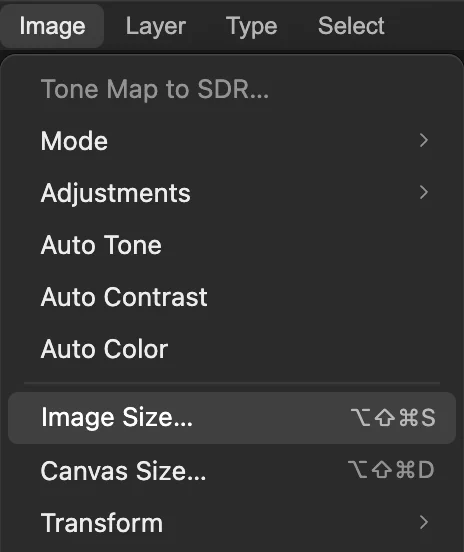
Open Image Size
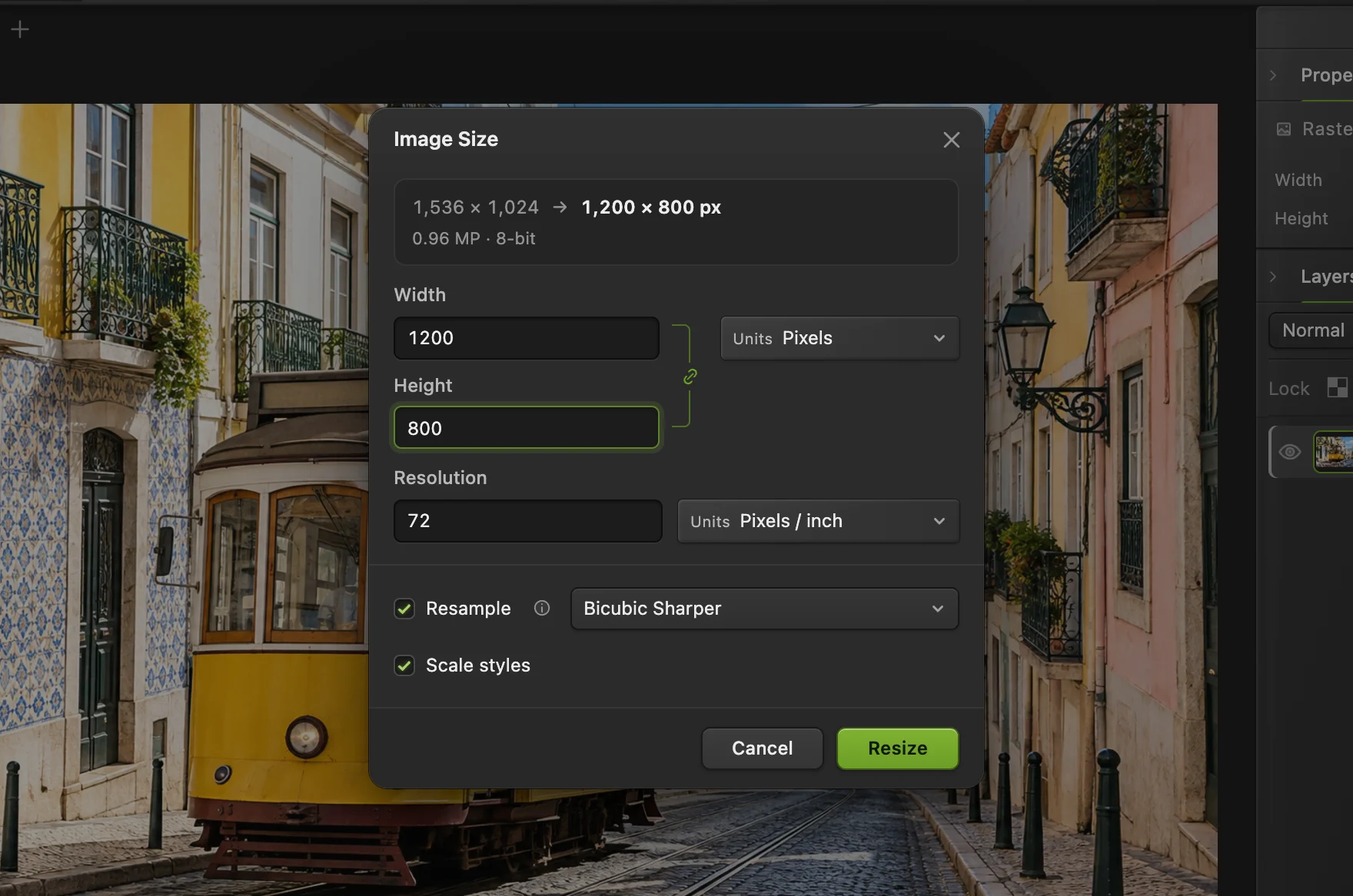
Choose The top of the dialog shows the current size (640 × 426 for the sample) and, when you press Tab after typing, the new one.
Enter the new size
Set Units next to Width to Percent and type 240 for Width, then press Tab: the height follows, because the link between them keeps the proportions. The summary now reads 640 × 426 → 1,536 × 1,022 px. If you need an exact size, keep Pixels and type the width instead.
Keep Resample ticked and choose Bicubic Sharper, then click Resize.
Tip The method starts on Bilinear; switch it, or the result comes out softer.
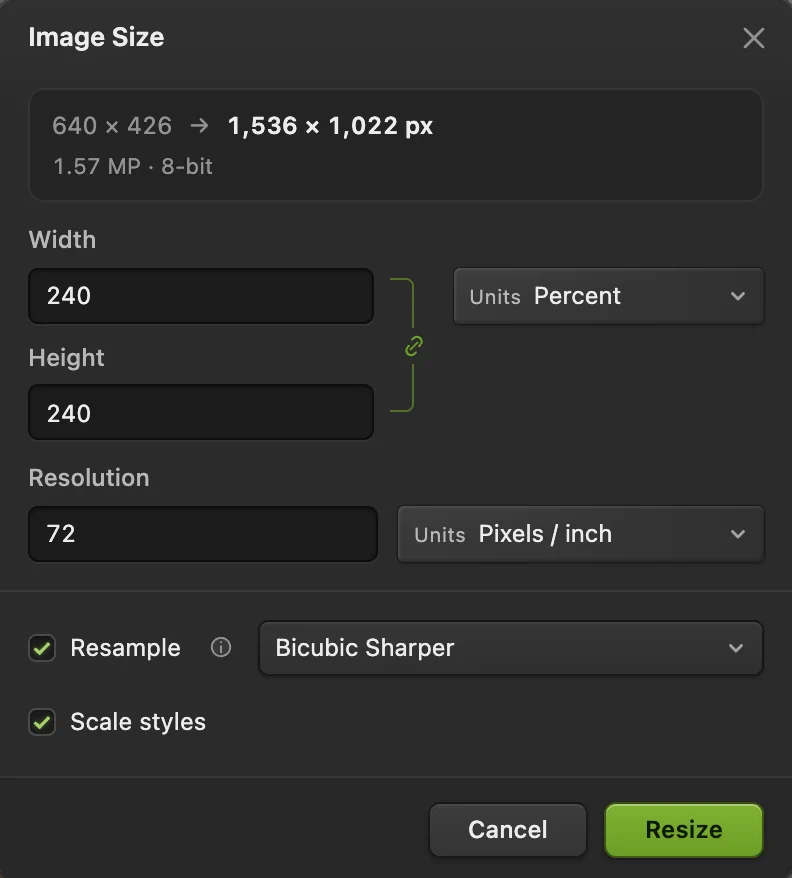
Percent, 240 and Bicubic Sharper. Sharpen the enlarged image
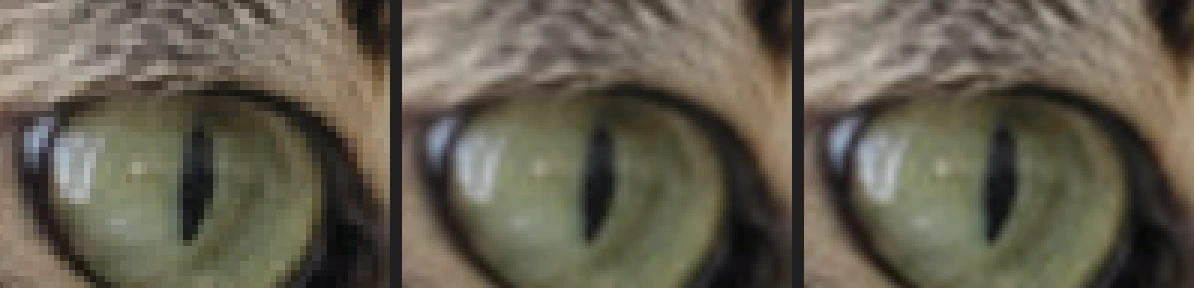
Enlarging leaves edges a little soft. Choose first, so you judge it at real size, then Its starting settings (Amount 150%, Radius 1 px) suit this photo: untick Preview and tick it again to compare, then click Apply. Edges such as the eyelids and the dark fur stripes look firmer. Sharpening a photo explains the settings.
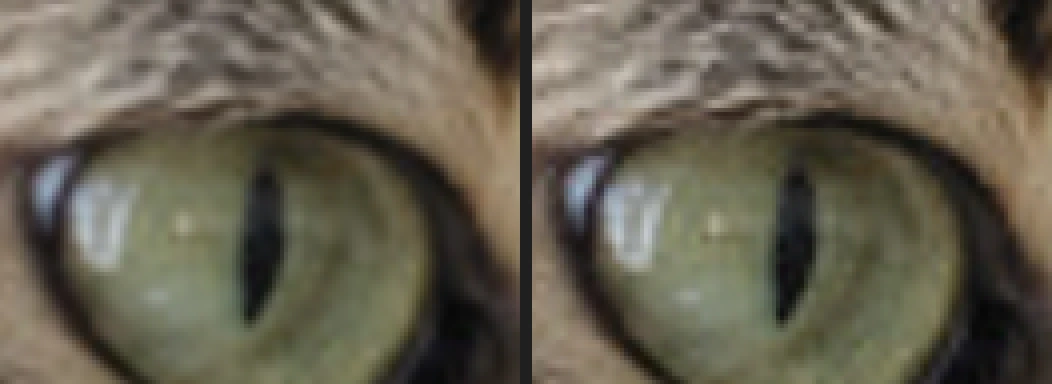
Before and after Smart Sharpen, enlarged. Export the bigger image
Choose (or PNG) and click Export to download the enlarged copy; the file you opened keeps its size. writes the larger version back into the file you opened instead; for a JPEG the first save opens the Save Image settings.
Which resampling method to choose
- Bicubic Sharper: the best choice for photos. It blends smoothly and keeps edges a little crisper.
- Bilinear: a simpler blend that comes out softer.
- Nearest Neighbor: copies pixels without blending, so a photo turns into visible squares. Use it for pixel art, icons and screenshots of text, enlarged by whole multiples (200%, 300%), to keep their edges hard.
How far you can enlarge
A small enlargement is usually hard to notice at normal viewing size. At 240%, as here, the image looks fine at a glance but soft up close: fur that was a pixel wide in the small photo can’t come back as separate hairs. Measured on the sample, only about a quarter of the full-size photo’s finest texture is there, with or without sharpening. Sharpening makes edges more contrasty (from about 63% to about 75% of the original’s edge contrast), not more detailed.
So enlarge as little as the job needs, and start from the largest copy you have.
Bigger for printing, without adding pixels
For a print, multiply its size in inches by about 300 to get the pixels you need. In , untick Resample and type a Resolution: the print size changes and the pixels stay as they are. Enlarge only if the print is still too small. More in how to resize an image.
Fix common problems
The enlarged image looks blocky
Nearest Neighbor was chosen. Choose and resize again with Bicubic Sharper.
Sharpening made bright outlines along edges
The sharpening is too strong for the enlarged image. Undo it and apply it again with a lower Amount, 100% or less.
The image didn’t get any more pixels
Resample was unticked, so only the print size changed. Undo, tick Resample and resize again.
Coming from another editor
- Photoshop
- Image › Image Size…, with Resample and a resampling method such as Bicubic Smoother.
- GIMP
- Image › Scale Image…, with Interpolation.
- Mac Preview
- Tools › Adjust Size…
Enlarging images: questions and answers
Can I upscale an image without losing quality?
Not completely. In Lil Cactus, Image Size with Bicubic Sharper enlarges smoothly, and a light Smart Sharpen firms up edges, but fine detail that the small image never had stays soft.
Does Lil Cactus have AI upscaling?
No. Lil Cactus enlarges by resampling (Bicubic Sharper, Bilinear or Nearest Neighbor), which keeps the picture faithful but doesn’t invent new detail.
What size should I upscale to for printing?
About 300 pixels per inch of print: a 6 × 4 in print needs about 1800 × 1200 px. In Lil Cactus, untick Resample in Image › Image Size… and set Resolution to 300: the size shown is how large the image already prints.
How do I make pixel art bigger without blurring it?
In Lil Cactus, choose Image › Image Size…, set Units to Percent, type 200, 300, 400 or another multiple of 100, and choose Nearest Neighbor.
Is my image uploaded when I upscale it in Lil Cactus?
No. Everything runs in your browser, on your own device. When statistics are on, the editor records which tools are used, never the image, as the privacy policy explains.
Keep going
 How to resize an image online to exact pixels or print sizeExact pixels, percent or print size, without stretching.Beginner · 2 min
 How to sharpen a photo without halosSmart Sharpen at 100%, without halos or crunchy grain.Intermediate · 6 min
 How to crop an imageChoose what stays in the frame, then set the shape and size.Beginner · 6 min