How to sharpen a photo without halos
Quick answer
Zoom to 100% with , then choose Start from the defaults (Amount 150%, Radius 1 px, Remove Lens Blur) and judge the eyes and fine texture: if they still look soft, raise Amount, stopping before bright or dark outlines appear along edges. Click Apply. Convert the layer to a Smart Object first if you want to change the amount later.
- Time
- 6 minutes
- Level
- Intermediate
- You need
- A photo that looks slightly soft, and the size you will show it at
- Works with
- JPEG, PNG, HEIC, WebP, TIFF, PSD and RAW files
Sharpening can’t add detail a camera never recorded, but it can make the detail that is there easier to see. It works by increasing contrast right at edges: the dark side of every edge gets a little darker and the light side a little lighter. Your eye reads that as crispness.
The same trick, overdone, draws visible outlines along edges, called halos, and turns smooth areas gritty. That is why sharpening is judged at 100% zoom, on the edges and the smooth areas, never on the whole photo at a reduced size.
Sharpen a photo in six steps
Open the photo and zoom to 100%
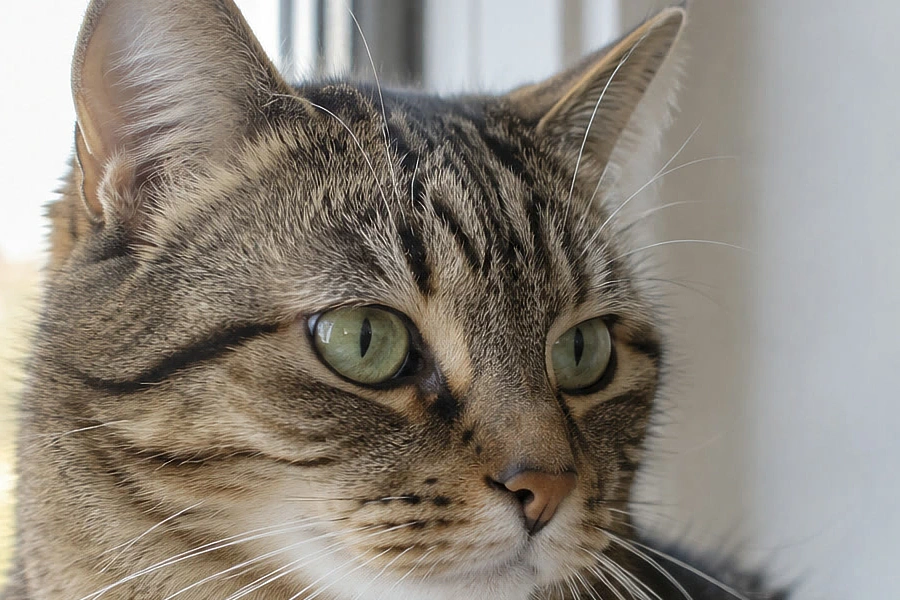
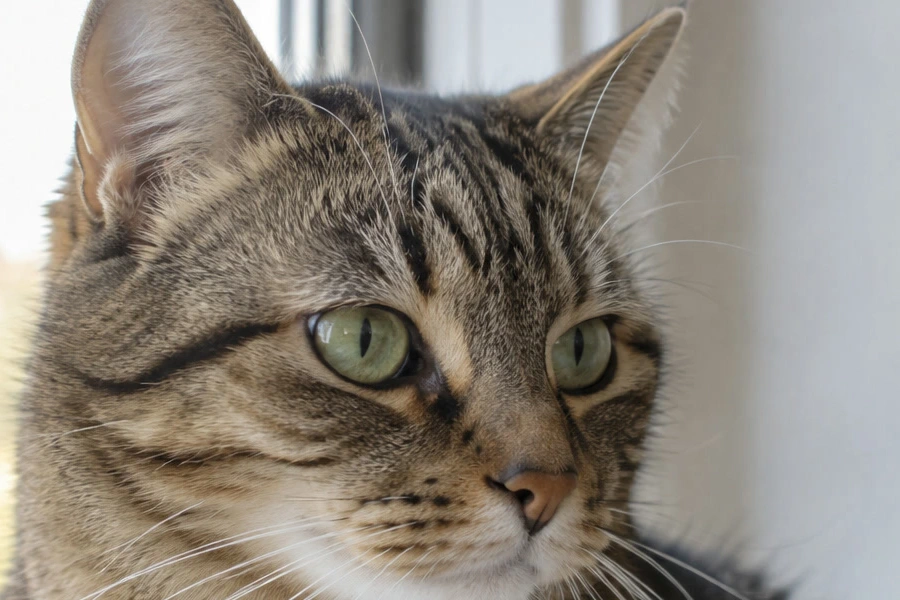
Open the photo with (Ctrl+O or ⌘O); to follow along, open the sample from this page. Then press Ctrl+1 or ⌘1 () so one image pixel is one screen pixel, and pan to an area with fine detail and a strong edge. On the sample: the eyes and the ear against the bright window.
If you will make the photo smaller for the web, resize it first and sharpen after: sharpening is tuned to the final pixel size.
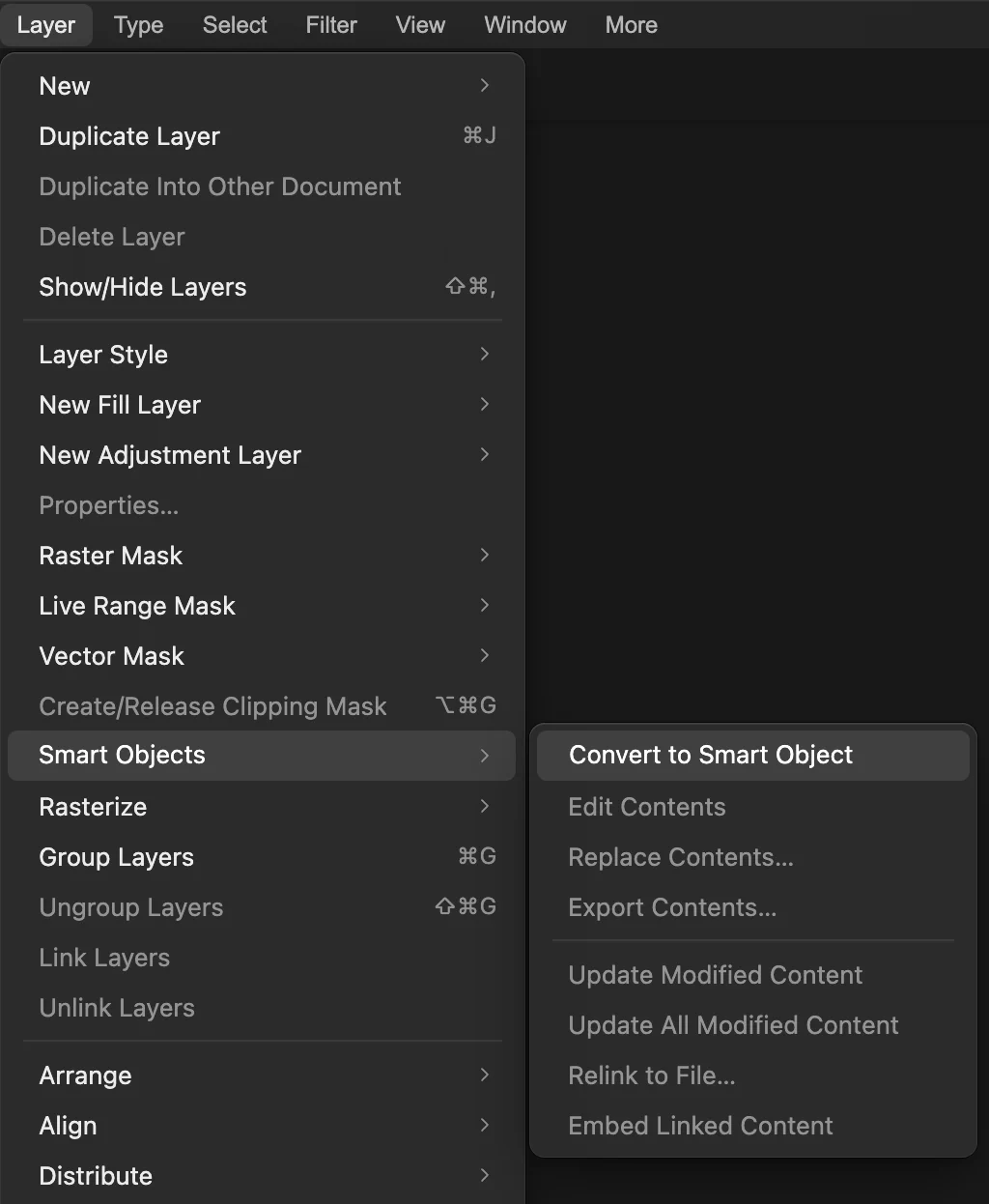
Convert the layer to a Smart Object
Choose . Filters applied to a Smart Object are kept as editable Smart Filters, so you can lower the amount later, for example after seeing a print. Skip this step if you are sure.
. Choose Filter › Sharpen › Smart Sharpen…
The Sharpen submenu holds every sharpening tool. Smart Sharpen is the best start for photos: it reverses blur instead of only boosting edge contrast, and it protects grain. The other tools are compared below.
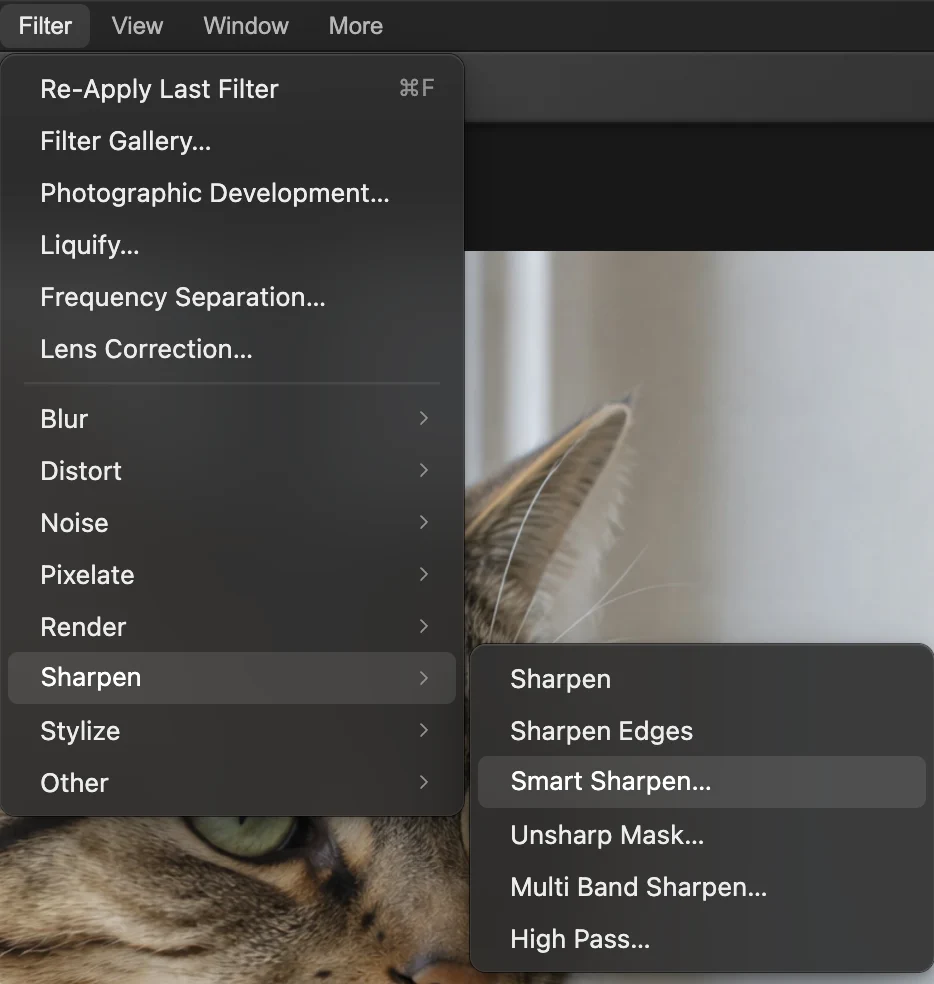
, third in the submenu. Set Amount, Radius and Remove
- Amount (default 150%): how strong the sharpening is. Watch the eyes and fur while you change it.
- Radius (default 1 px): how wide the blur is that it reverses. For most photos 0.5–2 px is right. Larger values sharpen broader shapes but draw halos quickly.
- Remove: the kind of blur. Lens Blur (the default) suits normal softness from focus or a lens. Motion Blur reverses a short shake in one direction, set by Motion angle. Gaussian Blur is simple edge contrast, like Unsharp Mask.
- Reduce noise (default 10%): holds back sharpening in low-contrast areas, where grain lives. Raise it for high-ISO photos.
On the sample the defaults already work: the fur and the eyes gain detail. Turn Preview off and on to compare.
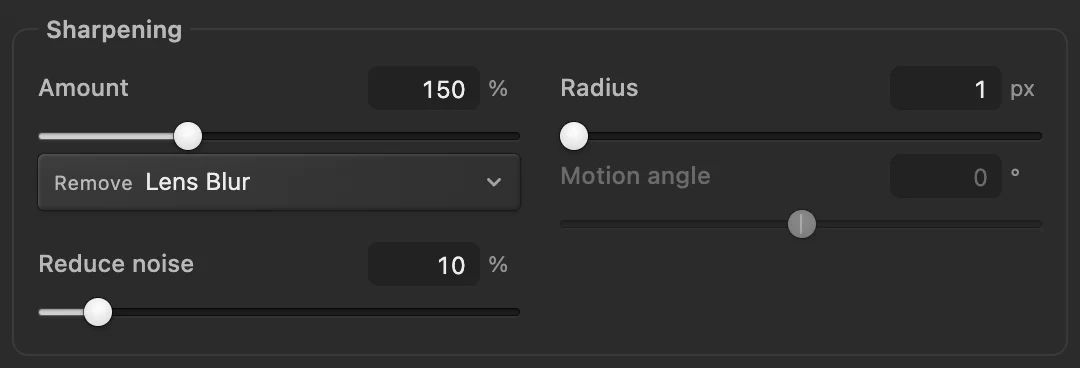
Smart Sharpen at its defaults, used on the sample. - Amount: strength
- Radius: how wide the blur is that it reverses
- Reduce noise: spare flat, grainy areas
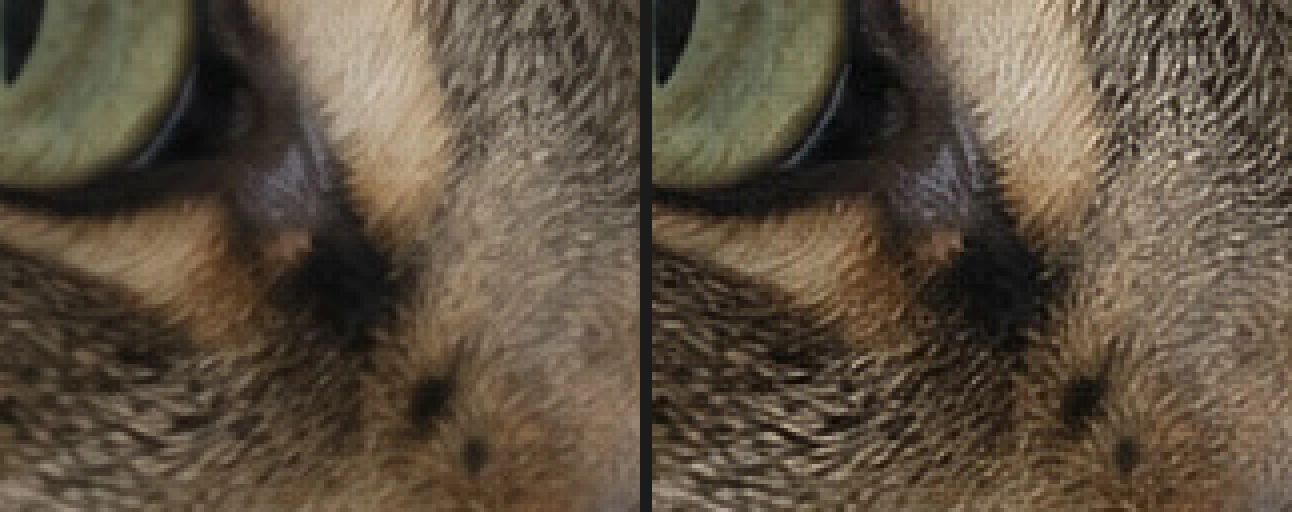
Below the eye, enlarged: before (left) and after Smart Sharpen at its defaults (right). Check the edges for halos
Now look at a high-contrast edge, such as the ear against the bright window. A light line along the bright side, or a dark line along the dark side, is a halo: the sharpening has overshot.
If you see one, lower Amount first, then Radius. The right-hand picture below is what too much looks like: Smart Sharpen at an Amount of 400% and a 3 px Radius.
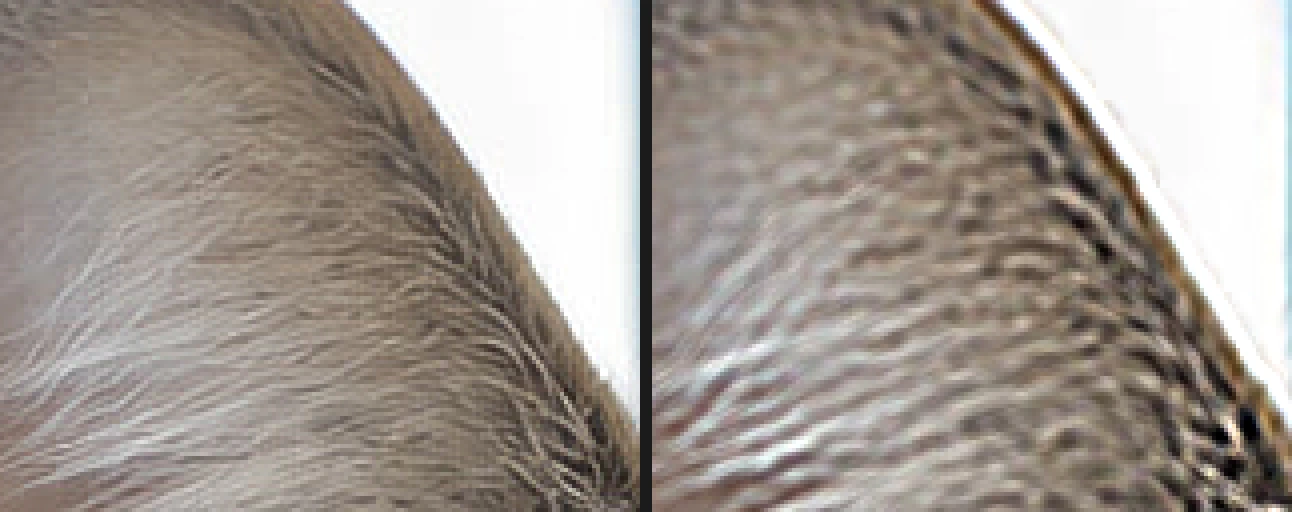
The ear, enlarged: Smart Sharpen at its defaults (left), and overdone at 400% and 3 px, with halos (right). Apply and export
Click Apply. Then export with or save the editable version with (Ctrl+Shift+S or ⇧⌘S). Sharpen once, as the last step: sharpening a photo that was already sharpened, by the camera or by you, multiplies halos and grain and gives a crunchy, painted look. Many cameras and phones already sharpen their JPEGs, so go easy on those.
Keep halos out of bright and dark areas
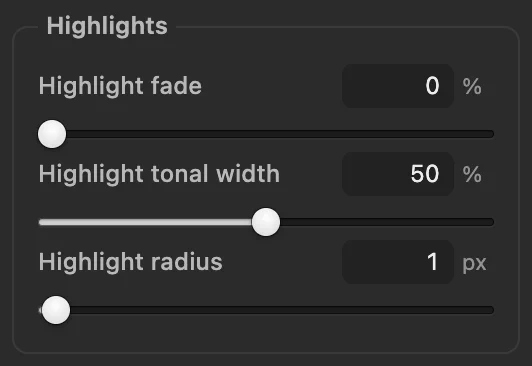
Below the main controls, Smart Sharpen has Shadows and Highlights groups. Highlight fade reduces sharpening in the brightest tones, and Shadow fade in the darkest tones, where sharpening mostly raises noise. The tonal width controls decide how far up or down the range counts as a highlight or shadow (default 50%), and the radius controls how large an area is judged. Both fades start at 0%, meaning off. Their effect is gentle: on the sample at 50%, Shadow fade trims dark outlines by about a fifth and Highlight fade trims bright ones by about a tenth.
Unsharp Mask: the classic method
blurs a copy of the photo, takes the difference from the original, and adds that difference back, multiplied by Amount. It is predictable and quick.
- Amount (default 80%): strength. 80–150% for photos.
- Radius (default 2 px): how far from each edge the effect reaches. 0.5–1.5 px for fine detail.
- Threshold (default 0): differences smaller than this are left alone, so smooth skin and skies stay smooth while edges sharpen. 2–6 is a good range for portraits and grainy photos.
Unlike Smart Sharpen it has no blur model and no noise protection beyond Threshold.
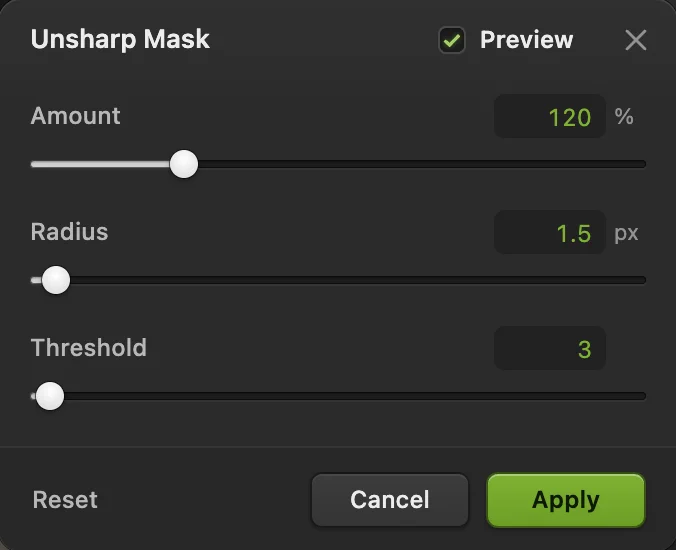
- Amount
- Radius
- Threshold: leave smooth areas alone
High Pass, Multi Band Sharpen and the one-click filters
- High Pass on a layer: duplicate the layer (, Ctrl+J or ⌘J), run on the copy with a Radius of 1–3 px (it turns gray, with edges drawn in light and dark), then set the copy’s blend mode to Overlay or the gentler Soft Light in the Layers panel. Opacity controls the strength, and painting black on a mask removes the sharpening where you don’t want it.
- Multi Band Sharpen (): enhances detail at five scales at once with Multiscale (five scales), the default, which also strengthens broader texture such as bark or rock; Fine scale only limits it to the finest detail. It may amplify grain; use Amount (default 35%) to control it.
- Sharpen and Sharpen Edges: one-click filters with no settings.
How much sharpening for screen and print
- Web and social media: sharpen lightly (Smart Sharpen around 80–150%, Radius 0.5–1 px), judging at 100%.
- Print: printing softens detail, so a photo that looks just right on screen usually prints slightly soft. Sharpen a little more than looks ideal at 100%, but still without visible halos.
- Portraits: sharpen eyes, lashes and hair, and keep skin smooth: Threshold in Unsharp Mask, or a High Pass layer with black painted on its mask over the skin.
What to do next
- Clean up grain before sharpening: how to reduce noise.
- Resizing for the web? Resize the image.
- Shooting RAW? Develop it first: how to edit a RAW photo.
- Use a layer mask to sharpen only part of the photo.
Coming from another editor
- Photoshop
- Filter › Sharpen › Smart Sharpen… and Unsharp Mask…, the same menu paths as in Lil Cactus.
- GIMP
- Filters › Enhance › Sharpen (Unsharp Mask)… In Lil Cactus it is Filter › Sharpen › Unsharp Mask…, or Smart Sharpen… beside it.
Photo sharpening: questions and answers
How do I apply the same sharpening to another photo?
In Lil Cactus, open the other photo in the same session and choose Filter › Re-Apply Last Filter. It runs the last filter you applied, with the same settings, without opening its dialog. The shortcut is Ctrl+F (Command+F on a Mac), but many browsers use it for Find, so use the menu if the Find bar opens.
What is the difference between Smart Sharpen and Unsharp Mask?
In Lil Cactus, Unsharp Mask adds edge contrast by subtracting a blurred copy. Smart Sharpen reverses the blur you choose under Remove and Radius, and its Reduce noise setting holds back sharpening in flat, grainy areas.
Can sharpening fix a blurry photo?
Only slight softness. Sharpening makes existing detail clearer but can’t restore detail lost to a badly missed focus or strong motion blur. In Lil Cactus, Smart Sharpen’s Remove set to Motion Blur helps only with a short, straight shake.
Can I sharpen a RAW photo while developing it in Lil Cactus?
Yes. In Lil Cactus, Filter › Photographic Development… has a Sharpening slider in its Detail group (click Detail to open it), beside Luminance noise and Color noise. For control over halos and grain, leave it low and finish with Smart Sharpen instead.
Is my photo uploaded when I sharpen it in Lil Cactus?
No. Sharpening runs in your browser on your own device, and the photo is never sent to a server. Optional statistics never include the image; see the privacy policy.
Keep going
 How to reduce noise in a photoClean up grain and color speckles from night and high-ISO shots.Intermediate · 6 min
 How to resize an image online to exact pixels or print sizeExact pixels, percent or print size, without stretching.Beginner · 2 min
 How to edit a RAW photoWhite balance, highlights, shadows and color from the sensor data.Intermediate · 10 min