How to add a border to an image
Quick answer
In Lil Cactus, choose and increase both dimensions by twice the border width, using the Center anchor. Add , enter FFFFFF in the # field for white and click Apply. Choose to put the color behind the photo, then export with
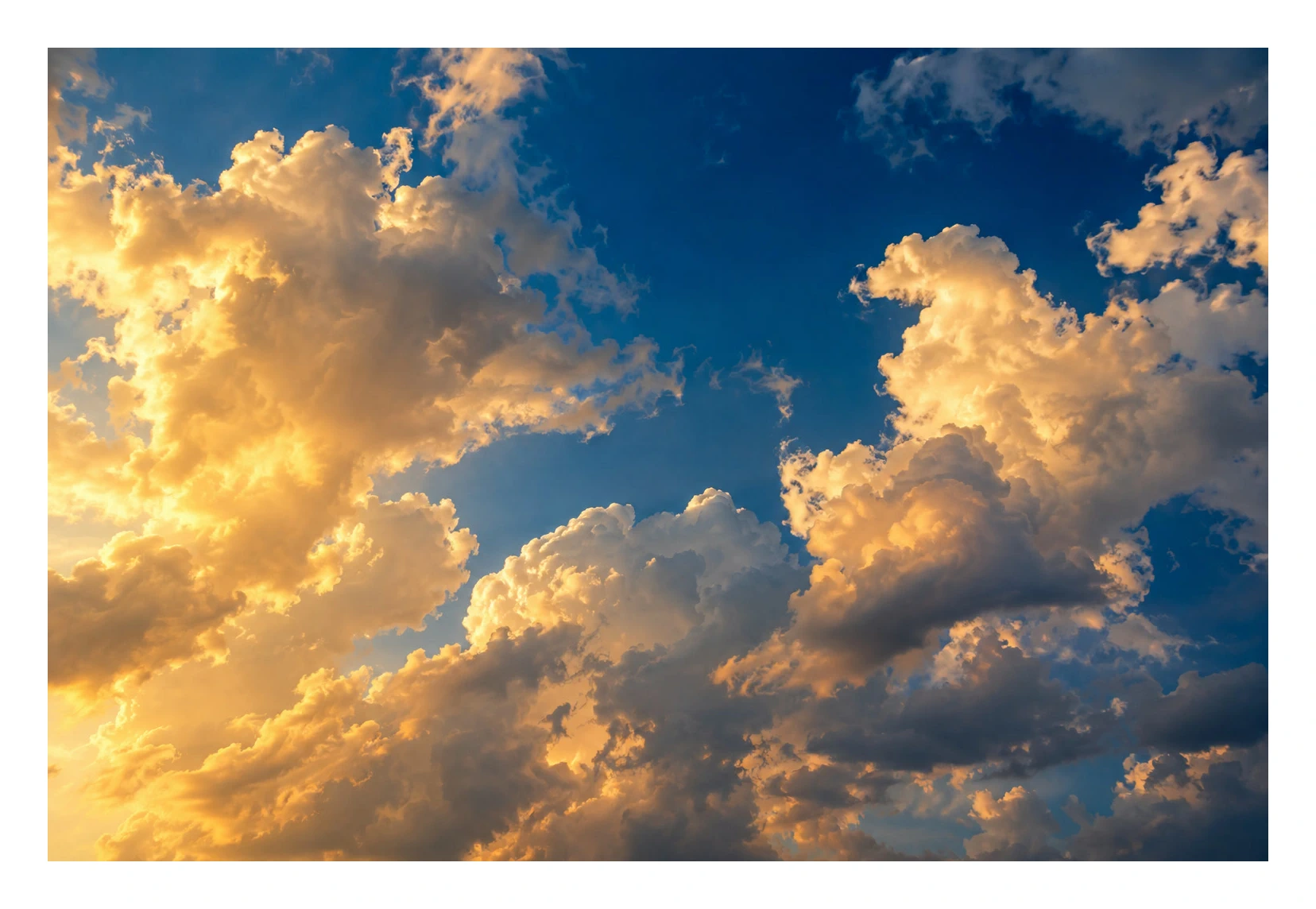
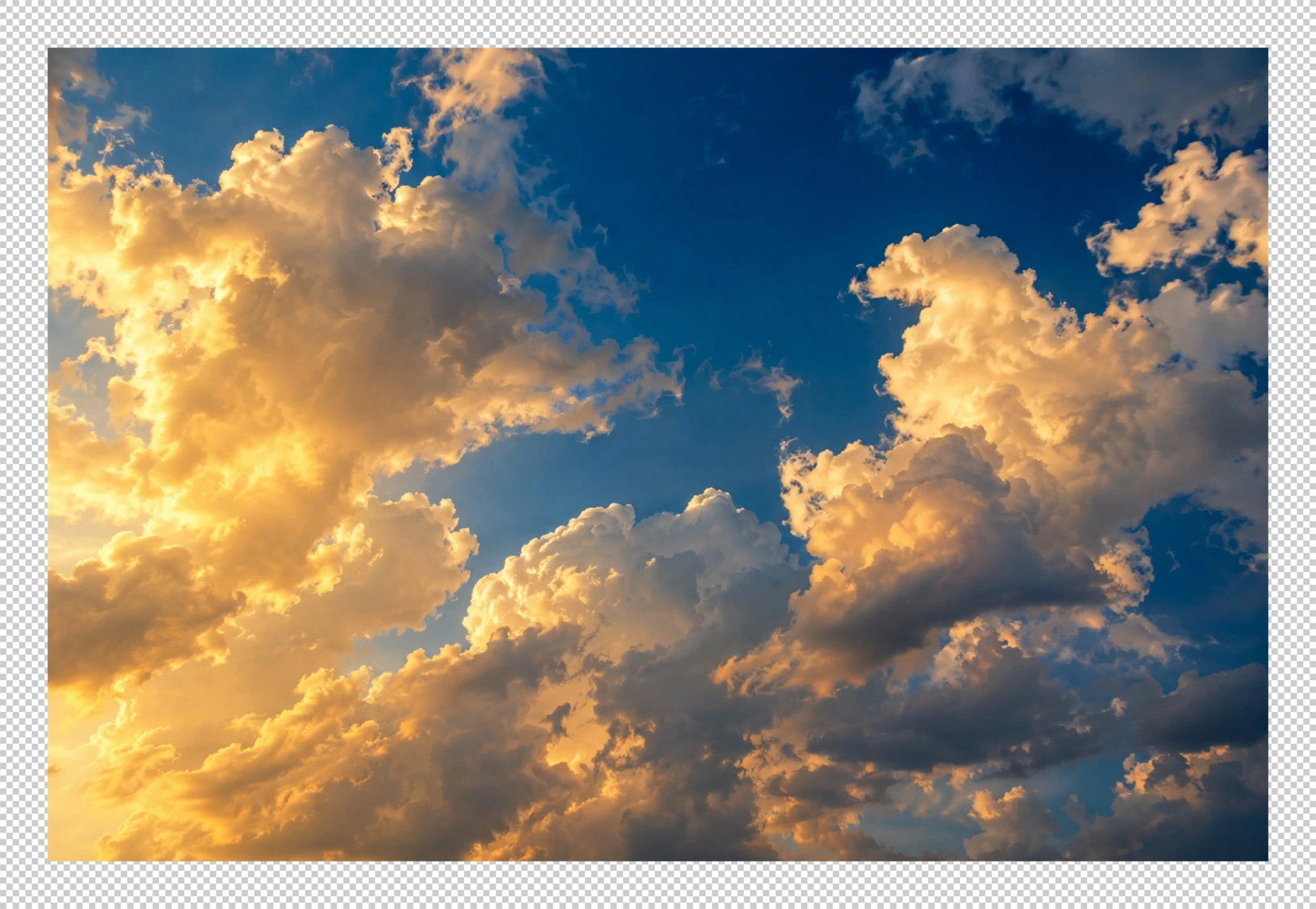
- Time
- 5 minutes
- Level
- Beginner
- You need
- A photo and a border width in pixels
- Works with
- JPG, PNG, WebP and other images you can open
Use extra canvas space when you want a frame outside the photo. A fill layer supplies the color, while the photo sits above it. For an outline that fits inside the existing image dimensions, use the Stroke variation below.
Add an outside frame in five steps
Open the photo
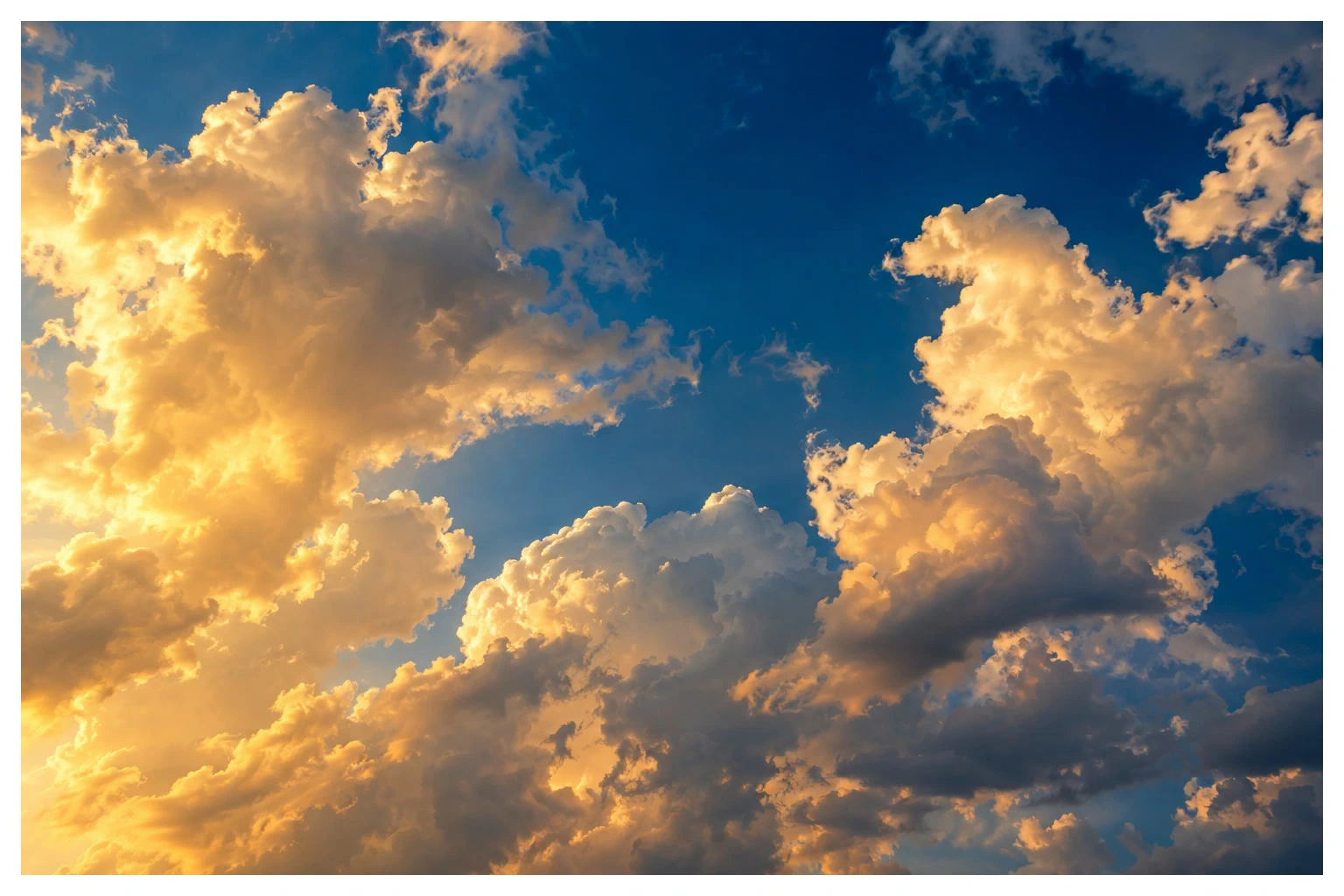
Open the sample from this page, or choose for your image.
Make room around the photo
Choose For a 60 px border around the sample, enter Width (px) 1656 and Height (px) 1144. Keep the middle Center anchor selected and click Resize. Checkerboard space appears around all four edges.
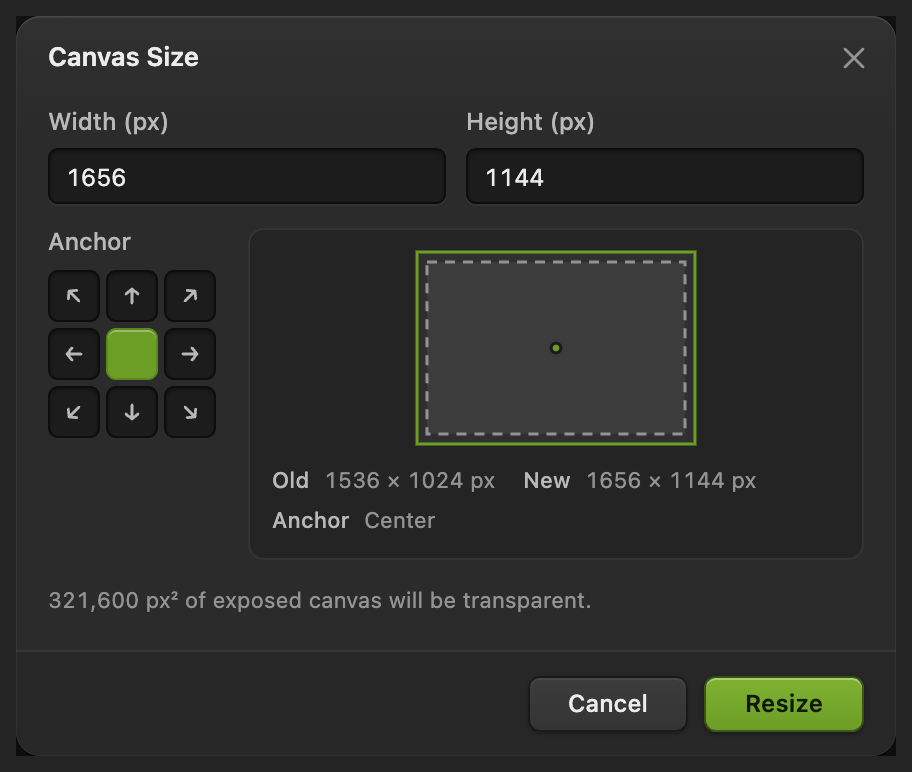
Center divides the added space between opposite edges. Choose the frame color
Choose In Solid Color Fill, enter FFFFFF in the # field for white, or another six-character color code for a colored frame. Click Apply. The fill initially covers the photo.
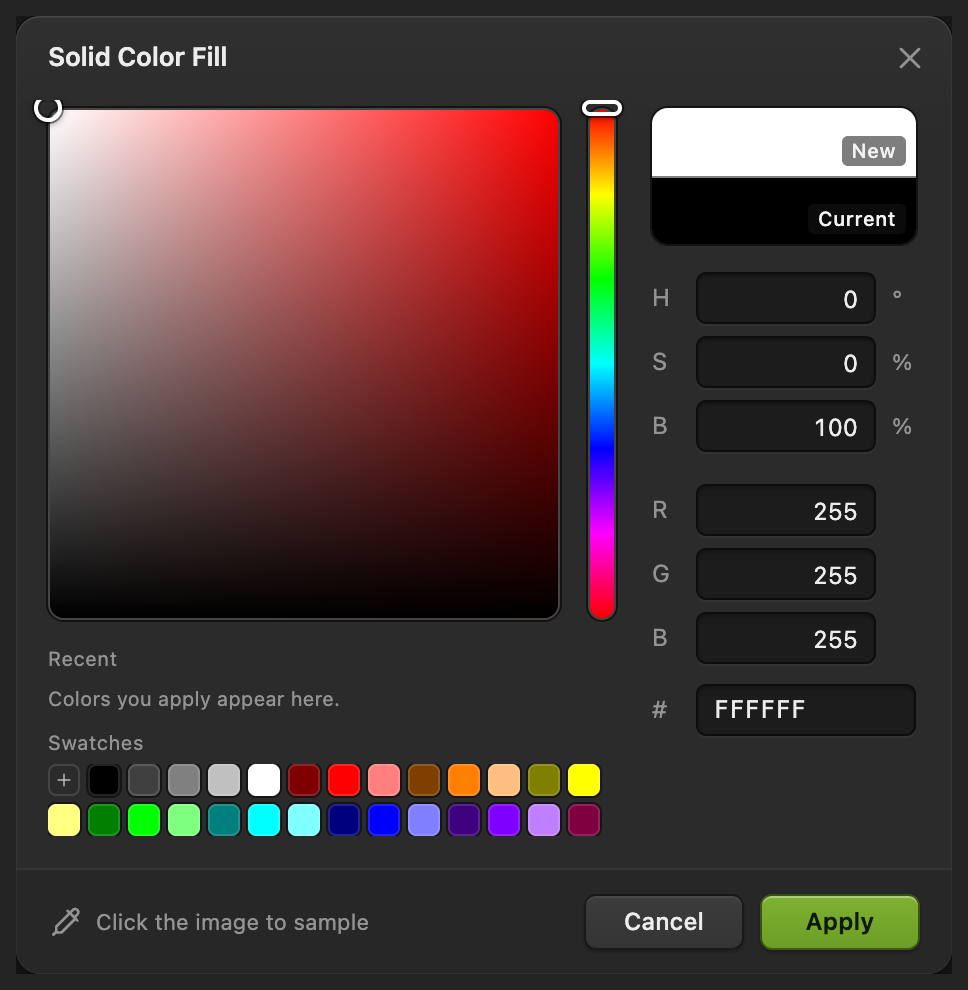
FFFFFF is white. The new color fills a separate layer. Put the color behind the photo
With Color Fill still selected, choose . In the Layers panel, the photo is now above the fill. Its original edges remain visible inside the frame.
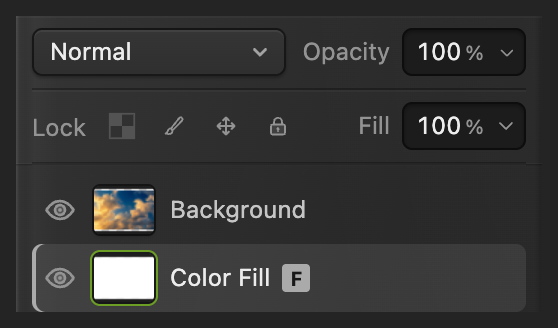
The opaque photo covers the middle of the fill layer. Export the framed image
Choose , enter framed-sky.png in File name and click Export.
keeps the photo and fill as separate editable layers. then updates that project. Before you save a project, writes the framed image back into the JPEG you opened, as a flat image, and may first open Save Image for its settings.

Name the framed copy. 
Export writes the image copy.
Keep the original dimensions with Stroke
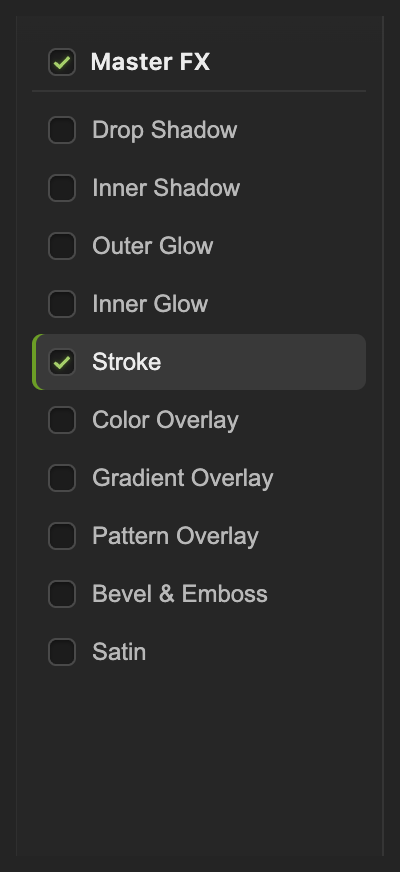
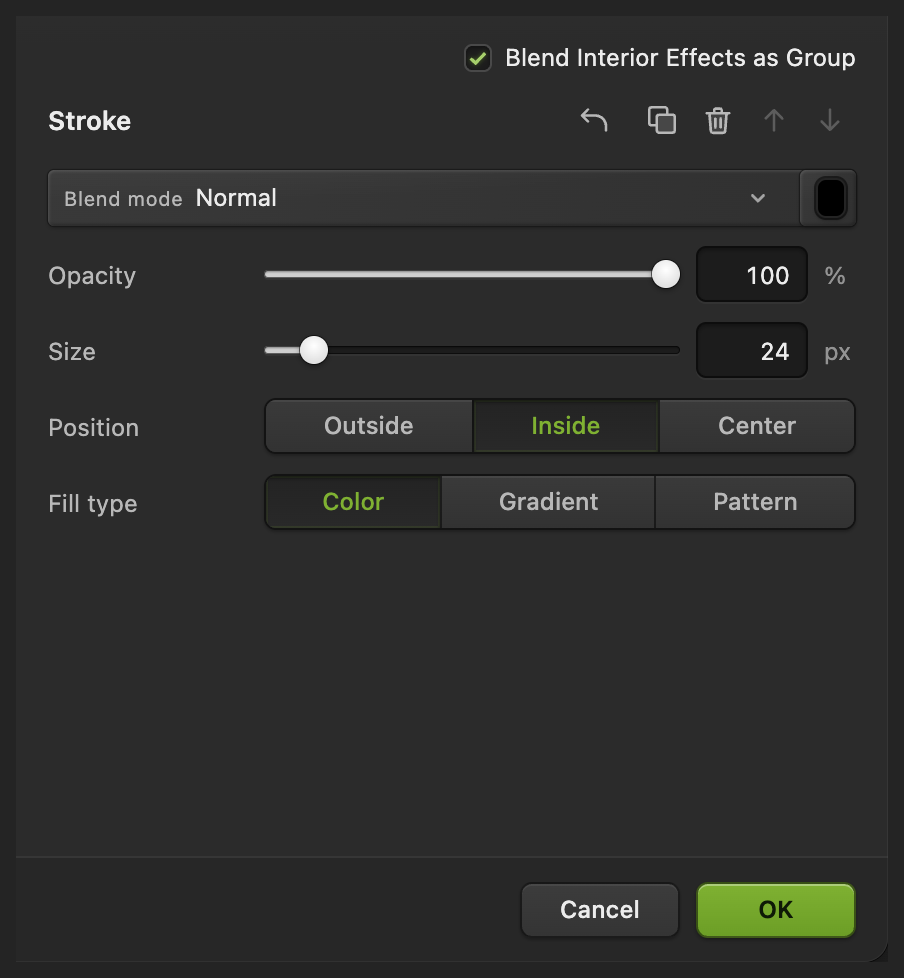
Open the original photo again. Choose , then click Stroke in the left list. Set Size to 24 px and Position to Inside.
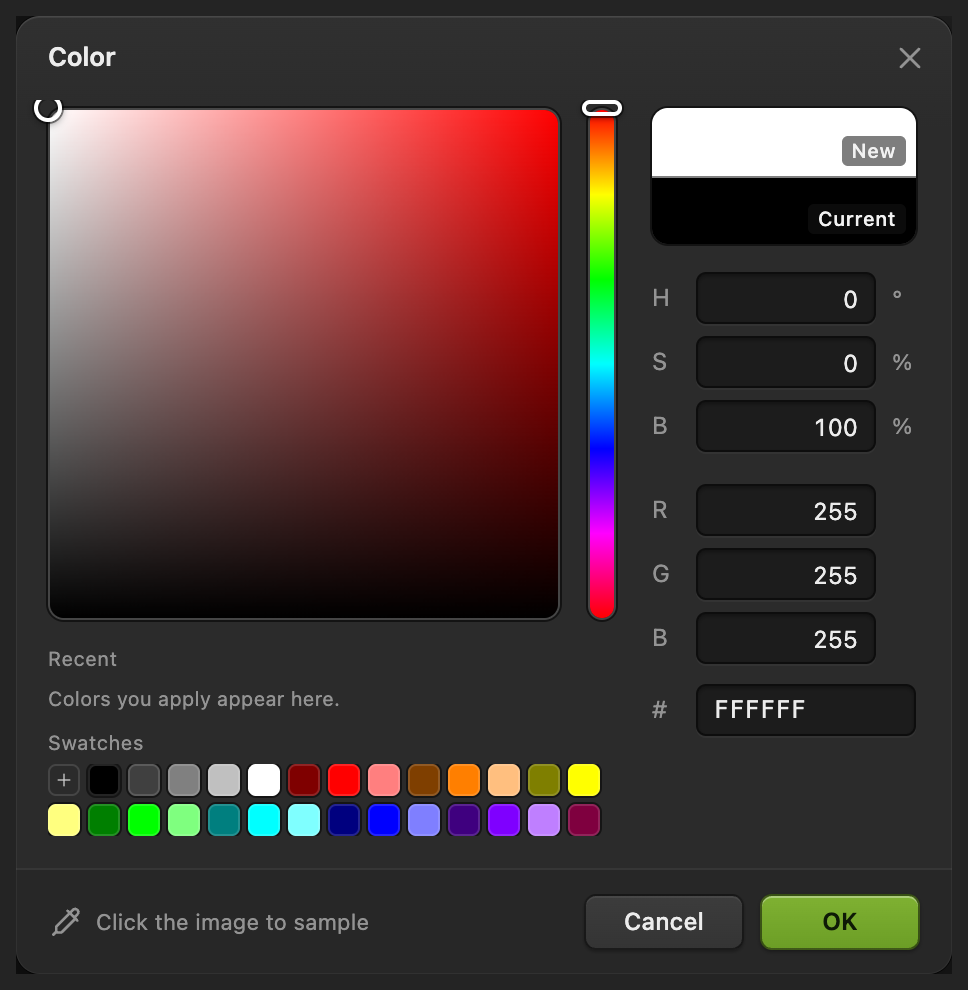
Click the Color swatch, enter FFFFFF in the # field and click OK. Click OK in Layer Style too. The stroke covers a strip of the photo along each edge, so keep important details away from the border. Export it as in step 5, with a new file name such as stroked-sky.png.
What to do next
Image borders: questions and answers
Does adding a border stretch my photo?
No. In Lil Cactus, Canvas Size adds space around the photo rather than stretching it. The outer rectangle can have a different aspect ratio after you add equal-width margins.
Why is one side of my image border a pixel wider?
An odd increase in canvas width or height cannot split evenly into whole pixels. In Lil Cactus, increase that dimension by an even number and use the Center anchor for equal opposite margins.
Can I export a framed photo as a JPEG?
Yes. In Lil Cactus, choose and click Export. JPEG keeps the visible frame and combines the layers into one flat image.
Why does an Outside Stroke layer style disappear around my photo?
In Lil Cactus, an Outside Stroke on a photo that reaches every canvas edge falls beyond the exported image. Use Inside in Layer Style to draw it within the canvas.
Why does Stroke outline the subject instead of the photo rectangle?
In Lil Cactus, Stroke follows the visible edges of the layer’s pixels. A cut-out on transparency therefore gets a subject outline; the full opaque photo used here gets a rectangular frame.
Keep going
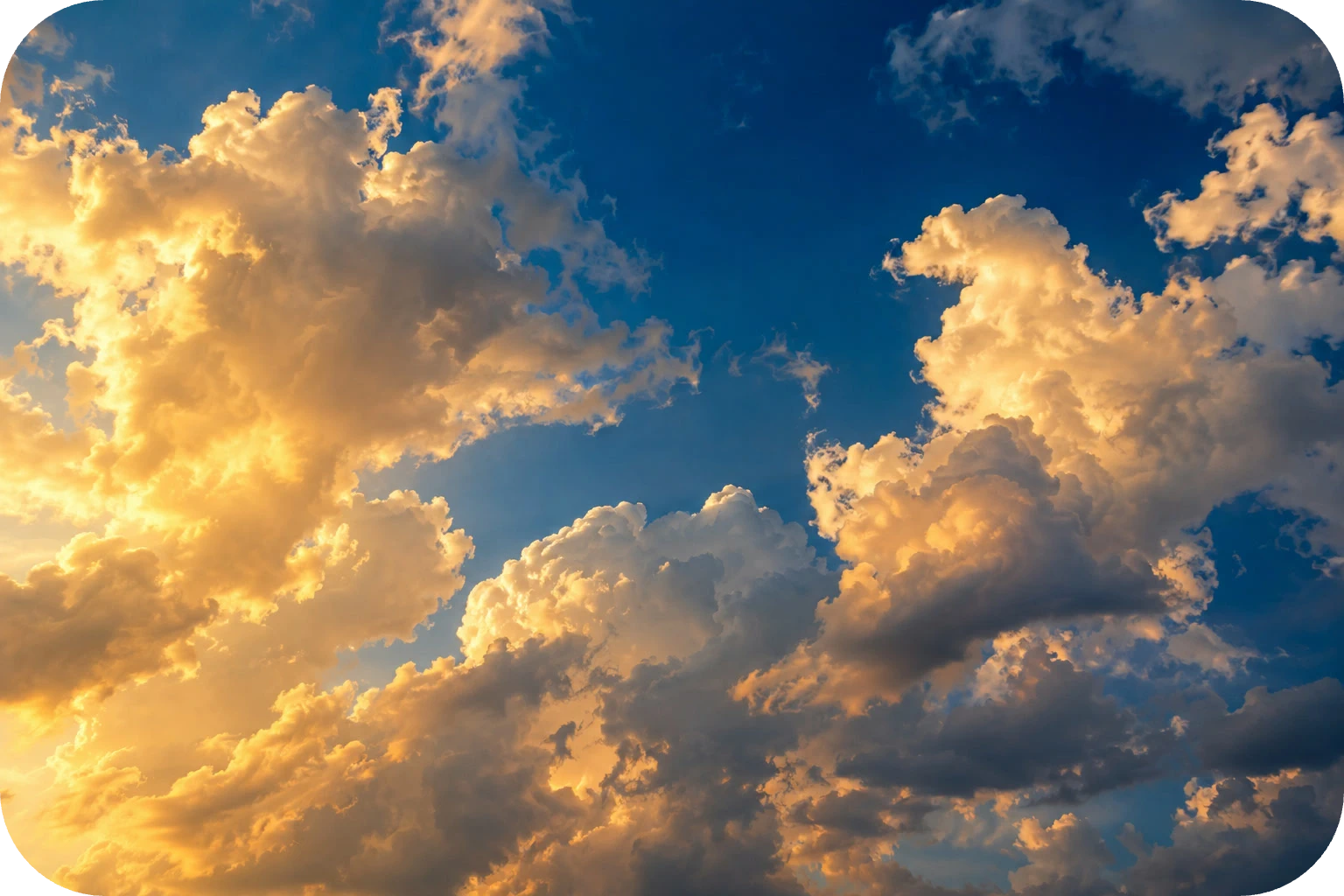 How to round the corners of an imageHide a photo’s corners with an editable rounded rectangle.Beginner · 6 min
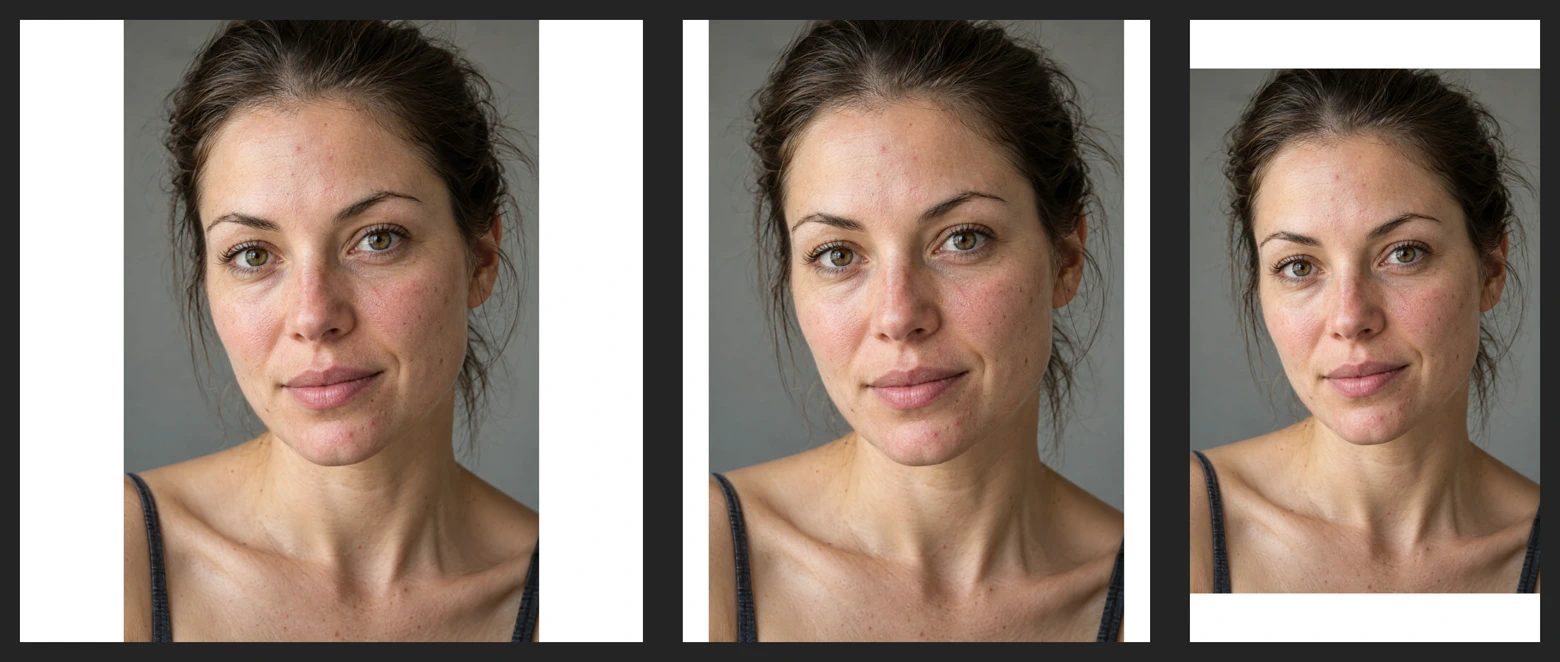 How to size a photo for InstagramKeep a whole photo or crop it to fill a post or Story.Beginner · 6 min
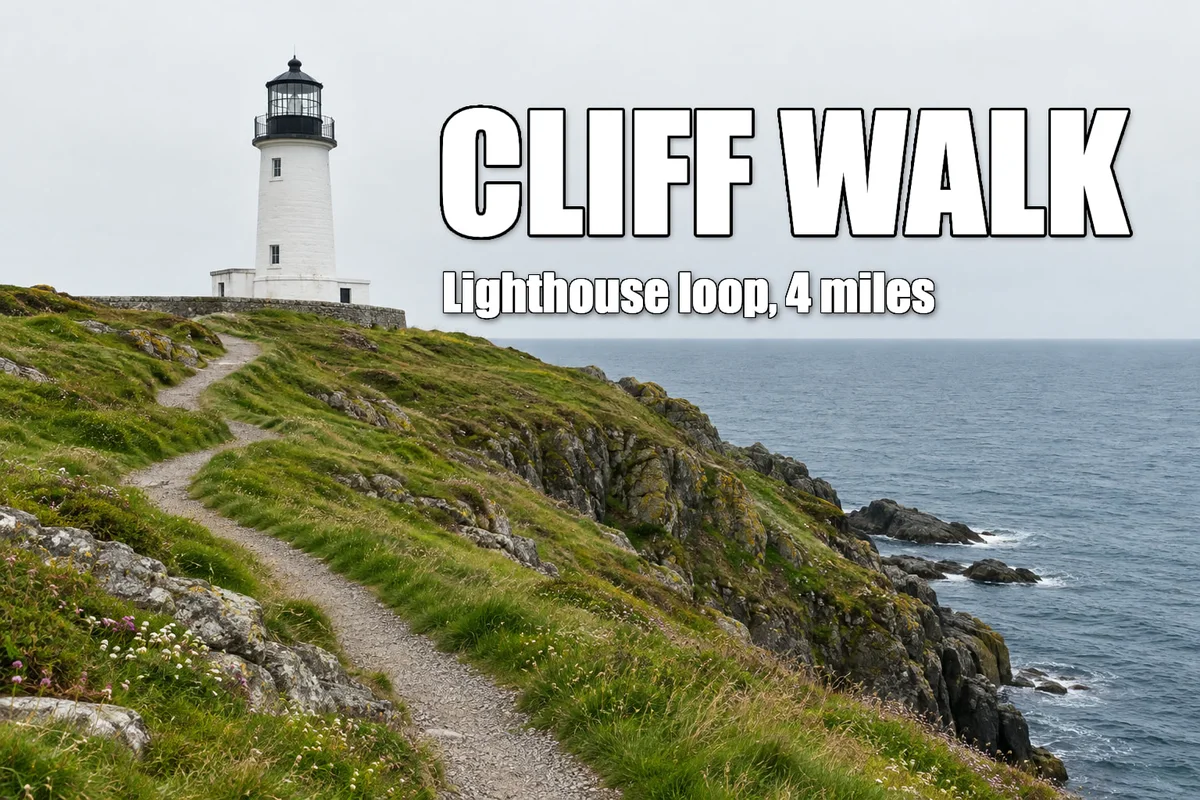 How to add a drop shadow and outline with layer stylesShadows, outlines, glows and overlays that stay editable.Beginner · 6 min