How to round the corners of an image
Quick answer
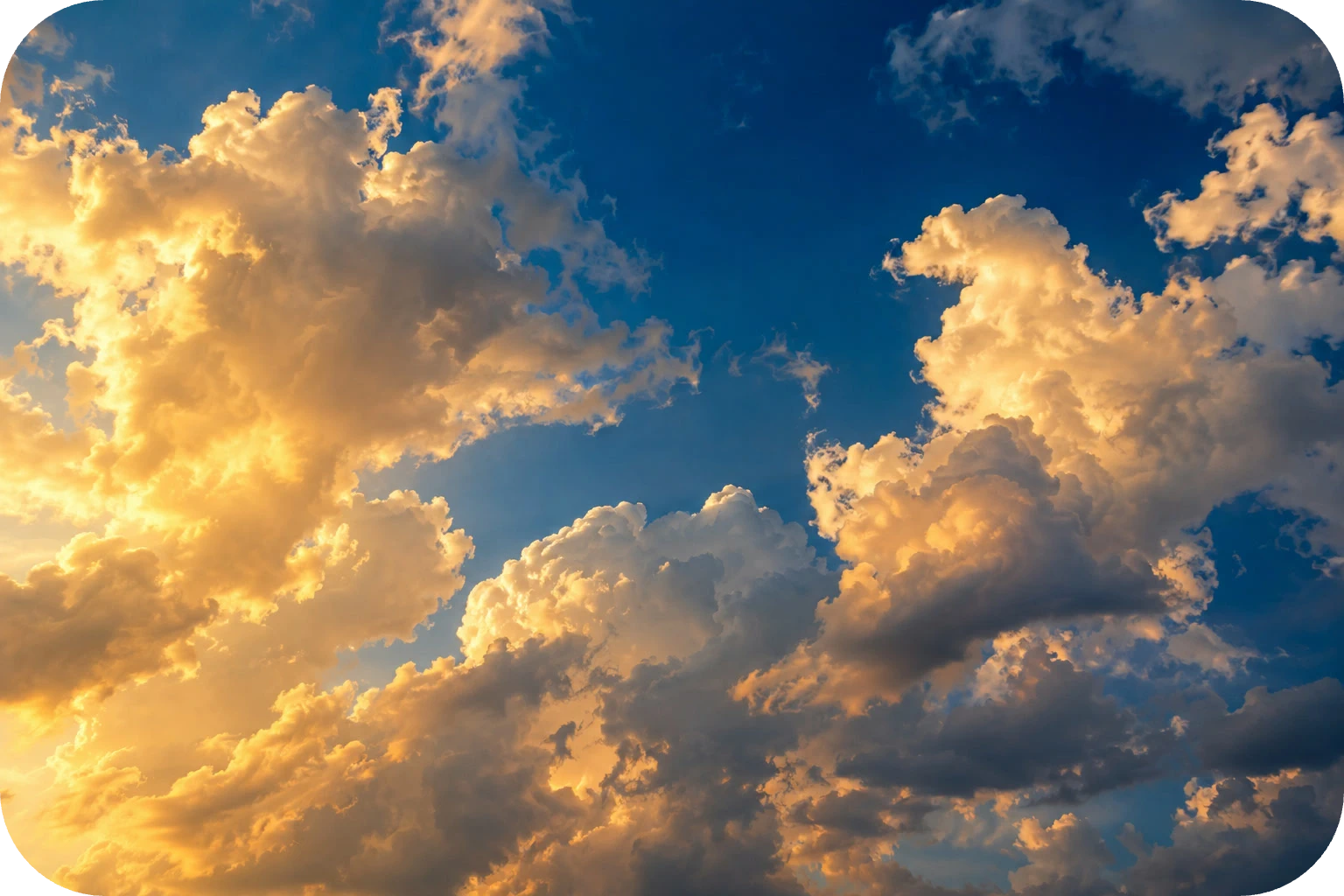
In Lil Cactus, draw a filled Rectangle with the Shape tool, then use to set its X (px) and Y (px) to 0, match its width and height to the photo and choose a Radius (px) (120 for the sample). Choose , select the photo layer and choose . Export with to keep the transparent corners.
- Time
- 6 minutes
- Level
- Beginner
- You need
- An opaque photo, with no transparent areas to retain
- Works with
- JPG, PNG and WebP photos; export as PNG
A clipping mask uses the filled shape of the layer below as a window for the photo above. Here that window is a rectangle with rounded corners. You can change the rectangle later without drawing the curves into the photo itself.
Round the corners in five steps
Open the photo and note its dimensions
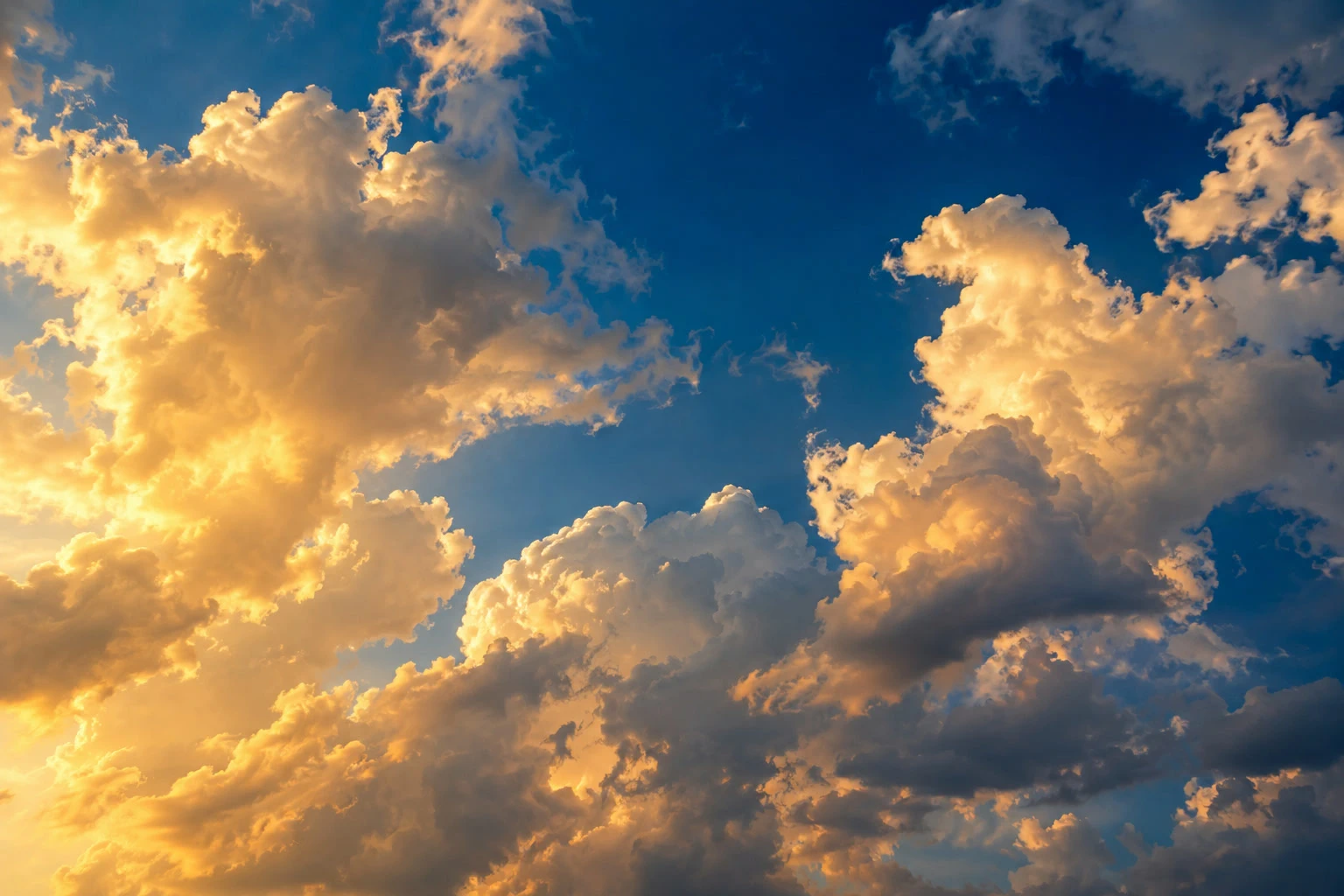
Open the sample from this page, or use Choose . Note the photo’s Width and Height at the top of the panel; you will use them for the rectangle.
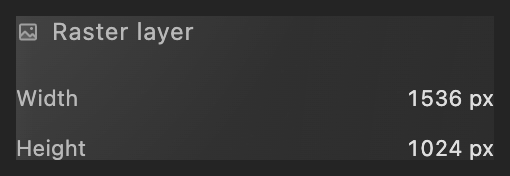
These are the document dimensions. Draw a filled rectangle
Choose Shape in the left toolbar. On the options bar, set Mode to Shape, Shape to Rectangle and Operation to New layer.
Drag from near the photo’s upper-left corner toward its lower-right corner. The rectangle appears on a new Shape layer. Its temporary size can be rough: you will set exact bounds next.
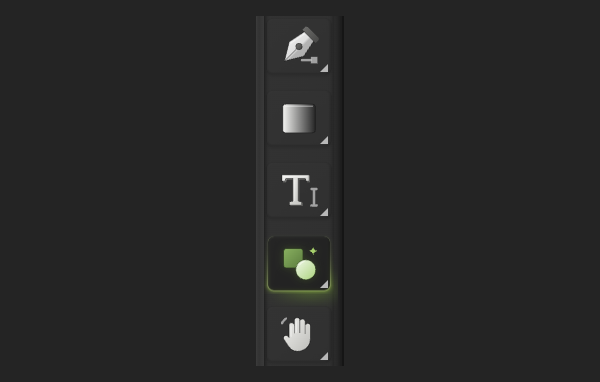
Find the overlapping-square-and-circle icon near the bottom of the toolbar. 
Make a separate shape layer. Set the bounds and corner radius
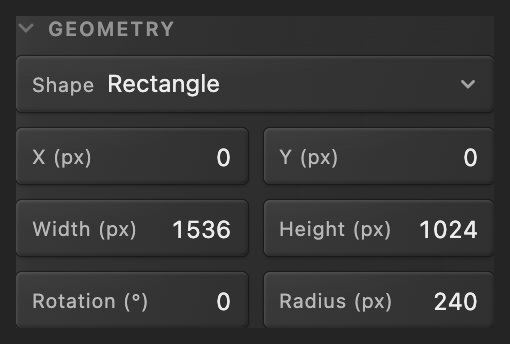
In Properties, under Geometry, enter X (px) 0 and Y (px) 0. For the sample, set Width (px) to 1536, Height (px) to 1024 and Radius (px) to 120. For your own photo, use the dimensions you noted in step 1. Press Tab after each number.
Under Fill, set Paint to Color; under Stroke, set Paint to None. The rectangle now covers the canvas, with curved corners.
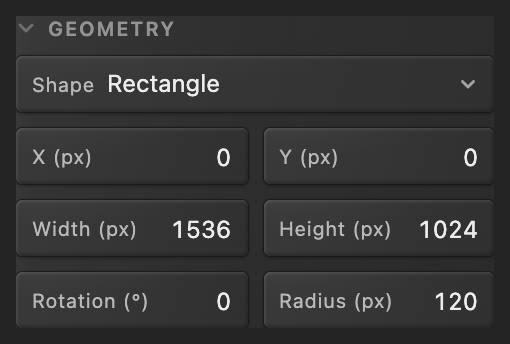
Set the rectangle’s size here, not the document size. 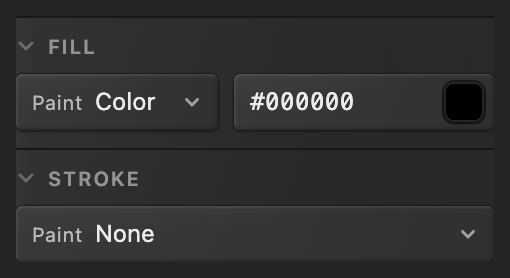
Use a filled shape without an outline. Clip the photo to the rectangle
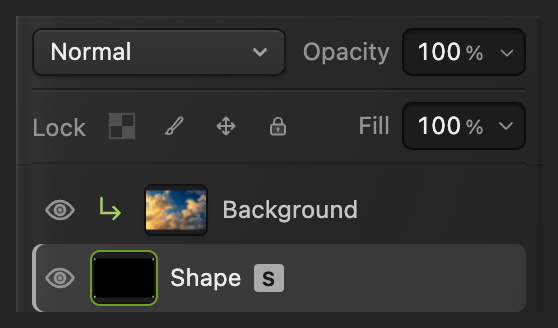
With Shape selected, choose . Click the photo’s row in Layers (Background in the sample), directly above Shape. Choose .
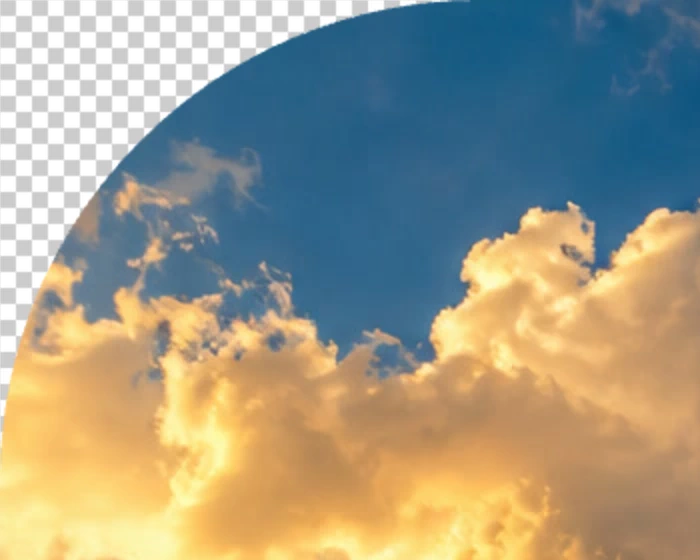
The corners now show checkerboard, which marks transparency in the editor and is not part of the export. A bent arrow beside the photo’s row in Layers shows it is clipped to Shape.
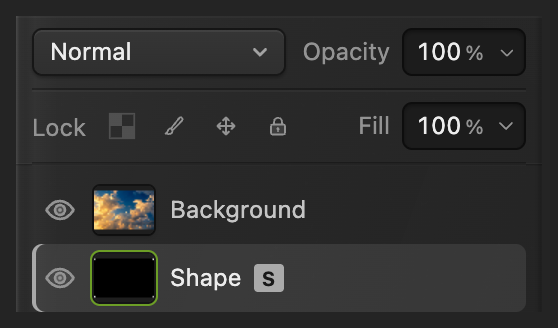
Select the photo above the shape. 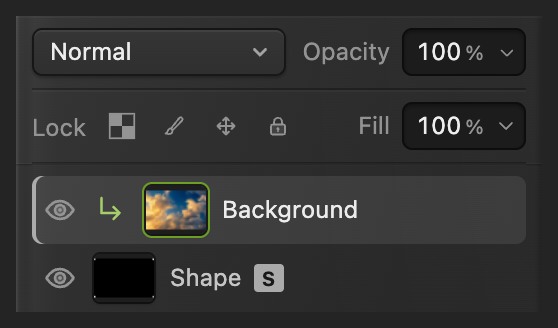
The photo is clipped to the shape below. Export the transparent PNG
Choose , enter rounded-sky.png in File name and click Export.
Also choose to keep both layers editable; from then on, updates the project. Before that, writes back into the JPEG you opened as a flat image, with white corners because JPEG has no transparency; the first JPEG save opens Save Image. Export always writes a new file.

Name the rounded copy. 
Export the image copy.
Change the corners later
In the project, click the Shape row in Layers. In Properties, change Radius (px) to 240 and press Tab for rounder corners. This changes the existing rectangle. The options-bar Corner radius field is for the next shape you draw.
What to do next
Rounded image corners: questions and answers
Why did my rounded image get white corners in a JPEG?
JPEG cannot store transparency. In Lil Cactus, a JPEG export fills the hidden corners with white. Export with or instead to keep them transparent.
Can WebP keep the rounded corners transparent?
Yes. In Lil Cactus, choose and click Export.
Does rounding corners change my image’s pixel dimensions?
No. This Lil Cactus workflow keeps the canvas dimensions. It hides corner pixels rather than resizing the image.
Why does a larger corner radius eventually stop changing the shape?
In Lil Cactus, the visible corner radius stops at half the rectangle’s shorter side. Beyond that, the same rounded shape is drawn even if the Radius field contains a larger number.
Can I round just one corner of an image?
Not with the Radius field: in Lil Cactus, a live Rectangle uses one Radius value for all four corners.
Keep going
 How to add a border to an imageAdd space for a frame, or put a stroke inside the photo.Beginner · 5 min
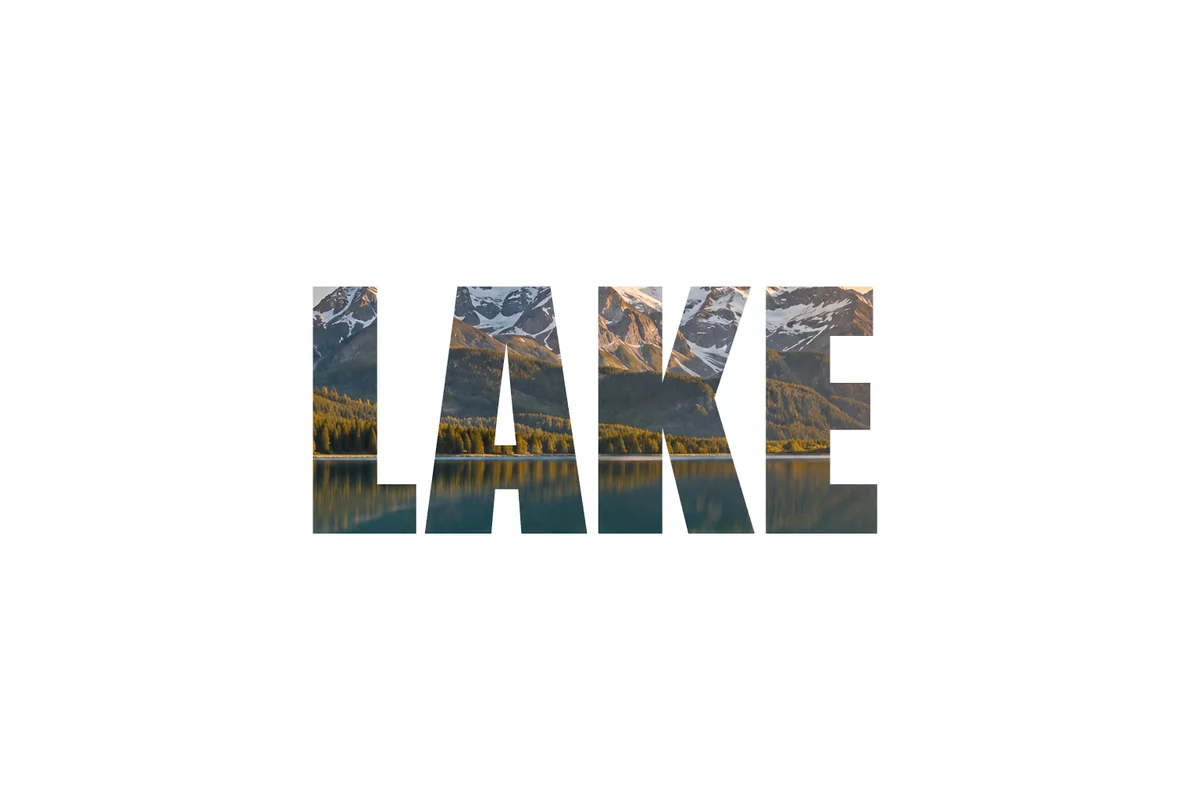 How to put a photo inside text with a clipping maskShow a photo or texture only inside text or a shape.Beginner · 5 min
 How to use layer masksHide part of a layer without deleting it, and bring it back any time.Beginner · 5 min