How to size a photo for Instagram
Quick answer
Use a 1080 × 1440 px canvas for a 3:4 Instagram portrait post. In Lil Cactus, fit the photo inside those bounds with and the chain link on, then set to the target dimensions with the Center anchor. Export with at Quality 90; JPEG fills the empty canvas with white. For a square use 1080 × 1080 px; for a 9:16 Story use 1080 × 1920 px.
- Time
- 6 minutes
- Level
- Beginner
- You need
- A photo and a post or Story format
- Works with
- JPG, PNG, WebP and other images you can open
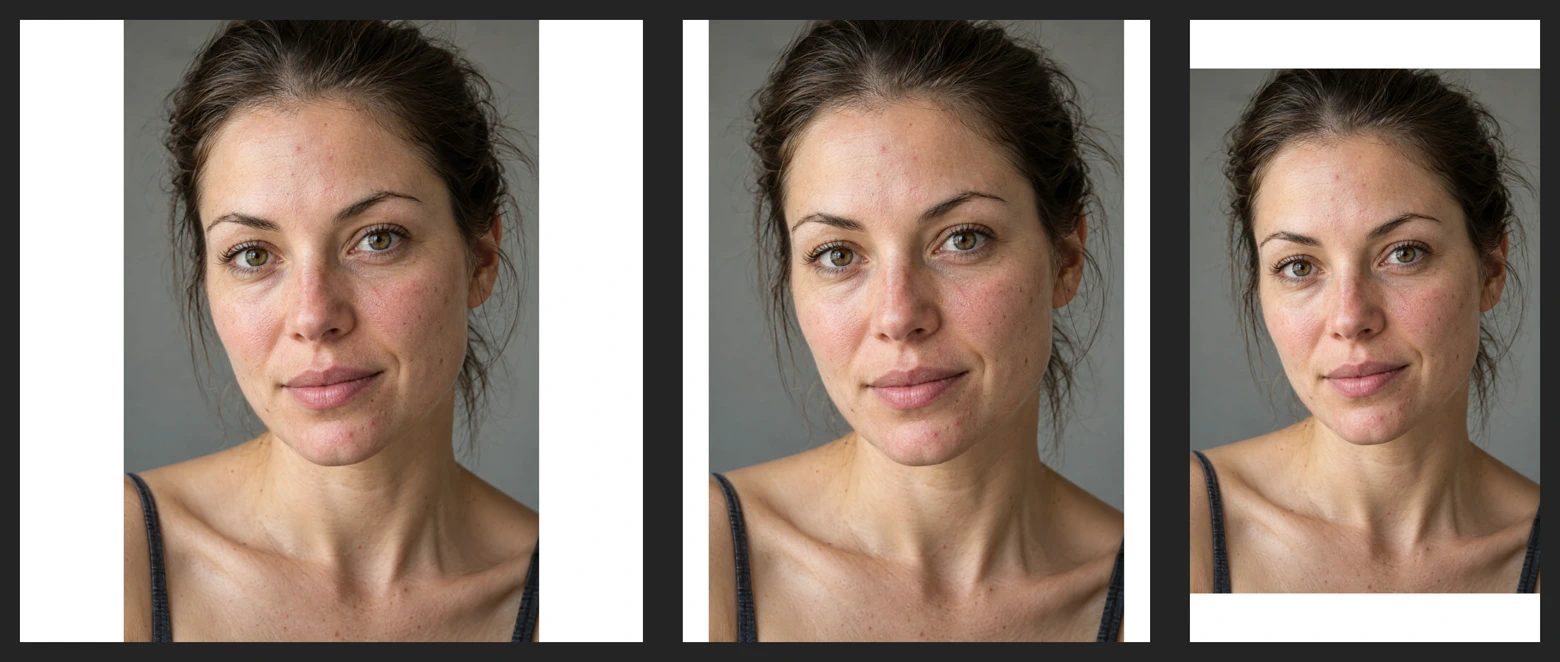
An aspect ratio describes shape as width to height: 3:4 is three units wide for every four high. The canvas is the image’s outer rectangle. Resize the photo to fit inside it, then add space around it. If you prefer the image to reach every edge, use the crop variation below.
The main example makes a portrait post. Choose another format from the size table and use the same method.
Fit the whole photo in four steps
Open the photo
Open the sample from this page, or use for your photo.
Resize the photo to fit
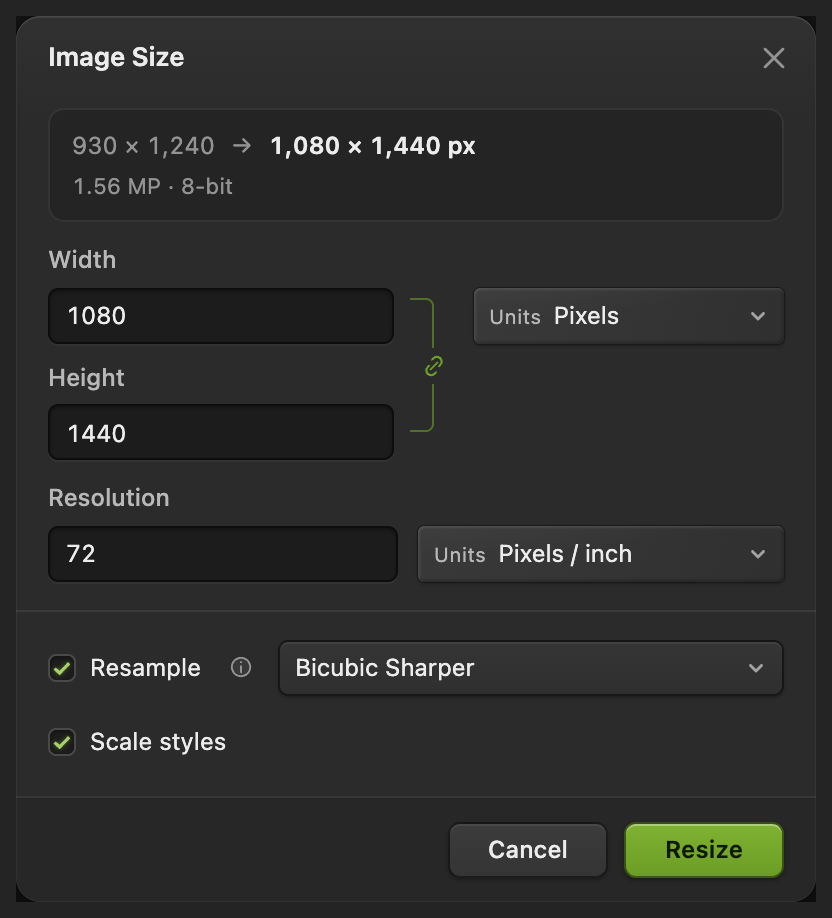
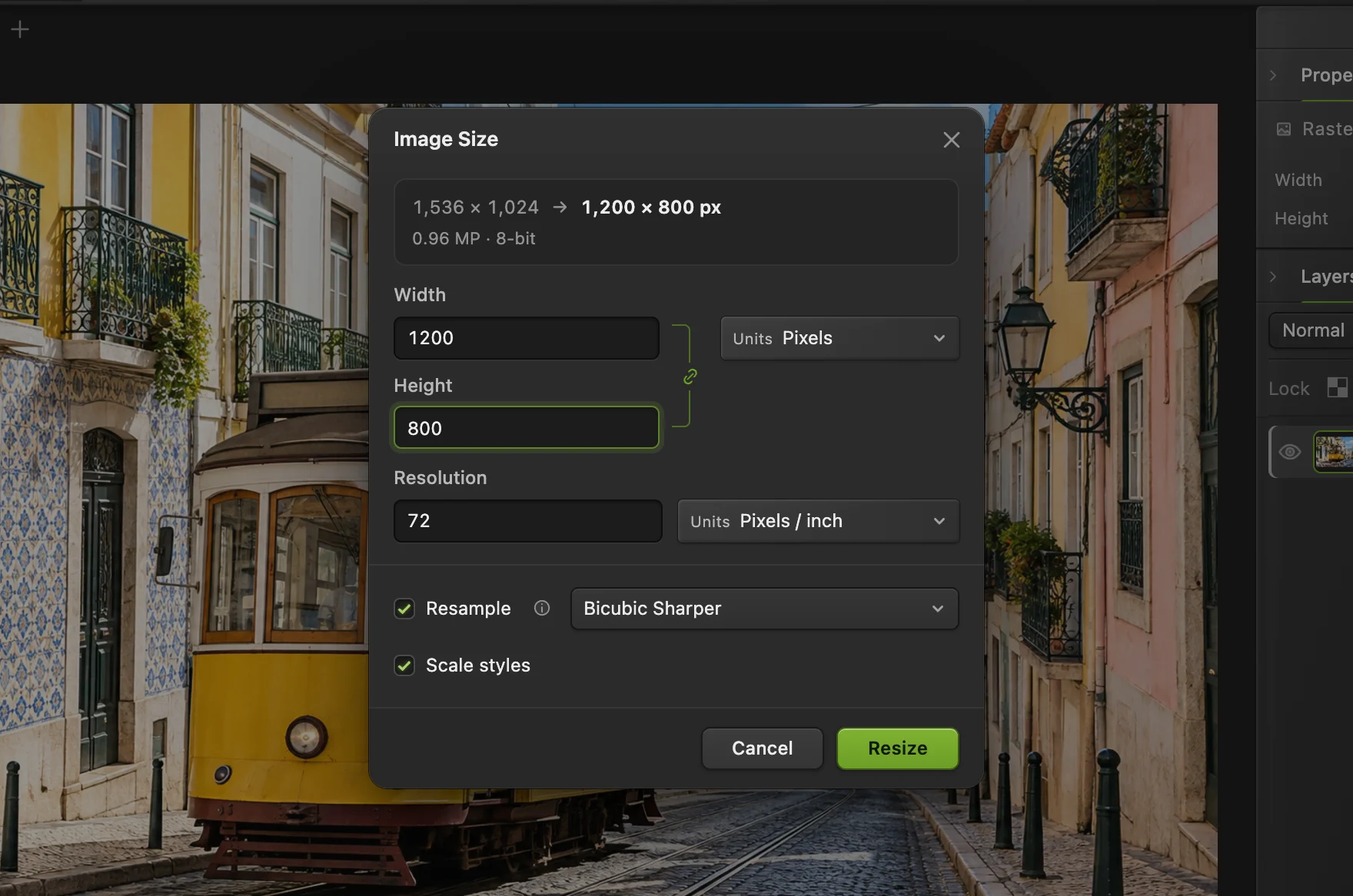
Choose Turn Resample on, set Units to Pixels and make sure the chain link is on. Choose Bicubic Sharper as the resampling method.
Start with your target Width. If the linked Height is too tall for your chosen canvas, enter the target height instead. For the portrait sample, finish with Height 1440: Width becomes 960. Click Resize.
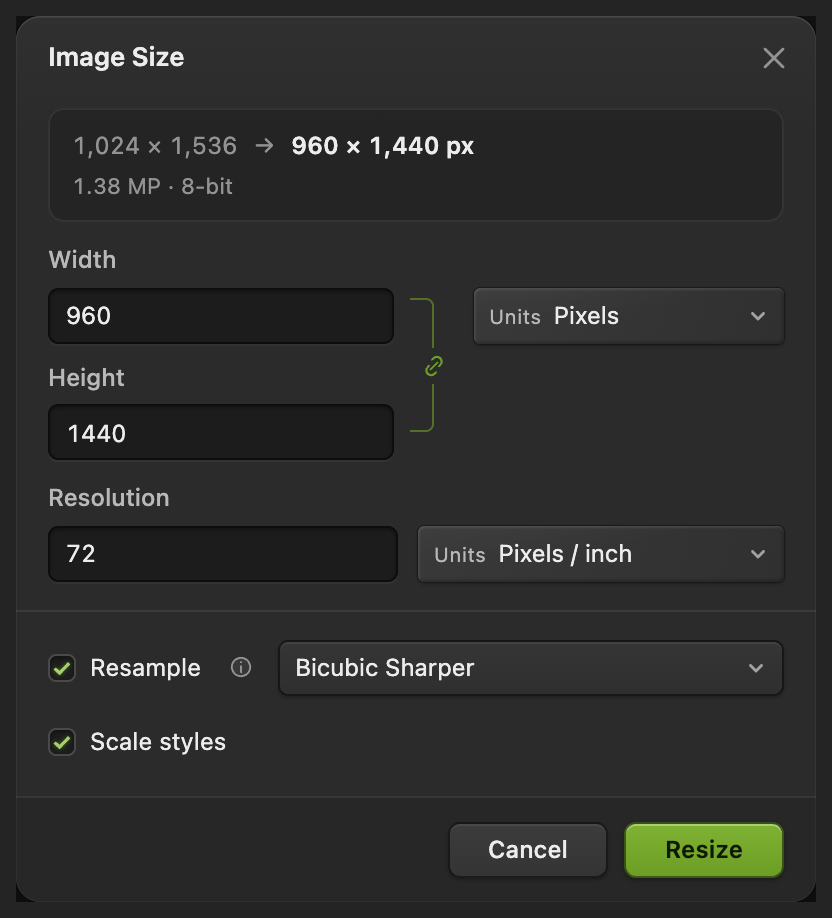
The photo must fit within both canvas dimensions. Add the rest of the canvas
Choose Enter the target width and height: 1080 and 1440 for this example. Leave the anchor on Center, the middle square, and click Resize. The added space appears as checkerboard in the editor.
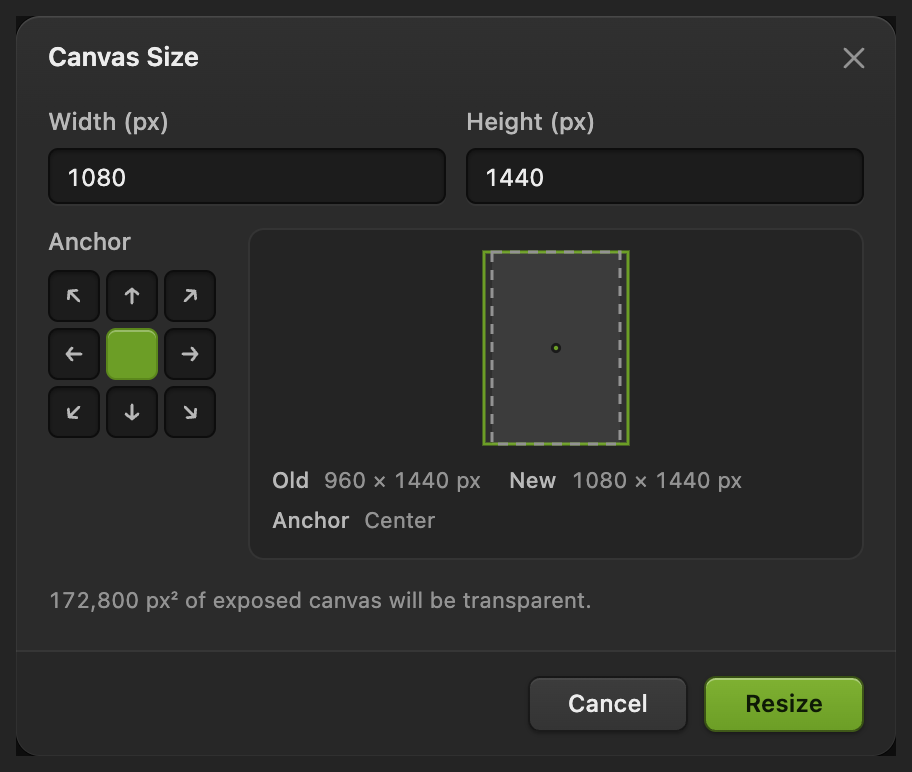
Center places the added space on opposite sides of the photo. Export the Instagram copy
Choose Enter instagram-portrait.jpg in File name, set Quality to 90 and click Export. The empty margins become white in the JPEG.
Use to retain this layout. then updates the project. While working from the original JPEG, writes the padded image back into the JPEG you opened, as a flat image; the first JPEG save opens Save Image. Export makes a separate image copy.

Name the image copy. 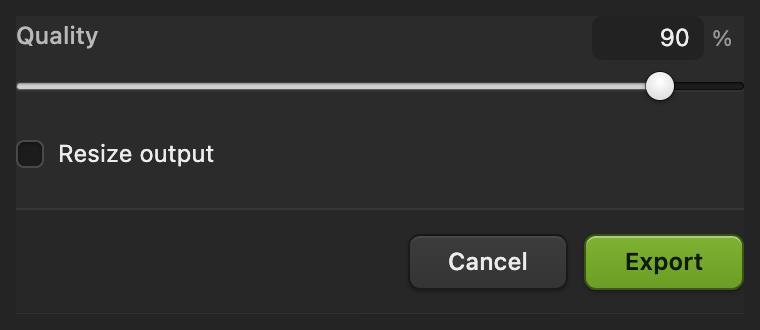
Quality and Export are lower in the dialog.
Square, portrait and Story sizes
These working canvases all use a width of 1080 pixels. Sizes are width × height.
| Format | Canvas in pixels | Ratio |
|---|---|---|
| Square post | 1080 × 1080 | 1:1 |
| Portrait post | 1080 × 1440 | 3:4 |
| Portrait post (classic) | 1080 × 1350 | 4:5 |
| Story | 1080 × 1920 | 9:16 |
As of October 2026, Instagram’s photo resolution guidance supports photo posts from 1.91:1 to 3:4, at up to 1080 pixels wide. Earlier guidance stopped at 4:5. The Story example uses the 9:16 shape in Meta’s Story design guidance.
Crop the photo to fill the frame
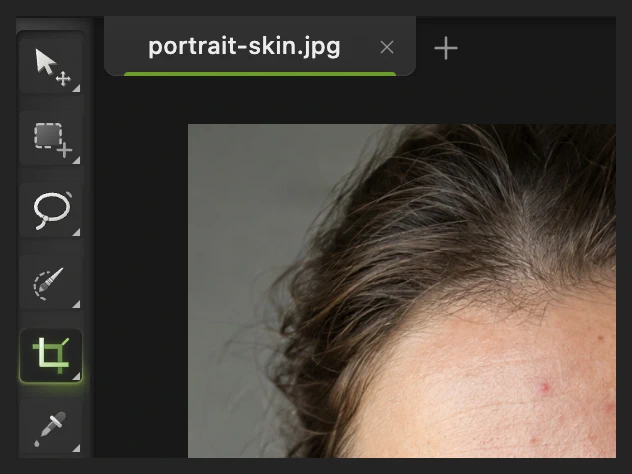
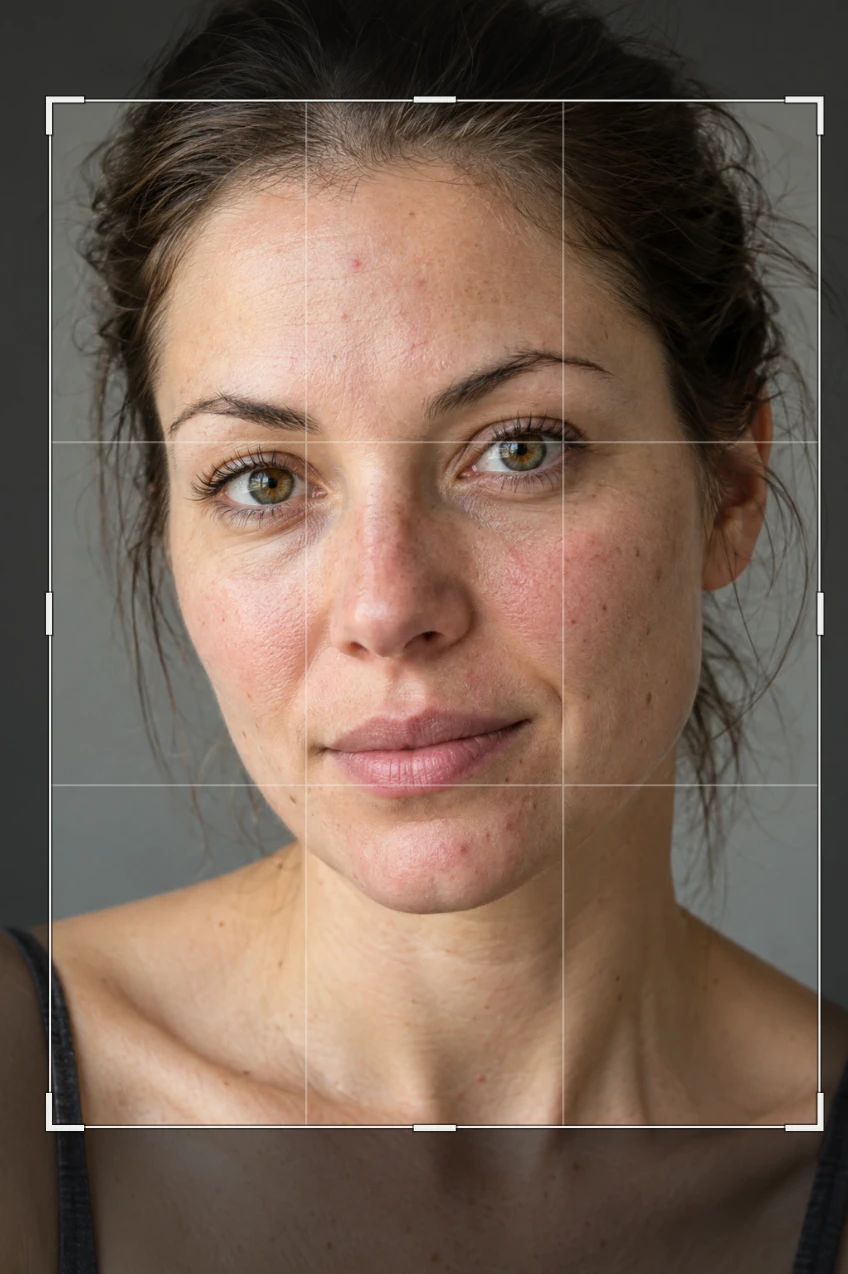
Open the original again from this page, or use Choose Crop in the left toolbar. For a filled portrait, set Ratio to Custom, W to 3 and H to 4.
Drag a rectangle from just above the forehead to below the collarbones, leaving a little background at the sides. Drag inside the outline to shift it. Compare the framing with the figure, then click the checkmark (Apply crop). Cropping leaves out the area beyond the outline.
Choose , keep the chain on and set Width to 1080. The height follows the crop’s proportions. Click Resize, then export a JPEG as in step 4, named for example instagram-filled.jpg.


What to do next
Instagram image sizes: questions and answers
Can I still use 1080 × 1350 for an Instagram portrait post?
Yes. Its 4:5 shape remains inside Instagram’s supported photo post range. In Lil Cactus, use that canvas size for a 4:5 copy.
Can I use the same 9:16 image for a Story and a photo post?
Not without losing part of it. A 9:16 Story is taller than Instagram’s 3:4 photo post limit, so Instagram crops it. In Lil Cactus, make a separate post-sized copy.
Does an Instagram image need 300 DPI?
No. Instagram uses the pixel dimensions for the image size. In Lil Cactus, set Image Size in Pixels; the Resolution value can stay as it is.
Why does my resized Instagram photo look soft?
A small source or tight crop may need enlargement to reach your target dimensions. In Lil Cactus, Bicubic Sharper can resample those pixels, but cannot restore detail the source did not contain.
Why are my added margins transparent in a PNG?
In Lil Cactus, Canvas Size adds blank, transparent pixels. PNG preserves that transparency. The checkerboard is a display aid and is not part of the exported photo.
Keep going
 How to crop an imageChoose what stays in the frame, then set the shape and size.Beginner · 6 min
 How to resize an image online to exact pixels or print sizeExact pixels, percent or print size, without stretching.Beginner · 2 min
 How to add text to a photoA headline and a second line on a photo, still editable later.Beginner · 5 min