How to add a shadow to a product photo
Quick answer
Open a transparent product PNG in Lil Cactus and add a background with , then send that fill behind the product. On a new pixel layer between them, use Marquee Select with Shape set to Ellipse, draw beneath the product and choose with black as the foreground color. Choose , apply at Radius 22 px and lower the shadow layer’s Opacity to 18%. Export with
- Time
- 7 minutes
- Level
- Beginner
- You need
- A product cut-out with transparency around it
- Works with
- Transparent PNGs; masked photo layers also work
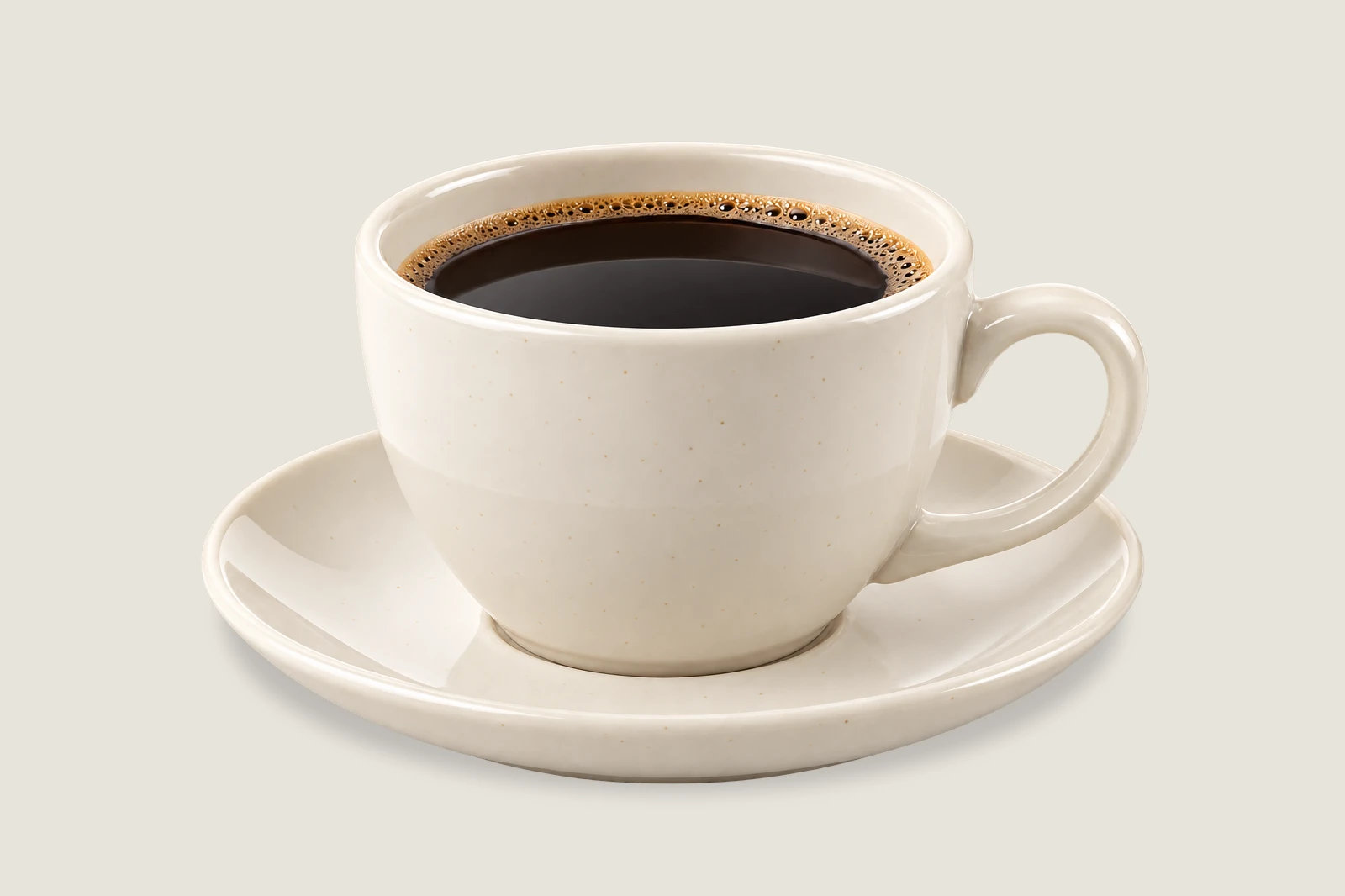
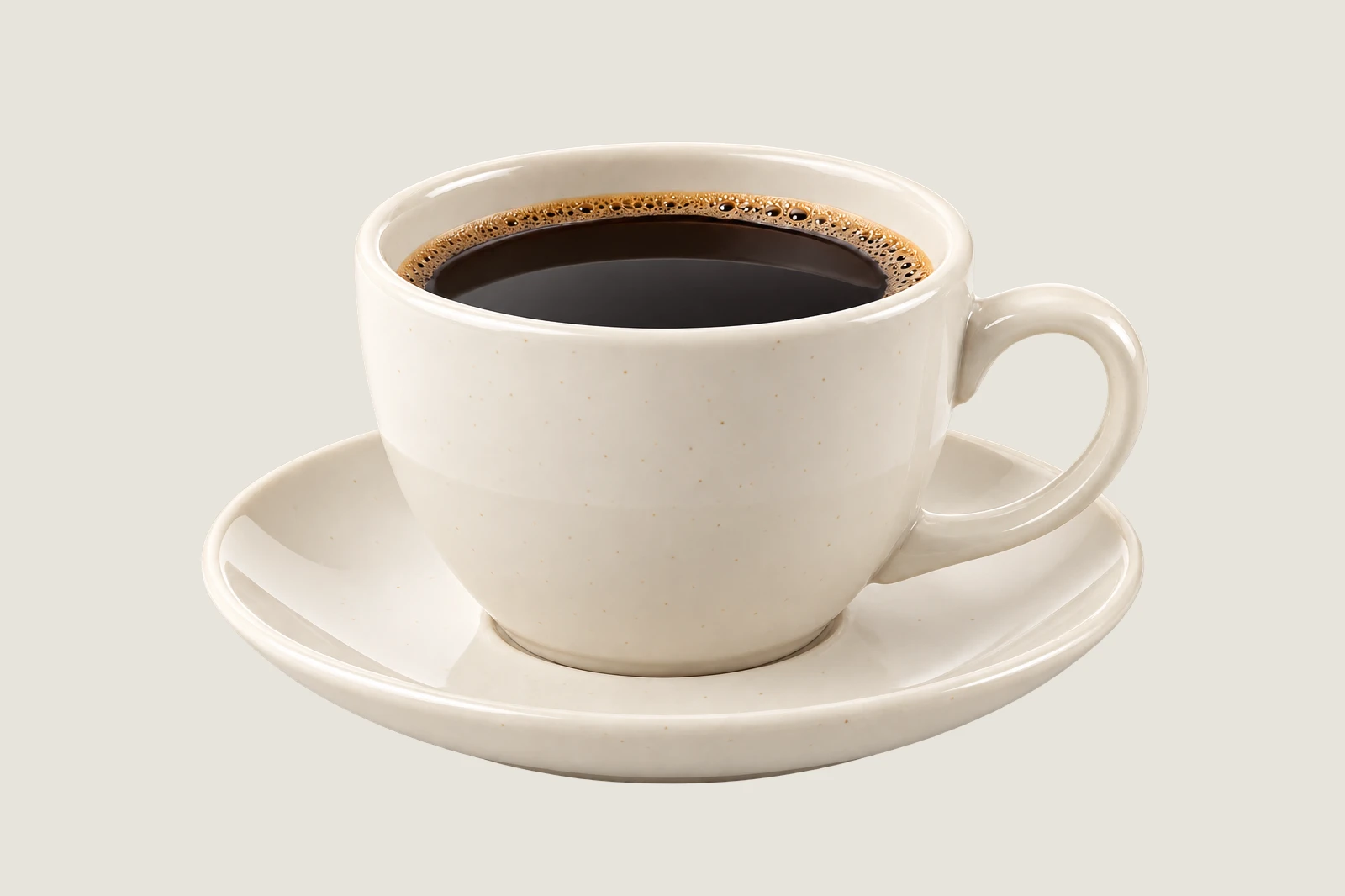
A contact shadow darkens the surface where an object rests. The sample cup has diffuse lighting, so a short, soft shadow suits it. An oval follows the saucer’s footprint: most of it sits behind the product, while the blurred edge fades into the background. Keep it on its own layer so the photograph stays untouched.
Add a soft ground shadow in seven steps
Open the transparent product
Open the sample from this page, or choose for your cut-out. Checkerboard around the product marks transparent space. Remove an opaque background first if your own photo still includes its original setting.
Add a new background
Choose Enter E8E4DD in the # field and click Apply for a pale warm gray. Choose : the fill moves below the product (the product layer is named Background because it came from a flat file). Leave Color Fill selected.
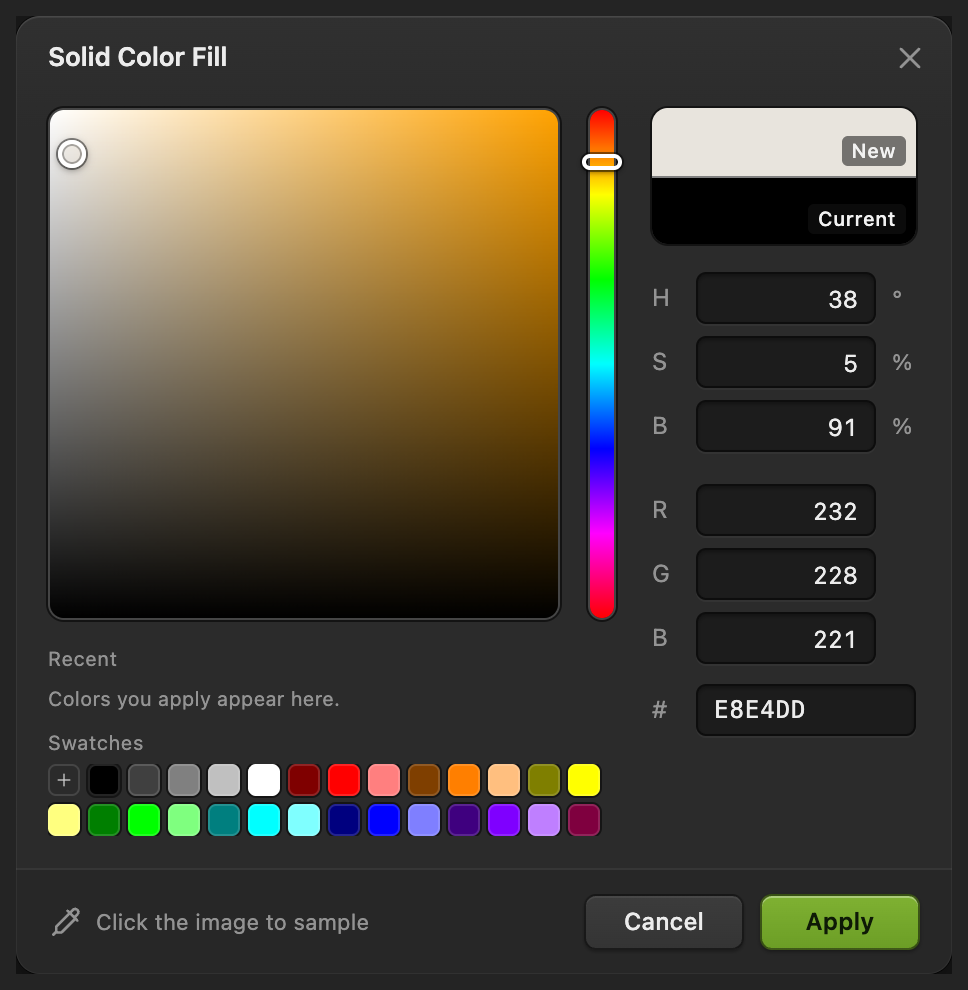
Choose the new surface color. 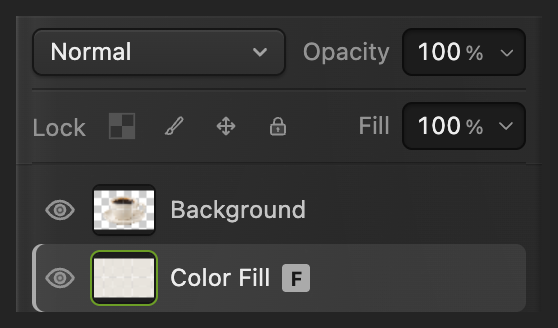
The product stays above the new fill. Make a separate shadow layer
With Color Fill selected, choose . The empty layer appears between the fill and the product. Double-click its name, type Ground shadow and press Enter.
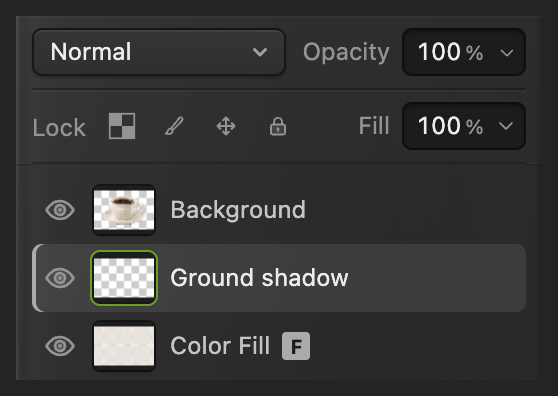
Draw on this middle layer. Draw and fill the shadow footprint
Choose Marquee Select in the left toolbar and set Shape to Ellipse on the options bar.
If the foreground color swatch near the bottom of the toolbar is not black, click it, enter 000000 in the # field and click OK.
Draw an ellipse almost as wide as the saucer, about two and a half times as wide as tall. Start just inside the saucer’s left edge, at the height of the center of the handle opening; end just inside its right edge and about a quarter of the rim’s thickness below its lowest front edge. Most of the ellipse sits behind the product. Choose , then .
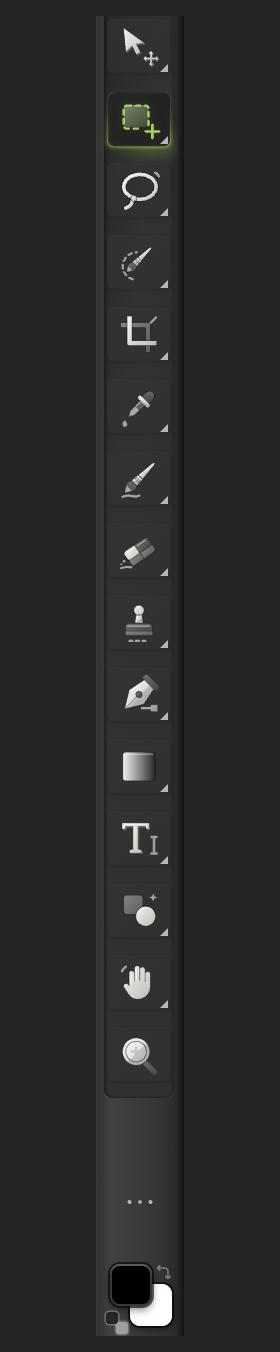
Use Marquee Select and the foreground color swatch. 
Make an elliptical selection. 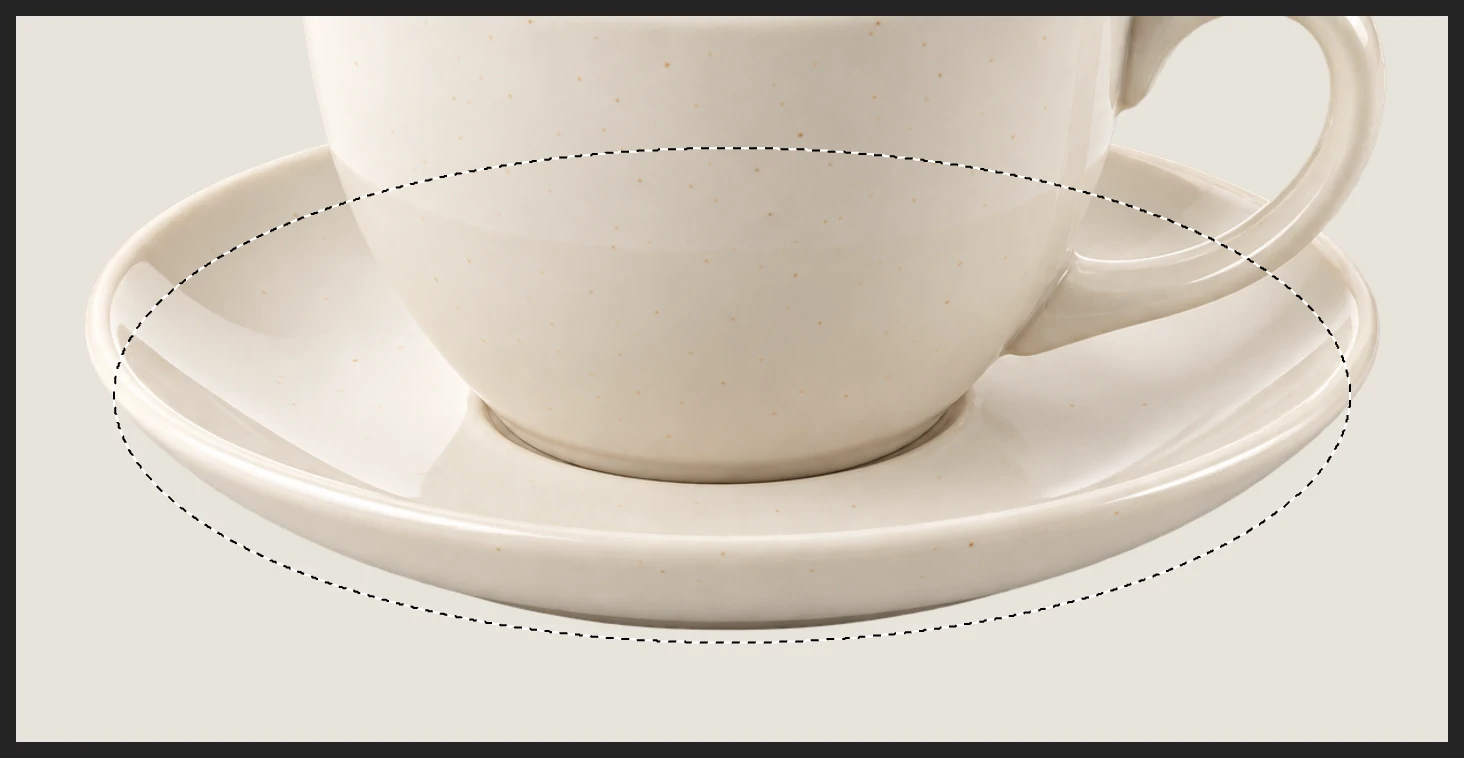
Follow the saucer’s footprint, leaving a little room below its front rim. Soften the shadow edge
Choose Set Radius to 22 px, press Tab and click Apply. Wait for the dialog to close before continuing. The hard ellipse becomes a soft-edged shadow.
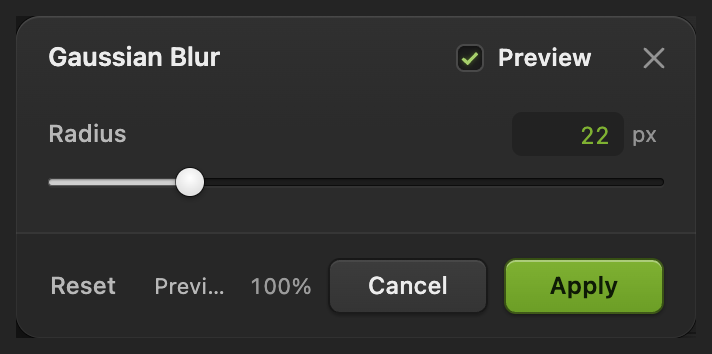
Blur the shadow layer, not the cup. Reduce the shadow strength
Keep Ground shadow selected in Layers. Set its Opacity to 18% and press Enter. The background now shows through the shadow, while the cup keeps its original color and detail.
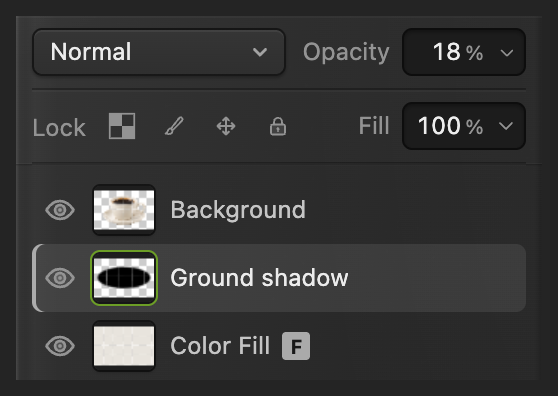
Fade the shadow independently of the product. 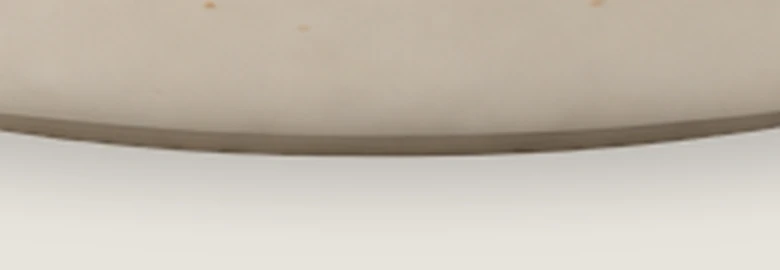
Enlarged 3×: the edge fades out without a hard oval outline. Export and keep the layers
Choose , enter product-shadow.png in File name and click Export.
writes the flat result back into the PNG you opened (the sample’s first Save opens Save Image). To keep the three layers editable, choose ; after that, updates the project. Export always makes a separate image file.
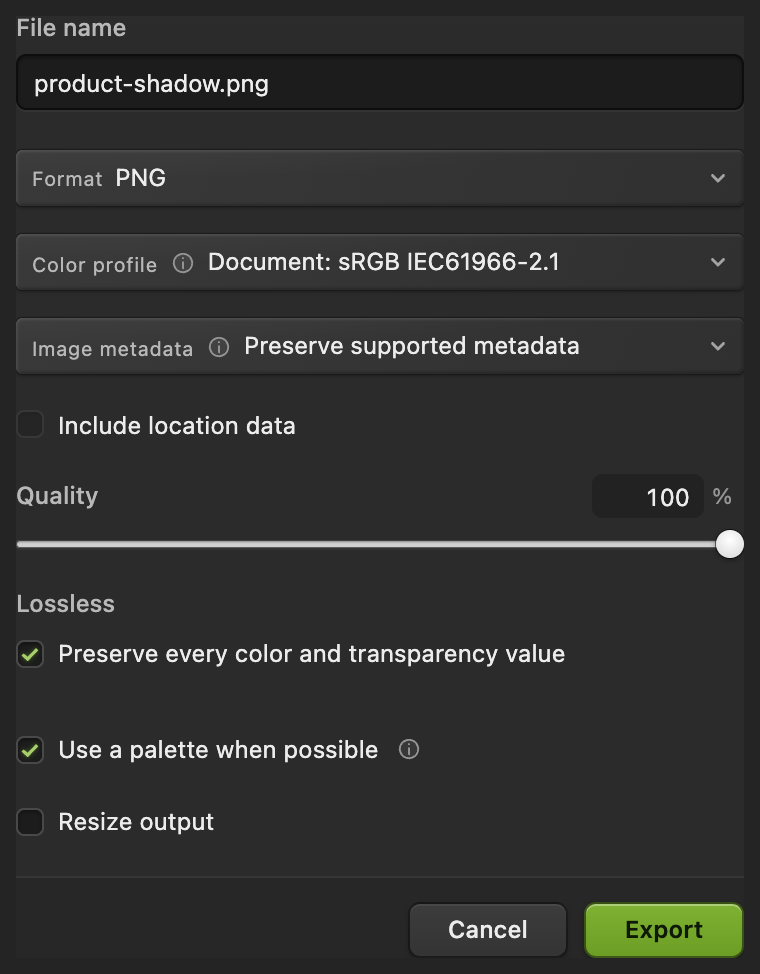
Name and export the PNG copy.
What to do next
Product shadows: questions and answers
Why is my product shadow invisible?
In Lil Cactus, an opaque photo or a fill above the shadow covers it. Check that the product has transparent surroundings and that Ground shadow sits below the product but above Color Fill.
Why does my blurred product shadow still have a hard outline?
In Lil Cactus, an active selection limits the filter to that area. Choose Select › Deselect before applying Gaussian Blur to the shadow layer.
Can I change the Gaussian Blur radius after reopening the project?
Not with these steps: in Lil Cactus, Gaussian Blur applied to a pixel layer changes its pixels, so Radius is not kept. To keep it adjustable, choose on Ground shadow before applying the blur. You can always change the layer’s opacity.
Why does my product shadow look like a sticker?
In Lil Cactus, lower Ground shadow’s Opacity and check that most of the ellipse sits behind the saucer. A dark oval with exposed ends can make the product look raised.
Does an oval shadow work for every product photo?
No. This Lil Cactus method suits a softly lit product with a broad base resting on a flat surface. Hard directional light also needs a cast shadow that follows its direction.
Keep going
 How to remove the background from a photoSelect Subject, a layer mask and a transparent PNG.Beginner · 3 min
 How to change the background of a photoPut a cut-out on a new background and match the light and color.Beginner · 8 min
 How to add a drop shadow and outline with layer stylesShadows, outlines, glows and overlays that stay editable.Beginner · 6 min