How to remove the background from a photo
Quick answer
Open the photo in Lil Cactus and choose : AI running in your browser selects the person, pet or product. Click Add layer mask at the bottom of the Layers panel and the background disappears. Then saves the cut-out with a transparent background. For flyaway hair or fur, use before adding the mask.


- Time
- 3 minutes
- Level
- Beginner
- You need
- A photo with a clear main subject, and a computer with a mouse or trackpad
- Works with
- JPEG, PNG, WebP, AVIF, HEIC, PSD, RAW and more
Removing a background takes two decisions: what to keep (the selection) and how to hide the rest (a mask). Lil Cactus finds the subject for you with AI that runs in your browser, on your own computer, so your photo is never sent to a server. The background is hidden with a mask rather than deleted, so you can repair any part of the edge later, even after saving the project.
Remove the background in six steps
Open your photo
Go to lilcactus.app and choose (Ctrl+O or ⌘O), or drag the photo onto the window. To follow along exactly, open the sample photo from this page.
Your photo appears in the middle of the window and becomes a layer called Background in the Layers panel on the right.
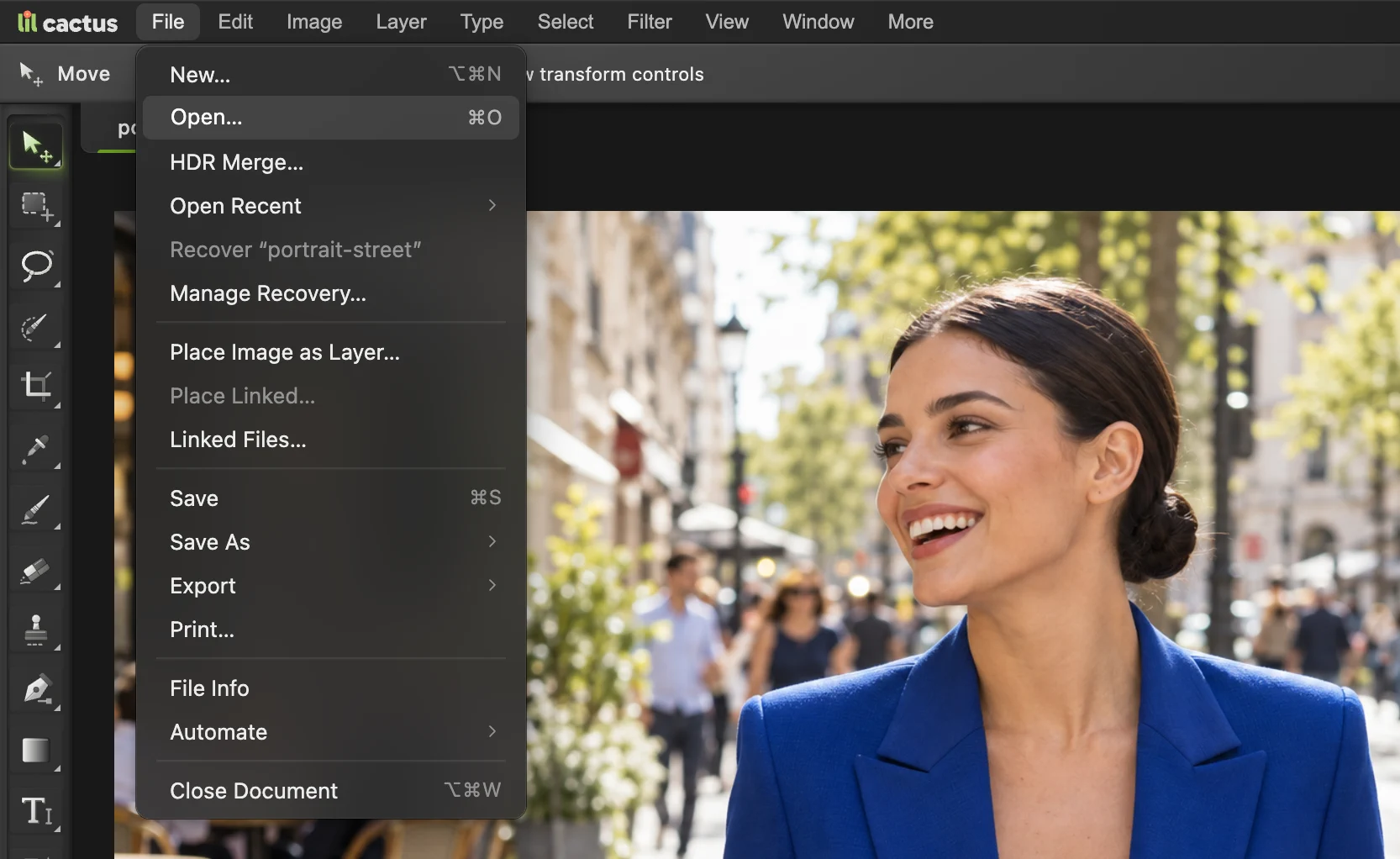
is the second item in the File menu. Choose Select › Subject
Open the Select menu and choose Subject. Lil Cactus looks at the whole picture, decides what the main subject is and draws a selection around it: the moving dotted line often called “marching ants”.
The first time you use it, your browser downloads the AI model, so it takes longer. After that it is usually quicker, depending on your computer and connection.
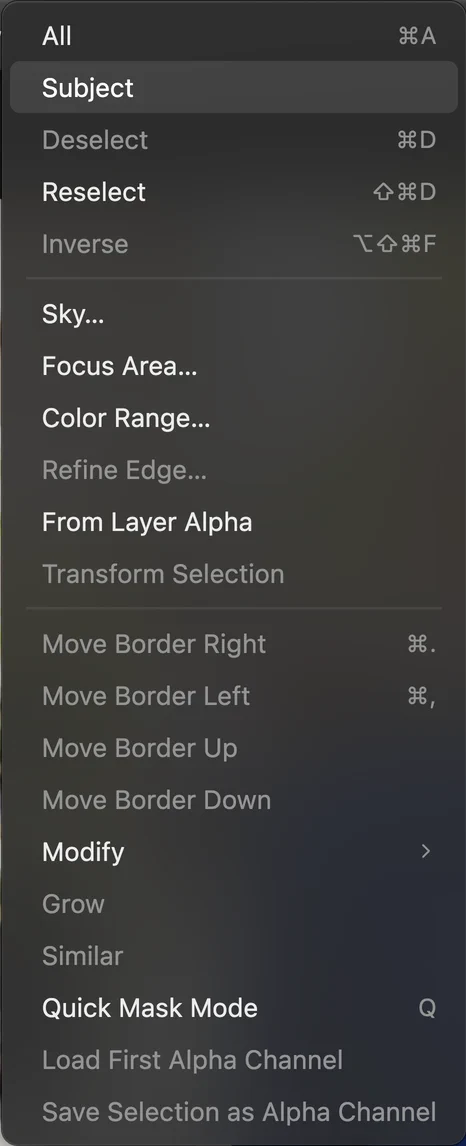
is the second item in the Select menu. Check the selection
Look along the dotted line. On a clear photo like the sample it follows the hair, the face and the blazer closely.
If a part is missing or extra, fix it now with the Quick Selection tool. It shares a button in the toolbar with Object Selection and Magic Wand: right-click that button (or press and hold it) and choose Quick Selection. Paint over a missing area to add it, or hold Alt or ⌥ and paint to take an area away.
Tip Did Select Subject pick the wrong person or object? Press Ctrl+D or ⌘D to deselect, choose Object Selection from the same group and drag a box around the subject you want.
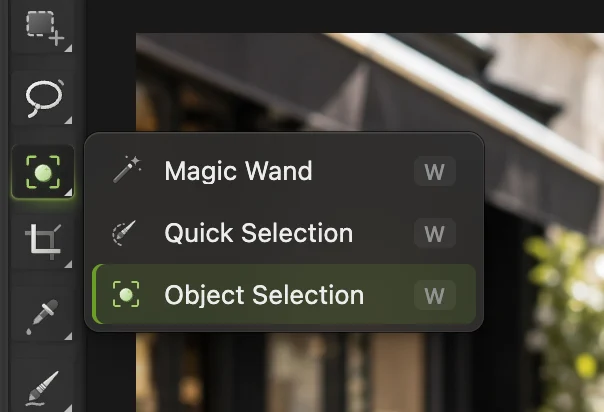
Right-click the selection tool to choose Quick Selection. - The selection tool button

Select Subject has traced the woman. The dotted line is the edge of the selection. Click Add layer mask
At the bottom of the Layers panel, click Add layer mask: the rectangle with a circle in it. The selection becomes a mask on your photo, and everything outside it disappears at once.
The same command is in the menus as . With a selection active, it uses the selection.
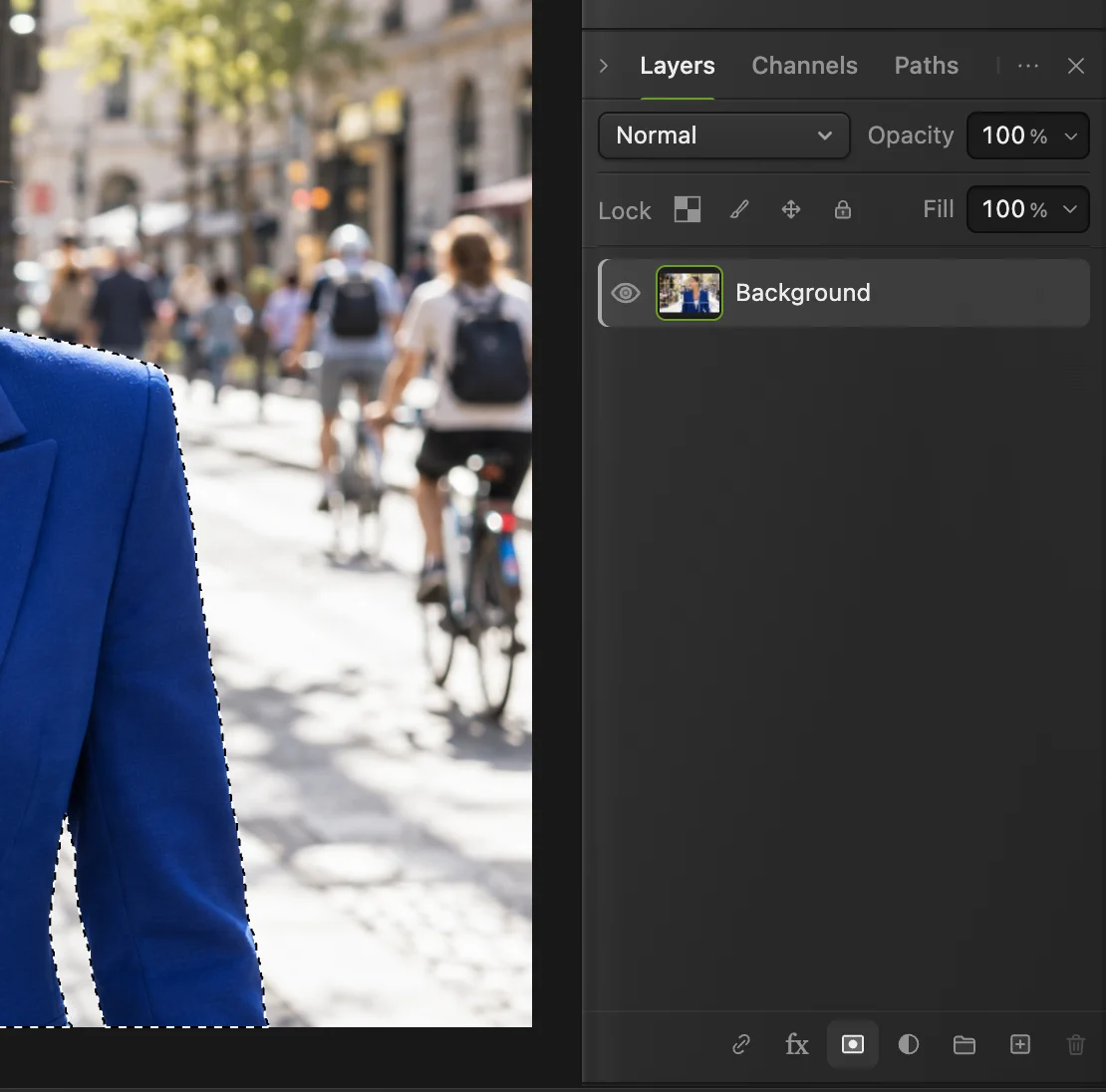
The Add layer mask button, at the bottom of the Layers panel. See what the mask did
Behind the subject you now see a gray-and-white checkerboard: the standard way editors show transparency.
In the Layers panel a black-and-white thumbnail has appeared next to your photo. That is the layer mask: white areas show the photo and black areas hide it. Nothing was deleted. The street is still there, just hidden.
Tip To fix a spot by hand, click the mask thumbnail, press D so your colors are black and white, take the Brush (B) and paint with black to hide or white to bring an area back. X swaps the two colors.
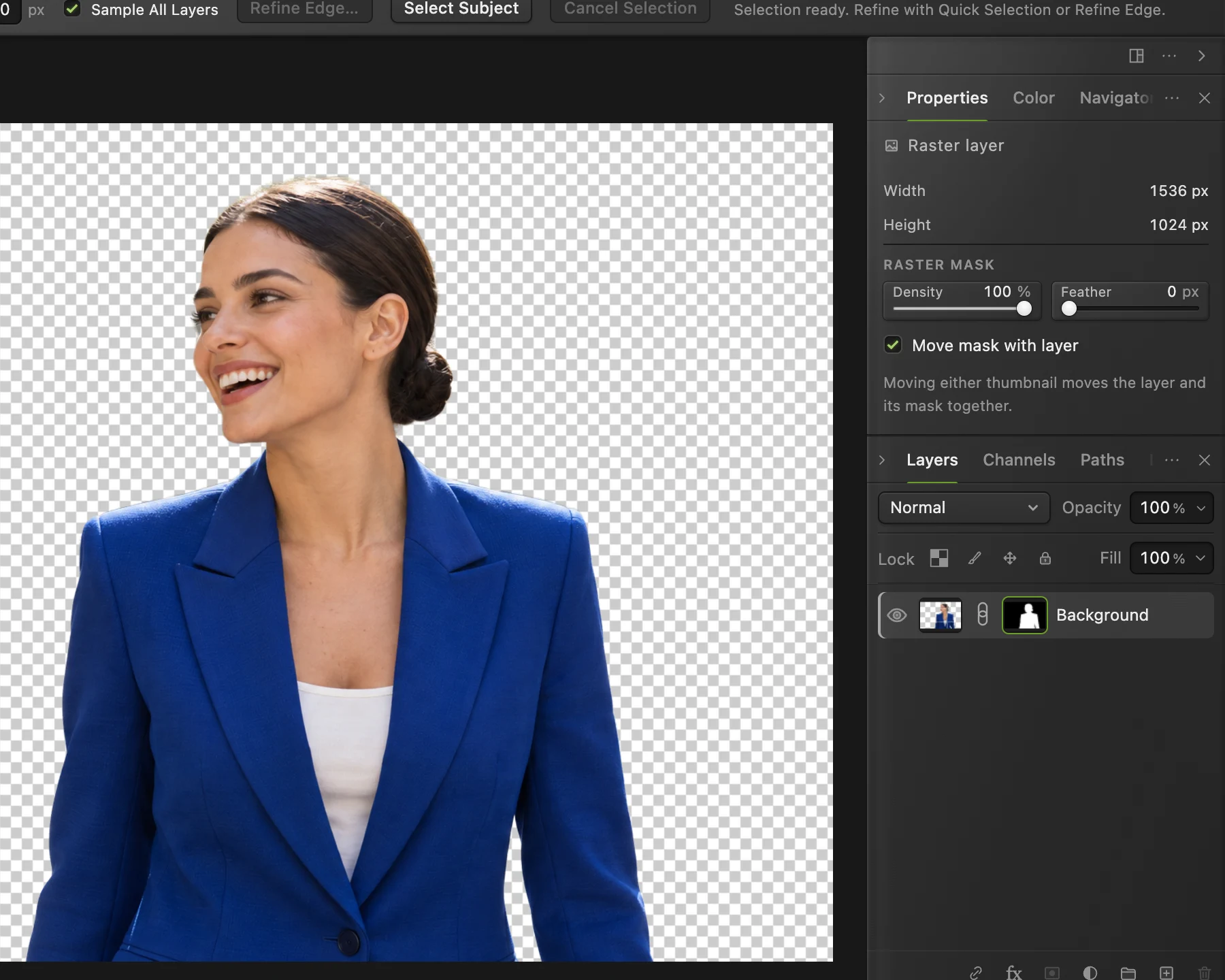
The photo now has a mask. The checkerboard shows where it is transparent. - The mask: white shows, black hides
Save it as a transparent PNG
Choose PNG keeps transparency. JPEG has no transparency, so a JPEG export fills the background with white. Keep Preserve every color and transparency value ticked for the cleanest edge and click Export. The file goes to your downloads folder.
To keep the mask and the hidden background editable, choose (Ctrl+Shift+S or ⇧⌘S). Keep the PNG for sharing and the project for later edits. Avoid saving the cut-out over a JPEG: JPEG cannot keep transparency. Browser recovery can help after an interruption, but keep your own saved copies of important work.
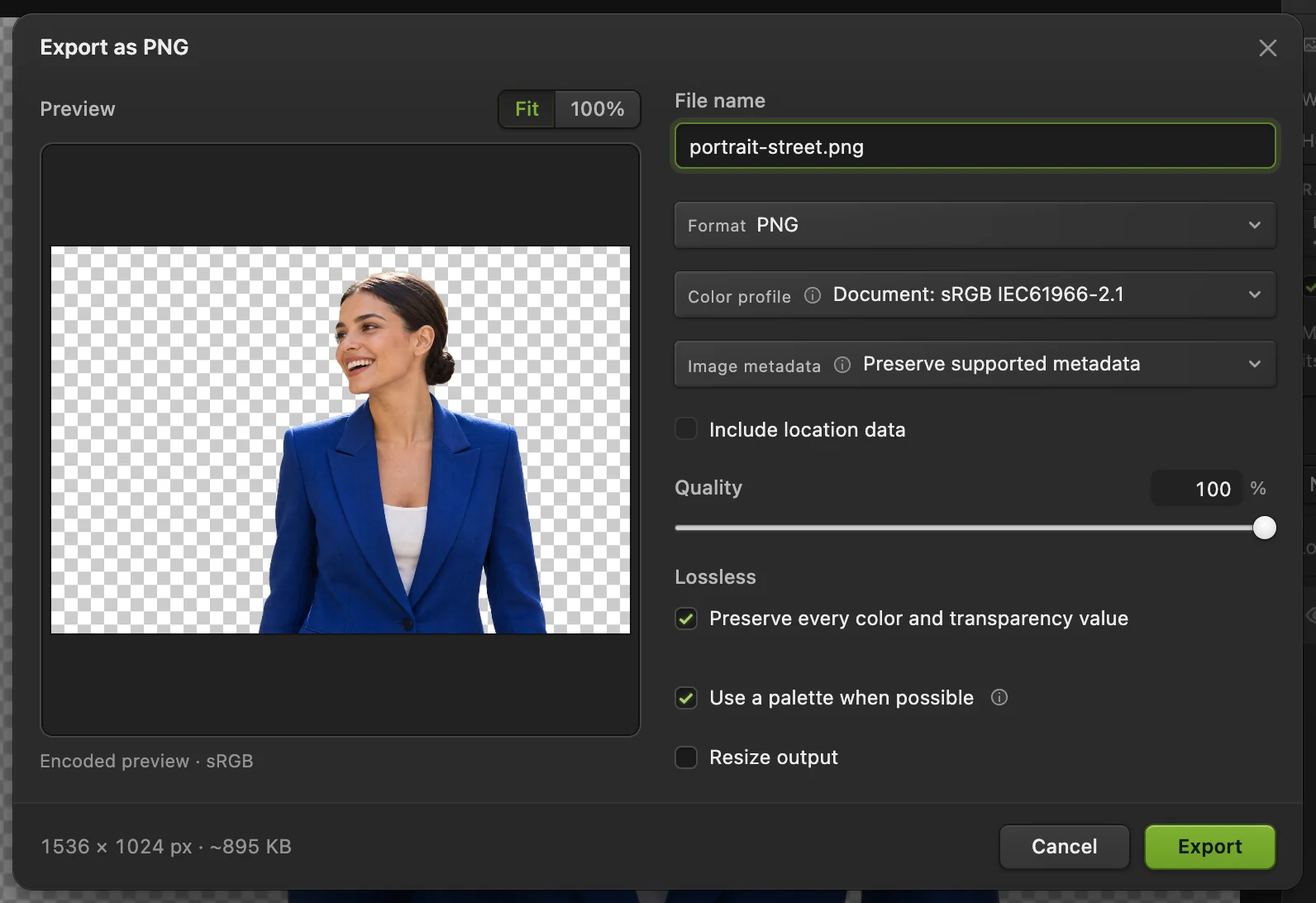
with its default settings. - Format: PNG keeps the transparency
- Preserve every color and transparency value: keep it ticked
- Resize output: optional, for a smaller file
- Export
Flyaway hair or fur? Use Refine Edge
Select Subject traces neat hair, like the sample’s bun, very cleanly. Flyaway hair, fur and soft edges against a busy background need more work. For those, do this instead of step 4, while the selection is still active:
- Choose
- Set Zoom to 100% and Preview to White, then Black, and look along the hair. Leftover background shows up as a fringe against one of them.
- Leave Adapt to edge ticked. Maximum edge recovery opens at 8 px: the widest band around the edge that is searched for fine detail. Each stretch of edge gets a band between 2 px and that maximum: narrow on clothing and other hard edges, wider on soft hair and fur. Most photos need no change. If fur keeps a fringe of the background color, untick Adapt to edge. The slider becomes Edge recovery and drops to 6 px; set it to 12 px.
- Keep Remove background color at 100%. It replaces the old background’s color in see-through hair.
- If a thin halo remains, drag Shift Edge a little to the left to pull the edge in.
- Leave Output on New layer with editable mask and click Apply.
You get a new layer, Background cut-out, with its own mask. The original photo stays underneath, switched off.
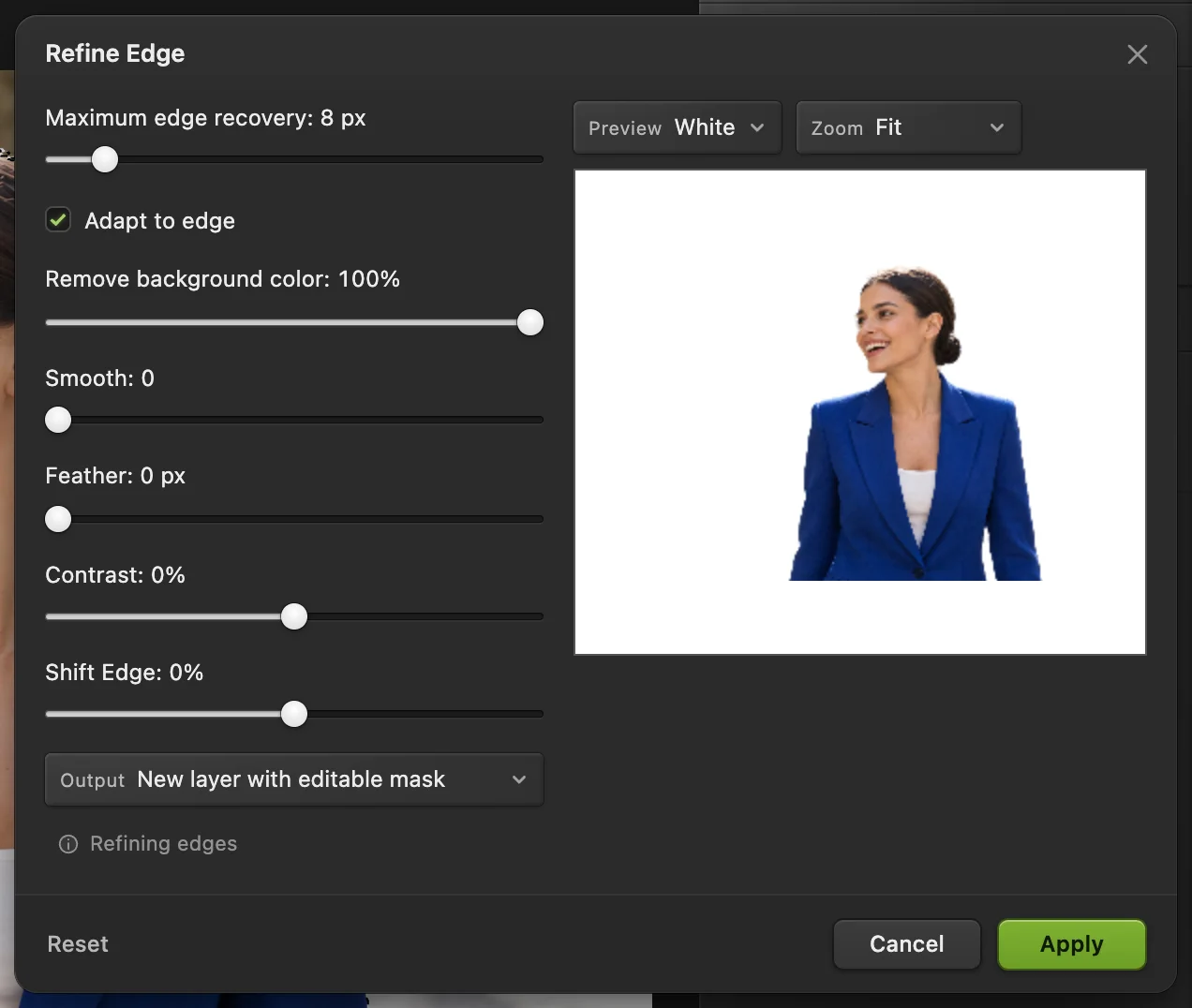
- Maximum edge recovery: the widest band searched for fine detail
- Adapt to edge: narrow on neat edges, wider on hair and fur
- Remove background color
- Shift Edge: pulls the edge in or out
- Preview on gray, black or white
- Output: New layer with editable mask
Other ways to remove a background
Select Subject is the quickest start for photos of people, animals and products. These tools suit other pictures:
- A plain or single-color background (a logo, a signature, a product on white): choose the Magic Wand from the same tool group, click the background, then (Ctrl+Alt+Shift+F or ⌥⇧⌘F) and add the mask. See how to make a background transparent.
- A background of one color range, such as a blue sky: selects every pixel close to a color you click.
- Hard-edged objects such as a phone or a box: the Polygonal Lasso or the Pen tool draws exact straight and curved edges by hand.
- Rubbing the background away directly: the Background Eraser (in the Eraser group) erases the color under its center and protects the rest. It deletes pixels for good, so work on a copy of the layer.
Why a mask instead of the Eraser
You could rub the background out with the Eraser, but every pixel you erase is gone. A mask only hides pixels. If you notice later that an ear or a strand of hair was cut off, paint white on the mask and it comes back exactly as it was. Masks are also how the cut-out travels into other work: put any picture on a layer below and it shows through the transparent areas.
Read more in how layer masks work.
Fix common problems
A thin halo around the edge
Undo the mask (Ctrl+Z or ⌘Z) so the selection is back, then use Refine Edge as described above: keep Remove background color at 100% and drag Shift Edge slightly to the left.
Specks of background around the hair
The band in Refine Edge is too wide for this edge. If you unticked Adapt to edge, tick it again and click Reset; otherwise lower Maximum edge recovery until the specks go, or paint them out on the mask with black.
Hair looks cut with scissors
Use Refine Edge and raise Maximum edge recovery (Edge recovery if Adapt to edge is unticked) step by step, watching the preview at 100% on black and on white. Very fine flyaway hair against a busy background may still need a few strokes on the mask with a soft brush.
Part of the subject is missing, such as a hand or a bag
Paint white on the mask with the Brush, or undo the mask, add the missing part with Quick Selection and add the mask again.
The saved file has a white background
It was saved as a JPEG, which has no transparency. Export as PNG, or as WebP if the file must be small.
Select Subject chose the wrong subject
Use the Object Selection tool and drag a box around the subject you want. It only looks inside the box.
What to do with your cut-out
- Put it on a new background: change the background of a photo.
- Keep the background but soften it: blur the background.
- Use it in a design: make a YouTube thumbnail.
- Make it smaller for the web: resize the image.
Coming from another editor
- Photoshop
- , then a layer mask from the Layers panel. Fine edges are handled in Select and Mask; in Lil Cactus that is
- GIMP
- The Foreground Select tool, then Layer › Mask › Add Layer Mask with the selection. In Lil Cactus, Select › Subject makes the selection and the Add layer mask button does the rest.
Background removal: questions and answers
Is background removal in Lil Cactus free?
Yes. Select Subject, Refine Edge, layer masks and PNG export are part of the free editor, which is supported by ads. There is no watermark, no sign-up and no daily limit.
Is my photo uploaded when I remove the background?
No. The photo is opened and processed in your browser, and the AI model runs on your own device, so the image never leaves it. With statistics on, the editor records which tools are used, never the image itself. The privacy policy explains when statistics are on and how to turn them off.
How do I put a white background behind the cut-out?
Export as JPEG: transparent areas become white. For another color, choose , pick the color and drag the new layer below the cut-out in the Layers panel.
Can I remove the background from many photos at once?
Not automatically yet. Select Subject can’t be recorded in an action, so each photo needs its own two clicks. Each takes well under a minute once the AI model has loaded.
Why does the cut-out look jagged when I zoom in?
Check that you exported a PNG with Preserve every color and transparency value ticked. A very small source photo also gives a rough edge, so start from the largest version you have.
Does background removal work with hair and pets?
Yes. Select Subject finds people and animals, and Refine Edge recovers fine hair and fur. Very wispy hair on a busy background may need a few touches on the mask.
Keep going
 How to change the background of a photoPut a cut-out on a new background and match the light and color.Beginner · 8 min
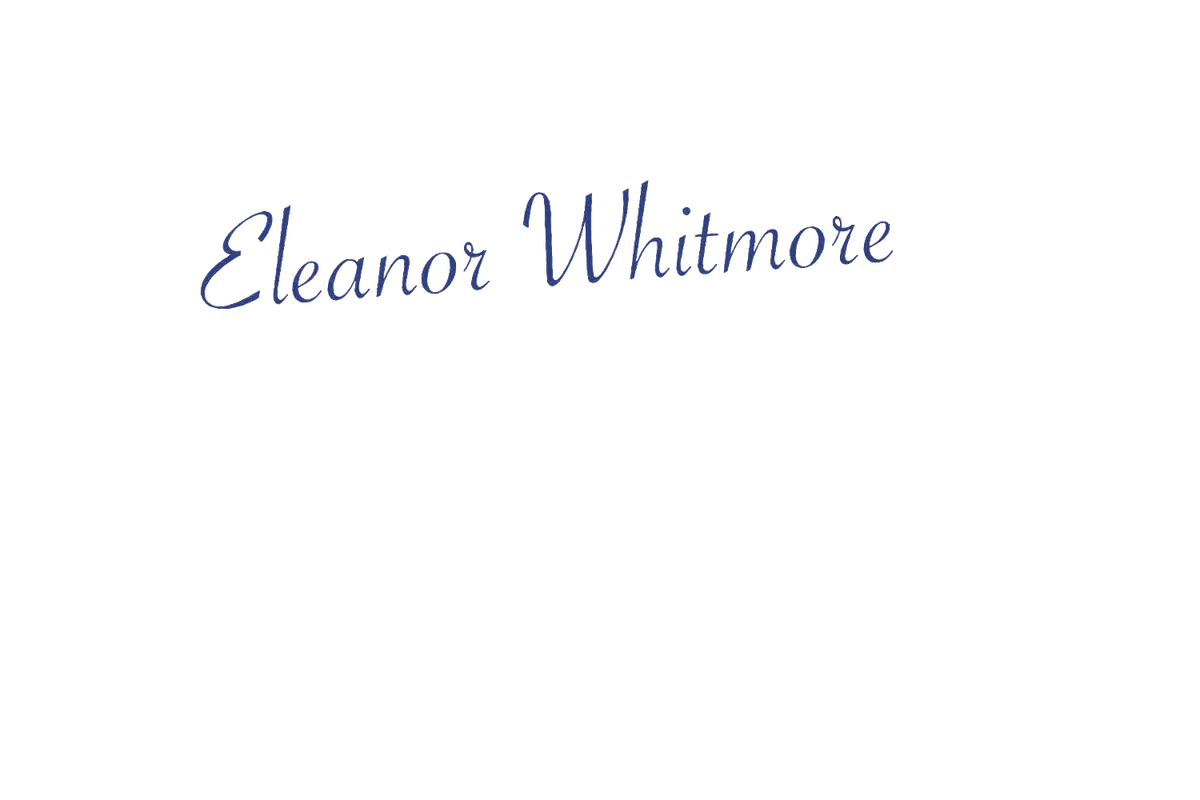 How to make a signature or logo background transparentLift a signature or logo off white or paper.Beginner · 3 min
 How to blur the background of a photoA camera-like background blur with no glow around the subject.Intermediate · 6 min