How to add a watermark to a photo
Quick answer
To watermark a photo in Lil Cactus, choose Text, add your name and click Commit text. For the sample, use white Arial Bold at 64 px and set the text layer’s Opacity to 50% in Layers. Export with To use a logo instead, add a transparent PNG with , resize it with and position it with Move.


- Time
- 6 minutes
- Level
- Beginner
- You need
- A photo; the sample is 1536 × 1024 px. A transparent logo is optional.
- Works with
- JPG, PNG, WebP and other images you can open
A watermark can be a name, a signature or a logo. Put it on a separate layer, an independently editable part of the image, so you can revise it while keeping the photo underneath intact. Start with a text mark, then try the logo method below.
Add a text watermark in six steps
Open the photo and choose Text
Open the sample from this page, or use for your photo. Click the Text tool in the left toolbar.

The T icon is Text. Set the lettering
On the options bar under the menus, choose Arial, set Size to 64 and turn Bold on. Click the Color swatch at the end of the alignment and direction buttons. In Text Color, type FFFFFF in the # field and click OK.

Font, Size and Bold are on the options bar. 
This swatch opens the text color picker. 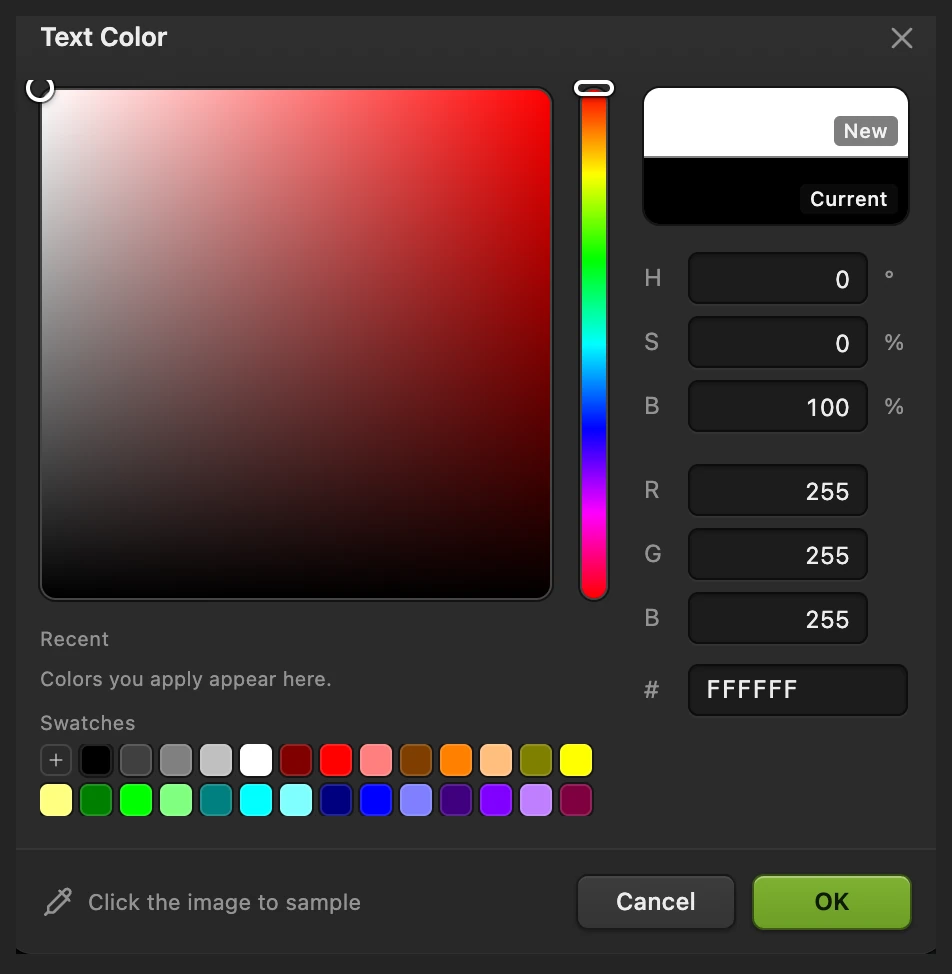
FFFFFF is white. Type and commit the words
Click near the bottom right, leaving room for the words to extend to the right. The click sets the baseline, the line the letters sit on. If no text caret appears, click there again. Type TRAVEL, then click the checkmark on the options bar (Commit text).

The checkmark finishes the text edit. Make the mark translucent
Select Text in Layers and set its Opacity to 50%. Opacity controls how strongly the whole layer shows: lower values make it fainter. Leave the photo layer at full opacity.
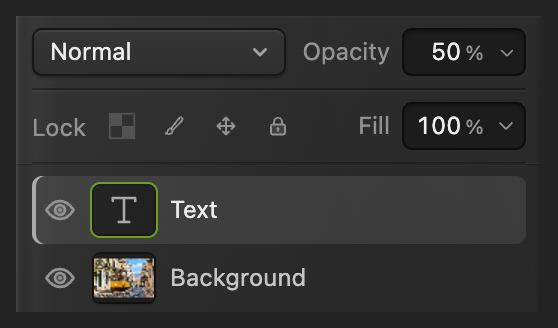
The T thumbnail identifies the text layer. Check the position
Choose Move and drag the mark if it needs repositioning. Keep a gap from the image edges and avoid covering an important detail. For a photo of a different size, adjust the lettering to suit the picture.

Use Move to reposition the selected layer. Export a copy and keep the project
Choose , enter watermarked.png in File name and click Export.
Use to keep the mark editable. uses the current file’s format: saving the original JPEG keeps a flat image and may open Save Image for its settings. Once you are editing a project, Save updates that project. Export makes a separate image copy.
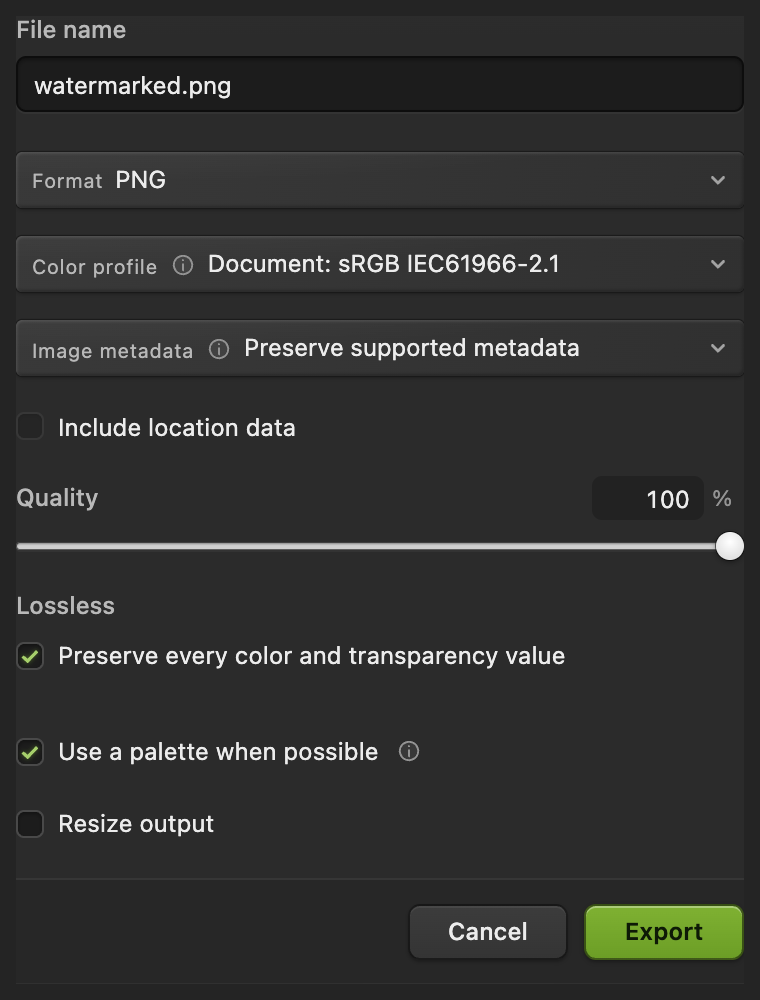
Export controls for the sharing copy.
Use a transparent logo instead
Open the sample again from this page, or use for your untouched original.
Download the transparent sample logo, or use your own PNG with transparency. Choose and select the logo file. Choose , turn the chain link on and set W to 35%. The linked H follows. Click the checkmark (Commit transform).

Choose Move and drag the logo over a clear area of the photo. The example uses open sky. Set the logo layer’s Opacity to 70%, then follow step 6 to save the result.




Reuse the text mark on more photos
For photos of the same size, use to open your saved project from the text steps and the next photo. Keep only those two documents open. Select the project’s tab and its Text layer, then choose .
Select the other photo’s tab and check the mark’s position. The copied layer keeps its words and opacity. Use the final main step for each finished copy.

What to do next
Watermarks: questions and answers
How do I change the words in a saved watermark?
In Lil Cactus, open your saved project and select its Text layer in Layers. Choose Text, click the watermark to edit its words, then click Commit text.
Can I watermark a batch by recording these steps?
No. In Lil Cactus, File › Automate › Batch… can’t record creating a text layer, placing a logo or changing layer opacity, so a recorded watermark action exports unmarked copies. Copy the mark into each photo with Layer › Duplicate Into Other Document instead.
Why does my logo have a white rectangle behind it?
The white area is part of the logo image. In Lil Cactus, changing a file’s format to PNG does not remove those pixels. Remove the background or start with a logo that already has transparent pixels.
Will a watermark prevent someone copying my photo?
No. A visible mark does not lock the image. A watermark added in Lil Cactus can still be cropped or covered, so use it for visible identification.
Why is my text watermark hard to read?
Its color may be too close to the background, or the detail behind it may compete with the letters. In Lil Cactus, try a darker text color over a light area or move the mark over less busy detail.
Keep going
 How to add text to a photoA headline and a second line on a photo, still editable later.Beginner · 5 min
 How to make a signature or logo background transparentLift a signature or logo off white or paper.Beginner · 3 min
 How to save and export an image in Lil CactusKeep an editable master and make a separate image to share.Beginner · 5 min