How to make curved, gradient text with a shadow
Quick answer
Draw a curve with the Curvature Pen and end it with Finish Open Path in the options bar’s … menu, choose the Text tool and click on the curve: the words you type follow it. Then click Layer style (fx) in the Layers panel and add a Gradient Overlay for the fill and a Drop Shadow for depth. The text stays editable: click it with the Text tool to retype it, and the curve and the effects follow.


- Time
- 7 minutes
- Level
- Intermediate
- You need
- A photo or background, and a short headline
- Works with
- Any 8- or 16-bit document: JPEG, PNG, WebP, HEIC, PSD, RAW and more
A text effect in Lil Cactus is built from parts that all stay editable: the words on a text layer, a path that the words follow, and a layer style that colors and shades the letters. Nothing is turned into pixels, so you can fix a typo or change a color at any time.
In this tutorial you set the words GOLDEN HOUR on a gentle arch over an evening sky, fill them with a warm gradient and lift them off the clouds with a shadow.
Make a curved, gradient headline in seven steps
Open the photo
Go to lilcactus.app and choose (Ctrl+O or ⌘O), or drag the photo onto the window. To follow along exactly, open the sample photo from this page.
Draw a gentle arch
Right-click the pen button in the toolbar and choose Curvature Pen. Click three points: near the left edge about two thirds of the way down, in the middle a little above the middle of the picture, and near the right edge level with the first. The line bends through them in a smooth arch.
To end the curve without closing it, click the More path commands button (…) on the options bar and choose Finish Open Path.
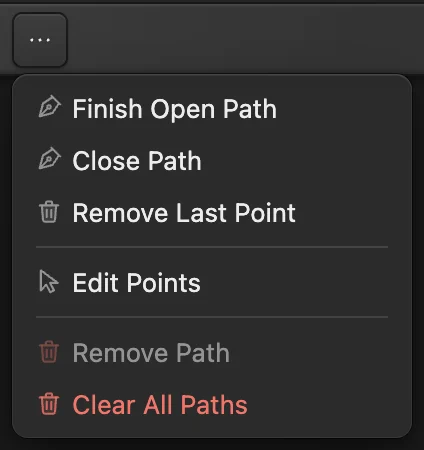
Finish Open Path ends the curve. 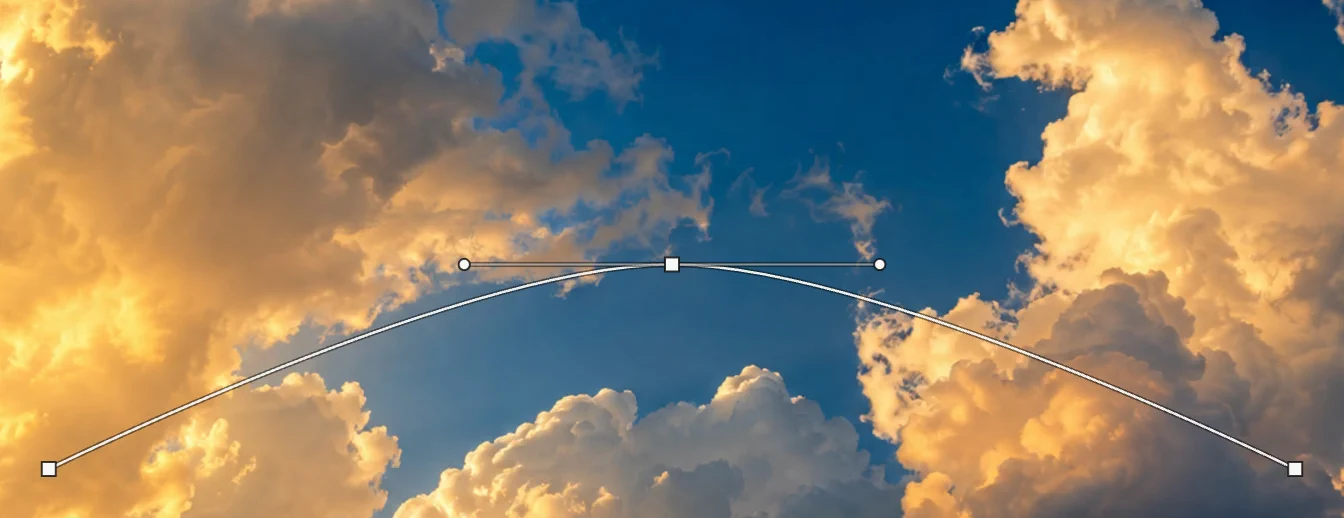
The arch, from three points. Type on the curve
Press D and then X, so white is the foreground color, and press T for the Text tool. On the options bar, choose Impact in the Font list, type 150 for Size and click the center alignment button (Align center). Click on the top of the arch, type GOLDEN HOUR and press Ctrl+Enter or ⌘↩.
The letters stand on the curve, centered on the point you clicked. If the letters come out thin (Impact isn’t installed on every computer), choose Arial and click the B (Bold) button on the options bar.

Size 150 and Align center: the words center on your click. 
The text follows the curve. Fill the letters with a gradient
With the text layer selected, click Layer style (fx) at the bottom of the Layers panel and click Gradient Overlay in the list. Open Edit gradient stops. With Color stop on 1, click the color swatch, type FFF1B8 (pale gold) in the # field and click OK; choose stop 2 and do the same with FF8A1E (orange). The words now run from orange at the top to pale gold at the bottom. Don’t click OK in the Layer Style dialog yet.
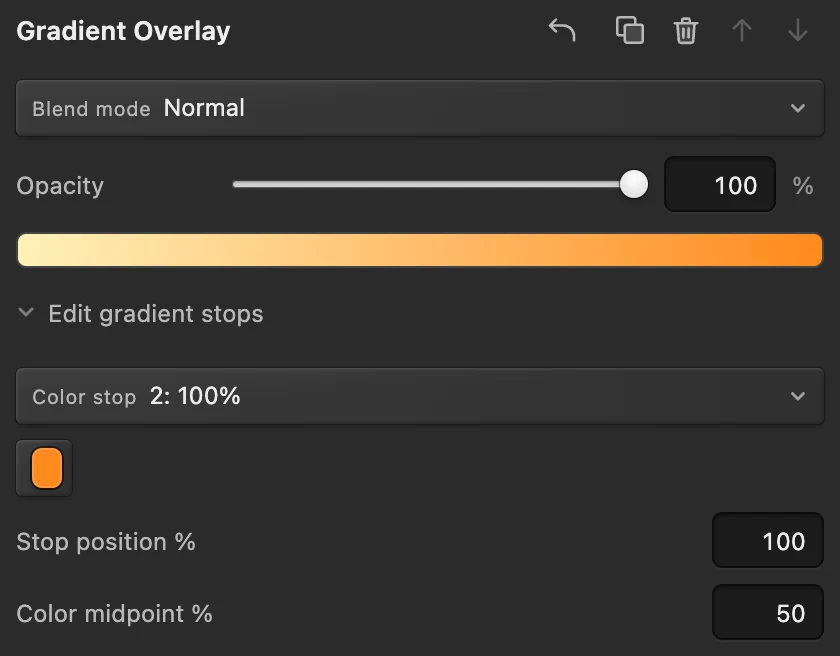
Two color stops: pale gold and orange. Add a soft shadow, then click OK
Click Drop Shadow in the same list. Type 60 for Opacity, 6 for Distance and 12 for Size, pressing Tab after each, and click OK. The shadow separates the light letters from the bright clouds behind them.

Gradient Overlay and Drop Shadow. Retype the words
With the Text tool, click the words, press Ctrl+A or ⌘A to select them all, type BLUE HOUR and press Ctrl+Enter or ⌘↩. The new words sit on the same arch, centered, with the same gradient and shadow.

New words, same curve and effects. Save, or export the picture
To keep the text, its curve and its style editable, choose (Ctrl+Shift+S or ⇧⌘S) or After that, updates that file.
To share the picture, choose and click Export: a new, flat image without the curve’s guide line. Until you save a project or PSD, writes a flat picture back into the JPEG you opened; the first Save of a JPEG, including the sample, opens the Save Image dialog.
Adjust text on a path
- While the text is selected with the Text tool, the options bar shows Start, which slides the words along the curve; Reverse, which puts them on the other side of the curve (readable on a bowl-shaped curve or the bottom of a circle, upside down on an arch); and Detach, which makes it ordinary straight text again.
- To change the curve itself, choose Direct Selection from the pen tools’ menu and drag its points; the words follow.
- Text that is longer than the curve doesn’t fit: Lil Cactus says so on the options bar. Make the size smaller, shorten the words, or draw a longer curve.
- To put existing text on a curve, select the curve in the Paths panel, select the text layer, choose the Text tool and click Attach to Path on the options bar. The words start at the beginning of the curve, and centered text starts half off it: raise Start until they sit where you want them.
More text effects
- Outline letters: a Stroke effect with the layer’s Fill at 0%. See layer styles.
- A photo inside the letters: clip a photo layer to the text. See how to put a photo inside text.
- Bend text without a path: has a Warp list (Arc, Bulge, Flag, Wave, Rise, Shell) with Bend, Horizontal and Vertical. Arc with a negative Bend lifts the middle of the line only slightly, so for an arch use text on a path as above. Detach path text before warping it.
- Reuse the look: and Paste Layer Style copy the effects; saves the font, size and spacing as a named style with its New style button (+), to apply to other text.
Fix common problems
The text didn’t follow the curve
The curve wasn’t selected when you clicked, or you clicked away from it. Undo, click the curve’s row in the Paths panel and click exactly on the line with the Text tool.
Gaps open between the letters on a tight arch
On a tight curve the tops of the letters fan apart. Make the arch flatter by dragging its middle point down with Direct Selection.
The gradient runs the wrong way
Tick Reverse on the Gradient Overlay page, or change its Angle.
Coming from another editor
- Photoshop
- Type on a path drawn with the Pen tool, Warp Text on the options bar, and Layer › Layer Style.
- GIMP
- Text along Path in the text layer’s right-click menu.
Text effects: questions and answers
How do I curve text in a circle?
In Lil Cactus, choose the Shape tool, set Mode to Path, Shape to Ellipse and Operation to New path, and Shift-drag a circle. Then click on the circle with the Text tool. Use Start on the options bar to place the words where you want them on the circle.
Can I still edit curved text later?
Yes. In Lil Cactus, text on a path stays a text layer: click it with the Text tool to retype it, change its font or size, or move it along the curve with Start.
Is curved text kept in a PSD?
Yes, for one open curve with horizontal, unwarped text in one paragraph: Lil Cactus writes it as editable text on a path. Other path text is saved as pixels, and Lil Cactus warns before saving.
How do I make a text gradient run left to right instead of top to bottom?
In Lil Cactus, open the text layer’s style from its fx badge, click Gradient Overlay and set Angle to 0. Click OK to keep it.
Why can’t I attach my text to a path?
In Lil Cactus, Attach to Path needs one selected curve with up to 512 points, and text that isn’t warped or vertical. Remove the warp or switch to horizontal text first.
Is my photo uploaded when I make text effects in Lil Cactus?
No. Everything runs in your browser, on your own device. When statistics are on, the editor records which tools are used, never the image, as the privacy policy explains.
Keep going
 How to add a drop shadow and outline with layer stylesShadows, outlines, glows and overlays that stay editable.Beginner · 6 min
 How to add text to a photoA headline and a second line on a photo, still editable later.Beginner · 5 min
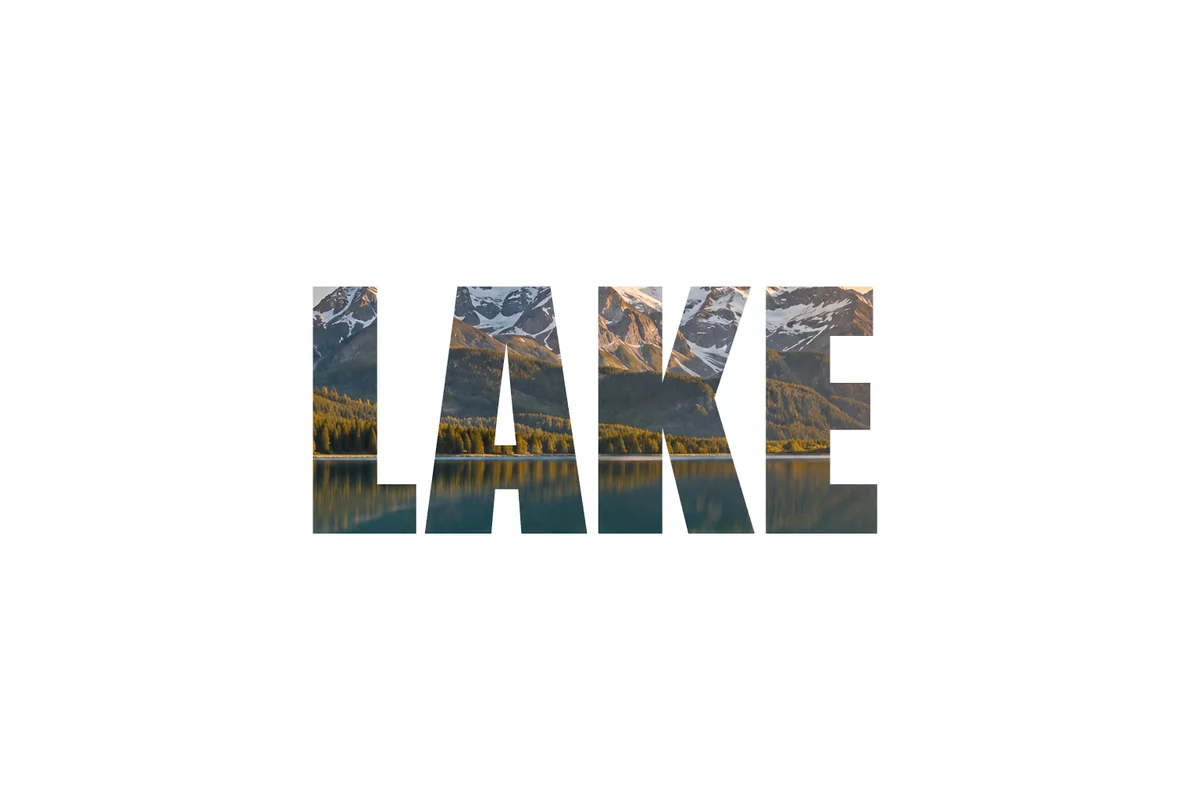 How to put a photo inside text with a clipping maskShow a photo or texture only inside text or a shape.Beginner · 5 min