Blend modes explained, with practical uses
Quick answer
A blend mode decides how a layer mixes with the layers below it. Select the layer and pick a mode in the Blend mode menu at the top of the Layers panel, left of Opacity. Multiply darkens and makes white disappear, Screen lightens and makes black disappear, and Overlay and Soft Light add contrast while 50% gray disappears.
- Time
- 6 minutes
- Level
- Beginner
- You need
- A photo, or two layers to combine
- Works with
- Pixel, text, shape, fill and adjustment layers and groups, in 8- or 16-bit documents
Every layer has a blend mode. In Normal, the layer covers what is below it. Every other mode combines each of its pixels with the pixels underneath by a rule: multiply them, keep the lighter one, add contrast, take only the color, and so on. The layer itself doesn’t change.
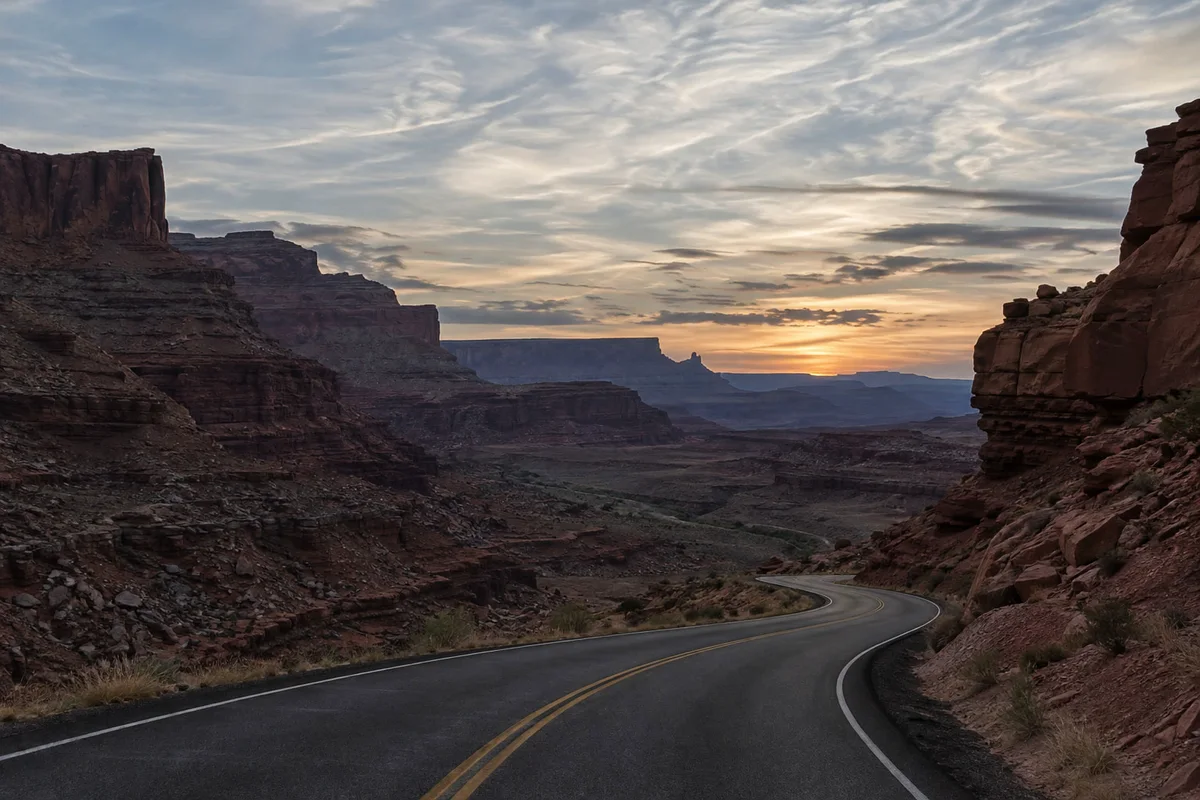
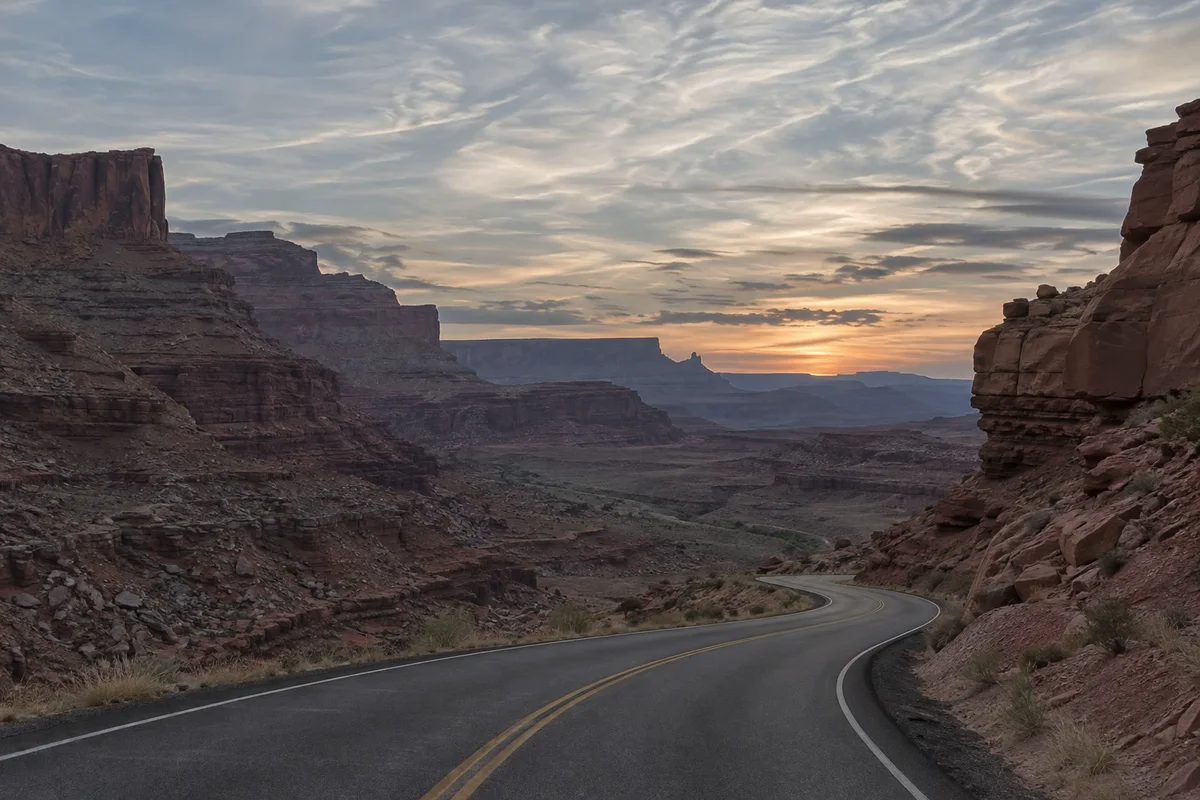
The quickest way to see what a mode does is to blend a photo with a copy of itself. In this tutorial you try three modes on the flat canyon photo and keep the one that improves it.
Try blend modes in seven steps
Open the photo
Go to lilcactus.app and choose (Ctrl+O or ⌘O), or drag the photo onto the window. To follow along exactly, open the sample photo from this page.
Duplicate the layer
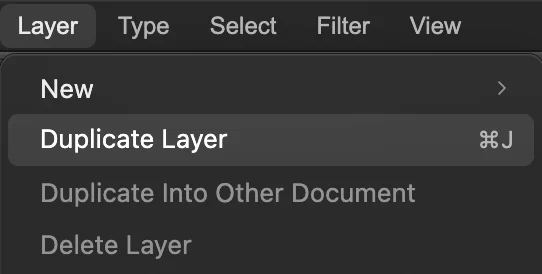
Choose (Ctrl+J or ⌘J). A layer called Background copy appears above Background and is selected. A blend mode needs something below the layer to mix with, so changing it on the bottom layer of a document has no visible effect.
. 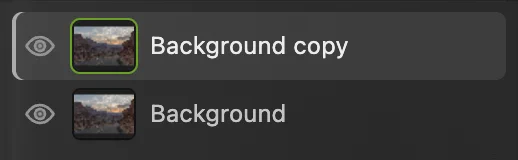
The copy sits above the photo. Set the copy to Multiply
At the top of the Layers panel, open the Blend mode menu (it says Normal) and choose Multiply. The whole photo gets darker and the sky richer: Multiply multiplies the two layers’ colors, so anything darker than white darkens what is below, and white leaves it unchanged.
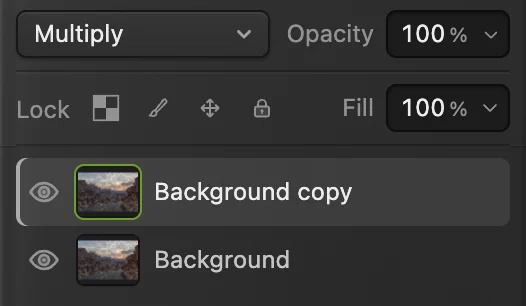
The Blend mode menu, set to Multiply. Try Screen and Soft Light
Choose Screen in the same menu: the photo gets lighter. Screen is the opposite of Multiply: anything lighter than black brightens what is below, and black leaves it unchanged.
Now choose Soft Light. Dark areas get darker and light areas lighter, so the flat photo gains contrast and color while mid-gray stays about the same. This is the one to keep.
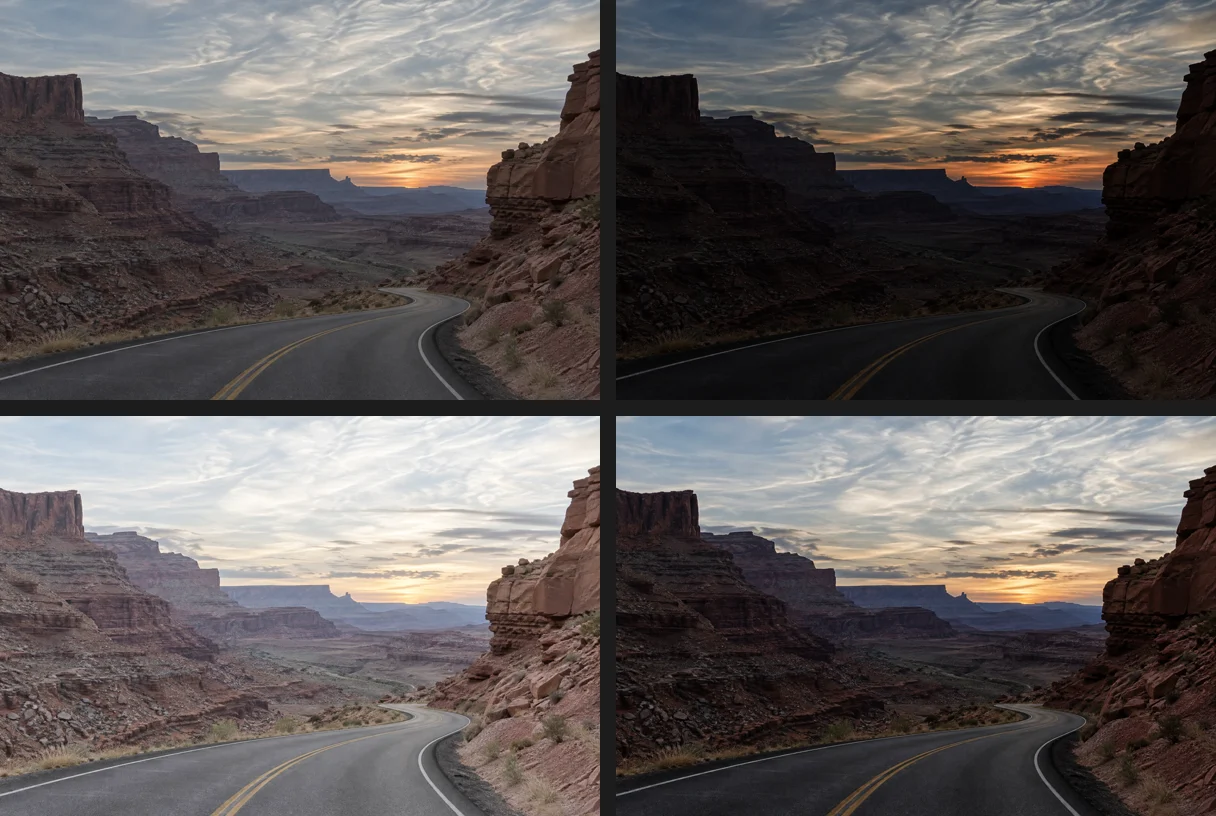
Top: Normal (the original) and Multiply. Bottom: Screen and Soft Light. Lower the opacity to taste
Soft Light at full strength is a little heavy here. Type 70 into Opacity, beside the Blend mode menu, and press Enter or ↩. Opacity weakens the blend just as it fades a Normal layer.
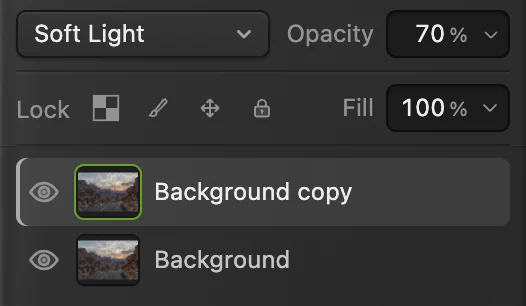
Soft Light at 70% opacity. Compare before and after
Click the eye icon beside Background copy to hide it, then click again to show it. The original photo underneath is untouched; delete the copy, or set it back to Normal, and you are back where you started.
Save, or export the picture
To keep the layers and their blend modes, choose (Ctrl+Shift+S or ⇧⌘S) or ; both keep every blend mode. After that, updates that file.
To share the photo, choose and click Export: a new, flat file with the blend built in. Until you save a project or PSD, writes that flat result back into the JPEG you opened; the first Save of a JPEG, including the sample, opens the Save Image dialog.
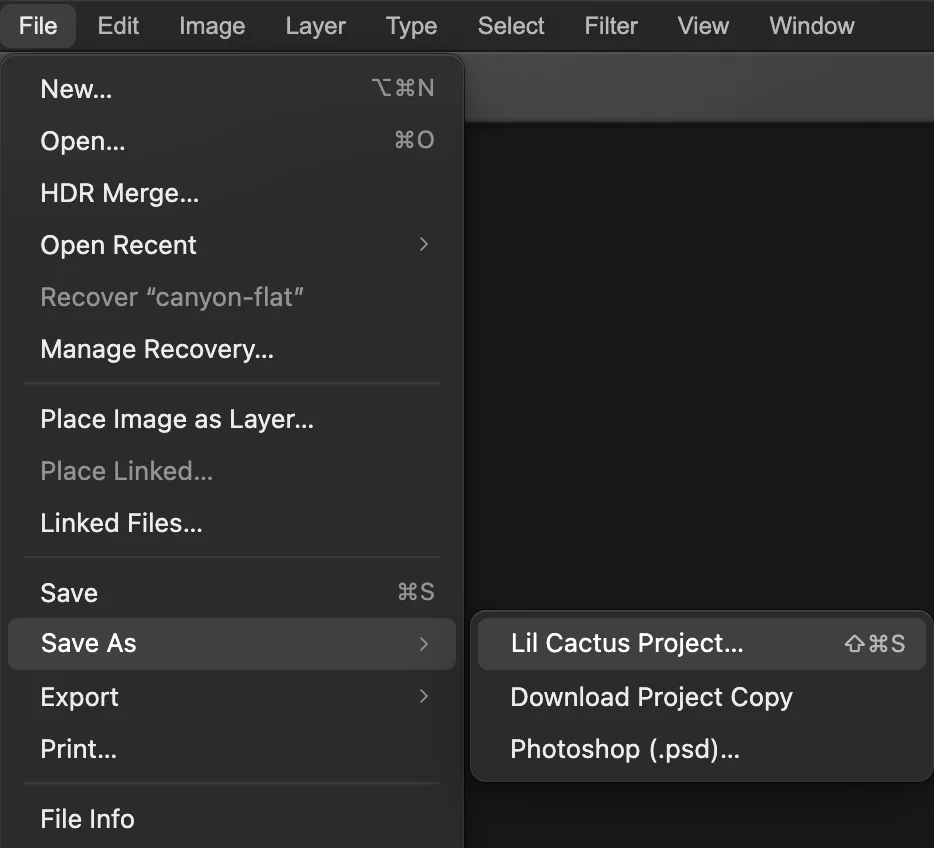
Lil Cactus Project… keeps the layers and their blend modes.
The blend modes, by what they do
The Blend mode menu lists the modes in this order, group by group. Most groups have a color that has no effect in them, so the parts of a layer in that color stay invisible.
| Modes | What they do |
|---|---|
| Normal Normal, Dissolve | The layer covers what is below. Dissolve scatters pixels where the layer is partly transparent or below 100% opacity. |
| Darken Darken, Multiply, Color Burn, Linear Burn, Darker Color | The result is never lighter than what was below. White has no effect. |
| Lighten Lighten, Screen, Color Dodge, Linear Dodge (Add), Lighter Color | The result is never darker than what was below. Black has no effect. |
| Contrast Overlay, Soft Light, Hard Light, Vivid Light, Linear Light, Pin Light, Hard Mix | Parts of the layer darker than 50% gray darken what is below, and lighter parts lighten it; on a copy of the photo this adds contrast. 50% gray has no effect, except in Hard Mix, which reduces every color to its extremes. |
| Comparative Difference, Exclusion, Subtract, Divide | Compares the layer with what is below: Difference and Exclusion invert where the layer is light, Subtract darkens and Divide brightens. Black has no effect, except in Divide, where white has none. |
| Color Hue, Saturation, Color, Luminosity | Takes one part of the color from the layer (hue, saturation, both, or brightness) and the rest from below. |
Two practical uses, step by step
Try these two on the same photo, with the Soft Light copy from the steps still on.
A warm glow with Screen
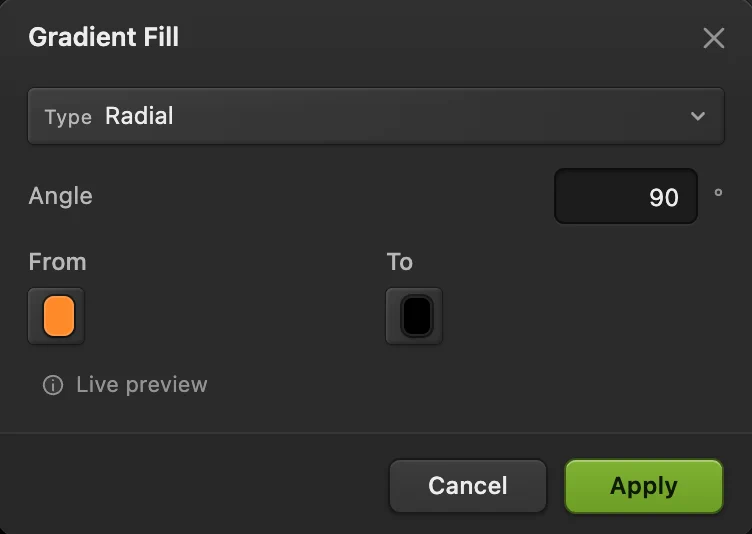
Choose Set Type to Radial, click the From swatch, enter FF8A2A (orange) in the # field and click OK, do the same with the To swatch and 000000 (black), and click Apply. The picture is covered by an orange-to-black circle. Set the new layer’s Blend mode to Screen: the black disappears and only a warm glow is left, centered on the picture.
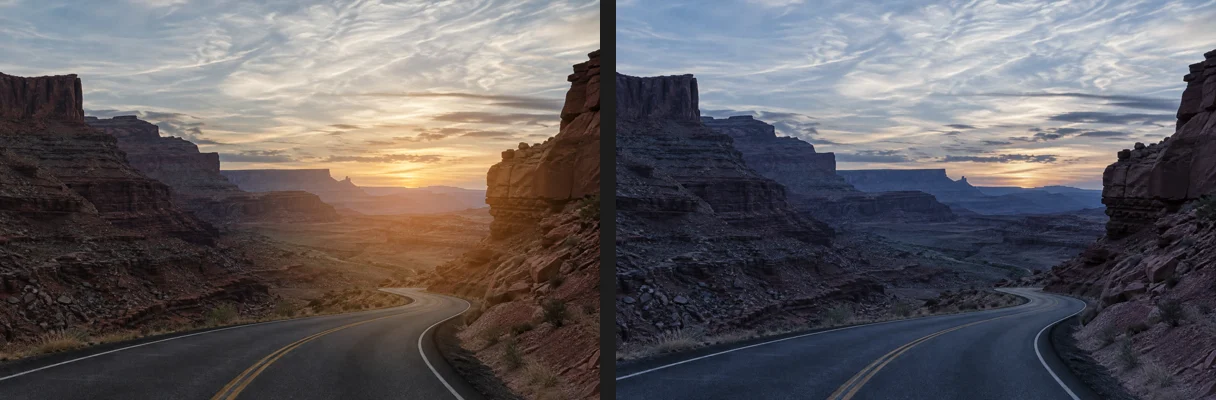
A gradient fill always stays centered on the picture, even if you drag it, so to put the glow on the sun, choose , choose the Move tool and drag from the middle of the picture to the sun, just above the horizon right of center. Type 70 for its Opacity.
A cool tint with Color
Hide the glow with the eye beside Gradient Fill in the Layers panel. Choose , click the Color swatch, enter 2F6FD6 (blue) in the # field and click OK, then click Apply. Set the layer to Color and its Opacity to 20%: the photo takes on a blue-hour cast, and its light and shade stay as they were, because Color takes only the hue and saturation from the layer.
More uses
- Put a scanned drawing or a logo on a photo: in Multiply its white paper disappears and the dark lines take on the texture below, as if printed on it.
- Add a paper or concrete texture: put the texture photo above and set it to Overlay or Soft Light, at a low opacity.
- Line up two nearly identical shots: set the top one to Difference; matching areas turn black, so move it until the picture goes as dark as it can.
Blend modes on other layers
- Fill layers, adjustment layers, text and shapes have a blend mode too. An adjustment layer in Luminosity changes brightness and contrast without shifting colors. See adjustment layers.
- A group starts as Pass Through: its layers blend with everything below the group, as if they weren’t grouped. Pick any other mode and the group’s layers are first combined on their own, then blended as one.
- The Brush tool has its own Mode on the options bar, which applies only to the paint you add, not to the whole layer.
Fix common problems
The Blend mode menu is grayed out
The layer, or a group it is in, is locked. Hover over the menu to see which layer holds the lock, select that layer and click the padlock in the Layers panel.
The menu shows only Normal, or a mode is missing
A 32-bit HDR document offers only Normal. Choose and click Create SDR copy: a flattened 16-bit copy opens, where every mode is available (cancel the PNG export that opens with it). A Lab color document leaves out eight modes (Darken, Lighten, Color Burn, Color Dodge, Difference, Exclusion, Subtract and Divide); choose and click Convert to use them.
Coming from another editor
- Photoshop
- The blend mode menu at the top of the Layers panel.
- GIMP
- The Mode menu at the top of the Layers dock.
Blend modes: questions and answers
Which blend mode removes a white background?
Multiply: white has no effect in it. In Lil Cactus, set the layer with the white background to Multiply in the Layers panel. For a black background, use Screen.
What is the difference between Overlay and Soft Light?
In both, parts of the layer darker than 50% gray darken what is below and lighter parts lighten it, so a copy of a photo in either mode adds contrast. Soft Light is gentler and rarely clips to pure black or white; Overlay is stronger and makes colors punchier. In Lil Cactus, switch the layer between them in the Blend mode menu to compare.
Does a blend mode change my photo for good?
No. In Lil Cactus a blend mode is a layer setting that you can change at any time. Exporting, or saving into a flat file such as the JPEG you opened, writes a picture with the blend built in; merging or flattening the layers bakes it into the document.
Are blend modes kept in PSD files?
Yes. In Lil Cactus, File › Save As › Photoshop (.psd)… keeps every layer’s blend mode, and PSDs open with theirs.
Which blend mode brightens a dark photo?
Screen. In Lil Cactus, duplicate the photo with Layer › Duplicate Layer and set the copy to Screen; lower its opacity if it is too bright. To brighten only the shadows, click Add layer mask at the bottom of the Layers panel and paint the bright areas of the mask black.
Is my photo uploaded when I use blend modes in Lil Cactus?
No. Everything runs in your browser, on your own device. When statistics are on, the editor records which tools are used, never the image, as the privacy policy explains.
Keep going
 How to use layers in a photo editorStack, reorder, fade, hide and group the parts of a picture.Beginner · 6 min
 How to use adjustment layersColor and tone changes you can retune, hide or limit to one area.Beginner · 5 min
 How to add a drop shadow and outline with layer stylesShadows, outlines, glows and overlays that stay editable.Beginner · 6 min