How to blur or pixelate faces in a photo
Quick answer
Choose the Marquee Select tool, set Shape to Ellipse and drag around a face; hold Shift or ⇧ as you start each further drag to add more faces. Choose , set Cell Size to about a fifth of the widest face (14 px for faces up to about 65 px wide), and click Apply. Check the result at 100%, then choose with Image metadata set to None.
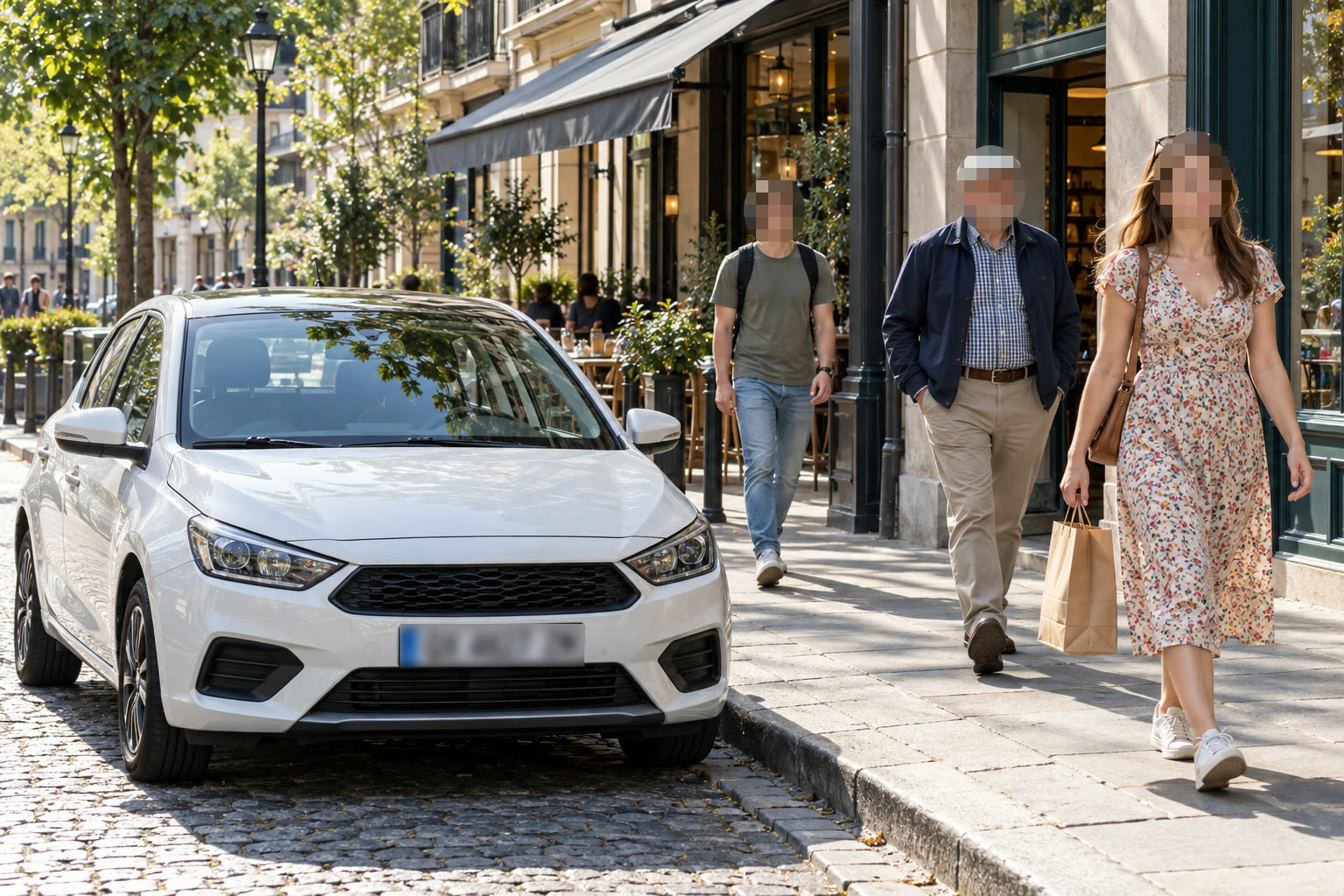
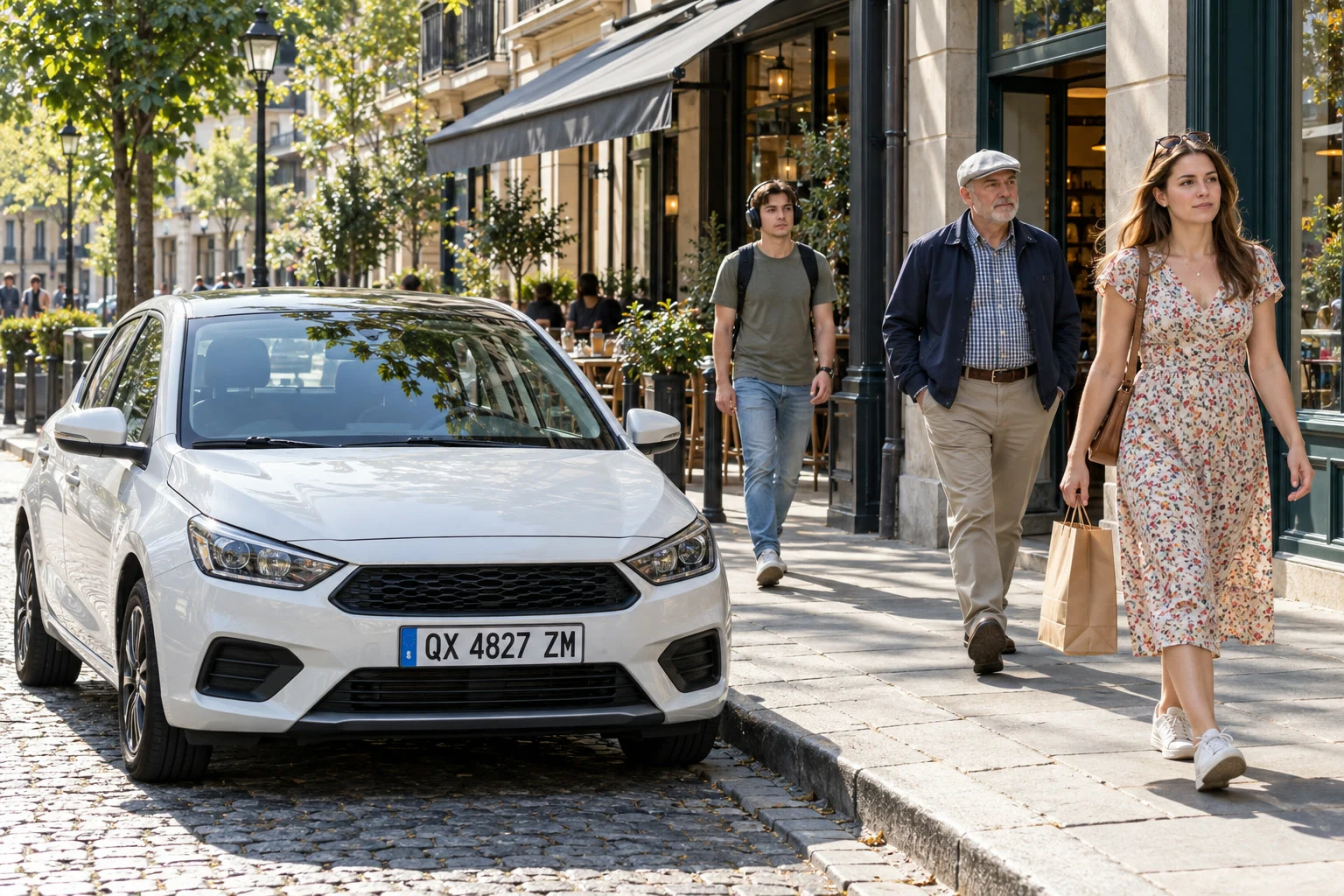
- Time
- 5 minutes
- Level
- Beginner
- You need
- A photo with faces, license plates or other details to hide
- Works with
- JPEG, PNG, WebP, HEIC and other photos
Before you post a street photo, you may need to hide the faces of passers-by or a car’s license plate. Two ways work well: pixelating replaces an area with a few large blocks of average color, and blurring smears it. Either way the setting has to be strong: a light blur can leave a face recognizable or a plate readable.
In this tutorial you pixelate three faces and blur a license plate, then export a copy without the photo’s location data.
Hide faces and license plates in six steps
Open the photo
Go to lilcactus.app and choose , or drag the photo onto the window. To follow along exactly, open the sample photo from this page.
Select the faces
Press M for the Marquee Select tool (or right-click the selection button in the toolbar and choose it) and set Shape to Ellipse on the options bar. Choose two or three times, until each face is about the size of a coin on the screen. Scroll, or hold Space and drag, to bring each face into view before you draw around it. Drag an oval around the first face, from above the hair to below the chin. Then hold Shift or ⇧, start the next drag, and let go of Shift or ⇧: each new oval is added to the selection. Circle all three faces, and include anything else that identifies a person, such as distinctive hair, clothing or a reflection.
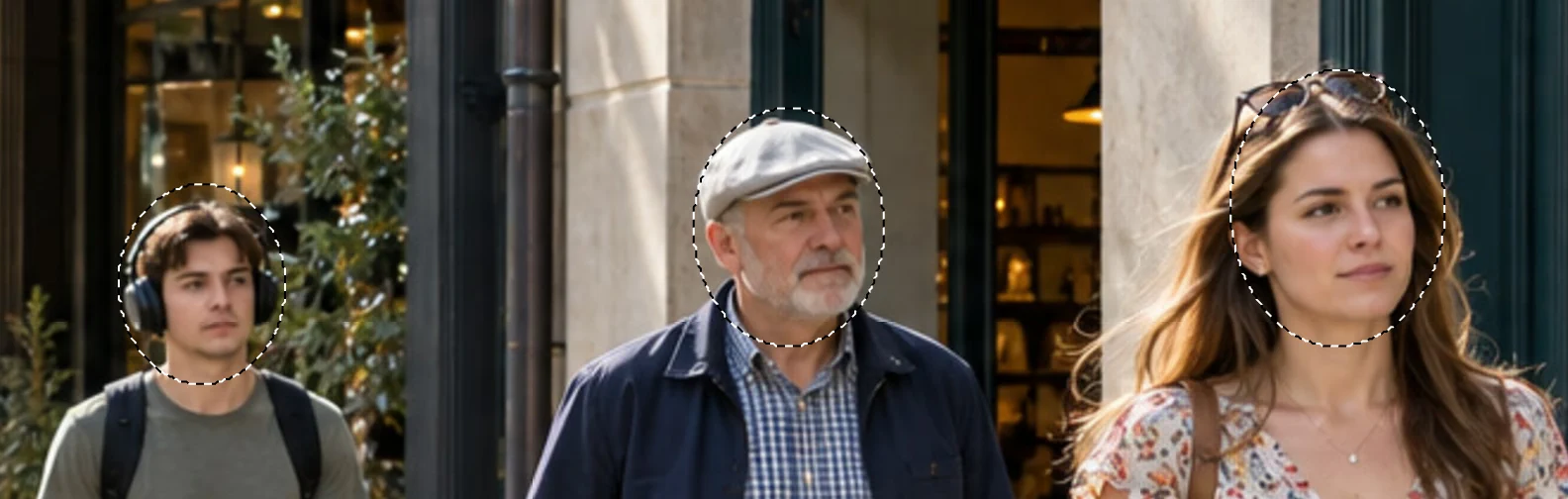
All three faces selected. Pixelate the faces
Choose Cell Size sets the size of each block. Use about a fifth of the widest face’s width, so each face is only a few blocks across: these faces are 40 to 65 px wide, so type 14 and press Tab. Click Apply. Only the selected ovals change. For a face that fills much of the photo, cover it instead, as below.
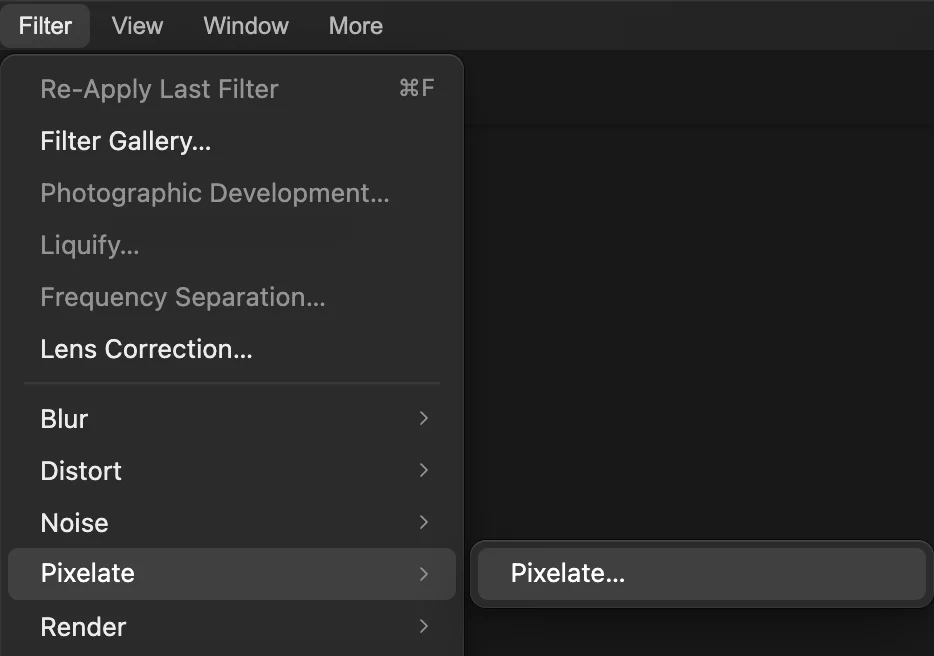
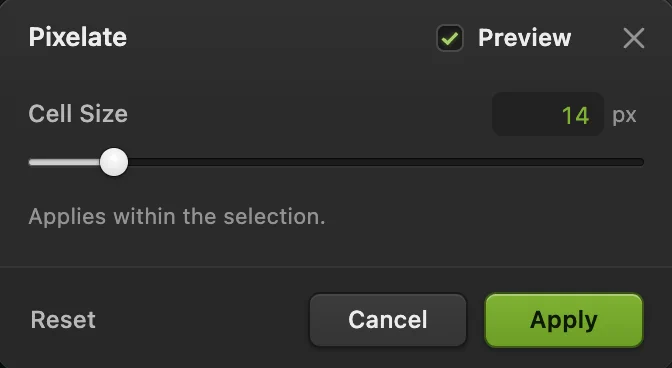
Cell Size 14. 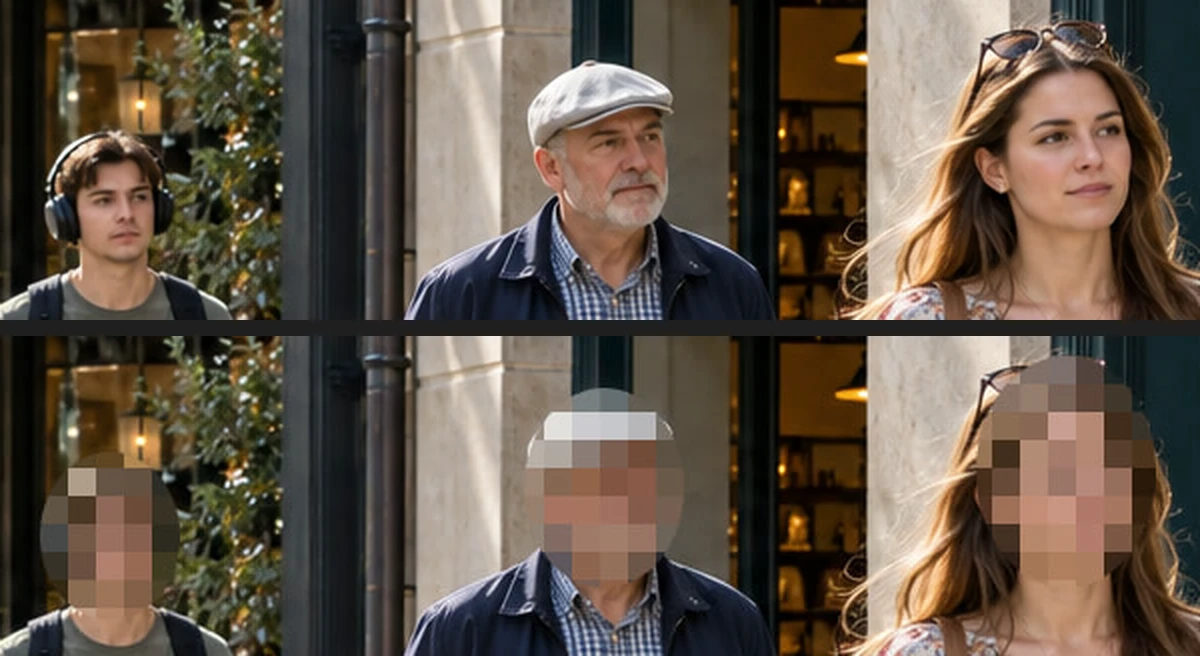
The faces before (top) and after (bottom). Blur the license plate
On the options bar, set Shape to Rectangle and drag a rectangle over the plate, keeping it on the plate’s white border; a new drag replaces the face selection. Choose , type 12 for Radius, press Tab and click Apply. The letters turn into soft gray shapes that can’t be read. Go by the letter height: these letters are about 30 px tall, and a Radius of 8 still left them readable, so use at least 40% of the letter height. A blurred or pixelated plate can still be worked out by blurring candidate plates the same way and comparing, so to hide a plate for sure, fill it instead with .
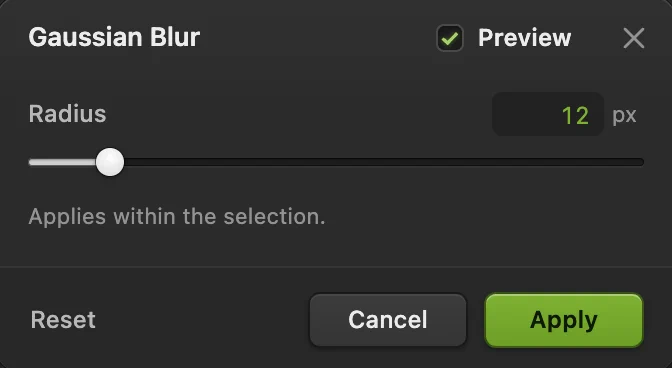
Radius 12. 
The plate before and after, at 100%. Check at 100%
Choose , then and look at each area. Nobody should be recognizable and no letter readable. If something still shows through, select that area again and apply the filter again with a bigger Cell Size or Radius. Don’t undo back to it: undoing an earlier step also undoes everything you did after it, such as the plate blur.
Export without location data
Choose Photos from phones often carry the place and time they were taken; set Image metadata to None so the copy leaves them out. Type a new File name, such as street-faces-hidden, so you can’t mix the two up, then click Export. Share the exported copy and keep the original private. would instead write the hidden version back into the JPEG you opened.

A new file name. 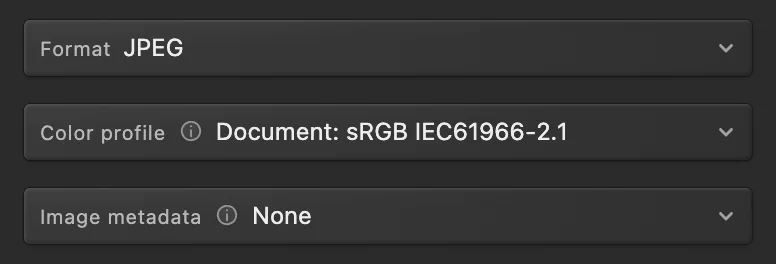
Image metadata: None.
Pixelate, blur or cover?
- Pixelate makes it obvious that something was hidden, and with big blocks little detail is left.
- Blur looks softer and suits backgrounds, signs and screens that don’t need to stay secret.
- Cover with a solid color leaves nothing at all: select the area and choose , which fills it with the foreground color (black unless you changed it). Use it for documents, ID cards and anything that must not be recovered.
Fix common problems
The whole photo was pixelated
Nothing was selected when you chose the filter. Choose , select the faces and apply it again.
The edge of a face still shows
The oval was too tight. Draw a larger oval around it, with a margin around the hair and chin, and apply the filter again.
Pixelate is grayed out
The active layer is locked or isn’t an image layer (for example, a text or adjustment layer). Unlock it in the Layers panel, or click the photo’s row, then try again.
Coming from another editor
- Photoshop
- Select the area, then Filter › Pixelate › Mosaic… or Filter › Blur › Gaussian Blur…
- GIMP
- Select the area, then Filters › Blur › Pixelize… or Filters › Blur › Gaussian Blur…
Blurring faces: questions and answers
Is pixelating a face safe enough for privacy?
Usually, with large blocks; a light pixelation can leave a face recognizable. In Lil Cactus, check the result with View › Actual Size (100%) before you share it.
Can I blur a face in a video?
No. Lil Cactus edits still images. Export a frame from the video as an image if you need one still blurred.
Does exporting remove the GPS location from my photo?
Yes, by default. In Lil Cactus, location is left out of an export unless you tick Include location data. Preserve supported metadata still keeps the date, time and camera settings; Image metadata None removes those too.
Can someone undo the blur on my exported photo?
Not by sharpening, because the original pixels aren’t in the exported file. But blurred or pixelated text can be worked out by trying candidate letters. In Lil Cactus, cover anything that must stay secret with Edit › Fill with Foreground, and keep the original private.
Is my photo uploaded when I blur faces in Lil Cactus?
No. Everything runs in your browser, on your own device. When statistics are on, the editor records which tools are used, never the image, as the privacy policy explains.
Keep going
 How to blur the background of a photoA camera-like background blur with no glow around the subject.Intermediate · 6 min
 How to make a selection in a photo editorPick the right tool, add and subtract, feather and save a selection.Beginner · 6 min
 How to compress an image to 100 KB or 200 KBLower the file size, check the detail, and fit an upload limit.Beginner · 3 min