How to crop a photo into a circle
Quick answer
Choose the Marquee Select tool, set Shape to Ellipse and Style to 1 : 1, and drag a circle around the face. Choose , then click Add layer mask at the bottom of the Layers panel: the corners outside the circle become transparent. Export with ; JPEG has no transparency and fills the corners with white.
- Time
- 4 minutes
- Level
- Beginner
- You need
- A photo with a face or subject to frame
- Works with
- JPEG, PNG, WebP, HEIC and other photos; export as PNG or WebP
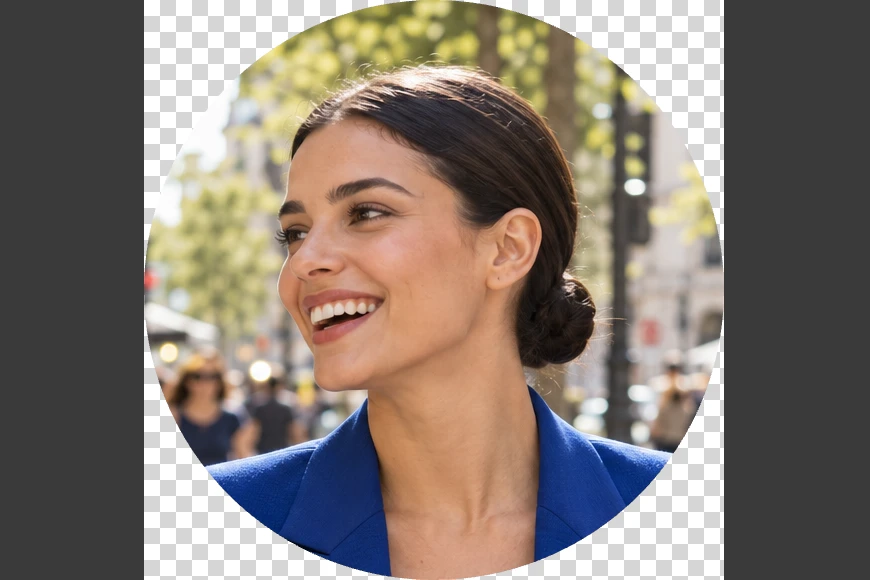
Image files are always rectangles. A “round” picture is a square whose corners are transparent: the pixels are there but invisible, so the circle shows on any background. Only formats with transparency keep those corners, such as PNG and WebP.
Many sites cut your profile picture into a circle themselves; a round file still helps when they don’t, or when you want to see exactly what will show. In this tutorial you make a round picture from a street portrait.
Crop a photo into a circle in five steps
Open the photo
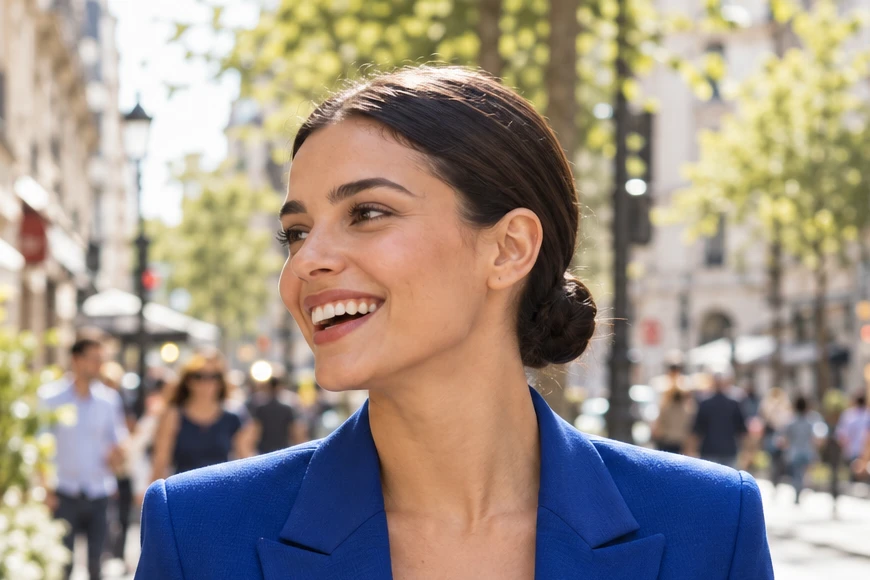
Go to lilcactus.app and choose , or drag the photo onto the window. To follow along exactly, open the sample photo from this page.
Select a circle around the face
Press M for the Marquee Select tool (or right-click the selection button in the toolbar and choose it). On the options bar, set Shape to Ellipse and Style to 1 : 1, so the selection is always a perfect circle.
Draw the circle out from its center. Press on the middle of her cheek, between the corner of her smile and her ear, start dragging, then press and hold Alt or ⌥: the circle now grows around that point. Drag down and to the right until the top of the circle is just inside the top of the photo, then release the mouse button, and only then Alt. A new drag replaces the circle if you want another try. Keep the whole circle inside the photo.

Shape: Ellipse. 
Style: 1 : 1. 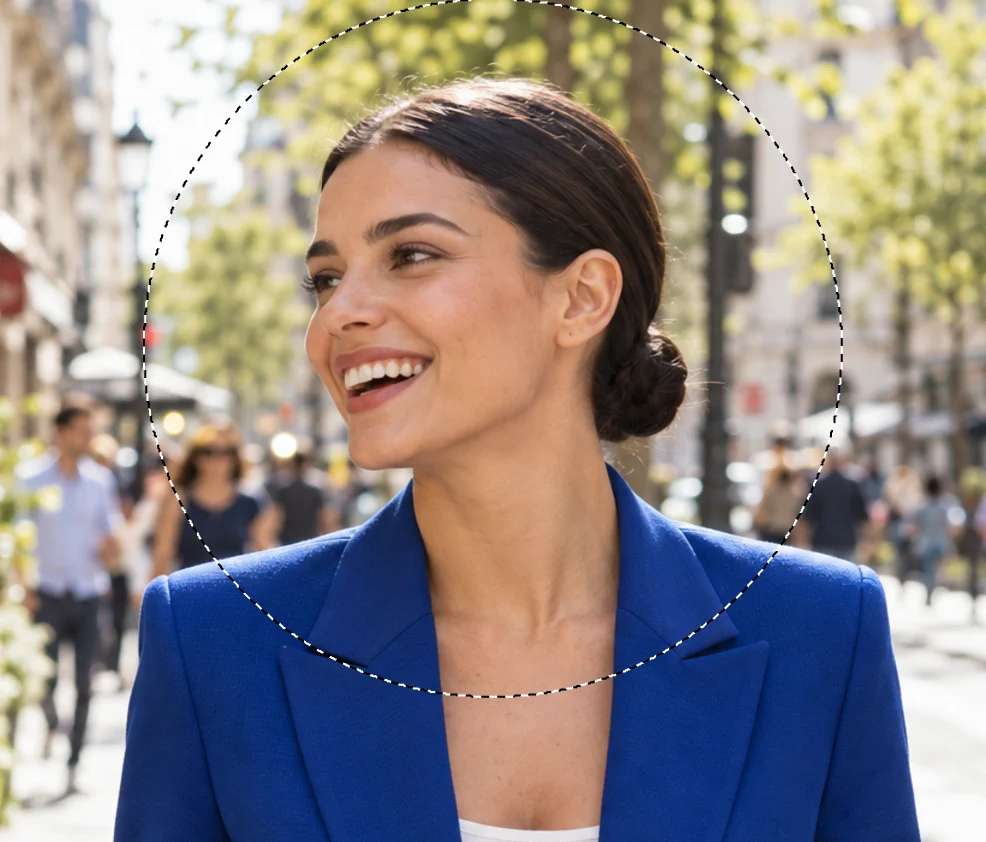
The circle, drawn from her cheek, touching the top of the photo. Crop to the circle
Choose . The picture becomes the square around the circle (580 × 580 px in the figures; yours depends on your circle), and the circle stays selected.
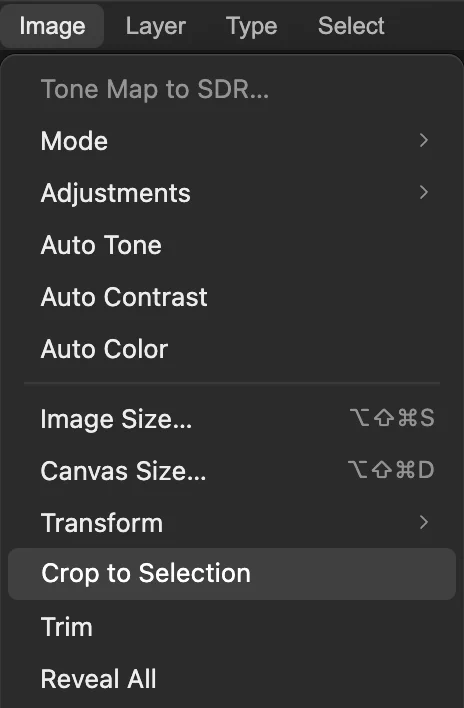
Crop to Selection trims the picture to the square around the circle. Hide the corners with a layer mask
Click Add layer mask at the bottom of the Layers panel (the rectangle with a circle in it). A mask thumbnail appears beside the photo: white inside the circle, black in the corners, so the corners turn transparent and show as a checkerboard. The photo itself isn’t changed. More in how layer masks work.

Add layer mask. 
The mask: white shows, black hides. 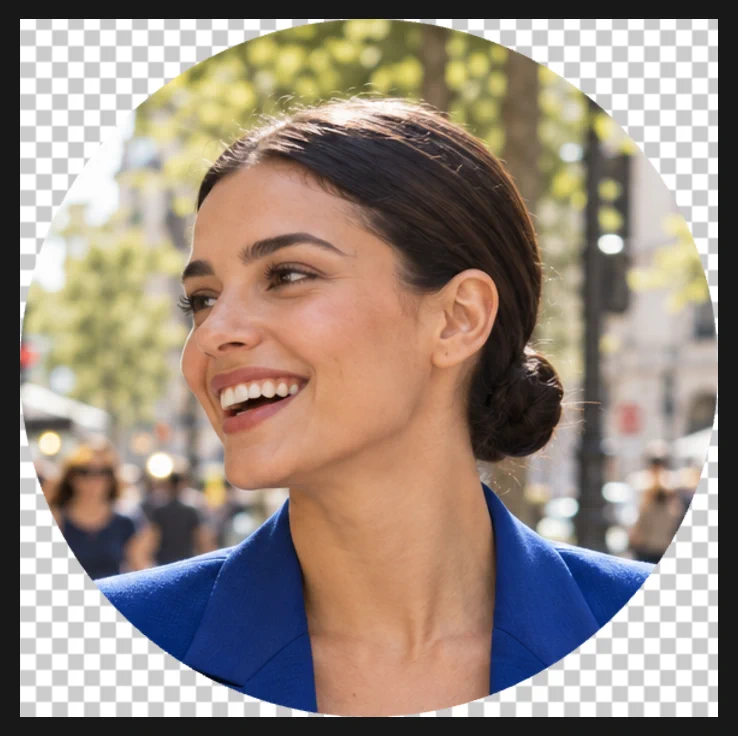
The corners are transparent. Export as PNG
Choose and click Export. The PNG keeps the transparent corners, so the circle sits cleanly on any background. keeps them too, in a smaller file (about a tenth of the PNG’s size for the sample).
Adjust the circle
- Move the face inside the circle: click the link icon between the two thumbnails to unlink them, click the photo thumbnail (left), choose the Move tool from the toolbar and drag. The photo can only move as far as it reaches past the circle; beyond that, the circle shows an empty strip.
- A soft edge: type a Feather value such as 20 px before you draw the circle. The fade spreads outside the circle, so the picture comes out larger than the circle, and the circle needs about 50 px of photo on every side, or the fade is cut flat.
Fix common problems
The picture isn’t square, or the circle is flat on one side
Part of the circle was outside the photo, and Crop to Selection stops at the photo’s edge. Choose and draw a smaller circle that stays inside the photo.
The corners came out white
The picture was saved as a JPEG. Export it again as PNG or WebP.
The selection is an oval
Style was Free. Choose , set Style to 1 : 1 and draw again.
Add layer mask is grayed out
The layer already has a mask. Choose until the mask is gone, or , then draw the circle and add the mask again.
Coming from another editor
- Photoshop
- The Elliptical Marquee tool with Style: Fixed Ratio 1 : 1, then Image › Crop and Layer › Layer Mask › Reveal Selection.
- GIMP
- The Ellipse Select tool with Fixed: Aspect ratio 1:1, then Image › Crop to Selection and Layer › Mask › Add Layer Mask… with Selection.
Round profile pictures: questions and answers
Which file format keeps a round profile picture round?
PNG or WebP, which support transparency. In Lil Cactus, choose File › Export › PNG…; a JPEG fills the corners with white.
How do I make a round profile picture a set size?
Check the size the site asks for. In Lil Cactus, choose Image › Image Size… before you export and type that width; the picture stays square.
Can I change the circle later?
Yes, if you keep the mask: in Lil Cactus, choose File › Save As › Lil Cactus Project… before you close. The photo outside the circle is still there, under the mask.
Can I make a round picture with a colored background instead of transparent corners?
Yes. In Lil Cactus, choose Layer › New Fill Layer › Solid Color…, pick the color, then drag the new Color Fill row below the photo’s row in the Layers panel and export.
Is my photo uploaded when I crop it into a circle in Lil Cactus?
No. Everything runs in your browser, on your own device. When statistics are on, the editor records which tools are used, never the image, as the privacy policy explains.
Keep going
 How to crop an imageChoose what stays in the frame, then set the shape and size.Beginner · 6 min
 How to use layer masksHide part of a layer without deleting it, and bring it back any time.Beginner · 5 min
 How to remove the background from a photoSelect Subject, a layer mask and a transparent PNG.Beginner · 3 min