How to fix a photo with the wrong color profile
Quick answer
To correct a known wrong profile in Lil Cactus, choose , select the profile the RGB values were made for, then click Assign. The practice file is incorrectly tagged Display P3 but comes from an sRGB original, so choose sRGB IEC61966-2.1. Choose to download a PNG with that corrected profile embedded.


- Time
- 6 minutes
- Level
- Intermediate
- You need
- An image with an incorrect profile, and reliable information about its correct source profile
- Works with
- 8- and 16-bit RGB or grayscale images, including layered projects.
A color profile tells the editor what colors an image’s RGB numbers represent. A wrong label can shift the colors even when the pixel values are intact. This lesson corrects that label when the source profile is known.
The practice PNG was deliberately given a Display P3 tag without converting its sRGB values. The task is to restore the correct interpretation, then save a file that other applications can display correctly.
Correct the profile and save the photo in four steps
Open the practice file and inspect its profile
Open the sample from this page. The trusted sRGB original provides the reference: the practice file contains its RGB values with the wrong tag.
Choose At the top of the dialog, Current profile reads Display P3. That is the existing label, not proof that it is correct.
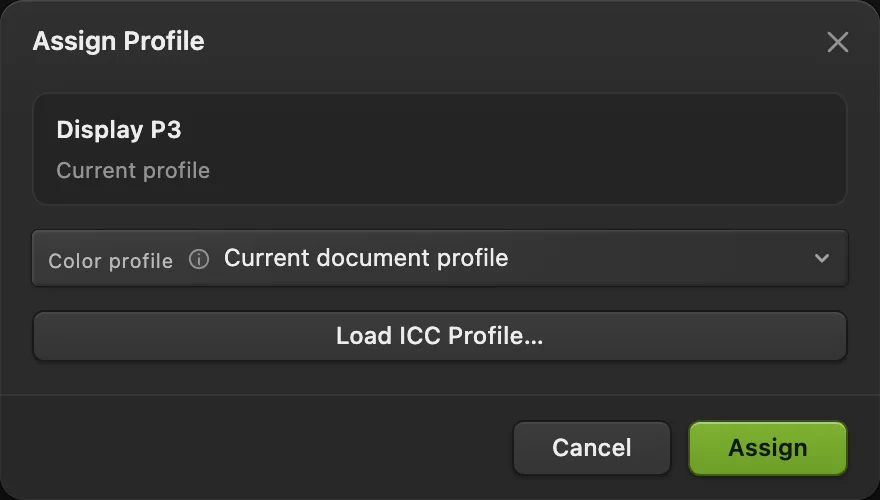
The practice file has a known wrong Display P3 tag. Assign the known sRGB profile
Set Color profile to sRGB IEC61966-2.1 and click Assign. The photo’s appearance changes to match the trusted original. If you chose the wrong profile, use before trying again.
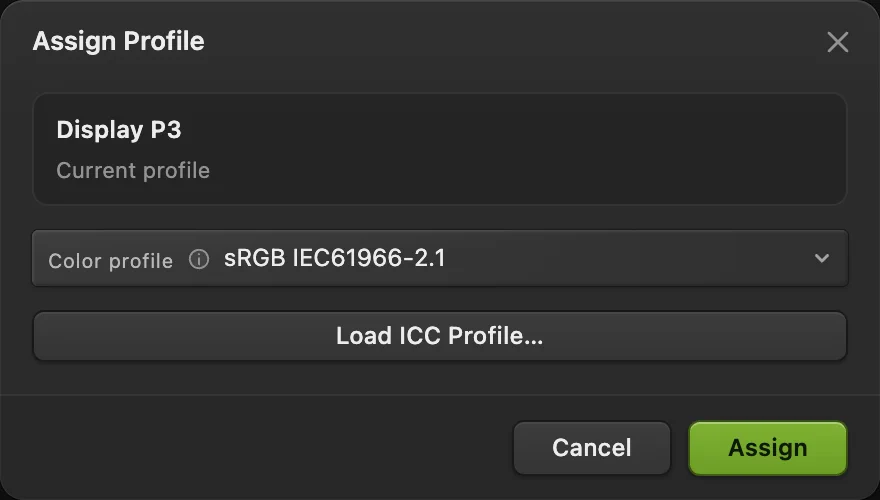
Choose the profile these RGB values were originally made for. Export the corrected photo
Choose Set File name to coffee-corrected.png and Color profile to Document: sRGB IEC61966-2.1. Click Export.
The PNG contains the corrected sRGB profile and keeps the sample’s 1536 × 1024 dimensions.
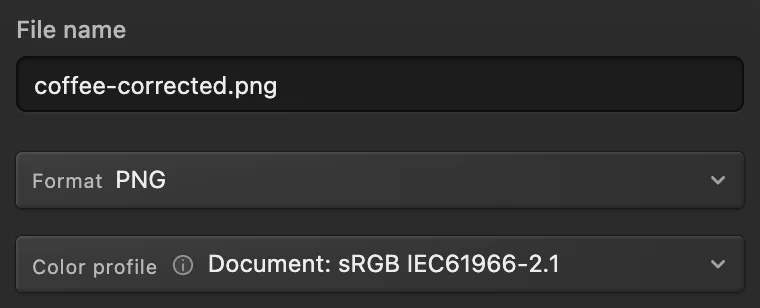
The export uses the corrected document profile. 
Export downloads a copy without changing the working document’s profile. Reopen the download and check its tag
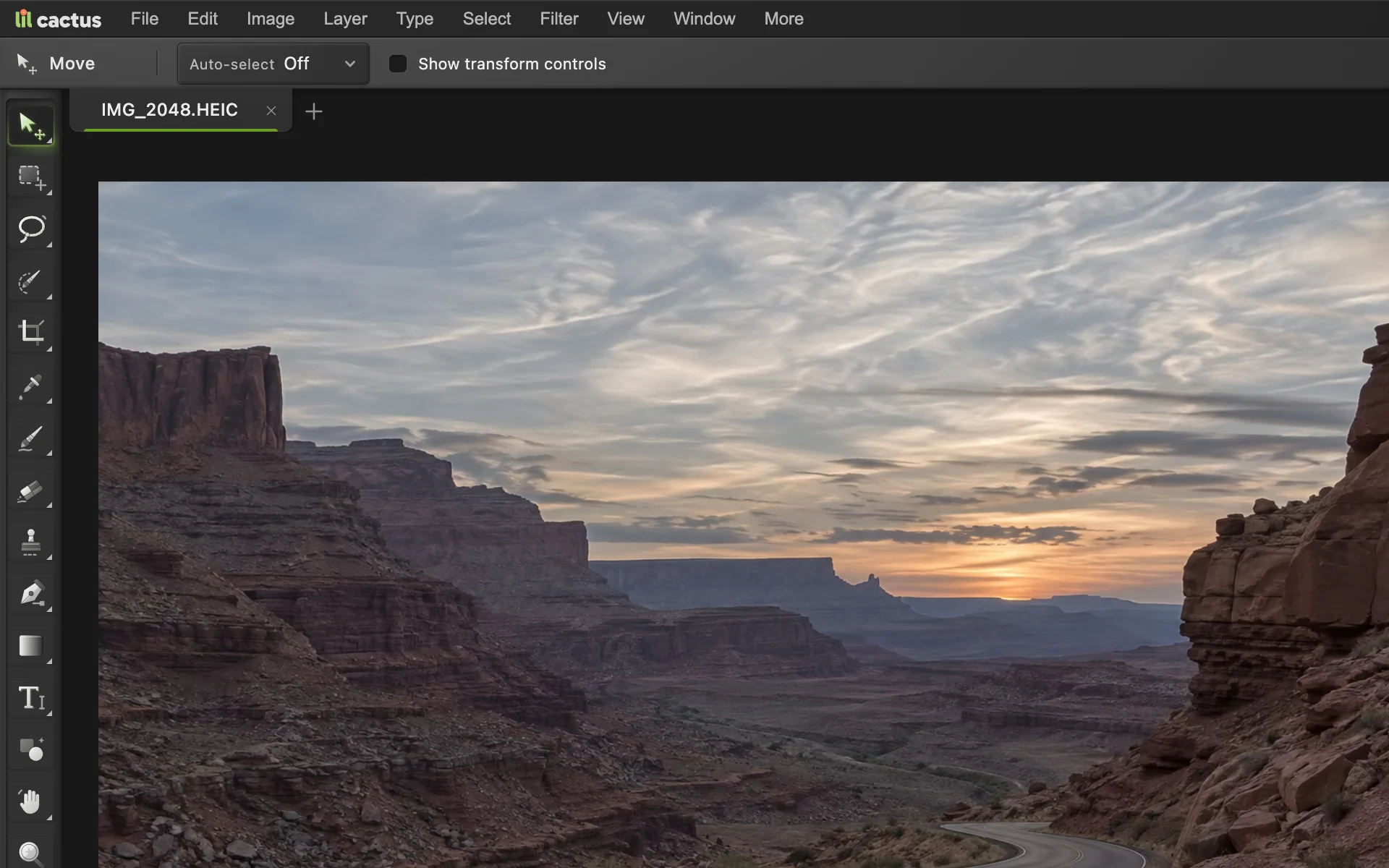
Choose and open coffee-corrected.png from your downloads. Choose again. Current profile now reads sRGB IEC61966-2.1, rather than the practice file’s Display P3. Click Cancel: the exported tag is correct.
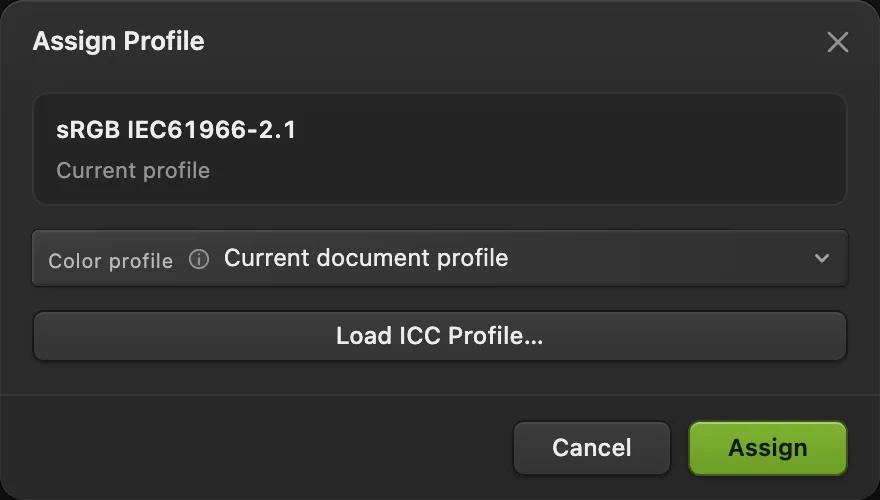
The download contains the corrected sRGB tag.

Use Convert when the source profile is already correct
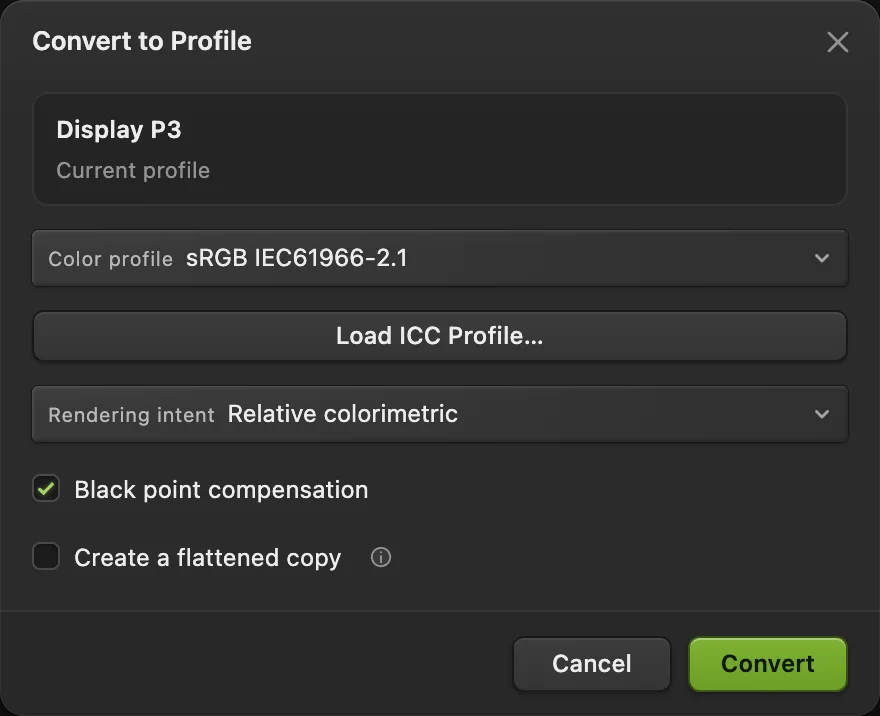
A correctly tagged image needs a different operation when its destination requires another profile. Choose , select the destination and click Convert. This recalculates the RGB values to represent the existing colors in the destination space.
The figure shows a correctly tagged P3 document with sRGB chosen as its destination. Relative colorimetric and Black point compensation are the default settings.
Convert a layered design’s combined appearance
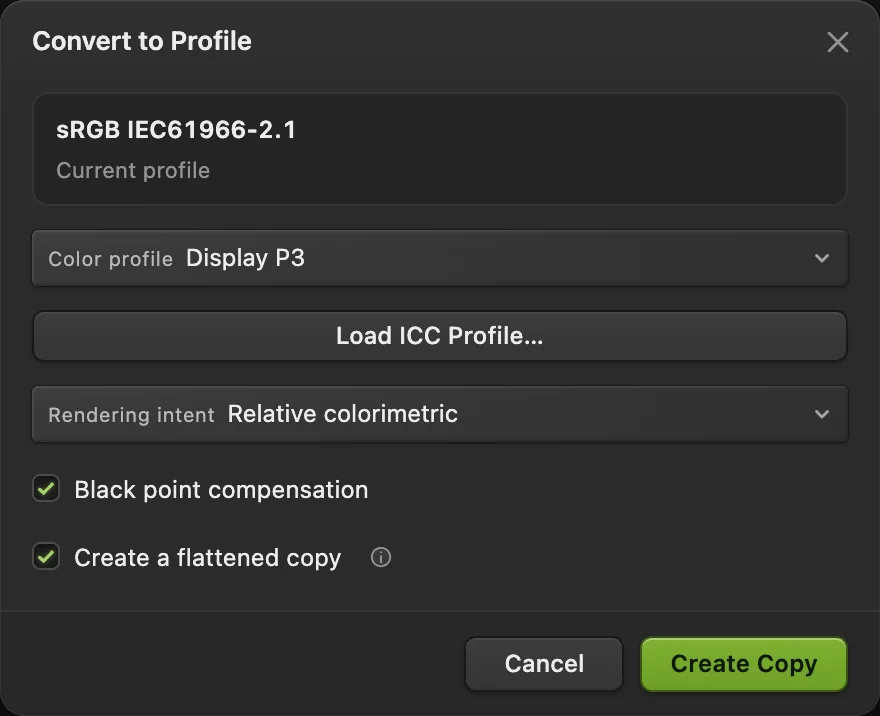
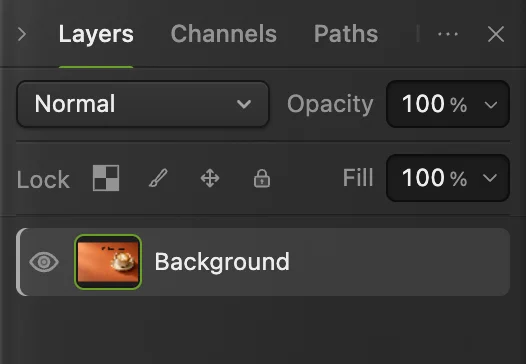
Converting editable layer colors separately can change how blends and adjustments combine. To convert the combined image instead, check Create a flattened copy. The button changes to Create Copy. Click it to open a new document with one pixel layer in the chosen profile.
To keep the editable original, select its document tab, then choose
sRGB and Display P3 at a glance
| Profile | Use it when |
|---|---|
| sRGB IEC61966-2.1 | You need a general web copy or a destination specifically asks for sRGB. |
| Display P3 | Your source or editing destination uses P3. It describes a wider range of colors than sRGB; the image and display must also support those colors. |
The dialog also lists Adobe RGB (1998) and ProPhoto RGB. Use the profile required by your source or destination.
What to do next
- Keep an editable original: saving and exporting.
- Choose an output format: convert image formats.
- Make deliberate color changes: adjust image tone with Curves.
Color profile corrections: questions and answers
What is the difference between Assign Profile and Convert to Profile?
In Lil Cactus, Assign Profile keeps the RGB values and changes their color interpretation. Convert to Profile recalculates those values for a destination profile, aiming to preserve the existing appearance.
Does converting sRGB to Display P3 add more colors to a photo?
No. In Lil Cactus, conversion represents the existing colors in Display P3; it cannot recover colors that the sRGB file no longer contains.
Can I export an sRGB image without changing my P3 document?
Yes. In Lil Cactus, choose File › Export › PNG… and set Color profile to Convert to sRGB. The output is converted while the working document keeps its profile.
Does changing a color profile resize an image?
No. In Lil Cactus, Assign Profile and Convert to Profile keep the image’s pixel dimensions.
What if I do not know the correct source profile?
Get the original file or its profile information from its creator before assigning a profile in Lil Cactus. A brighter-looking result is not reliable evidence of the correct profile.
Keep going
 How to save and export an image in Lil CactusKeep an editable master and make a separate image to share.Beginner · 5 min
 How to convert HEIC, WebP and PNG to JPG onlineConvert HEIC, WebP or PNG to JPG, or choose another image format.Beginner · 2 min
 How to use Curves to fix contrast and colorRead the graph, build an S-curve and shift color by channel.Intermediate · 8 min