How to use Curves to fix contrast and color
Quick answer
Choose , click the line to add a point and drag it: up brightens that tone, down darkens it. Lower a point in the shadows and raise one in the highlights for a gentle S-curve that adds contrast (moves of 10 to 20 levels are usually enough). To shift color, switch Channel to Red, Green or Blue, then click Apply; the adjustment layer stays editable.
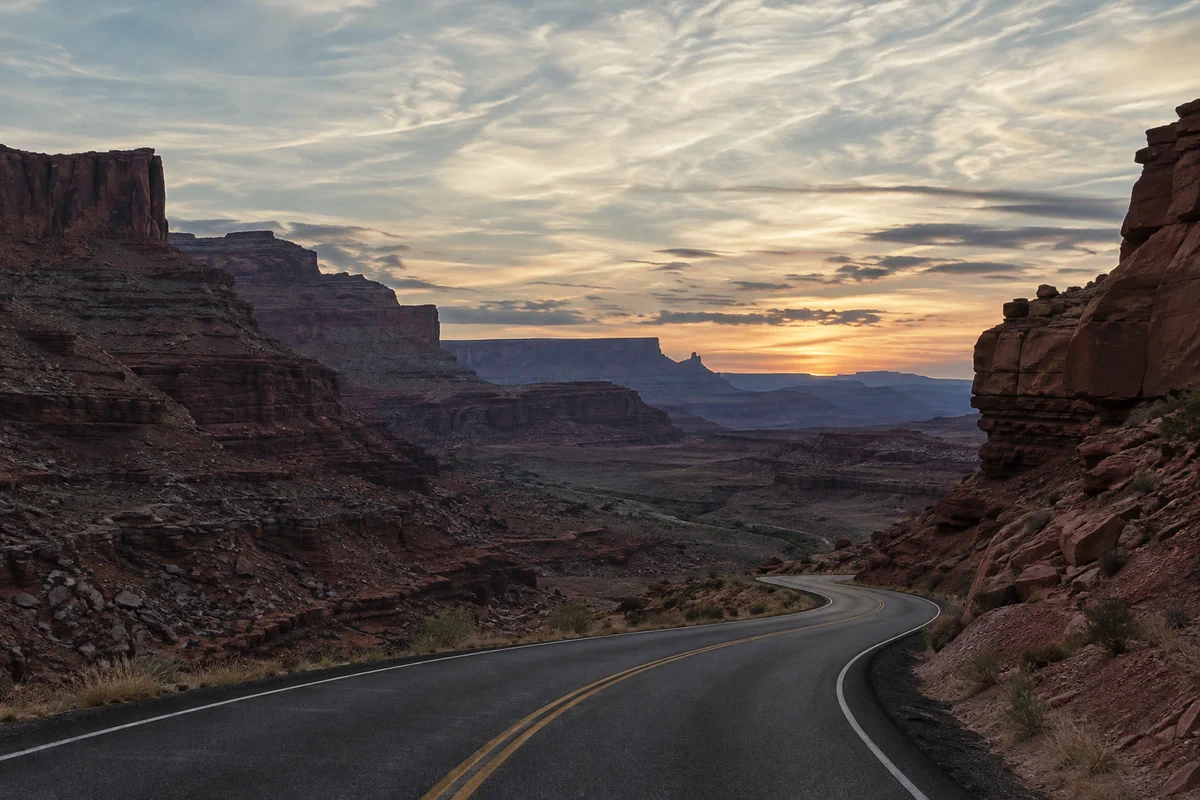
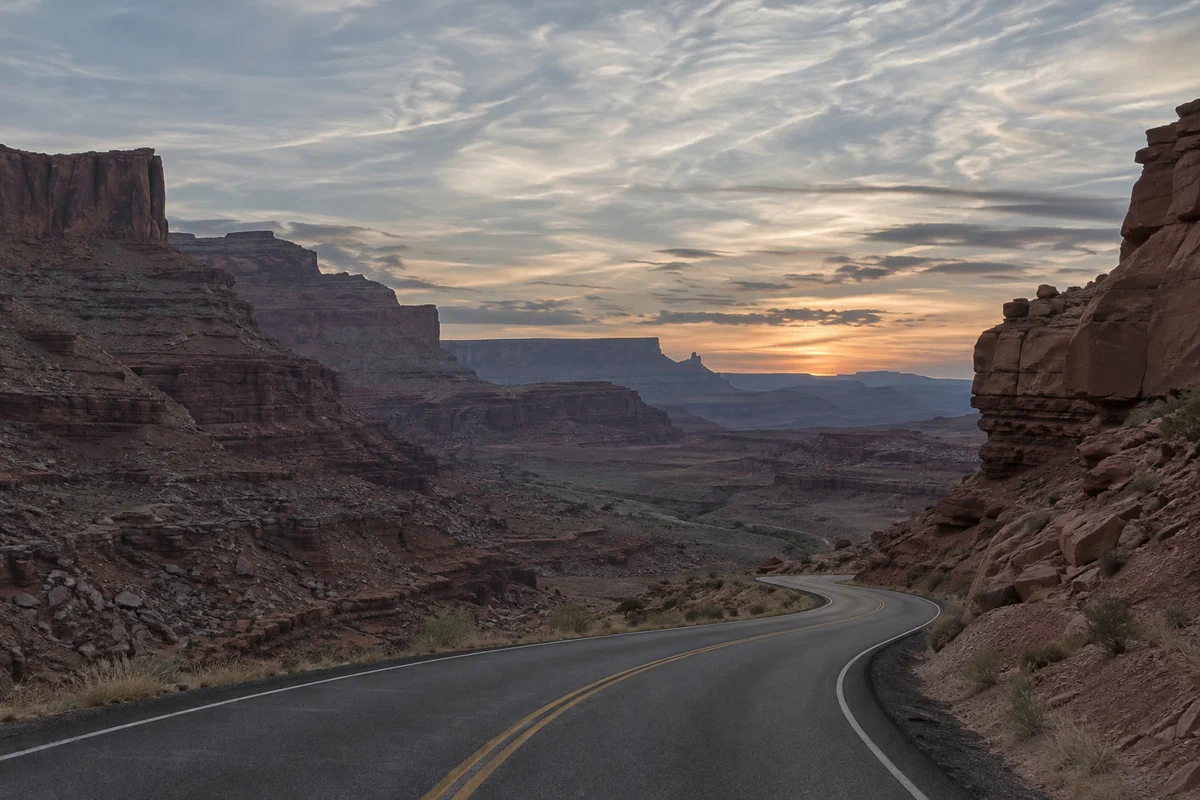
- Time
- 8 minutes
- Level
- Intermediate
- You need
- A photo that looks flat, too dark, too light or off-color
- Works with
- Any photo: JPEG, PNG, HEIC, WebP, TIFF, PSD and RAW files, 8-bit or 16-bit
Every pixel has a brightness from 0 (black) to 255 (white). The Curves graph is a map from the brightness a pixel has to the brightness it gets. Untouched, the map is a straight diagonal line: every tone comes out as it went in. Bend the line and you change tones smoothly, with neighboring tones following along.
The idea to remember: where the line is steep, contrast increases; where it is flat, contrast decreases. You can’t add contrast everywhere at once, but you can decide which tones get it. That is what the classic S-curve does.
Use Curves in seven steps
Open the photo
Go to lilcactus.app and choose (Ctrl+O or ⌘O), or drag the photo onto the window. To follow along, open the sample from this page: a canyon road at sunset that came out flat and gray.
Add a Curves adjustment layer
Choose An adjustment layer sits above your photo and changes how everything below it looks, without changing the photo’s pixels. You can reopen it, lower its strength or delete it at any time.
The Curves dialog opens beside the photo. It doesn’t block the editor, so you can still zoom and pan while you work.
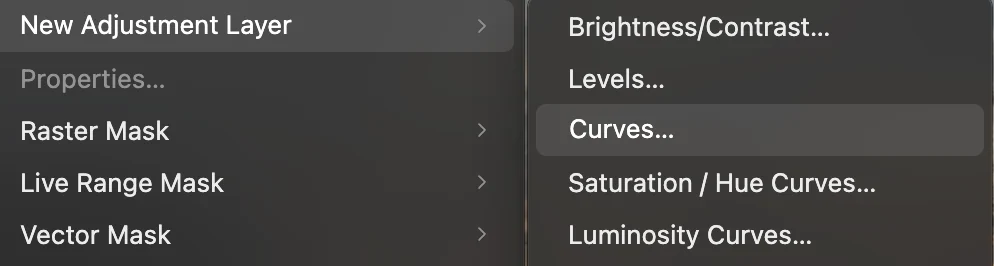
, third in the list. Read the graph
The bottom edge is the input: the tones in the photo now, black on the left, white on the right. The left edge is the output: what those tones become. Behind the line is the photo’s histogram, how many pixels sit at each tone, drawn for red, green and blue.
The sample’s histogram has two humps: a tall one on the left for the dark rock and road, and one right of center for the sky. Almost nothing reaches the far left or right, which is why the photo looks flat: it has hardly any true black or bright white.
Click the line to add a point (up to 16 points per channel, including the two ends), drag it to move it, or type exact numbers into Input and Output. To remove a point, drag it off the graph, or click it and press Backspace or ⌫ or click the trash button. The two end points can only move up and down.
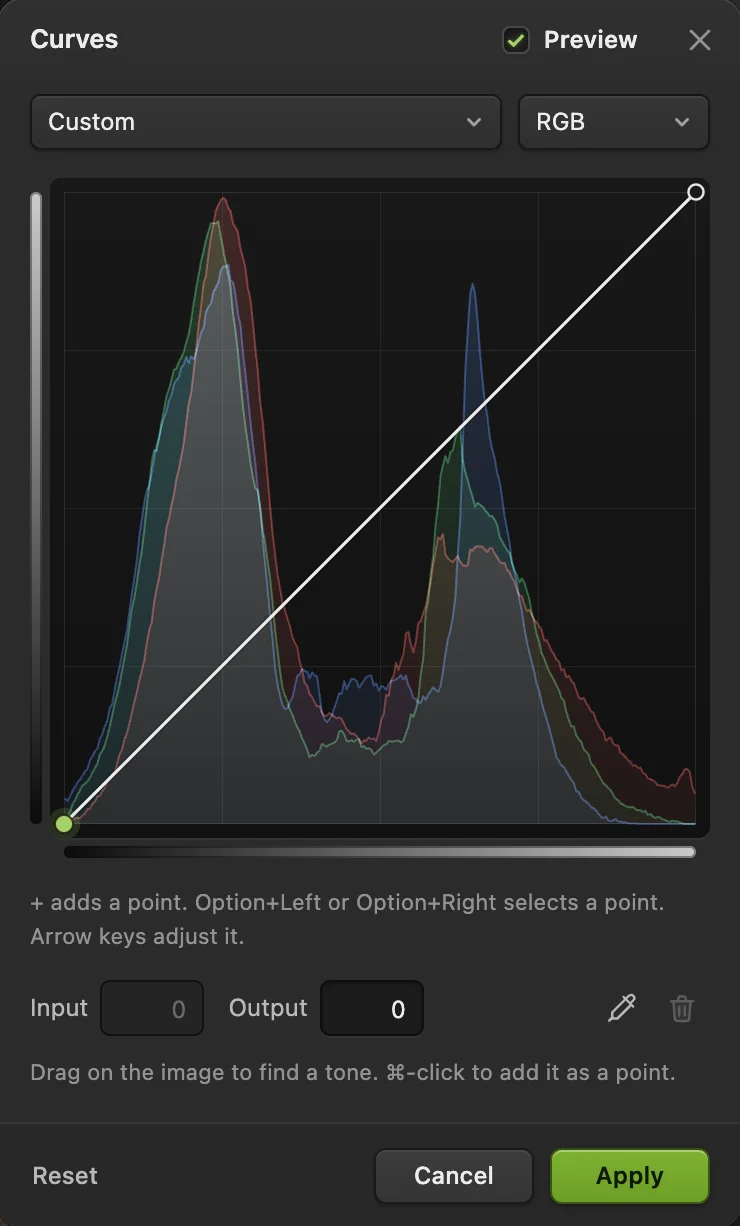
A new Curves layer on the sample: the line is straight, so nothing has changed yet. - Preset: Lighter, Darker, Increase Contrast and more
- Channel: RGB, Red, Green or Blue
- The curve over the histogram
- Input: the tone now
- Output: what it becomes
- Eyedropper: find a tone on the photo
- Apply
Find the tone you want to change
Rather than guessing where the dark rock sits on the graph, measure it. Click the eyedropper button in the dialog. On the options bar at the top of the window, set Sample to 11 × 11 average, so one dark crack or bright pebble doesn’t throw the reading off.
Now press and hold on the photo, here on the shadowed cliff on the left. A marker shows that tone on the curve, and the line under the graph reads Sampled input 47, curve output 47. Hold Ctrl or ⌘ and click the same spot to add that tone as a point on the curve.
Tip The eyedropper reads the photo under the Curves layer, not the adjusted preview, so a point lands on the tone you clicked even after the curve is bent.

The eyedropper’s Sample setting, on the options bar. 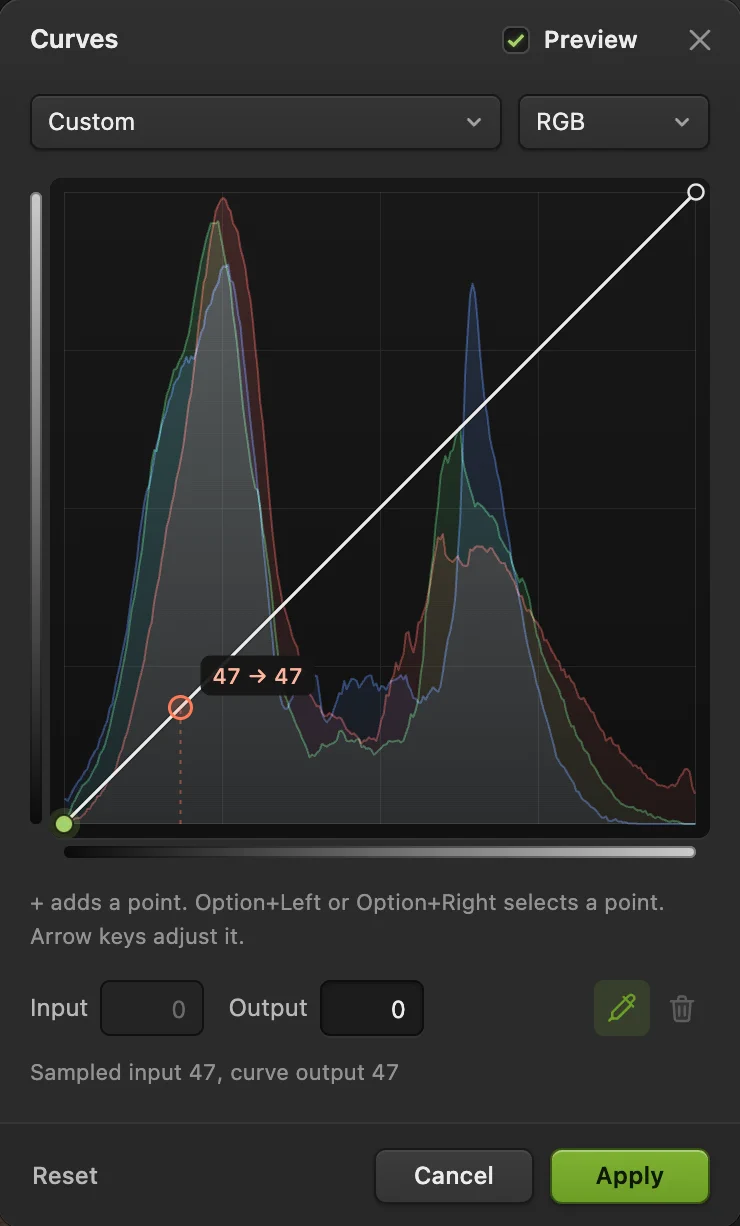
Pressing on the shadowed cliff shows its tone on the curve: 47. - The sampled tone on the curve
- Its input and output values
Bend the line into a gentle S
With the new point selected, set Output to 33: the cliff’s tone, and the shadows around it, get darker. Then click the line about three-quarters of the way up and set that point to Input 192, Output 210: the sky brightens.
The line now dips in the shadows and rises in the highlights, an S. Between the two points it is steeper than before, so the tones between rock and sky are pushed apart, and the photo gains depth. Near the ends it is flatter, so the deepest shadows and brightest clouds lose a little contrast.
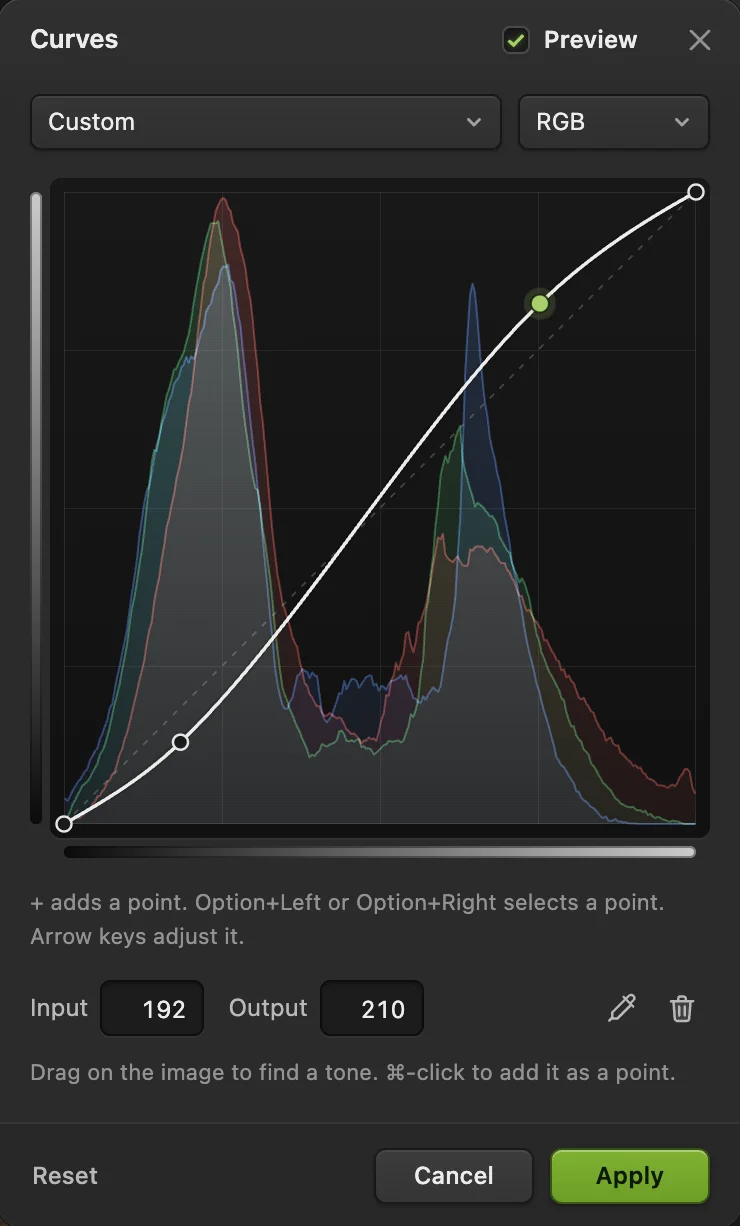
The S-curve on the sample: deeper rock, brighter sky. - Shadows down: 47 to 33
- Highlights up: 192 to 210
Warm the light with one color channel
Each color channel has its own curve. Switch Channel to Red. First add two anchors, points whose Output equals their Input: one at 50 and one at 110. Then raise a point at 190 to 196: a touch more red in the bright tones. Switch to Blue, add the same two anchors, and lower a point at 190 to 178. Less blue in the bright tones means more yellow there, so together the two curves warm the sunset sky. One point moves the entire curve, so without the anchors the dark half of each line would bend too and tint the gray road. With them, tones up to about 100 move by at most one level, and the road stays as neutral as it was.
Every channel pulls between two colors: raising Red adds red and lowering it adds cyan; Green pulls between green and magenta; Blue between blue and yellow. Switch back to RGB to see the brightness curve again.
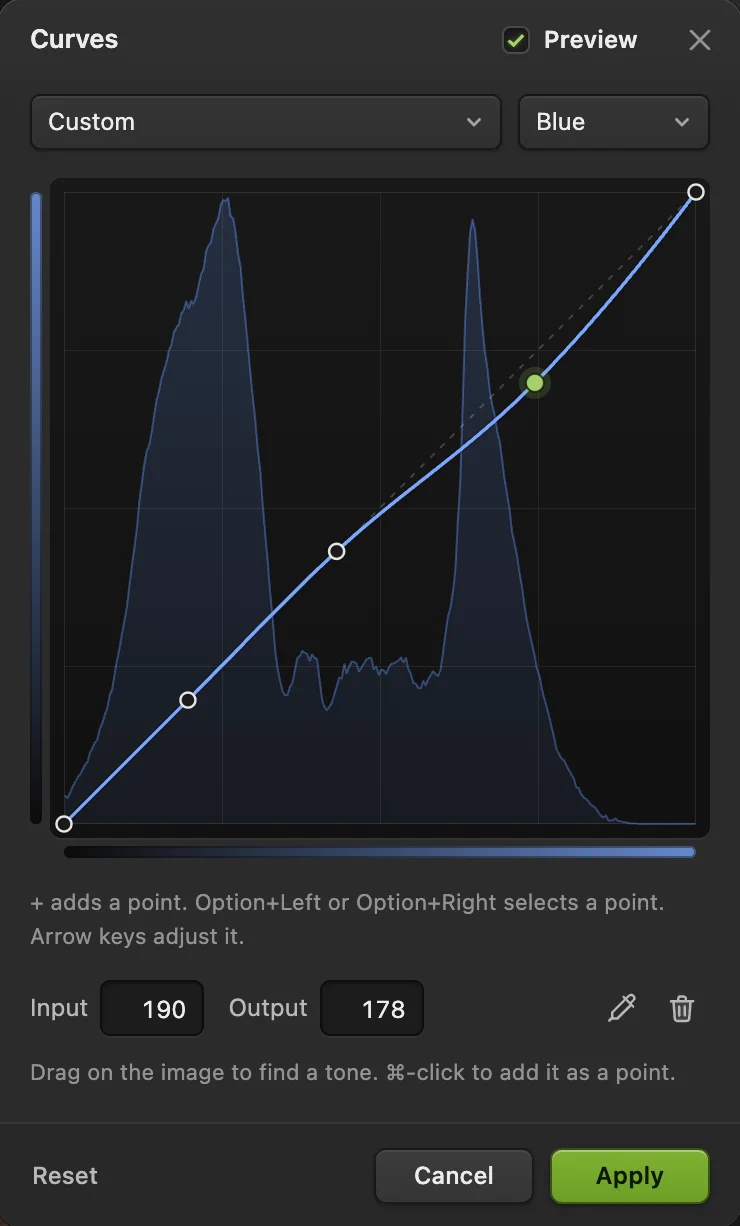
The Blue curve: anchored at 50 and 110, lowered in the highlights to warm the sky. The Red curve has the same anchors, with 190 raised to 196. - Channel: Blue
- Anchor at 50
- Anchor at 110: with the first, holds the dark tones in place
- Lower blue in the highlights: warmer
Apply, then fine-tune the layer
Click Apply. The Layers panel shows a Curves layer above the photo, with a white mask beside it.
- Too strong? Lower the layer’s Opacity: 70% gives you 70% of the effect.
- Colors too intense? An S-curve on RGB also strengthens color. Set the layer’s blend mode (ringed in the picture) from Normal to Luminosity to keep the contrast and drop the color change. (It also removes most of the color shift from channel curves, so put color changes on a separate Curves layer.)
- Only part of the photo? Paint black on the layer’s mask to hide the curve there.
To change the curve later, select the Curves layer and click Open Curves… in the Properties panel. Save with for a finished copy, or (Ctrl+Shift+S or ⇧⌘S) to keep the Curves layer editable.
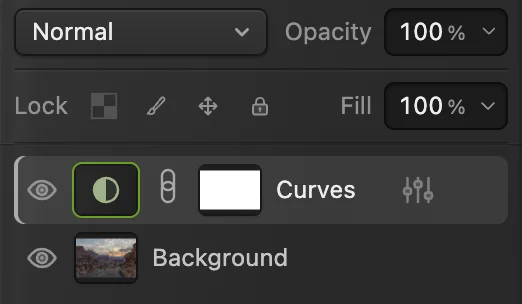
The Curves layer (ringed) above the photo, and the blend mode menu. The photo itself is unchanged.
Curve shapes and what they do
- Brighter: one point in the middle, raised. Lifts the midtones and keeps black and white in place.
- Darker: one point in the middle, lowered. Richer midtones, with black and white unchanged.
- S-curve: shadows down, highlights up. More contrast in the midtones.
- Flatter: shadows up, highlights down, an inverse S. Less contrast, a softer look.
- Faded or matte: the black end point raised to 20–30. Gray blacks, the film look.
- Deeper black: a point at input 20 pulled down to output 0. Everything darker than 20 becomes pure black.
- Negative: the Negative preset inverts every tone.
The Preset menu has Lighter, Darker, Increase Contrast and Negative as starting points; Linear returns to a straight line.
Fix a color cast with Curves
A cast is a tint over the whole photo: blue from shade, orange from indoor light, green from some lamps. Find something that should be neutral gray, such as asphalt, concrete or a gray shirt. On a new Curves layer, before any other change, click the eyedropper and press on it with the Channel set to Red, then Green, then Blue: the readout gives that spot’s value in each channel. A neutral gray has three equal values. Add a point at each channel’s value and move its output toward the average of the three. On the sample, the asphalt reads within a few levels in all three channels: it is nearly neutral already, so the warmer sky in step 6 is a choice, not a correction.
Why steepness means contrast
Contrast is the difference between neighboring tones. On a straight line, two tones 10 levels apart come out 10 levels apart. Where the curve is twice as steep, they come out about 20 apart: more contrast. Where it is half as steep, about 5: less. The total height of the curve is fixed (0 to 255), so every steep stretch has to be paid for with a flatter stretch somewhere else. That is why an S-curve trades a little contrast in the deepest shadows and brightest highlights for more in the midtones, where faces, landscapes and most detail live.
Other ways to use Curves
- Directly on the photo: changes the selected layer’s pixels. It is quicker, but you can’t revise it later except with Undo.
- Contrast without color changes from the start: makes a Curves layer already set to the Luminosity blend mode.
- Saturation by color or by tone:
- Just black and white points: Levels is simpler when all you need is a full tonal range.
Fix common problems
Part of the photo turned gray or flat
Part of the line has become nearly horizontal, usually because two neighboring points sit at almost the same height. Every tone in that stretch comes out almost the same, so detail disappears. Drag the points apart vertically or remove one.
Strange, inverted-looking colors or tones
A point sits lower than the one to its left, so the line runs downhill there and darker tones come out brighter than lighter ones. Raise that point above its left neighbor or remove it.
Smooth skies show bands after a strong curve
An 8-bit photo has only 256 levels per channel, and a steep curve stretches them apart. Make the curve gentler. If you stack several adjustments, limits the extra rounding between them, and a 16-bit original such as a RAW file avoids the problem from the start.
What to do next
- Set black and white points in one step: how to use Levels.
- Rescue an underexposed photo: how to fix a dark photo.
- Give a photo a look: color grading.
- More about editing without changing pixels: adjustment layers.
- Use the layer mask to limit the curve to part of the photo.
Coming from another editor
- Photoshop
- Image › Adjustments › Curves… and Layer › New Adjustment Layer › Curves…, the same menu paths as in Lil Cactus.
- GIMP
- Colors › Curves… In Lil Cactus the equivalent is , or on the layer itself.
Curves: questions and answers
What does an S-curve do to a photo?
It darkens the shadows and brightens the highlights, so the midtones in between get more contrast. Gentle S-curves add depth to flat photos; strong ones look harsh and oversaturated.
What is the difference between Curves and Levels?
Levels sets the black point, white point and midtone brightness with three sliders. Curves can change any tone separately, with up to 16 points per channel, so it can do everything Levels does and more.
Is there a keyboard shortcut for Curves?
Yes. In Lil Cactus, Image › Adjustments › Curves… changes the selected layer’s pixels directly, and its shortcut is Ctrl+Alt+Shift+M (⌥⇧⌘M on a Mac); with a Curves adjustment layer selected, the shortcut reopens that layer’s settings instead. For a new adjustment layer, use Layer › New Adjustment Layer › Curves…
Why doesn’t the histogram in Curves change as I bend the line?
In Lil Cactus the histogram behind the curve shows the tones before the adjustment, so you can see where the original tones sit while you place points. To see the result’s tones, click Apply and open Window › Histogram, which shows the whole image by default.
Does Curves work on 16-bit photos in Lil Cactus?
Yes. The numbers still read 0 to 255, but a 16-bit photo keeps far finer steps between them, so strong curves stay smooth.
Is my photo uploaded when I use Curves in Lil Cactus?
No. Curves runs in your browser on your own device, and the photo is never sent to a server.
Keep going
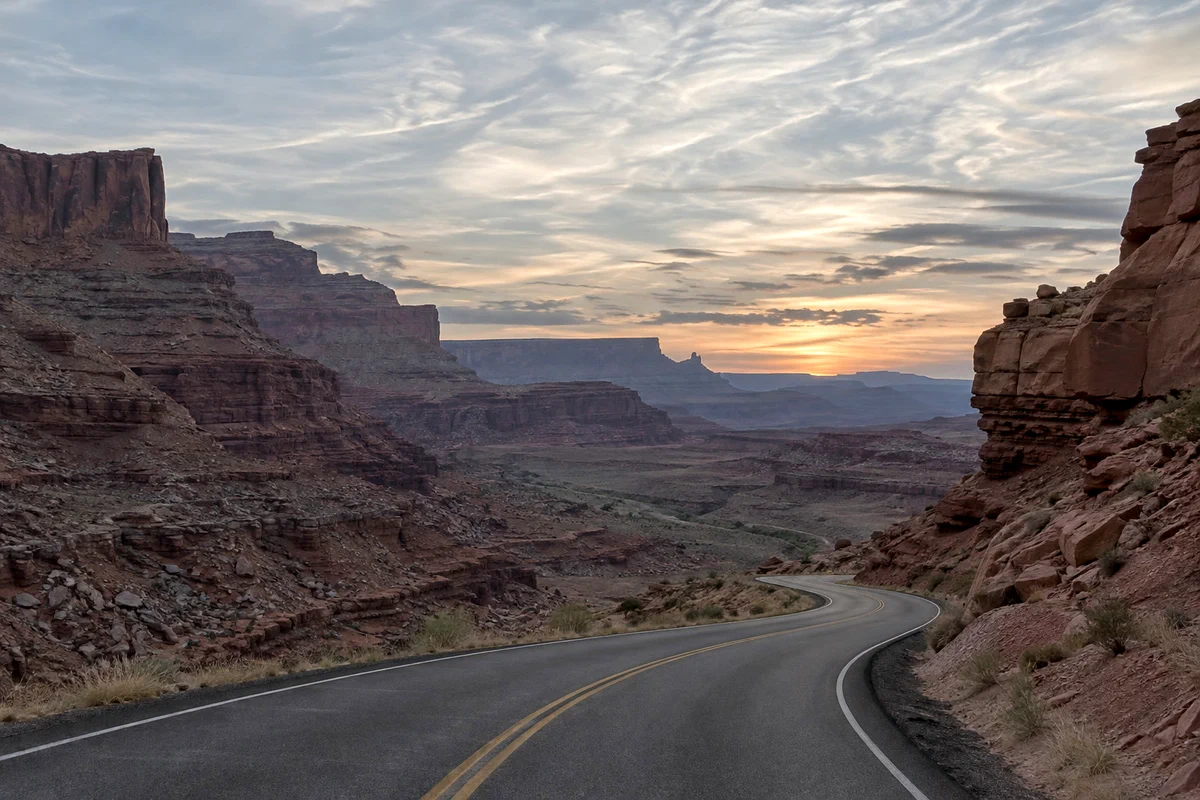 How to use Levels to set black and white pointsBlack point, white point and midtones from the histogram.Beginner · 5 min
 How to fix a dark or backlit photoLift shadows and faces without washing out the window.Beginner · 5 min
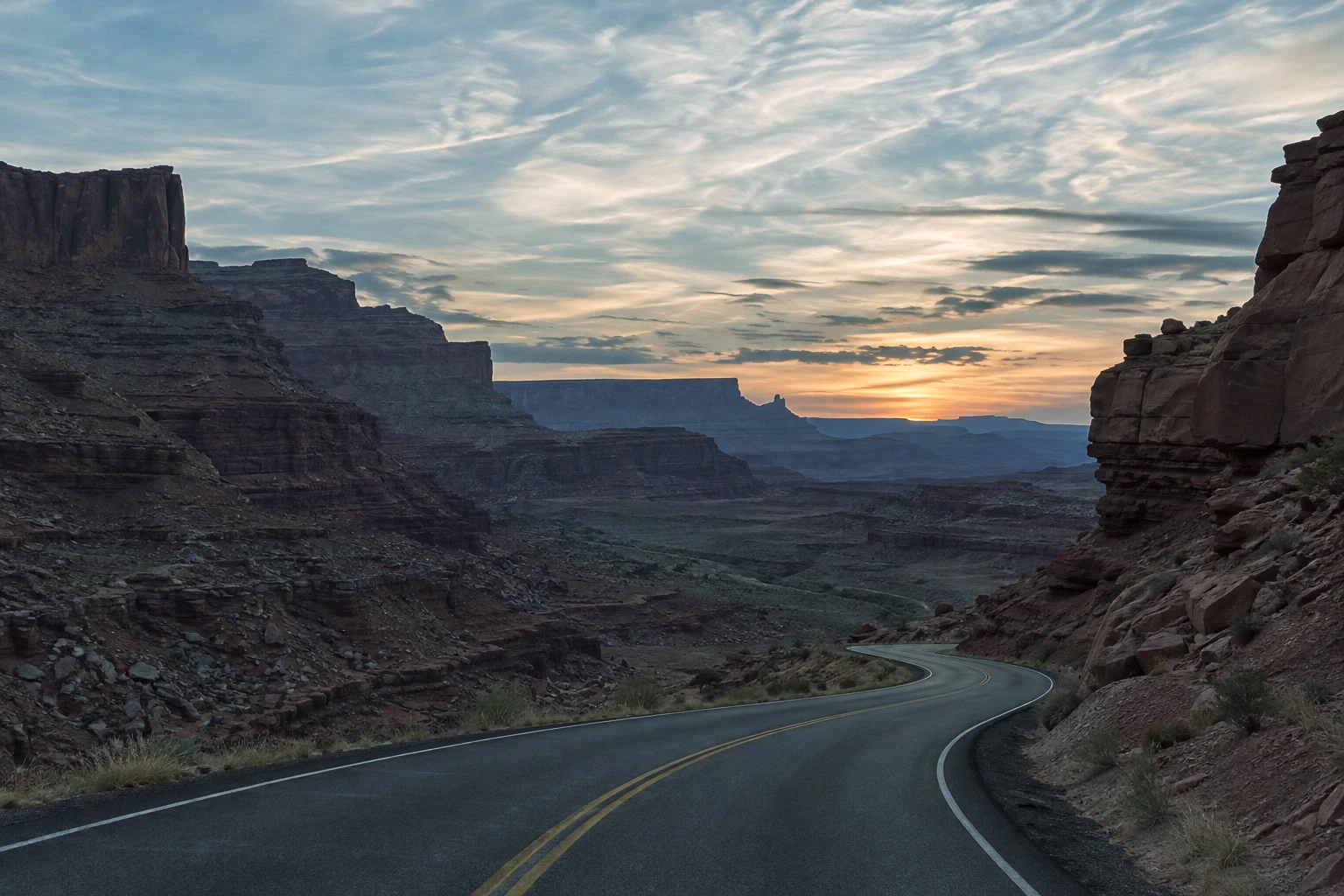 How to color grade a photoShape contrast, then add cool shadows and warm light.Intermediate · 7 min