How to use the Gradient tool
Quick answer
In Lil Cactus, open your photo and choose to add an empty layer above it. Press D for black, choose Gradient from the left toolbar’s gradient group, then set Gradient to Foreground → Transparent, Type to Linear and Opacity to 70%. Drag from where the color should be strongest toward where it should fade out; hold Shift to keep the line straight. For a separate gradient fill layer, choose


- Time
- 8 minutes
- Level
- Beginner
- You need
- A photo with empty space where you want a fade
- Works with
- Photo layers from JPEG, PNG, WebP and other image files
A gradient is a gradual transition between colors. If one end is transparent, the image below shows through. Here you’ll darken the spare left side of the coffee photo while leaving the cup clear.
The Gradient tool paints pixels onto the selected layer. A gradient fill layer keeps the gradient as separate settings; the variation below shows that method too.
Draw a transparent fade in six steps
Open the photo and add an empty layer
Open the sample from this page, or choose Choose . In the Layers panel, double-click the new layer’s name, type Fade and press Enter.
Keep Fade selected above Background, so the gradient goes on its own layer.
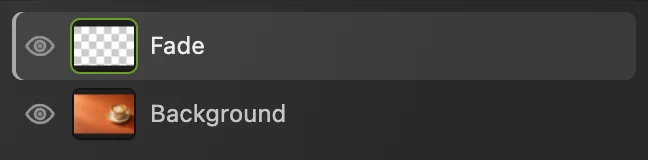
The photo stays on Background. The ringed eye will hide or show the fade. Choose black and the Gradient tool
Press D to reset the color squares: the front square becomes black. Right-click the gradient button above the text tool in the left toolbar, or press and hold it, then choose Gradient. Its group also holds Paint Bucket. You can also press G; if Paint Bucket comes up, press G again.
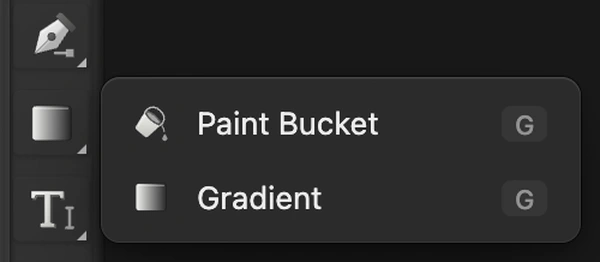
Choose Gradient from the button above the text tool; enlarged view. 
After D, the front square is black. Enlarged view of the bottom of the toolbar. Set a transparent end and 70% opacity
On the options bar, choose Foreground → Transparent from Gradient. Type stays on Linear, Reverse stays off and Dither stays on. Set Opacity to 70%.

Foreground → Transparent keeps the far end clear. Edit… opens the custom color stops. 
These settings apply to the next gradient you draw. Drag across the empty left side
Start at point 1, near the left edge and level with the lower half of the cup. Drag right to point 2, in the gap just before the saucer. Hold Shift while dragging to snap the line to horizontal, then release the mouse or pen.
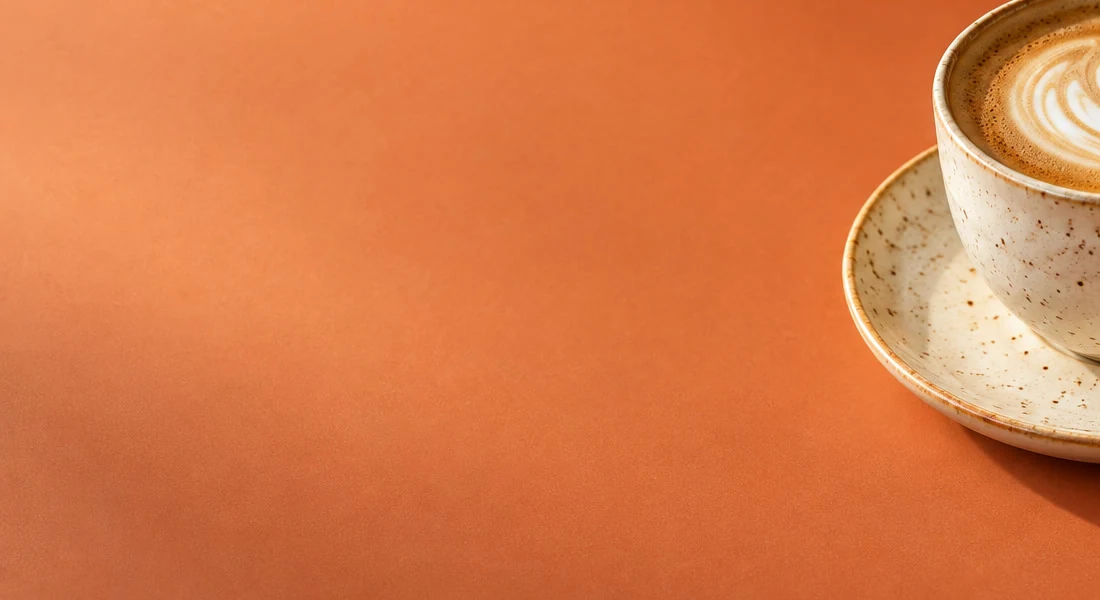
Drag from 1 to 2. The dark end starts on the left. - Start near the left edge
- End just before the saucer
Compare the fade with the original
Choose . Use the eye beside Fade shown in step 1 to hide the gradient, then show it again. Look at where the fade ends: it should clear before the saucer.

Shown at 100%: the last of the fade, beside the unchanged saucer. Export the image and keep the layers
Choose or , then click Export to write a separate finished image.
Choose to keep Fade and Background separate. After that, updates the project. If you choose before saving a project, it keeps the opened image’s format: the JPEG sample becomes a flat JPEG, with Save Image settings on the first save.
Make the fade with a gradient fill layer
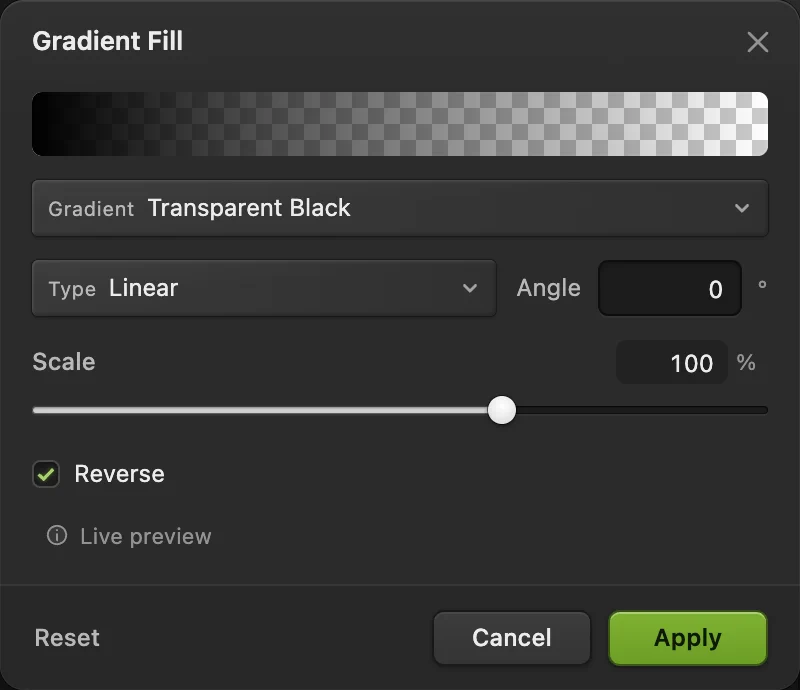
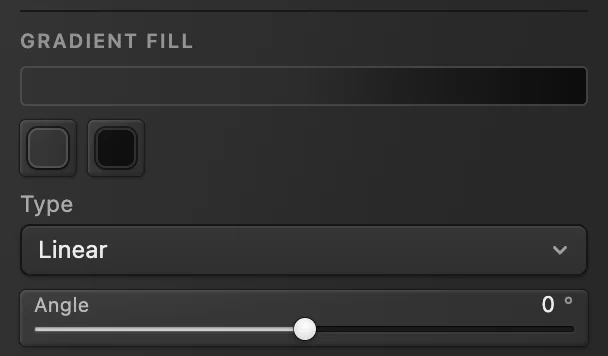
To try the other method on the same photo, hide Fade and select Background. Choose In Gradient Fill, choose Transparent Black from Gradient. Leave Type on Linear, set Angle to 0°, leave Scale at 100% and turn Reverse on.
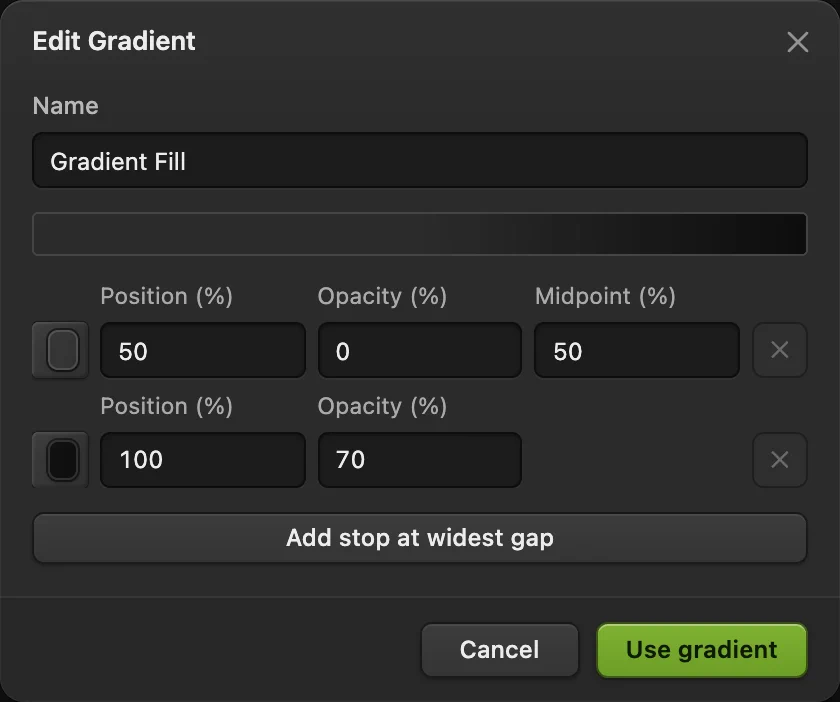
Click the wide gradient preview at the top to open Edit Gradient. Each row is a color stop: a color at a position along the blend. In the first, transparent row, set Position (%) to 50 and leave Opacity (%) at 0. In the second, black row, leave the position at 100 and set its opacity to 70. Click Use gradient, then Apply.
This makes a similar left-side fade, ending halfway across the photo. For later changes, select Gradient Fill in Layers and choose . The two color squares change the stop colors; Type and Angle remain editable too.
Choose the gradient shape
| Type | How the colors spread |
|---|---|
| Linear | Along the direction of your drag. |
| Radial | In a circle around the start point; the drag sets its radius. |
| Angle | Around the start point, like colors around a wheel. |
| Reflected | The same blend on both sides of the start point. |
| Diamond | Outward from the start point in a diamond shape. |
Fix common gradient problems
The fade gets darker every time I try again
Each drag adds another gradient stroke to the layer. Choose before changing the options and drawing a replacement.
The transition looks like a hard boundary
A short drag squeezes the blend into a small distance. Undo it and drag farther to spread the transition.
What to do next
- Use the dark space for a headline: add text to an image.
- Fade a layer’s visibility instead of adding black: work with layer masks.
- Change how the fade mixes with the photo: use layer blend modes.
Gradients: questions and answers
Can a gradient have more than two colors?
Yes. In Lil Cactus, click Edit… beside the Gradient choice, then Add stop at widest gap. Give the new stop a color and position, set its Opacity (%) above 0 if you want to see that color, then click Use gradient.
Can I limit the Gradient tool to a selection?
Yes. In Lil Cactus, make a selection before dragging with the Gradient tool. Only the selected part of the active layer receives the gradient.
What does Dither do in a gradient?
In Lil Cactus, Dither adds fine variation to the gradient’s color values to make visible color steps less obvious. Leave it on for a photographic fade.
Can I paint directly on a gradient fill layer?
No. In Lil Cactus, a gradient fill layer holds settings rather than paintable pixels. Select a photo layer or a new empty layer for the Gradient tool; use Properties to change the fill layer.
Is Gradient Map the same as the Gradient tool?
No. In Lil Cactus, Gradient Map assigns colors according to the image’s light and dark tones. The Gradient tool places a blend according to where you drag.
Keep going
 How to add text to a photoA headline and a second line on a photo, still editable later.Beginner · 5 min
 How to use layer masksHide part of a layer without deleting it, and bring it back any time.Beginner · 5 min
 How to use Paint Bucket, Fill and StrokeRecolor flat areas, fill selections and draw a thin outline.Beginner · 8 min