How to use Paint Bucket, Fill and Stroke
Quick answer
In Lil Cactus, choose , then right-click the Gradient button in the toolbar and choose Paint Bucket to replace areas of similar color. For the sample, use foreground color #F7F1E5, Tolerance 32, Contiguous off and Sample all layers on, then click the white background. To fill a selection, choose or . Choose to outline a selection in the foreground color.


- Time
- 8 minutes
- Level
- Beginner
- You need
- A logo, drawing or flat graphic with a plain background
- Works with
- Image layers from JPEG, PNG, WebP and other files
Paint Bucket finds pixels by color. Fill with Foreground covers a selection, an area marked by a moving dotted outline. Stroke (2 px) follows that outline. Put these edits on empty layers above the logo so its original pixels remain available.
Recolor and frame the graphic in seven steps
Open the graphic and add a Paper layer
Open the sample from this page, or choose Choose . In Layers, double-click the new layer’s name, type Paper and press Enter.
Keep Paper selected above Background.
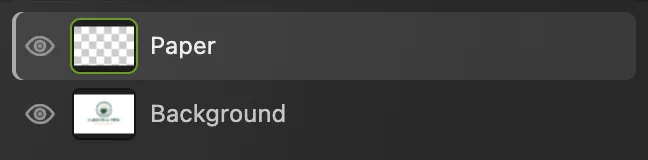
Paint on Paper; the original stays on Background. Choose a cream foreground color
Press D to reset the color squares. Click the front black square near the bottom of the toolbar. In Foreground Color, type F7F1E5 in the # field (the hex code), then click OK.

Click the front square to choose the foreground color; enlarged view. 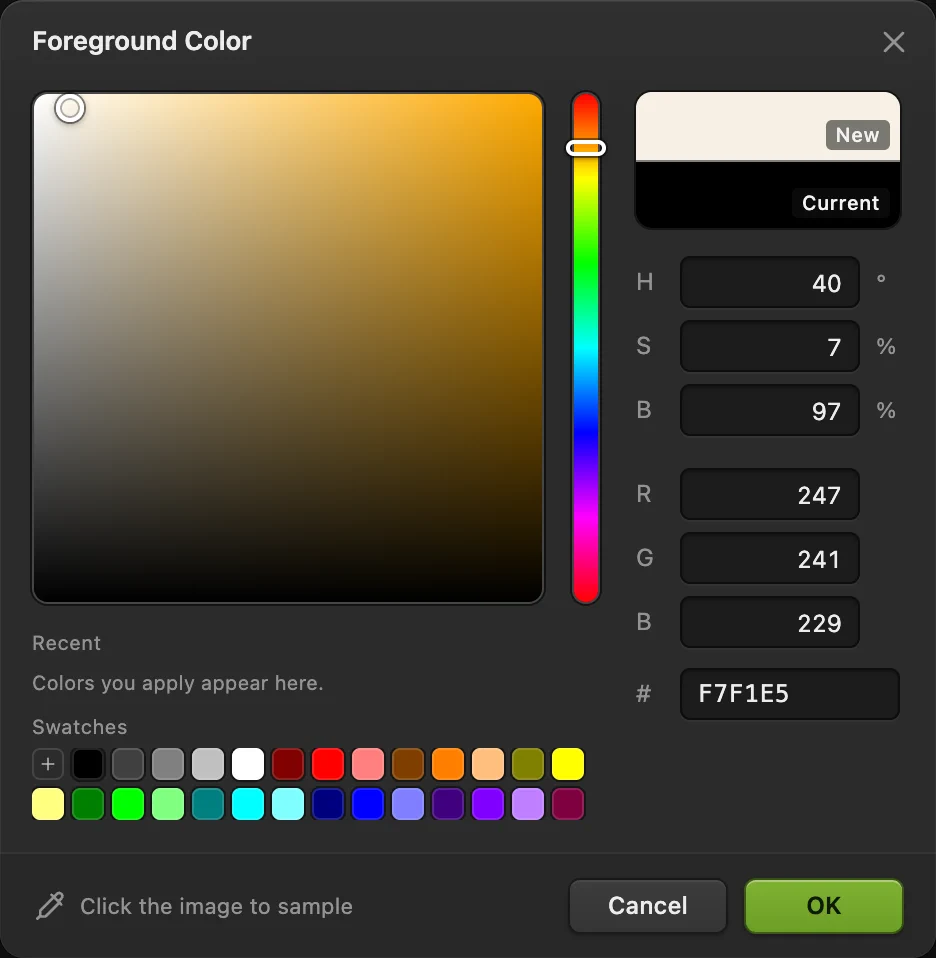
F7F1E5 is the light cream used for this card. Fill the white areas with Paint Bucket
Right-click the button above the text tool in the left toolbar, or press and hold it, then choose Paint Bucket. Tolerance (how far a color can differ from the pixel you click and still fill) stays at 32 and Opacity at 100%. Turn Contiguous off so enclosed white areas, such as the holes in letters, fill too, and turn Sample all layers on.
Sample all layers reads the visible graphic beneath the empty Paper layer. Click any white area away from the logo, such as the upper-left corner: the new color goes onto Paper.
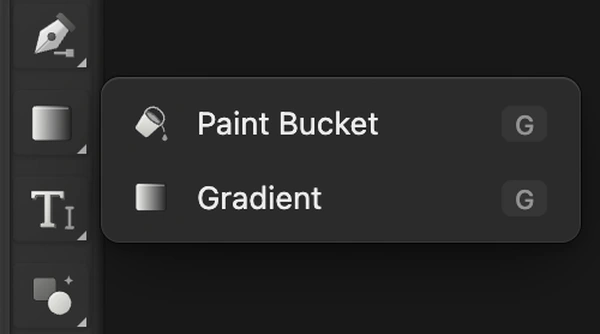
Paint Bucket shares the button above the text tool with Gradient; enlarged view. 
Keep Tolerance at 32 for the sample’s white areas. 
Contiguous off; Sample all layers on. Fill a rectangular accent bar
Choose again and name it Details. Press D for black. Right-click the rectangular selection button below Move and choose Marquee Select.
Draw a shallow rectangle centered below COFFEE ROASTERS, about as wide as that line. Leave a gap of about twice the height of the letters and keep the rectangle shorter than the capitals. Choose to make the bar black.
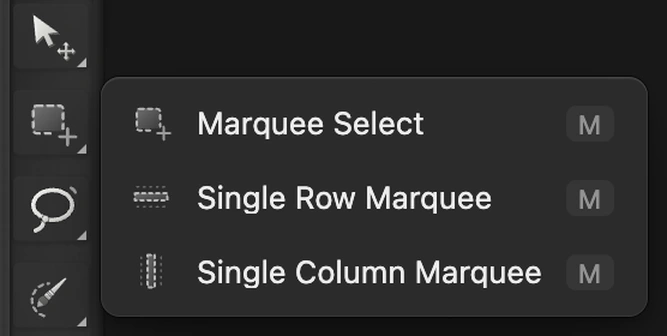
Choose Marquee Select from the button below Move; enlarged view. 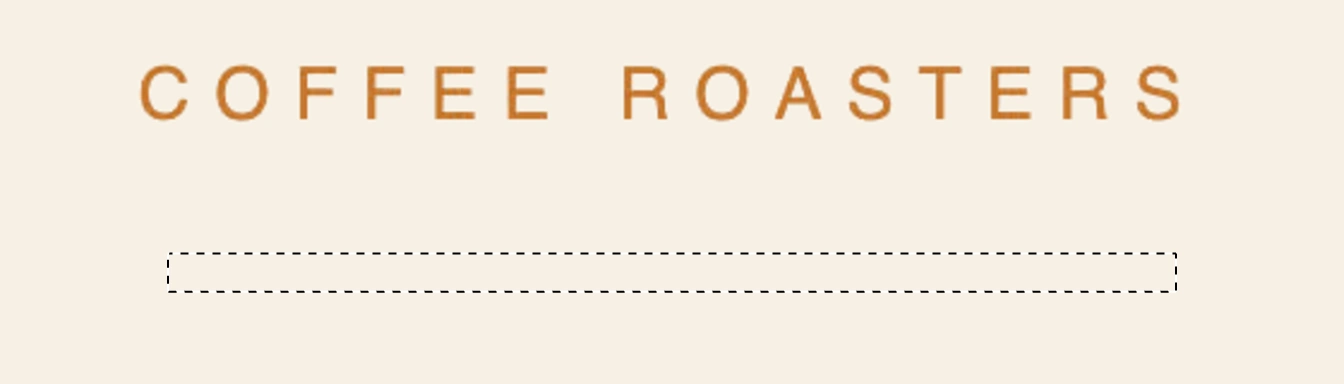
Make a shallow selection in the empty space below the lettering. 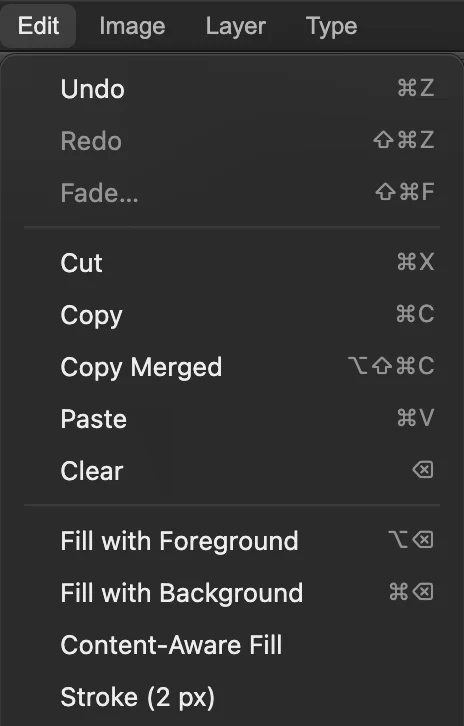
Fill with Foreground and Stroke (2 px) both apply immediately. Stroke a thin frame
Choose , then Set Amount to 48 px and click Contract. This moves the selection edges in from the canvas edges.
Choose , shown in step 4’s menu figure. It uses the current foreground color, still black. Choose to remove the moving selection outline.
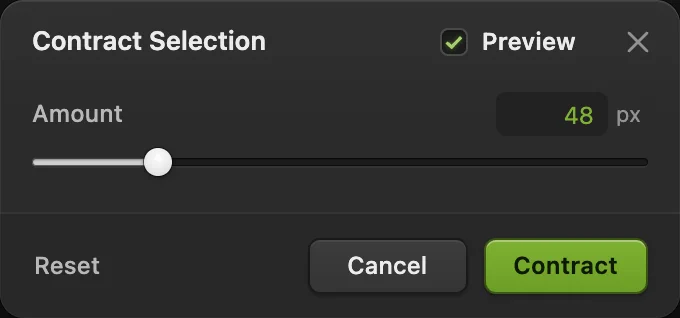
Contract by 48 px to give the frame an even margin. 
The 2 px frame, shown at 2×. Compare the edges and the original
Choose . The paper should be cream, including the holes in the letters and cup handle. The solid green and gold ink should keep its colors.
Hide Details and Paper with their eye buttons to see the original Background. Show both again to restore the finished card.
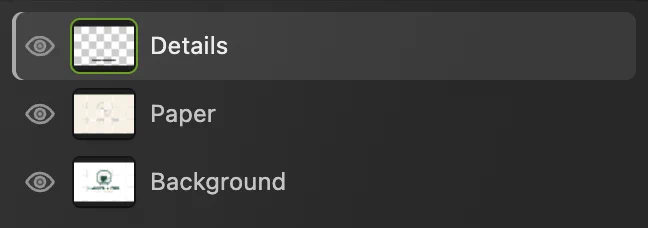
Hide the two edited layers to compare with the original graphic below. Export the card and keep the layers
Choose for the finished graphic, or if you need JPEG, then click Export. Export writes a separate file.
Choose to keep Paper, Details and the original as separate layers. After that, updates the project. If you choose before saving a project, it keeps the opened image’s format: this sample becomes a flat JPEG, with Save Image settings on the first save.
Fix common fill problems
The edges look pale on a dark background
A JPEG’s edge pixels are already mixed with its old background. Paint Bucket replaces matching pixels without rebuilding that soft edge. For a dark replacement behind a logo, isolate the ink with Color Range and a mask first, then put the new color behind it.
Fill or Stroke is unavailable
Select an unlocked image layer, such as Paper or Details, rather than a text, shape or fill layer. Stroke also needs an active selection.
What to do next
- Blend between colors or transparency: use the Gradient tool.
- Control the area you fill: work with selections.
- Put your own words on the card: add text to an image.
Fills and strokes: questions and answers
What does Paint Bucket Tolerance control?
In Lil Cactus, Tolerance runs from 0 to 255. It controls how different a pixel can be from the pixel you click and still be filled. A higher value includes more colors.
What does Contiguous mean for Paint Bucket?
In Lil Cactus, Contiguous on fills matching pixels connected to the click. With it off, matching pixels anywhere in the image can fill, including enclosed letter holes.
What happens if I use Fill without a selection?
In Lil Cactus, Fill with Foreground or Fill with Background covers the unlocked image layer across the canvas. With a selection active, only that selection is filled.
Can I choose a different width for Edit › Stroke?
No. In Lil Cactus, the Edit menu’s Stroke (2 px) command has a fixed 2 px width. For another width, use a shape with an adjustable outline.
Can I undo a fill or a stroke?
Yes. In Lil Cactus, choose Edit › Undo after the operation completes. Edit › Redo reapplies it.
Keep going
 How to use the Gradient toolBlend colors or transparency with a drawn gradient or a fill layer.Beginner · 8 min
 How to make a selection in a photo editorPick the right tool, add and subtract, feather and save a selection.Beginner · 6 min
 How to draw shapes and export vector graphics (SVG)Editable shapes for icons, badges and buttons, exported as SVG.Beginner · 6 min